How much time do you lose hunting through the dashboard for one store setting?
The unified settings center gives you a single place to manage everything about your Salla store. Every settings page, from your profile and store plan through to payments, shipping, marketing, and installed apps, sits behind one panel with a sidebar you can move around freely. No jumping between pages, no losing your place halfway through a change. In this guide, you'll learn how to open the unified settings center, how to expand it to full page, and what each settings page in the list controls.
The unified settings center is one panel in your Salla dashboard that holds every store setting. You can open it from the settings icon in the main menu or from any store section, then use its sidebar to switch between profile, plan, payments, orders, shipping, and every other settings page without leaving the screen.
📌 Article overview
- How to open the unified settings center
- How to view settings in full-page mode
- The store settings list
- Frequently asked questions
👣 How to open the unified settings center
From the main menu
1. From the main dashboard menu, click the settings icon.

2. A side panel opens listing every section of your store, so you can move between them quickly.
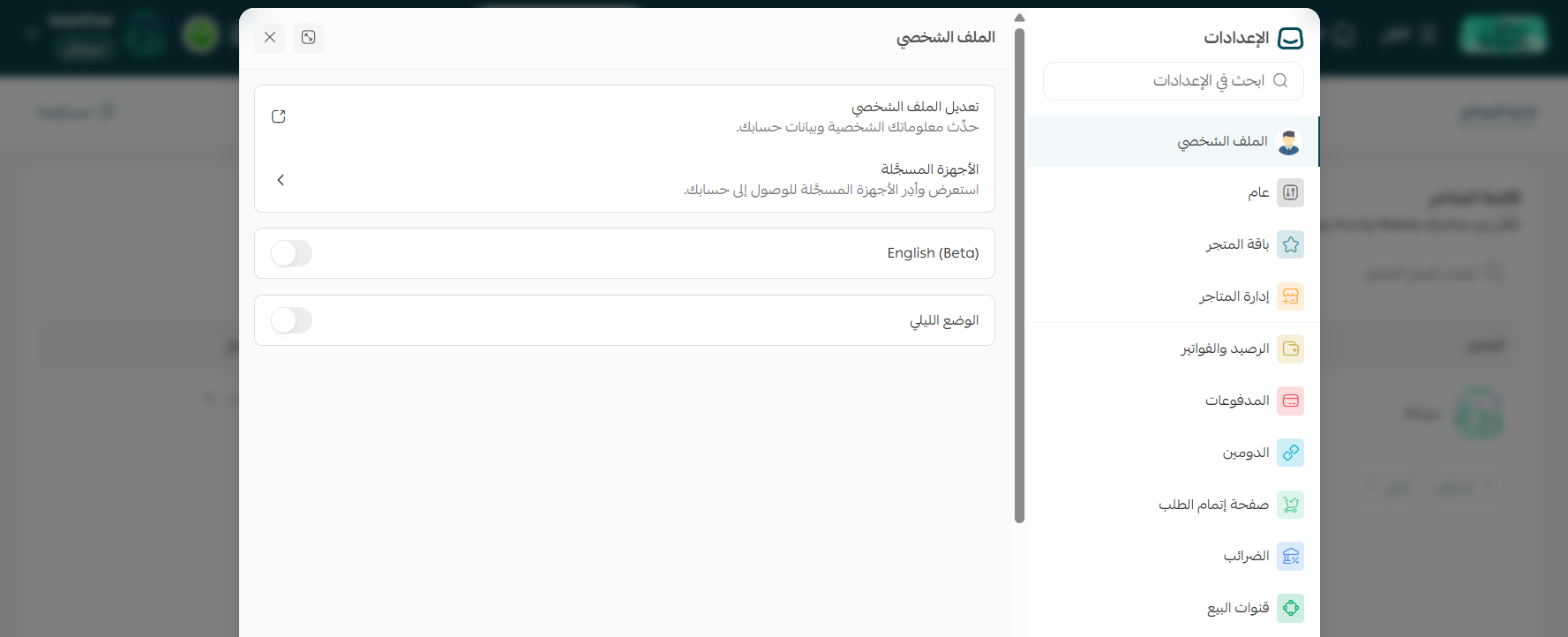
3. Click any section and its settings open right there inside the settings center.
💡 Example: choose (Store plan) and every setting tied to your plan appears in the panel.
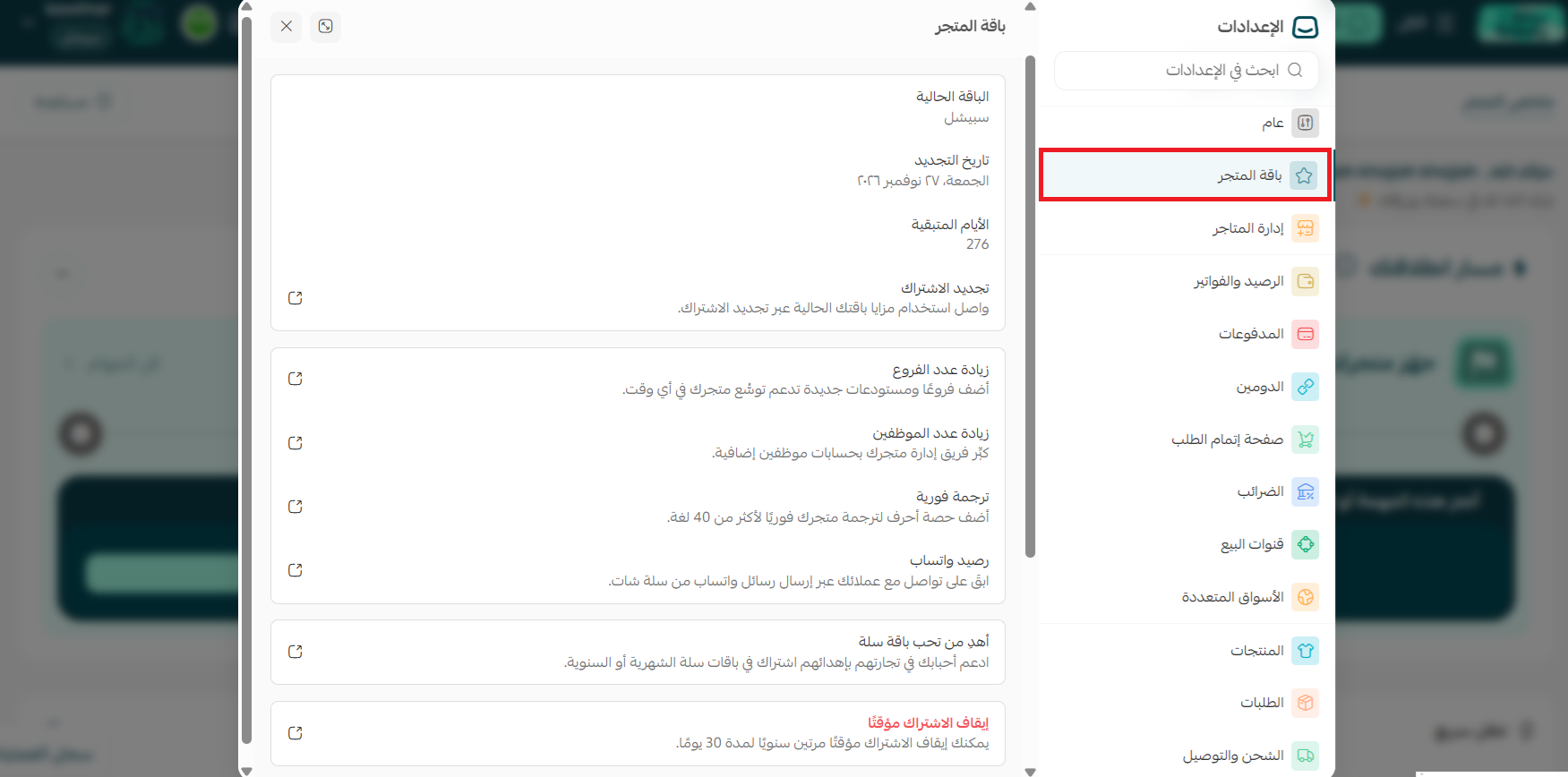
From a store section
You can also reach the settings center from any store section you happen to be working in.
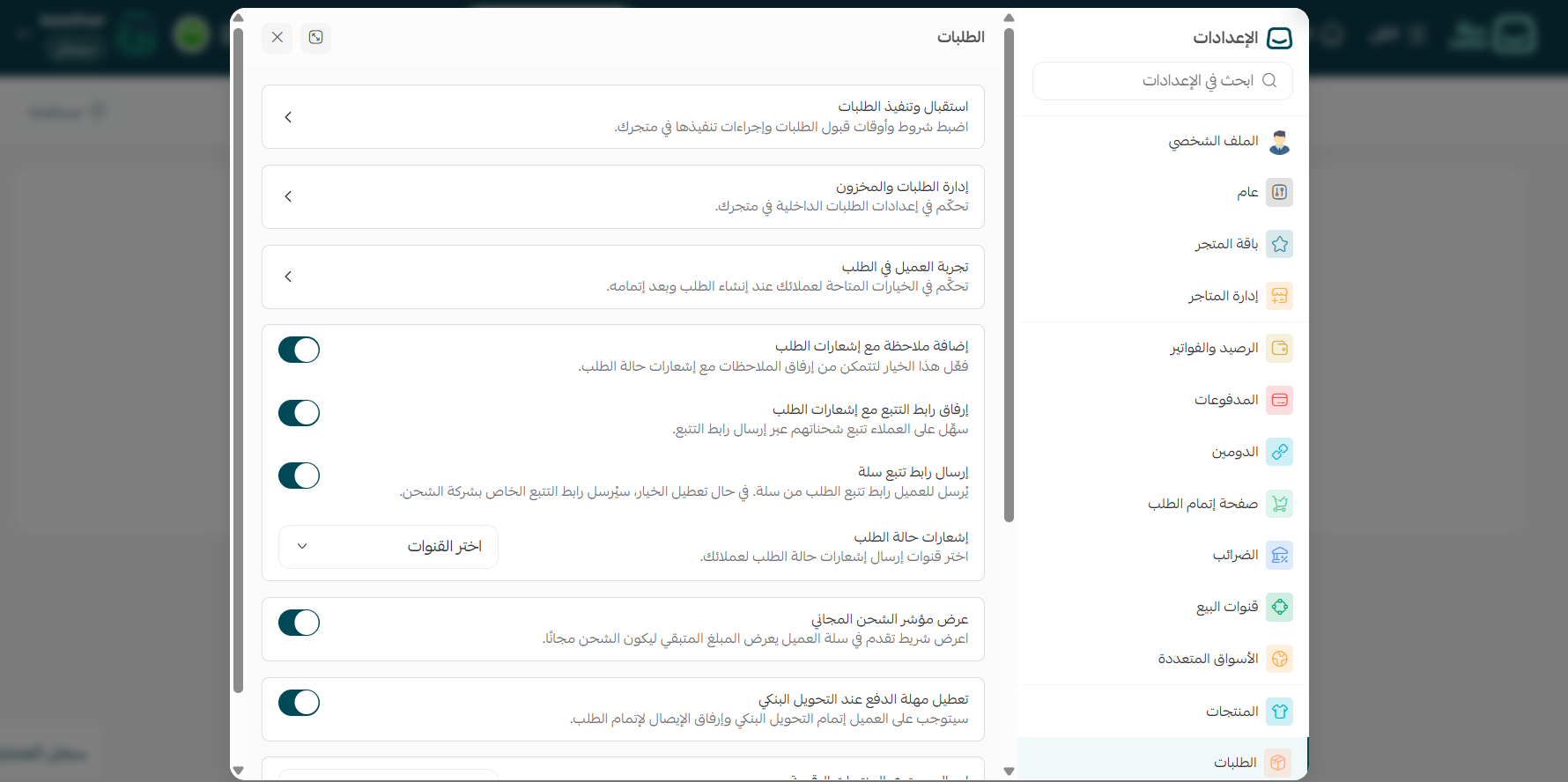
💡 Example: from the orders section, click (Order settings) and you land straight in the unified settings center.

The settings center opens with that page already selected.
🚀 How to view settings in full-page mode
To give yourself more room, click the full-page icon at the top of the settings center.
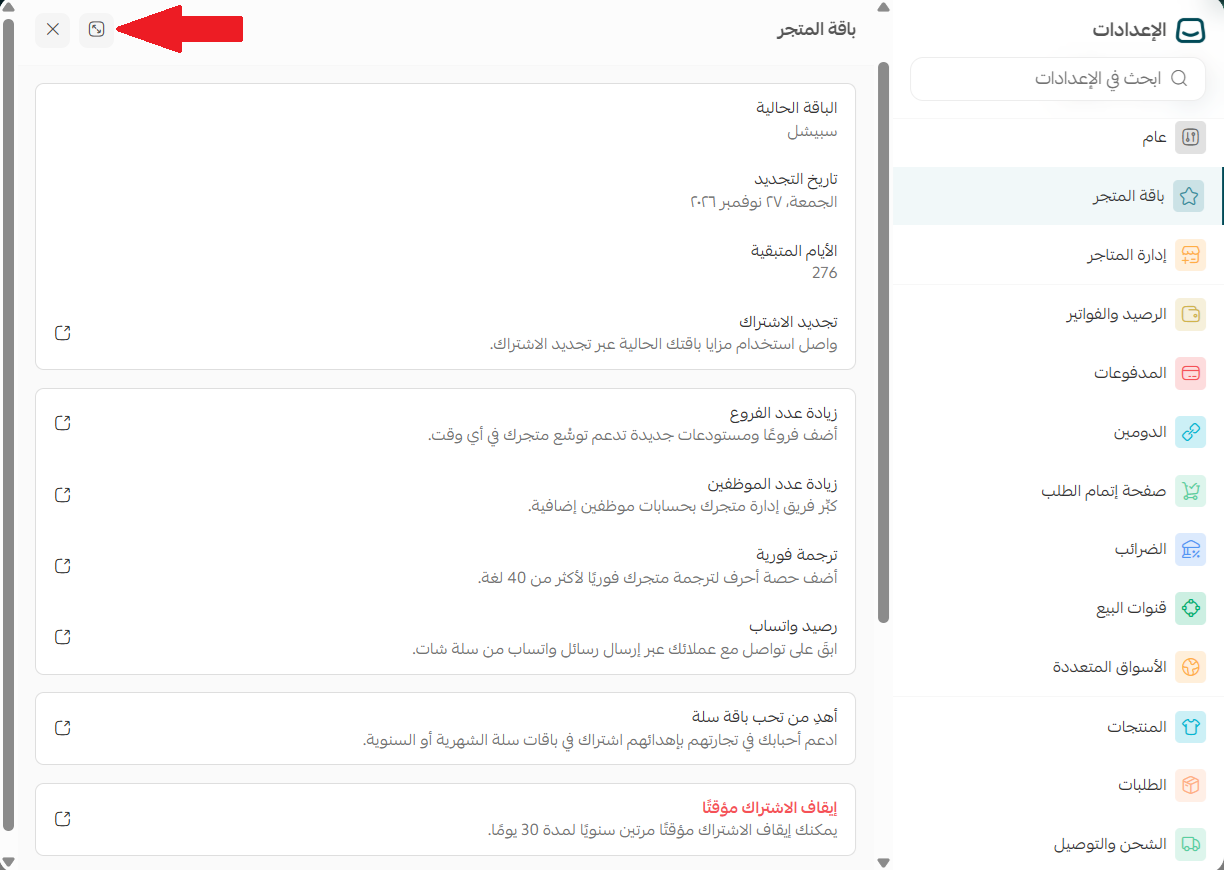
The settings then fill the whole dashboard page, which makes long settings pages much easier to work through.
🎯 The store settings list
Here is what each page in the settings center controls, and where to read more about it.
Profile
Manage your personal profile and account security in one place: edit your details, change your password, control your login options, turn on two-factor authentication, and sign out of all devices to keep your account protected.
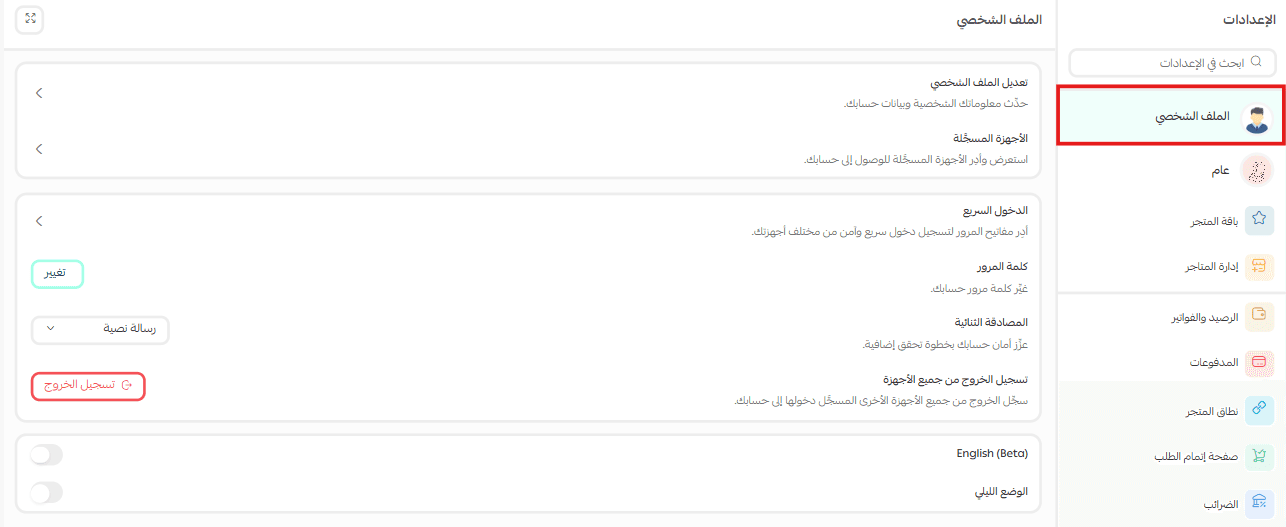
For more details, see profile settings.
General
The General page gives you full control over your store's core settings:
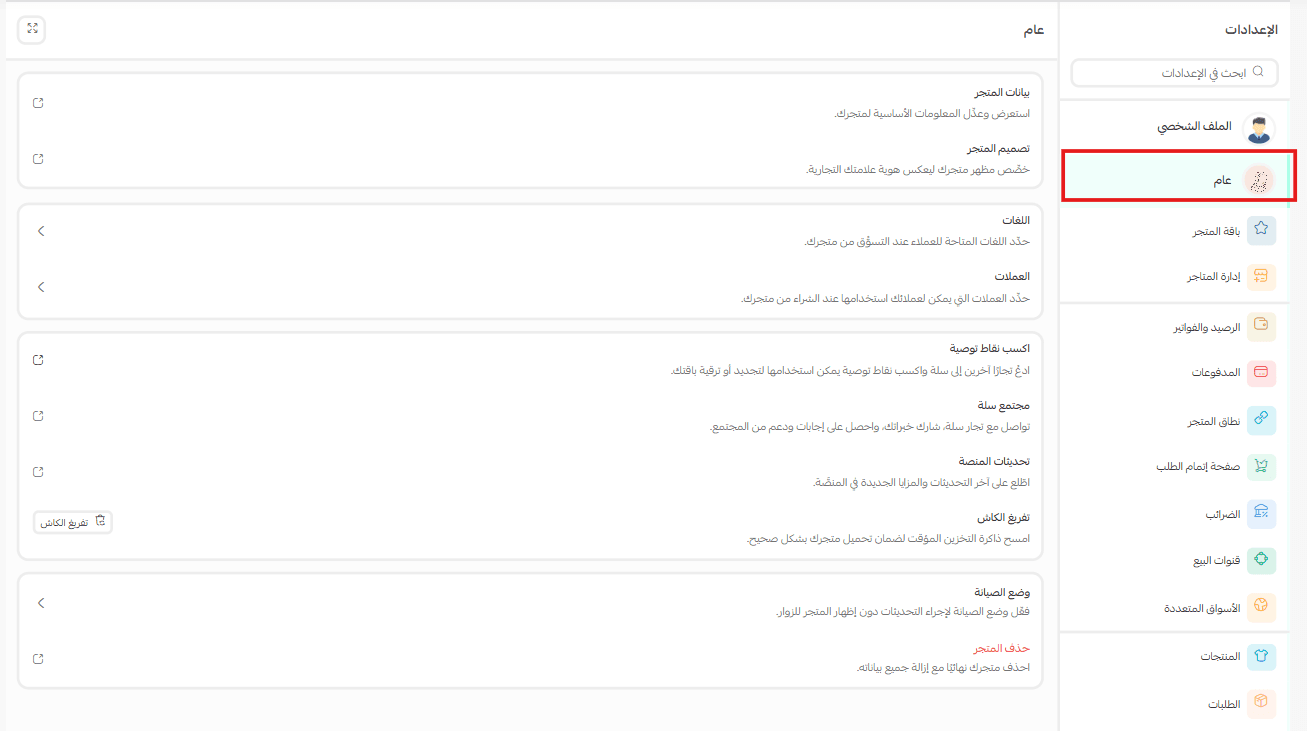
1. Store details and design: update your main store information, including store identity, contact channels, and your linked accounts, and set your store location through branch and warehouse settings.
For more details, see customizing your basic store information.
2. Languages: turn on multiple languages for your store, translate your content, and control which languages shoppers can switch to while browsing.
For more details, see managing the languages added to your store.
3. Currencies: enable the currencies you want to offer in your store.
For more details, see adding a new currency.
4. Earn referral points: track the points you have, see which rewards they unlock, and follow the steps for earning more by sharing your code with new stores, then redeem them when you renew or upgrade your subscription.
For more details, see the referral program.
5. Salla community: takes you to the Salla community, where merchants gather to swap experience, ask questions, follow platform news and events, and reach learning resources that help them grow their stores.
For more details, see the Salla community guide.
6. Platform updates: the platform updates page lists the latest releases and new features on Salla, so you can keep up with improvements and make use of everything new.
7. Clear cache: refresh your store data immediately so customers see your latest changes without delay or content-loading issues.
8. Maintenance mode: temporarily take your storefront offline while you make updates, so visitors get a clean experience once you are done.
For more details, see turning on maintenance mode.
9. Delete store: close the store permanently and remove all of its data from the platform. This cannot be undone.
Store plan
Review and manage your current subscription: renewal date, days remaining, and the option to cancel or freeze. You can also upgrade or renew your plan here, and manage add-ons such as extra branches, staff seats, and instant translation.
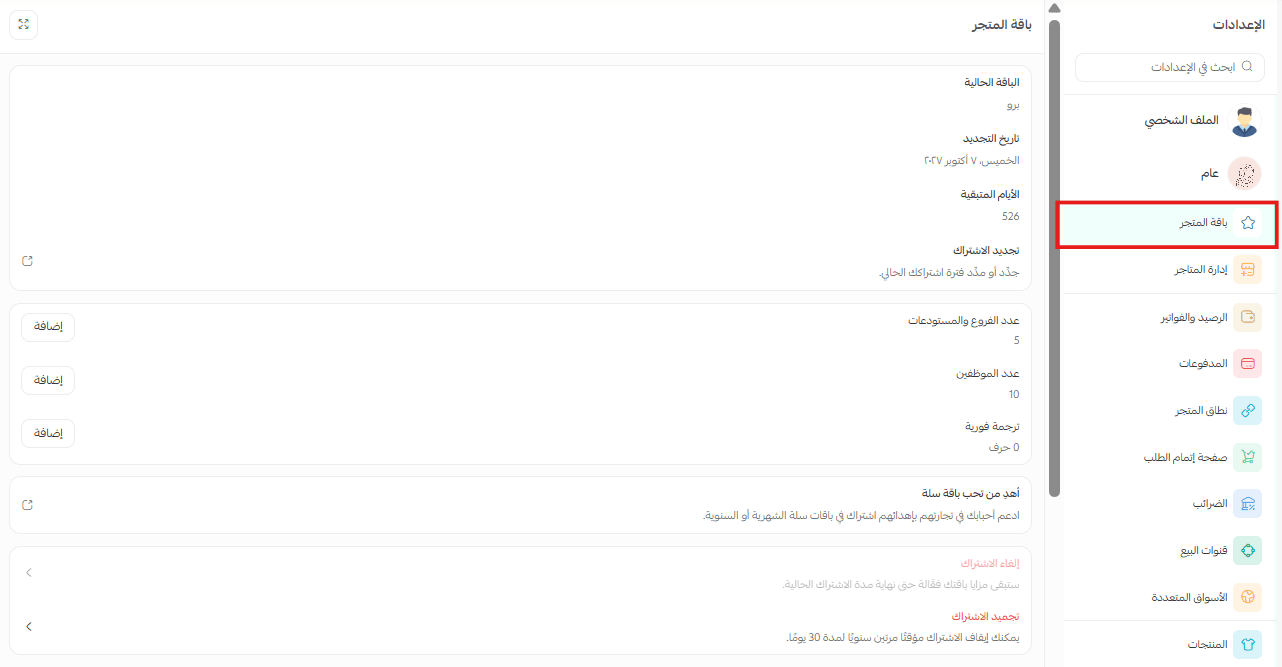
For more details, see Salla store plans.
Store management
Switch between the stores you own from one place, so you can run several stores without signing out and back in each time.
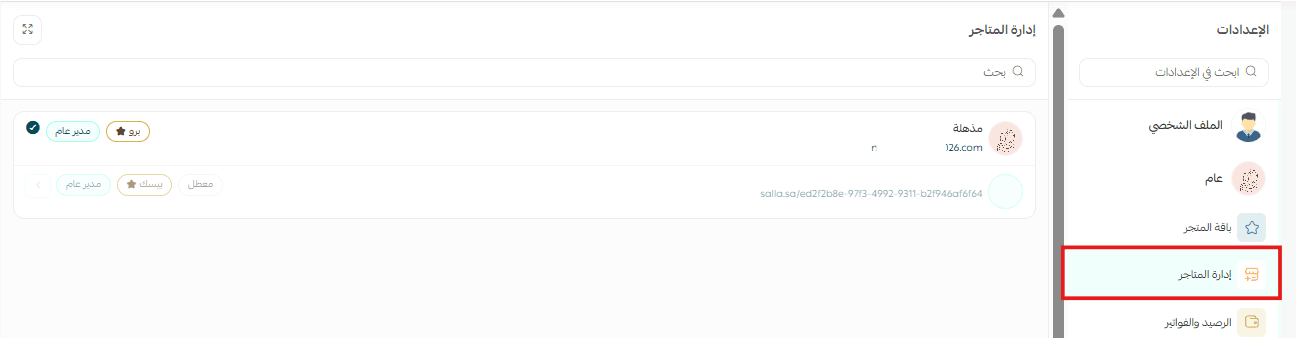
For more details, see managing your linked stores list.
Balance and invoices
Manage the payment methods on your account, add billing cards, set your business and tax details, and receive invoices and receipts in an organized way.
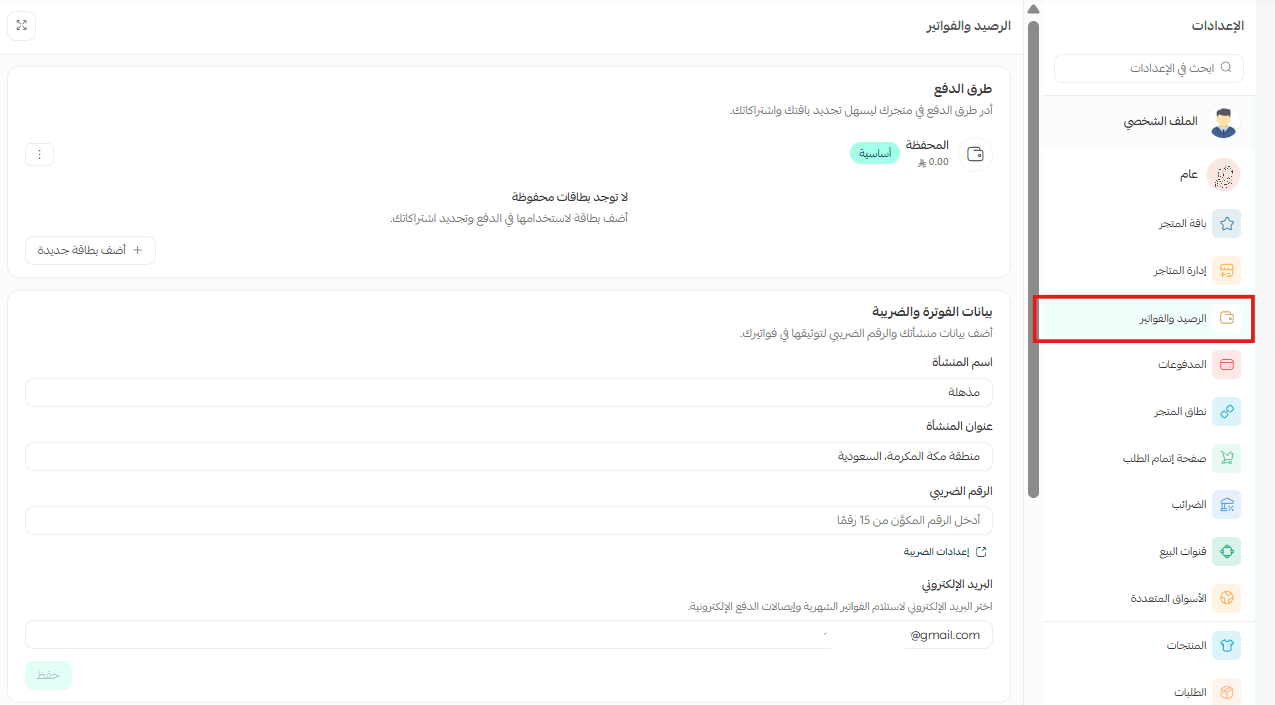
Payments
Take full control of how your store gets paid: which payment methods customers see, plus your payout cycle and its limits, so payment operations run the way you want them to.
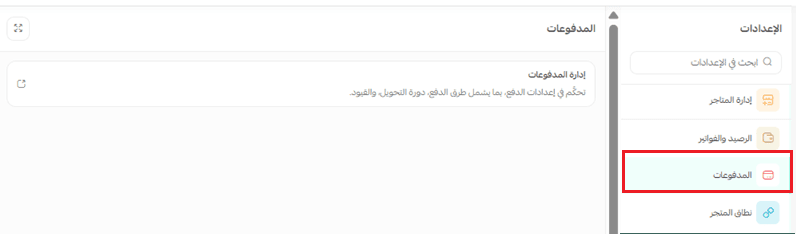
For more details, see turning on electronic payments.
Store domain
Manage your store's web address, whether you use your current domain or the default subdomain. You can connect, transfer, or reserve a custom domain, and control auto-renewal and DNS status so your store keeps running without interruption.
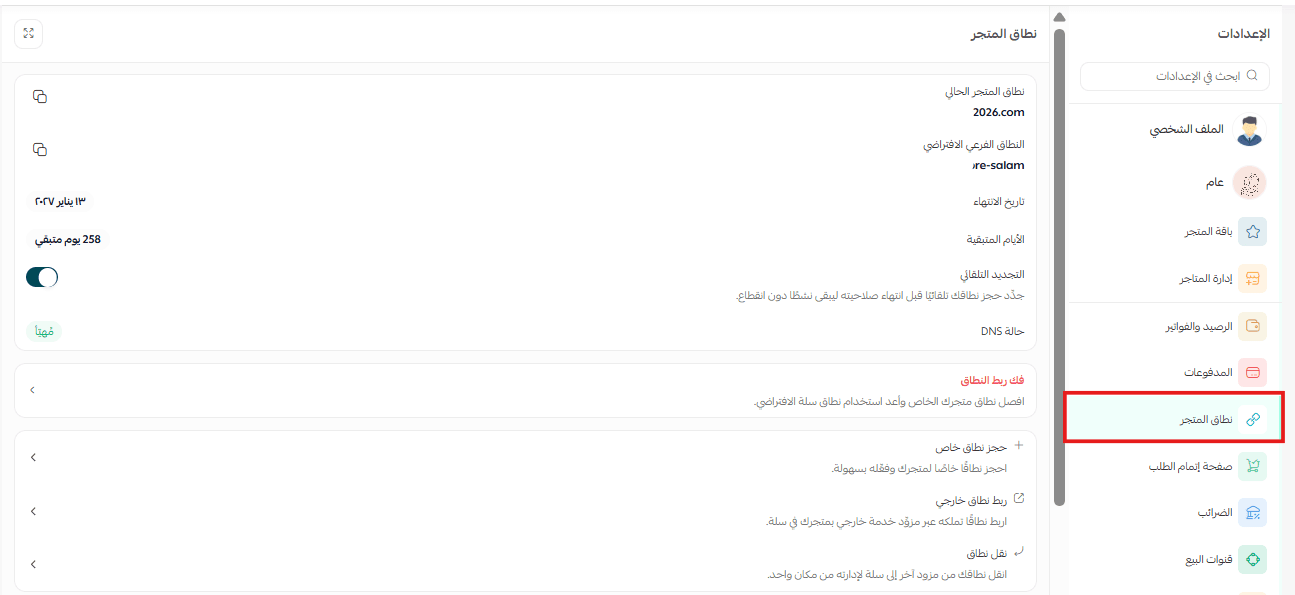
For more details, see managing your store domain on Salla.
Checkout page
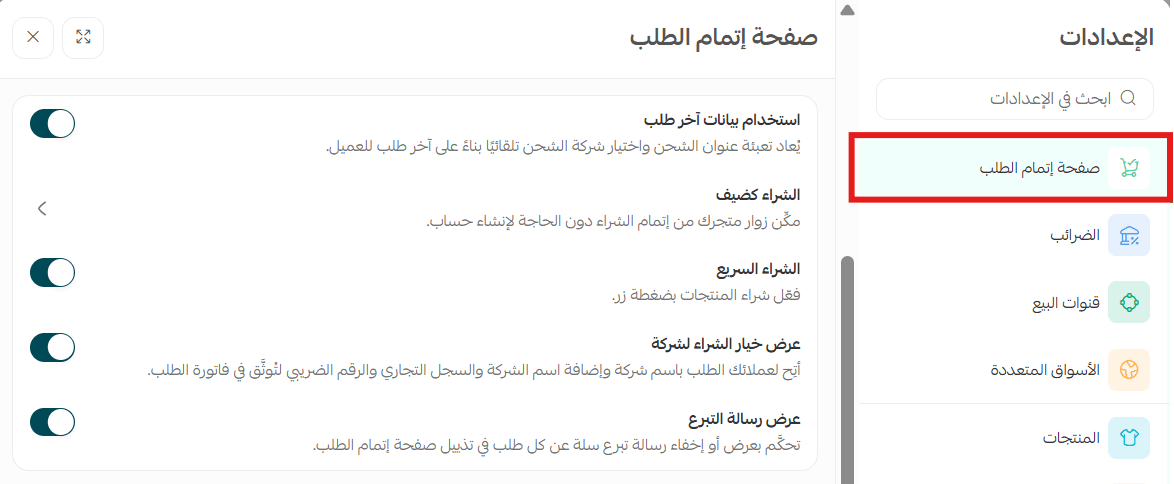
Shape the checkout experience in your store by customizing and simplifying the payment steps. You can turn on options such as guest checkout, reusing details from the customer's last order, buying as a business, and showing a donation message.
- Use details from the last order
With this on, the delivery address and shipping company are filled in automatically from the customer's previous order, which makes checkout faster.
- Guest checkout
Lets a customer complete an order quickly without creating a store account.
For more details, see the guest checkout feature.
- Quick buy
Turn on quick buy so a customer can complete a purchase without going through the cart.
For more details, see turning on quick buy.
- Show the buy-as-a-business option
Lets a customer buy on behalf of a company by entering a commercial registration number and tax number during checkout.
- Show the donation message
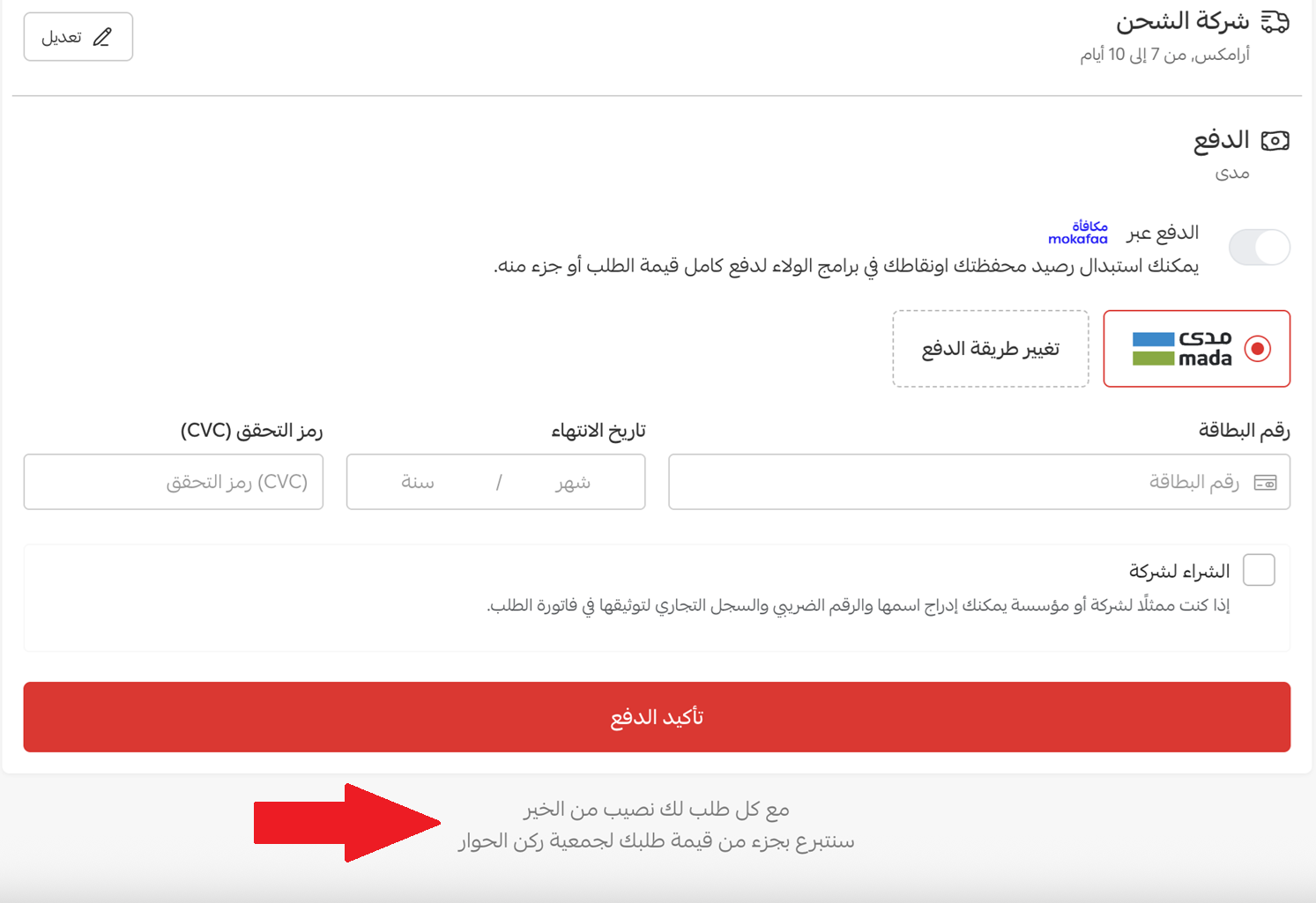
Shows or hides the donation message on the checkout page, with the option to add the donation amount to the cart.
📝 Important notes
The donation message is available to stores using Salla Payments and is on by default. Stores on the Special plan are the exception: for them it is hidden by default. Either way, you can show or hide it as you prefer.
When (Show the donation message) is on, the message appears at the bottom of the checkout page.
For more details, see the payment methods page.
For more details, see what the customer sees on the checkout page.
Taxes
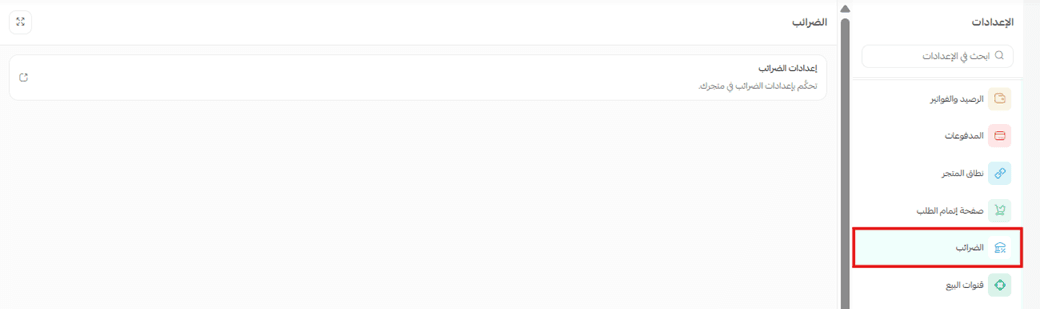
Control how tax is applied and managed in your store, including tax rates and how they are calculated, to match how your business operates.
For more details, see setting up VAT.
Sales channels
Widen your reach by connecting your store to more than one sales channel. From here you manage your store app, marketplaces, point of sale, and landing pages, so you can sell across several platforms at once.
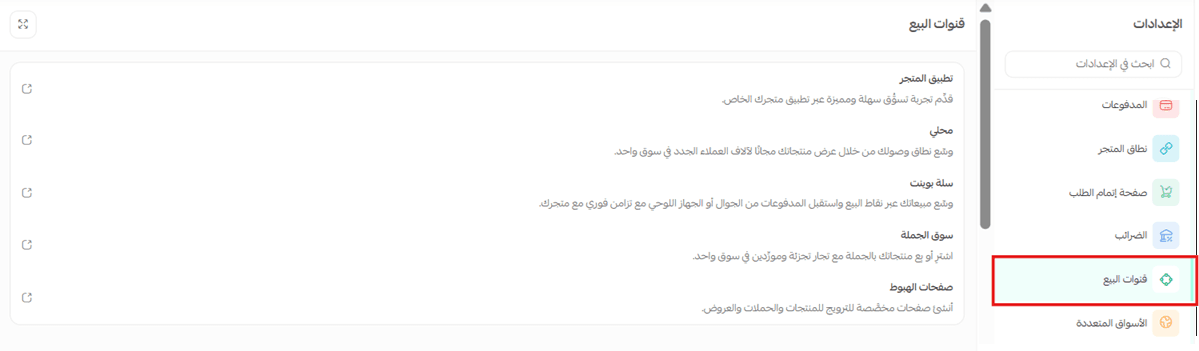
For more details, see the store app.
For more details, see Mahally.
For more details, see Salla Point.
For more details, see Souq Eljomla.
For more details, see landing pages.
Multiple markets
The multiple markets page lets you run your store across several countries, controlling how the store appears, how products are priced, and what is available to buy and taxed in each market according to its country.
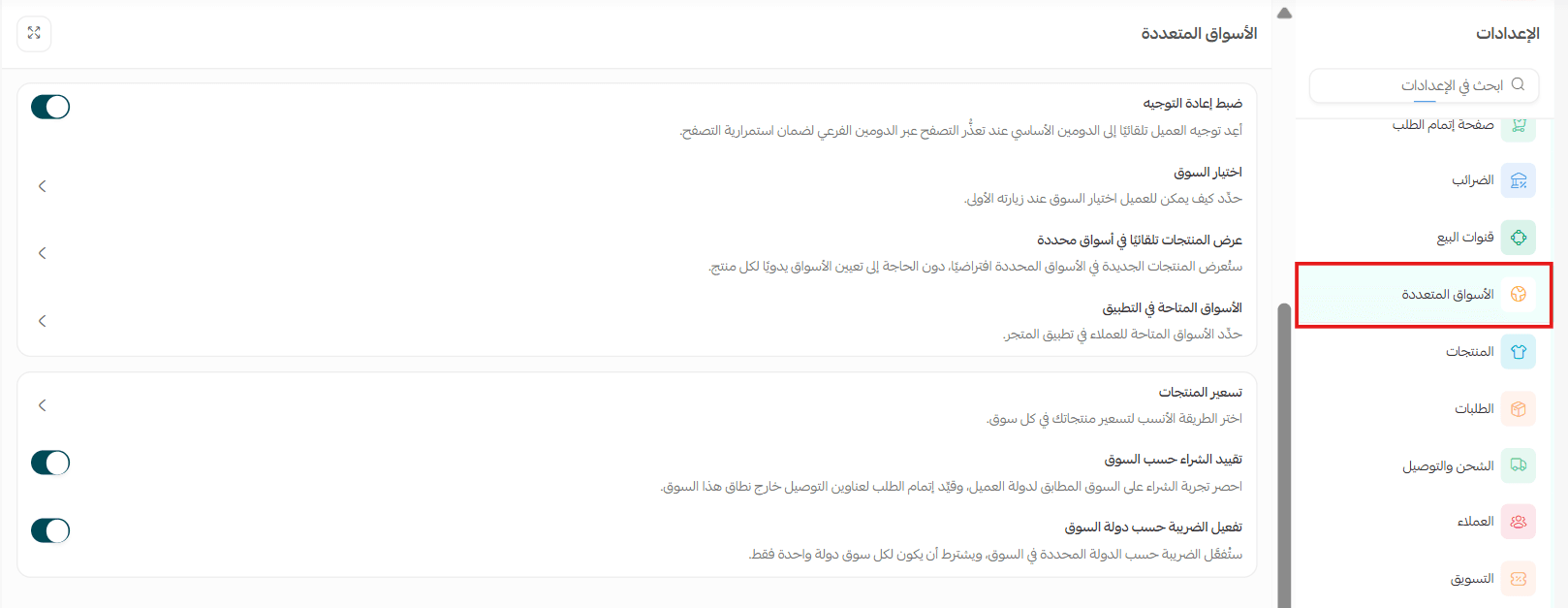
For more details, see setting up and managing multiple markets.
Products
Control every aspect of how products appear in your store, from display, filtering, and images through to price and stock details.
You can also tailor the shopper's experience through display, sorting, and pricing options that suit what you sell.
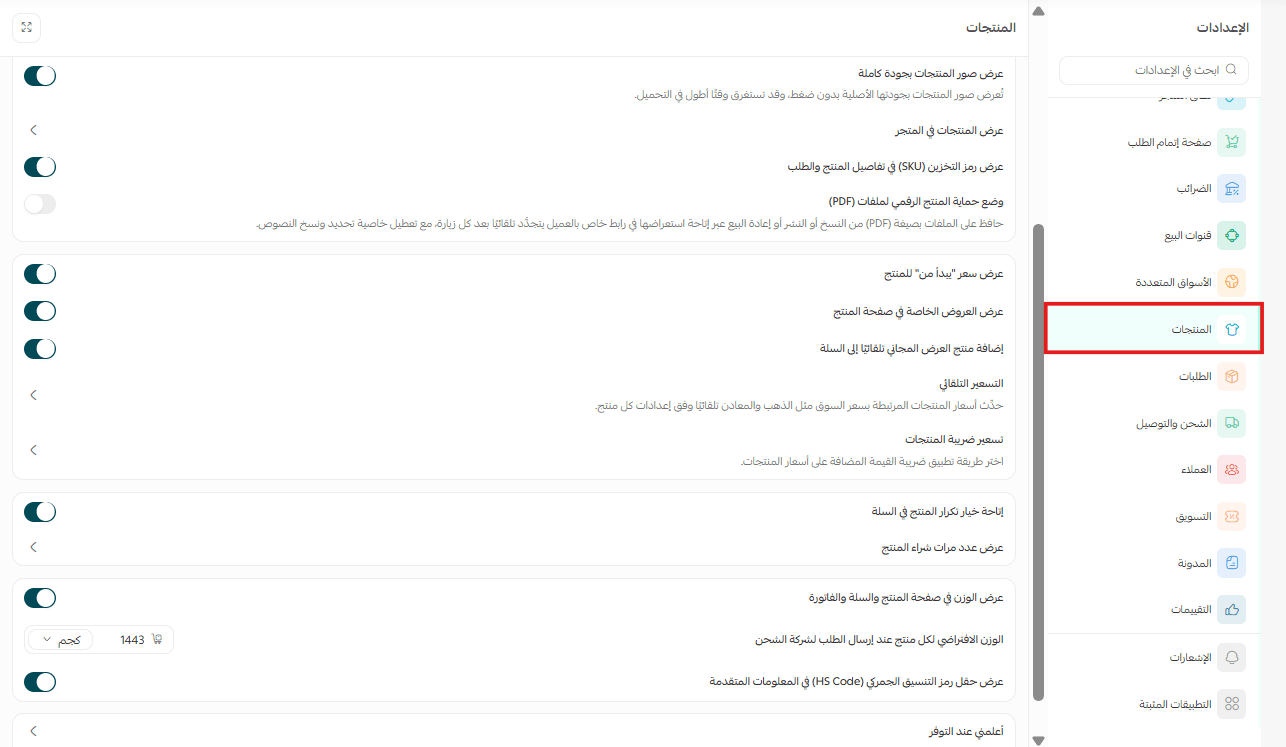
For more details, see product settings.
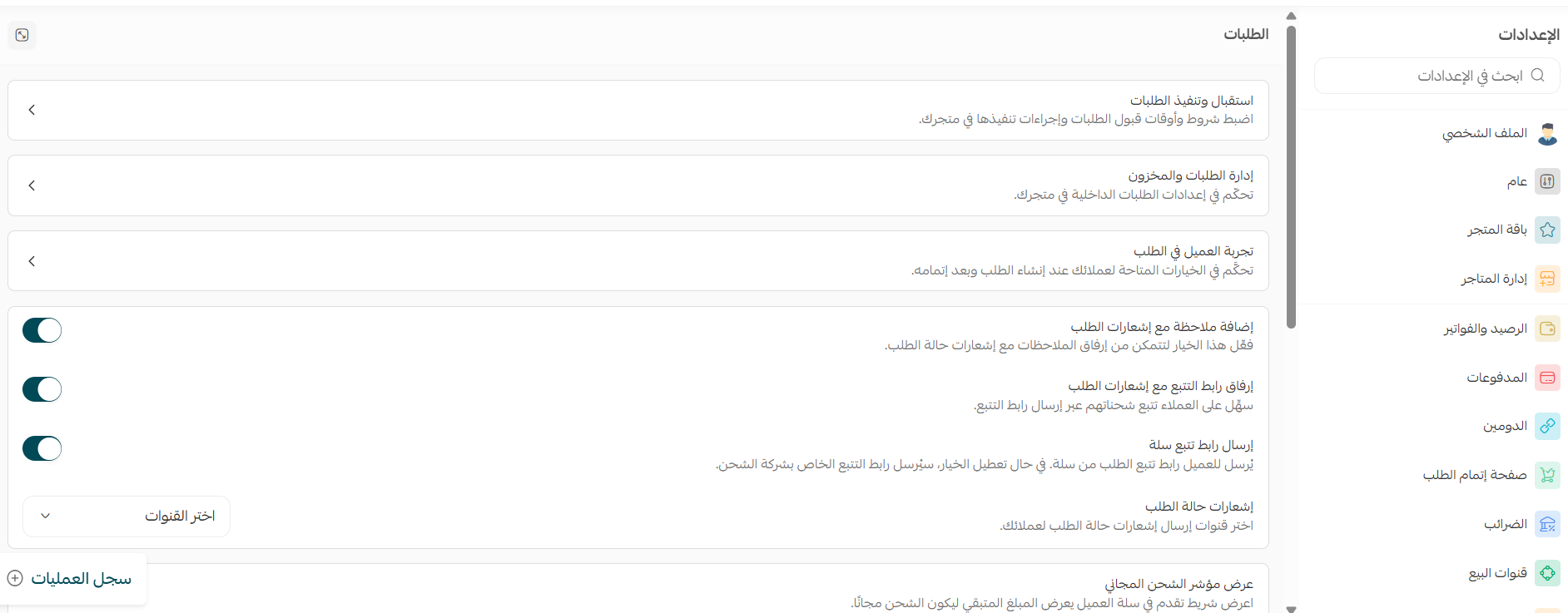
Orders
Take full control of the order cycle in your store, from accepting orders and setting their conditions to managing notifications and order statuses.
You can also shape the post-purchase experience, including tracking, cancellation, returns, and payment and shipping settings, to match your store policy.
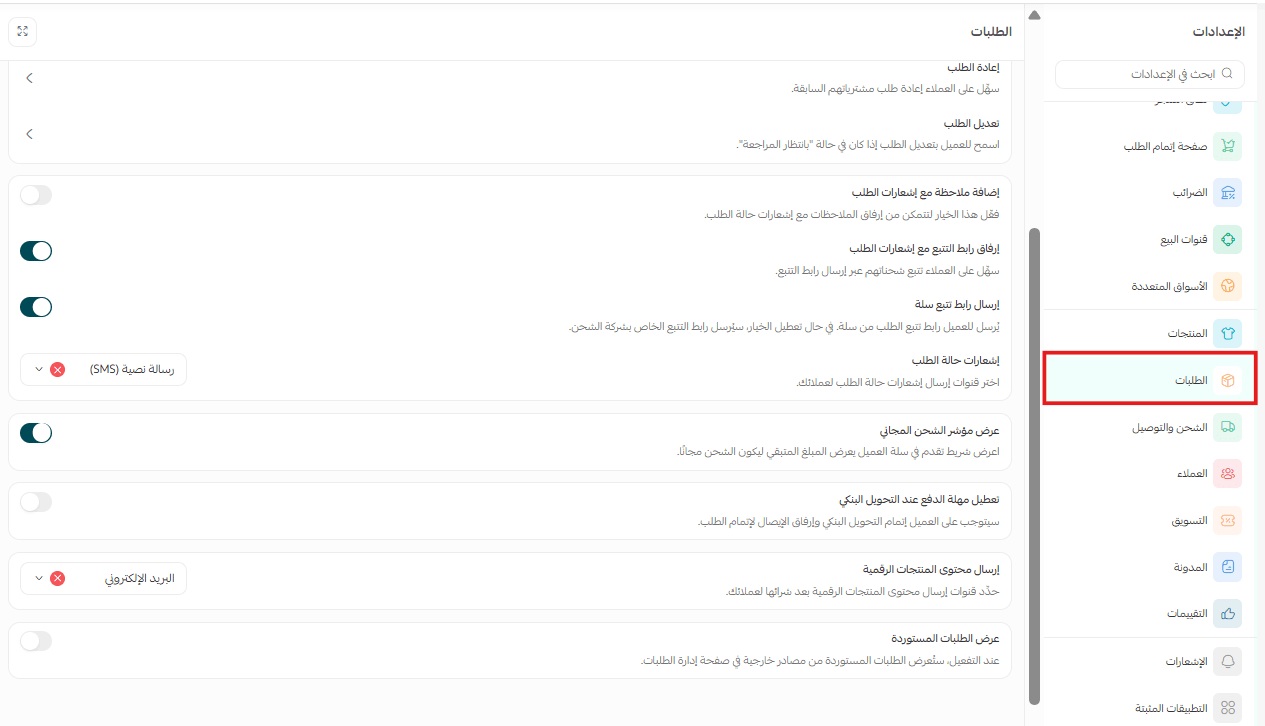
For more details, see customizing order settings.
Shipping and delivery
Manage every delivery setting in your store, including shipping companies, delivery methods, and costs. You can also define shipping zones, delivery times, and shipping policies for a more accurate and flexible delivery experience.
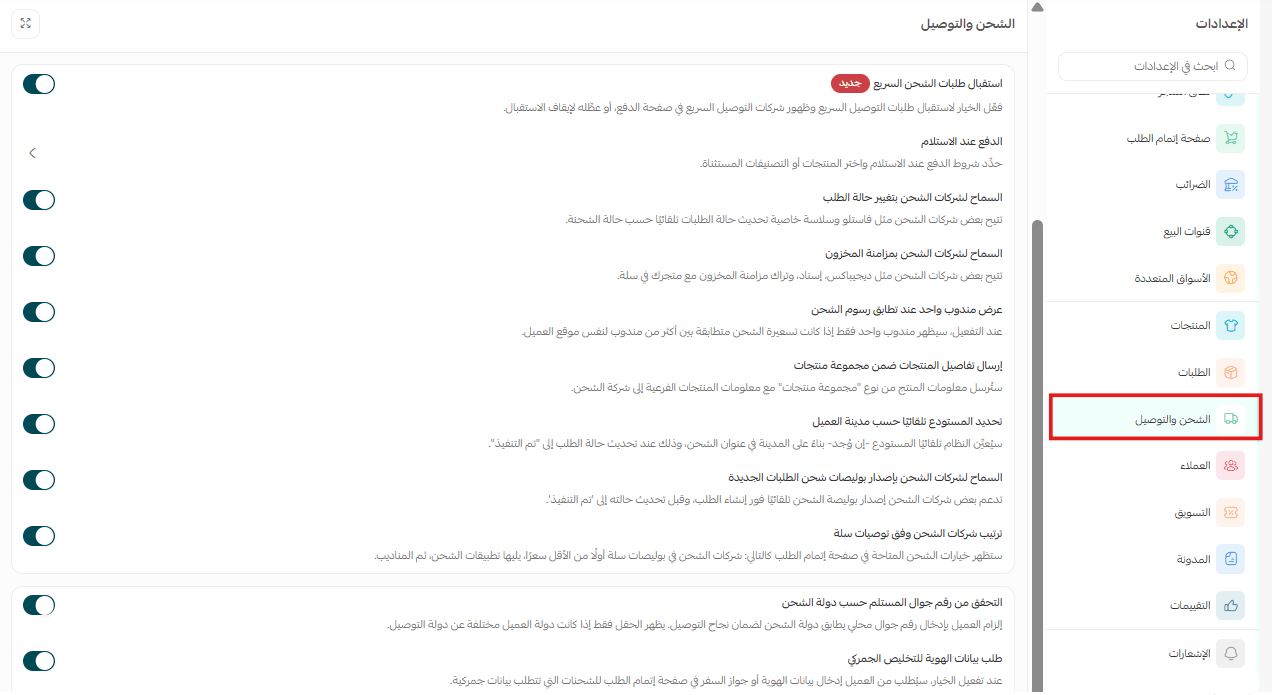
For more details, see customizing shipping and delivery settings.
Customers
Control how customers log in and create accounts in your store, including sign-in methods and registration requirements. You also manage security and store behavior here, such as verification, cart merging, and shipping addresses.
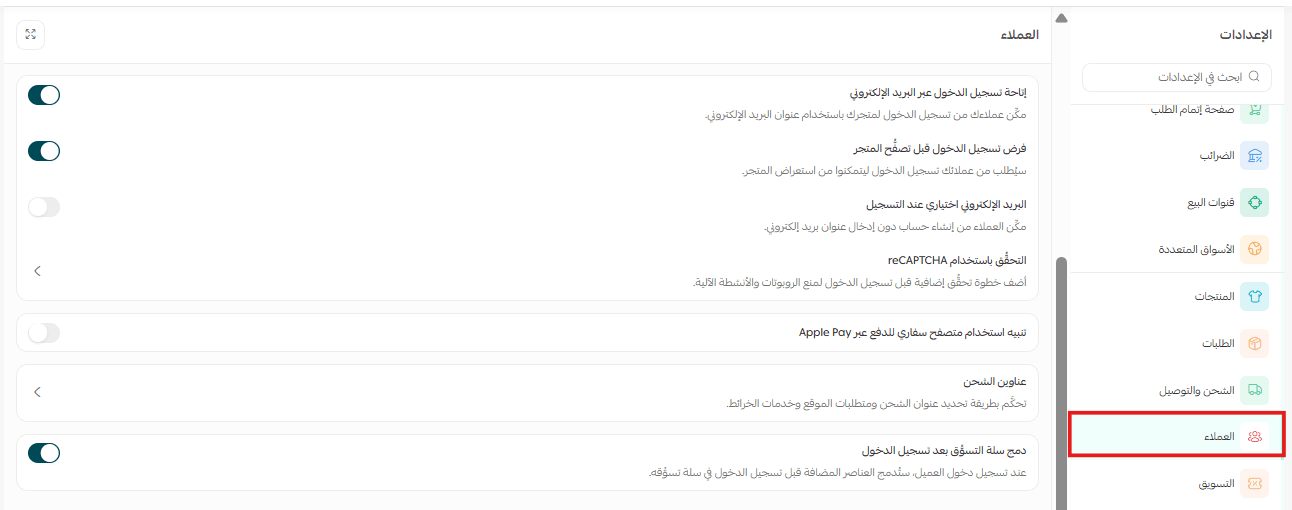
For more details, see customer settings.
Marketing
Manage your offer and discount tools, including coupons, special offers, and how they are shown to shoppers. You can also customize how discounts appear and how products are recommended, to sharpen your selling strategy.
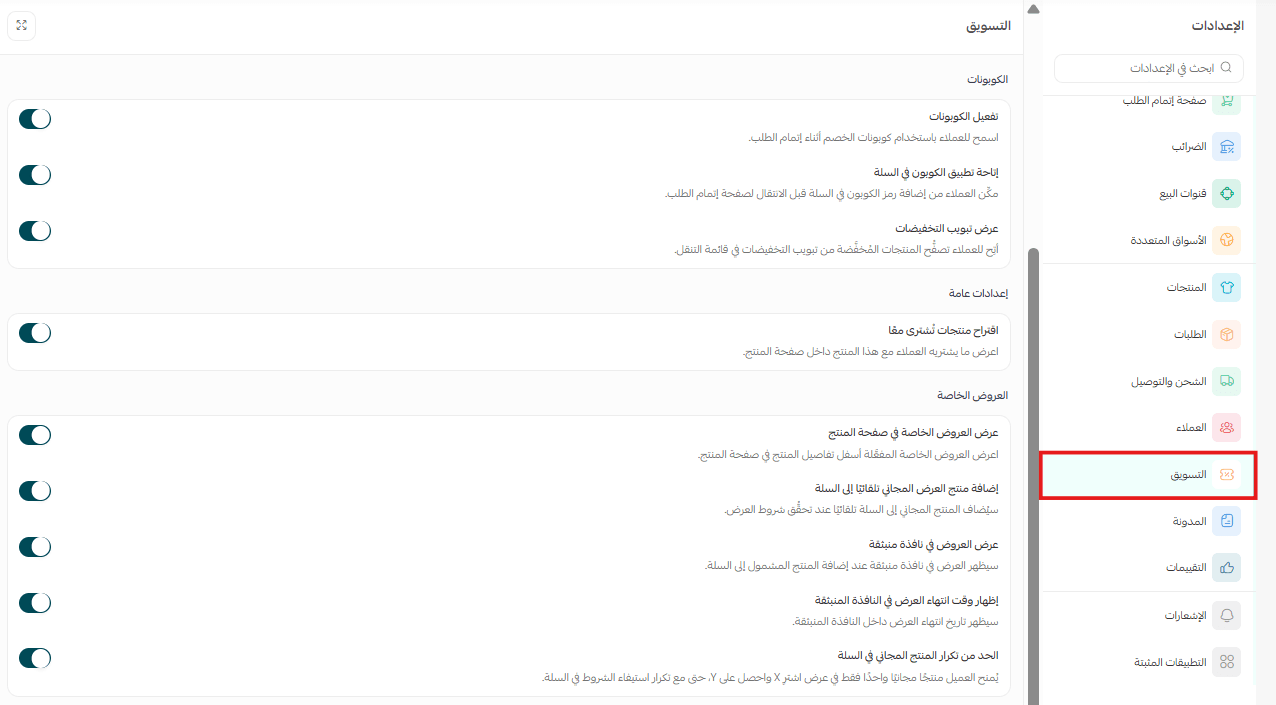
For more details, see customizing marketing settings.
Customer wallet
Manage the digital wallet in your store: turn the service on, set how long balance stays valid, and cap how much balance can be used. It lets you shape the wallet experience around your store policy.
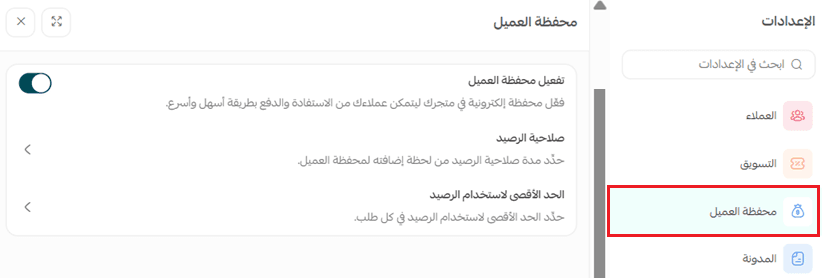
For more details, see customizing the customer wallet.
Blog
Manage your store blog and control whether it appears in your storefront. You can also enable engagement on articles and improve how they rank in search engines to widen your reach.
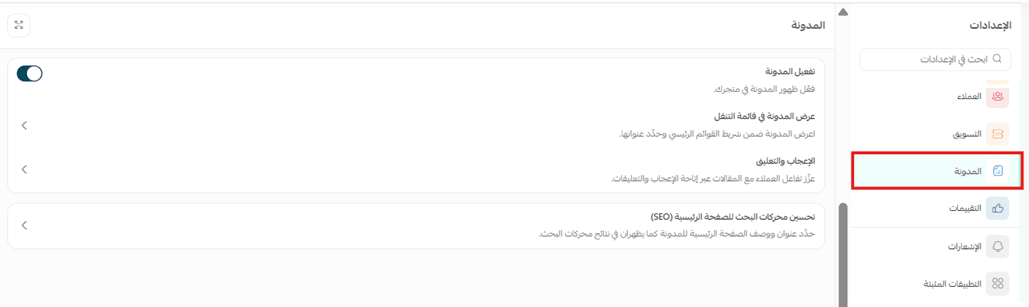
For more details, see managing your store blog on Salla.
Reviews
Manage customer reviews and where they appear, whether on products, categories, or your app. You can also customize how reviews are requested and published, and handle replies, to build trust and improve the shopping experience.
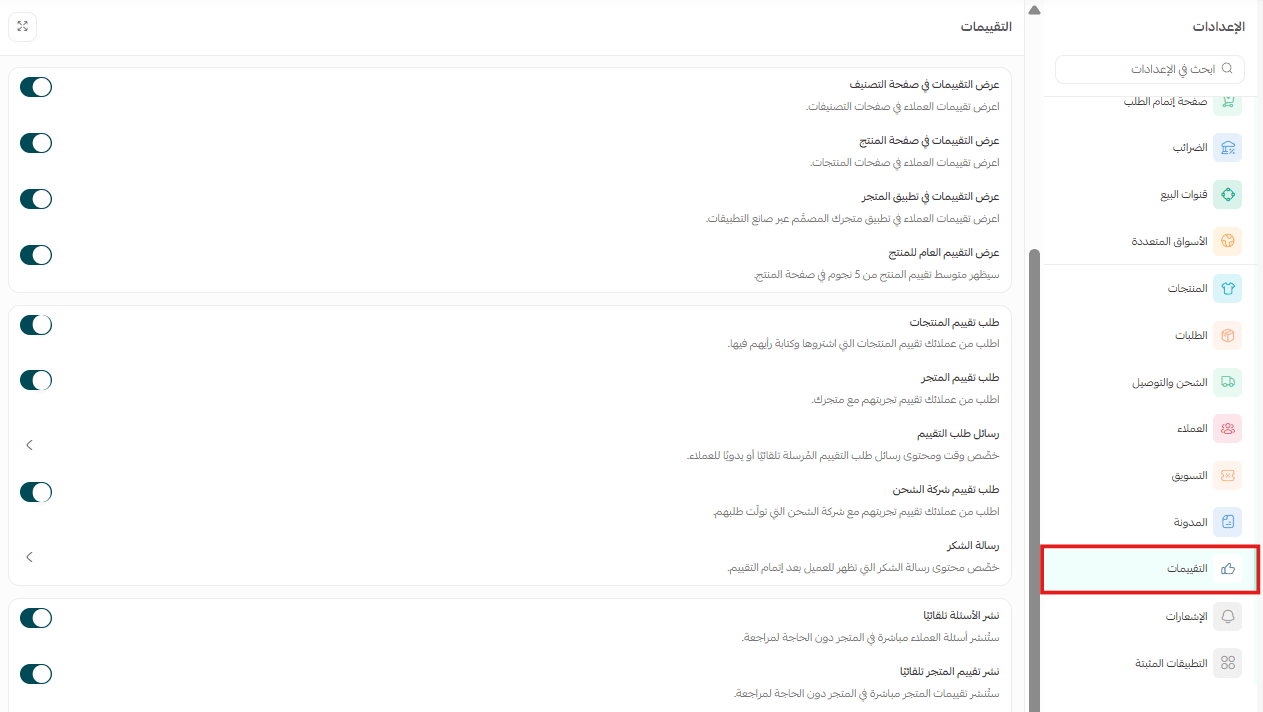
For more details, see questions and reviews.
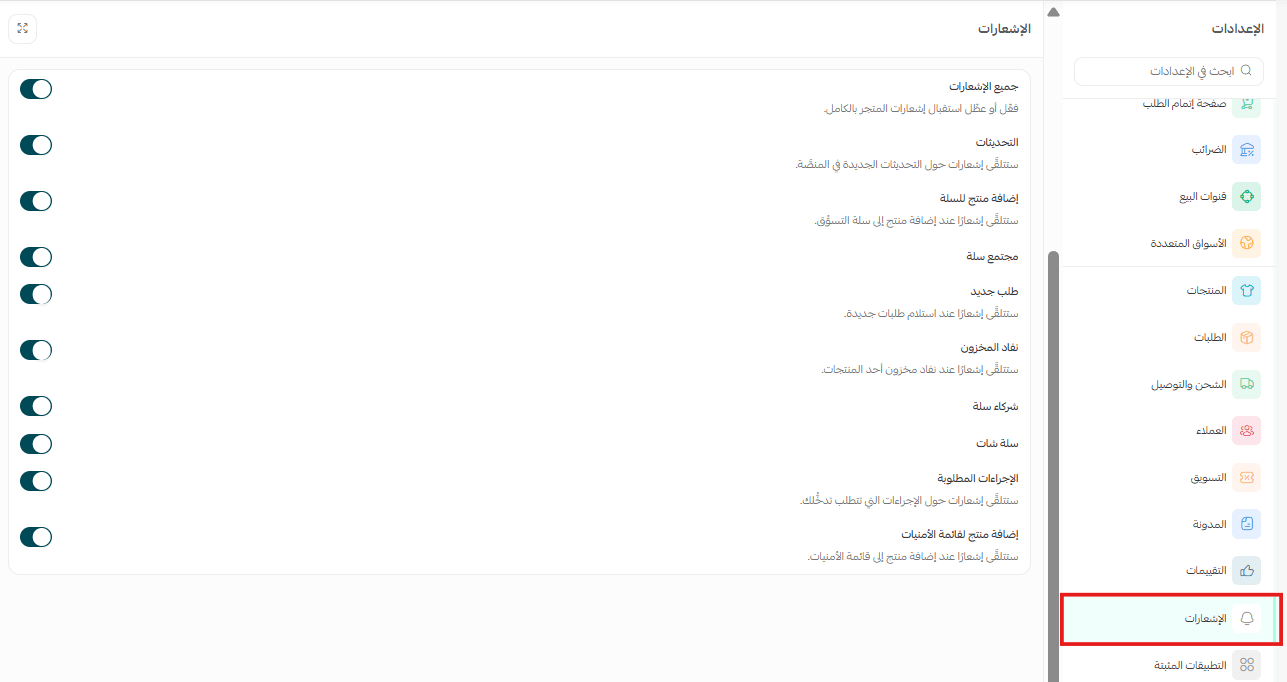
Notifications
Control every alert your store sends you, turning each one on or off as you need. It keeps you on top of the events that matter, such as new orders, out-of-stock products, and platform updates, so you can run your store in real time.
Installed apps
Browse every app connected to your store and filter by status: active, inactive, or needing an update or renewal. You can also follow your subscriptions and private apps and keep them organized, so your store keeps running smoothly.
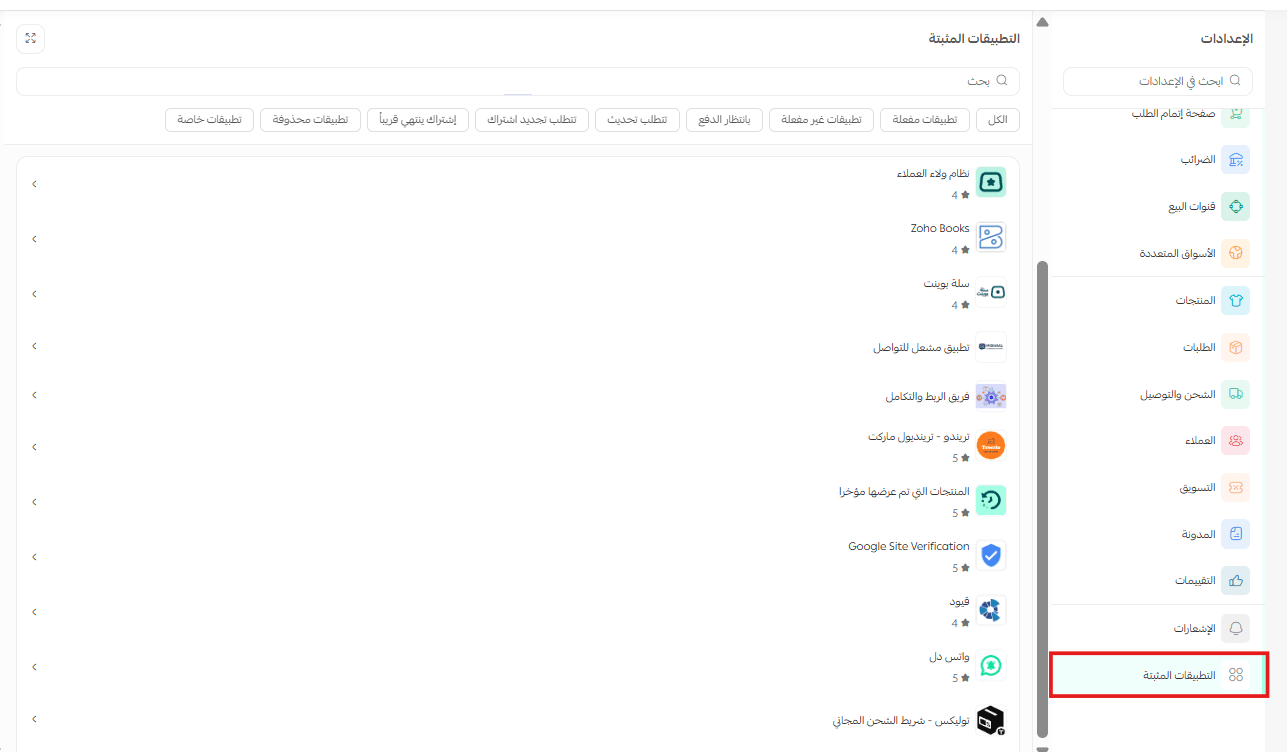
For more details, see managing apps in the Salla App Store.
❓ Frequently asked questions
What is the point of the unified settings center?
It gets you to every store setting quickly and keeps them organized in one place, which saves time and makes your store easier to manage.
Can I move between settings sections without leaving the page?
Yes. Use the sidebar inside the settings center to switch between sections.
Does the settings center show all of my store settings?
Yes. It displays the settings for every section of your store.
Can I open the settings center in full-page mode?
Yes. Click the full-page icon at the top of the panel and the settings expand to fill the dashboard.
Do I have to go back to the main menu to reach one section's settings?
No. Most store sections have their own settings entry, and clicking it opens the settings center on that page directly.
Settings are the part of a store nobody plans to spend time on, which is exactly why they should be quick to reach. Knowing what each page in the settings center controls turns a routine change from a hunt into a click.