Do you ever struggle to locate an older shipment or find a specific shipping label quickly?
As your store grows, managing past deliveries becomes more important, especially when you need to review previous orders, track completed shipments, or retrieve label details for customer support.
With the shipping labels archive, Salla gives you a centralized space to access all issued shipping labels, search instantly, apply filters, and save custom views to streamline your logistics workflow.
In this article, you’ll learn how to use the archive effectively to stay organized and improve shipping efficiency.
📌Article overview
- Shipping labels archive page
- Searching for a specific label
- Filtering the shipping labels archive
Important note: The shipping labels archive feature is currently available only for stores in Saudi Arabia.
Shipping labels archive page
To access the shipping labels archive:
- From the main menu, click All
- Select Shipping
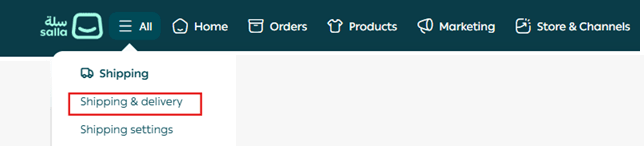
3. Open the Shipping log tab

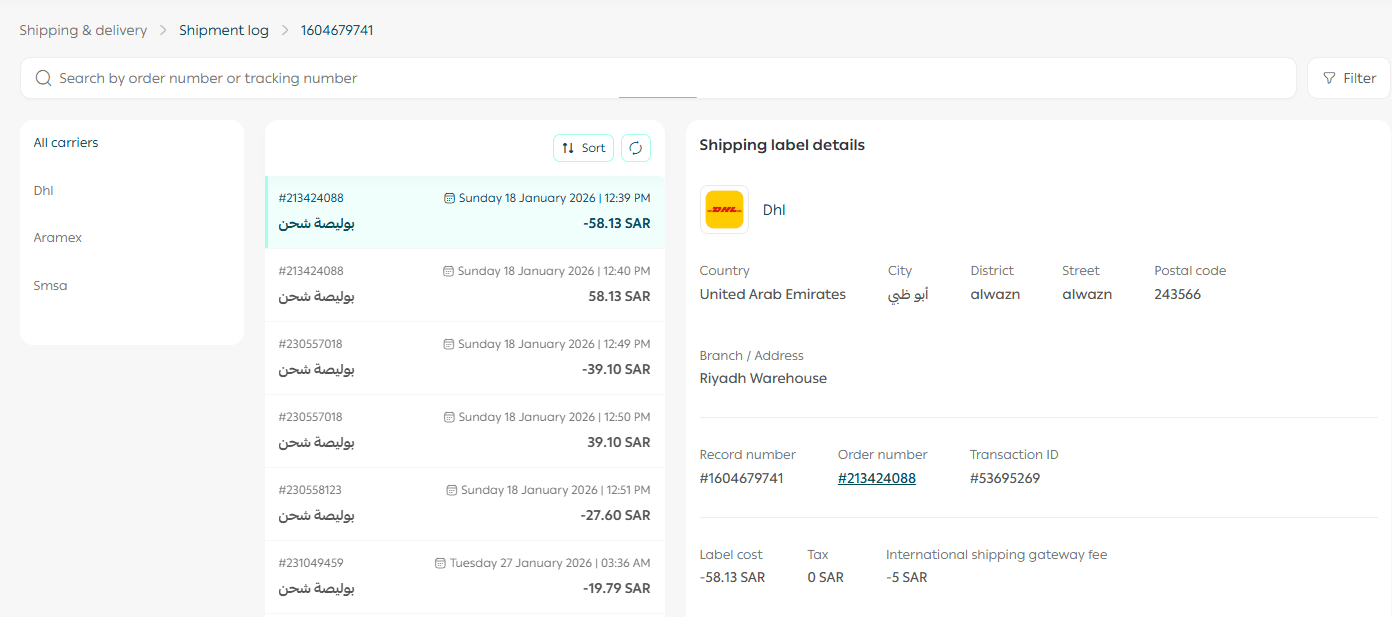
Once inside, the archive page provides a complete overview of all your shipping activity.
What you’ll find in the archive
The shipping labels archive includes:
- A list of available shipping carriers
- A full list of labels issued through the selected carrier
- Detailed shipment information for any chosen label
- A search bar to locate labels instantly
- Filter and sorting tools for faster navigation
This allows your team to track shipments and manage logistics from one place without switching between multiple pages.
Searching for a specific shipping label
If you want to locate a label quickly:
- Go to the shipping labels archive page
- Use the search field at the top
- Enter either:
- The Order Number, or
- The Shipment/Tracking Number
The system will instantly display the matching shipping label results.
Filtering the shipping labels archive
Filtering helps you narrow down large shipment records, especially if your store issues many labels daily.
To filter archived labels:
- From the archive page, click Filter

2. Select the desired date range or filter criteria
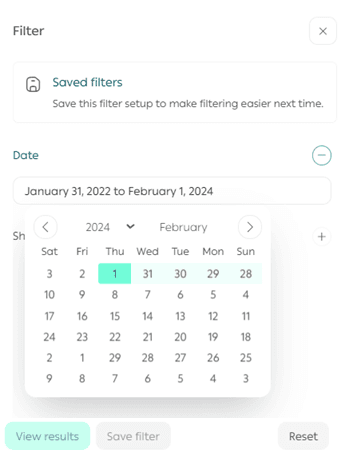
3. Click Show Results
Your archive will update immediately based on the selected conditions.
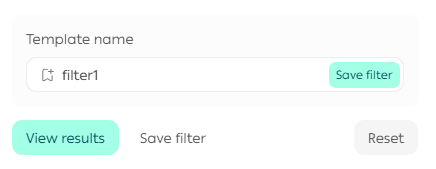
Saving a filter template
To save time in the future, you can store your filter settings as a reusable template:
- After applying your filters, click Save as Filter Template
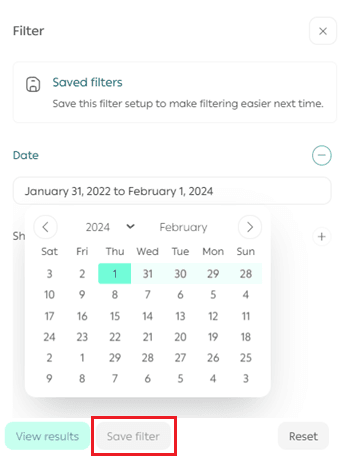
2. Enter a name for the template
3. Click Save Template
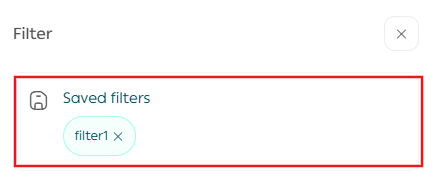
Reusing saved filters
Next time, you can apply the same filter instantly by selecting the saved template name, without setting the conditions again.
This is especially useful for recurring tasks such as:
- Weekly shipping reviews
- Monthly carrier performance checks
- Customer support follow-ups
Keep your shipping history organized
The shipping labels archive helps you stay in full control of your logistics operations by giving you:
- Quick access to past shipments
- Instant search by order or tracking number
- Smart filtering tools
- Saved templates for repeated workflows
Managing shipping becomes faster, clearer, and more efficient as your store scales.