What if changing your storefront was as simple as describing what you want?
Most design tweaks stall because they need a developer, a theme file, or a support ticket. The Framify app removes that step: it is an AI-powered tool that controls your storefront through simple text prompts, turning a written description into instant, visible changes to your store's design and layout. You describe the change, Framify applies it, and you see the result right away. In this guide, you'll learn how to install Framify, open its editor, upgrade your plan, and remove the app.
Framify is an AI storefront editor for Salla stores. Instead of editing theme settings by hand, you write a short text prompt describing the change you want, and the app converts that description into immediate edits to your store's design and structure, applied directly and visibly in the editor.
📌 Article overview
- What the Framify app does
- How to install Framify and open the editor
- How to upgrade your plan
- How to manage and remove the app
- Frequently asked questions
🎯 What the Framify app does
- Controls your online storefront through simple, AI-driven text commands.
- Converts a written description of what you want into edits to the store's design and structure.
- Applies changes directly and visually, so you see the result as you go.
👣 How to install the Framify app
1. From the main menu, click (All), then under the helper tools section, click (App Store).

2. Find the app using the search field.

3. On the Framify app page, click (Install).
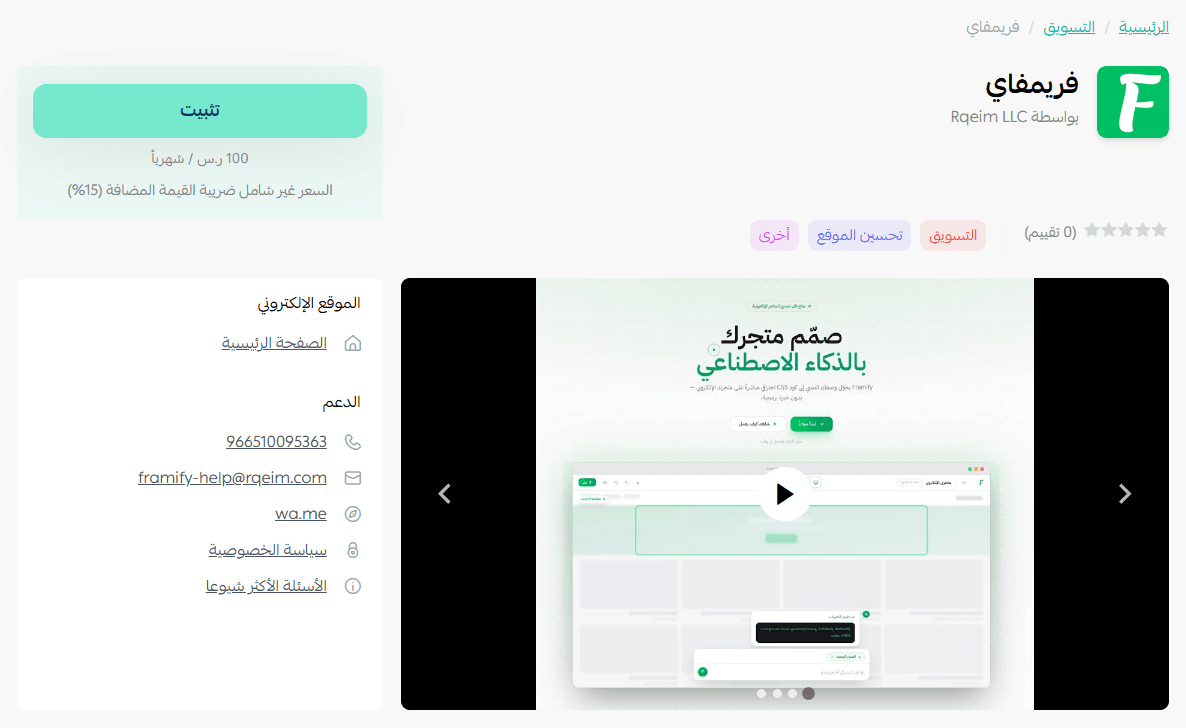
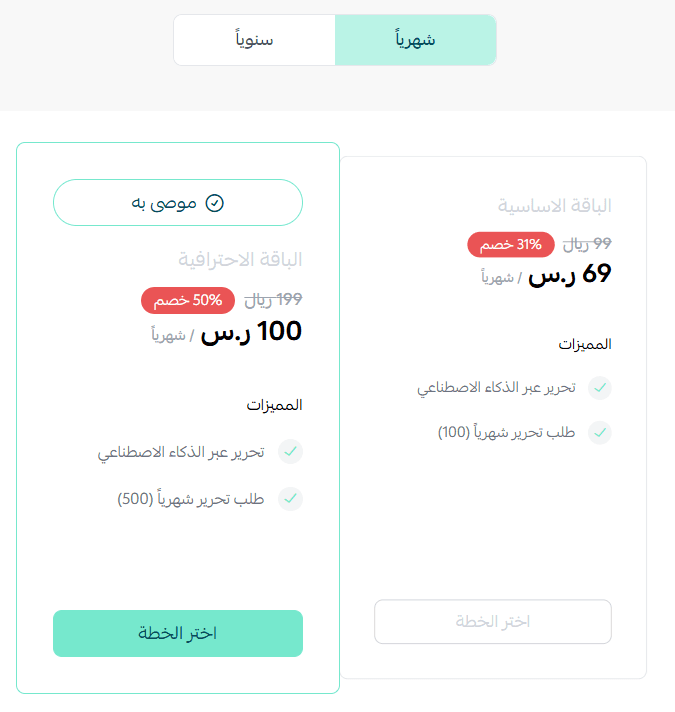
4. Choose the plan that fits your store.
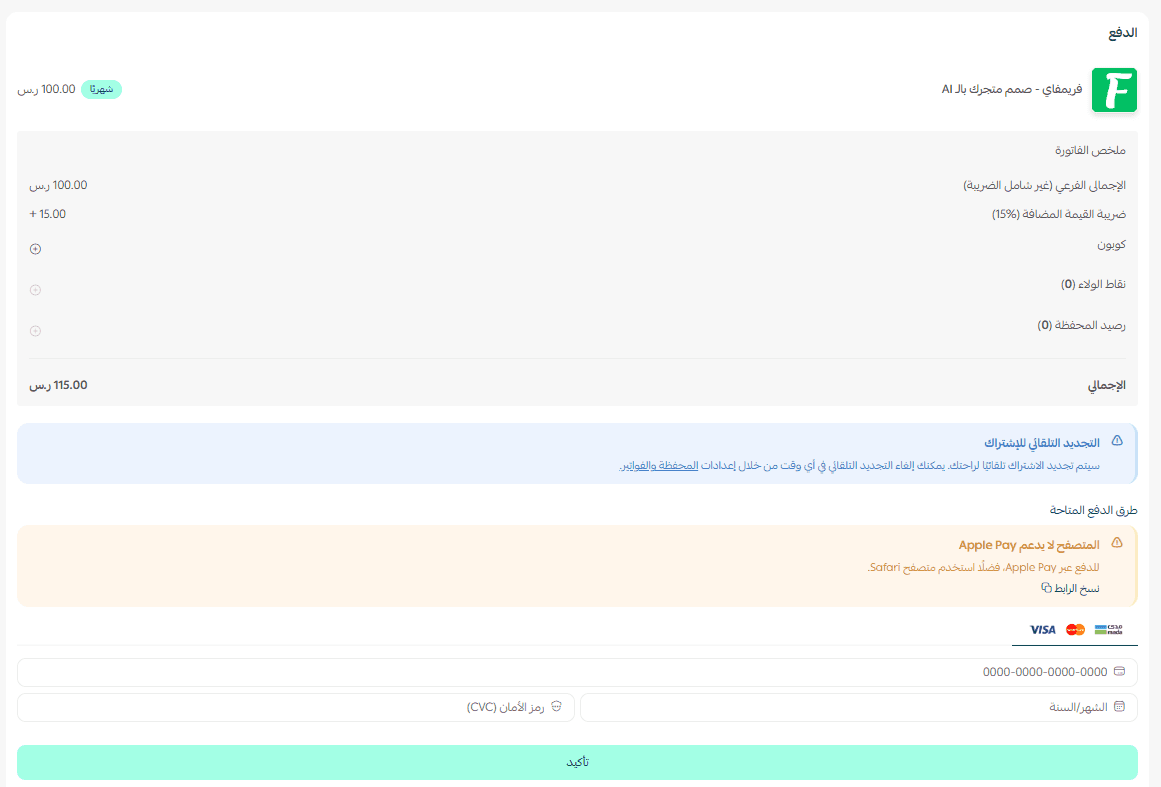
5. Fill in your payment details, then click (Confirm).
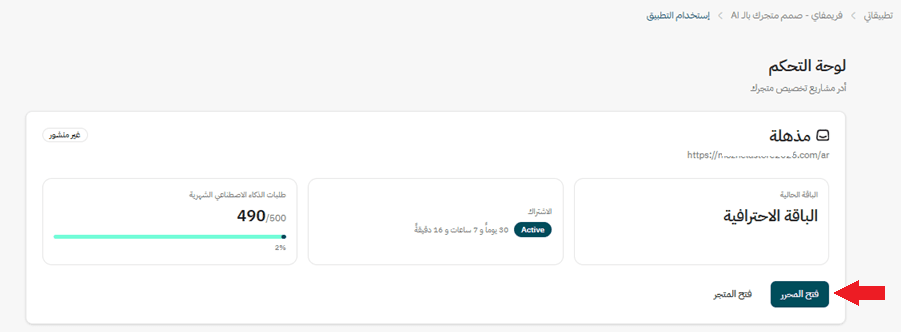
6. Open the app page from the My apps tab and click (Open app) to view the app settings.
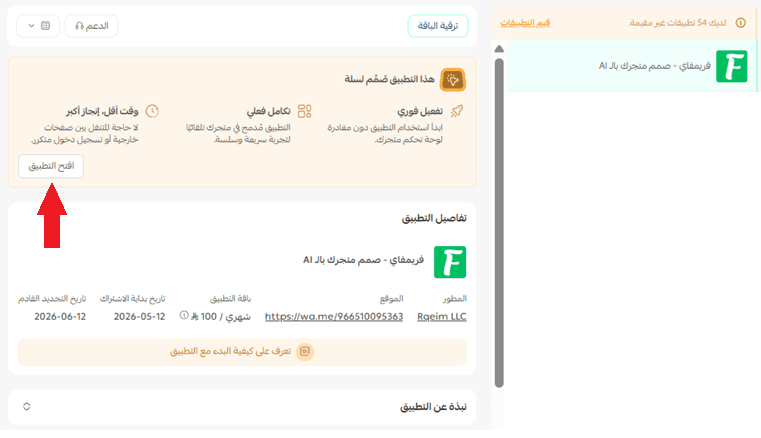
7. On the settings page, click (Open editor) to start controlling your storefront design.
🚀 Managing the Framify app
Upgrading your plan
1. On the app details page in your store, click (Upgrade plan).

2. Choose the plan you want, then click (Go to payment).

3. Fill in your payment details and click (Confirm) to complete the upgrade.

Customizing the app
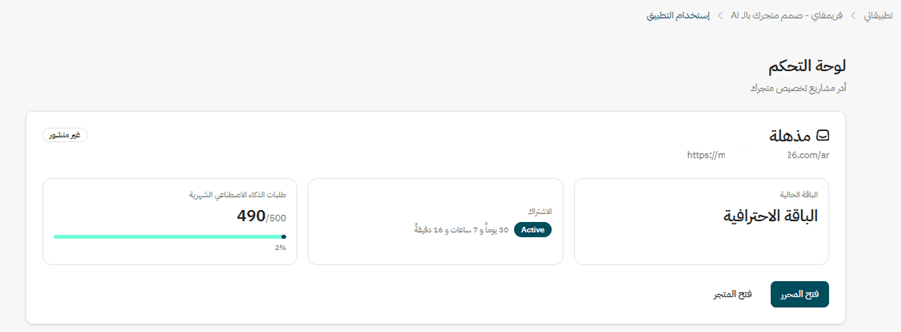
🎯 You manage the app from its page inside your store.
Removing the app
1. From the app options menu, click (Cancel subscription) and choose your reason for cancelling.

2. From the app options menu, click (Delete app) and choose your reason for deleting it.

3. On the Deleted apps page, open the app options menu and click (Delete app permanently) to remove it from your store for good.

📝 Important notes
- Framify edits the storefront your customers see, so review each change visually before you leave the editor.
- The editor opens from the app settings page, reached through (Open app) in the (My apps) tab.
For more details, see the Framify app page.
❓ Frequently asked questions
Do I need coding skills to use Framify?
No. You describe the change you want in plain text and the app turns that description into edits to your store's design and structure.
Where is the Framify editor?
Open the app from the (My apps) tab, click (Open app), then click (Open editor) on the settings page.
Can I see changes before they go live?
Framify applies your instructions directly and visually in the editor, so you see the result of each change as you make it.
Can I move to a bigger plan later?
Yes. From the app details page, click (Upgrade plan), choose the plan you want, and complete the payment.
Storefront design usually moves at the speed of whoever can edit the theme. Describing the change in a sentence and seeing it applied puts that pace back in your hands.