Every star rating on your app listing is a customer telling you something. Are you listening?
Google Play Console gives you one place to manage app ratings and reviews on Google Play: track how users are scoring your app, read what they actually wrote, reply to them directly on your store listing, and see which themes come up again and again. Handled well, a reply can turn a one-star review into a better one. In this guide, you'll learn how to open Play Console, read the ratings report, reply to reviews, use the review analysis report, and switch on alerts.
To manage ratings and reviews, sign in to Google Play Console, choose your developer account, select your app, then open (Quality) in the side menu and pick the ratings and reviews report you want. From there you can view rating trends, reply to individual reviews, report abuse, and analyze recurring review topics.
📌 Article overview
- How to sign in to Google Play Console
- View the ratings report
- Read and reply to reviews
- View the review analysis report
- Frequently asked questions
👣 How to sign in to Google Play Console
1. Go to Google Play Console, then click (Go to Play Console).
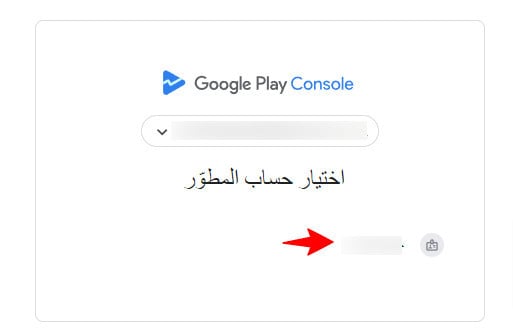
2. Choose the developer account linked to your email address.
🔹 For more on buying a Google Play Console developer account, see the dedicated guide in this section.
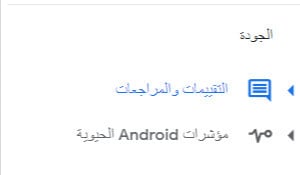
3. Select the app whose reviews you want to manage. From the Play Console side menu, click (Quality), then choose the ratings and reviews report you want to open.
🎯 View the ratings report
See how users are rating your app
Users can rate your app out of 5 stars to share their opinion and help other people decide whether to install it. You can break your rating down by country, app version, and other dimensions, and compare your app's rating against other apps on Google Play.
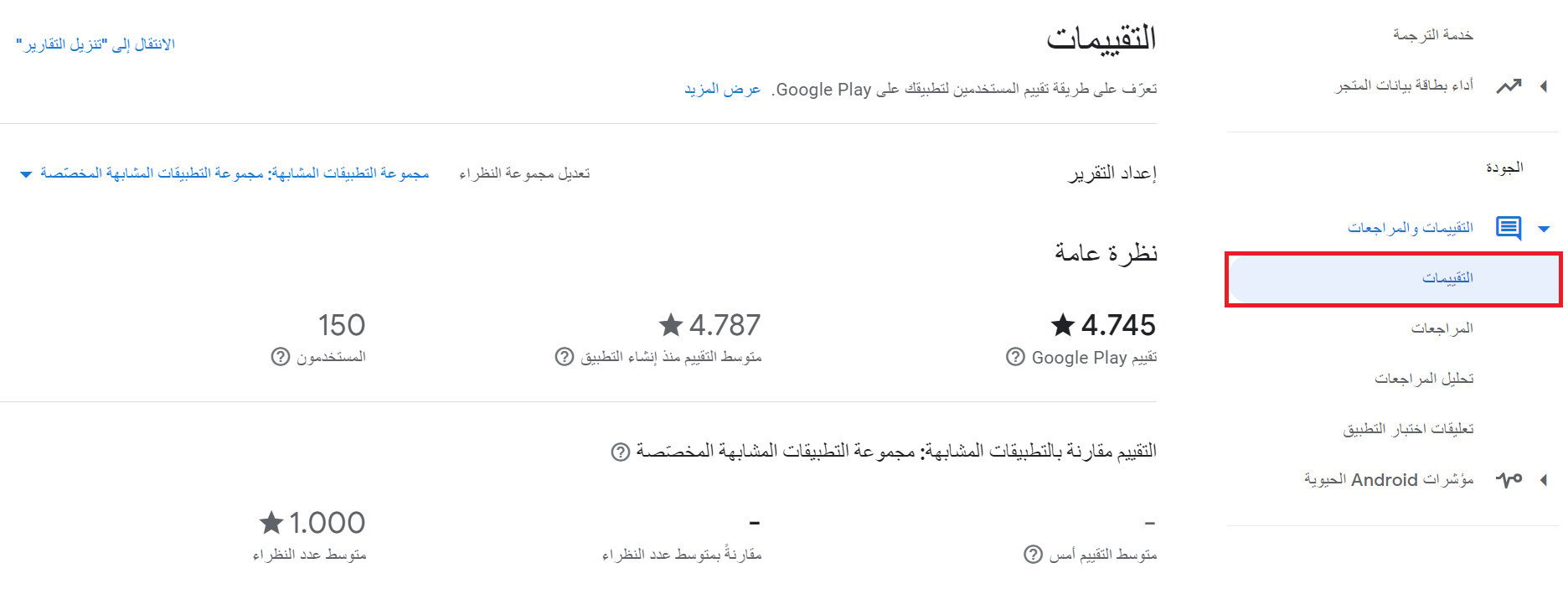
- Your app's average rating since launch is displayed.
- The number of users who have rated your app is displayed.
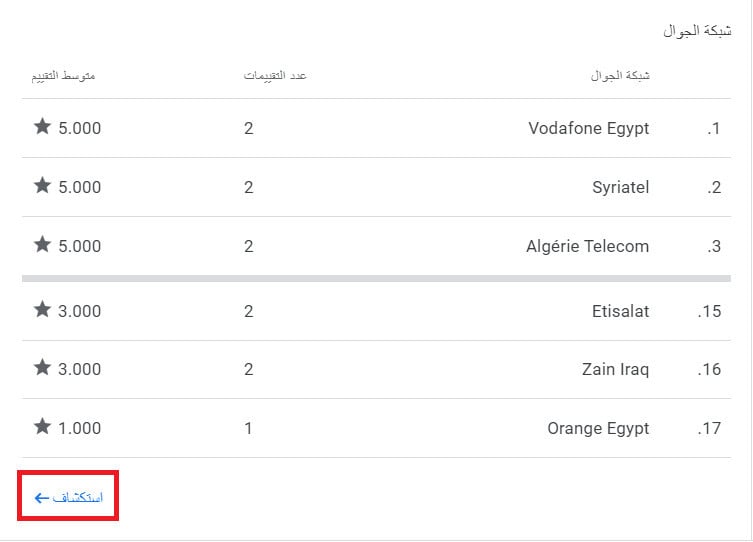
- You can review the rating breakdown by country, and by device, app version, and language.
- You can compare your app's rating performance against similar apps in the same category.
The report also includes a range of other metrics and statistics, such as the rating distribution:
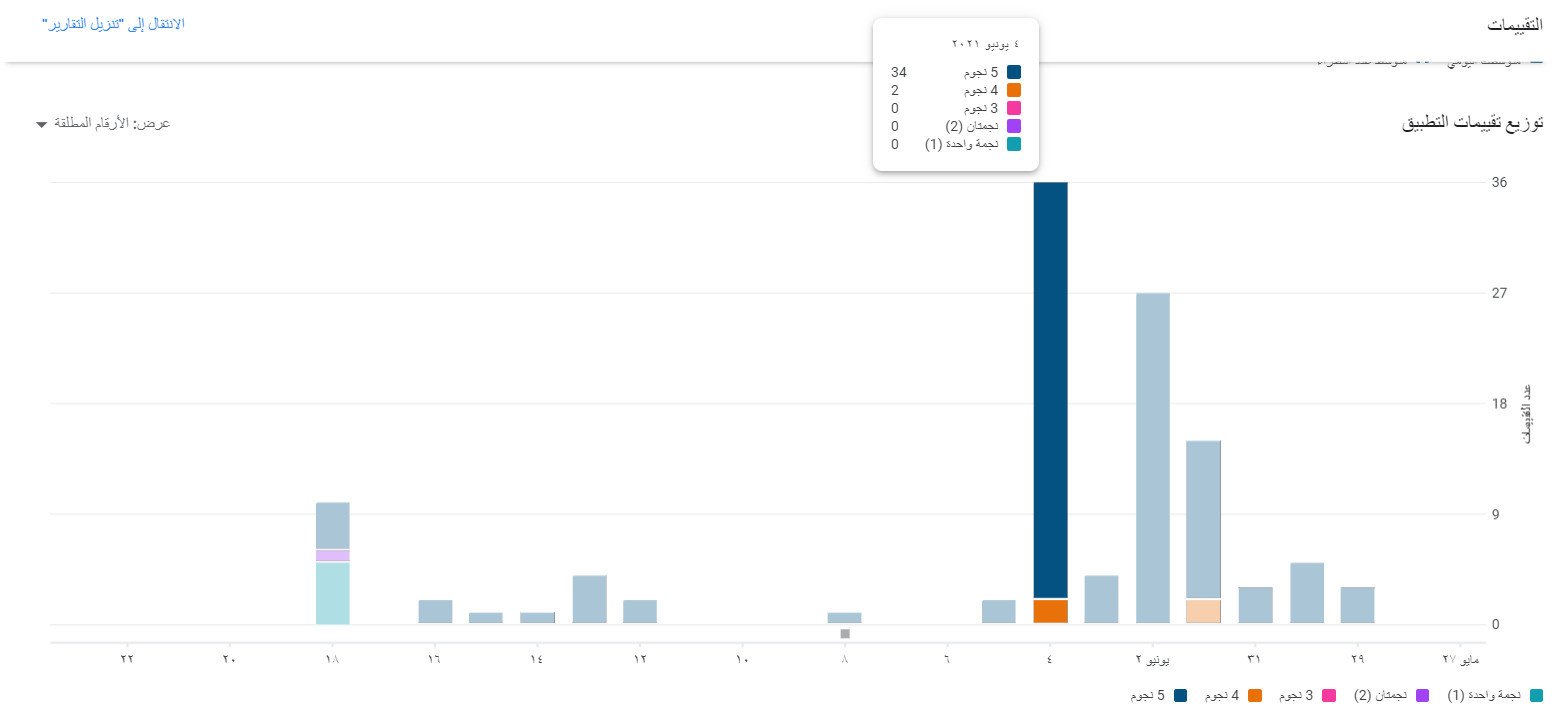
Click (Explore) on any of the available statistics to open more detail.
Read and reply to reviews
Read what users wrote about your app, and reply to it
When users rate your app, they can also write a review on your store listing. Replying to those reviews directly on the store listing is a real chance to help the user and improve their experience, and users often update their rating after you respond.
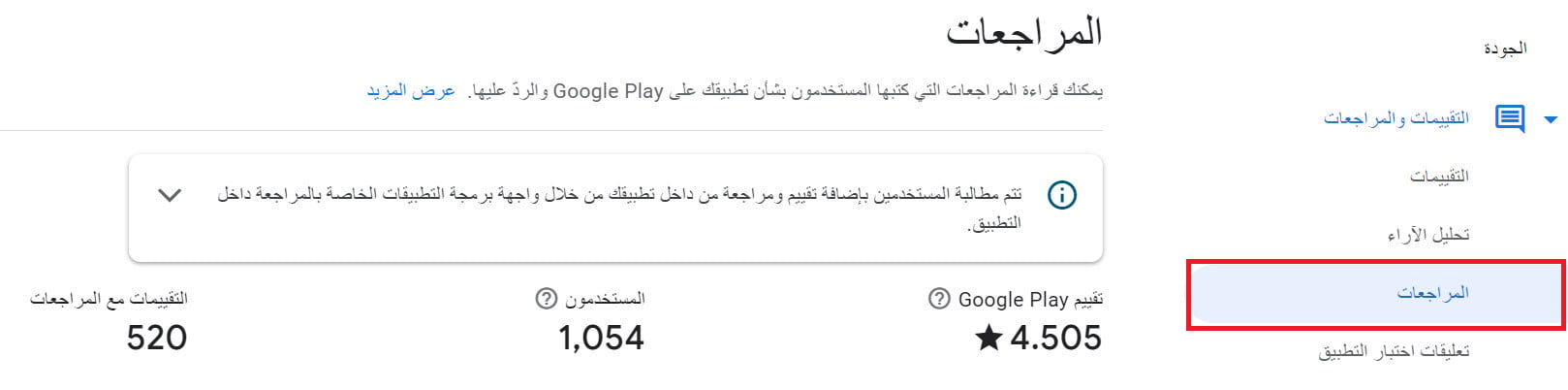
Your reply to a reviewer can be up to 350 characters long, as shown here:
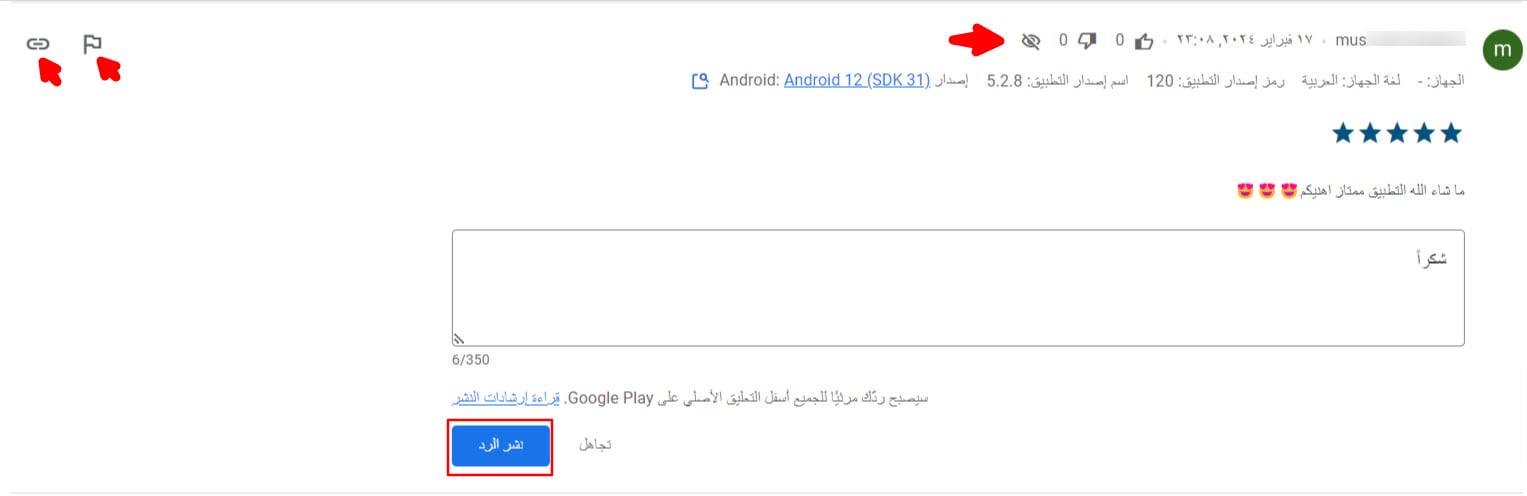
- You can see the name of the user who wrote the review, the date it was written, the number of likes and dislikes, and whether it is currently shown on the store.

- You can see the device language, the app version the user rated, and the device type. That helps you reply to users about issues that were already fixed in a later release.

- You can see the rating, the review text, and its translation when the review was written in another language.
- You can write your reply and publish it. Read the posting guidelines carefully before you do.
- You can report reviews you believe break Google's posting policies using the flag button: advertising comments, indecent content, comments unrelated to the app, or spam. Google support reviews the report and takes the appropriate action.
Follow these policies when you reply to user reviews
1. Keep it clear and relevant. Address the user's comment directly, and make the reply clear, useful, and honest.
2. Be kind. These are your users, and the goal is to help them find a solution, not to burn a bridge. Do not post anything abusive, hateful, exclusionary, threatening, or harassing. Do not answer inappropriate user comments with a reply either, report them instead.
3. Do not solicit or promote. Users do not find promotions and advertising relevant or useful.
4. Keep it clean. Do not post content with indecent language.
🔍 View the review analysis report
Understand what users care about
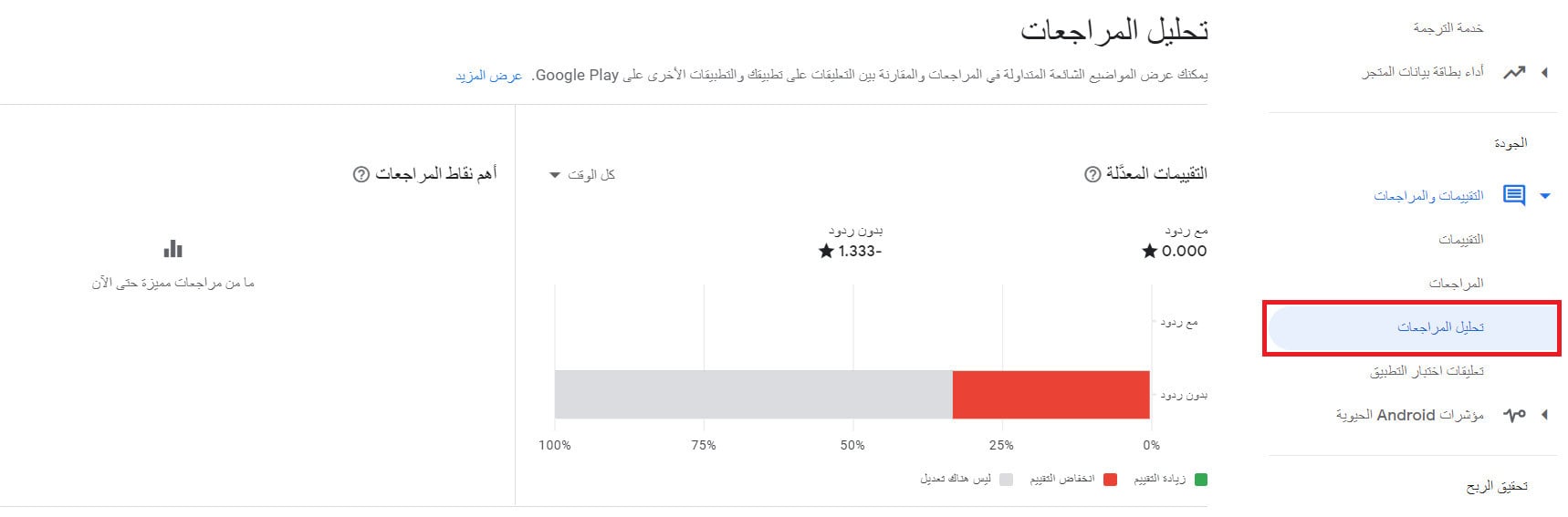
Users can write a review of your app on Google Play, and those reviews tell you which features are working and which need attention. The review analysis report shows the topics that come up most often and lets you compare feedback on your app with feedback on other apps on Google Play. It breaks your ratings down along several dimensions, the most useful of which are:
- Updated ratings
The percentage of your reviews that users updated, with and without a reply from you.
- Performance metrics and topics
Identify and understand the signals inside your app's reviews. Review analysis is not shown to users.
- Topics
The (Topics) section describes the words users mention most often in your app's reviews. You can see how the reviews mentioning each topic contribute to your app's rating. This section is available for reviews written on devices using the supported languages.
📝 Important notes
Replies are limited to 350 characters, so lead with the answer.
Review analysis is internal. Users never see it.
Reporting an abusive review is the right move. Arguing with it in a public reply is not.
Frequently asked questions
❓ How long can my reply to a review be?
Up to 350 characters.
❓ Can a user change their rating after I reply?
Yes. Users often update their rating once you respond to their review.
❓ What do I do about an abusive or spam review?
Use the flag button to report it. Google support reviews the report and takes the appropriate action. Do not reply to inappropriate comments.
❓ Can users see the review analysis report?
No. Review analysis is available to you in Play Console only.
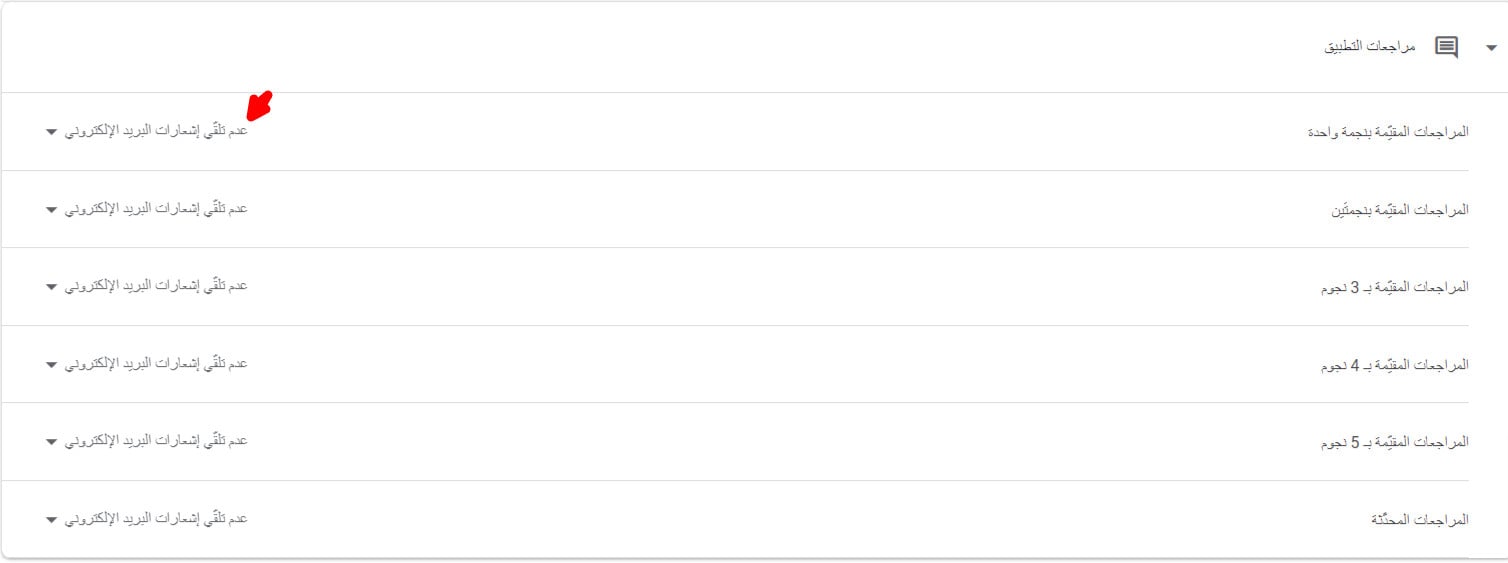
❓ How do I get alerts for new ratings and reviews, or for edited reviews?
1. Open the main apps dashboard in Play Console.
2. From the settings, click (Notifications).
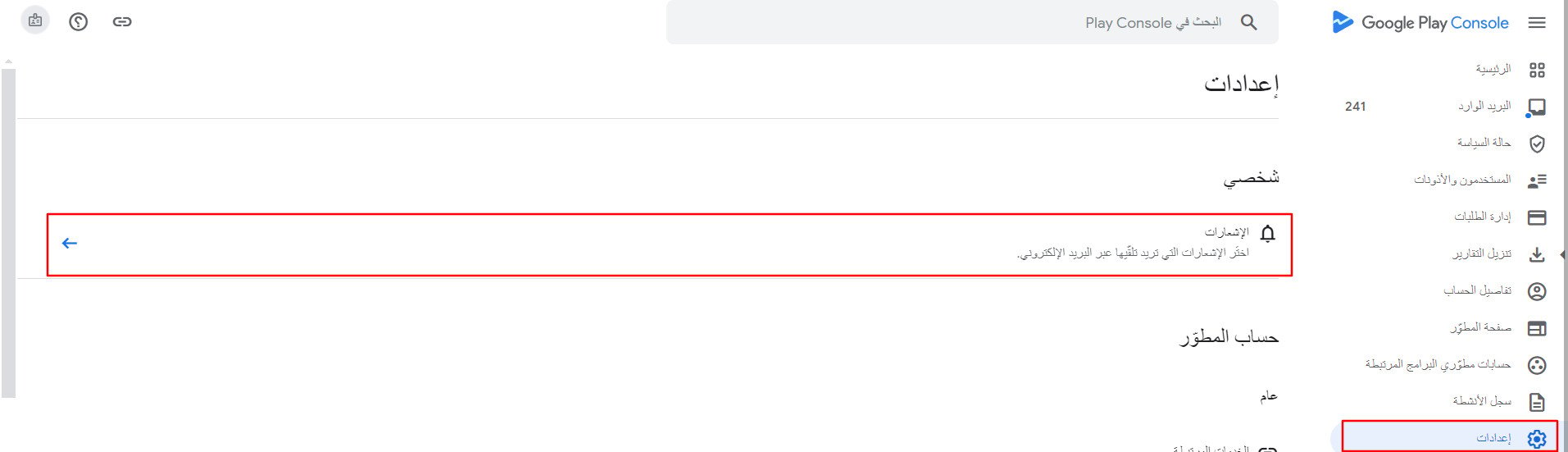
3. Choose app reviews, then turn on email alerts for the review types you want to be notified about. Turning all of them on is recommended.