Apple Pay is one of the fastest ways for customers and donors to complete a payment. Fewer steps at checkout often means higher conversion rates, fewer abandoned payments, and a smoother experience on Apple devices.
Historically, enabling Apple Pay required a dedicated Apple Developer account and a series of technical configuration steps. For many charities and digital businesses, that made activation more complicated than it needed to be.
With the latest update from Salla, eligible organizations using Moyasar can now enable Apple Pay directly from their store dashboard without creating an Apple Developer account or completing any technical setup.
In this guide, you'll learn how to activate Apple Pay through Salla, when an Apple Developer account is still required, and what to do if you run into issues during setup.
📌 In this article
- Enable Apple Pay through Salla
- Enable Apple Pay with an Apple Developer account
- Frequently asked questions
Before you start
The setup path depends on your payment gateway.
Use the Salla-sponsored setup if:
- Your store is directly connected to Moyasar
- Your store has an active custom domain
Use the advanced setup if:
- You're using another supported payment gateway
- Your provider requires Apple Developer verification
- You already have an Apple Developer account
Important: This guide is intended for charities and digital stores connected to external payment gateways such as Moyasar or HyperPay.
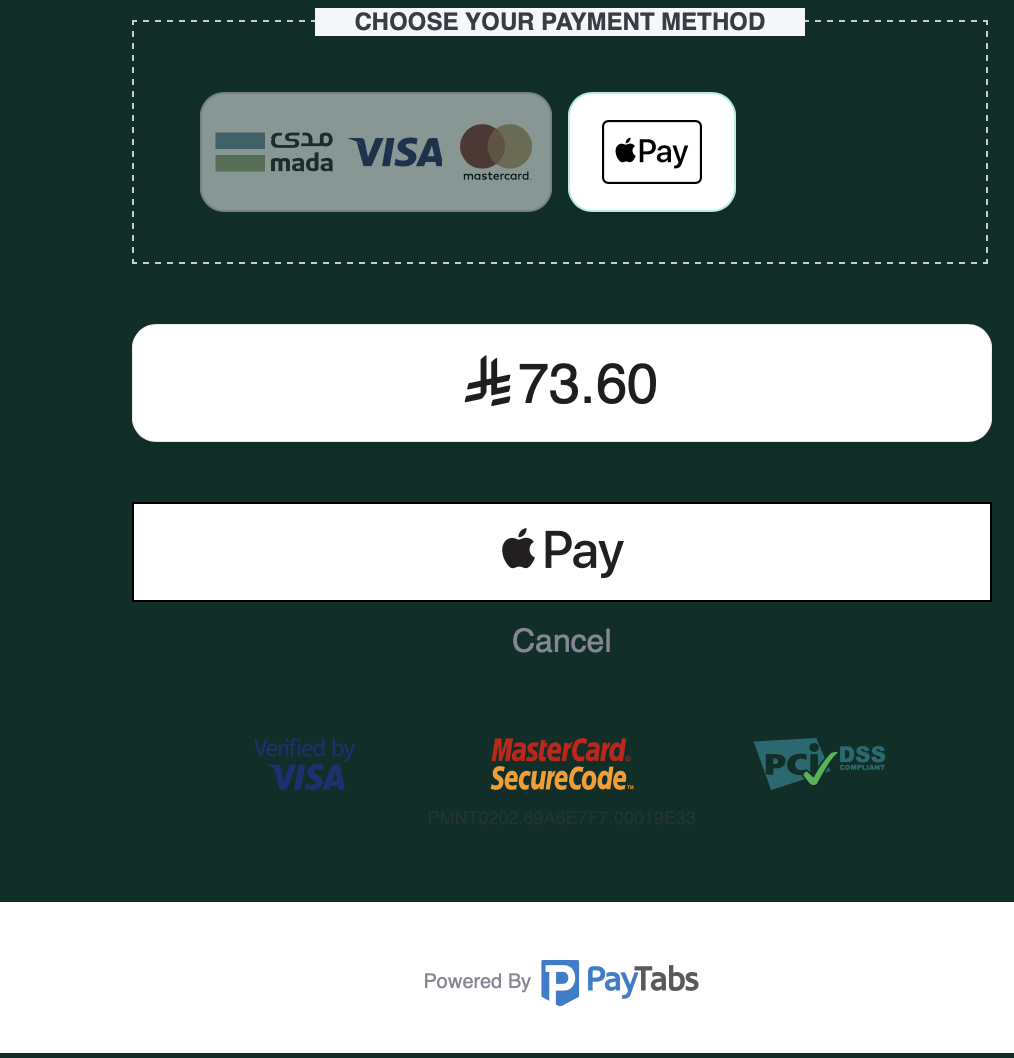
Enable Apple Pay through Salla
If your store is connected to Moyasar, Apple Pay can be activated directly from your dashboard without creating an Apple Developer account.
Requirements
- Direct integration with Moyasar
- An active domain connected to your store
Setup steps
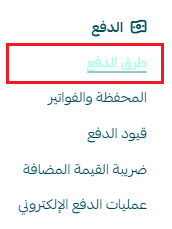
1. Open Payment methods: From your store dashboard: All → Payment methods
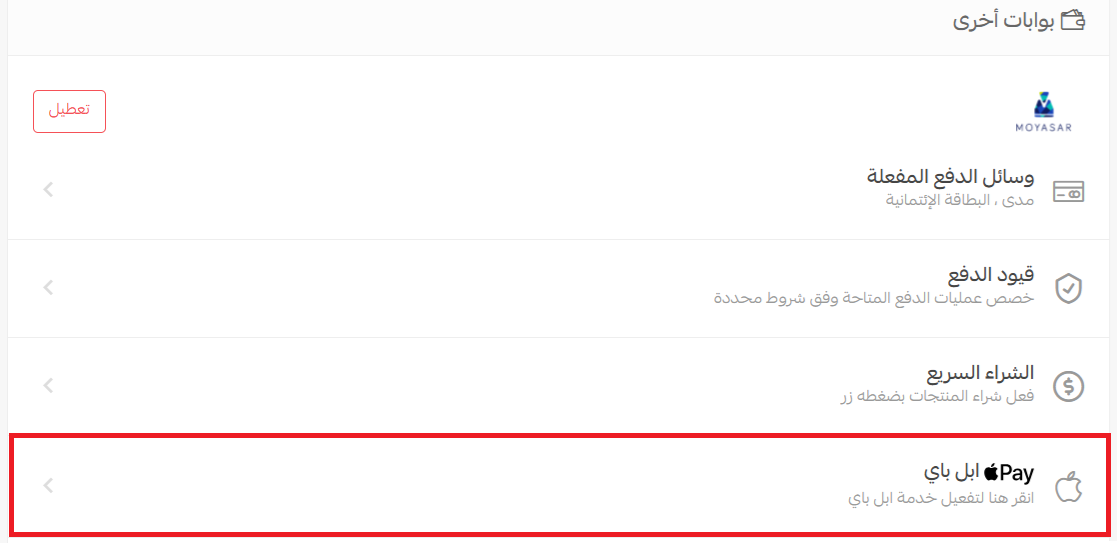
2. Under Other payment gateways, select Apple Pay.
3. Choose Quick setup powered by Salla.
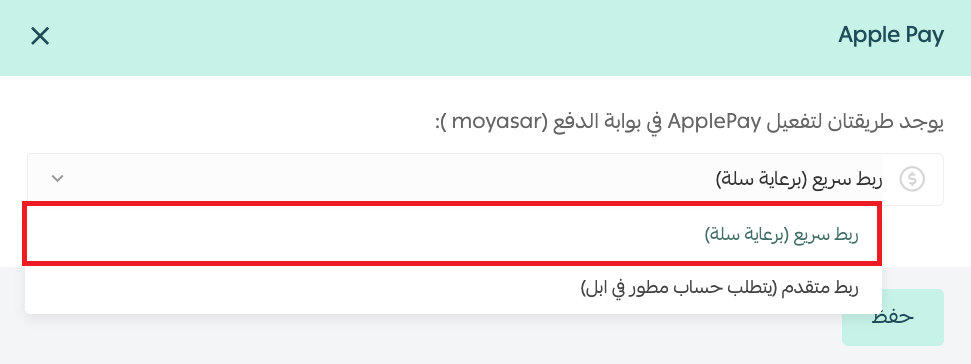
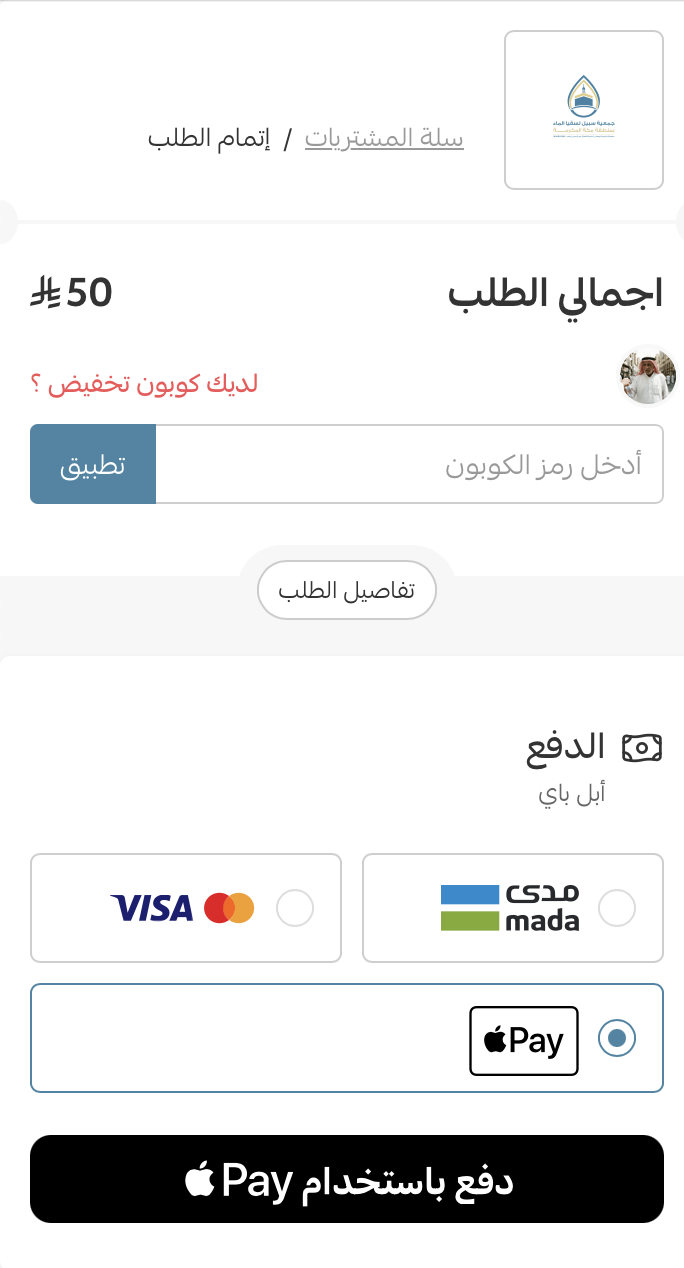
Apple Pay will be activated automatically and become available during checkout.
Enable Apple Pay using an Apple Developer account
Some payment providers require Apple's standard verification process.
Requirements
Before you begin, make sure you have:
- A direct payment gateway integration
- An active store domain
- An active Apple Developer account
For more details, see:
- Create an Apple Developer account - as organization
- Create an Apple Developer account - As individual
Activation steps:
The activation process will proceed through the following steps:
1. Obtain the required files from the payment gateway.
2. Set up an Apple Developer account to accept Apple Pay
3. Attach the required information and files to your control panel in Basket.
4. Activate Apple Pay
Step 1: Request the Required Certificate Files
⚡To activate Apple Pay through Apple's developer ecosystem, you'll first need a CSR (Certificate Signing Request) file from your payment provider.
Examples include:
- Moyasar
- HyperPay
- PayTabs
- MyFatoorah
TAP
🔁 Note:
Salla does not generate this file. It must be provided by your payment gateway.
Step 2: Configure Apple Developer
Create a Merchant ID
1. Sign in to your Apple Developer account
2. From (Certificates, Identifiers and Profiles), and click (Identifiers).
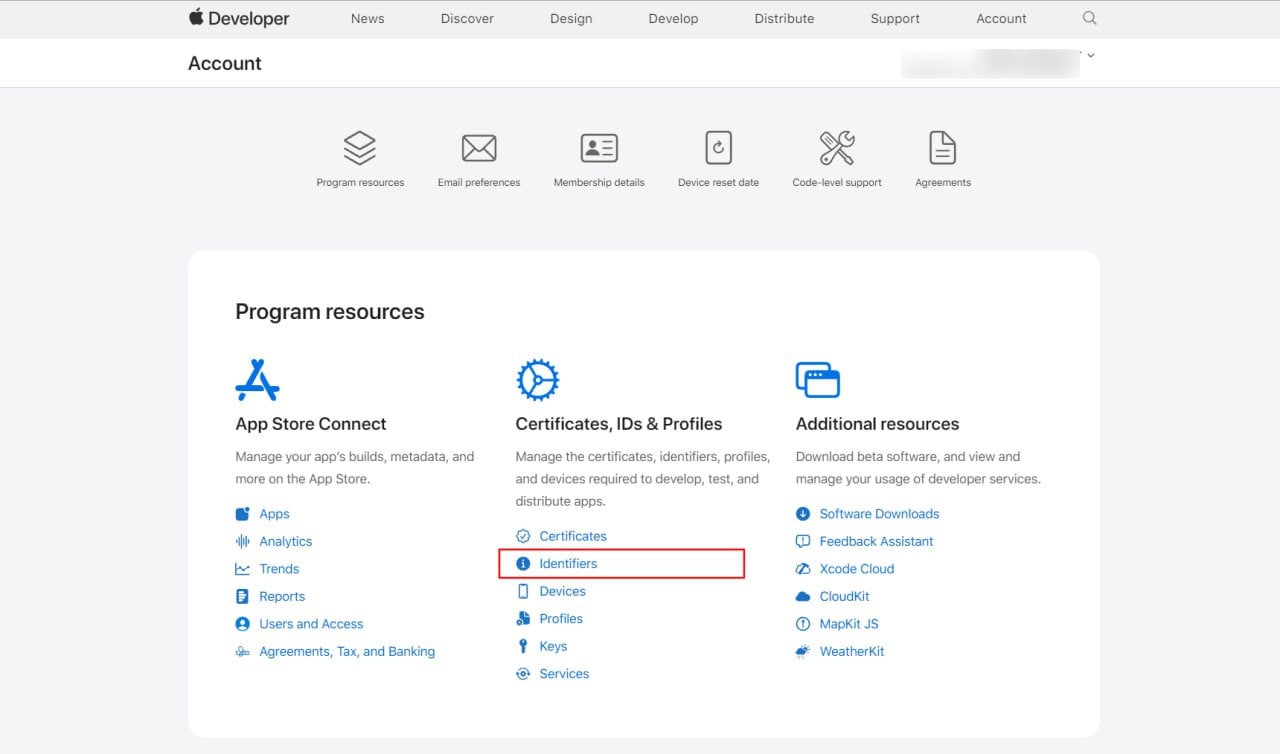
3. From the menu (App IDs), tap (Merchant IDs). Then tap (Register a Merchant ID).
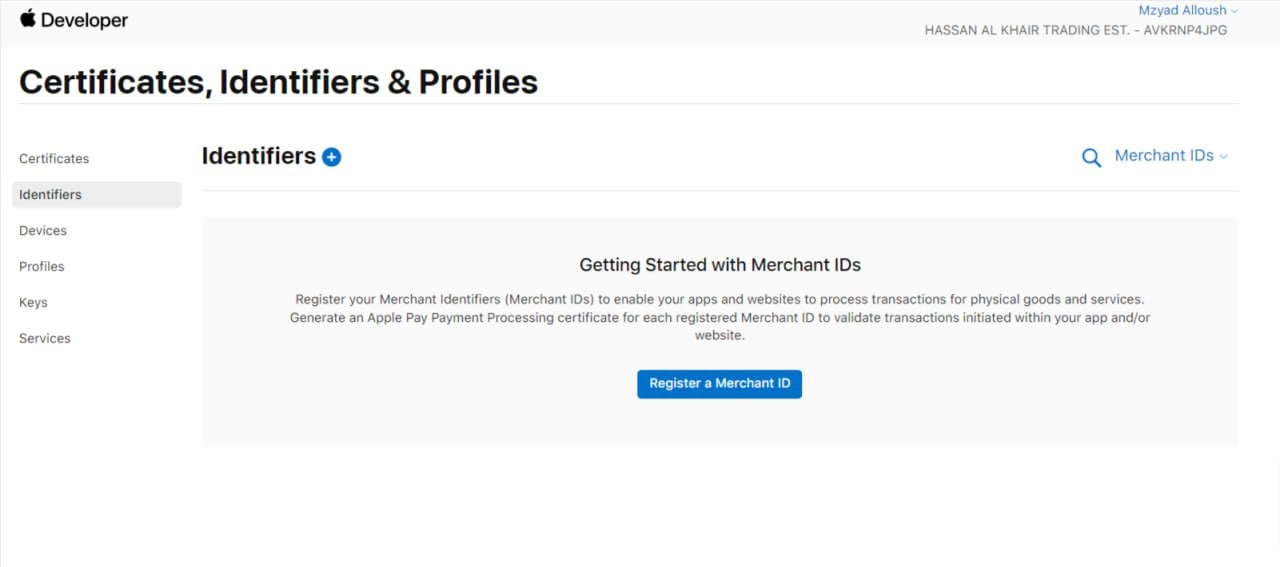
If you already have a Marchant ID, click (+) next to Identifiers to create a new one.
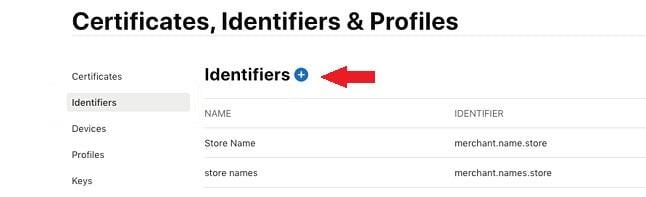
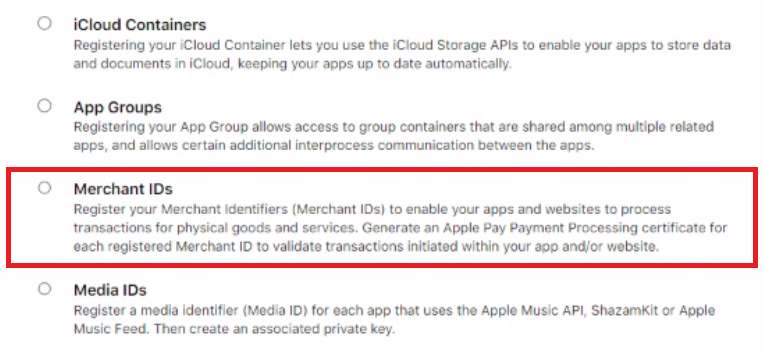
4. Select (Merchant IDs) and then press (Continue).
5. Enter the store description and link, then press (Continue) to proceed.
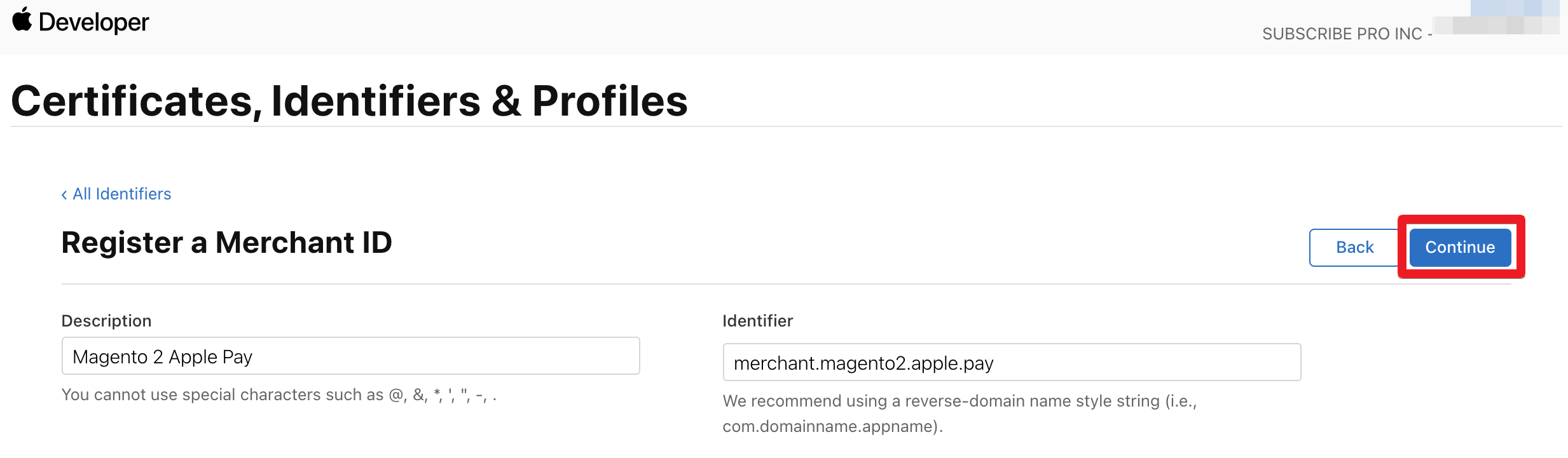
- Store description (can be changed later).
- Store URL. The store URL must be entered in reverse order; for example, if the store URL is store.name.com, it should be entered as com.name.store.
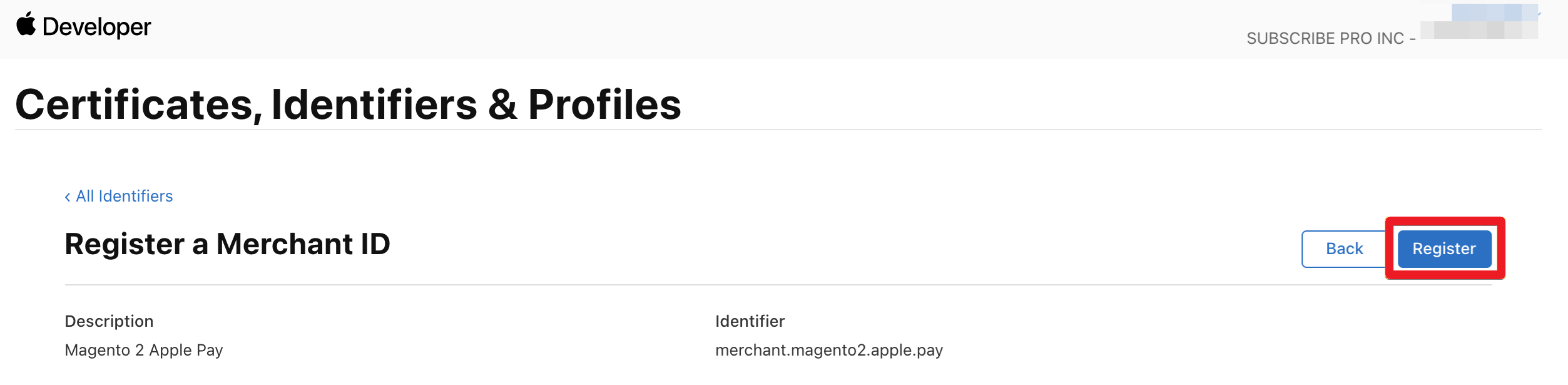
6. Click (Register) to finish registration.
Verify Your Domain
1. After creating your merchant identification number
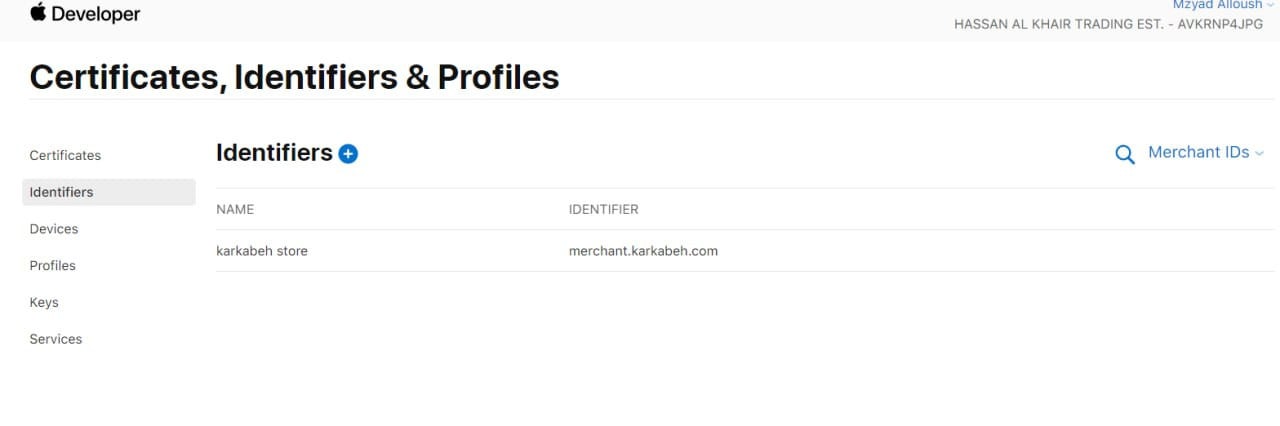
The following page will appear:
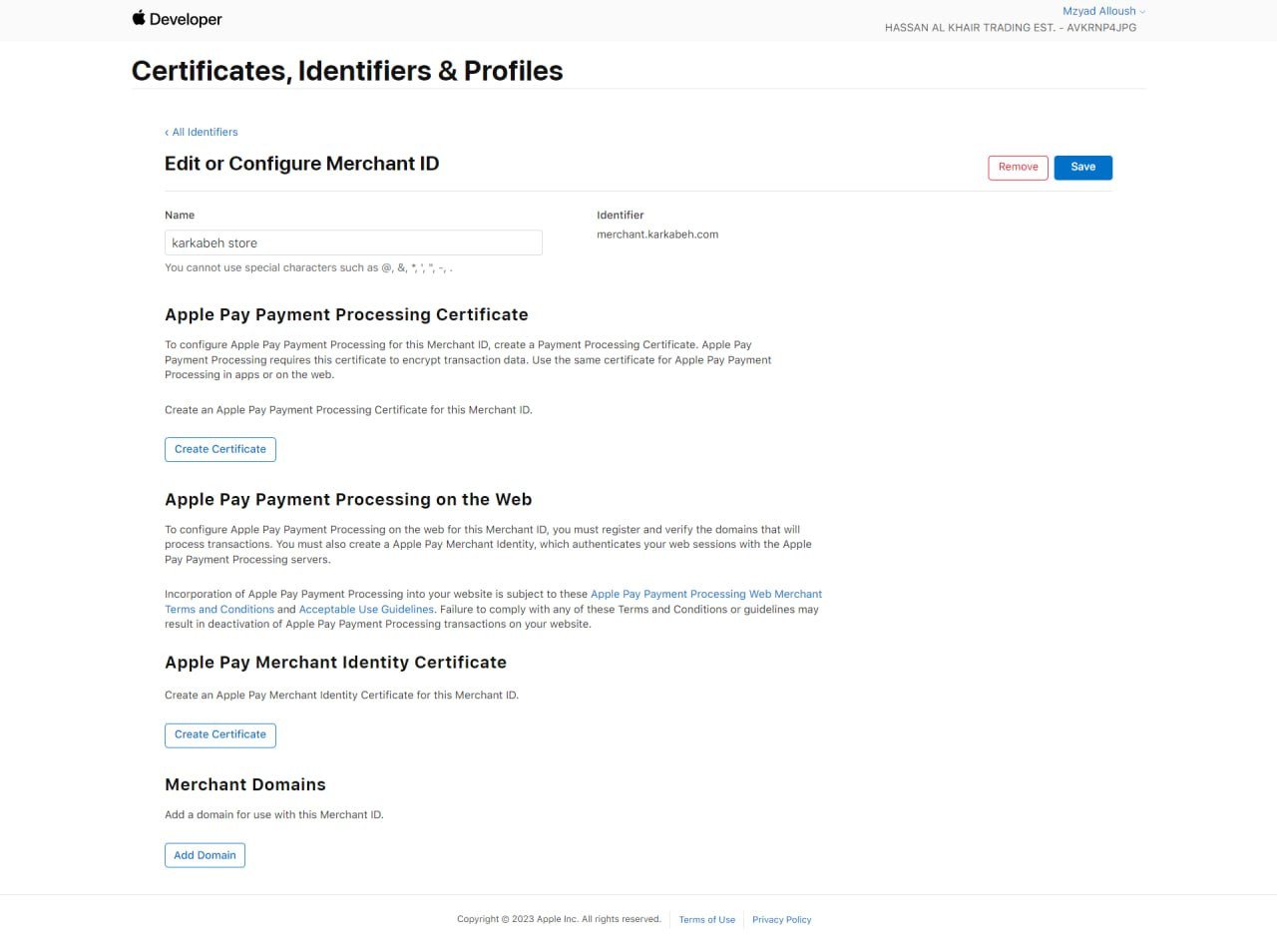
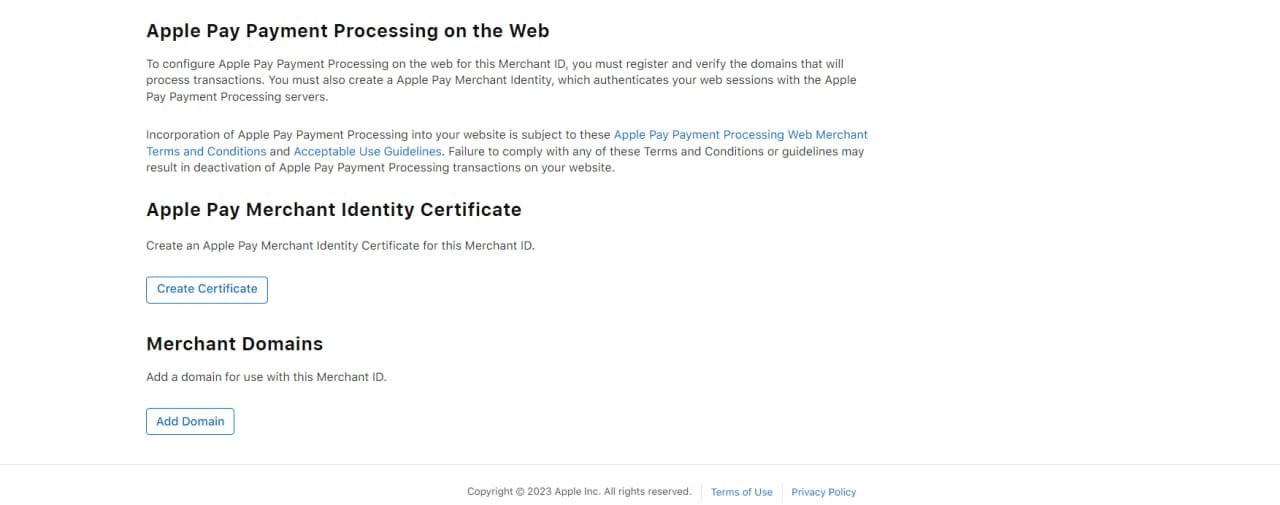
2. From the bottom of the page, click (Add Domain).
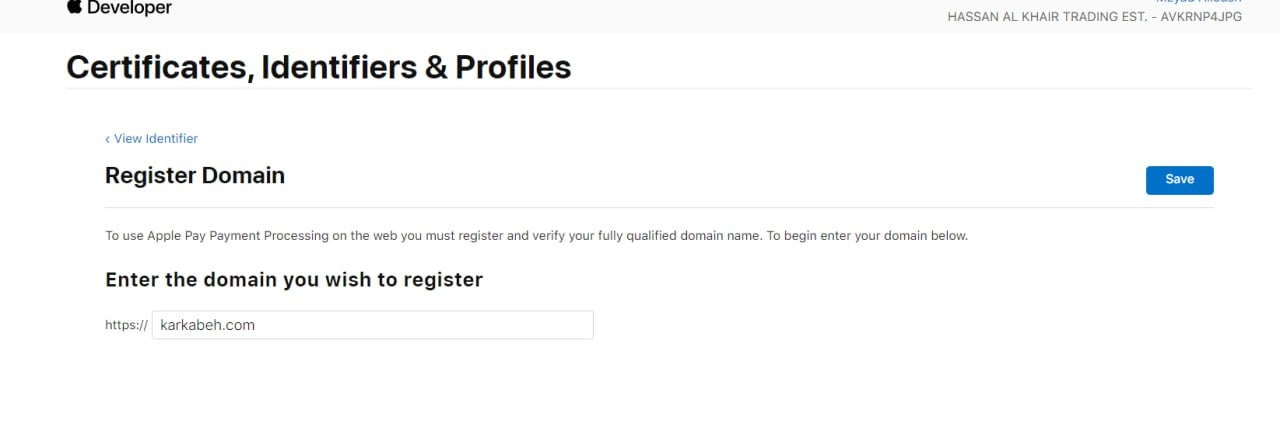
3. Add the store link without https:// and then press (Save).
4. Click (Download), and save the file for later use.
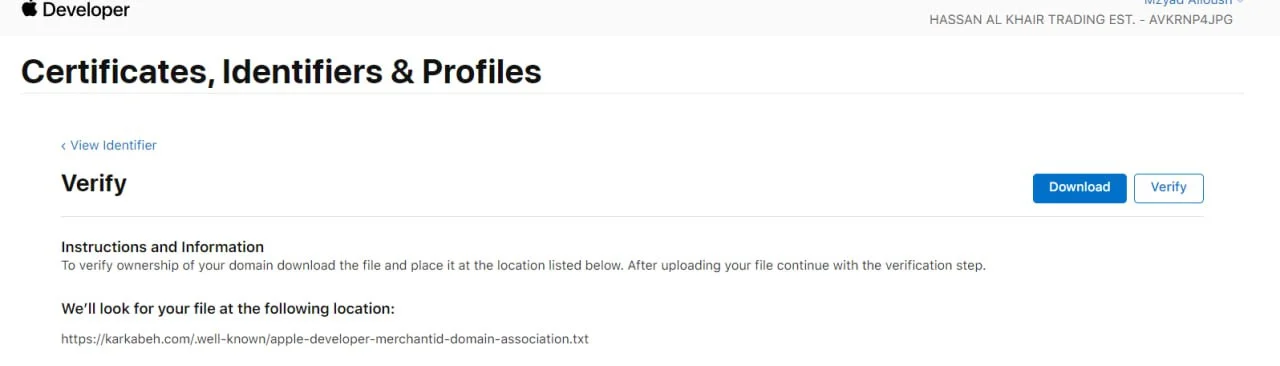
It will be saved under the name Apple-developer-merchantid-domain-association.txt
Generate Your Merchant Certificate
1. Return to the main interface
Alternatively , press back from the previous page.
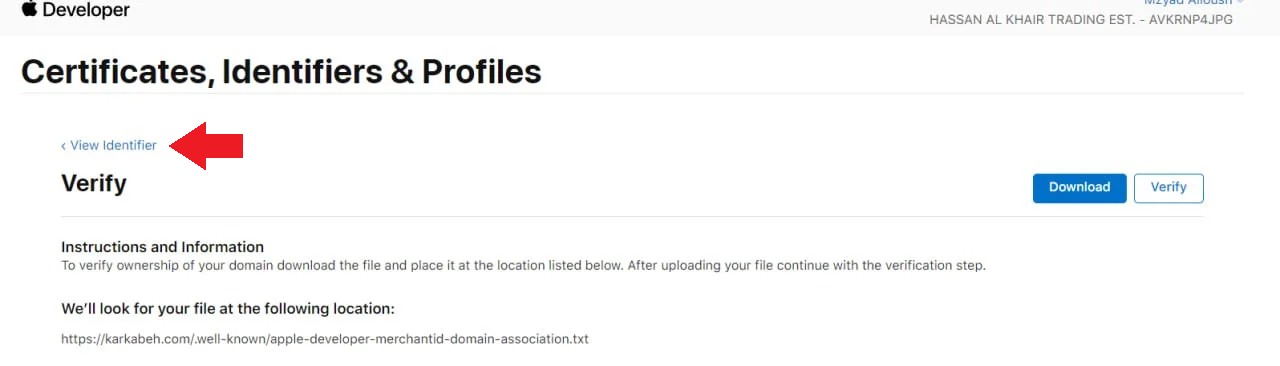
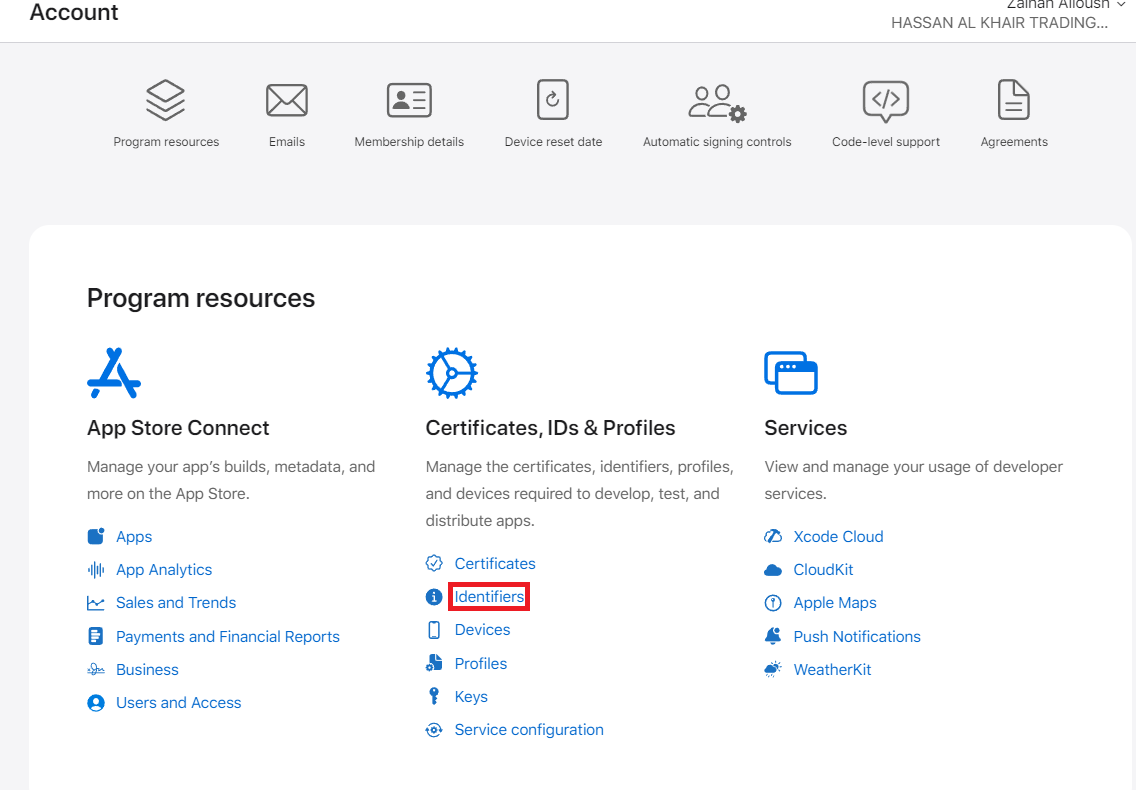
Or, from the main account page, click on (Identifiers).
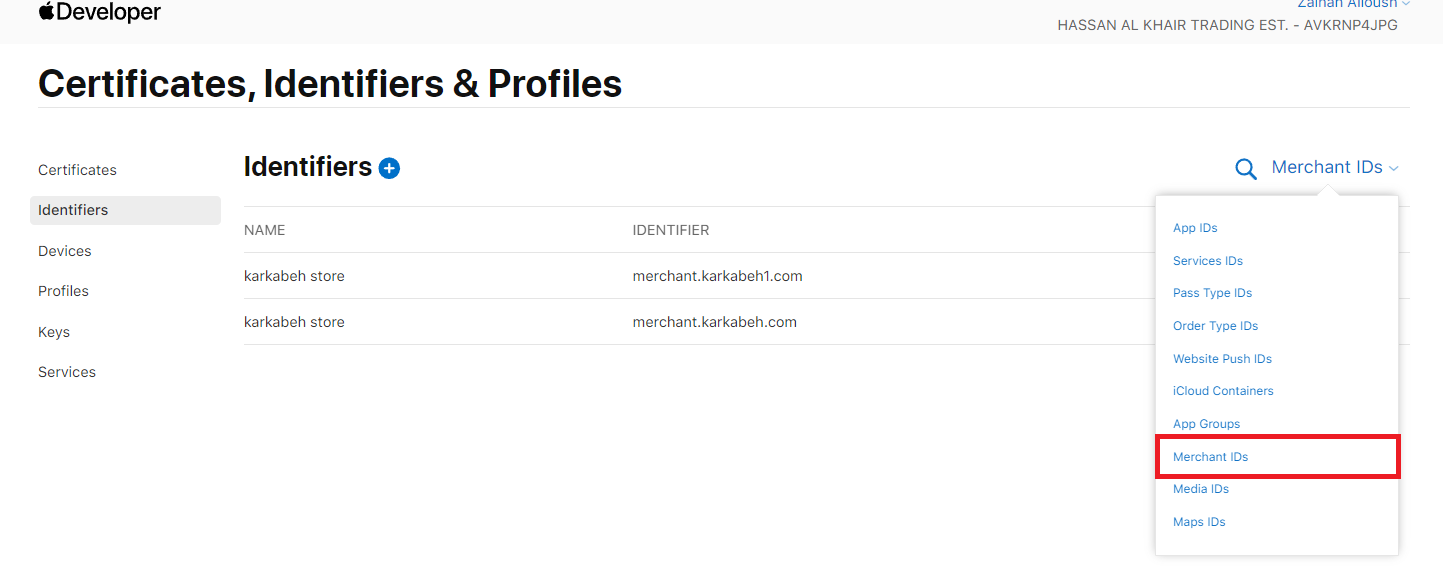
2. Then select the ID you created.
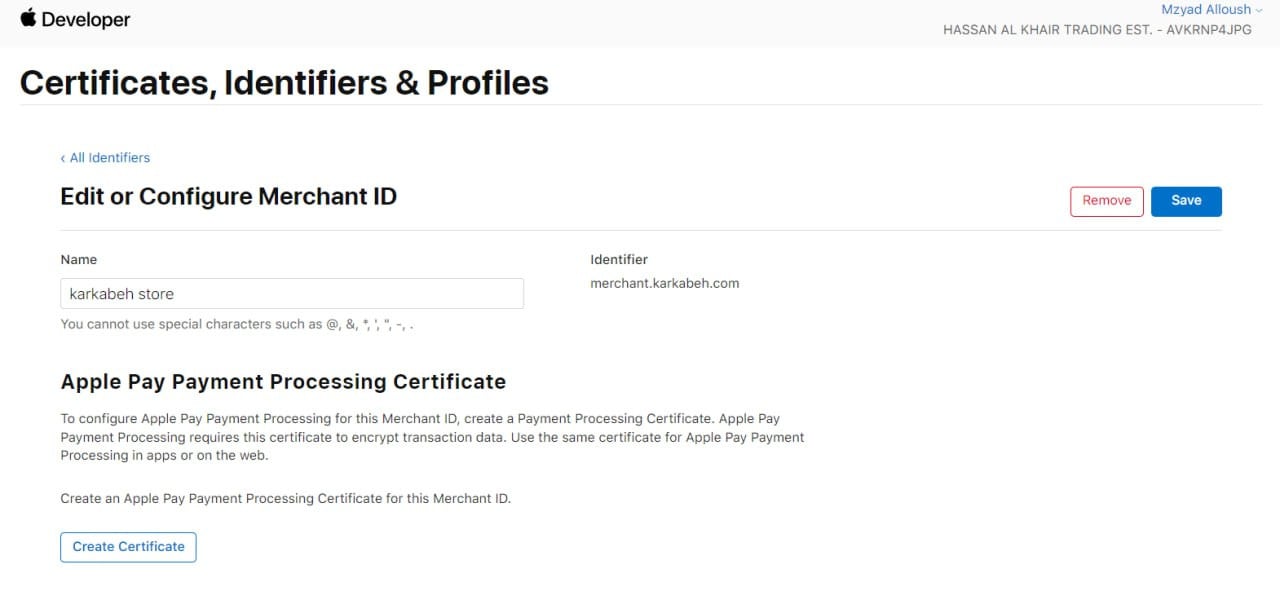
3. From the (Apple Pay Merchant Identity Certificate) section, click (Create Certificate).
4. From the confirmation page, click (Continue).

5. Upload the file that was provided to you by the service provider team and then click Continue.
Download the file that appeared to you. It will be saved as Merchant_Id.cer after you upload the previous file and send it to the payment gateway.
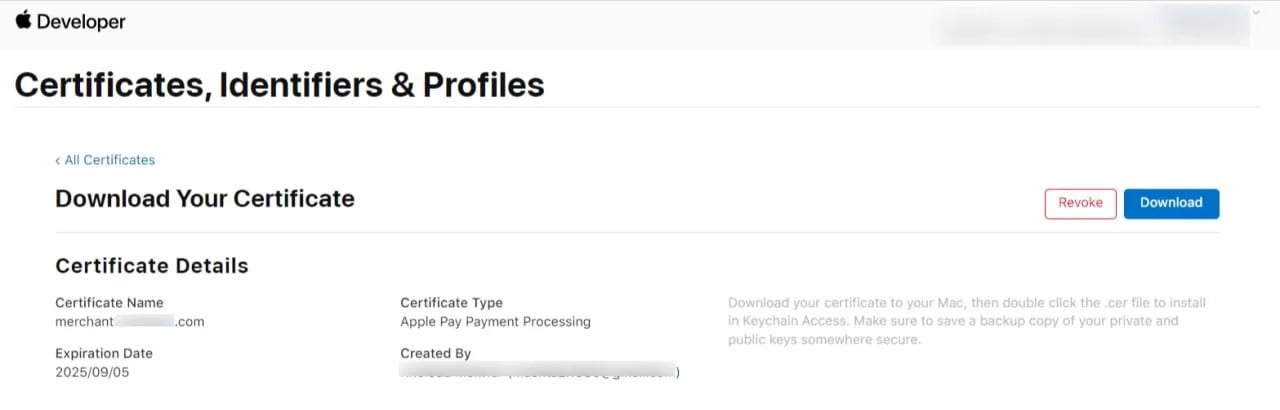
Step 3: Complete the Setup in Salla
To complete the Apple Pay activation process, please upload the files you have previously downloaded or created. Please attach the following files to the form in your dashboard in Salla:
1. From the main menu of the store control panel, press (All), then press ( Payment Methods ).
2. From the Other Payment Gateways section, click on (Apple Pay).
3. Choose from the list of linking methods (Advanced linking requires an Apple developer account).
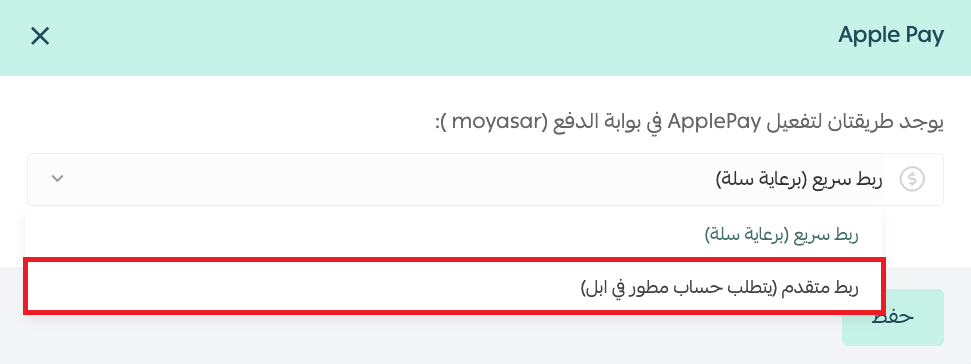
4. From the Apple Pay setup page in your store's control panel :
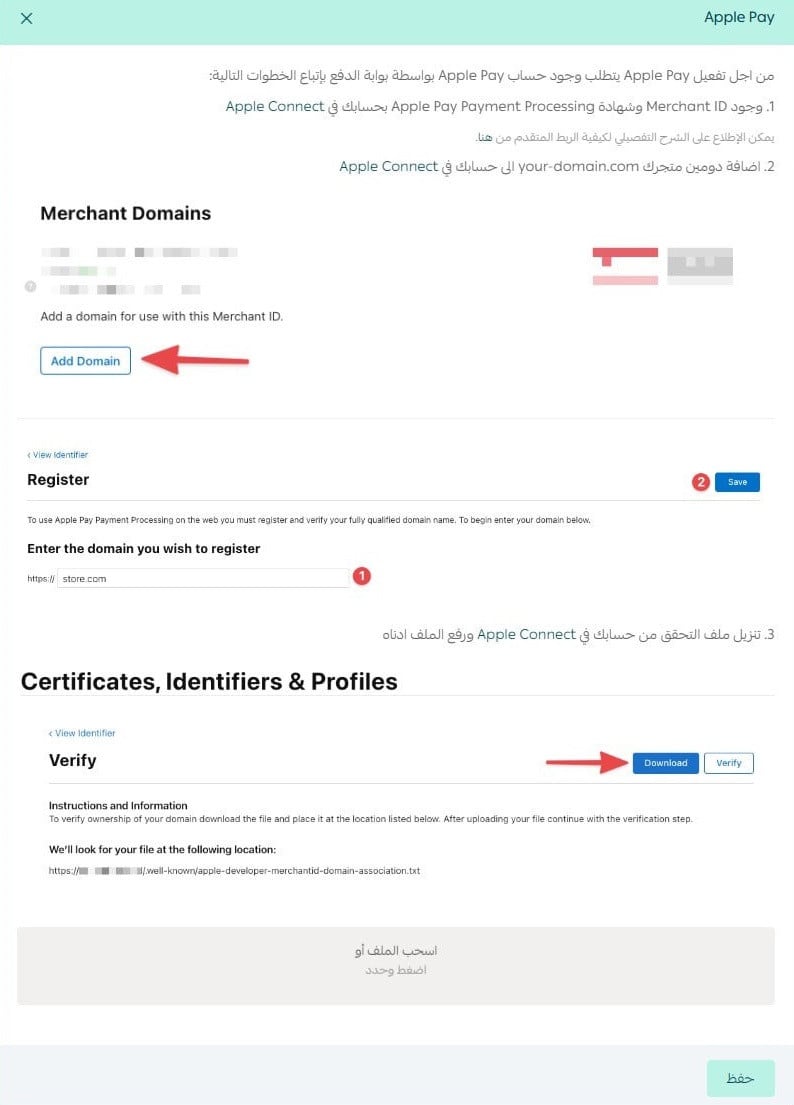
Please upload the following file obtained in the previous step:
Apple-developer-merchantid-domain-association.txt
The file can be uploaded from here:
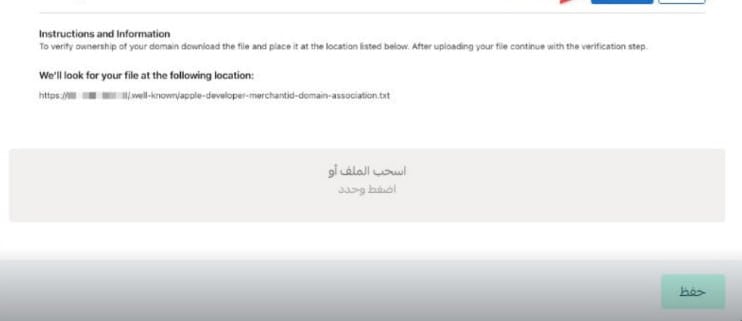
After uploading the required files, you will need to take an additional step, which is to confirm your domain.
You can click on the Verify icon and then click OK to confirm the domain.
Step 4: Activate Apple Pay
The service will be activated automatically after the last step, in case any error occurs and Apple Pay does not appear.
Frequently Asked Questions
Can I activate Apple Pay without an Apple Developer account?
Yes.
If your organization uses Moyasar and meets the eligibility requirements, Apple Pay can be activated directly from Salla without creating an Apple Developer account.
Does this apply to all charities and digital stores?
The simplified setup is available for eligible organizations using supported direct payment gateway integrations. Other setups may still require the standard Apple Developer workflow.
Are there additional fees for Apple Pay activation?
Salla does not charge an additional fee for enabling Apple Pay. Any applicable fees depend on your payment provider.
How can I confirm that Apple Pay is active?
Once setup is complete, Apple Pay will appear as an available payment method during checkout for eligible customers and donors.
What should I do if activation fails?
Check the following first:
- Domain verification is complete
- Required files were uploaded correctly
- Payment gateway credentials are valid
If the issue continues, contact your payment provider or Salla support, depending on the setup method you're using.