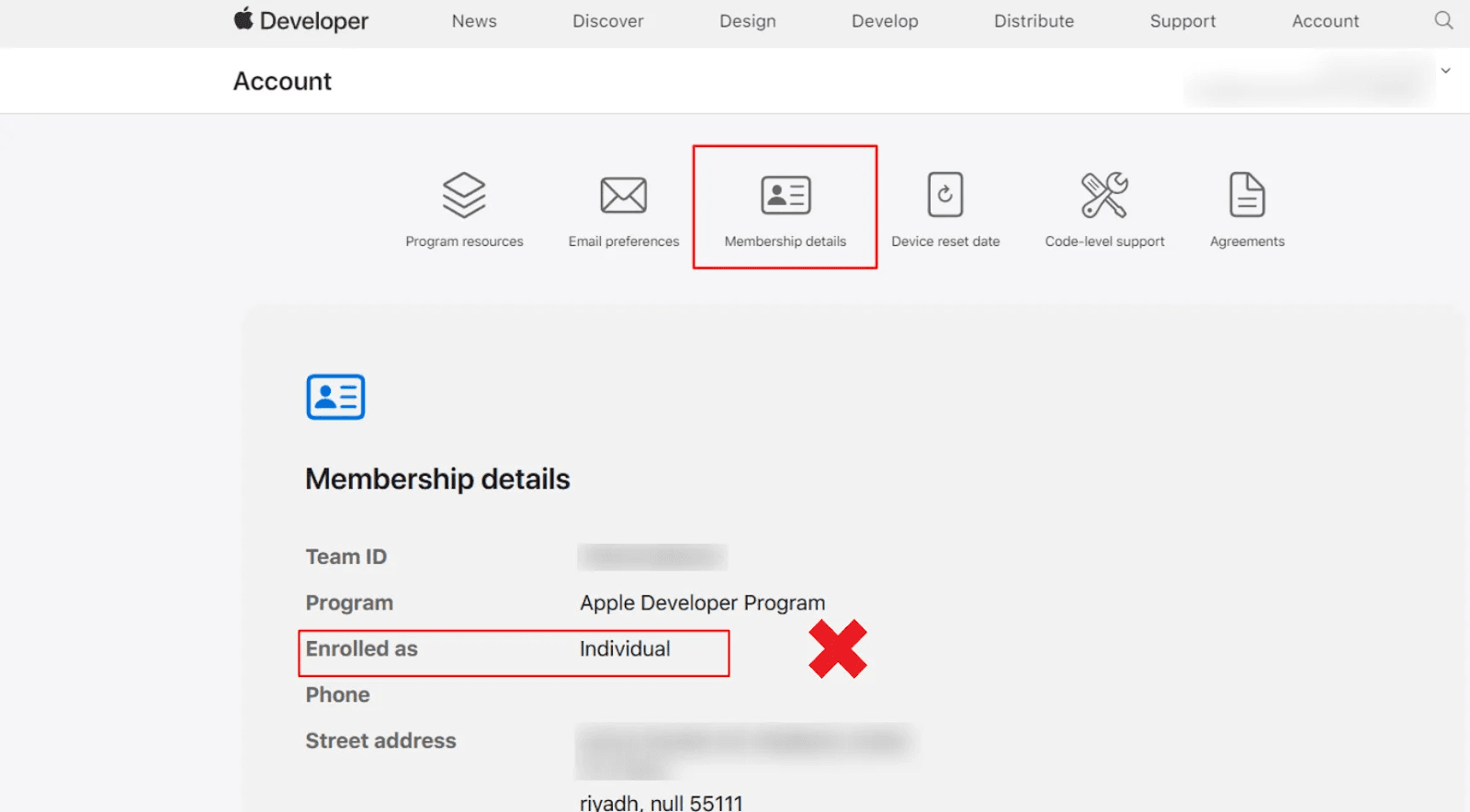
If you currently have an Individual Apple Developer account and plan to subscribe to Salla’s App Maker, you must upgrade your account to an Organization (Company) account. This conversion allows you to legally use a company developer account across all Apple Developer services and complete the subscription process without restrictions.
In this guide, you’ll learn how to:
- Verify your current account type
- Understand the requirements for conversion
- Complete the upgrade process with Apple
- Follow up on Apple’s verification emails
📌 Article overview
- How to verify your Apple Developer account type (legal entity)
- Steps to convert an Individual account to an Organization account
- Email follow-up and verification requirements
Verifying Your Apple Developer Account Type (Legal Entity)
1️⃣ Sign in to Apple Developer
Log in to your Apple Developer account via: Apple Developer
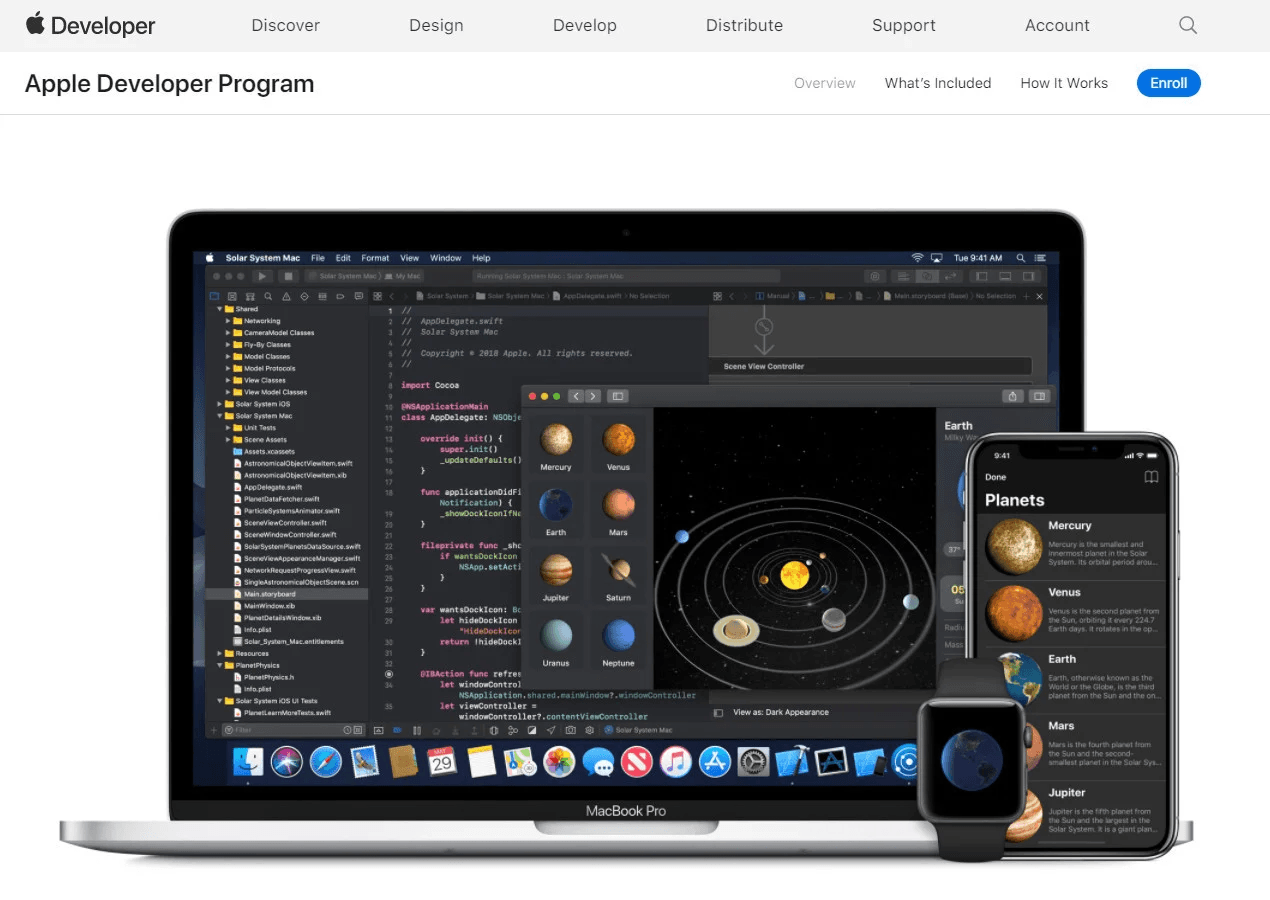
2️⃣ Open Your Developer Account
Click Account to access the Apple Developer Program account you previously created.

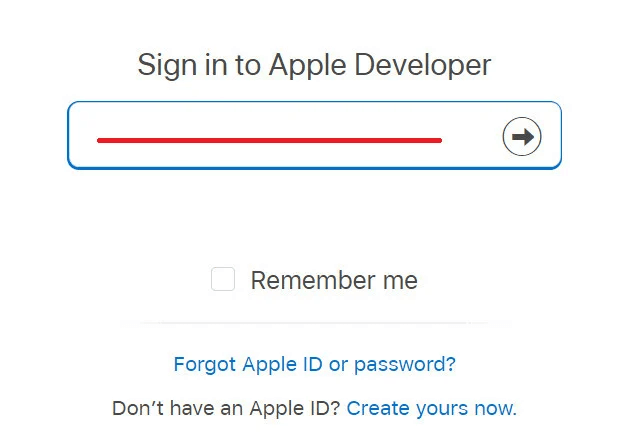
3️⃣ Complete Login Verification
Sign in using your credentials.
You may be asked to enter a verification code sent to the mobile number linked to your Apple ID.
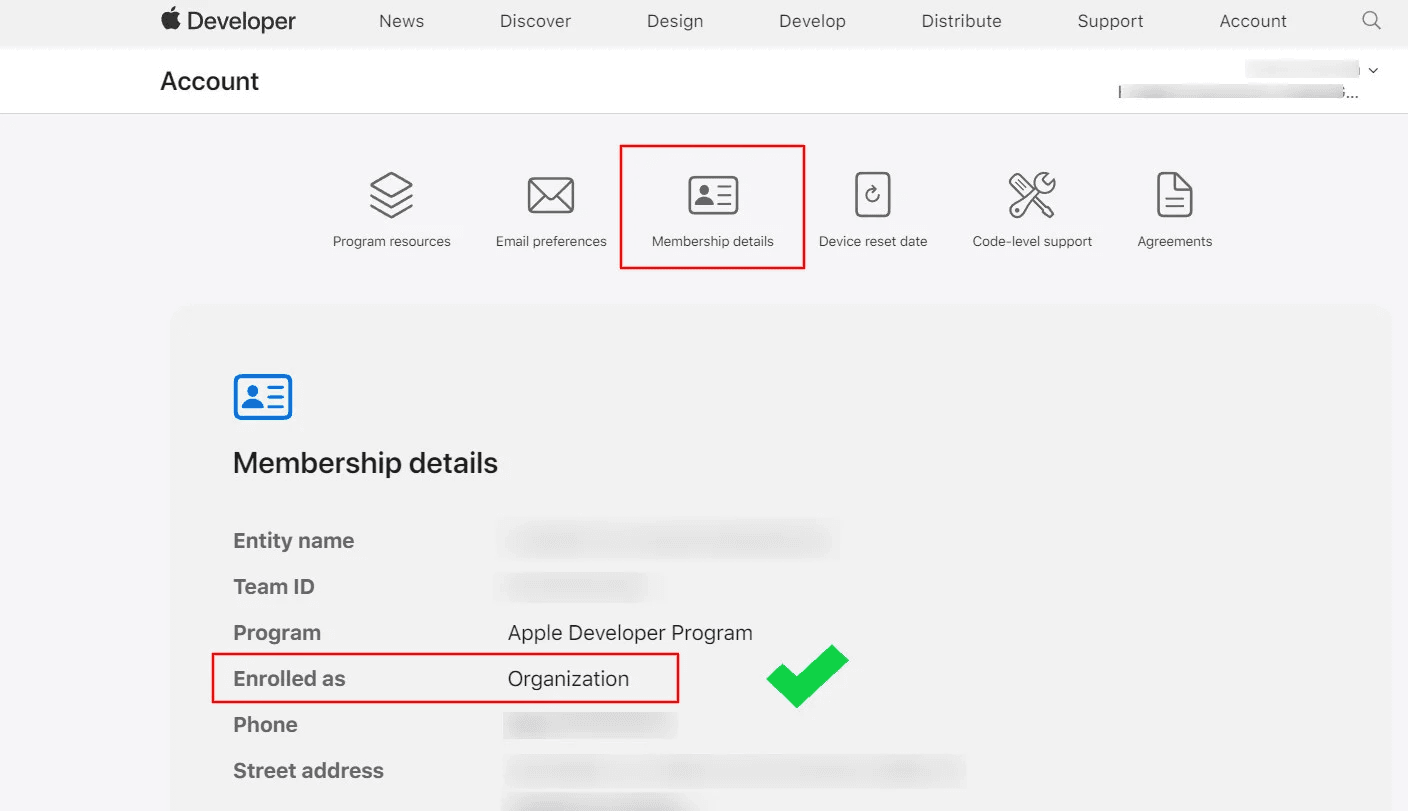
4️⃣ Open Membership Details
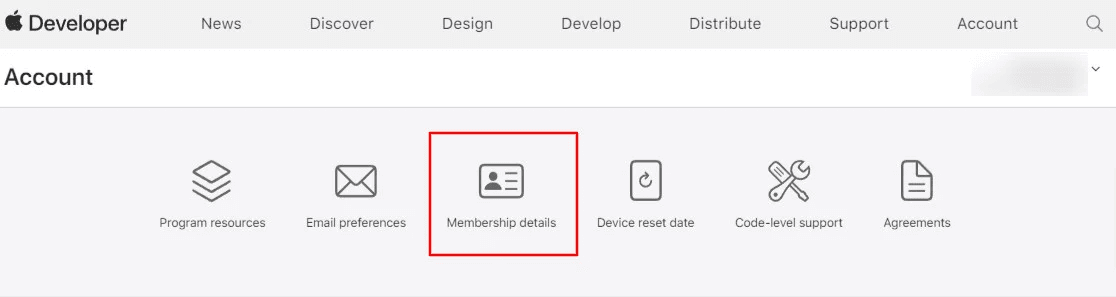
After signing in, the main account dashboard appears.
From the available tabs, select Membership Details.
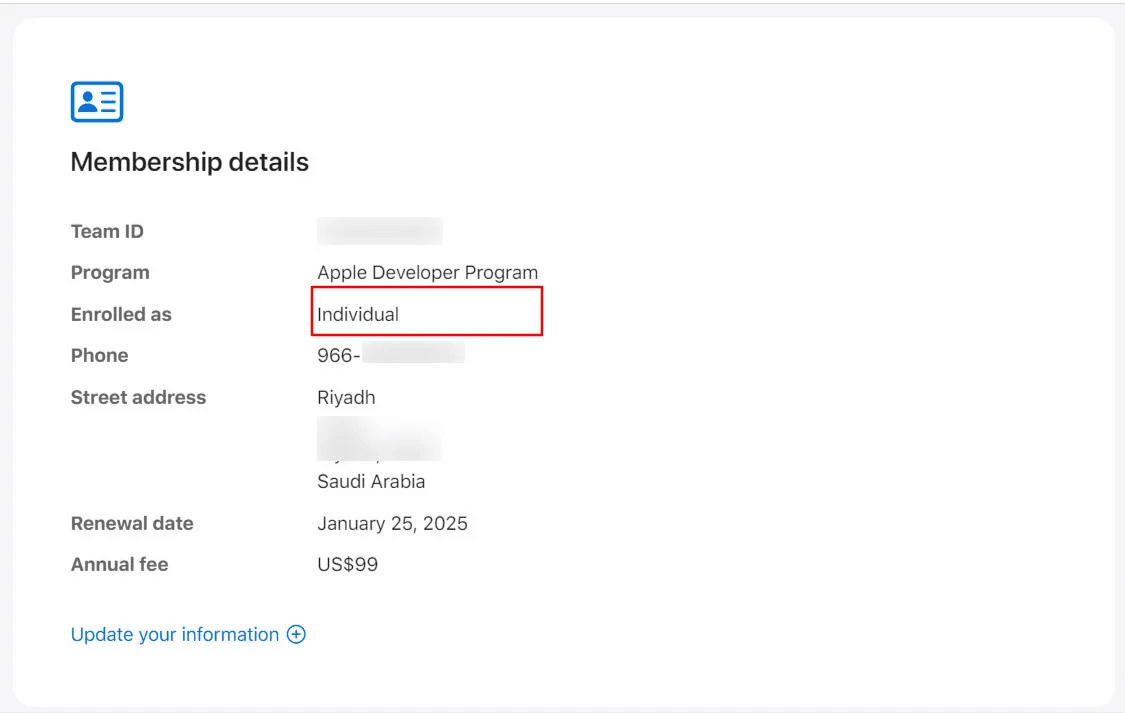
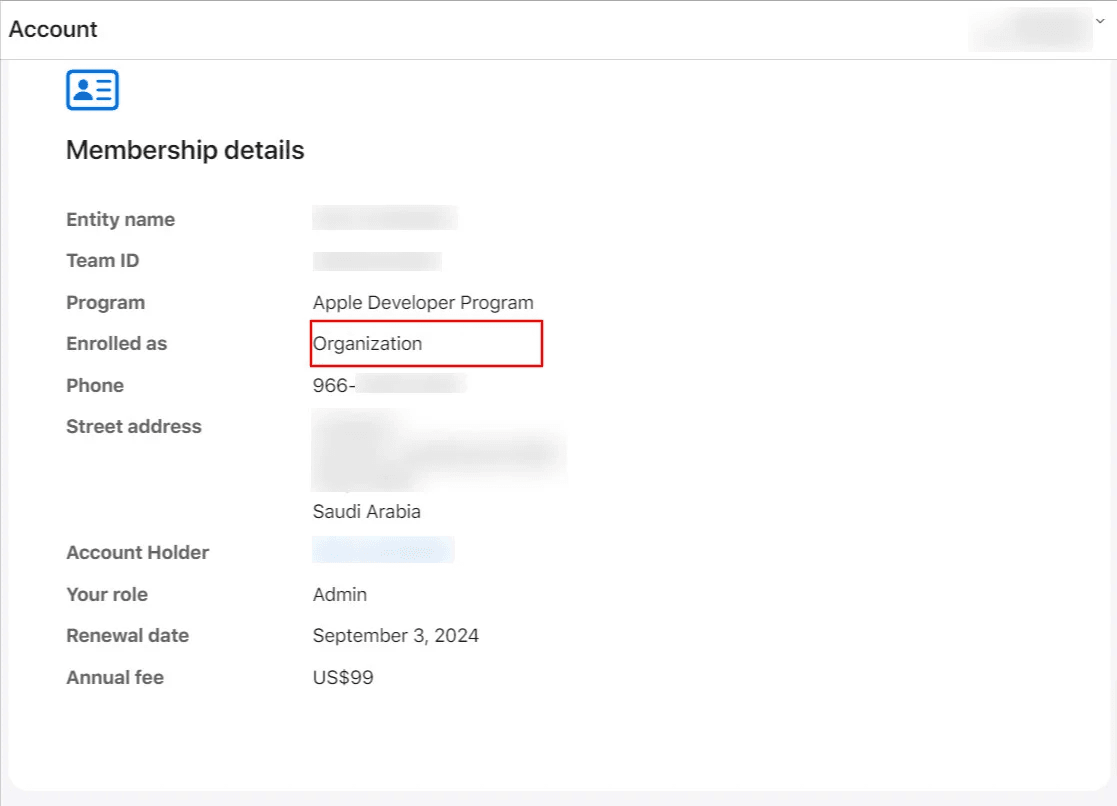
5️⃣ Check the “Enrolled As” Field
Under Membership Details, review the Enrolled As field:
Individual → Your account is an individual developer account
- Organization → Your account is already a company account
📖 Learn more:
- Creating an Apple Developer Account (Organization)
- Creating an Apple Developer Account (Individual)
Steps to Convert an Individual Account to an Organization Account
1️⃣ Open Membership Details
After signing in, go to Membership Details from your account dashboard.
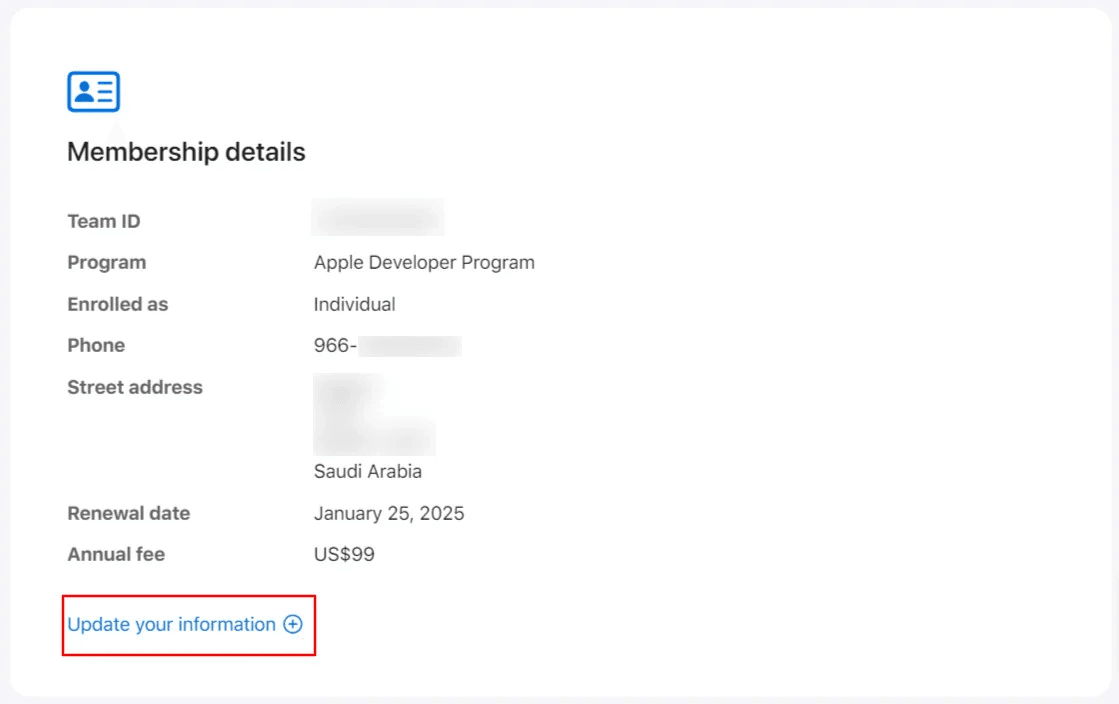
2️⃣ Select “Update your information”
Click Update your information below your current Individual membership details.
3️⃣ Start the Organization Conversion
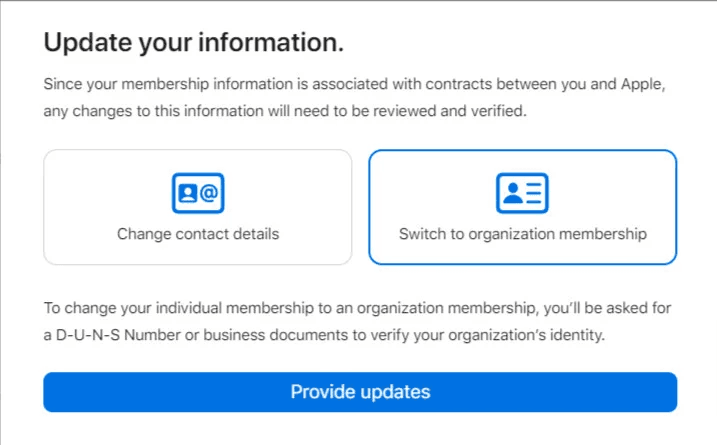
From the window that appears, select:
Switch to organization membership, then click Provide updates.
🔔 Requirements for Conversion
To proceed, you must have:
- A D-U-N-S Number (Global Business Identifier)
- A commercial registration matching the D-U-N-S record
- Accurate and verifiable company information
All submitted data will be reviewed and validated by Apple.
4️⃣ Review Existing Developer Information
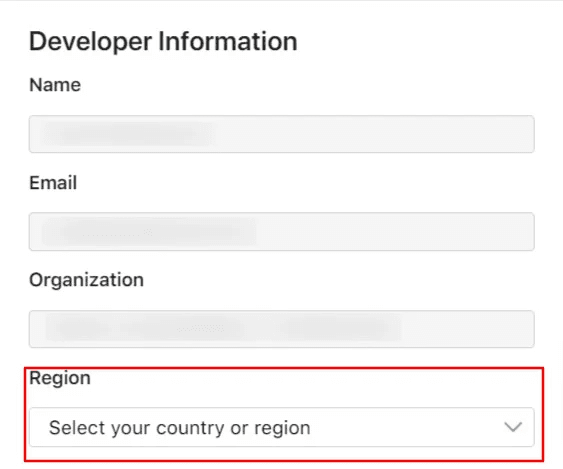
You’ll be redirected to the verification form. First, review your existing details:
- Account holder name
- Email address
- Registered organization name (currently Individual)
Then select your country or region.
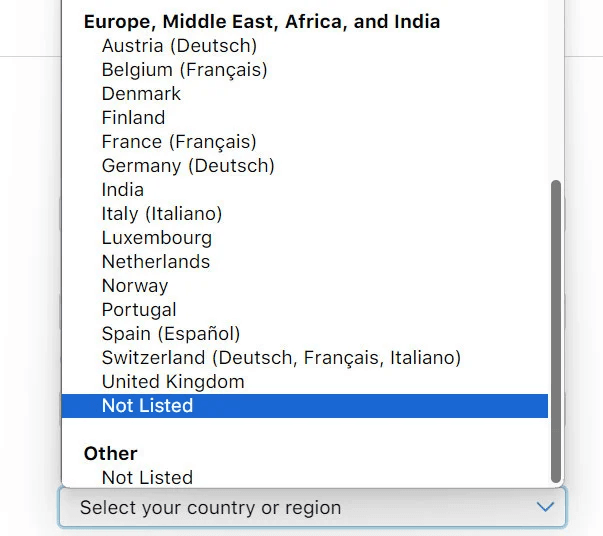
Scroll to Europe, Middle East, Africa and India, and select Not Listed.
5️⃣ Enter Company Information (Must Match D&B Records)
Provide company details exactly as registered with Dun & Bradstreet (D&B):
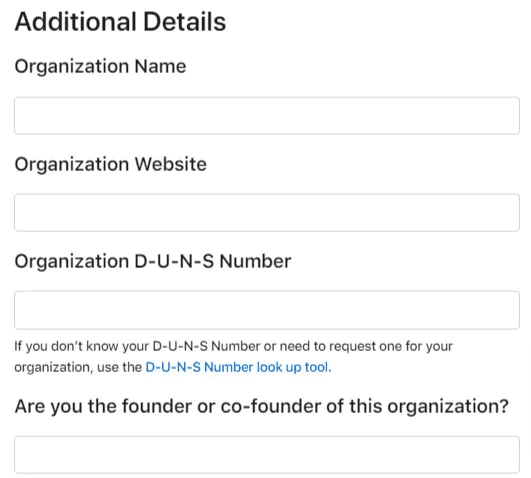
- Organization Name
Enter the legal company name exactly as registered
- Organization Website
Enter your store or business website URL
- Organization D-U-N-S Number
Enter the 9-digit number exactly as issued
- Founder or Co-Founder
Answer Yes if you are the founder or co-founder
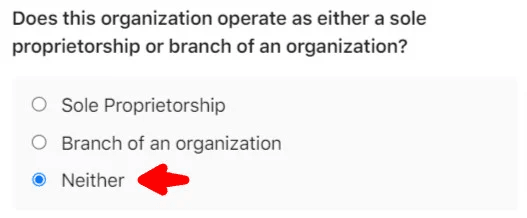
6️⃣ Legal Entity Confirmation
When asked whether you are an individual or a branch entity, select: Neither
⚠️ Conversion is not supported for:
- Branch records
- Individuals using personal registrations
The registration must belong to the company’s main legal entity.
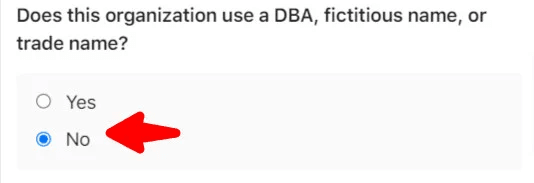
7️⃣ Trade Name Question
Answer No when asked whether the organization uses an alternative or fictitious trade name.
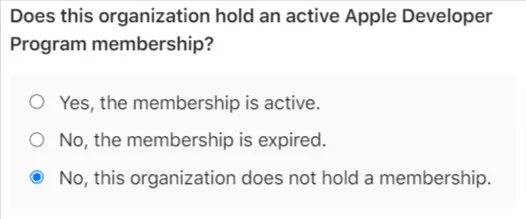
8️⃣ Existing Apple Developer Membership
Answer No when asked if the organization already has an active Apple Developer Program membership.
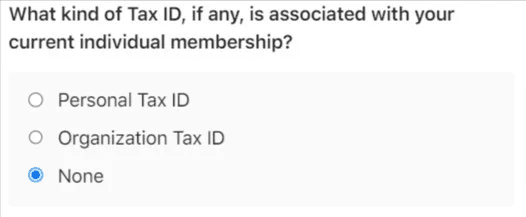
9️⃣ Tax Identifier
When asked about a tax number associated with your Individual membership, select: None
1️⃣0️⃣ Submit the Request
Click Submit.
A confirmation message will appear indicating that Apple will review your request within one business day or more.

Email Follow-Up and Verification Requirements
Please monitor your email carefully for messages from Apple Developer Support.
1️⃣ Conversion Acknowledgment Email
Apple will send an email explaining which services may be temporarily affected during the conversion.
You must reply with the following confirmation text:
“Yes, I understand the above points and I would like to proceed with the migration process.”
2️⃣ Company Information Completion
You’ll receive another email containing a link to complete company details registered with D&B, including:
- Legal company name
- D-U-N-S Number
- Address
- Business phone number
- Work email
This step mirrors Step 6 onward in the guide: Creating an Apple Developer Account (Organization)
3️⃣ Handling Errors or D-U-N-S Issues
If you encounter errors when entering the D-U-N-S number or company details:
- Contact Apple Support with full error details
- Reply directly to the existing support email thread
- Avoid opening multiple support tickets to prevent delays
📖 Learn more:
- Contacting Apple Support by phone
- Contacting Apple Support by email
4️⃣ Review and Additional Verification
Your membership status will change to Under Review.
Apple may request:
- Additional documents
- A verification phone call
This follows the same verification process outlined in Steps 9–10 of:
Creating an Apple Developer Account (Organization)
5️⃣ Agreement Approval
After verification, Apple will email you a legal agreement link.
Click the link, sign in to your account, and select Agree.
Once completed, the conversion is finalized immediately.
6️⃣ Final Verification
Return to Membership Details and confirm that your account now shows:
- Enrolled As: Organization → Conversion completed successfully
If the account still appears as Individual, contact Apple Support for clarification.