Delivering a smooth multilingual shopping experience starts with how your content is entered.
If store data is added inconsistently across languages, customers may see untranslated or mismatched information, which can create confusion and reduce trust. In this guide, you’ll learn the correct way to enter store data in multiple languages, from products to offers, so your store looks professional and complete in every language you support.
📌 Article overview
- Adding products in multiple languages
- Entering informational page content in more than one language
- Customizing store pages and interface elements
- Additional data that supports multilingual entry
- Frequently asked questions
Important notes before you start
- Entering data in multiple languages means adding content such as interfaces, menus, products, categories, branches, offers, ads, and more in all languages enabled in your store.
- You must always enter and save content in the default language first before adding translations in other languages. All languages should then be saved together.
Adding products in more than one language
- Enter the product details in the default language (for example, English), then click Save.
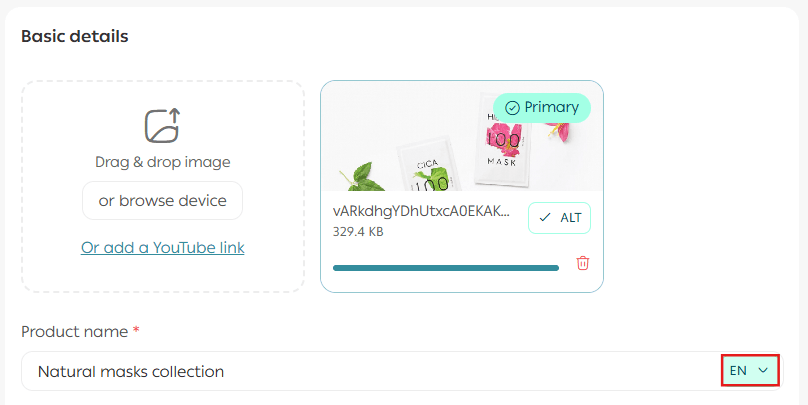
2. From any translatable field, select the language you want from the language selector.
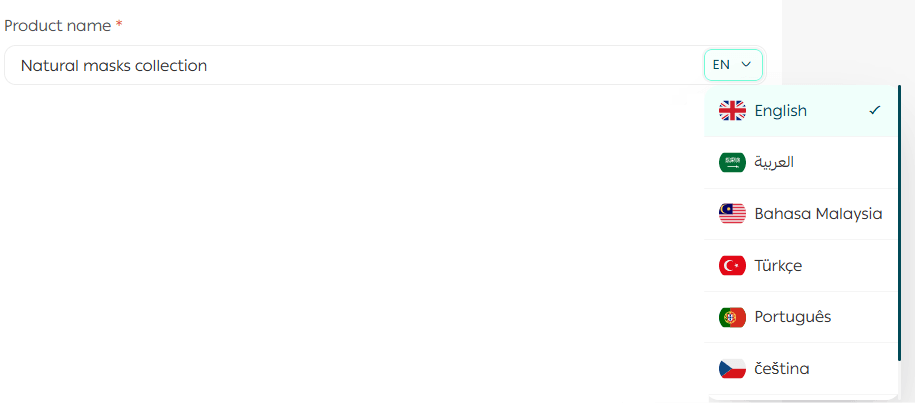
3. If instant translation is enabled for the selected language, the default text will appear automatically translated.
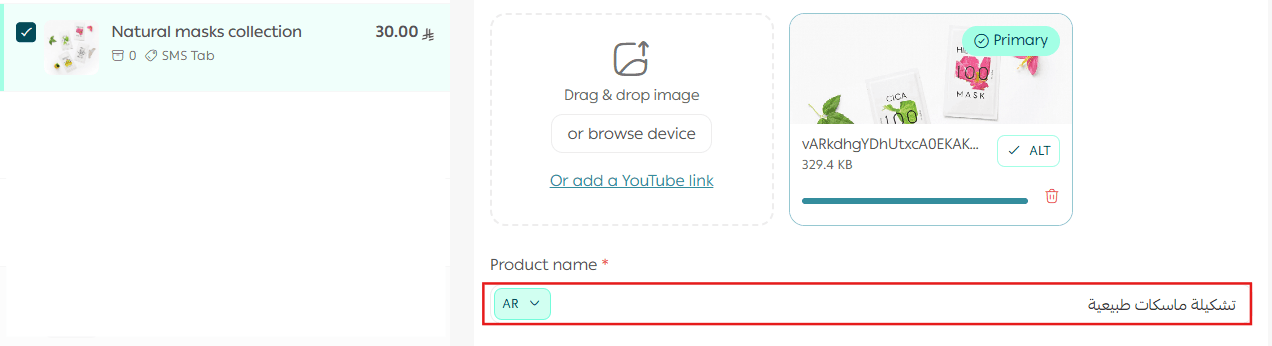
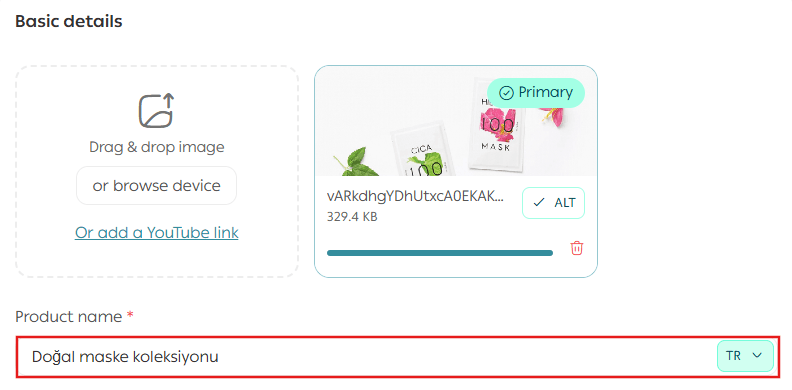
4. Replace or edit the translated text as needed.
The product card will now display content based on the selected language.
5. Repeat steps 2–4 for each language enabled in your store.
Entering informational pages in multiple languages
- Enter the page content in the default language, then click Save.
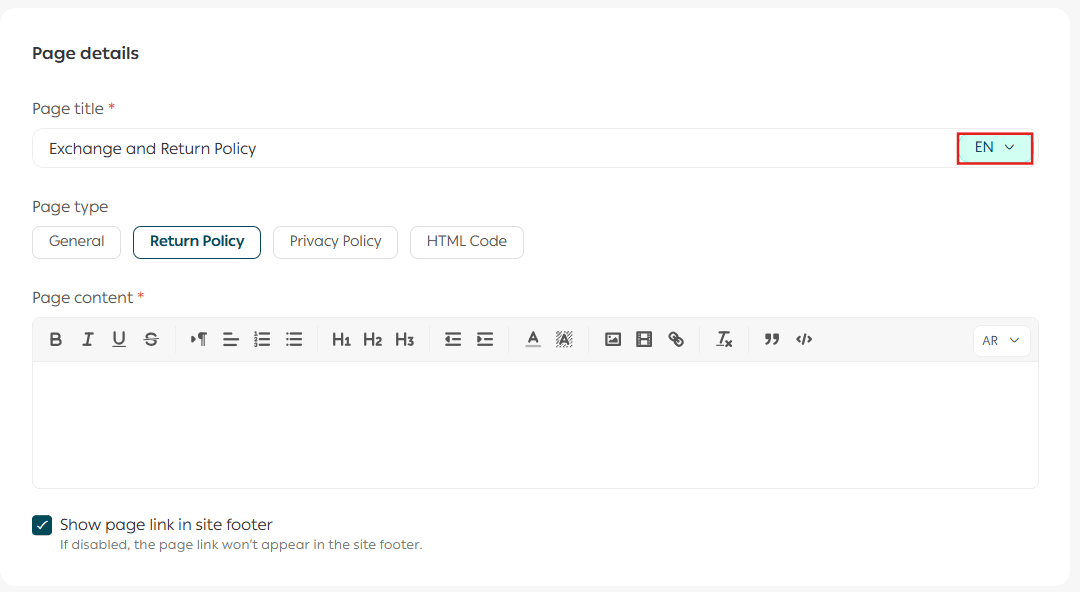
2. Select the target language from the language selector in any translatable field.
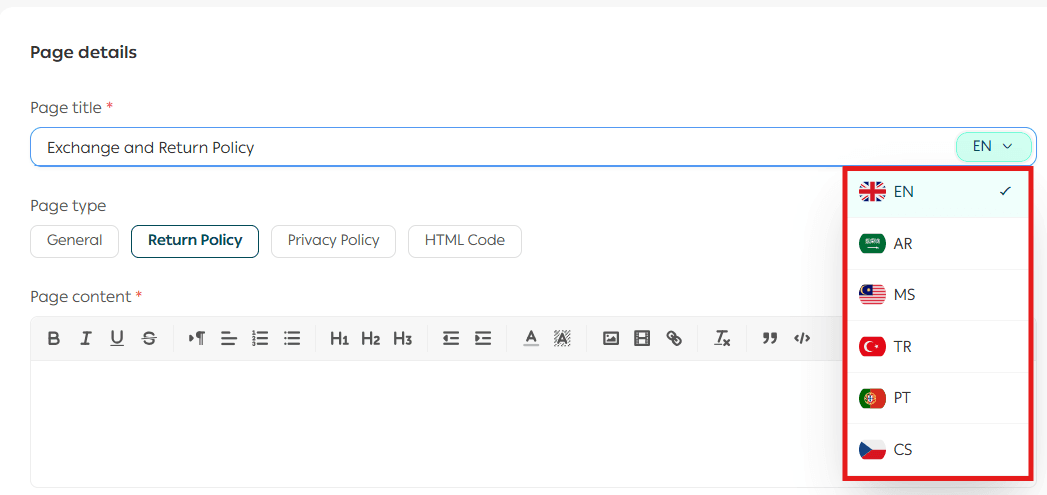
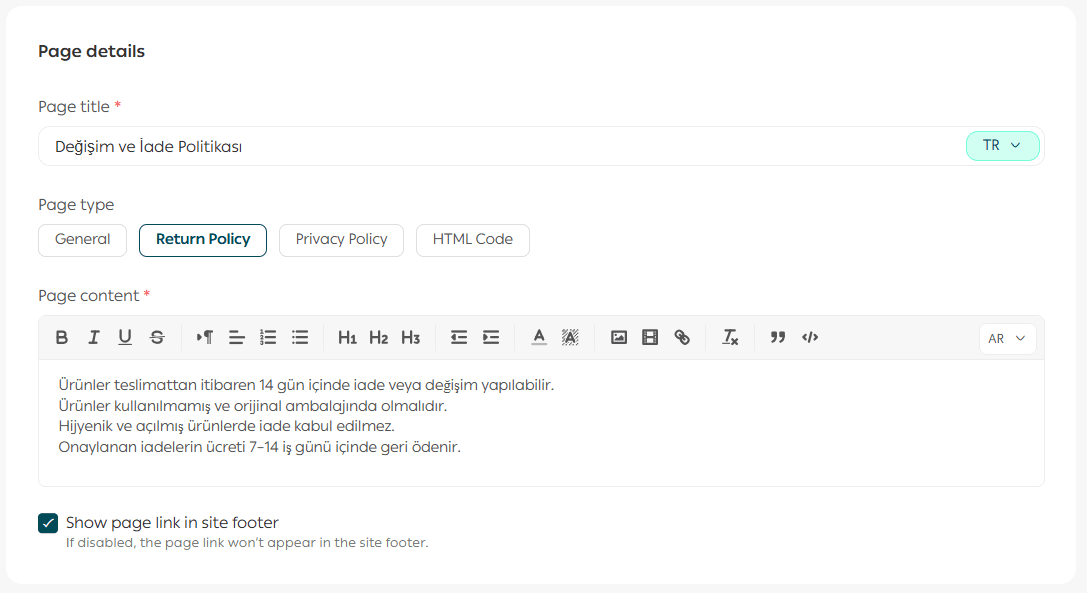
3. If instant translation is enabled, the content will appear translated automatically.
You can edit it to better match your audience if needed.
Customizing store pages and interface elements
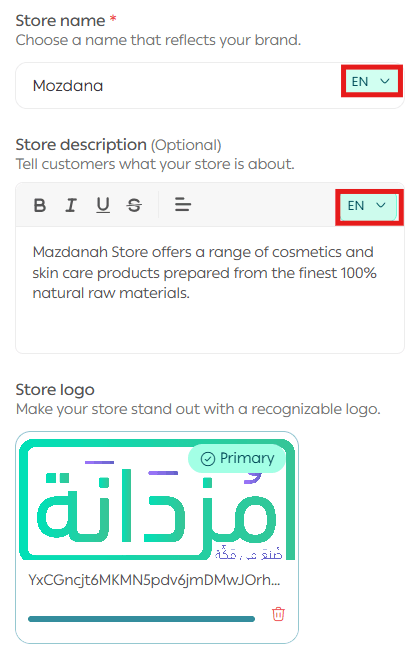
1. Store name and description
You can customize these from the Store Information page.
2. Store pages via the Text Editor
Use the Text Editor to customize page titles, menu labels, and interface text.

Example:
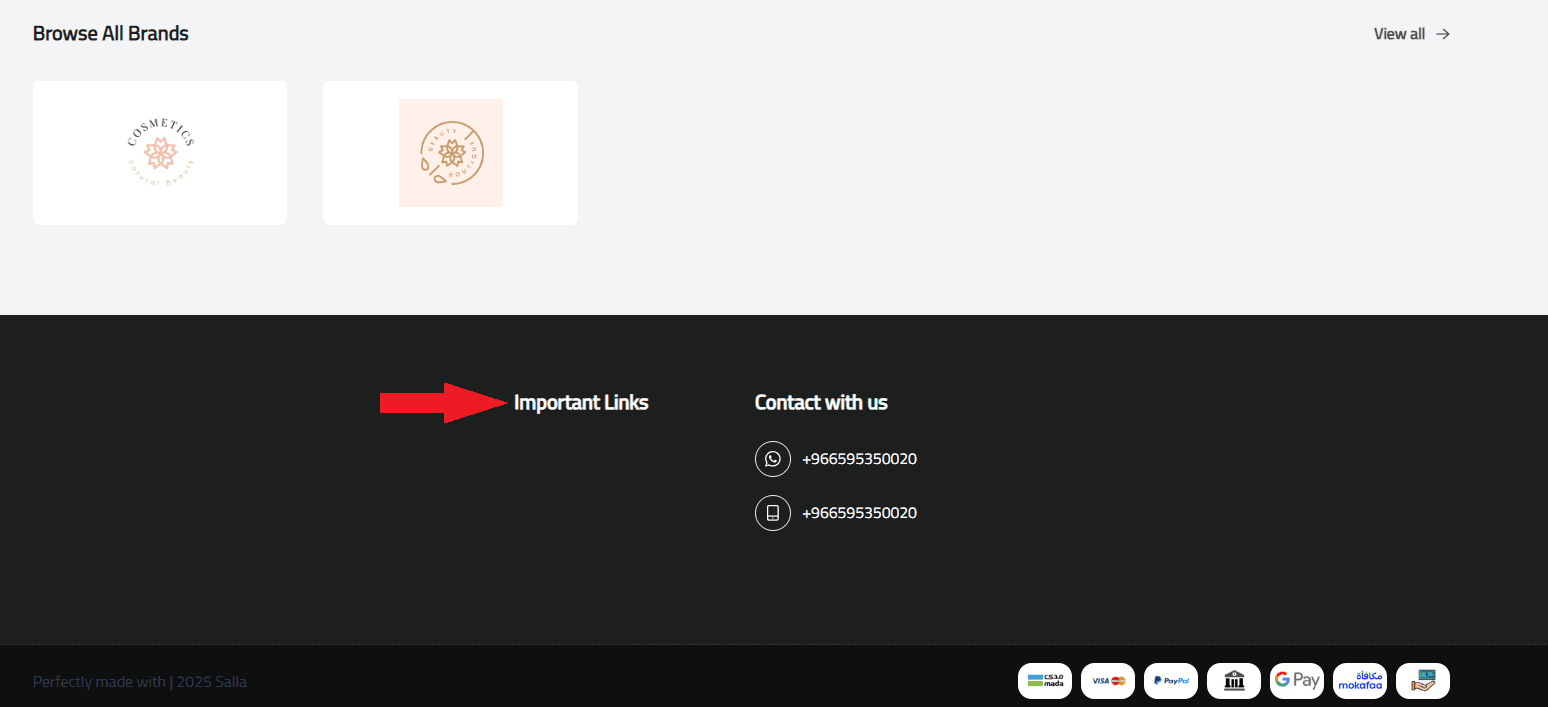
Change “من نحن” to “About Us” in the English interface under
General Sections / Header in the English Text Editor.

The text will appear to customers exactly as entered when browsing the store.
Important note
Even interface elements in the default language can be customized.
Example:
If Arabic is your default language, you can still modify interface wording using the Text Editor to better suit your brand tone.
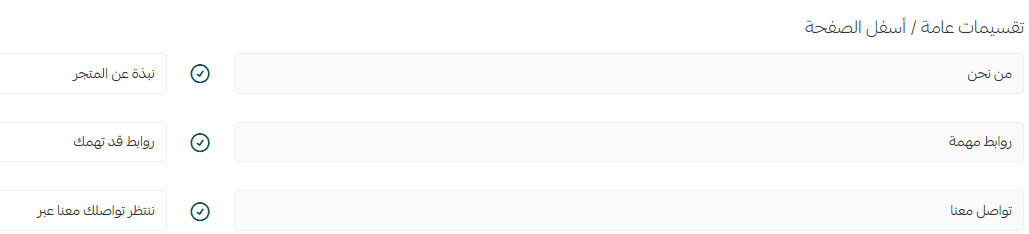
After editing, click Save, then repeat the same steps for other enabled languages.
Additional data you can enter in multiple languages
Any text that appears to customers can be translated and customized based on the language they select. This includes, but is not limited to:
- Branch and warehouse names and addresses

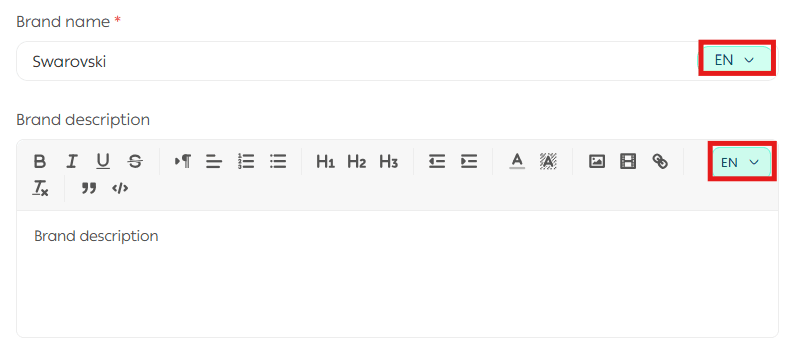
2. Brands and trademarks
3. Store order settings, such as:
- Order acceptance status
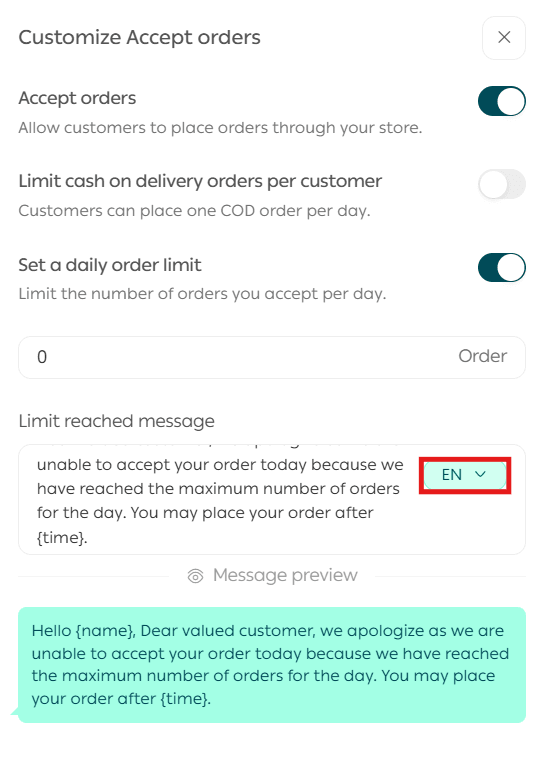
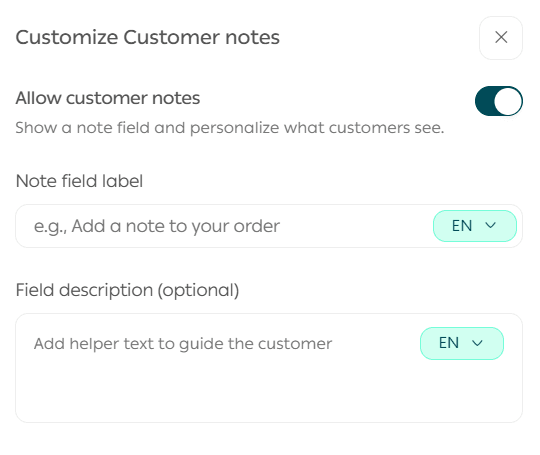
- Allowing order notes
- Order confirmation acknowledgment
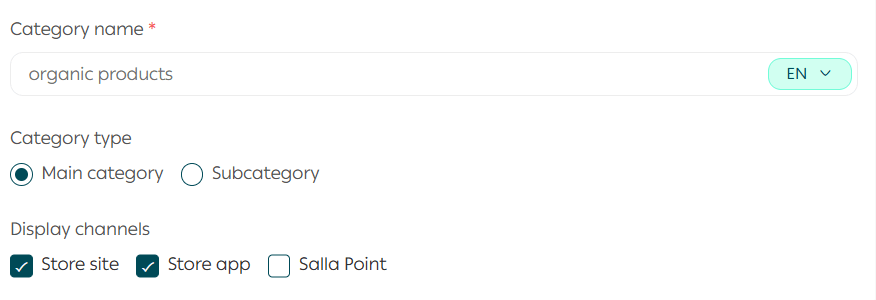
- Product categories
Frequently asked questions
What happens if I don’t enter text for a specific language?
If a field is left empty in a non-default language, the system automatically displays the default language content.
Example:
Your store supports three languages:
- Arabic (default)
- English
- French
You add a product named:
- Arabic: كتاب
- English: Book
- French: (left empty)
What customers see:
- Arabic interface: كتاب
- English interface: Book
- French interface: كتاب
Which fields can be translated for special offers?
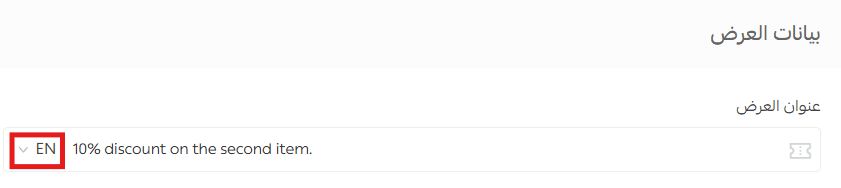
For special offers, you can translate all customer-facing fields, including:
- Offer title
2. Offer message text
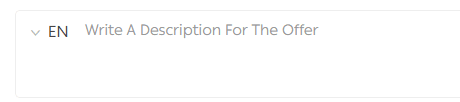
These fields can be customized separately for each language enabled in your store.