Sometimes a product may be deleted by mistake, or you may need to restore it later without recreating it from scratch. This can be stressful, especially if the product includes detailed settings, pricing, or options.
The Deleted Products feature allows you to view and restore removed products easily, giving you full flexibility in managing your store without losing important data.
In this guide, you will learn how to access deleted products, customize the displayed fields, search for specific items, and restore them in just a few steps.
View and Restore Deleted Products
1. Access the Deleted Products page
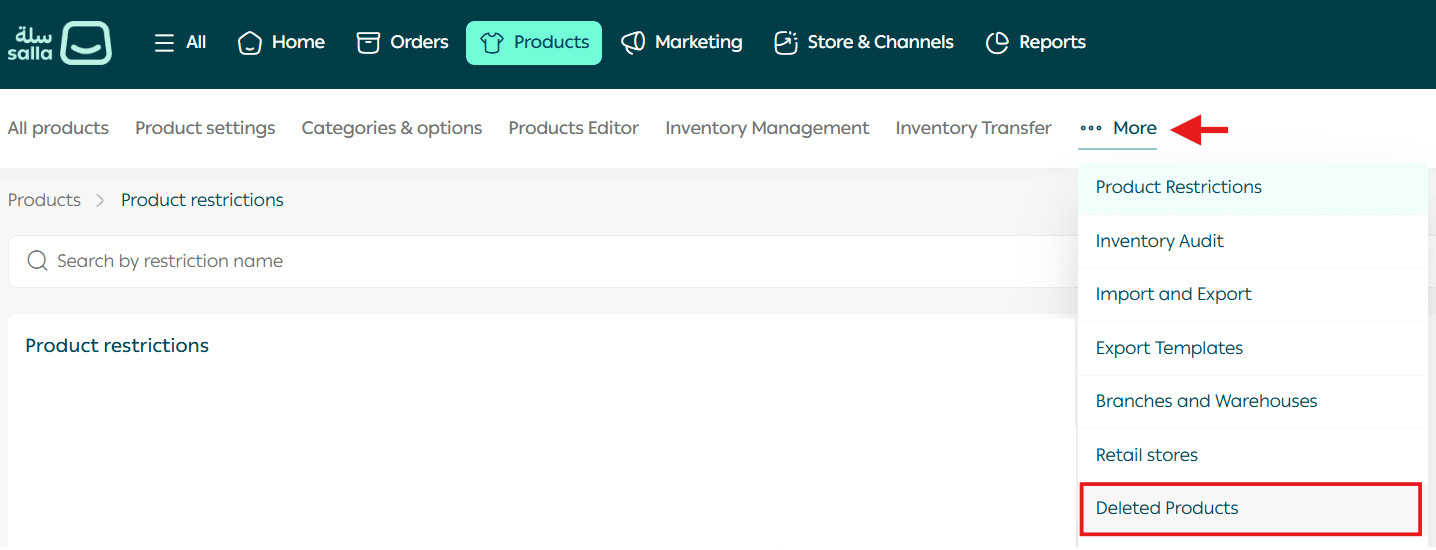
From the main menu, click Products.

2. Open Deleted Products
From the More menu, click Deleted Products.
Default information displayed
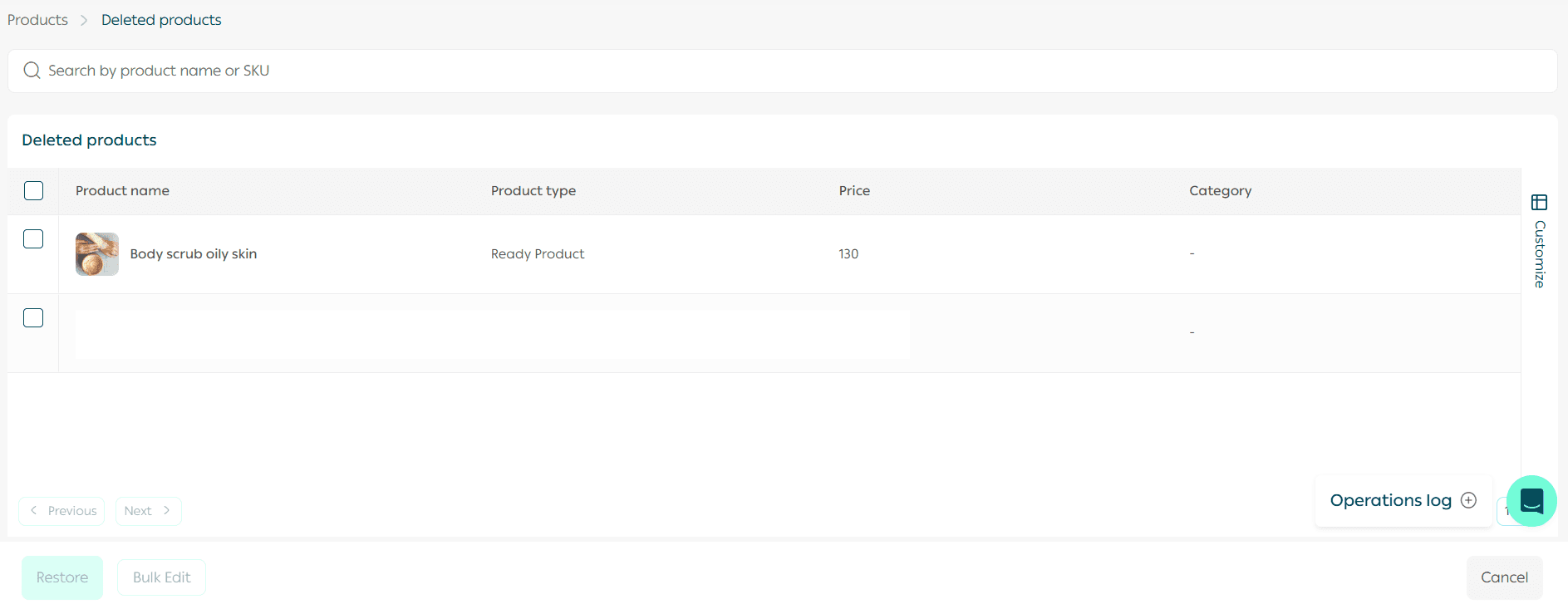
The Deleted Products page displays the following information by default:
- Product name
- Product type
- Product price
- Product category
These details help you quickly identify deleted products and decide whether to restore them.
3. Customize displayed fields
To customize which fields are shown:
- Click Customize.
- Select the fields you want to display.
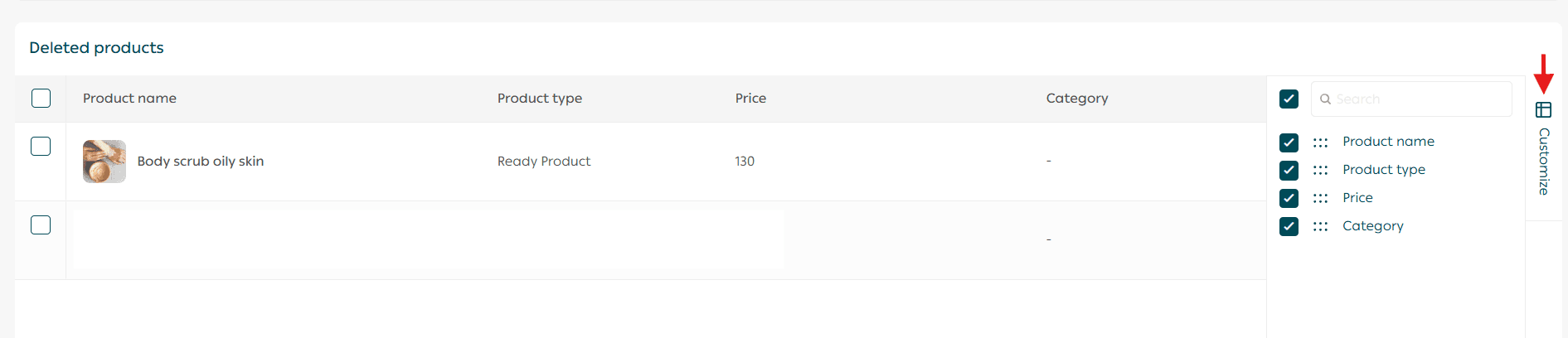
This allows you to tailor the view based on your workflow and priorities.
4. Search for a deleted product
To find a specific deleted product quickly:
- Enter the product name in the Search field.
- Matching results will appear instantly.

5. Restore deleted products
To restore one or more deleted products:
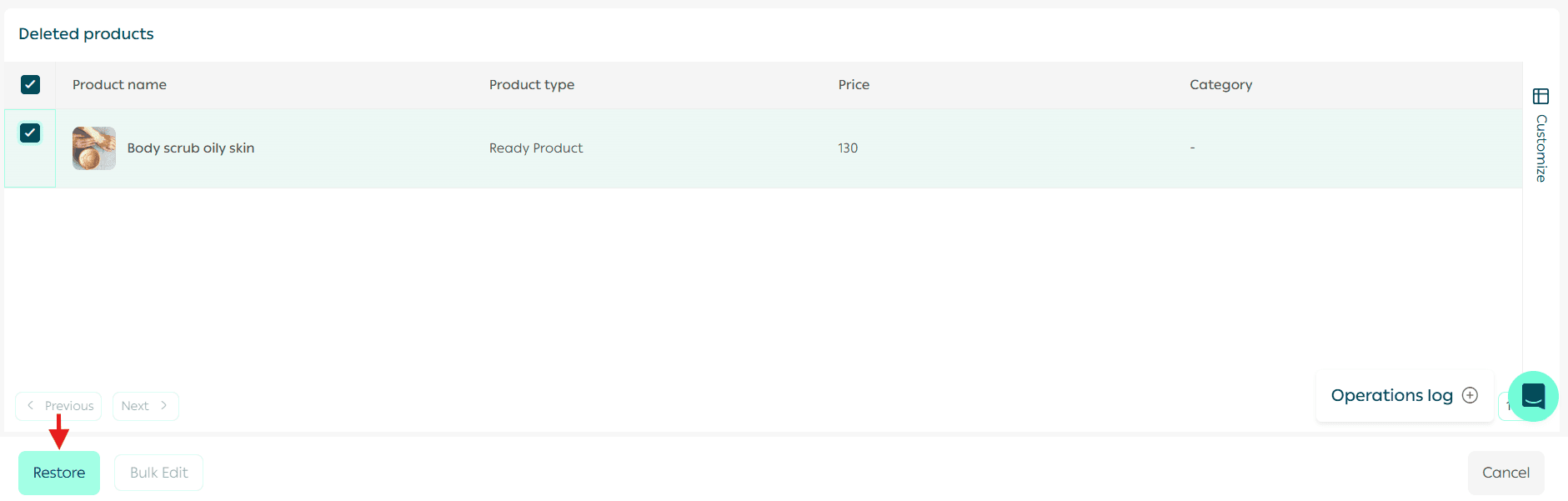
- Select the products you want to restore.
- Click Restore.
The selected products will be returned to your active product list with all their original data and settings intact.
Final takeaway
The Deleted Products feature gives you peace of mind when managing your store.
You can confidently remove products knowing that restoration is always possible, saving time, preventing data loss, and keeping your operations smooth and efficient.