Marketing campaigns through SMS messages are among the most effective tools for increasing store sales. They allow you to reach your customers directly and instantly, highlighting your offers at the right time.
By preparing your campaign, selecting the target audience, and scheduling the message delivery, you can ensure that your messages reach the most engaged customers, helping strengthen loyalty and deliver measurable results for your store.
📌 Article overview
- Reviewing marketing campaigns
- Steps to create an SMS marketing campaign
- Managing marketing campaigns
Reviewing marketing campaigns
- From the main menu, click Marketing.
- From the submenu, select Marketing Campaigns.

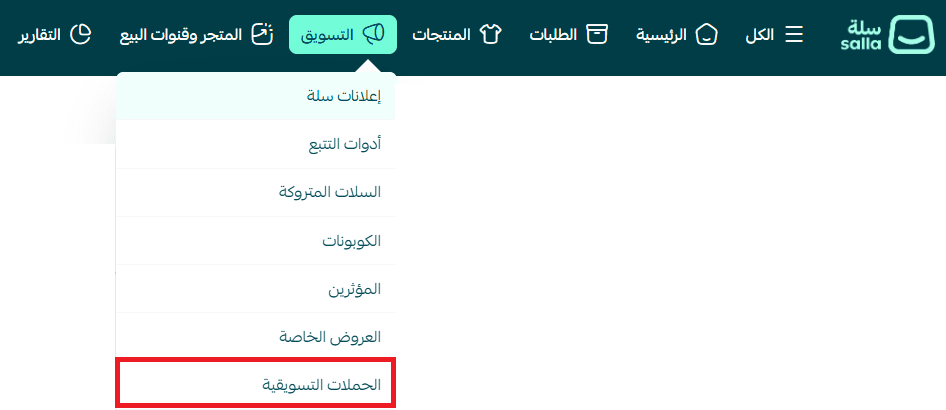
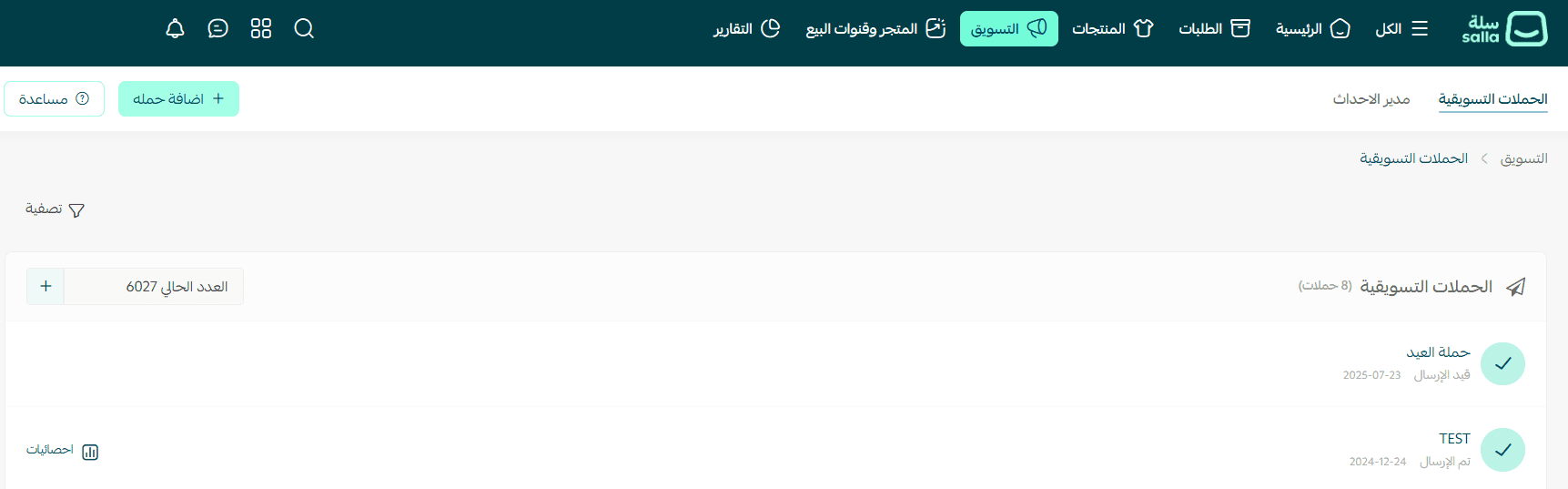
All marketing campaigns created in your store will appear on this page.
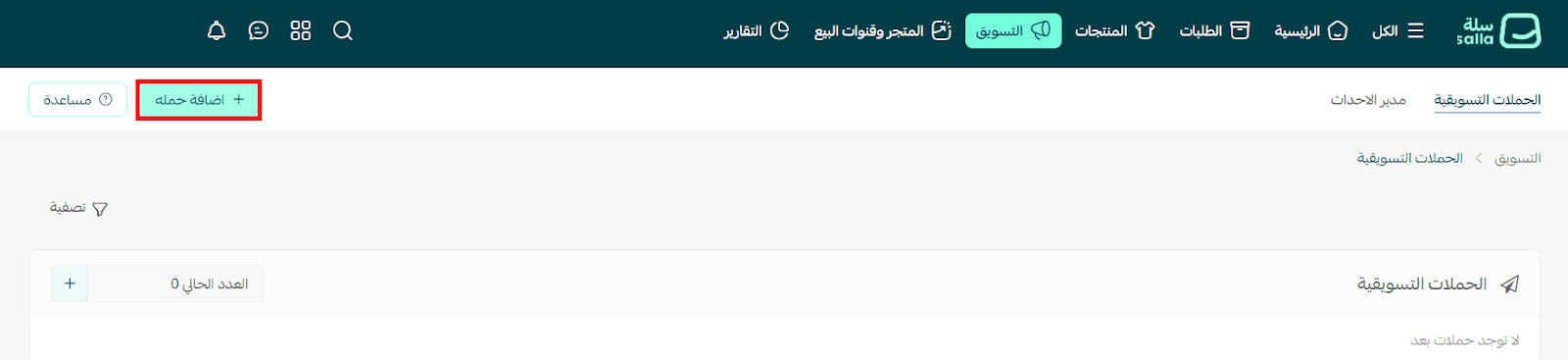
Steps to create a marketing campaign
- From the Marketing Campaigns tab, click + Add Campaign.
- Enter the campaign title, select the delivery method (SMS), and write the message content.
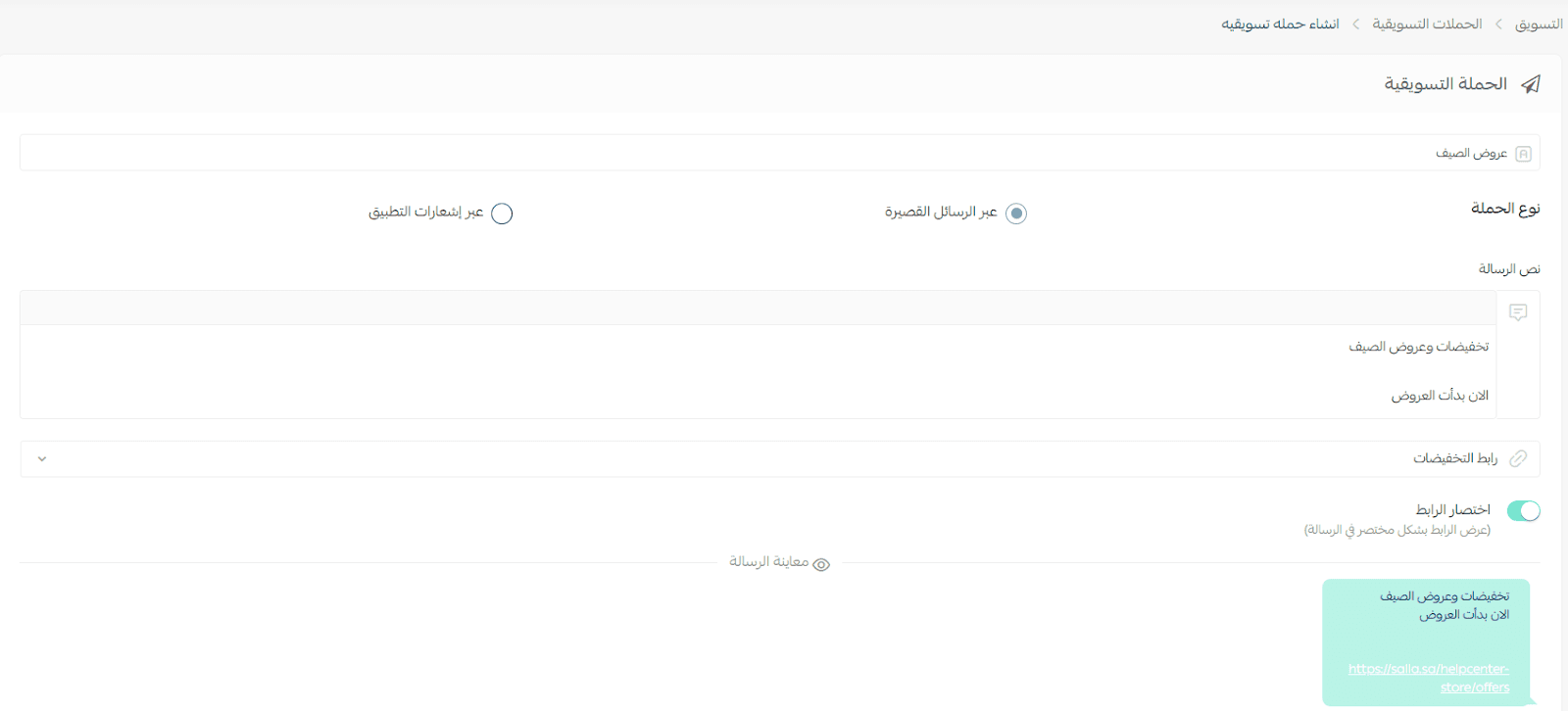
You can also:
- Add a discount link
- Enable link shortening
- Preview the final message before sending it to customers
3. In the Target Audience section, you can define conditions to select your intended customers.
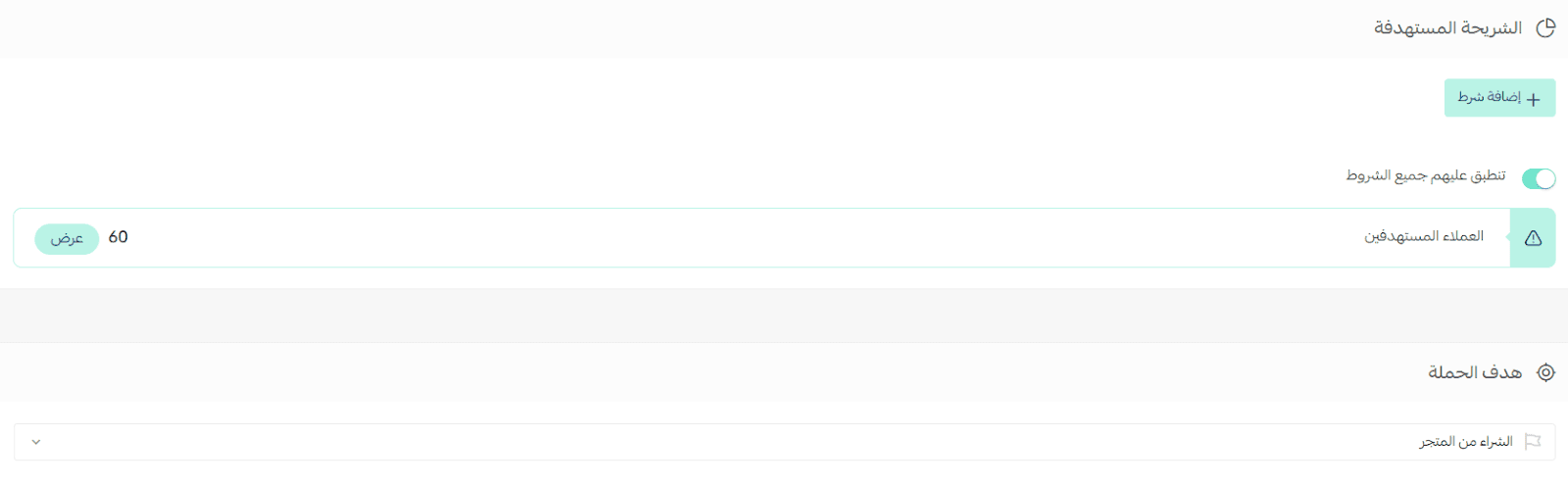
You can apply multiple conditions simultaneously, and the system will display the number of customers who match the selected criteria.
In the Campaign Goal section, you can select the main objective, such as encouraging purchases from the store or other available goals.
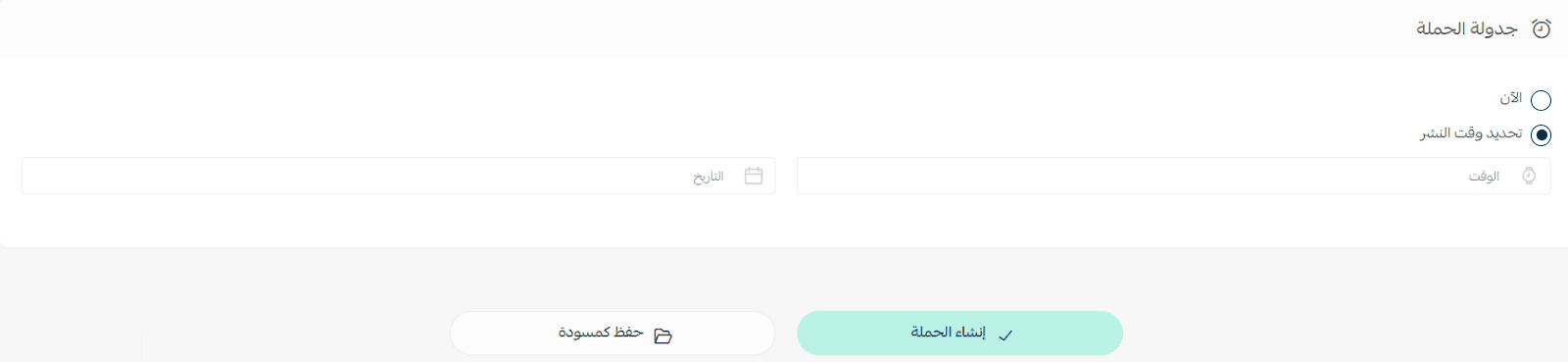
4. In the Campaign Scheduling section, you can choose to:
- Launch the campaign immediately, or
- Schedule it for a later time
After configuring the campaign, you can either:
- Save it as a draft to edit later, or
- Click Create Campaign to launch it based on the selected settings.
Note: To create and send an SMS campaign, you must activate one of the SMS service providers from the Services Integration page. For more details, refer to the guide for integrating SMS service providers.
Managing marketing campaigns
The Marketing Campaigns page includes the following features:
Search campaigns by title
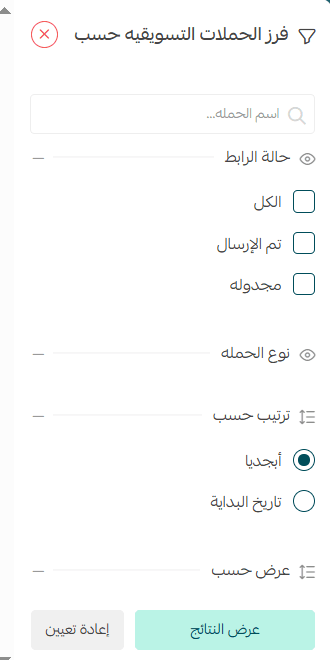
From the Marketing Campaigns tab, click Filter.

Filtering options allow you to search for a specific campaign using:
- Campaign name
- Link status
- Campaign type
Campaign statistics
When you click on a campaign name, a campaign summary and analytics dashboard will appear.
You can monitor campaign performance by viewing data such as:
- Customer engagement
- Reach
- Conversions
- Other key performance indicators
These insights help you evaluate the effectiveness of your campaign and optimize future marketing efforts.