📊 Struggling to track what visitors do in your store, or to prove which campaign actually made the sale?
Every new analytics or advertising tool wants its own snippet in your store's code, and the list gets messy fast. Google Tag Manager is Google's free tool for keeping all of those tracking codes in one container, so you can add, edit or pause a tag without touching your store's code or waiting on a developer. In this guide, you'll learn how to create a Google Tag Manager account and connect it to your Salla store step by step.
Connecting Google Tag Manager to Salla takes two stages. First, create a Google Tag Manager account and container for your store URL, then copy the container snippet. Second, install the Google Tag Manager app from the Salla App Store, paste that snippet to extract your Container ID, and activate the connection.
📌 Article overview
- What Google Tag Manager is
- Stage one: create a Google Tag Manager account
- Stage two: install and activate the Google Tag Manager app
- Frequently asked questions
- Support services
🎯 What Google Tag Manager is
Google Tag Manager, often shortened to GTM, is a free Google tool that stores and fires the tracking codes you want to run on your website. Instead of pasting each script into your store, you keep them all in one container and manage them from the Google Tag Manager interface.
🚀 How to connect Google Tag Manager to your Salla store
Stage one: create a Google Tag Manager account
🔔 Skip this stage if you already have a Google Tag Manager account.
1. Go to Google Tag Manager and, from the home page, click (Create Account).

2. Fill in the (Account Setup) details.
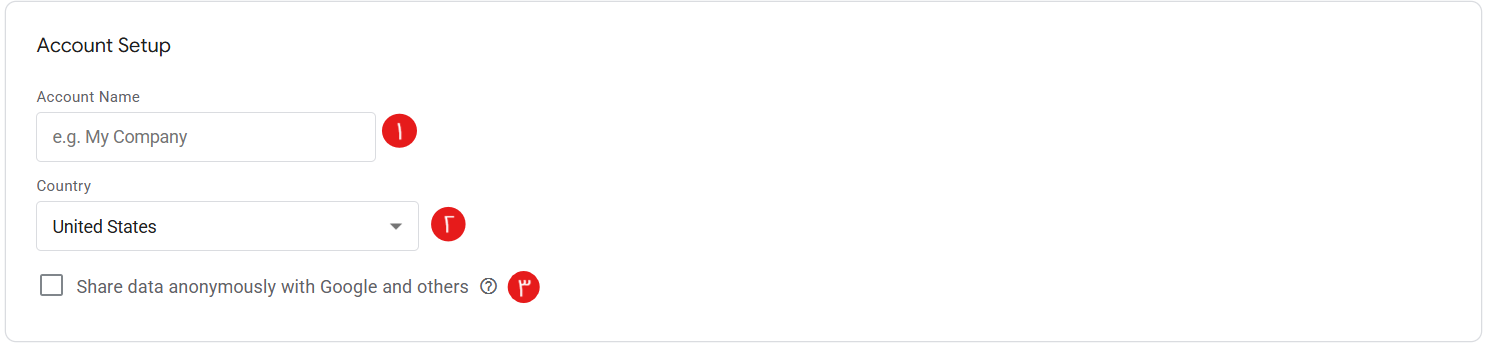
1. Enter your account name. A good name answers "what is this account for?" — clients, websites, apps, or something else.
2. Choose your country.
3. Decide whether to share your data anonymously with Google. If you enable it, Google strips out anything that identifies your website, pools the data with hundreds of other anonymous sites, and reports the overall trends back in its benchmarking service.
3. Fill in your website details under (Container Setup), then click create ( ).
).

1. Enter your store URL.
2. Choose the target platform:
- Web, for desktop and mobile web pages. This is the option for a Salla store.
- iOS, for iOS apps.
- Android, for Android apps.
- AMP, for Accelerated Mobile Pages.
- Server, for server-side measurement.
4. Accept the data processing terms, then click (Yes) to accept the Google Tag Manager terms of service agreement.
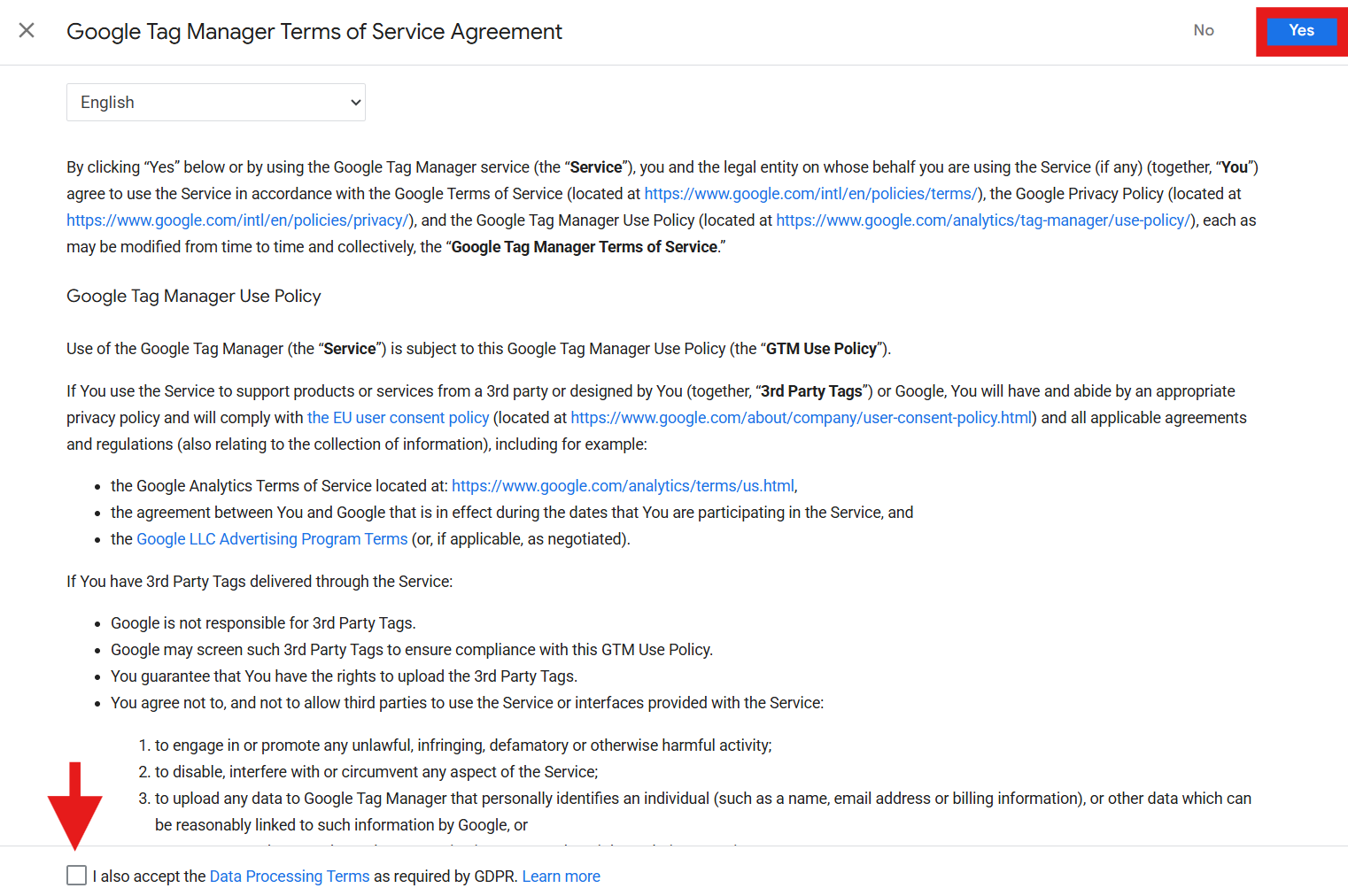
5. Copy both code snippets. You will paste one of them into your store in the next stage.

Stage two: install and activate the Google Tag Manager app
1. From the main menu, click (All), then under helper tools, click (App Store).

2. Search for the app using the search field.

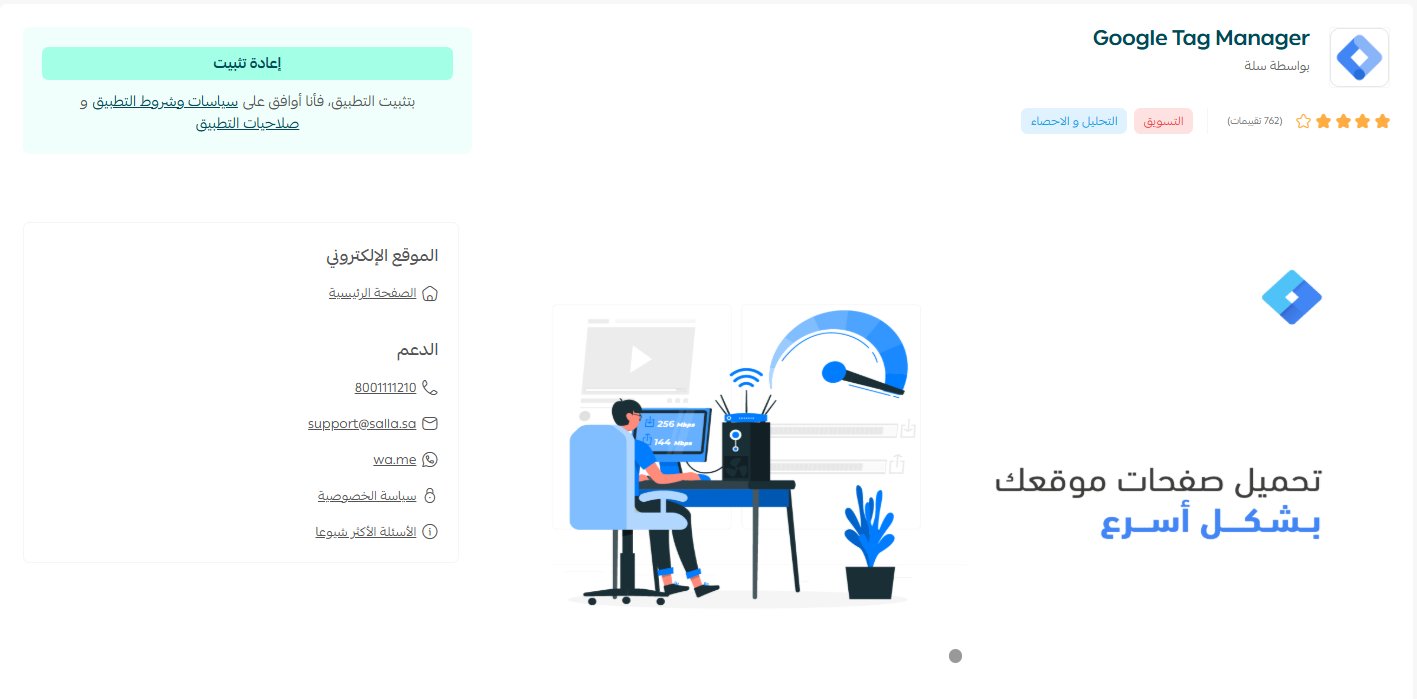
3. On the Google Tag Manager app page, click (Install).
4. Open the (App connection settings) tab and click (Extract the ID from the code).
- Paste the snippet you copied at the end of stage one, then click (Extract).
- Once the Container ID has been extracted, click (Activate connection).
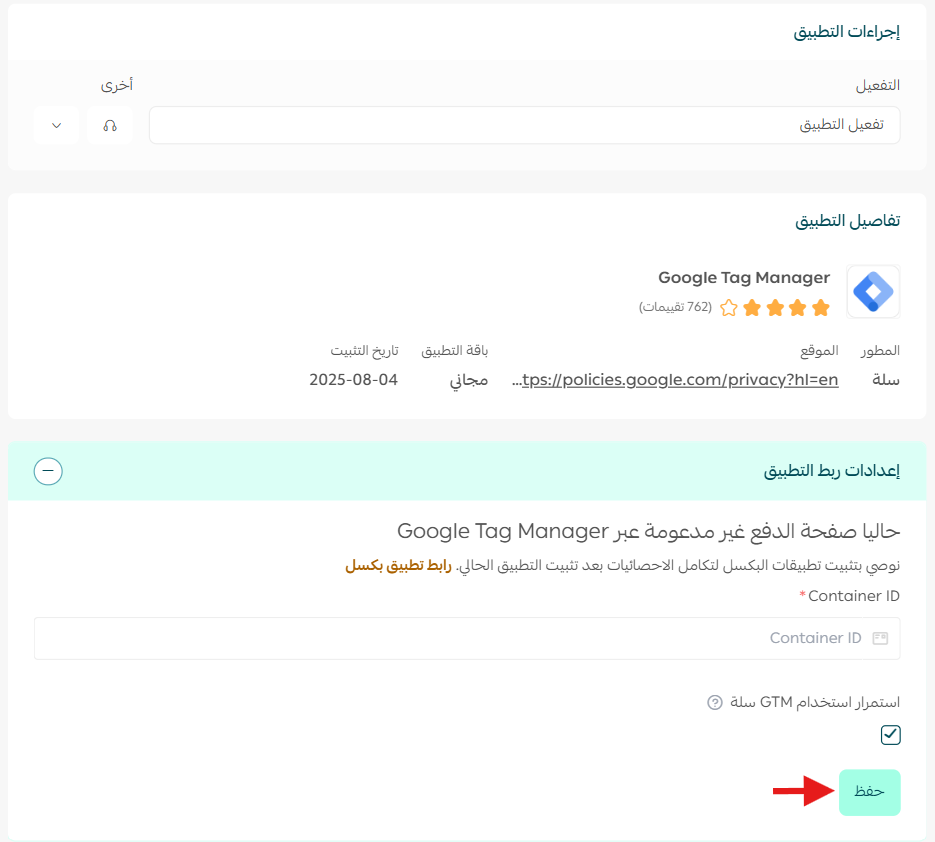
Your store is now connected to Google Tag Manager.
Your Google Tag Manager home page looks like this:

📝 Important notes
The connection is not live until you click (Activate connection) in the app settings, even if the Container ID was extracted successfully.
Keep one container per store. Reusing a container across several sites mixes their data together.
❓ Frequently asked questions
Does Google Tag Manager cost anything?
No. Google Tag Manager is a free Google tool. You only pay for the services whose tags you choose to run through it.
I already have a Google Tag Manager account. Do I still need stage one?
No. Go straight to stage two, and use the container snippet from the existing container you want your store to report into.
Where do I get the Container ID?
You do not have to look for it. Paste the snippet you copied from Google Tag Manager into the app, click (Extract), and the app reads the Container ID out of the code for you.
Which target platform should I choose when creating the container?
Choose Web. Your Salla store is a website, and the Web container is what the Salla app connects to.
For a deeper look at what you can do once the connection is live, read ideas and techniques for improving your store's SEO with Google Tag Manager.
Support services
If you would rather have this done for you, the merchant services section connects you with specialists for setting up your store's tracking infrastructure through Google Tag Manager and defining every event, along with other services that free you up to focus on growing your store.
