In the world of digital marketing, Snapchat is a powerful platform for reaching customers in creative and engaging ways. In this guide, you’ll learn how to create a Snapchat account, set up a Snapchat Ads account, and activate Snapchat Business within your store to increase sales easily and effectively.
📌Article overview
- Creating a new Snapchat account
- Creating a Snapchat Ads account
- Activating Snapchat Business within your store
- Frequently asked questions
Creating a new Snapchat account
Note: You can skip this step if you already have a Snapchat account.
- Go to the Snapchat sign-up page to create a new account.
- Enter the required information, then click Agree and continue.
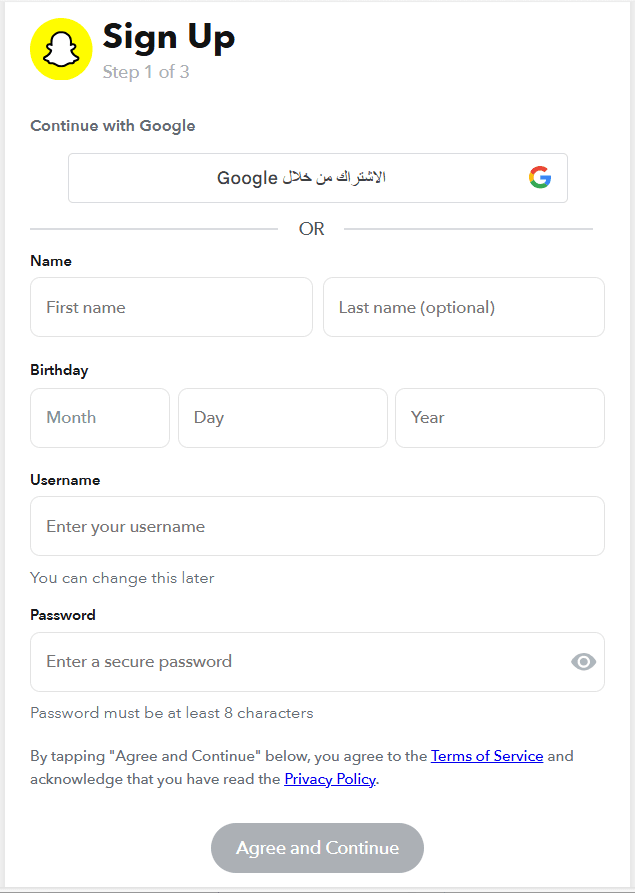
- Enter the verification code sent to your registered mobile number, then click Verify.
Creating a Snapchat Ads account
Note: You can skip this step if you already have a Snapchat Ads account.
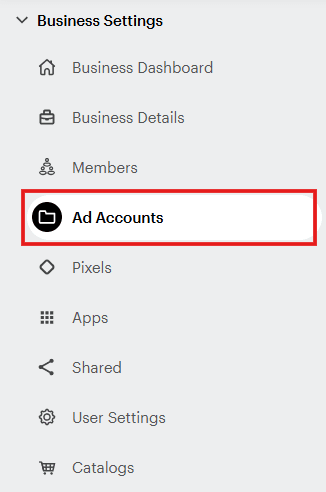
- Go to the Snapchat Ads Manager homepage. From the side menu, click Ad Accounts.
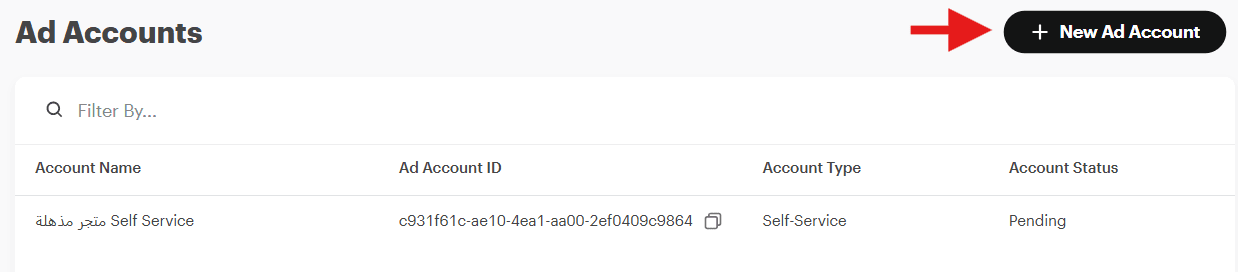
- From the Ad Accounts page, click + New Ad Account.
- Enter the advertiser details:
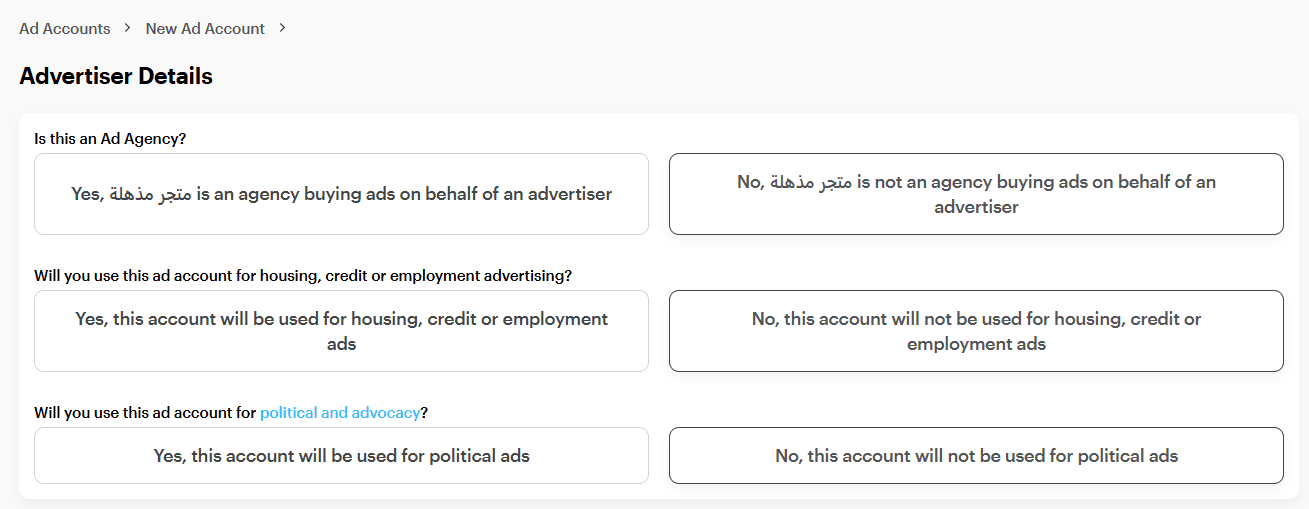
- Select whether you are an agency purchasing ads on behalf of an advertiser or not.
- Select whether your ad account will run ads related to housing, credit, or employment.
- If you select Yes, your ads may be rejected if they use targeting parameters such as age, gender, or ZIP code. A minimum targeting age of up to 21 may apply.
- Select whether you will use the ad account for political advertising. If you are running political ads, enter the sponsoring political organization or advocacy group in the Billing Advertiser field.
If the political organization name is not entered accurately, your ads may be rejected. You must also complete the mandatory Political Ads Review Form before submitting ads.
- Click Account Details and complete the ad account information:
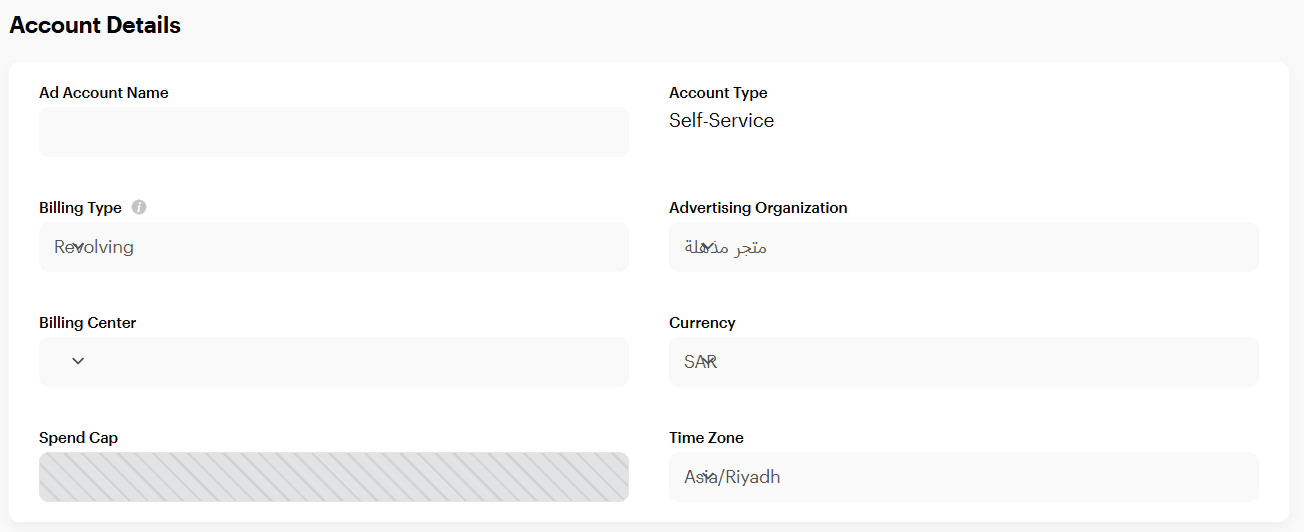
- Name: Your ad account name
- Billing type:
- Choose Recurring if you want continuous access to your funding source. This is commonly used for ongoing advertising.
- Choose Insertion Order if you prefer running a one-time campaign with a defined spending limit.
- Advertising organization: The organization purchasing the ads
- Billing center: Select the billing center where invoices will be issued. You can use the center created automatically when you initially claimed your business.
- Currency: Select your currency
- Spending limit: If you selected Insertion Order, enter the ad account budget
Time zone: Select your time zone
⚠️ Important: The following settings cannot be changed after creating the ad account:
- Account type
- Billing type
- Currency
Time zone
- Click Create Account. Your ad account will be created and available in the Ad Accounts section of Ads Manager. To start running ads, you’ll need to add a payment method. You can also add members to the ad account.
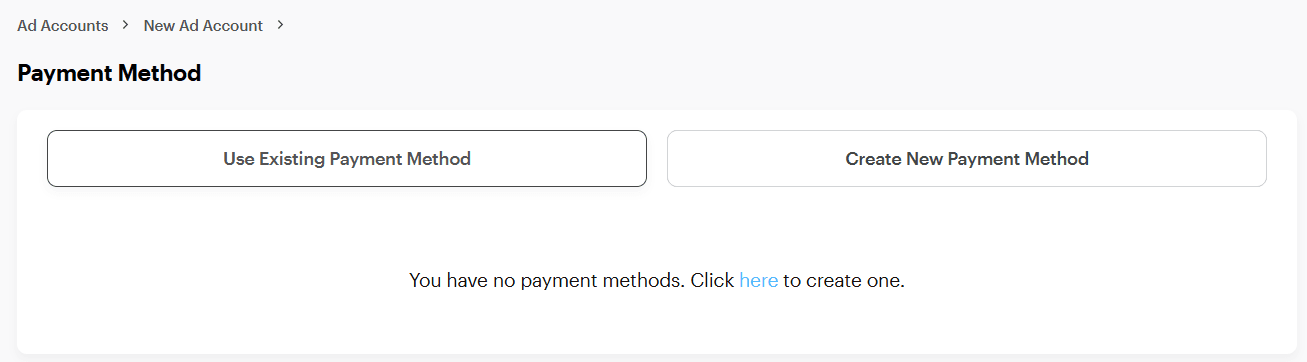
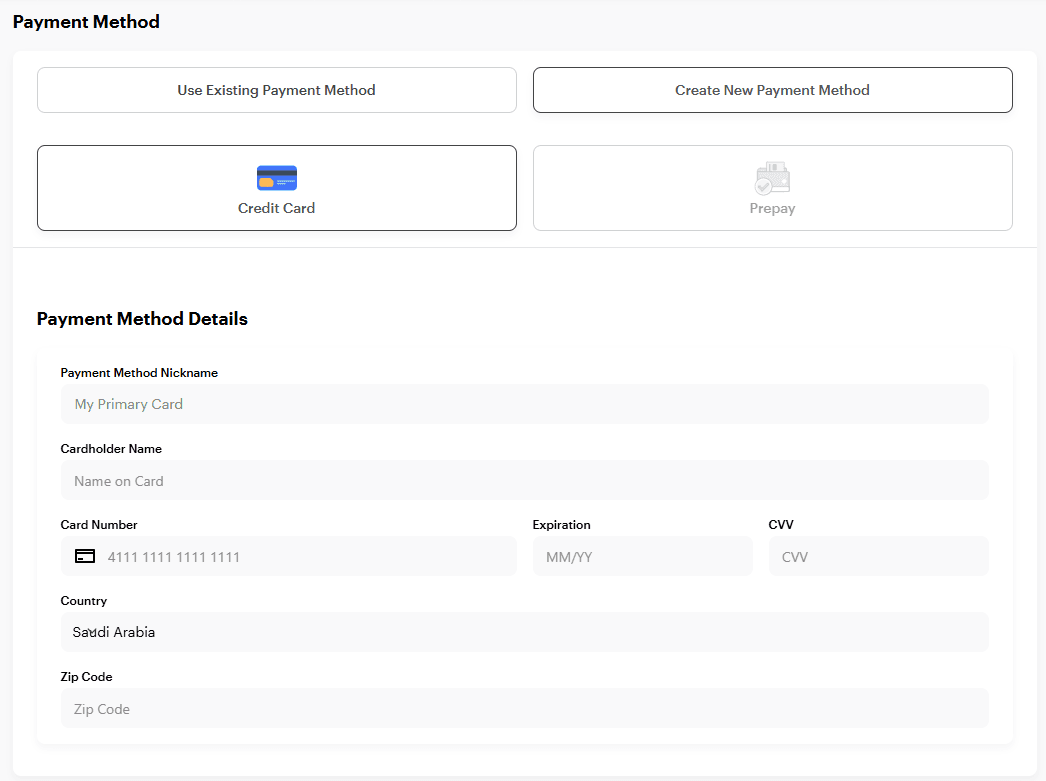
- Choose whether to use an existing payment method or create a new one, then click Save Payment Method. You may follow the provided steps to apply for a credit line if needed.
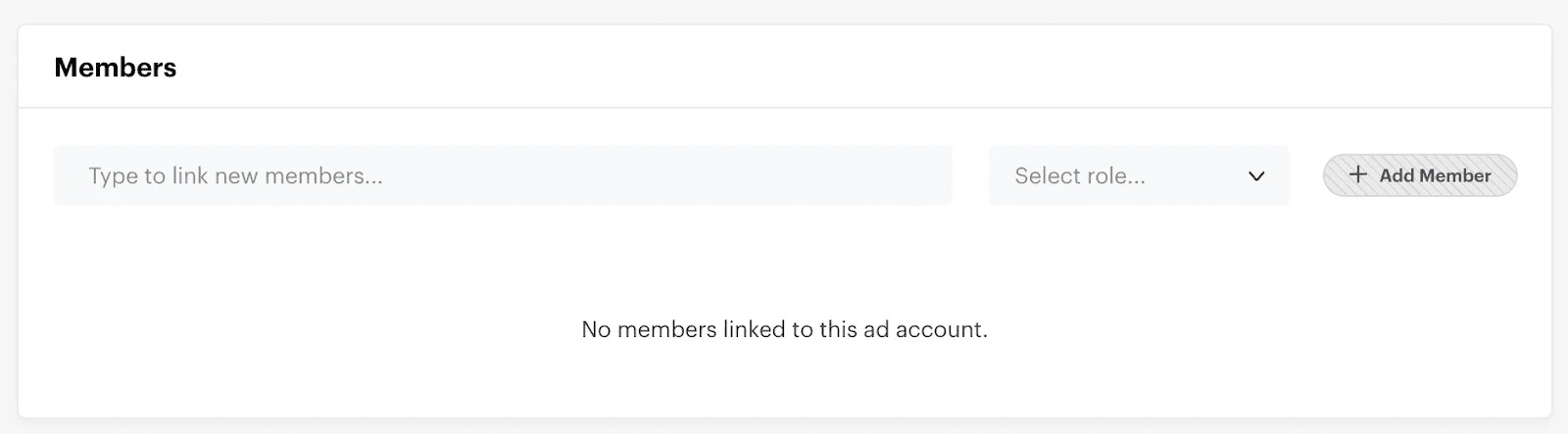
- Select any members you invited to your business and add them to the ad account.
Added members will be able to log in to Ads Manager and access this ad account. Once finished, save the members you added.
After creating the ad account, you can log in to Snapchat Ads Manager and start launching ads.
Activating Snapchat Business within your store
- From the main menu, click Marketing, then select Pixels & feeds.

- From the Snapchat tab, click Connect your account.
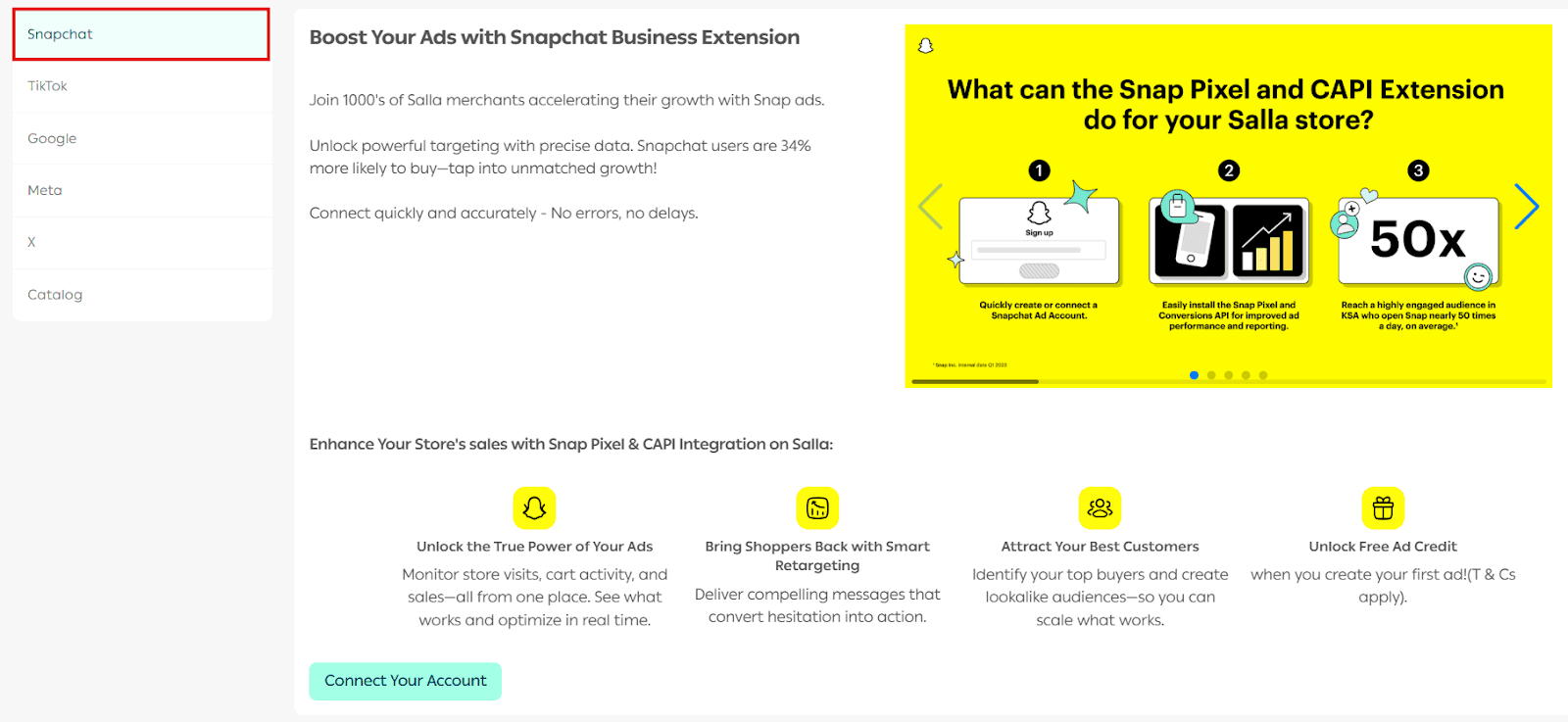
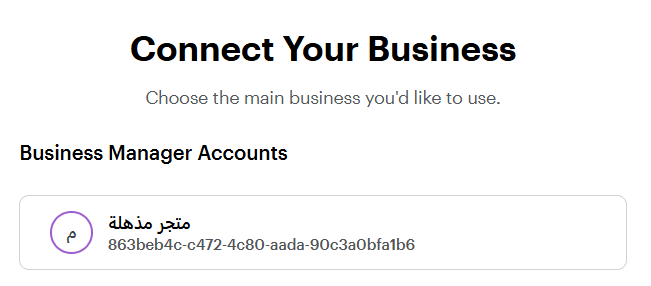
- Select the Business Account you want to connect, then click Continue.
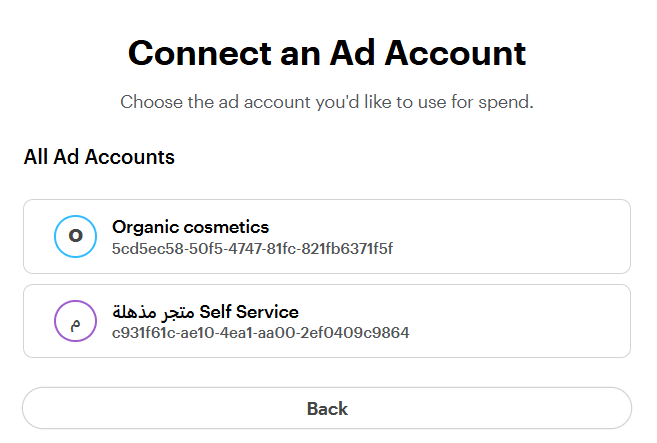
- Select the Ad Account you want to link, then click Continue.
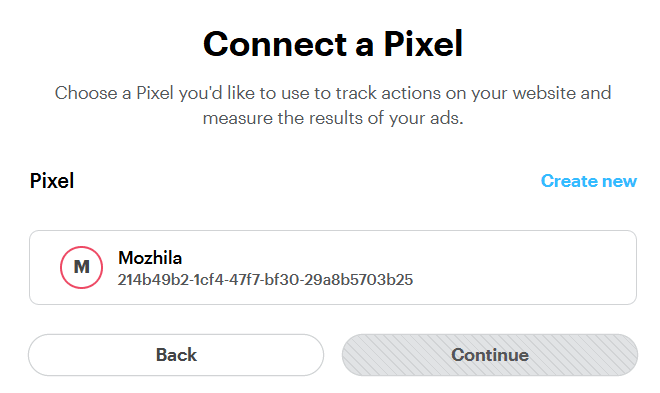
- Select the Pixel you want to connect, or create a new Pixel, then click Continue.
- Click Continue.
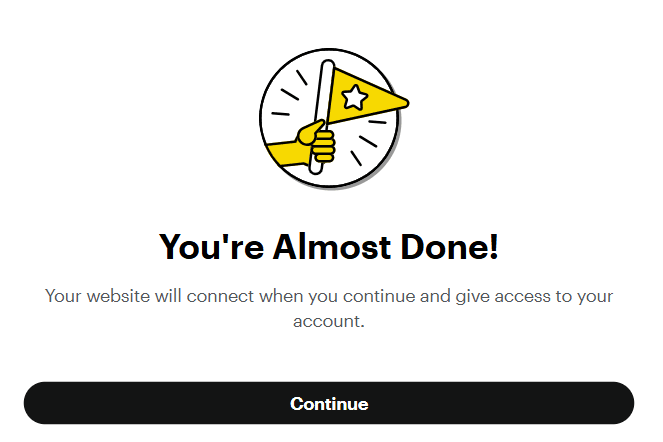
- On the permissions approval page, click Continue.
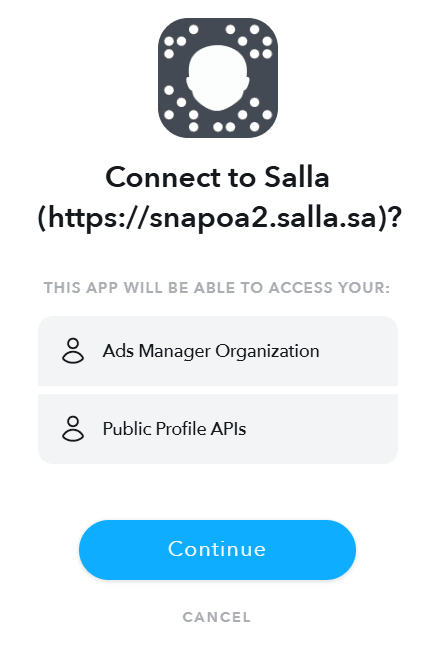
- Return to the app and click Continue.
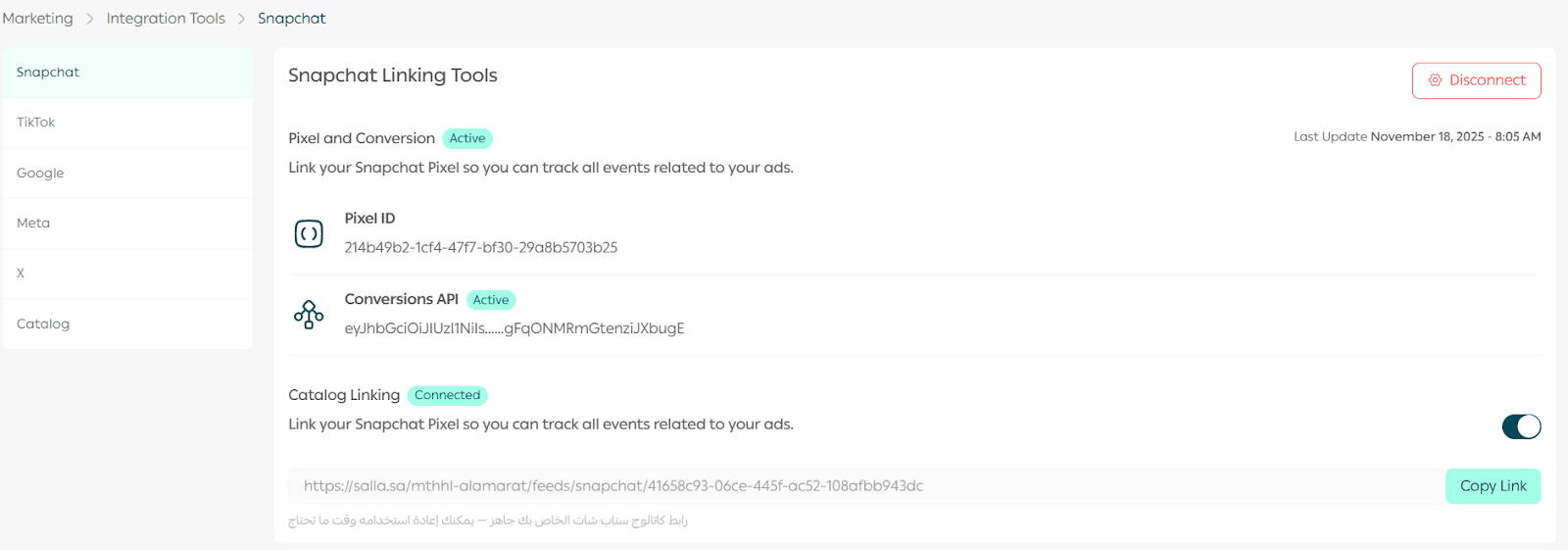
🎉 Congratulations! The connection has been successfully completed.
Frequently asked questions
Is Snapchat Conversion API a replacement for Snap Pixel?
No. It is not a replacement, it complements the Pixel. It is recommended to use both for more accurate tracking.
The Pixel sends data from the browser to the advertising platform (such as purchases and add-to-cart events). However, ad blockers, cookie restrictions, and privacy tools may limit the amount of data received by the Pixel. Conversion API complements this by sending missing data directly to advertising platform servers such as Snapchat or Facebook.
How can I create Snapchat product catalogs?
Snapchat product catalogs contain all relevant product information for items sold in your store, such as product title, image, links, and more. This data can be used for advertising on Snapchat through a variety of static or dynamic ad formats.
How often are Snapchat catalogs updated with the latest inventory?
Catalogs sync almost in real time, so the latest inventory will be reflected in Snapchat Ads Manager when creating creatives.
I connected my store and started syncing, but I don’t see products in my Snapchat catalog. Why?
Click the error message shown on the Snapchat Catalog card to identify why products are not syncing. Snapchat catalogs expect a specific set of product fields, so make sure all required metadata is present.
What product fields are required and optional for syncing with Snapchat catalogs?
Required fields:
ID, title, description, link, image link, availability, price, condition, brand, MPN or GTIN (depending on the manufacturer).
Learn more about product specifications, descriptions, and required and optional fields.
What is the maximum number of products supported by Snapchat catalogs?
Currently, up to 1,000,000 products (or rows) are supported per catalog.
Which plans support this feature?
Available for stores on all paid plans:
- Plus
- Pro
- Special