Tracking payments, balances, and invoices in an online store can quickly become complicated; especially as your sales grow. Delays or missing information may lead to financial errors or slower cash flow.
That’s why Salla Wallet gives you a clear, centralized way to manage your store’s funds, withdraw balances, and monitor every transaction with full transparency.
This guide explains everything you need to know to use your Wallet confidently.
📌 Article overview
- What is the store wallet?
- Wallet & invoices page overview
- Managing your store balance
- Managing electronic payments balance
- Viewing transaction history
- Filtering and sorting transactions
- Frequently asked questions
What is Salla store wallet?
Your store wallet helps you manage all financial activity in one place through three main balances:
- Store balance
- Electronic payments balance
- Cash on Delivery (COD) payments balance
It allows you to:
- Add funds
- Withdraw money
- Transfer balances between accounts
- Track invoices and billing activity
Accessing the wallet & invoices page
- From the main menu, go to All
- Under Settings & Tools, click Payment Methods
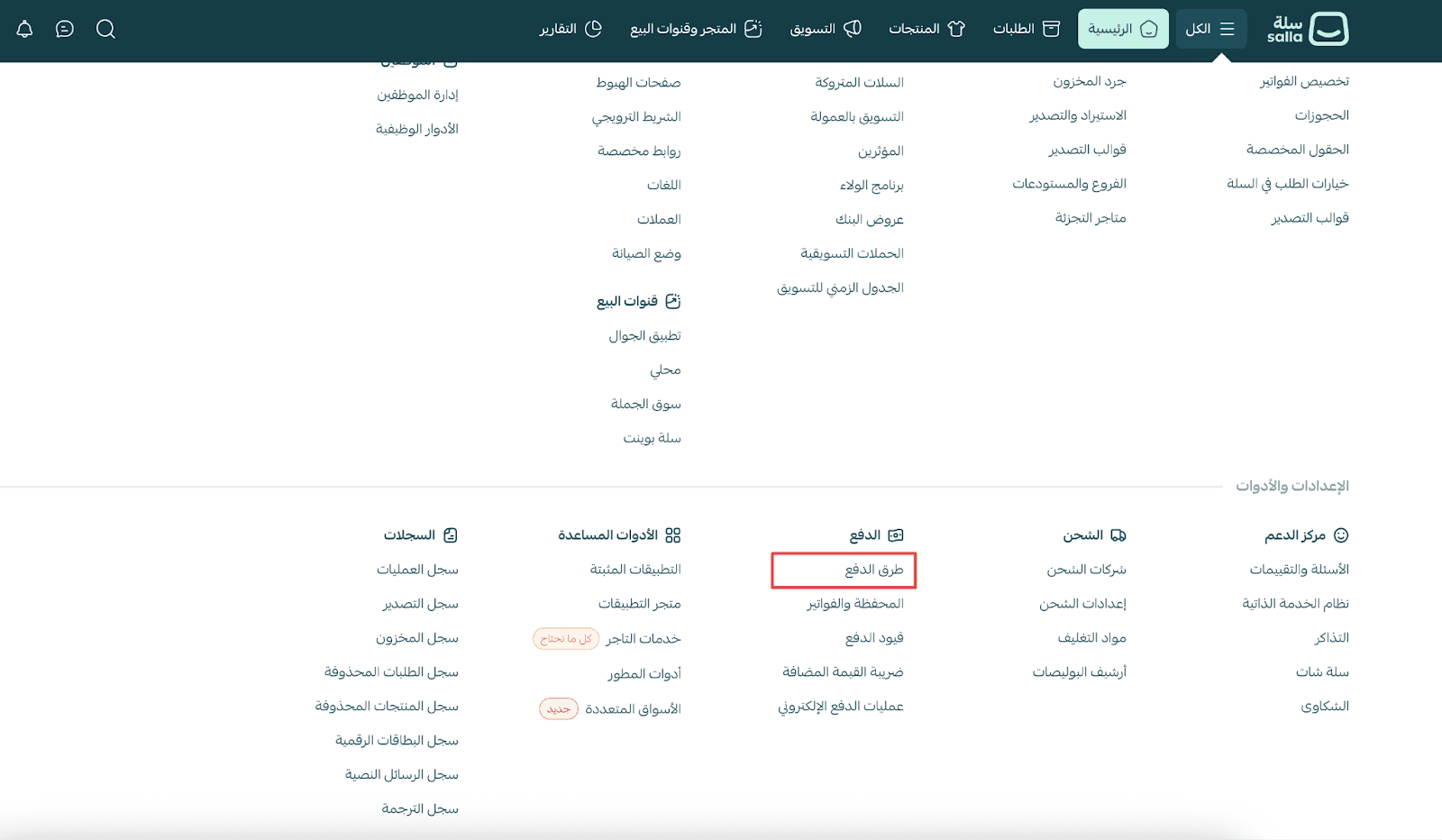
- Open the Wallet & Invoices tab
You will see several key sections:
1. Store balances overview
At the top of the page, you’ll find three balances:
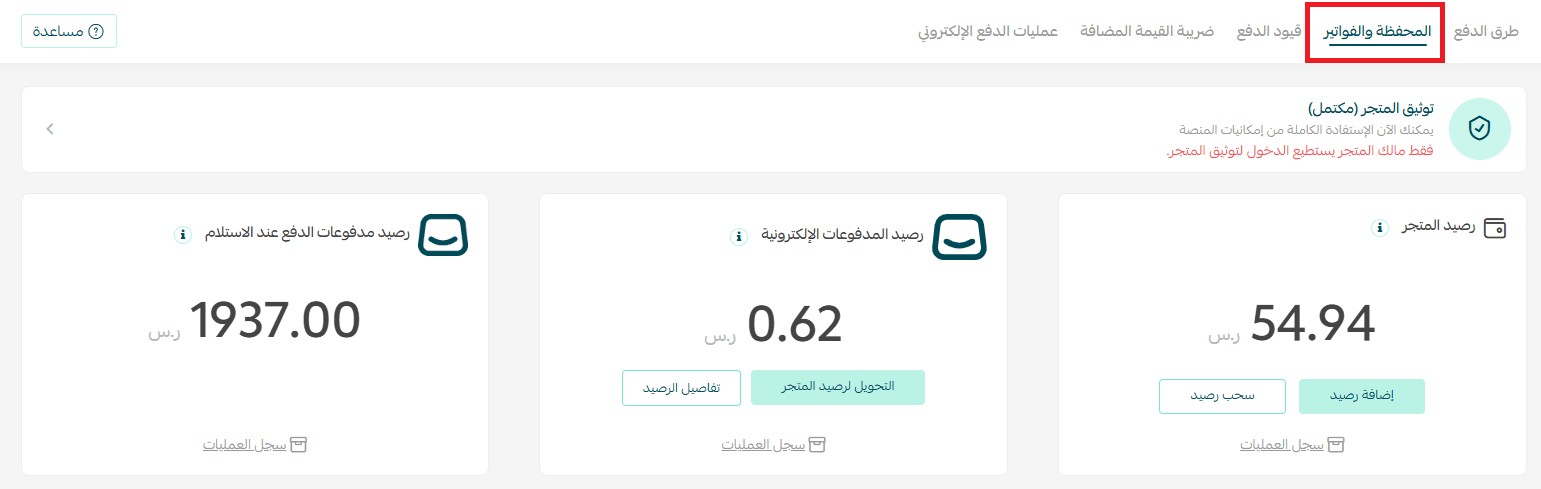
Store balance
Used for internal store services, such as:
- Auto-renewing your subscription plan
- Purchasing apps from the Salla App Store
- Issuing shipping labels
- Paying for platform services
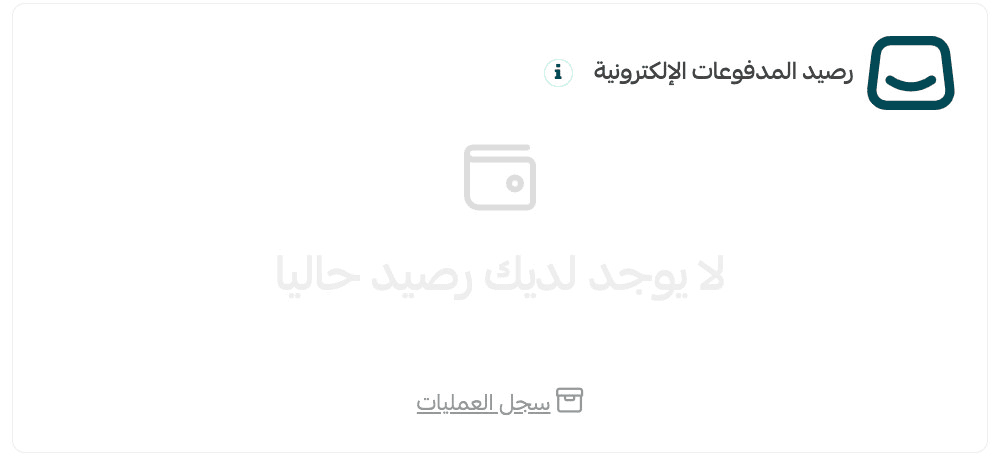
Electronic payments balance
This represents your current online sales revenue.
You can use it for:
- Customer refunds
- Transferring funds into store balance
- Viewing detailed payout breakdowns
📌 This balance appears only if Electronic Payments are activated.
Cash on Delivery payments balance
Shows confirmed COD payments collected from customers.
2. Billing settings
This section contains your invoicing configuration.
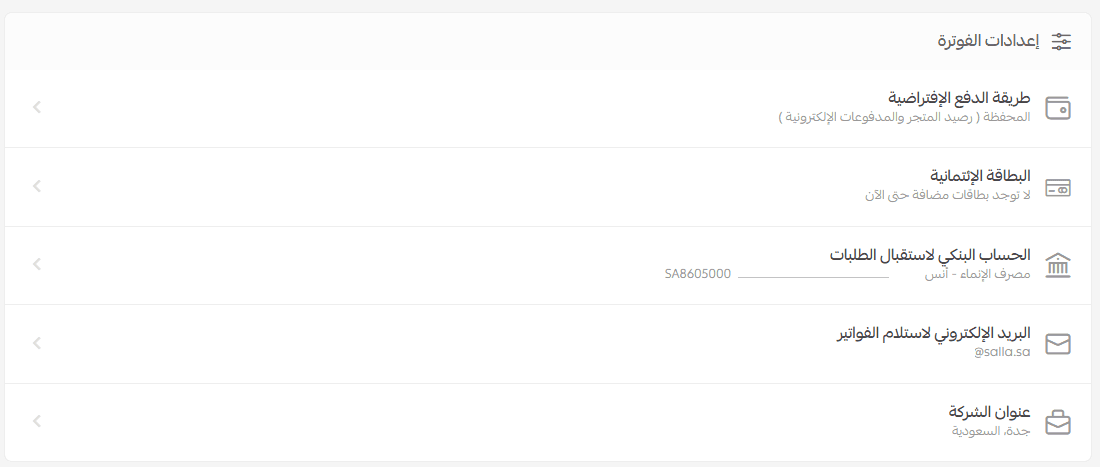
For more details, refer to the Billing Settings guide.
3. Bank transfer requests
A table displaying:
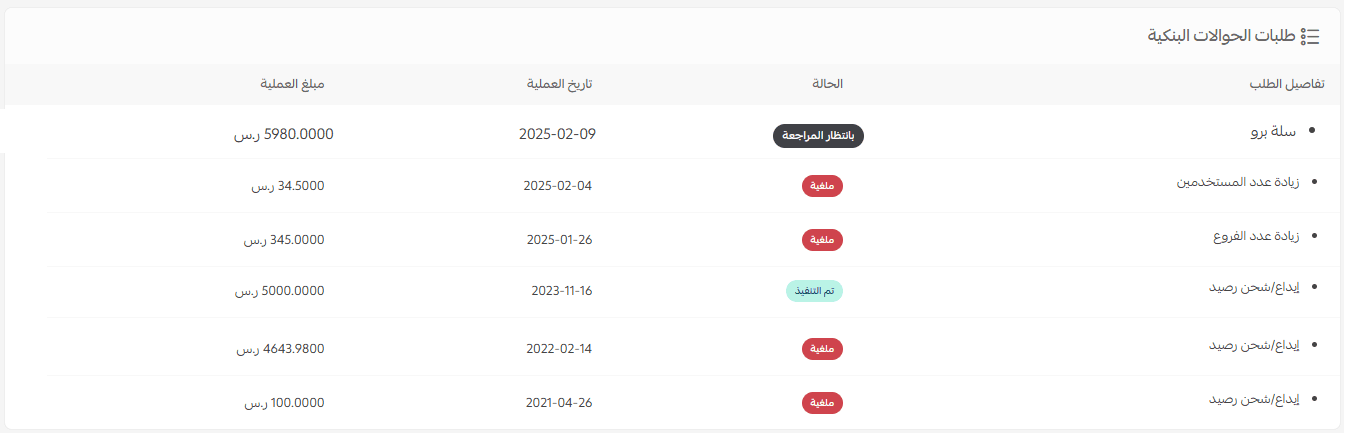
- Transfer status
- Transaction date
- Amount
- Request details
4. Active subscriptions
From this section, you can manage auto-renewal for active subscriptions.
To stop auto-renewal:
- Click the (...) next to the subscription
- Select Disable Auto-Renewal
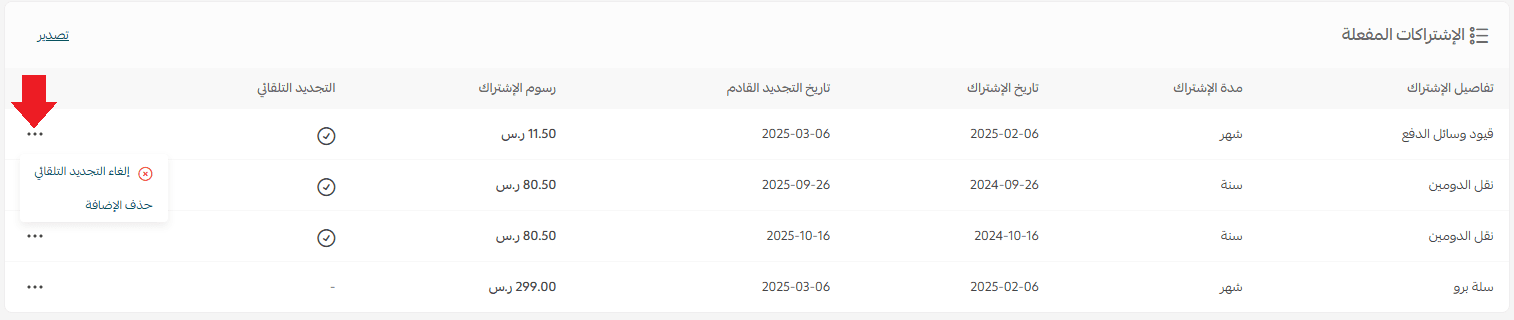
Indicators:
- ✓ Auto-renewal enabled
- – Auto-renewal disabled
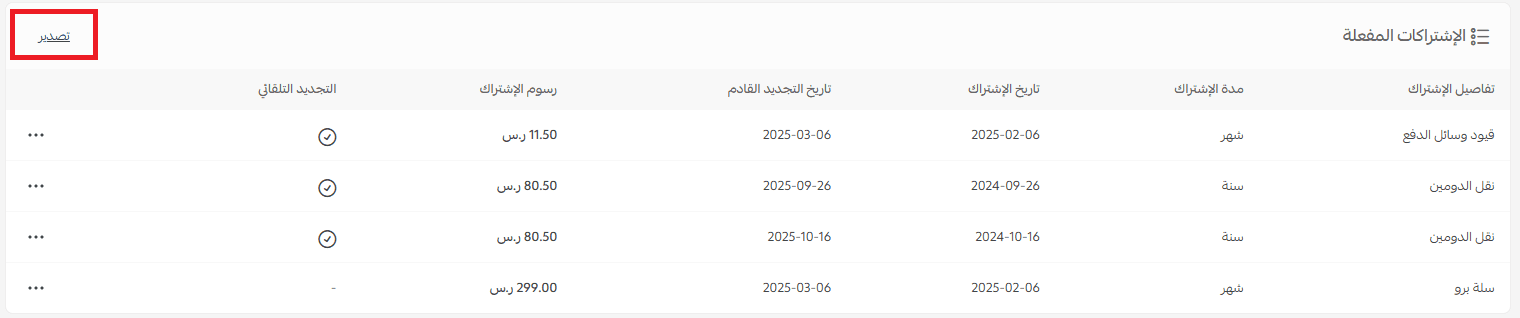
You can also export subscriptions as a CSV file by clicking CSV.
5. Purchase invoices
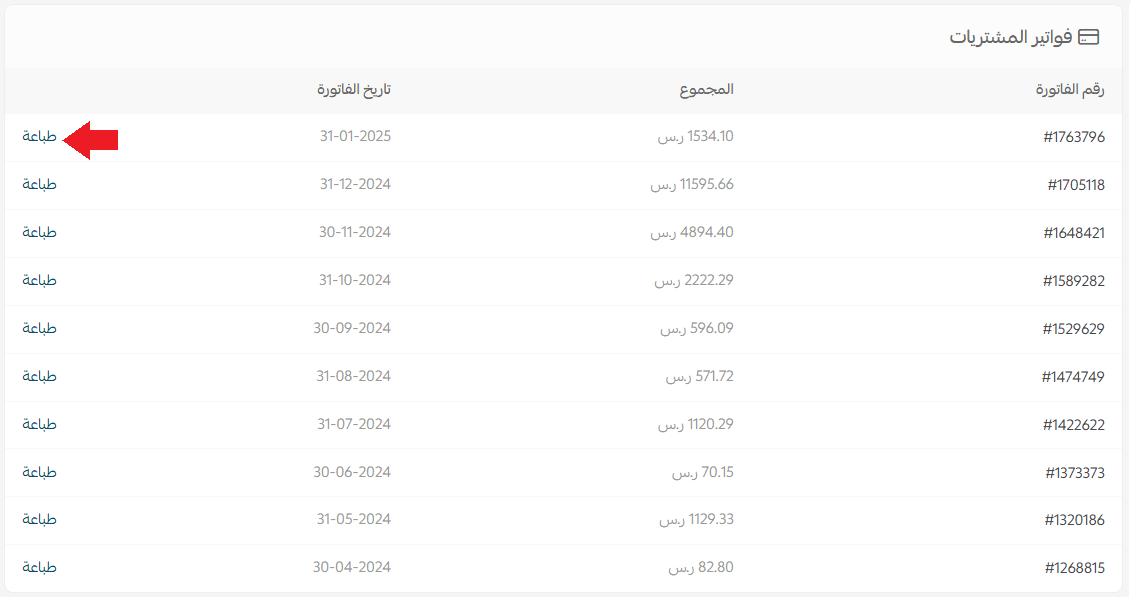
Invoices are generated monthly and appear in this section.

You can:
- View your tax invoice history
- Print invoices directly
- Access credit notes (issued for refunds and returned orders)

For more details, see the Credit notes guide.
Managing store balance
You can perform several actions from the store balance section:
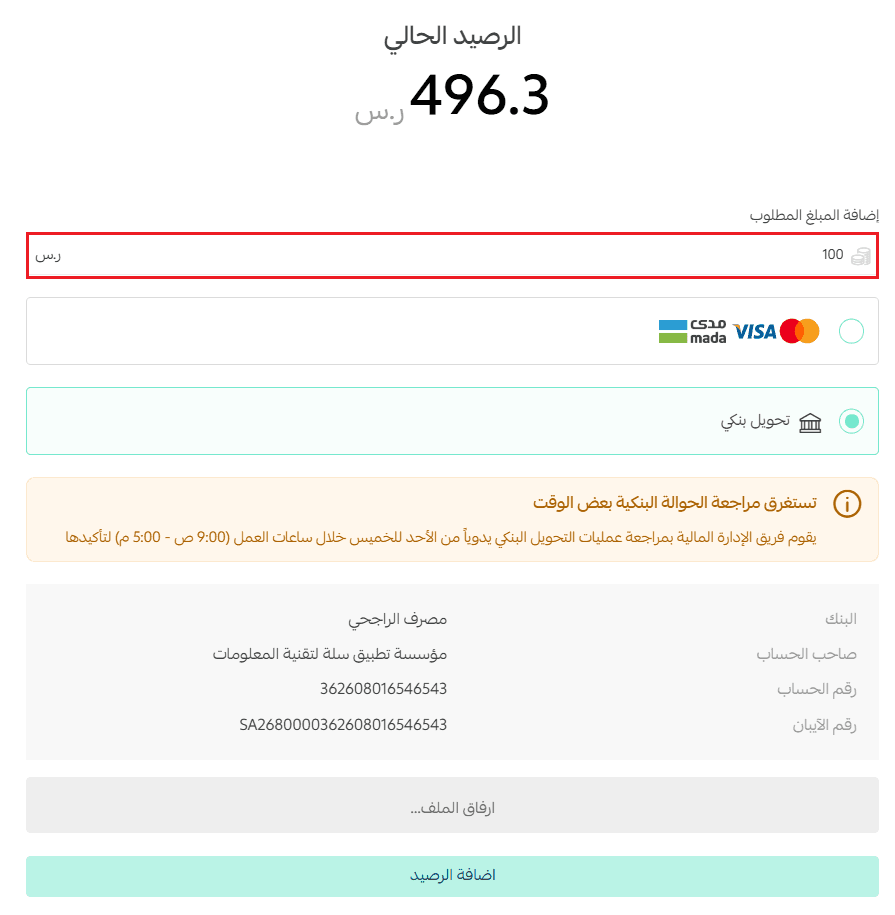
Add funds
- Click Add Balance
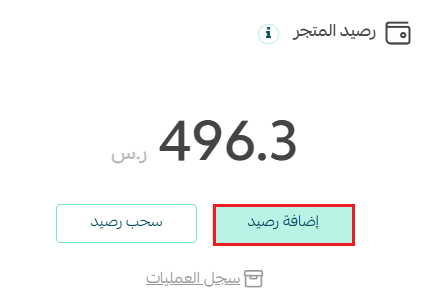
- Enter the amount
- Select the payment method
- Click Add Balance
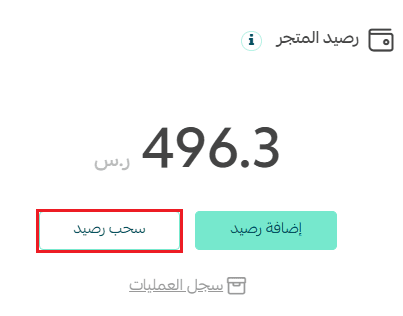
Withdraw funds
- Click Withdraw Balance
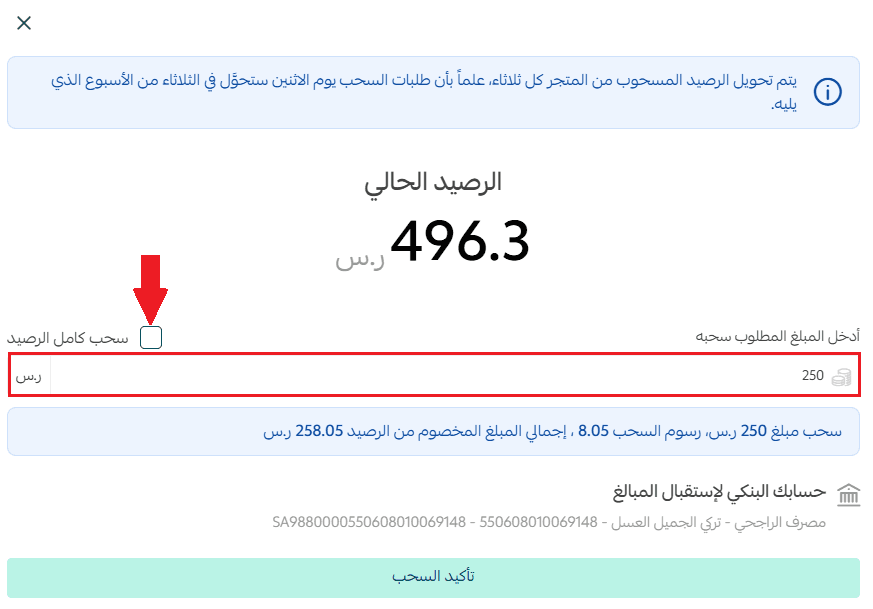
- Enter the withdrawal amount
- Click Confirm Withdrawal
Withdrawal schedule
Withdrawal requests are confirmed every Monday at 8:00 AM
Funds are transferred to your bank account on the following Tuesday
Examples:
- Request on Sunday → transferred Tuesday
- Request on Monday → transferred next week Tuesday
Withdrawal may fail if:
- There are open complaints on the store
- Bank account details are incorrect
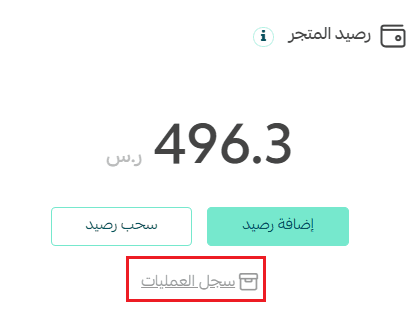
View transaction log
Click Transaction History to review all wallet activity.
Managing electronic payments balance
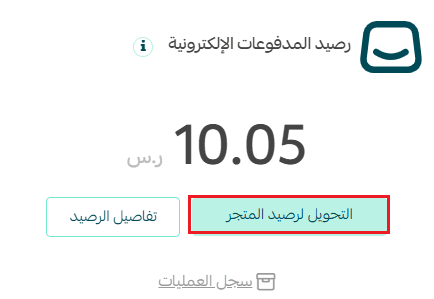
To move funds into Store Balance:
- Click Transfer to Store Balance
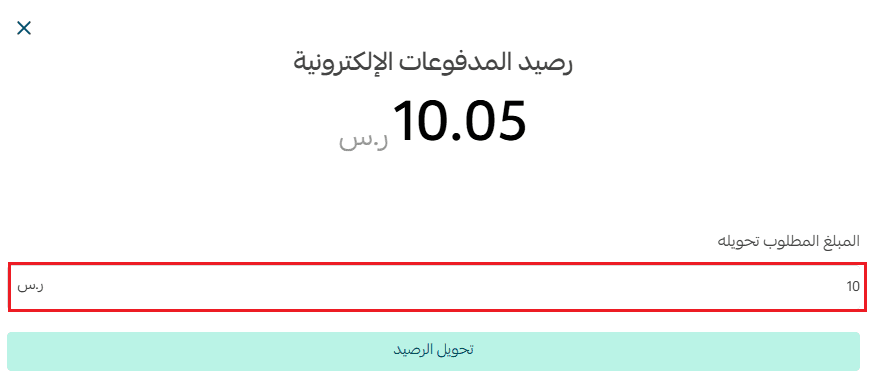
- Enter the amount
- Click Transfer Balance
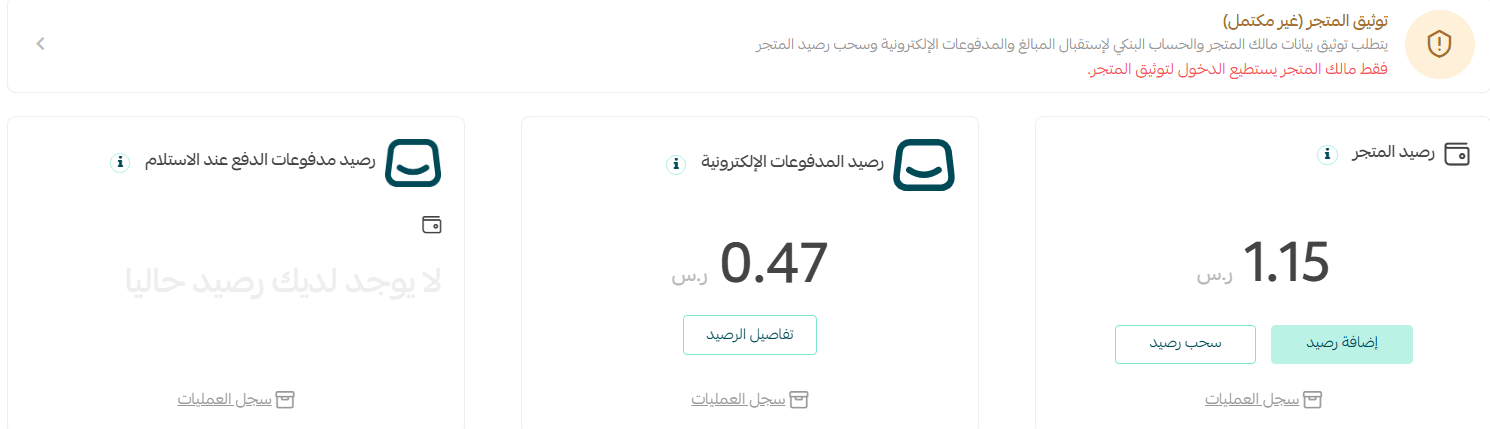
⚠️ Store verification is required to complete transfers. Unverified stores will have funds pending until verification is complete.
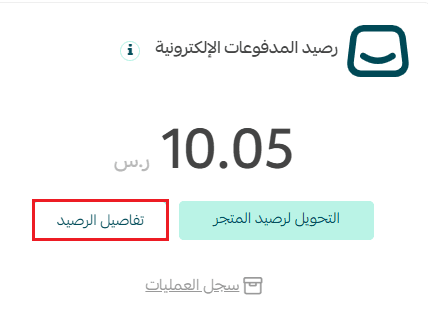
Balance details (Unbilled transactions)
Click Balance Details to view:
- Next invoice issuance date
- Unbilled operations
- Transfers and pending activity
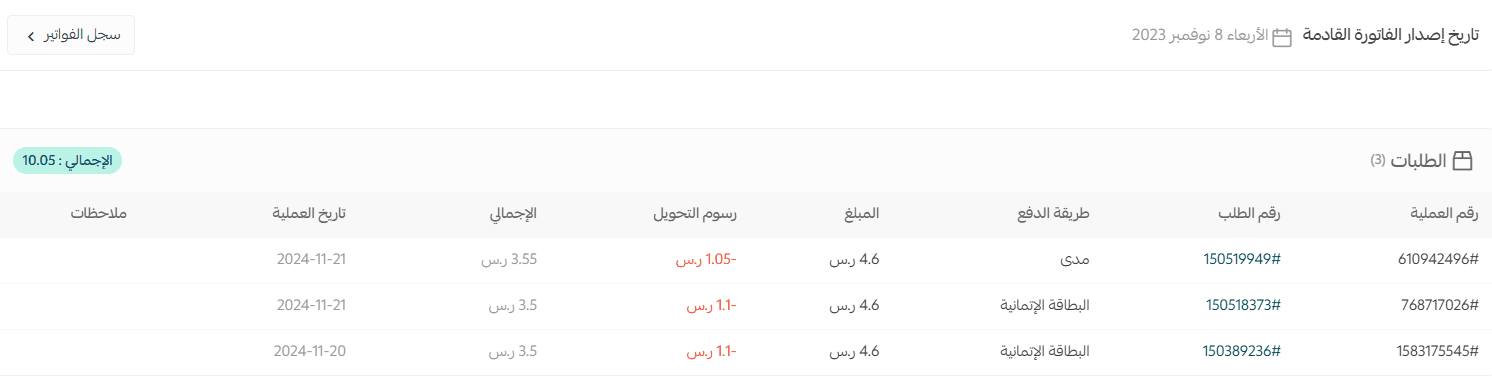
Invoice frequency depends on your plan:
- Special: every 24 hours
- Pro: every 2 days
- Plus: weekly
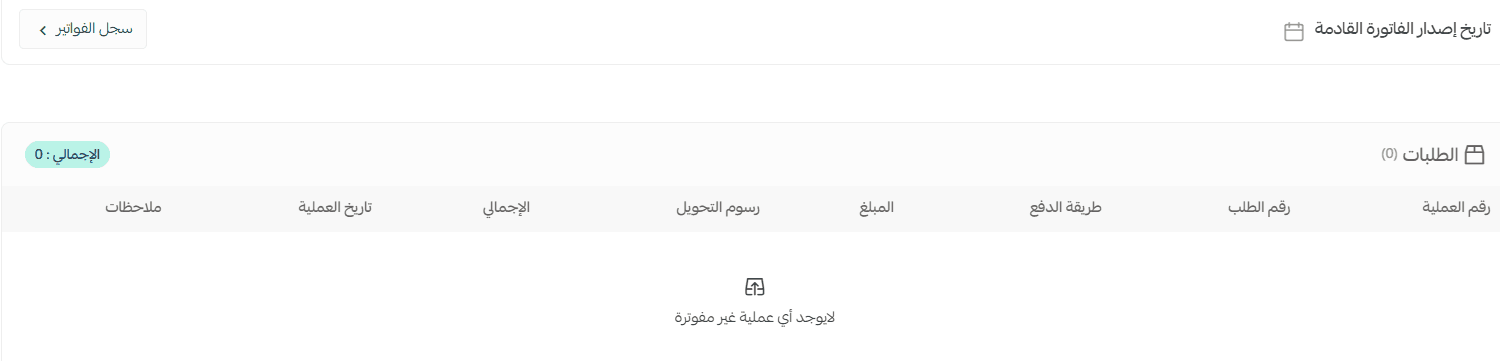
📌 If no balance exists, the Balance Details button will not appear.
Viewing transaction history
You can access logs for:
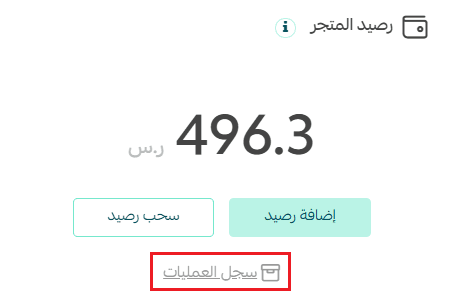
- Store Balance transactions
- Electronic Payments transactions
- COD Payments transactions
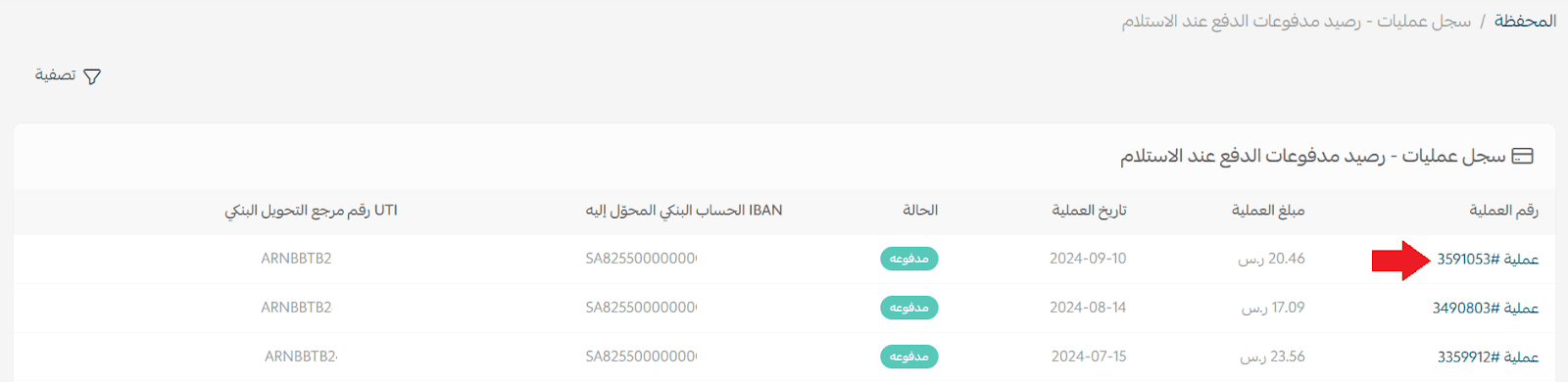
Each record includes:
- Transaction ID
- Amount
- Date
- Status
- Bank IBAN
- UTI transfer reference
Click any transaction number to view full details.
Filtering & sorting transactions
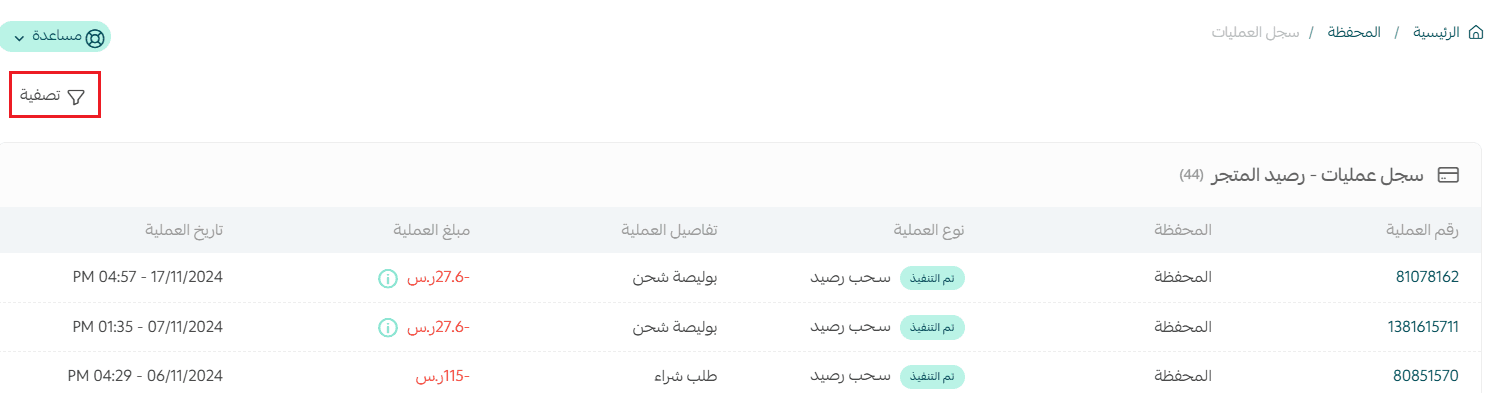
To filter transaction records:
- Click Filter
- Select one or more conditions
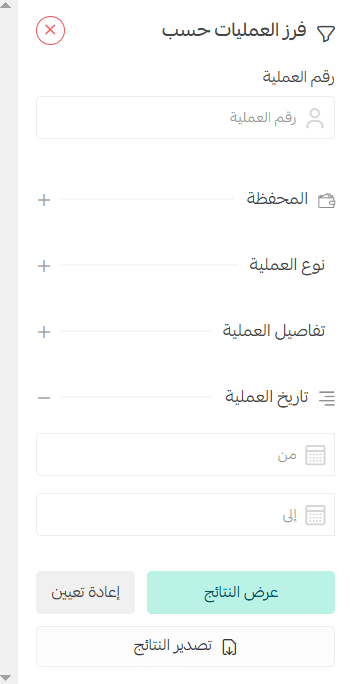
- Click Show Results
Filtering options vary depending on the balance type.
Frequently asked questions
How are payouts transferred to merchants?
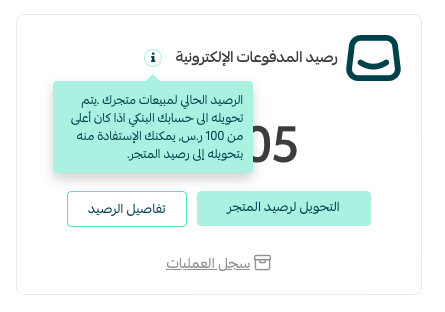
Amounts below SAR/AED 100 are not transferred immediately. They remain pending until the total reaches the minimum payout threshold.
What is the difference between Wallet and Electronic Payments?
- Wallet
Your internal financial hub inside the dashboard, used for:
- Subscription renewals
- Shipping labels
- Internal payments
- Balance transfers
Includes:
- Store Balance
- Electronic Payments Balance
COD Balance
- Electronic Payments
The method customers use to pay online (cards, Apple Pay, etc.)
Flow:
- Customer pays → funds go to Electronic Payments Balance
- Merchant transfers or withdraws funds through Wallet
What is the minimum payout amount?
The minimum payout threshold is SAR/AED 100.
Can I still use smaller amounts?
Yes. You can transfer small amounts into your Wallet and use or withdraw them anytime.
Can I withdraw wallet funds anytime?
Yes, merchants can withdraw available wallet funds whenever needed.
Does store verification matter?
Yes. Verification is required for:
- Withdrawing Store Balance
- Transferring Electronic Payments Balance
For more details, see the Store Verification guide.