When launching your online store, you want it to look professional and be easy for customers to access. However, sharing a complex or hard-to-remember link can make it difficult for customers to find your store.
The solution is to use a custom domain that reflects your store’s identity and makes access easier and more trustworthy.
A domain name works as an alternative to an IP address, making websites easier to access and remember.
Compare which one is easier:
- Domain: www.mywebsite.com
- IP address: 123.456.78.910
A domain is also unique, meaning no two websites can share the same domain name.
📌 Article overview
- Accessing domain settings
- Editing the store’s default domain
- Restoring the Salla default domain
- Registering a custom domain from Salla
- Actions available for an active domain
- Actions available for a domain with auto-renew disabled
- Transferring a domain to Salla management
- Connecting an external domain
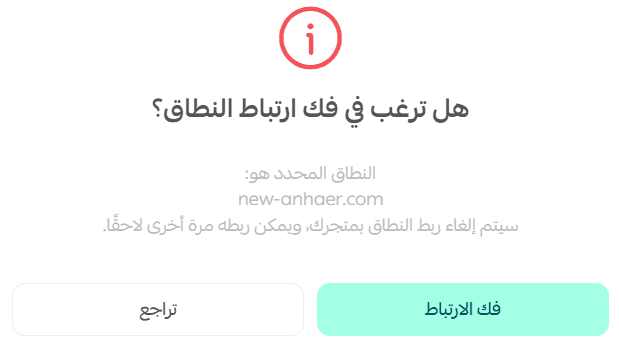
- Disconnecting a store from a domain
Accessing domain settings
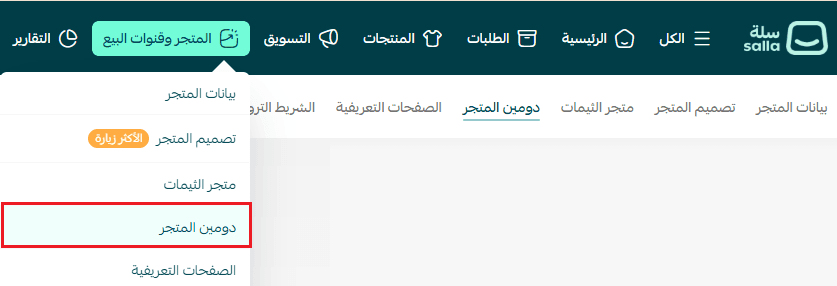
From the main menu, go to Store & Channels, then click Store Domain.
Your current store domain will appear on this page.
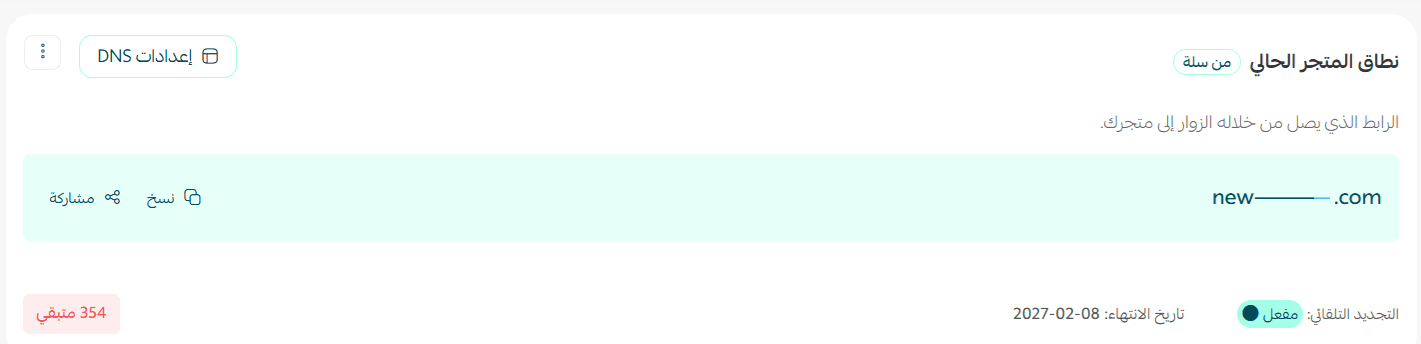
If your store previously had registered domains, they will appear in a list showing:
- Domain name
- Domain status
- Expiration date
- Auto-renewal status
- Domain validity
- Available actions for the domain

1. Editing the store’s default domain
From the Domain Settings page, locate your store’s default Salla domain, then click Edit.

Enter the new username and click Save.
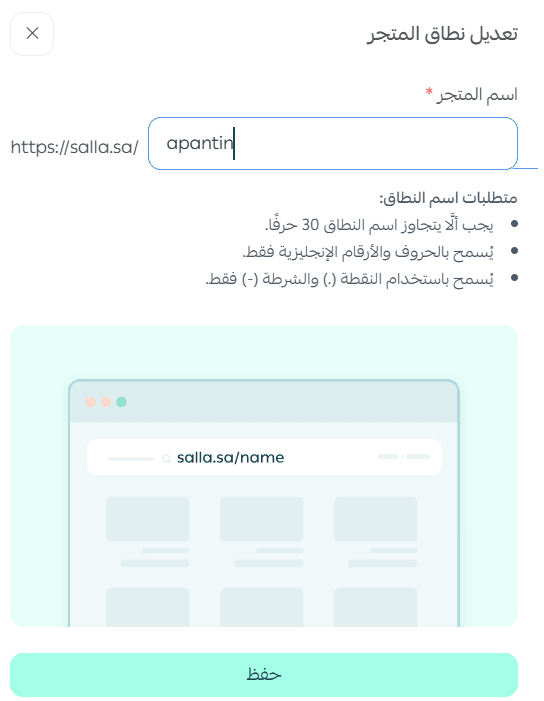
If the domain is already in use, you will receive a notification that the domain is unavailable.
2. Restoring the Salla default domain
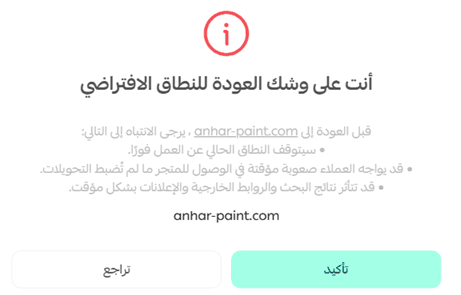
From the current domain options menu, click Return to Salla Default Domain.

A confirmation notification will appear. Click Confirm.
3. Registering a custom domain from Salla
From the Store Domain Management page, click Register Custom Domain, then follow the steps to activate your new domain.

Note:
After upgrading your store to the annual Plus or Pro plan, you will receive a free domain.
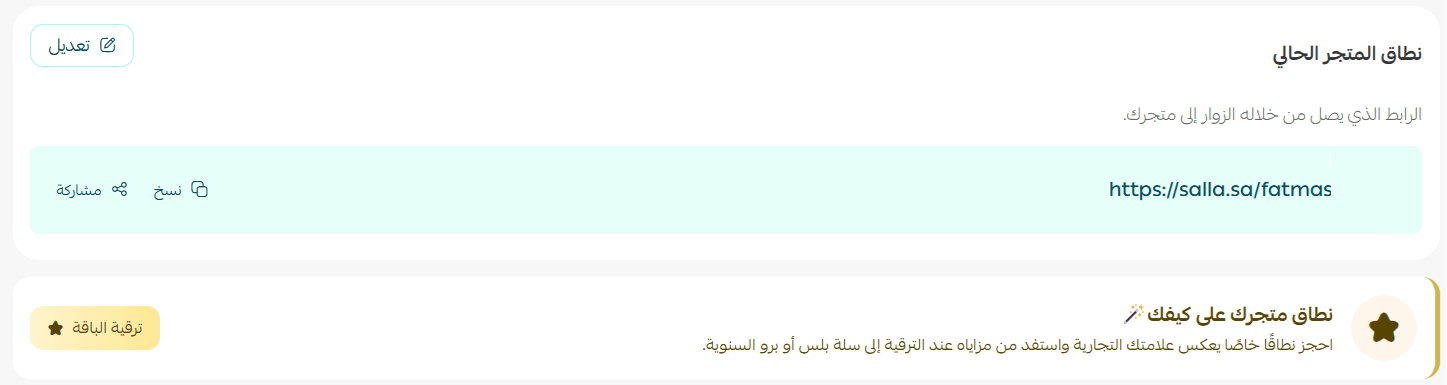
Click Register Custom Domain to claim it.

Note: The free domain is available only for annual plans.
4. Actions available for an active domain
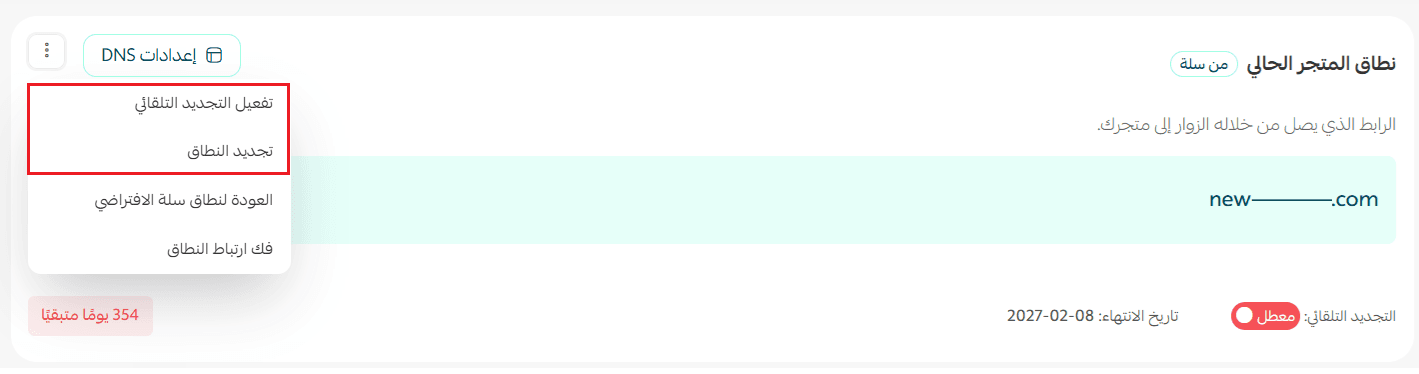
You can perform several actions on the active domain through the domain options menu:

✅ Enable auto-renewal
✅ Renew the domain
✅ Return to the Salla default domain
✅ Disconnect the domain
5. Actions for a domain with auto-renew disabled
For domains with disabled auto-renewal, you can perform the following actions:
✅ Renew the domain registration
✅ Enable auto-renewal
6. Transferring a domain to Salla management
Requirements for transferring a domain to Salla
Before transferring your domain, ensure the following conditions are met:
- Validity period
- The domain must have at least 60 days remaining before expiration.
- Transfers are also available 60 days after the domain registration date or after the last renewal.
2. Email address
- Your email address must match the email registered in the current domain details, as a confirmation message will be sent to it.
3. Authorization code (EPP Code)
- You must provide the domain’s EPP code, which you can obtain from the domain registrar.
4. Domain status
- The domain must be unlocked.
5. Privacy protection
- The Privacy Protection feature must be disabled.
Steps to transfer the domain to Salla
- From the Domain Settings page, click Transfer Domain to Salla Management.

2. Enter the domain name and EPP code (obtained from your domain registrar).
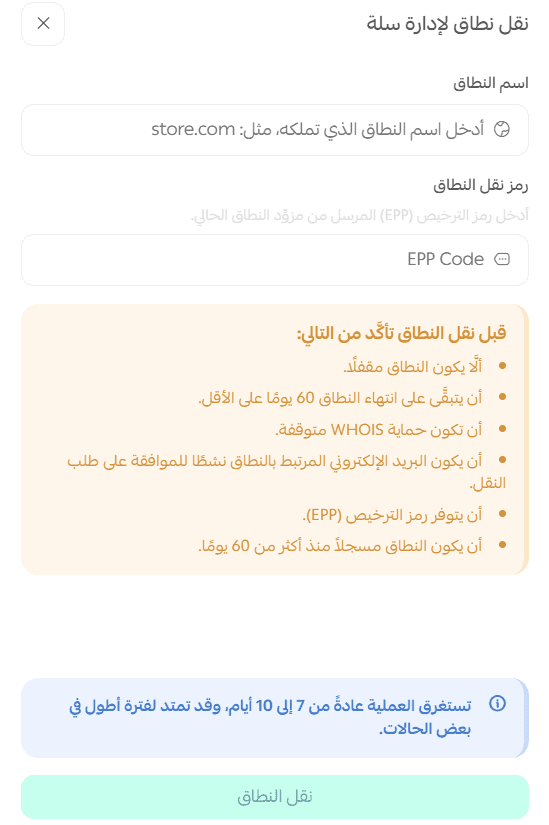
3. Complete the payment process and click Confirm Payment.
Transfer duration: The transfer process may take several days to complete.

🚧 If the transfer cannot be completed, you will be notified with the reason.

7. Connecting an external domain
- From the Store Domain Management page, open the New Domain menu and click Connect External Domain.
- Enter the domain name you want to connect, choose the connection method, then click Confirm.

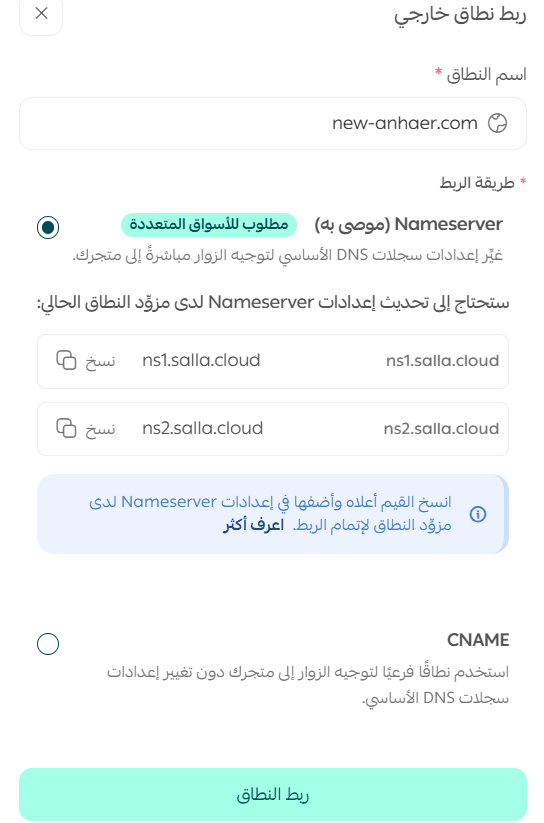
Choose a connection method
- Name Server: Allows connecting a primary domain only.
- CNAME: Allows connecting a primary domain or a subdomain.
🔔 Domain connection typically takes about 24 hours.
📘 Make your store link easy to remember and professional from the first visit by connecting your external domain correctly to ensure customer trust and easy access.
8. Disconnecting a store from a domain
You may want to disconnect your store from its current domain in several situations, such as:
- If the domain was used for a temporary marketing campaign and you want to switch to another domain after the campaign ends.
- If you want to change the domain or register a new one for your store.
From the Domain Settings page, open the domain options menu and click Disconnect Domain.

Then confirm the disconnection.
Support services
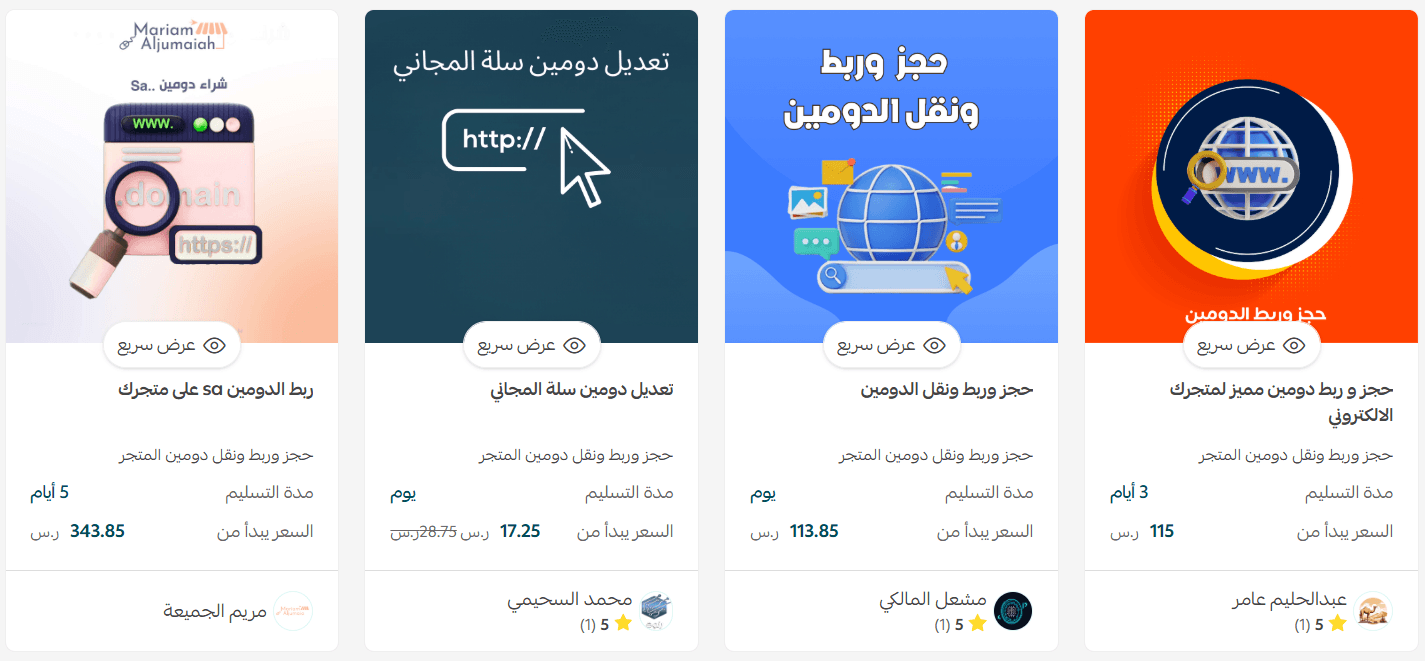
If you need help choosing, purchasing, or connecting a domain, you can use professional services provided by trusted domain specialists to ensure everything is set up correctly from the start.