Looking for ready-made tools to start or grow your online store, without buying software or subscribing to a third-party service?
Salla publishes a set of free merchant tools for anyone running a store or working on a business idea. They cover a wide range of jobs: generating QR codes and campaign tracking links, analyzing how your store performs in search, and planning around the selling seasons. Best of all, every tool works immediately, with no account and no sign-up. In this guide, you'll learn how to reach the merchant tools page, how to browse, search, and filter the tools, and how to open and use any one of them.
Salla's merchant tools are free, ready-to-use tools for anyone starting or growing an online store - QR code and UTM link generators, a store analyzer, a verification guide, and a season calendar. Open the merchant tools page, pick a tool, and click (Open). No account or sign-in needed.
📌 Article overview
- How to open the merchant tools page
- Browse the most-used tools
- Search and filter by category
- How to open and use a tool
- Frequently asked questions
🚀 How to open the merchant tools page
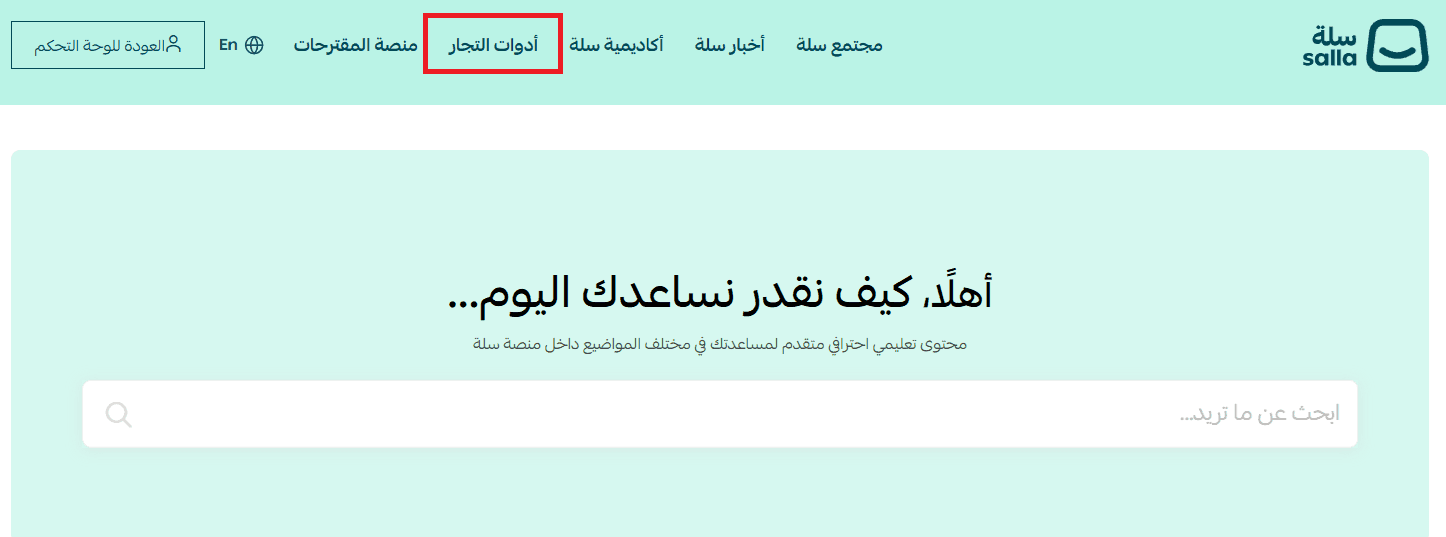
1. From the Help Center, go to (Merchant tools).
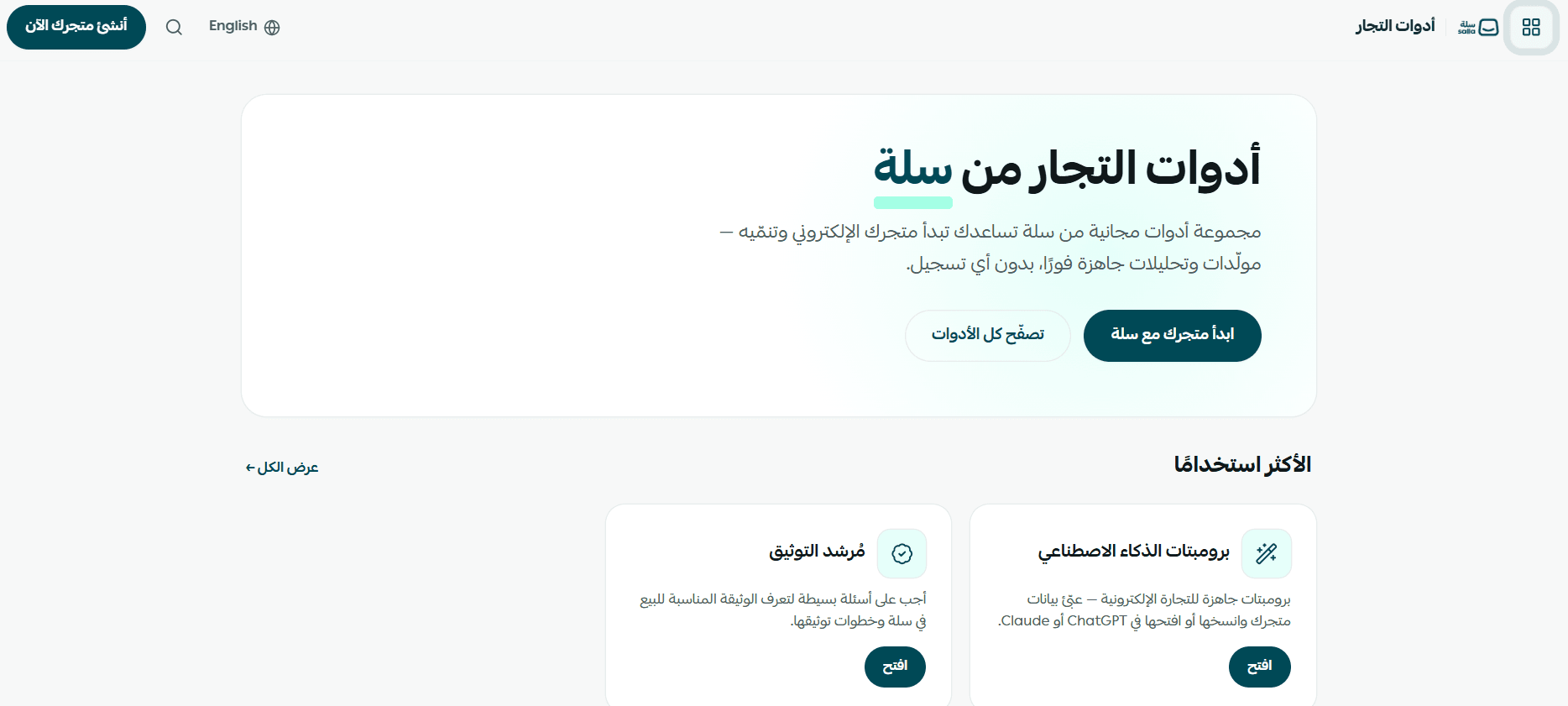
2. The merchant tools home page opens, showing the free tools available. It also carries a (Start your store with Salla) button for creating a new store, and a (Browse all tools) button that jumps straight to the full list.
💡 Note: you don't need an account or a login to browse or use the tools. They're open to any visitor to the page.
⭐ Browse the most-used tools
1. Scroll to the (Most used) section further down the merchant tools home page. It collects the tools merchants reach for most often - a good place to start on your first visit.
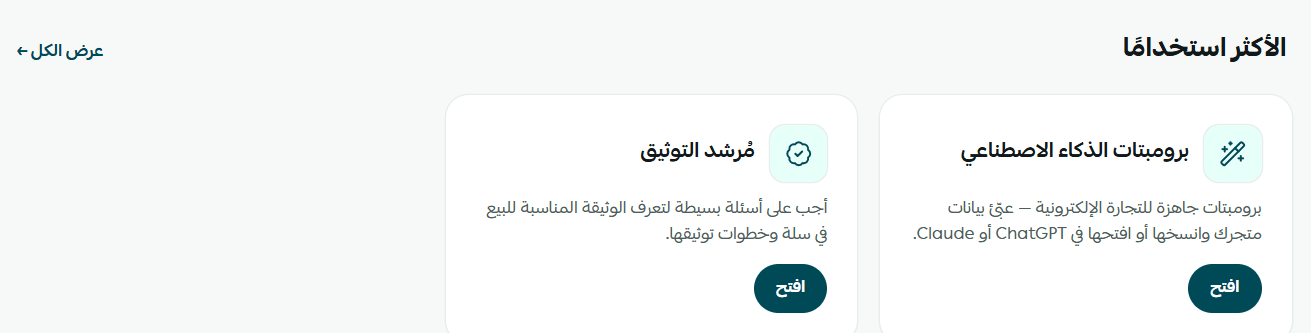
The section currently holds two tools:
- Verification guide: answers a few simple questions to tell you which document you need in order to sell on Salla, and the steps to get it verified.
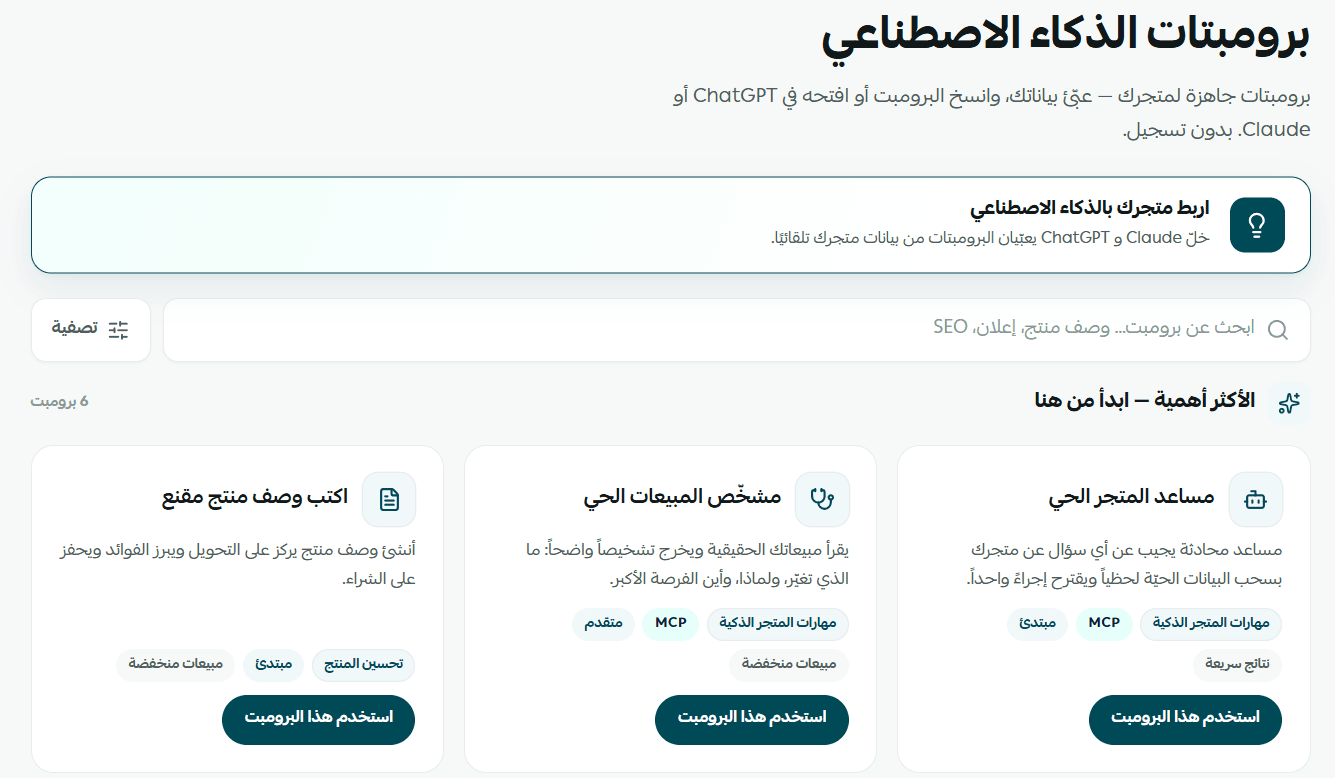
- AI prompts: ready-made prompts for e-commerce that fill in your store's details and copy over for immediate use in Claude or ChatGPT.
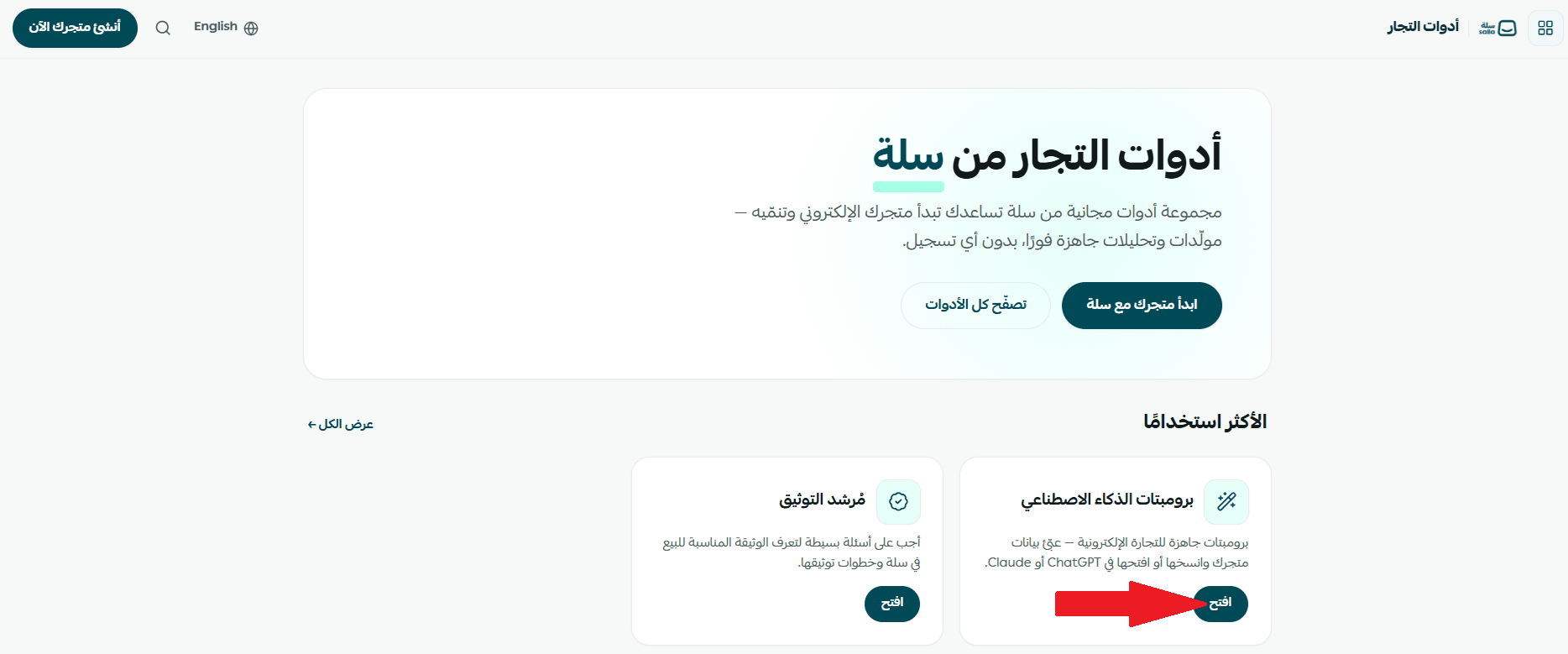
2. Click (Open) at the bottom of the card for the tool you want, and you go straight to it.
🔍 Search and filter by category
1. Go to the (All tools) section, where you'll find a search bar and category tabs for narrowing the list.

There are four categories to filter by:
- All: shows every tool at once.
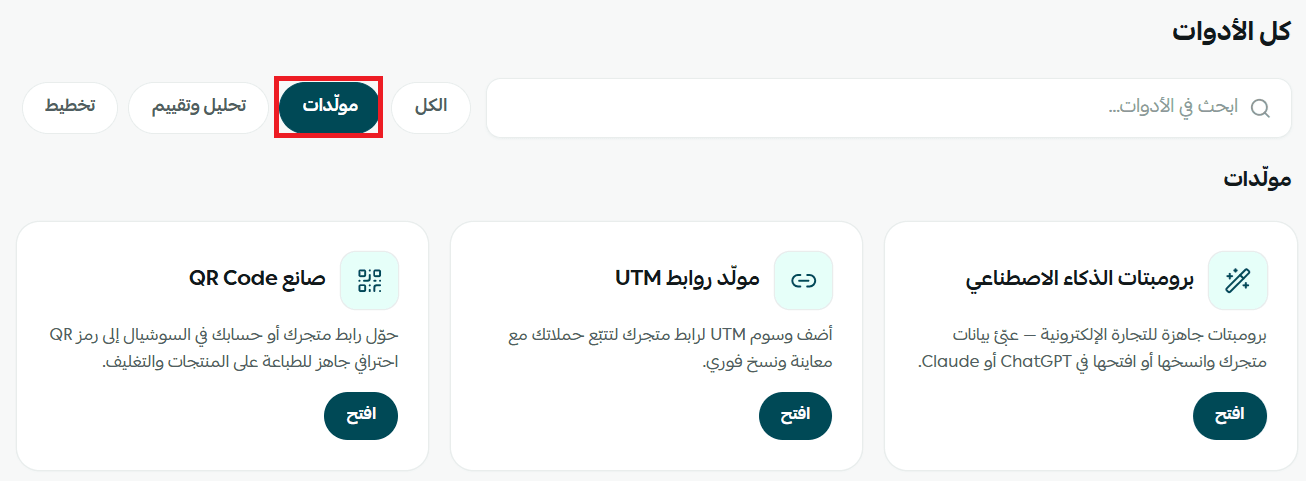
- Generators: tools that produce something ready to use, such as links and codes.
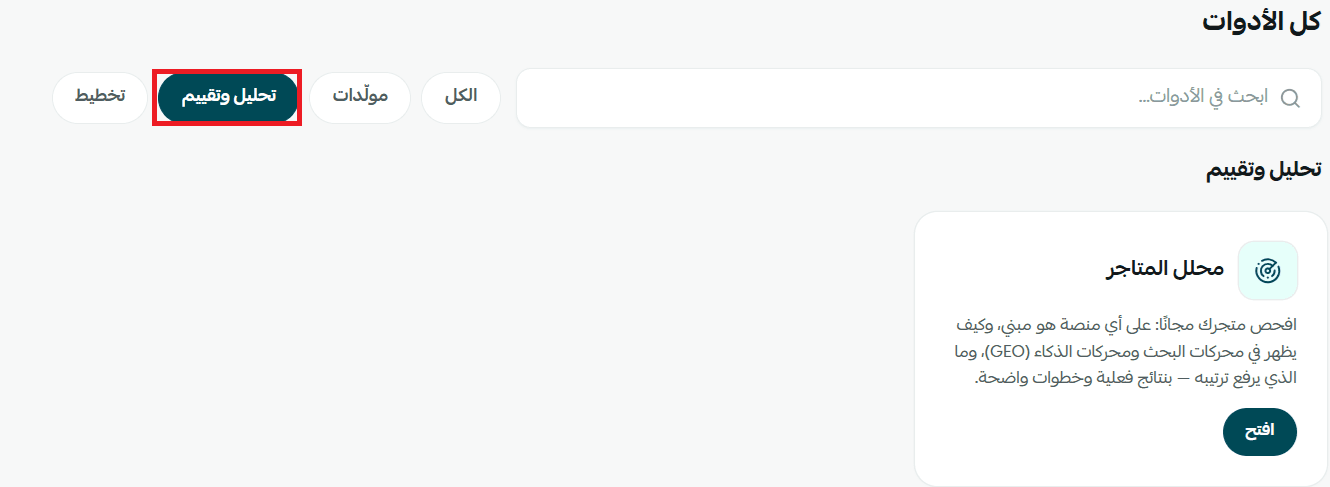
- Analysis and evaluation: tools that assess your store or your idea.
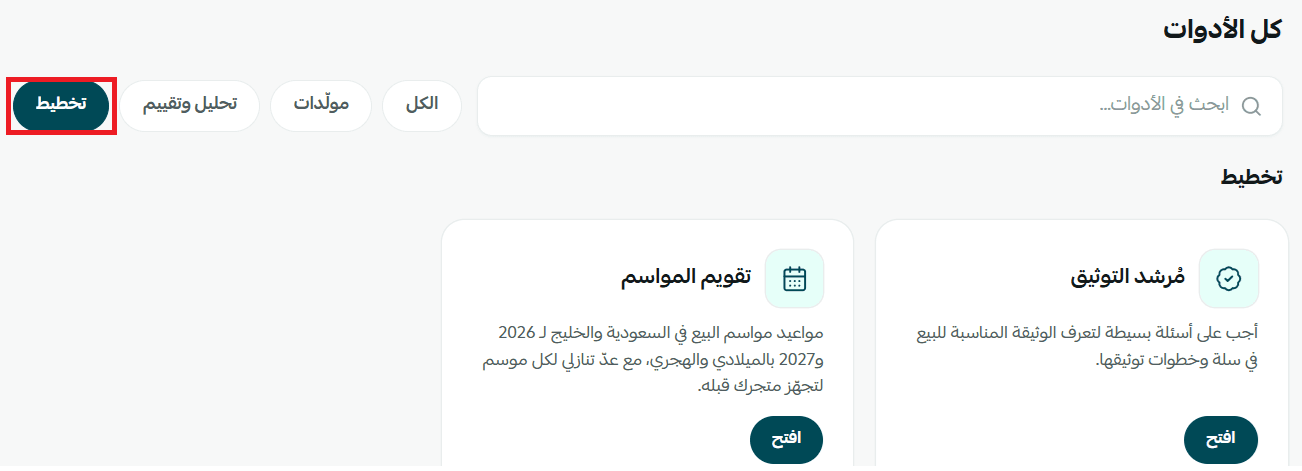
- Planning: tools that help you prepare and organize ahead of time.
Generators
- AI prompts: for writing product descriptions and ads, and for analyzing sales.
- UTM link generator: adds UTM tags to your store link so you can track marketing campaigns precisely, and copies the finished link in one click.
- QR code maker: turns your store link or your social accounts into a QR code ready to print on products and packaging.
Analysis and evaluation
- Store analyzer: audits your store for free and shows how it appears in search engines and AI engines, what would lift your ranking, and the concrete steps to get there.
Planning
- Season calendar: lists the selling seasons for 2026 and 2027 in both Gregorian and Hijri dates, with a countdown to each one so you can get your store ready in advance.
- Verification guide: the same tool that appears under (Most used), listed here too because it's one of the most requested.
🤖 How to open and use a tool
1. Once you've settled on a tool, click (Open) at the bottom of its card.
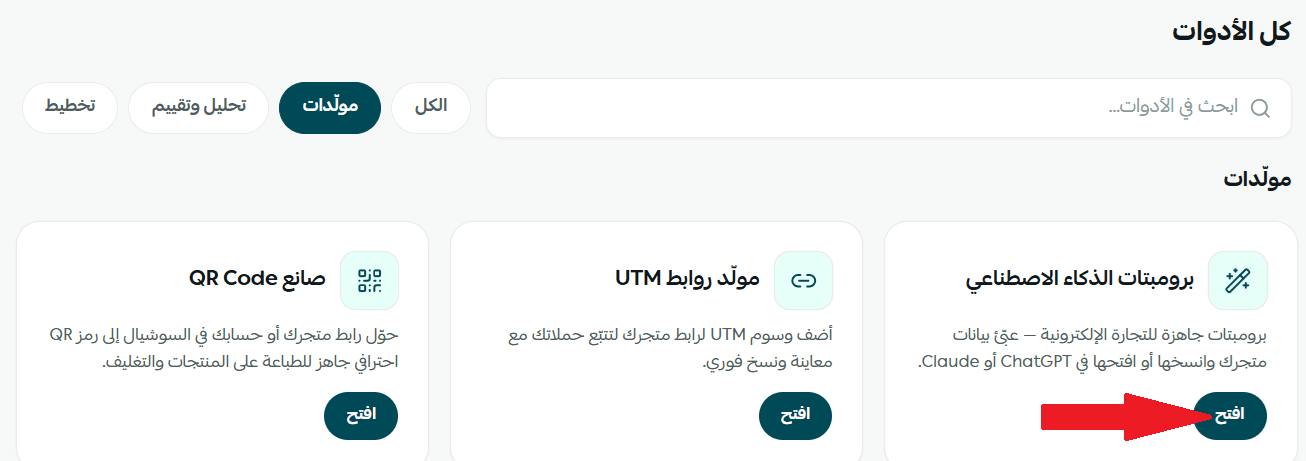
2. The tool's own page opens. Taking the AI prompts tool as the example: you can browse the ready-made prompts, search them, or filter them to your needs, then pick the prompt you want and use it.
📝 Important notes
- Every tool runs in the browser and needs no account. Registering is optional, and only saves your results so you can come back to them.
- Tools marked (In development) aren't live yet. They appear on the page as soon as they're ready.
❓ Frequently asked questions
Are the tools really free?
Yes. Every tool is completely free and works immediately. Registering is optional and only saves your results for later.
Do I need a Salla store to use the tools?
No. The tools are open to any merchant or anyone with a business idea.
Are the results accurate and aligned with local regulations?
The tools are built on local rules, including 15% VAT and local payment methods such as mada, Apple Pay, and Tamara. The results are guidance to support your decision, not a formal ruling.
How are new tools added?
New tools are added continuously. Anything tagged (In development) will appear on the page as soon as it's ready.