Is your team re-typing every Salla order into Odoo before it can be invoiced?
Orders, customers, products, invoices, delivery notes — each one re-entered by hand is a chance for your books and your operations to fall out of step. BrightBooks Odoo Sync connects your Salla store to your own Odoo ERP and keeps both sides aligned automatically, including cancellations and returns. In this guide, you'll learn how to install the BrightBooks Odoo Sync app, upgrade your plan, and remove the app when you no longer need it.
BrightBooks Odoo Sync connects your Salla store to your own Odoo ERP and syncs orders, customers, and products automatically. It creates invoices and delivery orders based on order status, and cancels them when an order is cancelled or returned. Install it from the App Store to start a 7-day trial.
🚧 Before you start
- You need your own Odoo system, either cloud or self-hosted.
- The app is an integration tool only. It does not provide Odoo itself.
- Invoice and delivery behavior follows your own Odoo settings.
- Once you install the app, the BrightBooks team completes the connection work on their side.
📌 Article overview
- How to install the BrightBooks Odoo Sync app
- How to manage the BrightBooks Odoo Sync app
- Frequently asked questions
👣 How to install the BrightBooks Odoo Sync app
1. From the main menu, click (All), then under helper tools click (App Store).

2. On the BrightBooks Odoo Sync app page, click (Install).
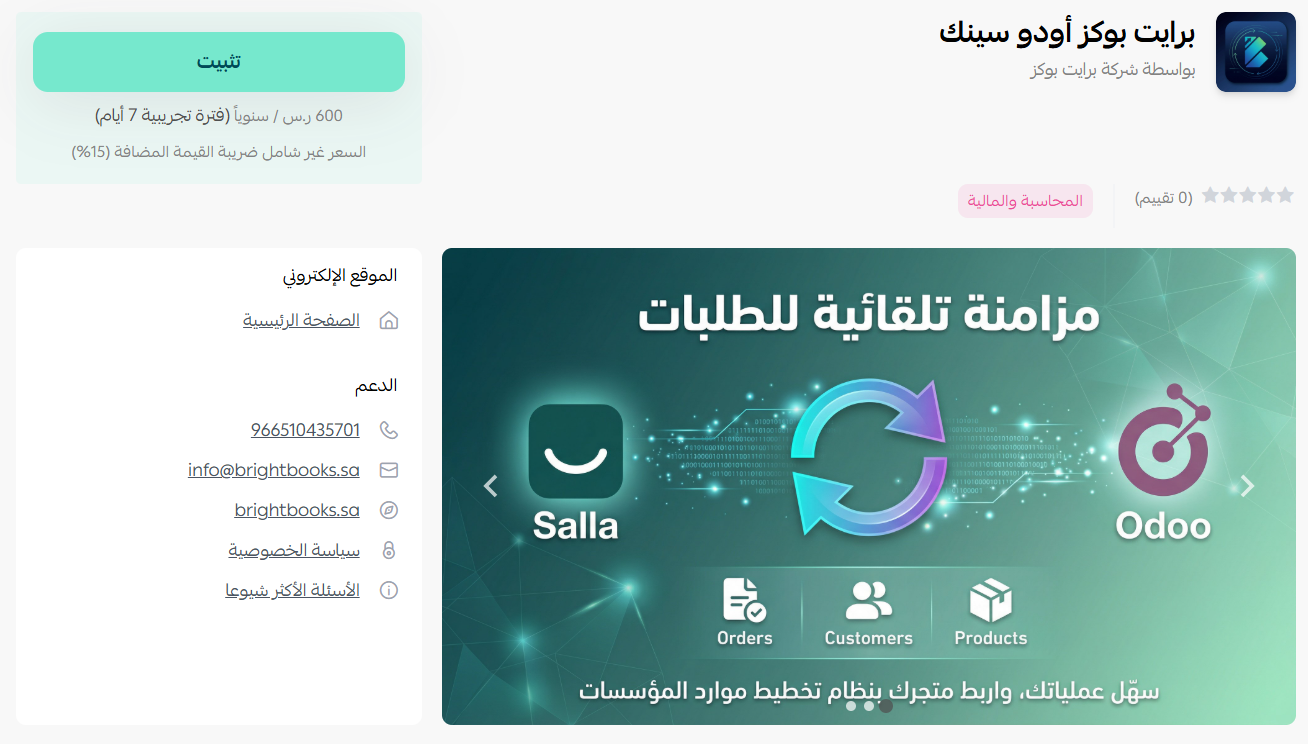
3. Choose the plan that suits you, then click (Install app).
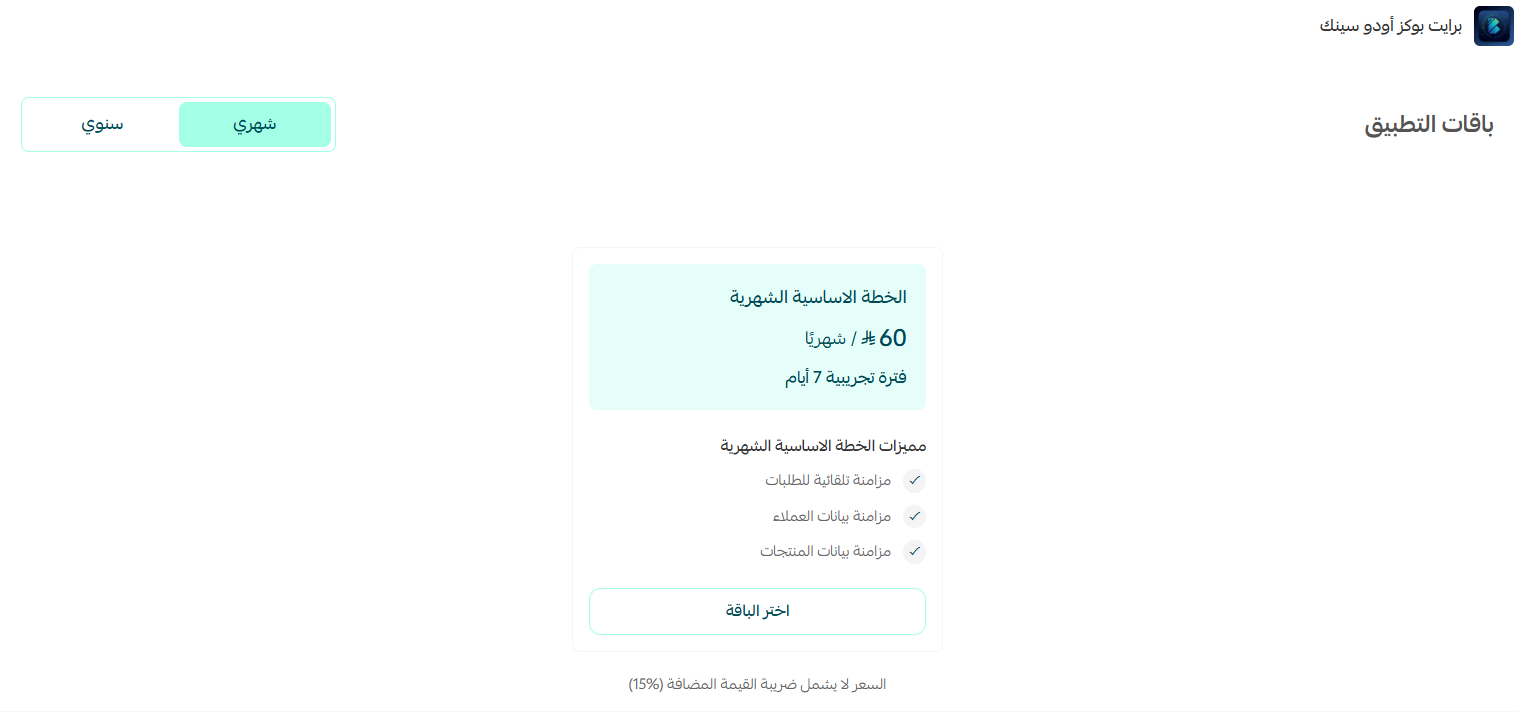
Congratulations — the app is installed with a 7-day trial.
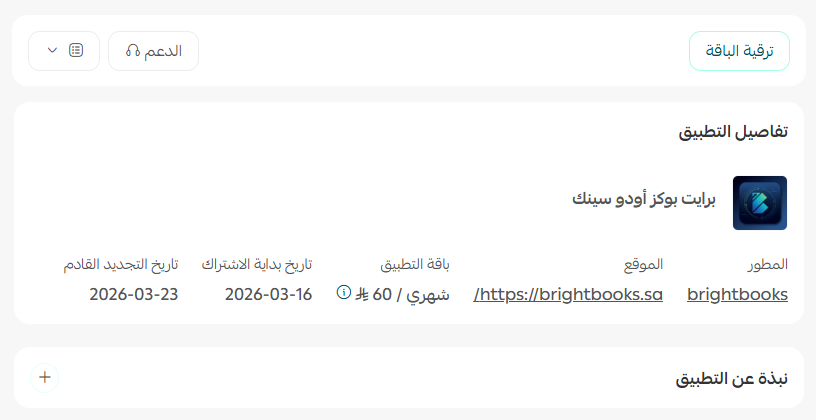
🚀 How to manage the BrightBooks Odoo Sync app
Upgrade your plan
1. From the app details, click (Upgrade plan).

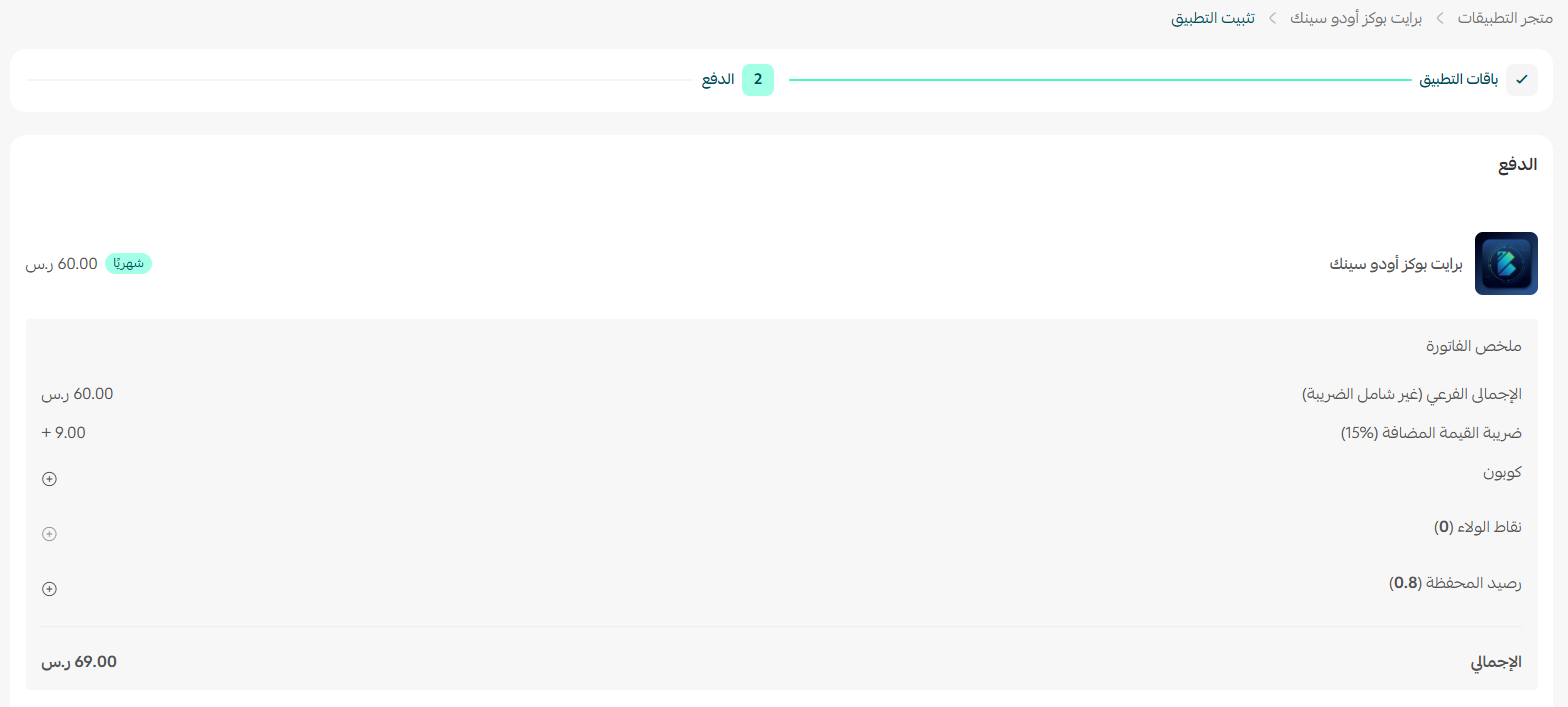
2. Choose the plan that fits your business, then click (Go to payment).
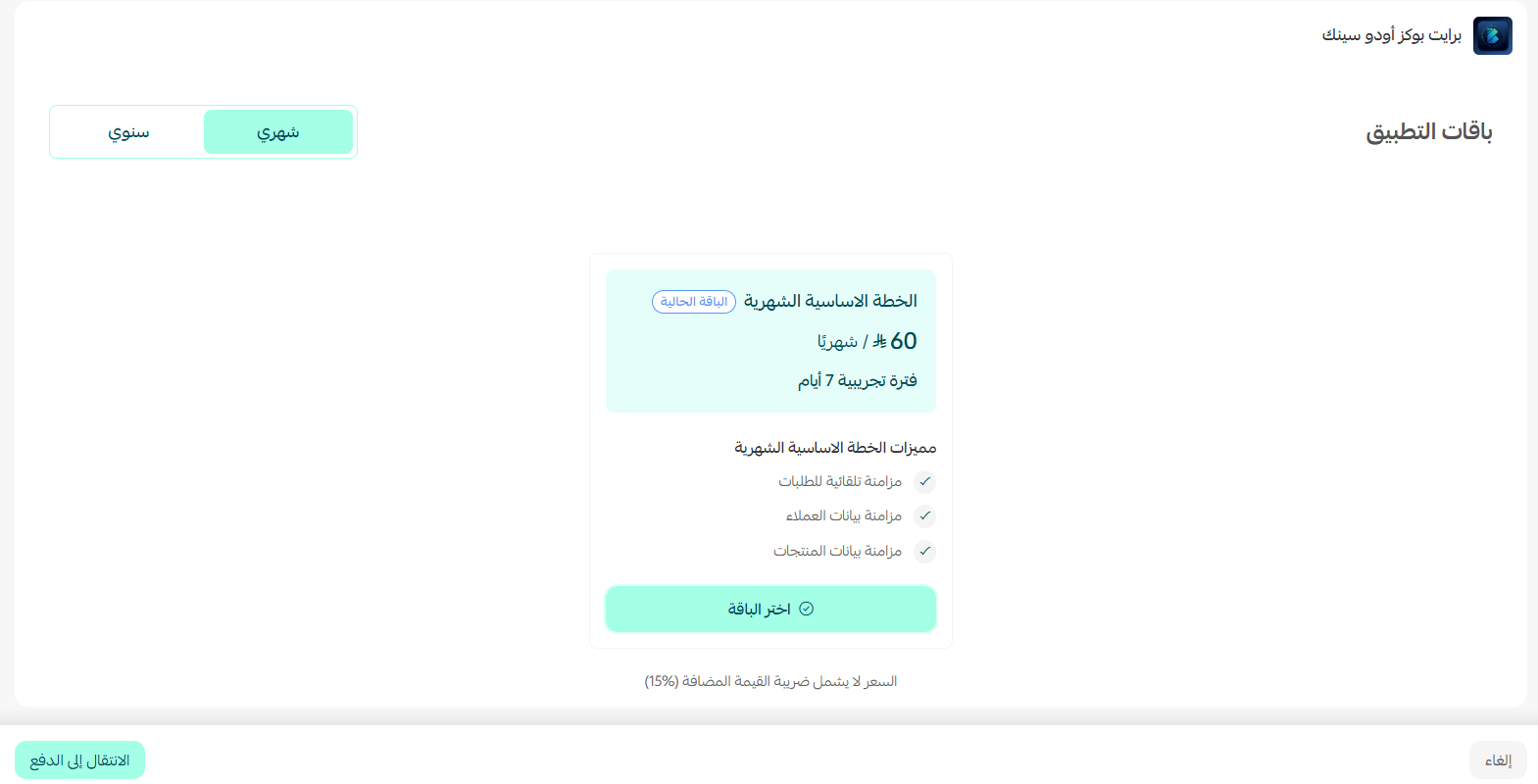
3. Complete the payment.
Remove the app
1. From the app options menu, click (Cancel subscription), then choose a reason for cancelling.

2. From the app options menu, click (Delete app), then choose a reason for deleting.

3. Open the deleted apps page, then from the app options menu click (Delete app permanently) to remove it from your store for good.

❓ Frequently asked questions
What does BrightBooks Odoo Sync sync?
Orders, customers, and products move from your Salla store to Odoo automatically, along with the invoices and delivery orders generated from them.
Do I need my own Odoo system?
Yes. The app is an integration tool only, and works with your own Odoo, whether it is cloud-hosted or self-hosted.
What happens when an order is cancelled or returned?
The matching invoice and delivery order are cancelled in Odoo, so your accounting and operations records stay accurate.
Do I have to configure the connection myself?
No. After you install the app, the BrightBooks team completes the connection work from their side.
Is there a trial?
Yes. Installation starts a 7-day trial, and you can upgrade to a paid plan from the app details at any point.
For more details, visit the BrightBooks Odoo Sync app page.