Are you facing challenges managing Value Added Tax (VAT) accurately? Incorrect VAT settings can lead to pricing mistakes and reduce customer trust.
In this guide, you’ll learn step by step how to configure VAT in your store, add new tax rates, enable or disable specific taxes, and exempt zero-rated or VAT-exempt products, along with answers to the most common questions.
📌 Article overview
- How to set up VAT
- Adding a new tax rate
- Disabling a specific tax
- Exempting zero-rated or VAT-exempt products
- Frequently asked questions
1. Setting up VAT
To configure VAT in your store:
- From the main menu, open the All tab.
Under Settings & Tools, click Payment Methods.
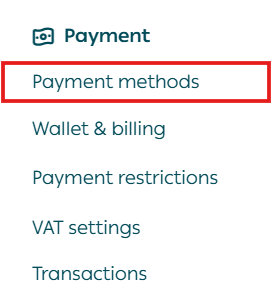
2. Select the VAT tab.
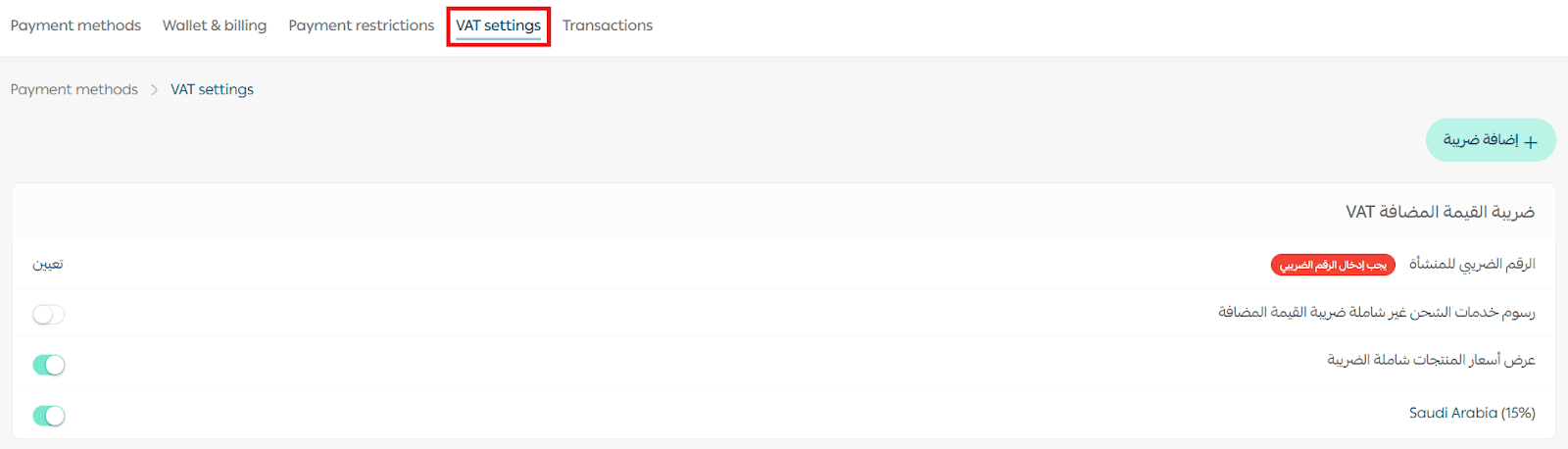
3. Configure your VAT options.
1. Business VAT registration number
To add your business VAT number:
- Click Set next to VAT Registration Number.
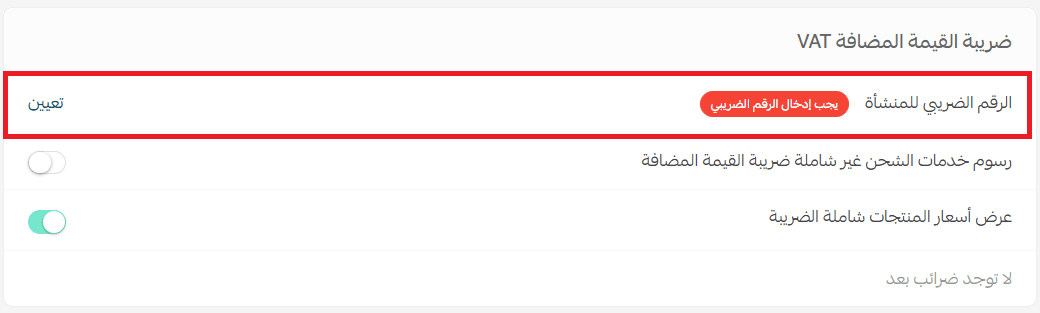
Note: This option is currently available for stores in Saudi Arabia only.
- Enter your VAT registration number, then click Save.
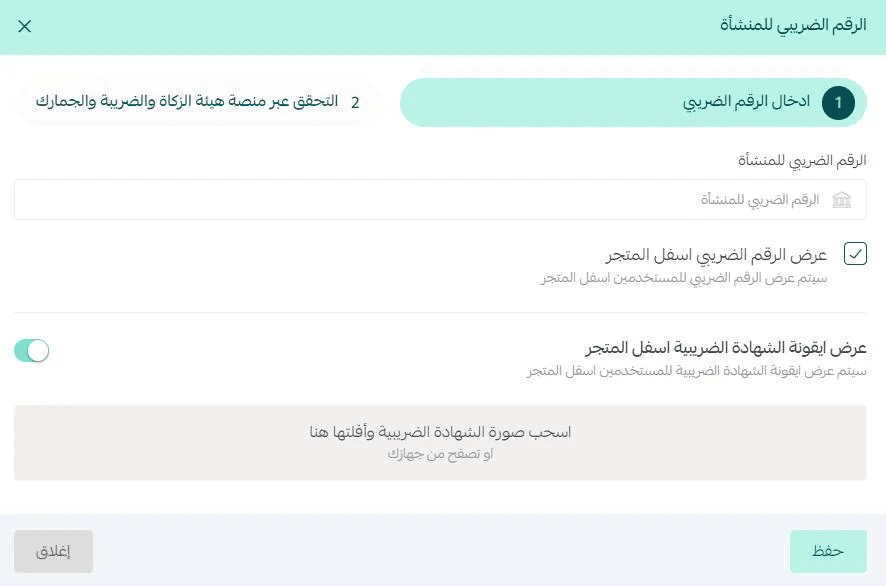
Once added, the VAT number will appear at the bottom of your storefront.

If customers click the VAT number icon, the VAT certificate image will be displayed.
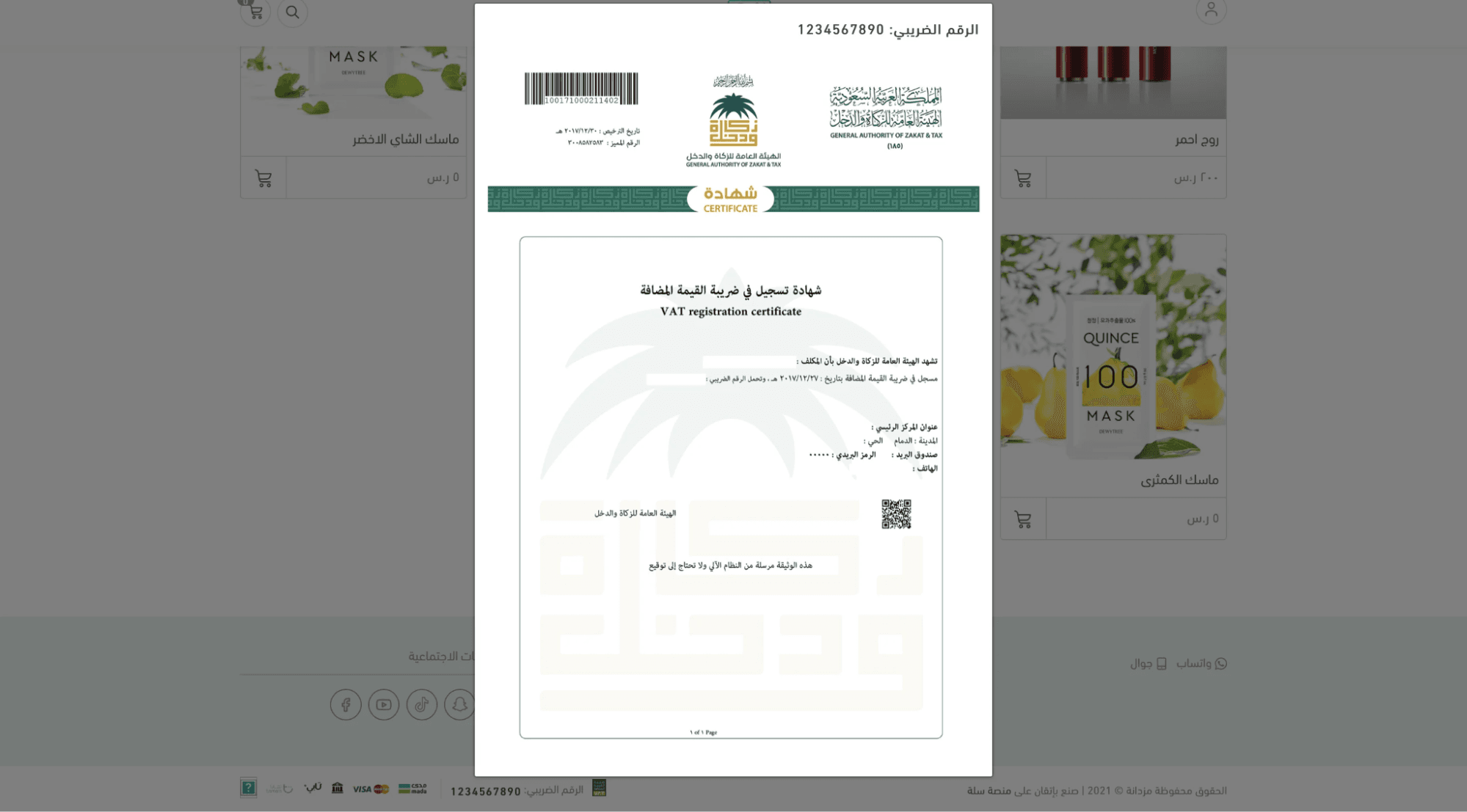
For more details, refer to the guide on registering with the Zakat, Tax and Customs Authority.
2. Shipping fees and VAT inclusion
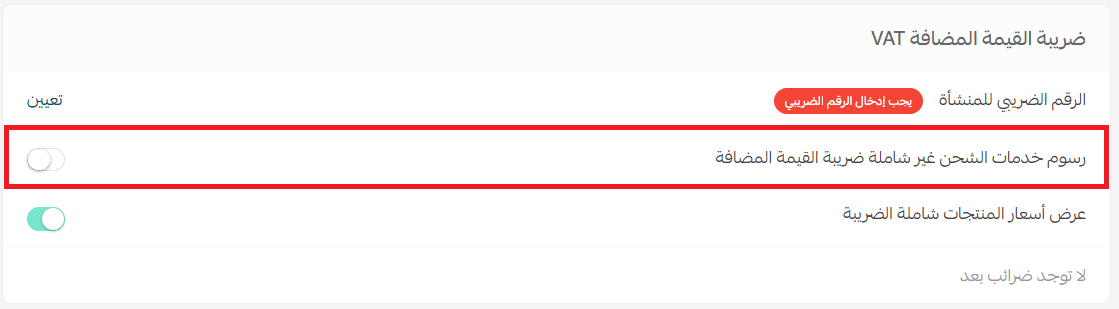
When enabling VAT calculation on shipping services:
- VAT will be included within the shipping service amount.
If the option is disabled:
- VAT will instead be calculated within the shipping label amount.
This helps merchants control how VAT is displayed and applied to shipping charges.
3. Display product prices including VAT
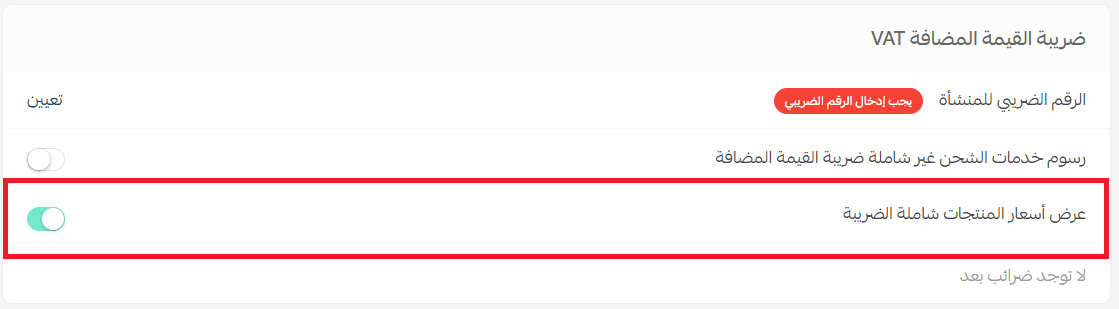
You can choose whether product prices appear:
- Including VAT (e.g., 15%)
or
- Excluding VAT
For example:
- When enabled, customers see the final tax-inclusive price directly.

- When disabled.

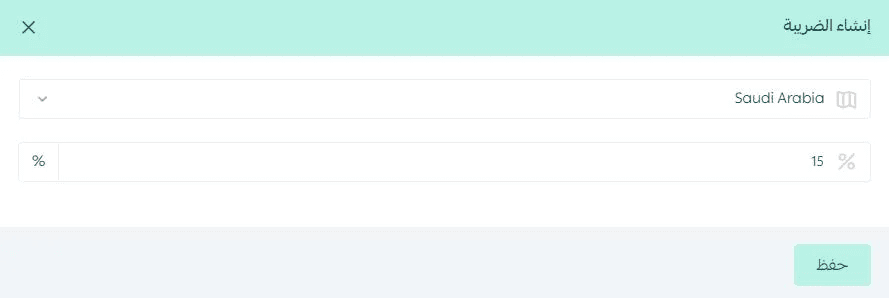
2. Adding a new VAT rate
To add a new VAT rate:
- Click + Add VAT
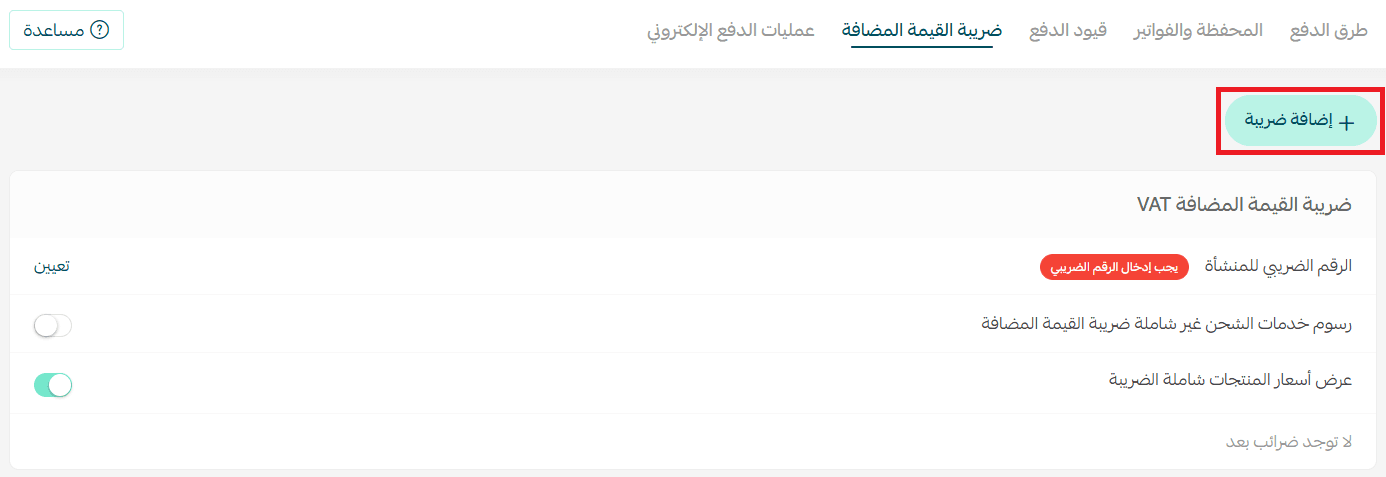
2. Select the country where the tax will apply
3. Enter the tax percentage
4. Click Save
3. Disabling a specific tax
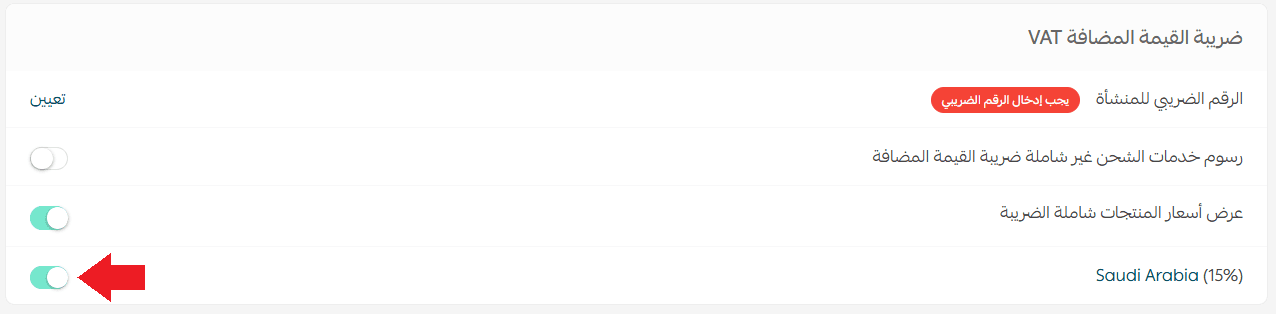
From the VAT page, you can enable or disable any existing tax rate using the toggle next to it.
4. Exempting VAT for zero-rated or VAT-exempt products
If a product is exempt from VAT or has a 0% tax rate:
- Open the product card
- Go to Advanced Product Information
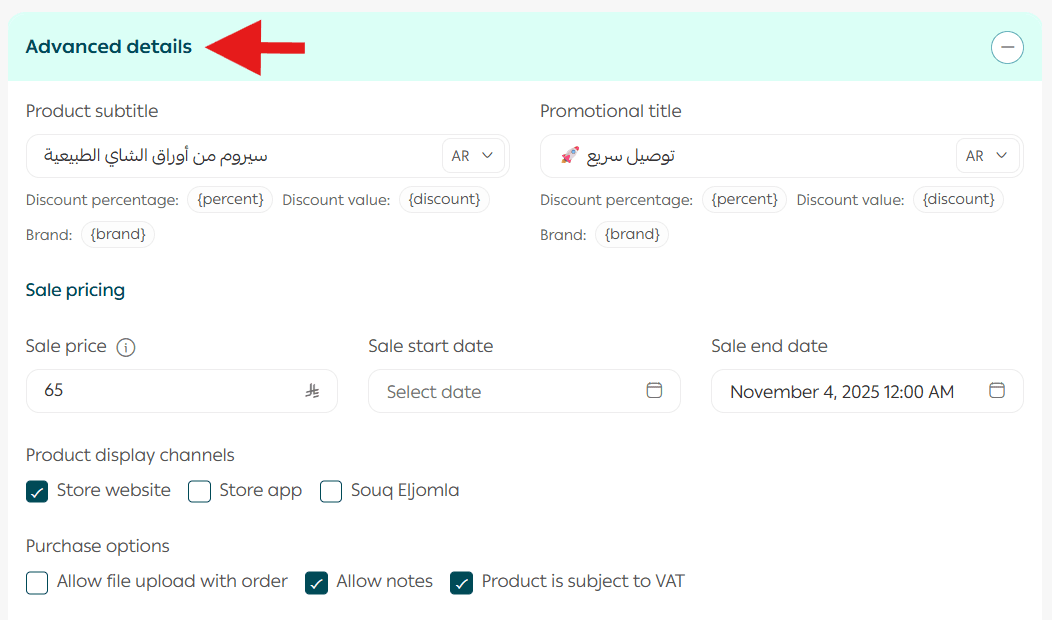
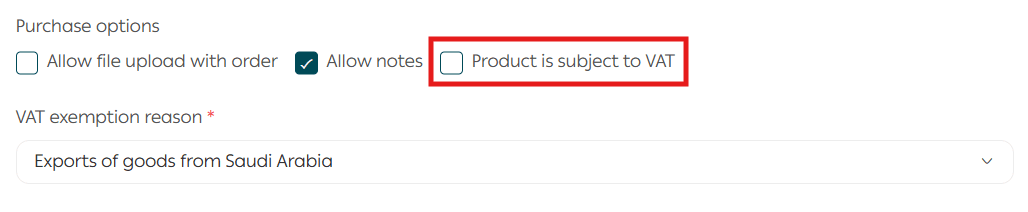
3. Disable the option This product is taxable
4. Select the reason for exemption from the list
Direct integration with ZATCA
To enable automatic VAT invoice submission:
You can activate direct integration with the Zakat, Tax and Customs Authority so your store orders are sent automatically.
For more details, refer to the guide on ZATCA integration.
Frequently asked questions
Is the shelf price VAT-inclusive?
Yes. The Ministry of Commerce confirmed that displayed product prices must include VAT and represent the final price.
What is VAT applied to?
VAT applies to all goods and services bought and sold by businesses.
What is the difference between goods and services?
Goods are physical items you can purchase, such as smartphones or consumer products.
Services are non-tangible offerings delivered by professionals, such as consultations or online courses.
What is the definition of goods?
In economics, goods are items that fulfill consumer needs and provide value to the buyer.
When is a VAT number rejected?
A VAT number may be rejected if:
- It is not exactly 16 digits
- It does not start with 3
- It does not end with 3
Which supplies are VAT-exempt?
Some exempt or zero-rated categories include:
Financial services
- Life insurance
- Exempt real estate supplies
- Exports of goods and services
- International transport (goods and passengers)
- Qualified medical products and medicines
- Educational services for citizens
- Private healthcare services for citizens
- Qualified military supplies
Which plans support displaying the VAT number?
Displaying the VAT registration number is available on:
- Salla Pro Plan
- Salla Special Plan