To make sure you never miss a customer order, even in special cases such as phone orders or direct communication, this guide shows you how to create a new order manually.
By the end of this article, you will be able to add orders efficiently, manage exceptions with confidence, and avoid missing or unrecorded orders.
📌 Article overview
Creating a New Order Manually
- Add products
- Select the customer
- Choose the payment method
- Choose the shipping method
- Apply a discount coupon and save the order
Creating a New Order Manually
From the main menu, click Orders, then open the All orders tab and click New Order.

The Create New Order page will appear and includes:
- A section for product categories
- A section displaying products within each category
- An order information section
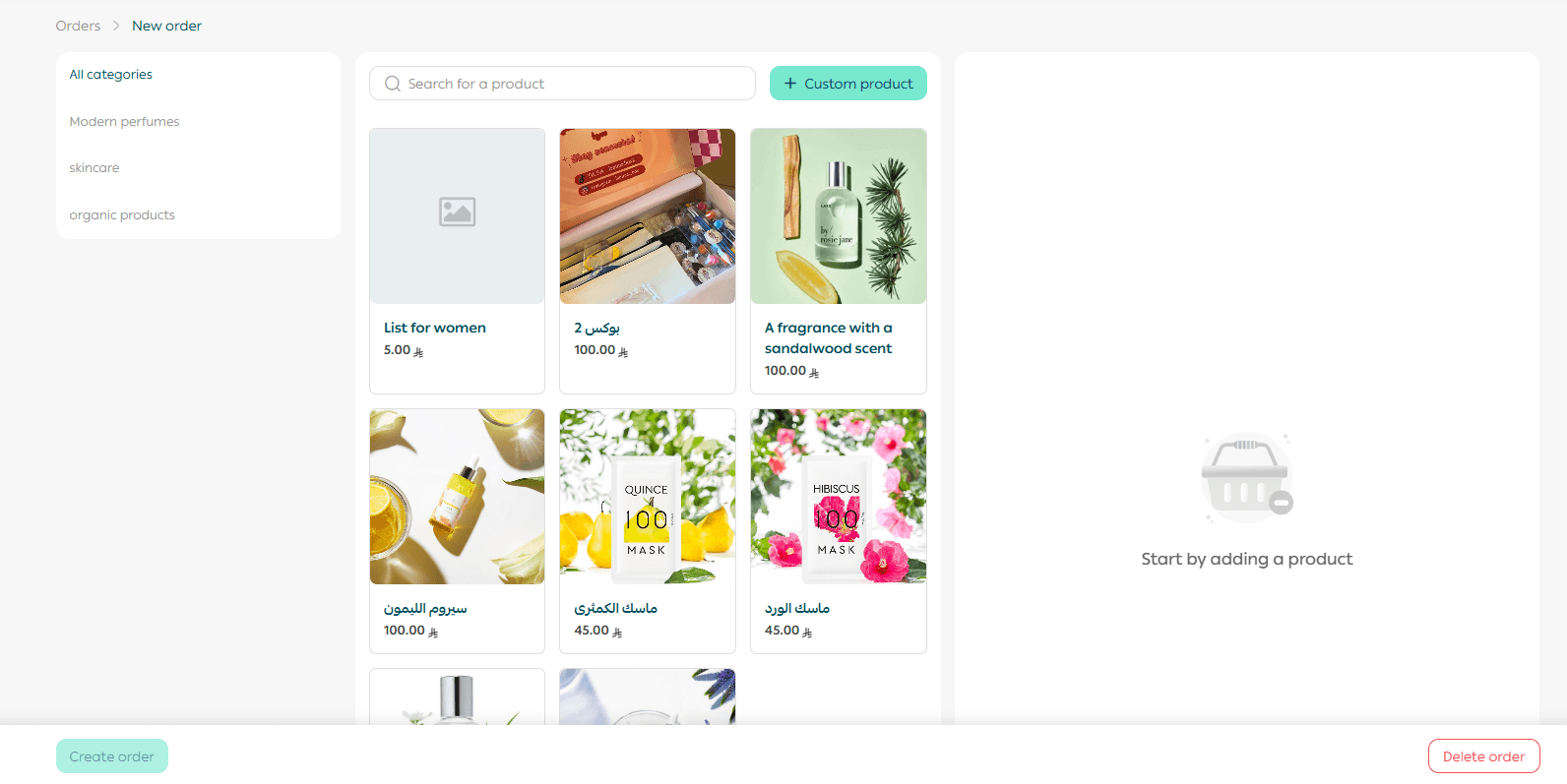
Follow the steps below to complete the manual order.
Step One: Add Products
You have two ways to add products to the order.
Option One: Add an Existing Store Product
- Select the main category of the product or use the search field to find it.
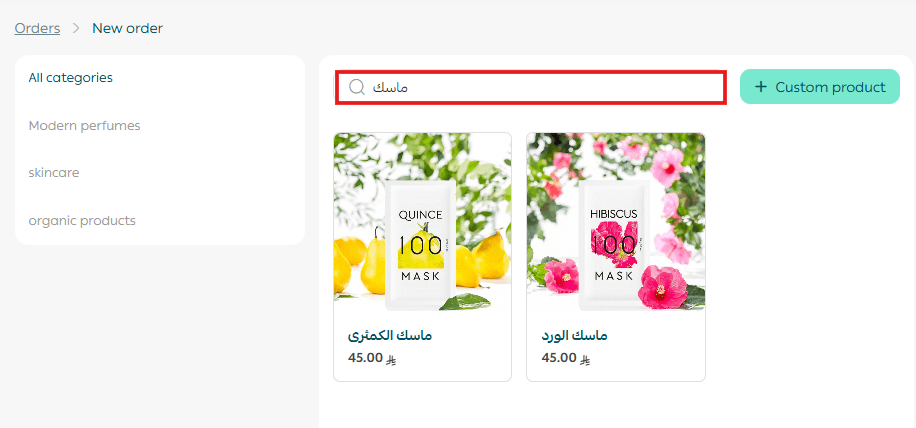
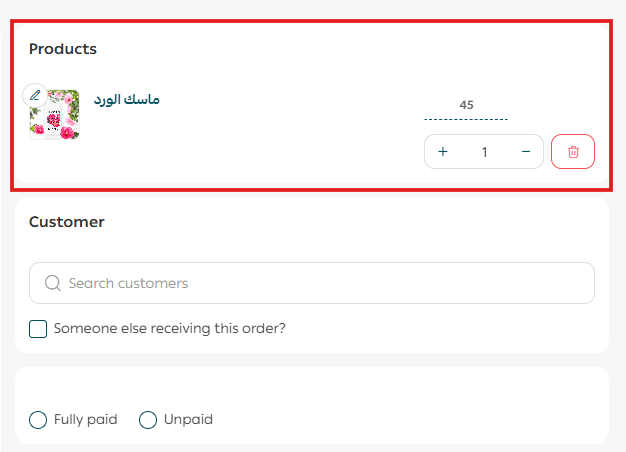
- Click the product name to add it to the order.
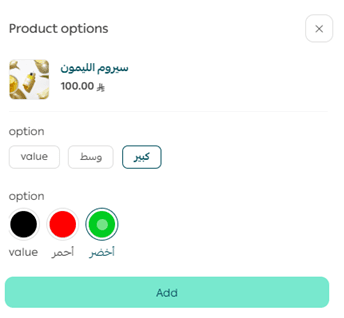
If the product has no options, it will be added immediately.
If the product has options, select the required options, then click Add.
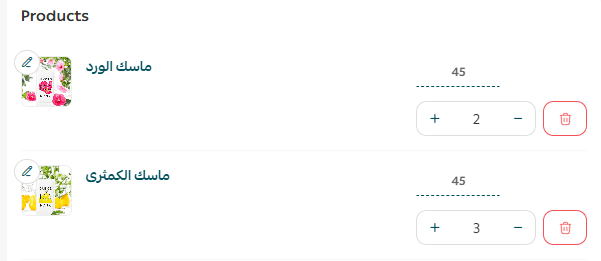
- Set the required quantity for each product.
Option Two: Add a Custom Product
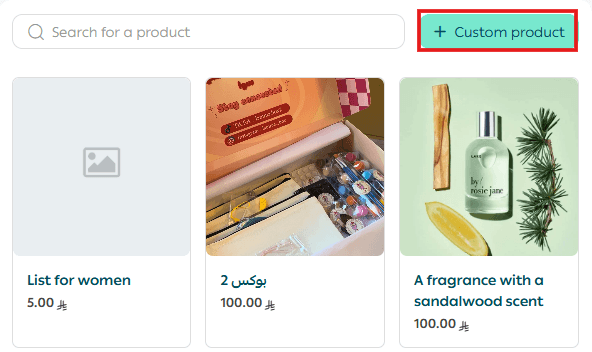
- Click Add Custom Product.
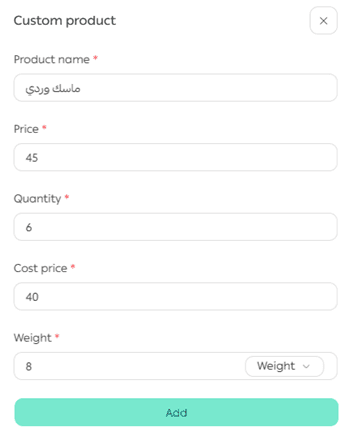
- Enter the custom product card details, then click Add.
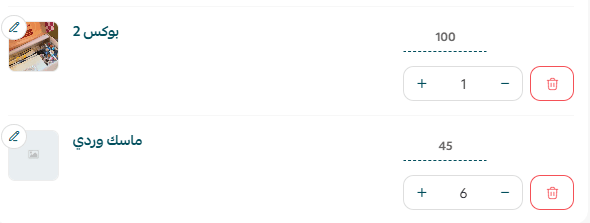
You can edit the custom product details at any time by clicking on it.
Step Two: Select the Customer
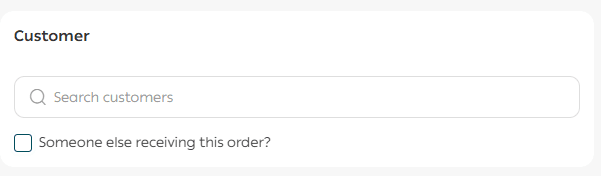
Search for the customer name if the order is for an existing customer.
If the order is for a new customer, click Add New Customer, enter the customer details, then click Save.
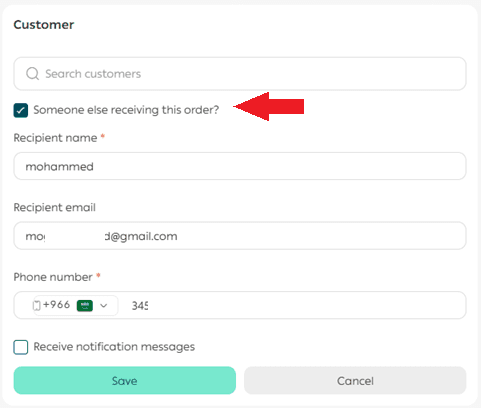
Send the order to a different recipient
Enable the Send Order to Another Person option and enter the recipient’s name, email address, and phone number, then click Save.
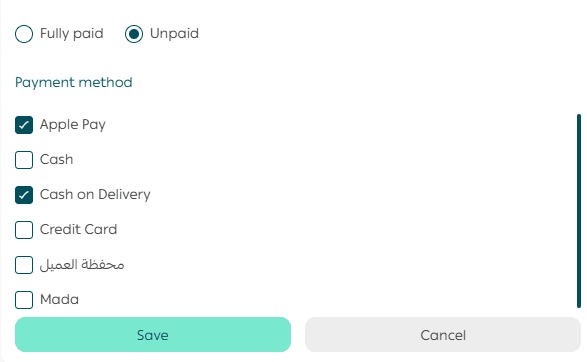
Step Three: Choose the Payment Method
The customer can pay using one of the following methods.
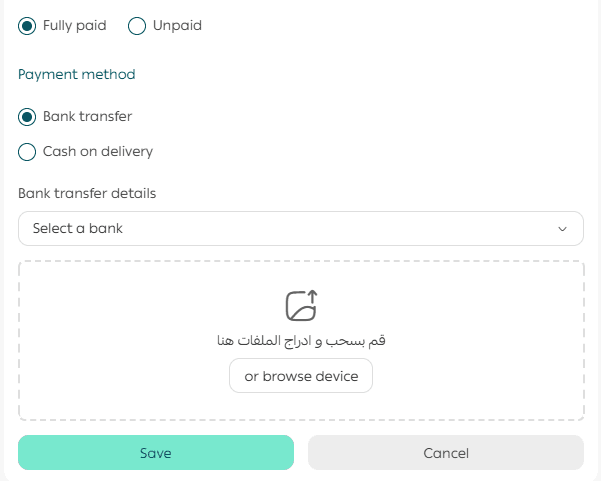
1. Bank transfer
Select the bank and upload the payment receipt.
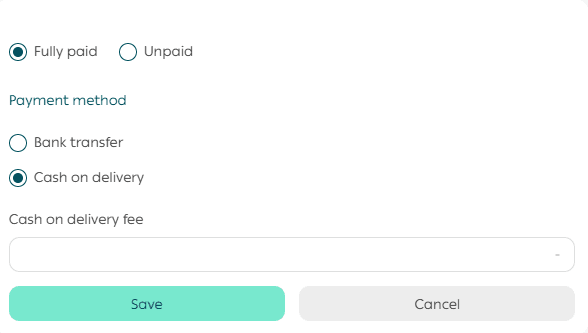
2. Cash on delivery
Specify the cash on delivery fee if applicable.
3. Other payment methods
Such as credit card or deferred payment options.
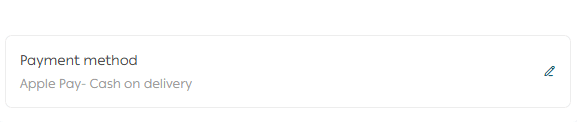
The selected payment method will appear clearly in the order summary.
Step Four: Choose the Shipping Method
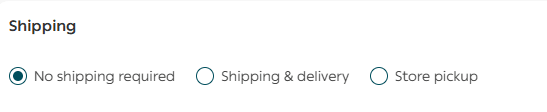
Specify whether the order requires shipping.
Case One: Order does not require shipping
This applies to digital products, digital cards, or consultation services.
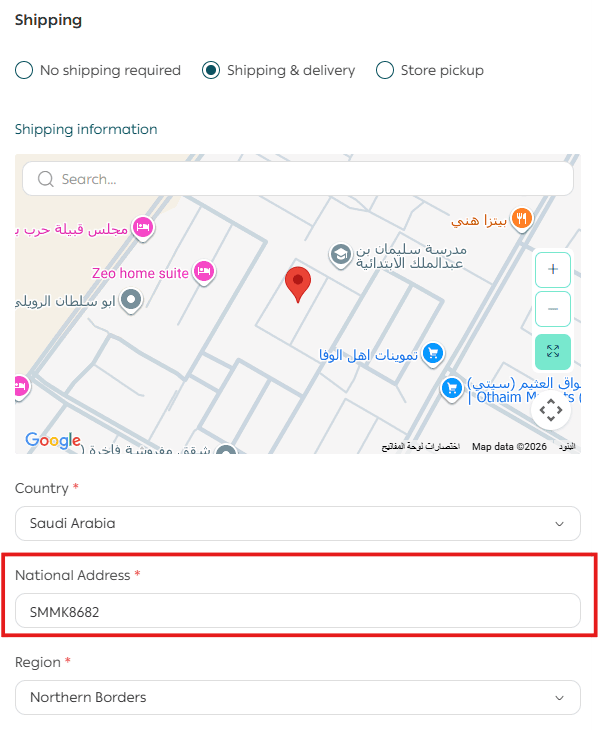
Case Two: Order requires shipping and delivery
Choose whether shipping is free or paid, then select the shipping company and click Save.
💡 Note
When entering the national address, matching address options will appear automatically. Once selected, all address fields are filled in based on official national data.
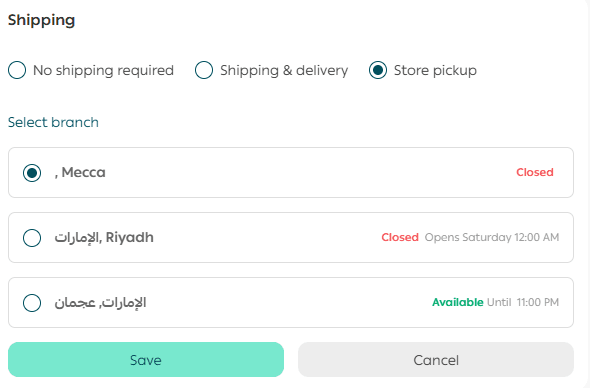
Case Three: Order will be picked up from a branch
Select the branch where the order will be collected.
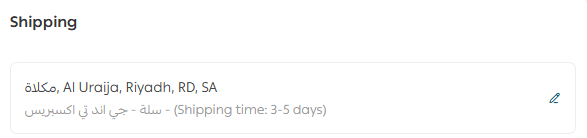
Once the shipping method is selected, the shipping section will appear with full details.
Step Five: Apply a Discount Coupon and Save the Order
Review the order summary. To add a discount coupon, click Add Coupon.
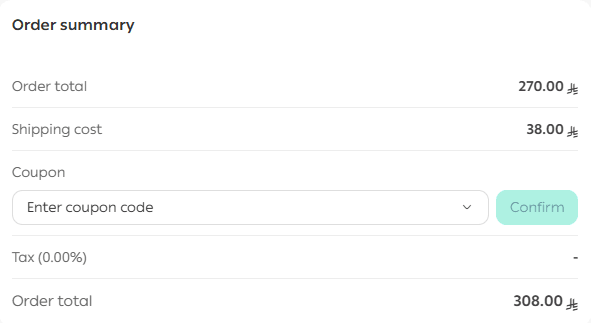
Enter the coupon code, then click Confirm.
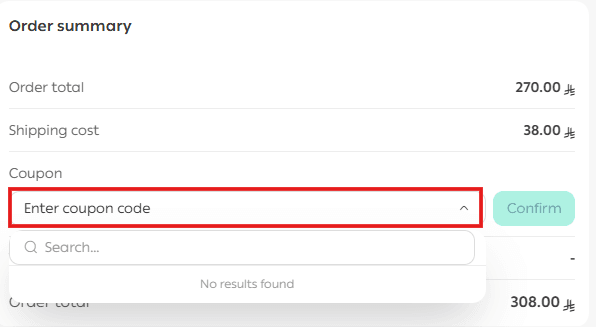
For more details, refer to the guide on adding discount coupons.
Create the order
At the bottom of the page, click Create Order, then confirm by clicking Yes, Add.
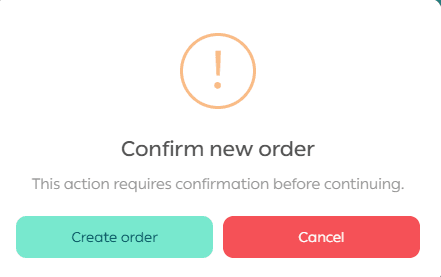
The order will be added successfully to the orders list.
Final Takeaway
Creating orders manually gives you full control when handling special cases or offline requests.
With this process, you can capture every sale, maintain accurate records, and ensure a smooth experience for both your team and your customers.
For more details, refer to the guide on Order Actions and Operations.