Have you ever lost an order because of a “No shipping companies available” message? Or did your customers struggle to choose the right delivery option?
The shipping routes feature gives you full control over how shipping companies are displayed based on city, product, or categories, providing a smoother, more flexible shopping experience and increasing the likelihood of order completion.
📌 Article overview
- Shipping routes
- Difference between previous restrictions and shipping routes
- Requirements for activating shipping routes
- Managing shipping routes
- Create a new shipping route
- Activate the default route
- Search for a route
- Enable/disable a route
- Route arrangement
- Delete a shipping route
- Frequently asked questions
🔔 This feature is available for Pro and Special plans only
Shipping routes
Shipping routes are a smart way to define which shipping options are available to customers based on specific conditions such as city, product type, or order value, set within each route.
This feature allows you to customize the shipping experience for customers and display the most suitable options for each scenario, without affecting other orders. This helps reduce:
- “No shipping companies available” messages
- Confusing customer communication
- Lost orders due to unsuitable shipping options
Difference between shipping restrictions and shipping routes
Previously, restrictions were applied to the entire order and affected all shipping options, making partial control impossible.
Shipping routes, on the other hand, are independent and customizable. You can create and assign them to shipping options as needed, giving you more precise control and a better user experience.
⚠️ Note: Once you create your first route, shipping restrictions will be permanently disabled and cannot be reactivated.
Requirements for activating shipping routes
- Your store must be on Pro or Special plan.
- Routes apply only to the full checkout experience. They are not yet supported in quick checkout or manual order creation from the dashboard.
⚠️ Before you start: To ensure the shipping options you configured appear to customers, disable the option “Use customer address automatically.”

Managing shipping routes
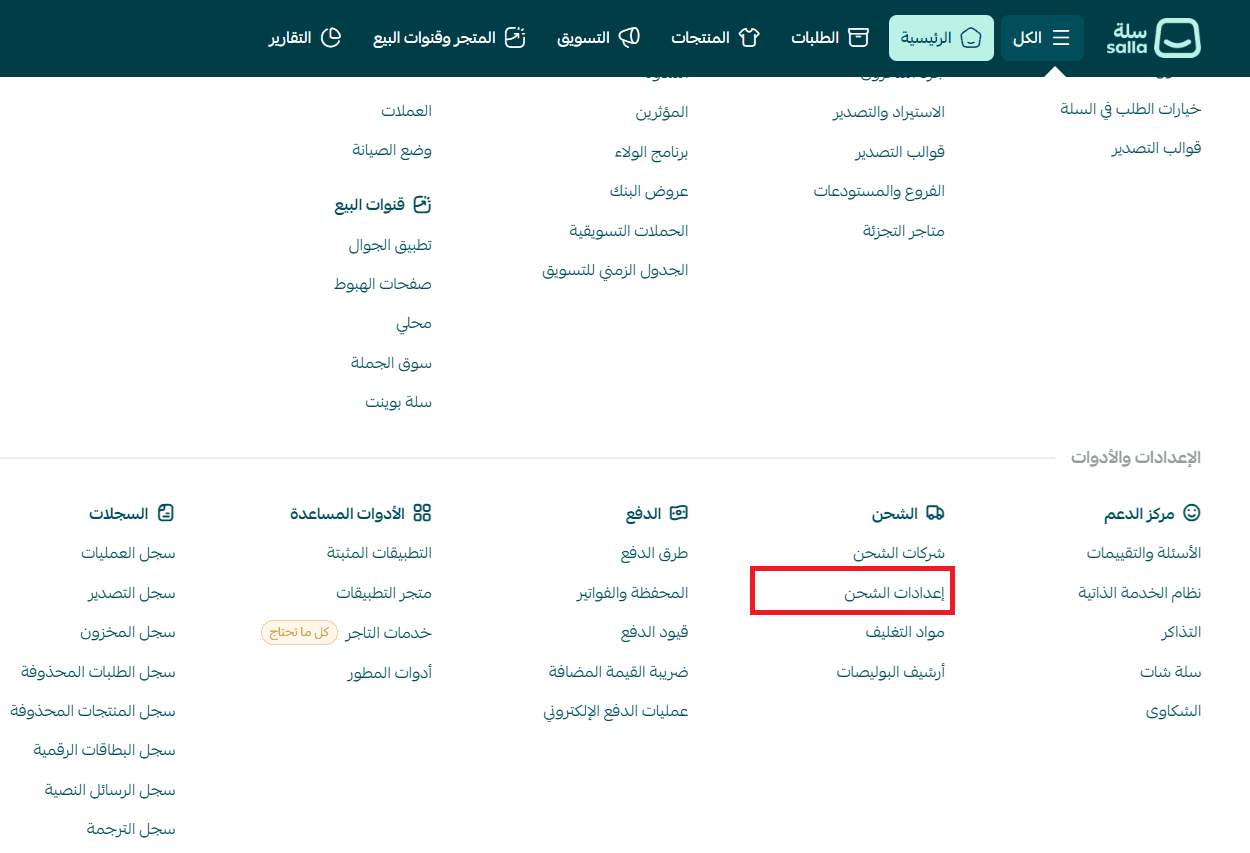
- From the main menu, click All, then select Shipping Settings.
- From the shipping settings page, click Customization (Routes).
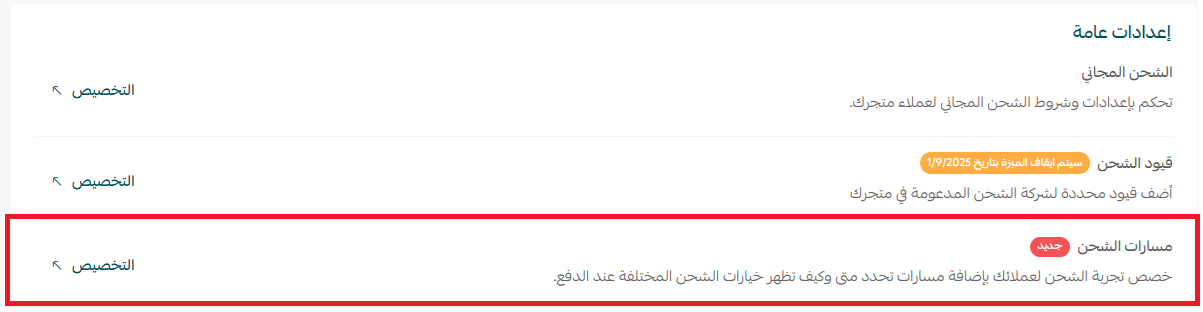
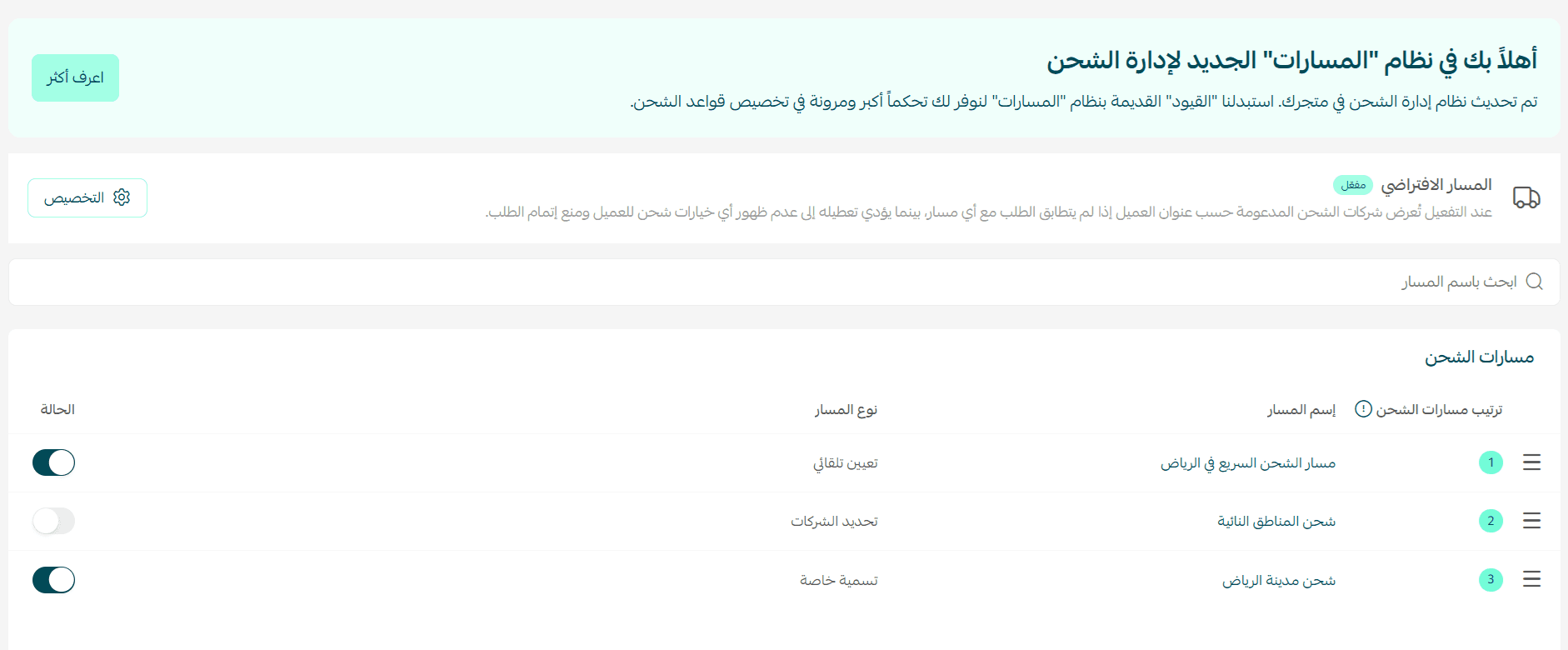
The shipping routes page will appear.
Create a new shipping route
Customize your customers’ shipping experience by adding routes that determine when and how shipping options appear at checkout.
From shipping settings, click Customization (Routes), then:
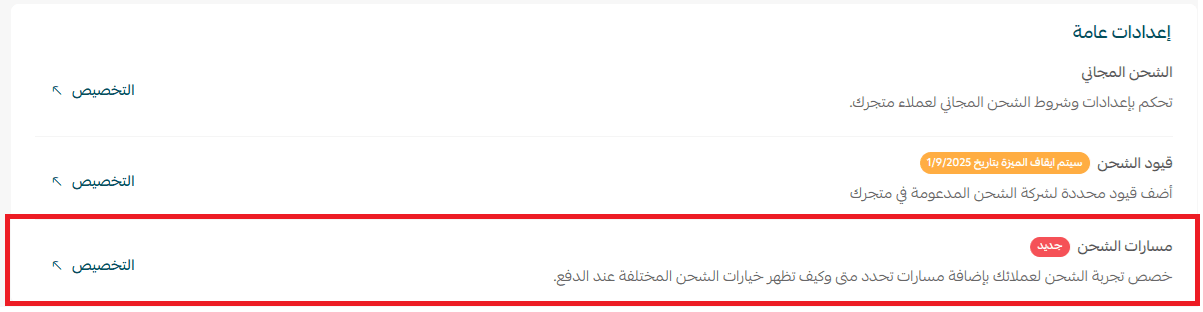
- Configure the route settings as needed
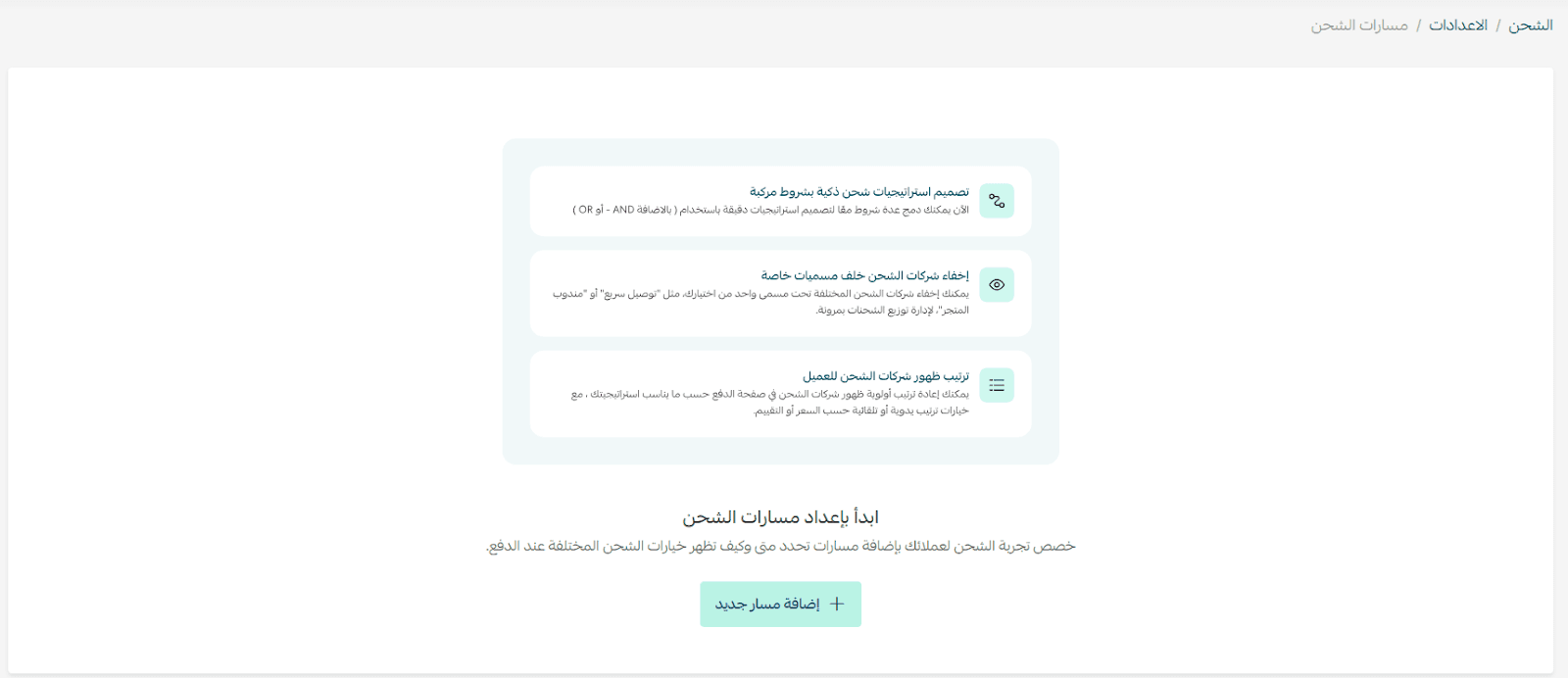
Want full control over your shipping experience?
Start creating custom routes to ensure the right options appear to customers at the right time. For step-by-step guidance, see the article on creating a new shipping route.
Search for a route
Use the search field to enter the route name you are looking for.

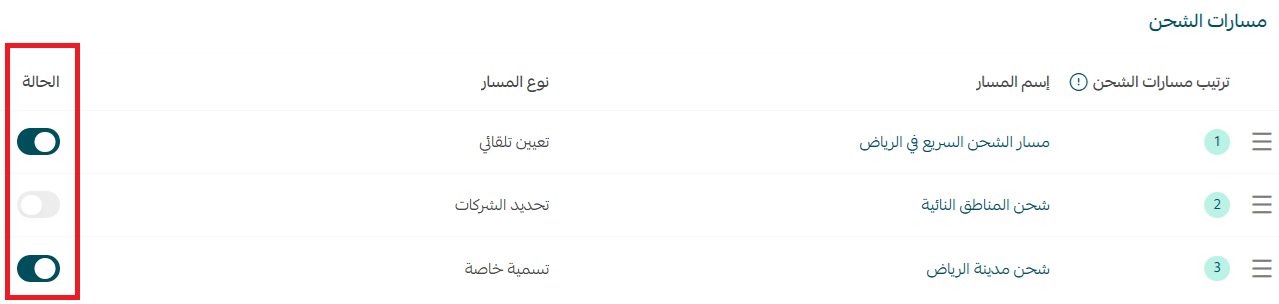
Enable or disable a route
From the routes page, toggle routes on or off as needed.
Reorder routes
From the routes page, reorder routes using drag-and-drop (drag upward = higher priority).
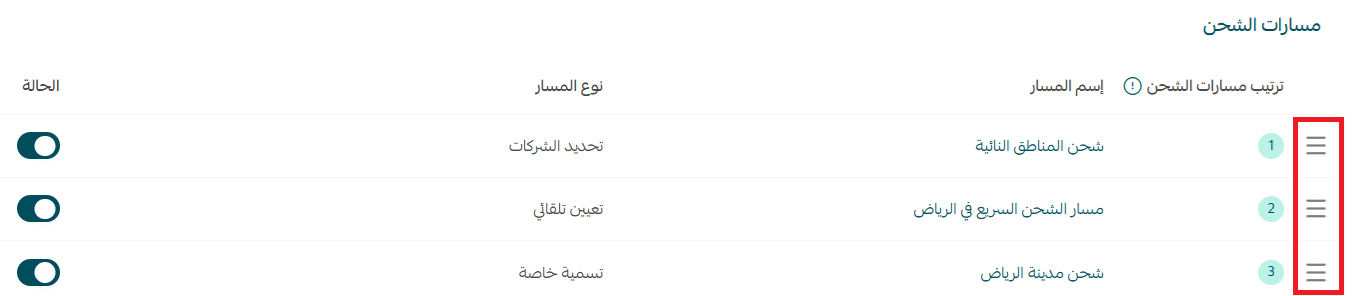
🔔 When activating more than one route, the first route that meets the criteria will be applied, according to the order in the list. Ensure you prioritize your routes based on your operational needs.
Delete a shipping route
From the bottom of the route details page, click Delete Route.

Read the help article to learn best practices and creative use cases for shipping routes.
Frequently asked questions
Can I go back to shipping restrictions after activating routes?
No. Once the first route is created, shipping restrictions are permanently disabled.
What is the difference between shipping route types?
🔔 Note: Custom-named exclusive routes or auto-assign routes override any lower-priority routes.
When should I use shipping routes?
Common use cases include:
- Restricting certain products from being shipped to specific countries
- Allocate a shipping company for remote areas only
- Showing COD-supported options only for orders under SAR/AED 500
- Assigning specific companies for heavy products or promotions
- Creating a dedicated route for orders from Riyadh
What happens if no route conditions match the order?
- The default route will be applied (if enabled).
- If disabled, no shipping options will appear at checkout.
Make sure all cases (cities, products, categories) are covered in your routes.
Can I create multiple routes?
Yes, you can create unlimited routes and customize each based on different conditions.
Can I link a route to specific products only?
Yes. You can define routes based on specific products, categories, or cities. Ensure proper prioritization to achieve the desired outcome.
What conditions can I set when creating a route?
- Cart value
Total price of items in the cart
Example: Activate a specific company only if the cart exceeds SAR 500
- Cart weight
Total weight of items
Example: Activate specific carriers if weight exceeds 15 kg
- Product quantity
Total number of items
Example: Use bulk shipping if more than 20 items
- Number of warehouses/branches
Number of fulfillment sources in the cart
⚠️ Requires retail/multi-store feature activation
- Specific product
Presence of a product in the cart
Example: Lithium batteries require specialized shipping
- Product category
Category of items in the cart
Example: Glass products require special handling carriers
- Warehouses/branches
Based on fulfillment location
Example: Jeddah warehouse uses local courier
- Customer location
Based on city or country
Example: Riyadh customers get same-day delivery options
- Customer group
Based on segmentation (VIP, new customers)
Example: VIP customers get fast shipping
- Order time
Based on days/times
Example: Instant delivery available Saturday–Thursday only
Does the customer need to choose a shipping company?
It depends on the route type:
- If multiple companies are set → customer chooses
- If auto-assign is enabled → system selects automatically