Managing separate designs for your store and mobile app can be time-consuming. The WebView template solves this by transforming your existing store design into a matching mobile app, saving time and ensuring a consistent brand identity.
📌 Article overview
- Steps to design using WebView
- Customizing the WebView template
WebView Template Features
- Uses your current store design inside the app
- Connects directly to your store theme (no separate design needed)
- Allows selecting a specific theme version
- Lets you switch between theme versions anytime
- Automatically reflects theme updates in the app
- Fully integrated with the theme editor
- Activated instantly after selecting and saving the template
How to design using WebView
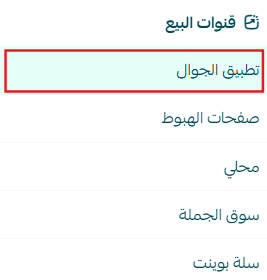
- From the main menu, go to:
Store & Channels → Mobile App
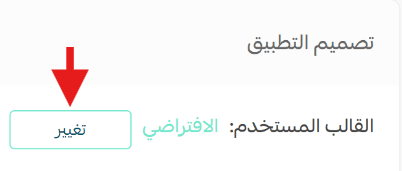
2. In the app design section, click Change next to the current template
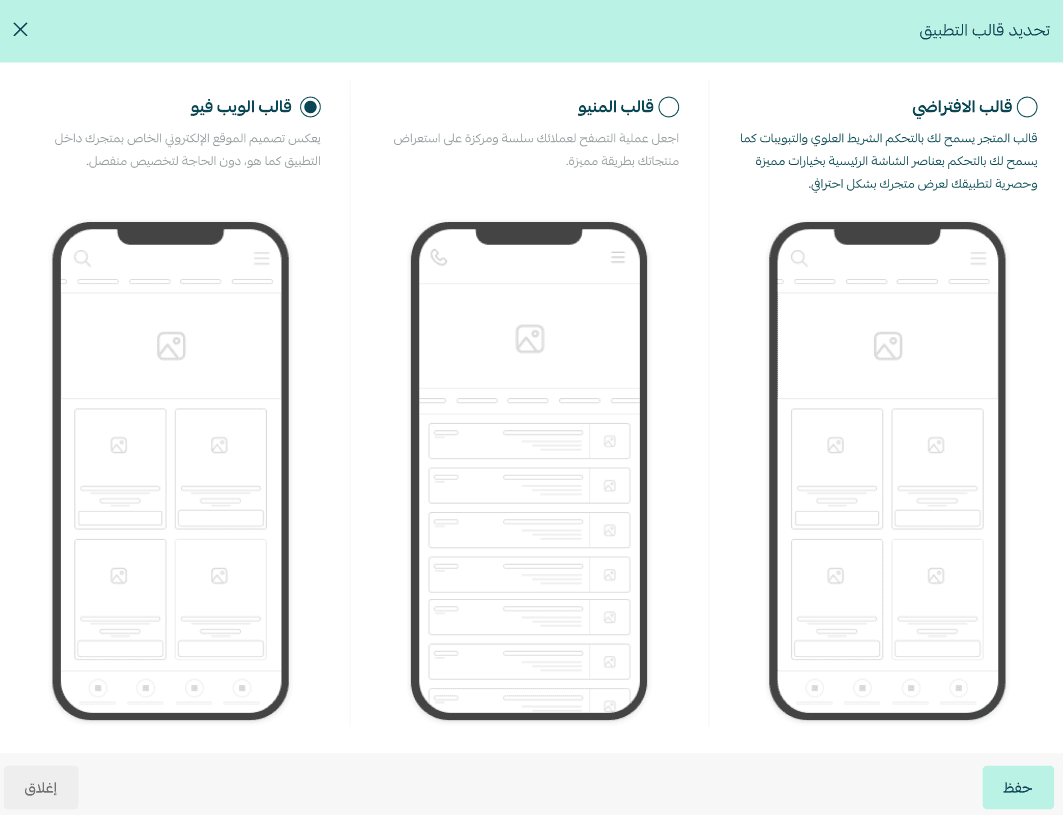
3. Select WebView from available templates, then click Save
Customize the WebView template
- From the main menu, go to:
Store & Channels → Mobile App
2. From the theme bar:
- Choose the template you want to customize
- Or create a new WebView template version

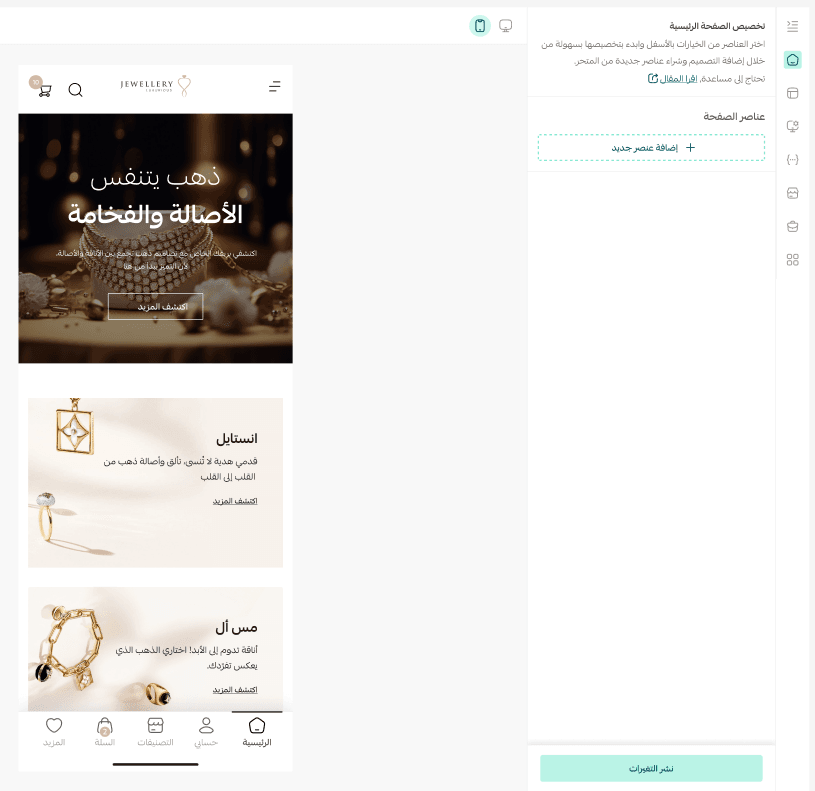
3. Once you start customizing, you’ll be redirected to the theme editor
- All changes will automatically reflect in the app
For more details, you can explore:
- Zyn theme customization
- Raed theme customization
- Digital Card theme customization
Important: Always click (Publish Changes) to apply any updates to your app design

Tip: WebView is the fastest way to launch a consistent app experience without duplicating design efforts.