Do you struggle to track digital codes efficiently and respond quickly to customer inquiries?
Manually searching for sold codes can slow down your support team and increase operational errors. The Digital Cards Log solves this problem by giving you a centralized view of all digital card codes, their status, and related orders. With this tool, you can manage inventory accurately, locate codes instantly, and provide faster, more reliable customer service.
In this guide, you will learn how to use the Digital Cards Log to streamline your store operations and improve efficiency.
📌 Article overview
- What is the Digital Cards Log
- Key benefits of the Digital Cards Log
- Viewing and managing the Digital Cards Log
- Frequently asked questions
What Is the Digital Cards Log
The Digital Cards Log is a powerful management tool that gives you full control over your digital card inventory.
It allows you to instantly see the status of every code, whether available or sold, without manual searching. This visibility enables faster customer support responses, reduces operational mistakes, and improves security and reliability in managing digital products.
With the Digital Cards Log, all your codes are organized in one place, giving you complete and accurate oversight at all times.
Key Benefits of the Digital Cards Log
Instead of exporting data manually or searching through orders to find sold codes, the Digital Cards Log allows you to:
- Smart inventory management
Track digital card codes accurately without manual effort.
- Faster customer support
Locate sold codes instantly to resolve customer issues quickly.
- Improved security
Reduce operational errors and prevent codes from being sold more than once.
- Advanced filtering
Search for any code using the product name or the related order number.
Viewing and Managing the Digital Cards Log
Accessing the Digital Cards Log
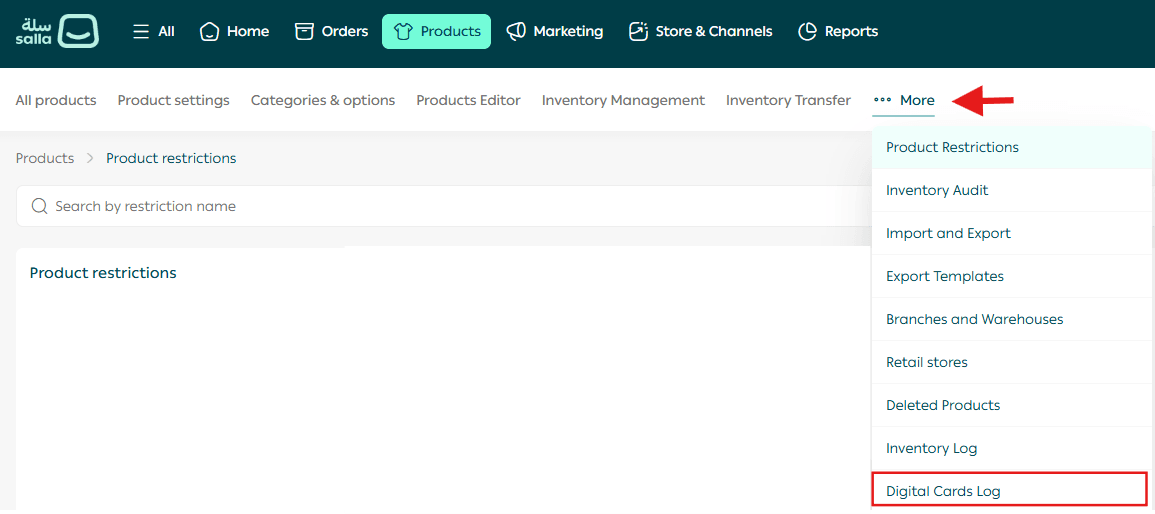
- From the main menu, click Products.
- On the Products page, click More.
- Select Digital Cards Log.
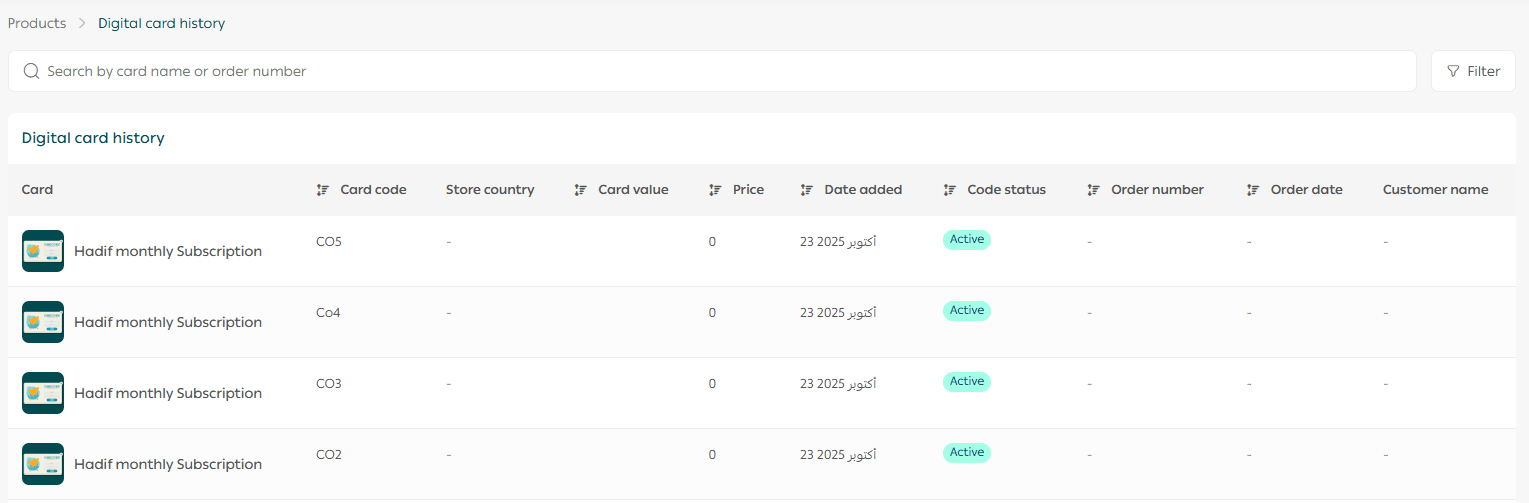
The log will display the following details for each digital card:
- Product name
- Card code
- Store country
- Card value
- Price
- Code entry date
- Code status
- Order number
- Order date
- Customer name
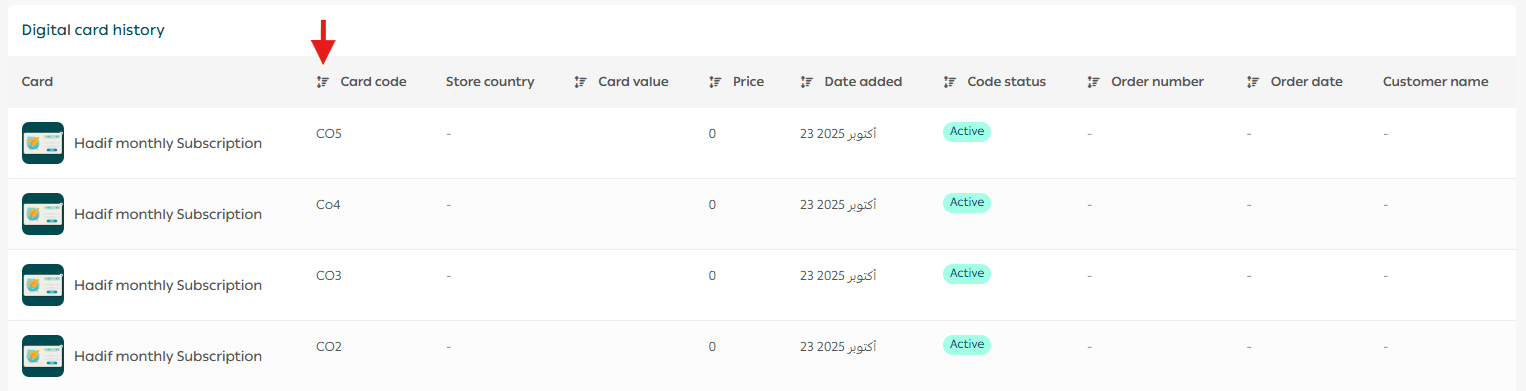
Reordering Log Columns
You can reorder the Digital Cards Log by clicking the sort icon next to specific column headers. This helps you organize the data based on what matters most to your workflow.
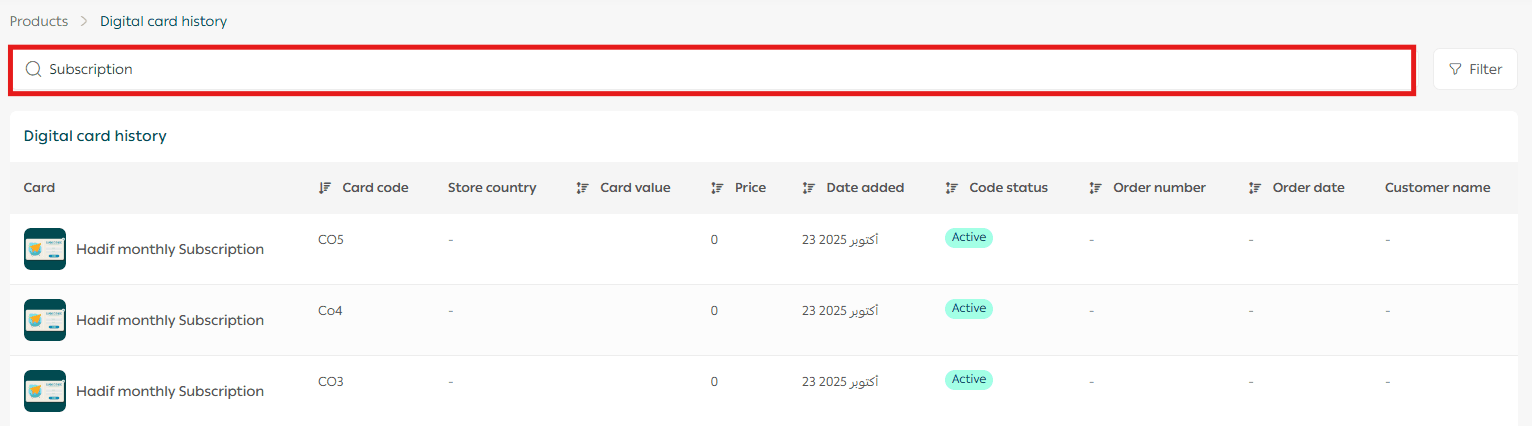
Searching for a Specific Digital Card
Use the search field to enter:
- The product name
- The order number
All matching results will appear instantly.
Filtering Multiple Digital Cards
To filter the Digital Cards Log:
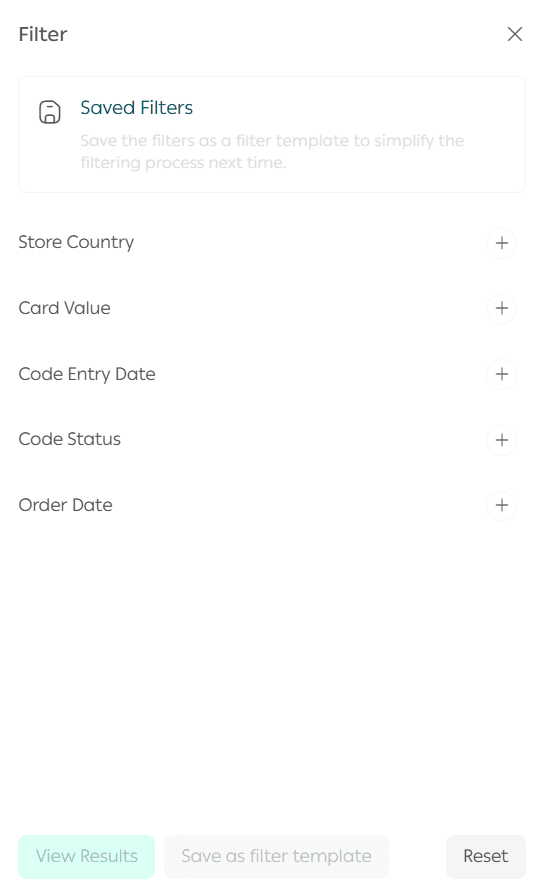
- Click Filter.

- Select the desired filter criteria, such as:
- Store country
- Card value
- Code entry date
- Code status
- Order date
2. Click Show results.
Saving Filter Templates
You can save your selected filters for repeated use:
- Apply the desired filters.
- Click Save as filter template.

3. Enter a name for the template.
In the future, you can apply the saved filter with a single click.

Frequently Asked Questions
Can I control employee access to the Digital Cards Log?
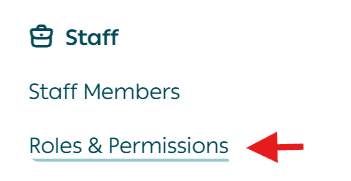
Yes. From the All menu, click Staff then Roles & permissions.
Open the Employees page and select the employee.
In the Product Permissions section, enable View Digital Codes Log.
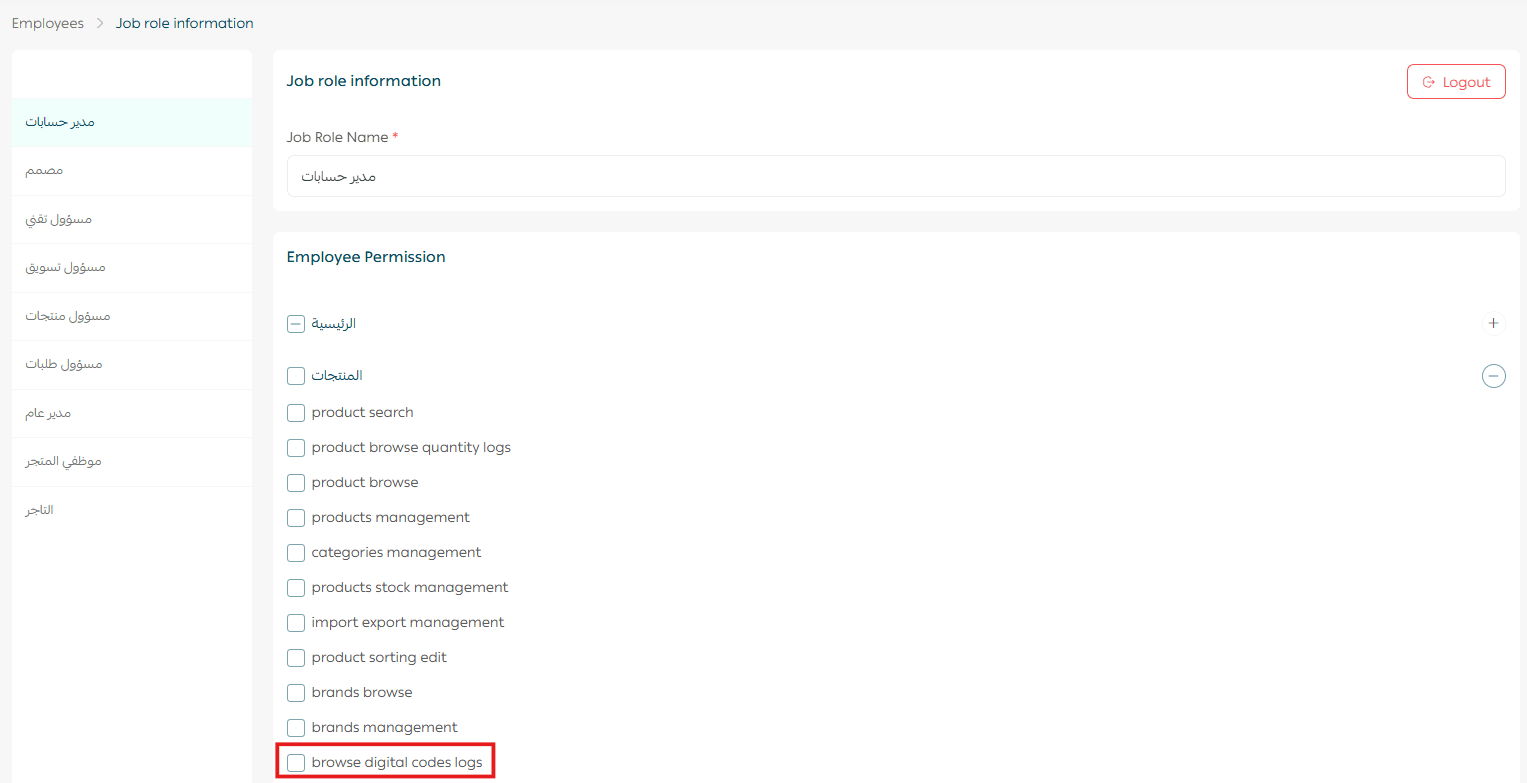
This allows you to control which team members can access sensitive digital code information.
For more details, refer to the Store Staff Management guide.
Key takeaway
By using the Digital Cards Log effectively, you gain better control over your digital inventory, reduce operational risks, and deliver faster, more accurate support to your customers.