A five-star rating tells you a customer was happy. It doesn't tell you whether the fit ran small.
Product rating criteria let you build your own rating scales so customers score the specific things that matter for what you sell - quality, size, color, value for money - instead of leaving one blank star rating behind. You choose the aspects to measure and link them to the product categories they apply to. In this guide, you'll learn how to open the product rating criteria page, create a new criterion, review the ratings customers leave, and see how they appear in your store.
To set up product rating criteria on Salla, go to (Settings), open (Ratings), then click (Product rating criteria). Create a criterion, give it a title, choose the Google product categories it applies to, and add up to 5 rating items. Customers then score each item when they rate a product.
📌 Article overview
- How to open product rating criteria
- How to create a new product rating criterion
- How to review customer ratings
- How ratings appear in your store
- Frequently asked questions
🚀 How to open product rating criteria
1. From the main menu, click (Settings).

2. Choose (Ratings), then click (Product rating criteria).
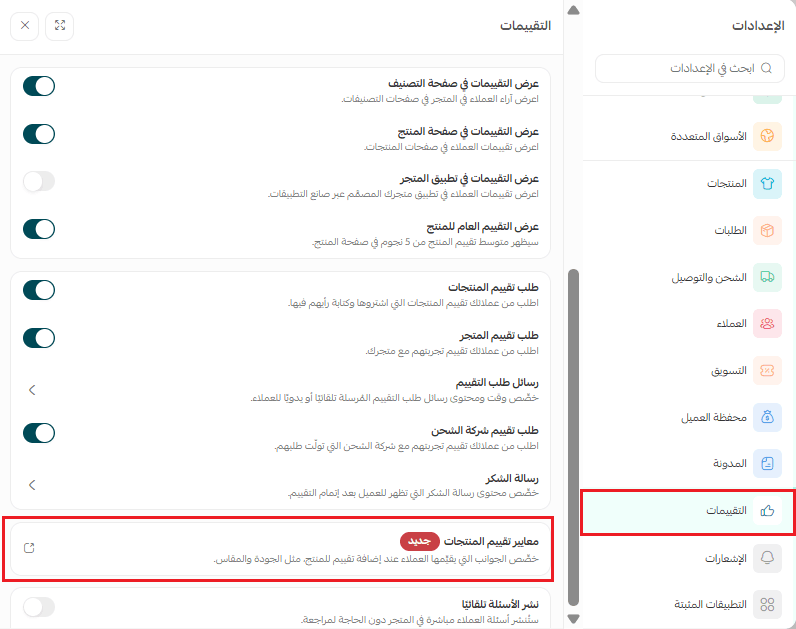
The product rating criteria page opens, where you create and manage your criteria.
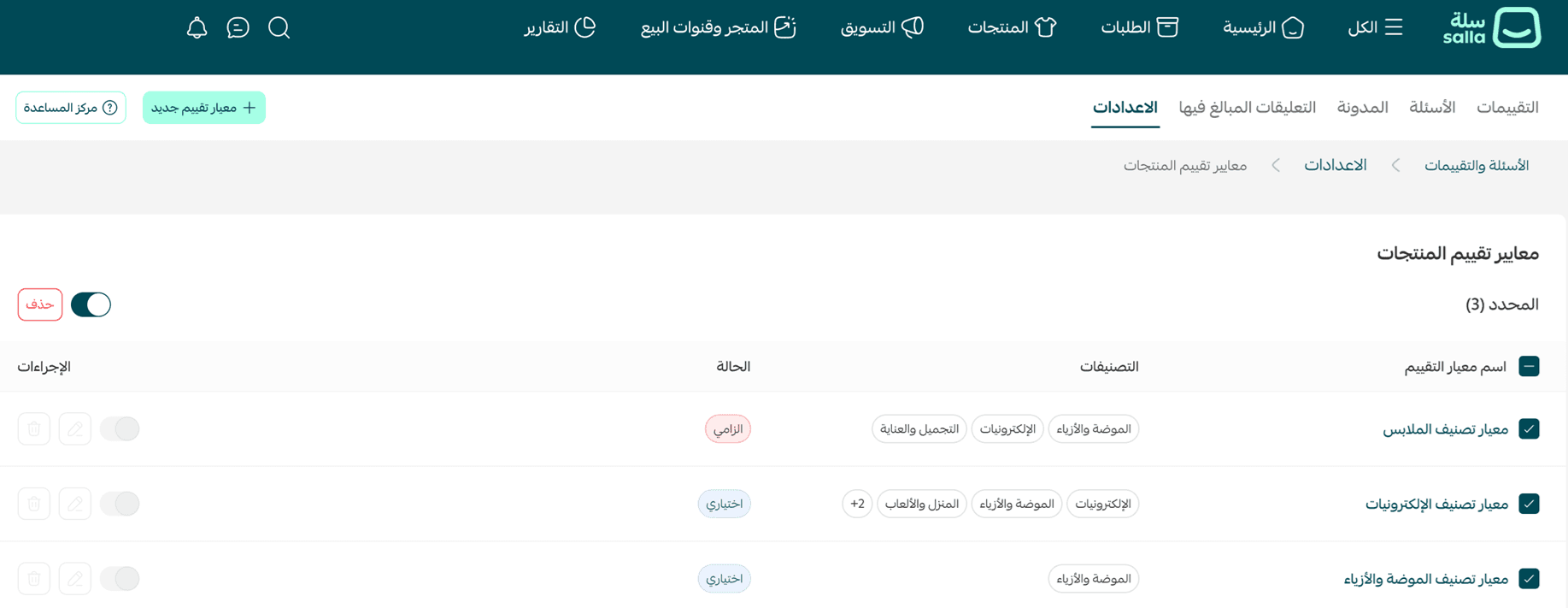
📝 Important note
Rating criteria appear on the product page only when the setting for them is turned on.
👣 How to create a new product rating criterion
1. From the product rating criteria page, click (Create new rating criterion).

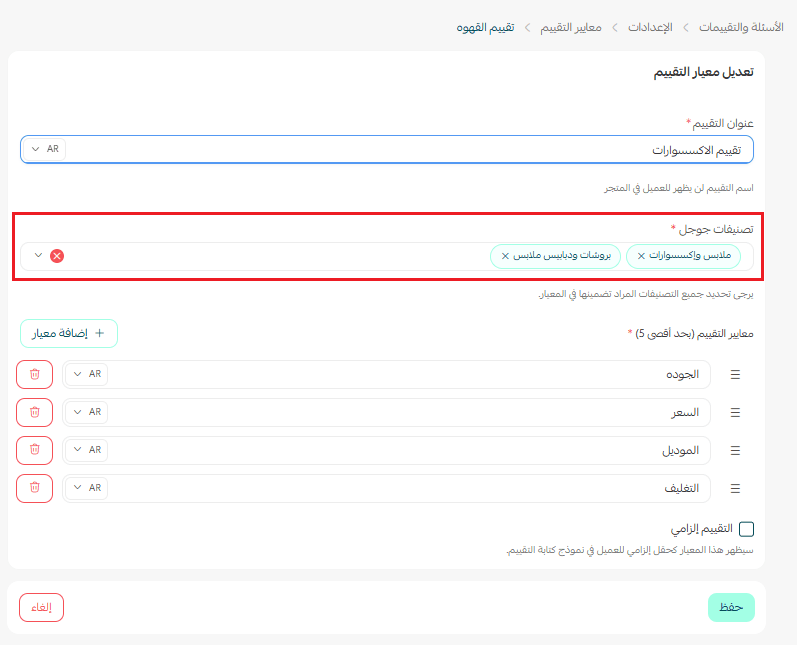
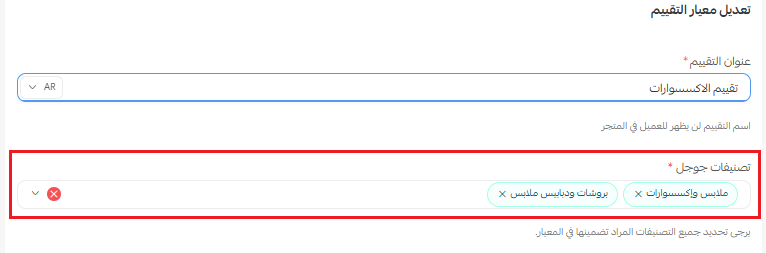
2. Enter a title for the criterion, then choose the Google product categories it applies to - electronics, fashion, toys, home appliances or accessories, for example.
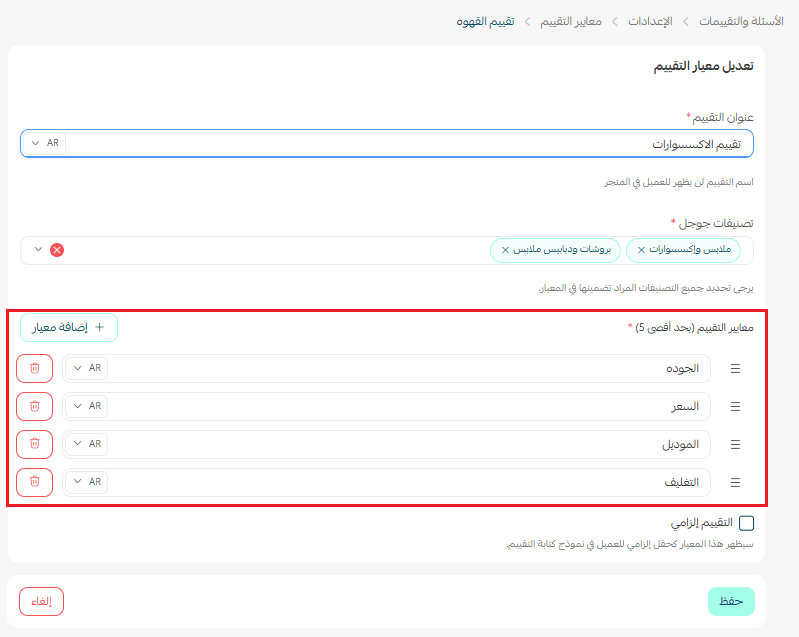
3. Add up to 5 rating items - quality, size, color, value for money - mark any that are required, then click (Create rating).
The criterion is created and appears in your list of product rating criteria, ready to manage or edit later.
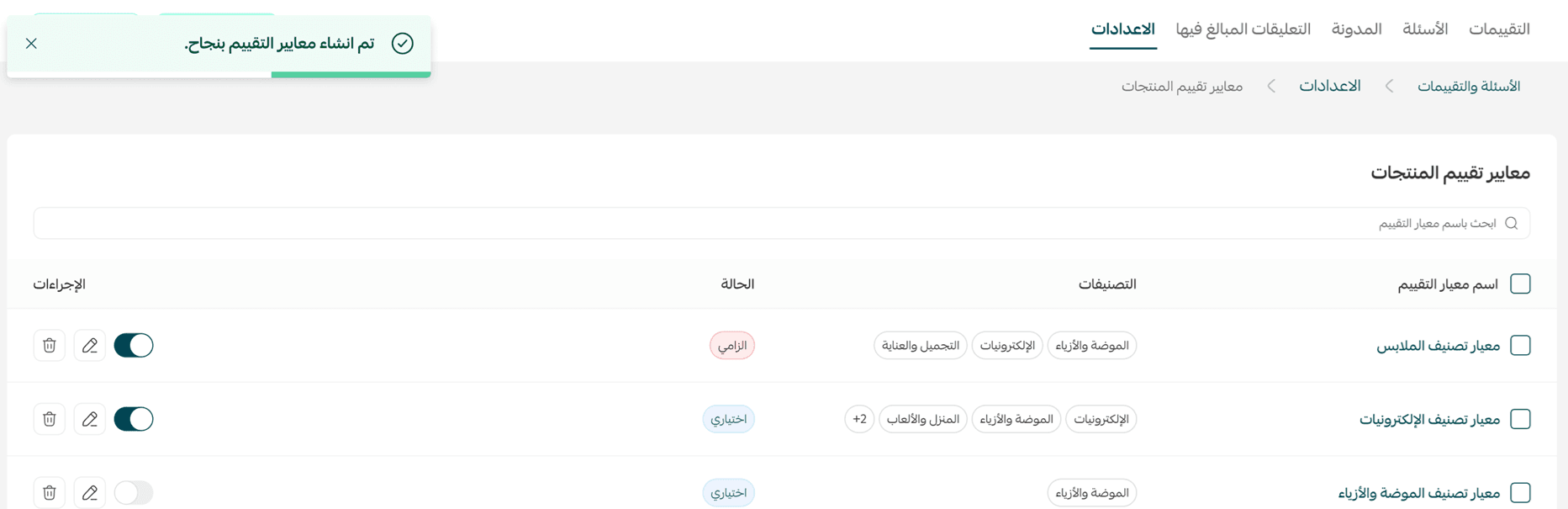
🔍 How to review product ratings from your dashboard
The ratings page shows you what customers said about each product and how each criterion scored.
1. From the main menu, click (All), then under the support center section click (Questions and ratings).
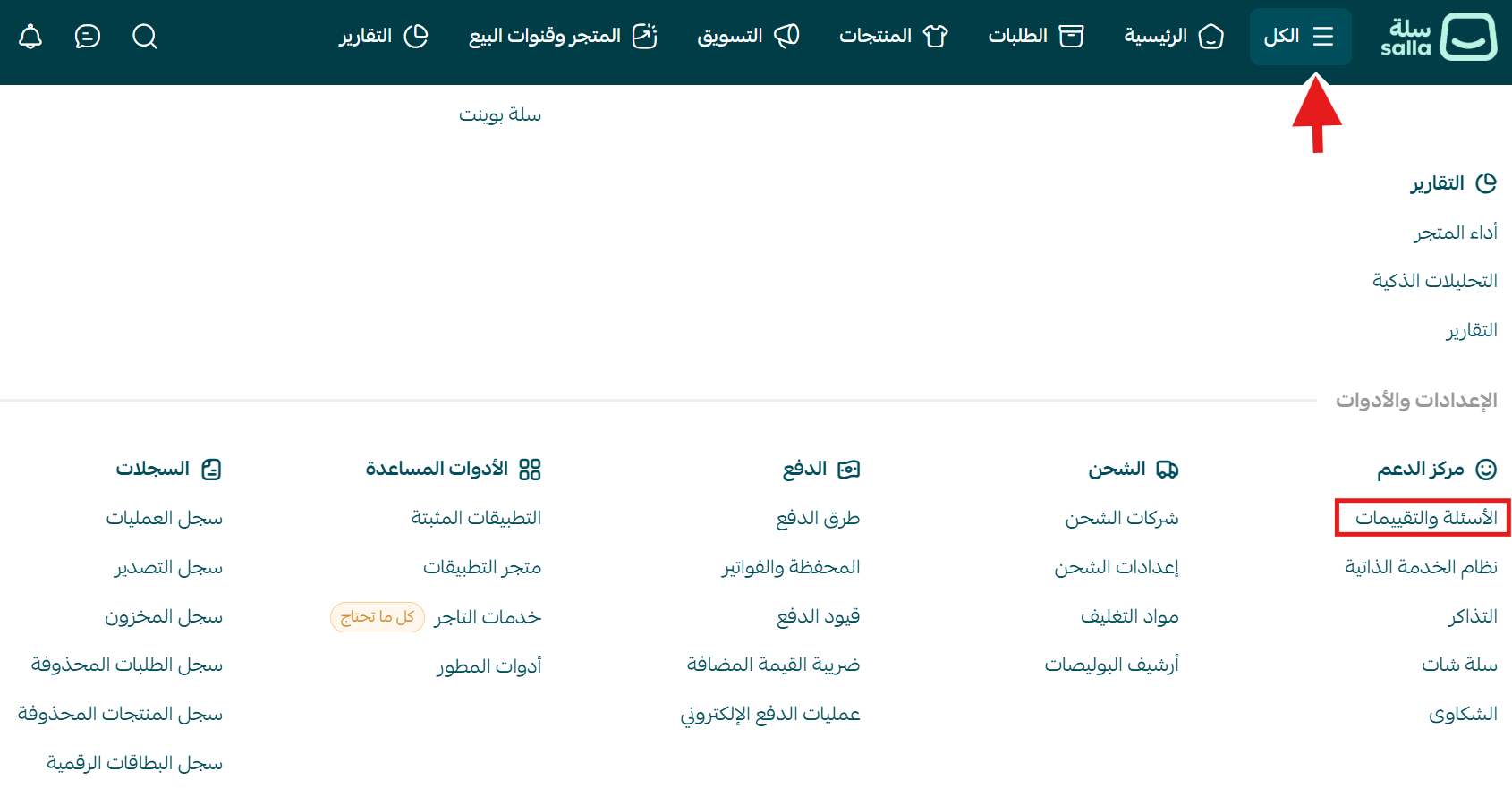
2. From the sub-options, choose (Ratings).

3. Every customer rating appears, including the score for each criterion on each product.
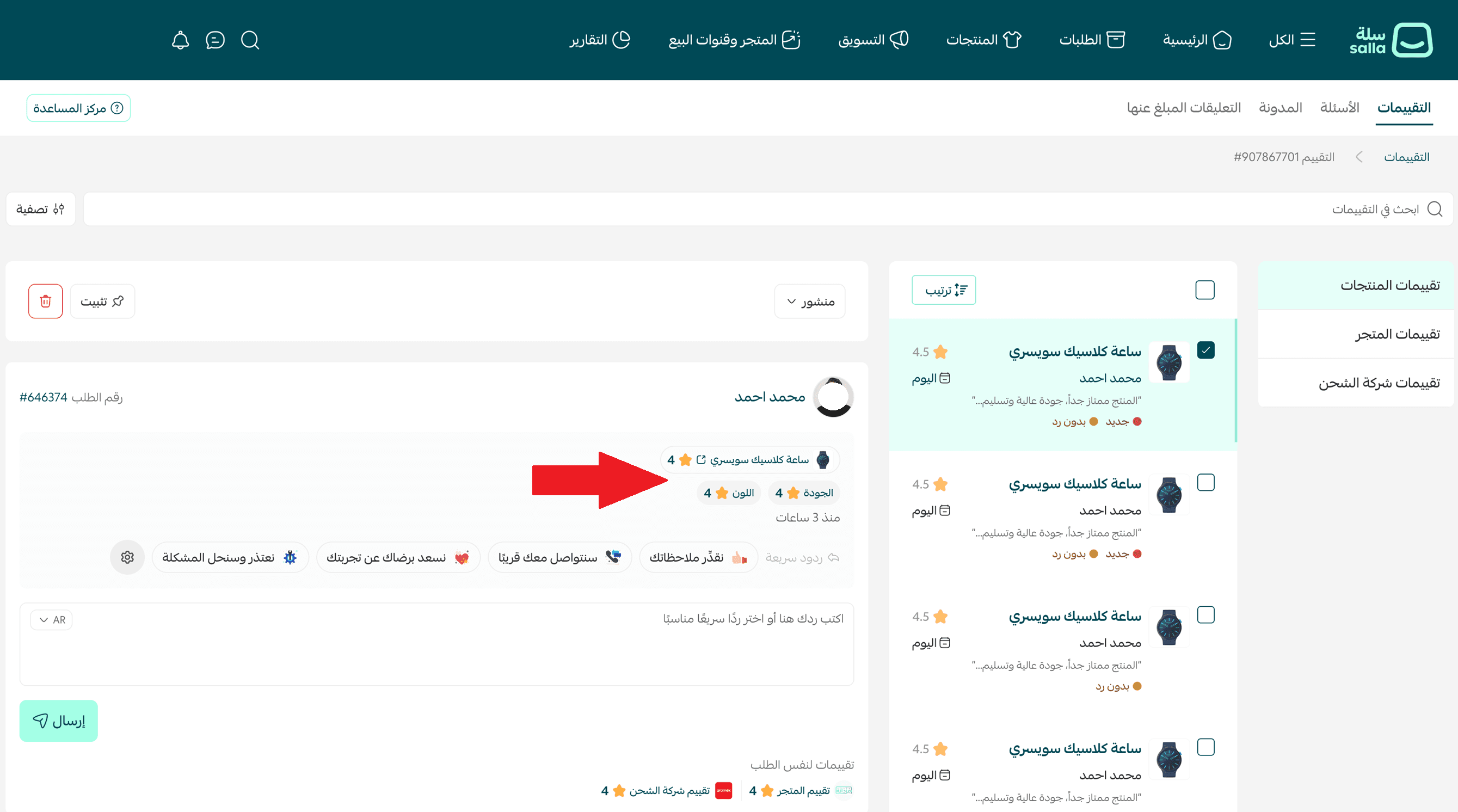
⭐ How ratings appear in your store
Once your criteria are live and customers start rating, this is what they see.
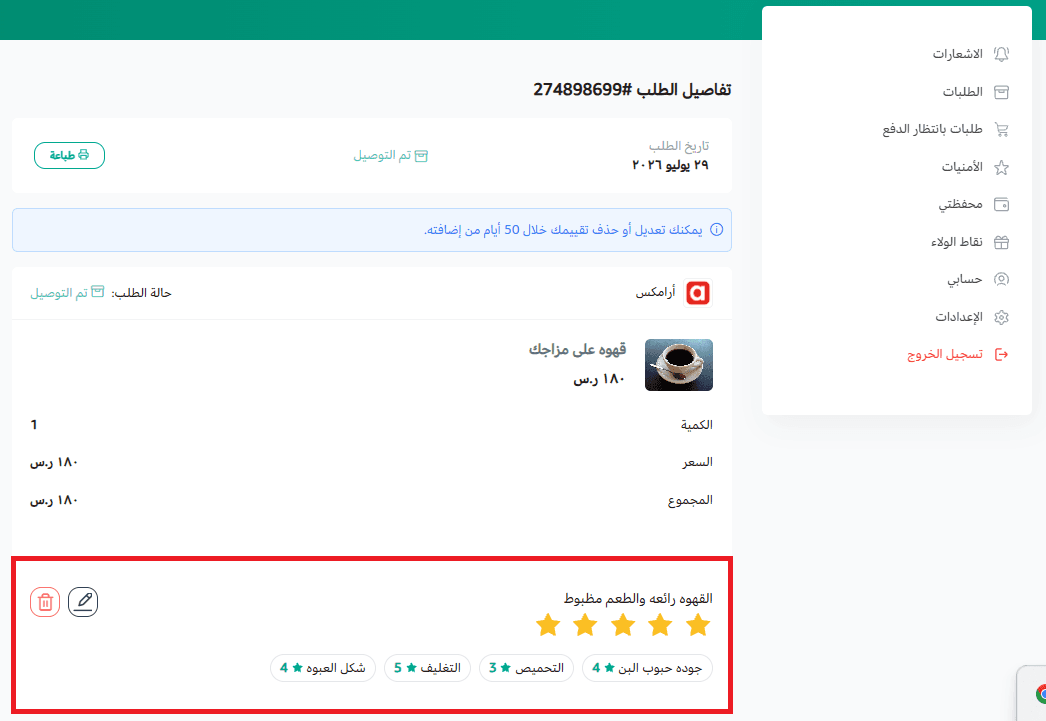
Rating a product from the orders page
When a customer signs in and opens (Orders), they get the option to rate the product using the criteria you set up.
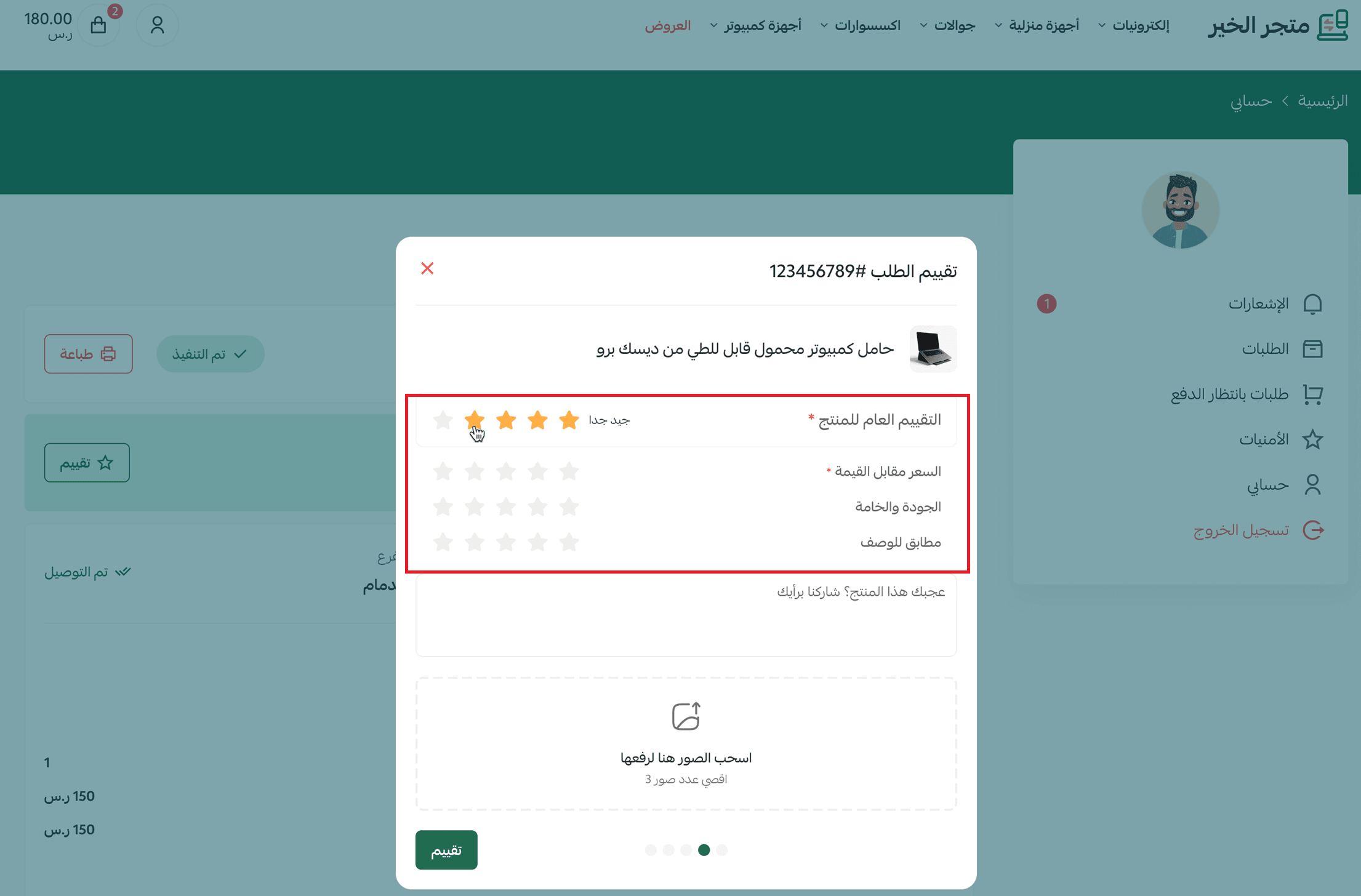
The rating after it is submitted
Once the rating is submitted, it appears below the product in the order details, and the customer can review what they wrote.
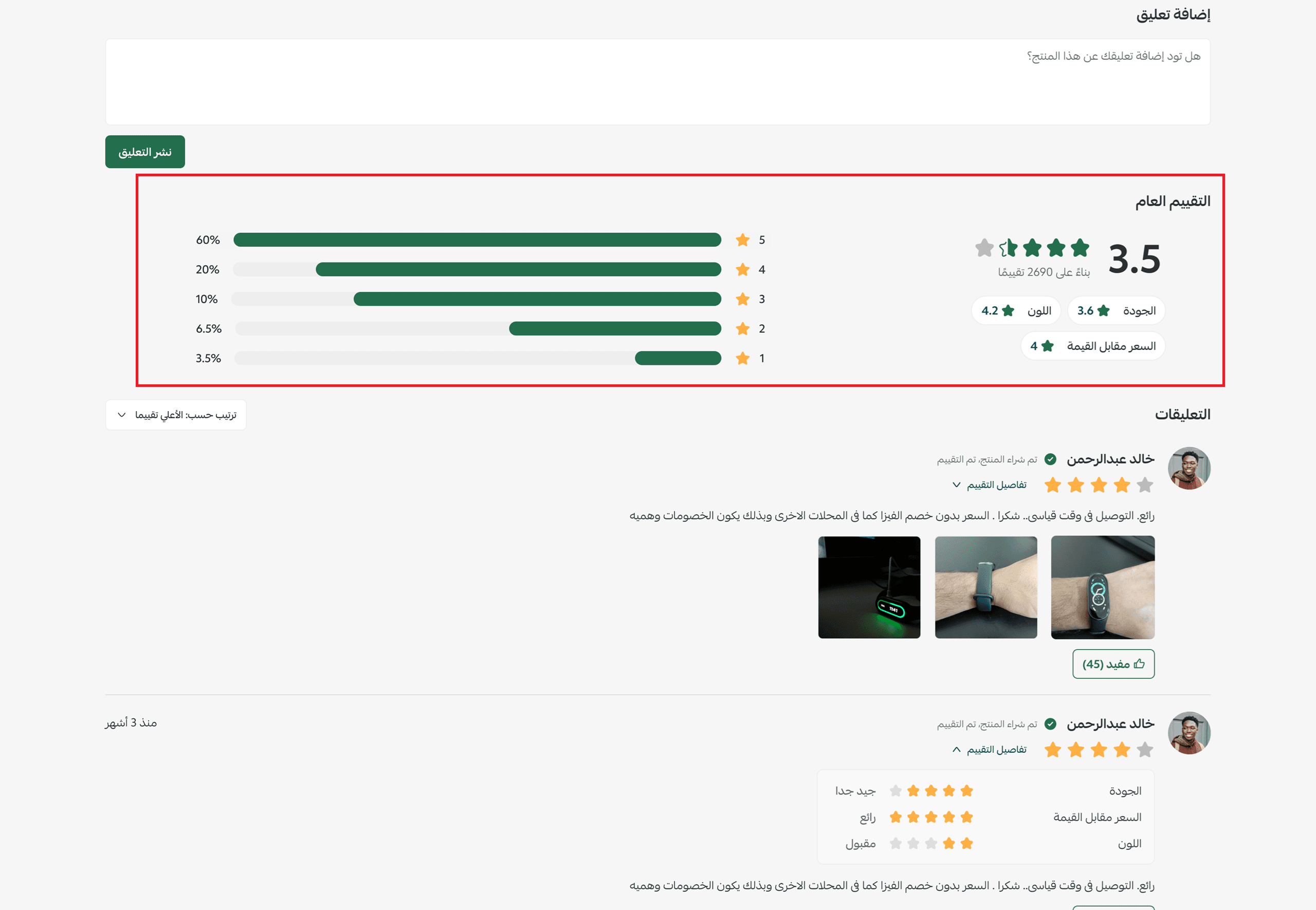
Ratings on the product page
Customer ratings show on the product page in your store, with the overall score, the score for each criterion, and any comments and photos attached - which helps other shoppers buy with more confidence.
❓ Frequently asked questions
Can I edit or delete a product rating criterion?
Yes. Click the edit icon or the delete icon next to the criterion.
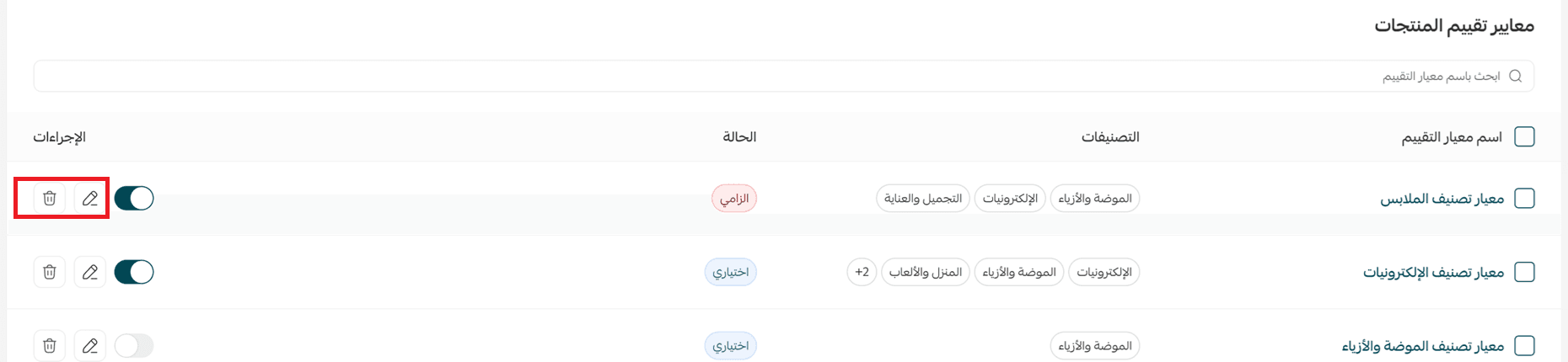
Can I deactivate a product rating criterion?
Yes. Click the deactivate icon next to the criterion.

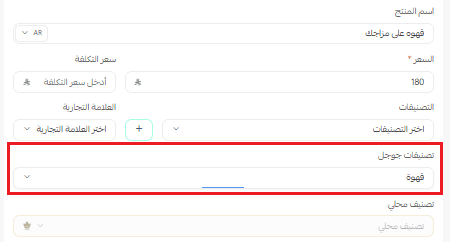
Are there conditions for a criterion to show to the customer?
Yes. A Google product category has to be set on both the product and the criterion.
Can one criterion cover more than one Google product category?
Yes. You can add several categories to the same criterion.
Which plans include this feature?
All paid plans.
Generic star ratings tell you very little. Criteria tell you what to fix - a size scale that keeps scoring low is a sizing chart problem, not a quality problem. Set up criteria for the categories you sell most, then read the scores as product feedback rather than praise.