Have you ever felt frustrated seeing customers add products to their cart, only to leave without completing the purchase?
Abandoned carts are not the end of the story. They are one of the biggest hidden opportunities to recover lost revenue and turn purchase intent into real sales.
In this guide, you’ll learn how to view, manage, filter, and recover abandoned carts using the tools available in your Salla dashboard.
📌Article overview
- Steps to view abandoned carts
- Viewing abandoned carts by cart status
- Abandoned cart details
- Abandoned cart display options
- Hiding abandoned carts
Steps to view abandoned carts
- From the main menu, click Marketing
- Then select Abandoned Carts
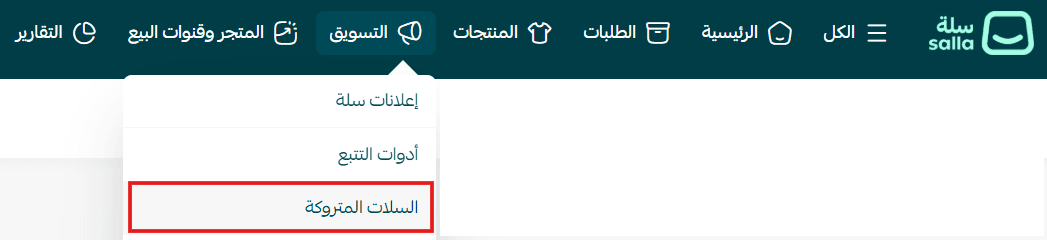
The abandoned carts page will appear like this:
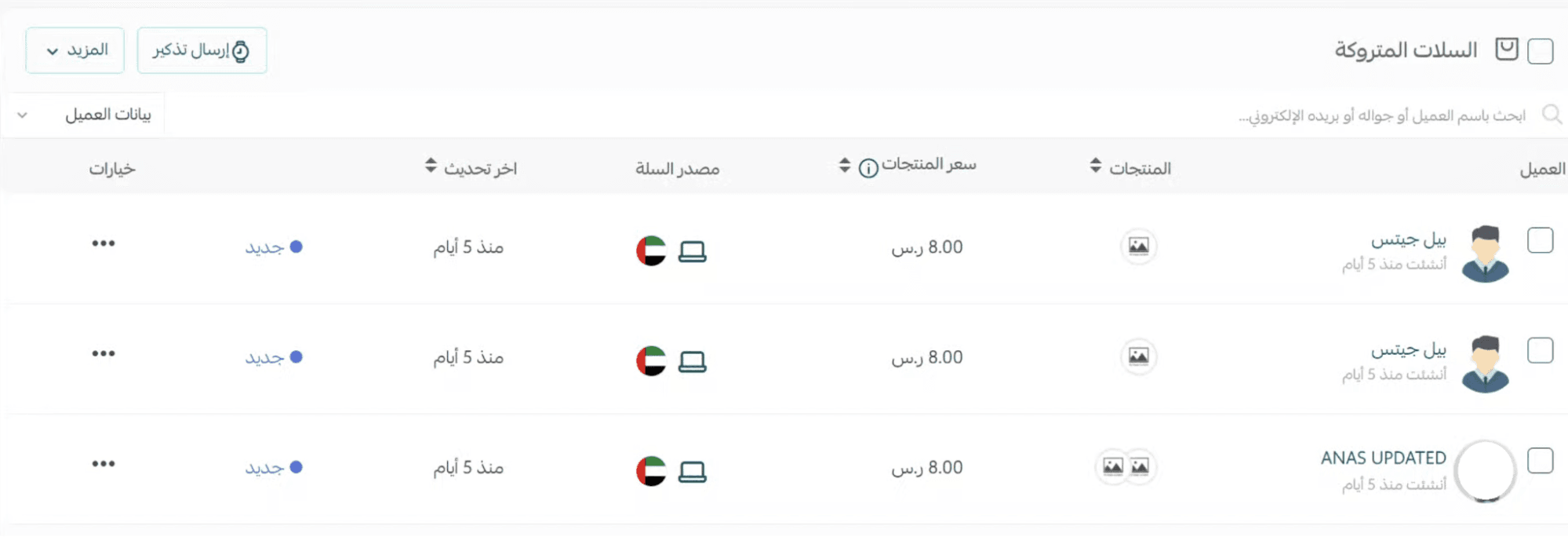
The abandoned carts page includes several key sections and tools, explained below:
Viewing abandoned carts by cart status
You can browse abandoned carts based on their current status, including:
- All
- New
- Reminder Sent
- Reminder Sending Failed
- Scheduled
- Customer Returned to Store
- Not Updated
- Order Completed
- Hidden Carts

Clicking any status will display abandoned carts that match the selected category.
Example: Viewing new abandoned carts.
Abandoned cart details
Each abandoned cart record includes valuable information to help you understand customer behavior and recover the sale.
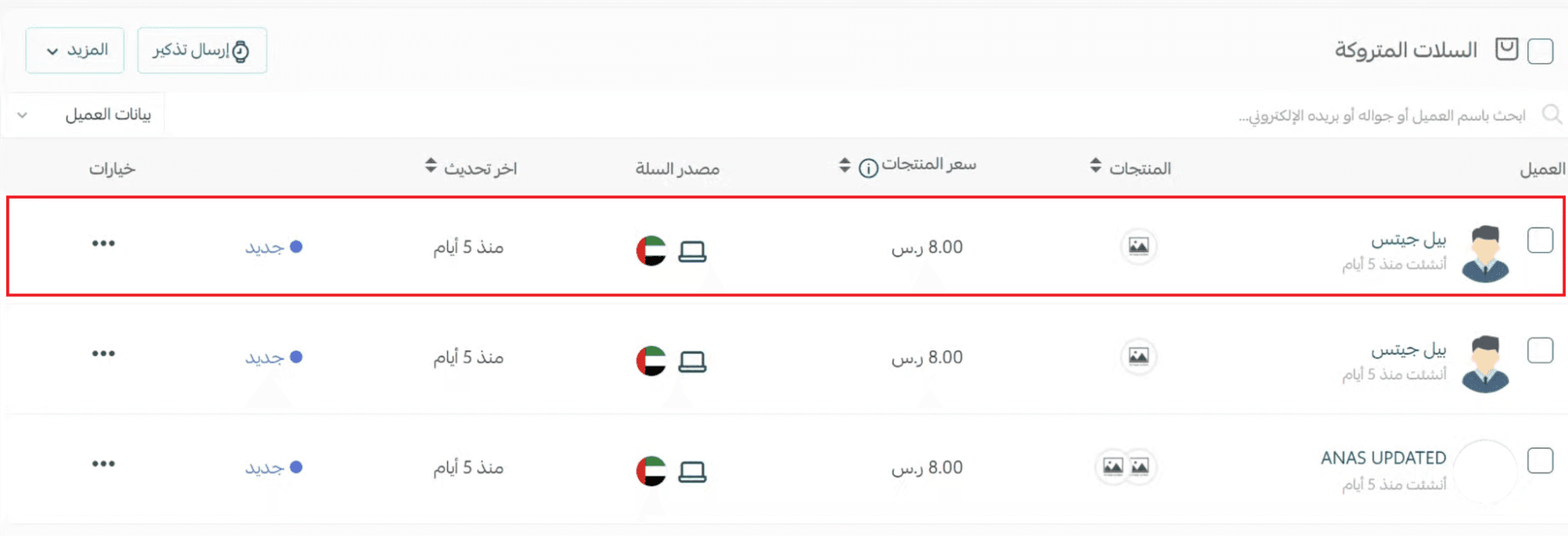
Key details include:
- Customer Name
Along with the customer’s name, you can also see the date the cart was abandoned.
- Product Names and Quantity
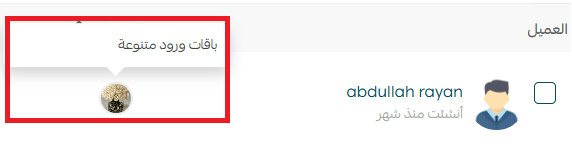
The first three product images appear in the cart preview, along with a (+1) indicator if more products exist.
Hovering over a product displays its name.
Note: Products that went out of stock after being added will not appear.
Managing the abandoned carts page
Cart value
Displays the total value of available products that the customer added before leaving.
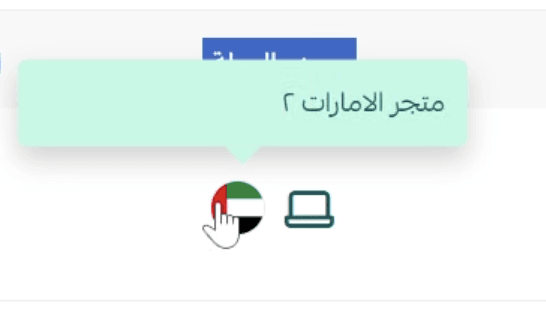
Cart source
Shows the market where the cart was created and the device used during browsing (desktop or mobile).
Hovering over the icon reveals the market name.
Last cart update
Indicates the most recent status update timestamp.
Cart status
Includes statuses such as:
New, Order Completed, Reminder Sent, Reminder Failed, Not Updated
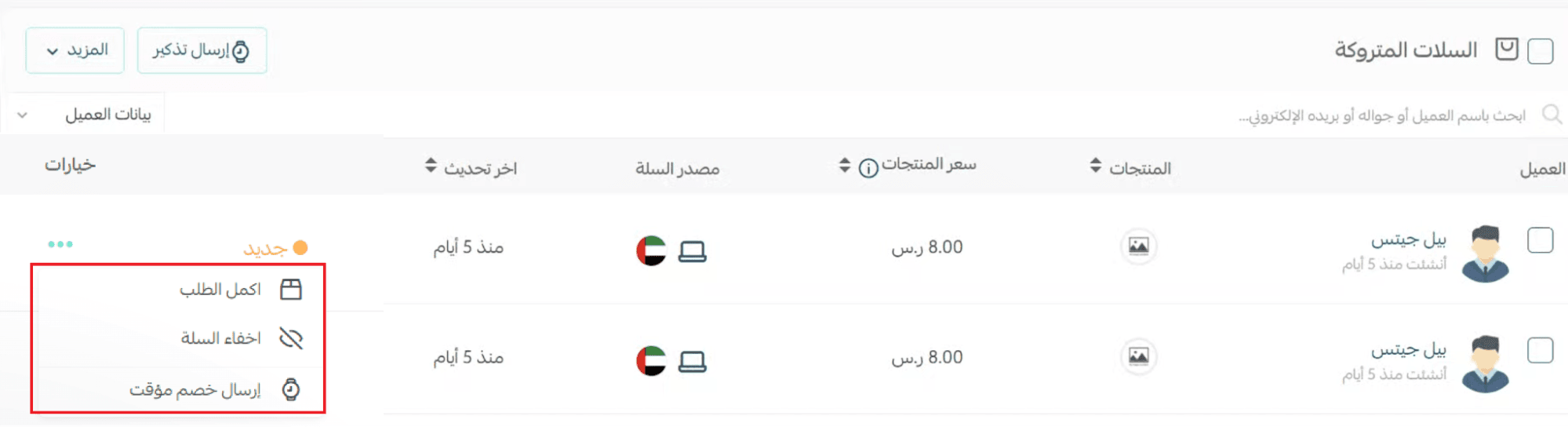
Actions menu
Includes available actions you can perform, such as:
- Complete Order
- Hide Cart
- Send Temporary Discount
For more details, refer to: Activating Temporary Discounts for Abandoned Carts
Abandoned cart display options
The Abandoned Carts page provides multiple tools to help you quickly find and manage carts efficiently.
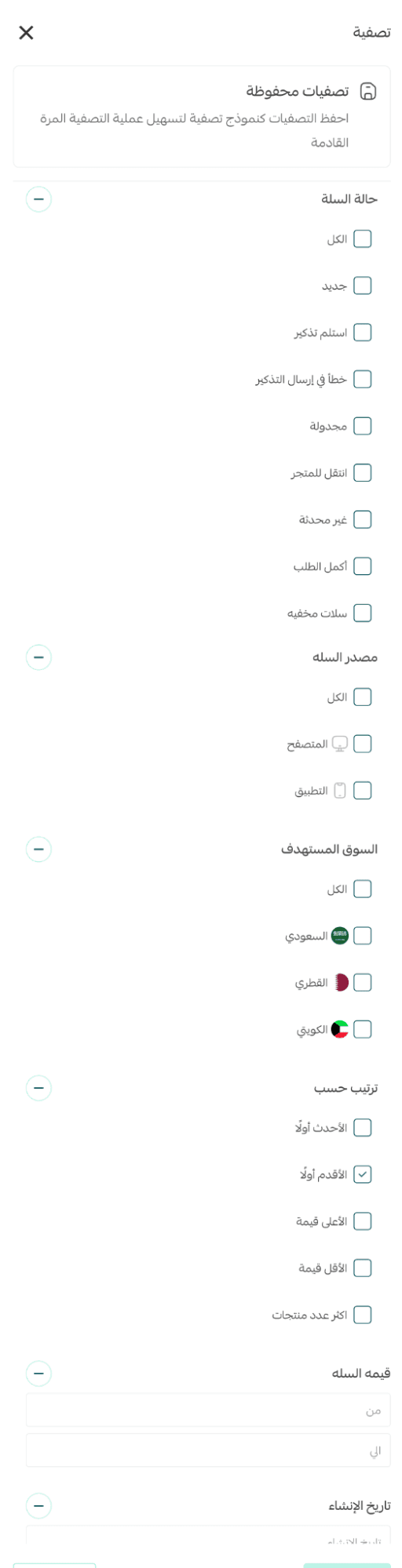
Filtering abandoned carts
You can filter carts based on:
- Cart status
- Cart source
- Cart value
- Creation date
- Custom sorting order
Click the Filter button:

Then select the filtering options that match your needs.
Searching for specific carts
You can search abandoned carts using:
- Customer name
- Product name within the cart
This makes it easy to locate specific carts quickly.

💡 Example: Searching for carts belonging to customers whose name contains “Mohammed”.

Browsing more abandoned carts
Use the pagination controls to:
- Navigate between pages
- Choose how many carts appear per page

Sorting abandoned cart results
You can sort carts by:
- Number of products
- Cart value
- Last updated
Sorting can be applied in ascending or descending order.

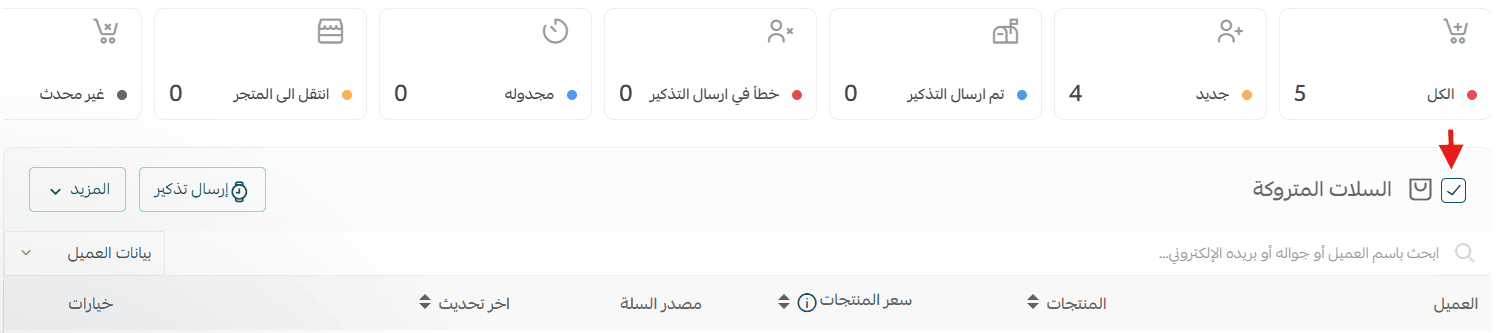
Selecting all abandoned carts
You can select all carts within a specific category by clicking Select All.
This will select carts across all pages, not just the current page.
Hiding abandoned carts
You can hide abandoned carts completely or hide selected carts by following these steps:
- Select the carts you want to hide.
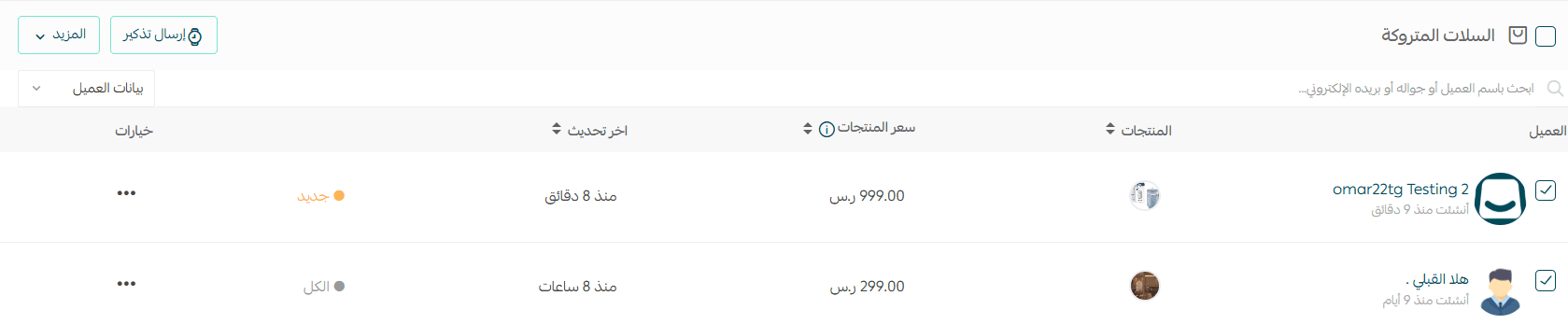
2. Click (More) and choose (Hide).
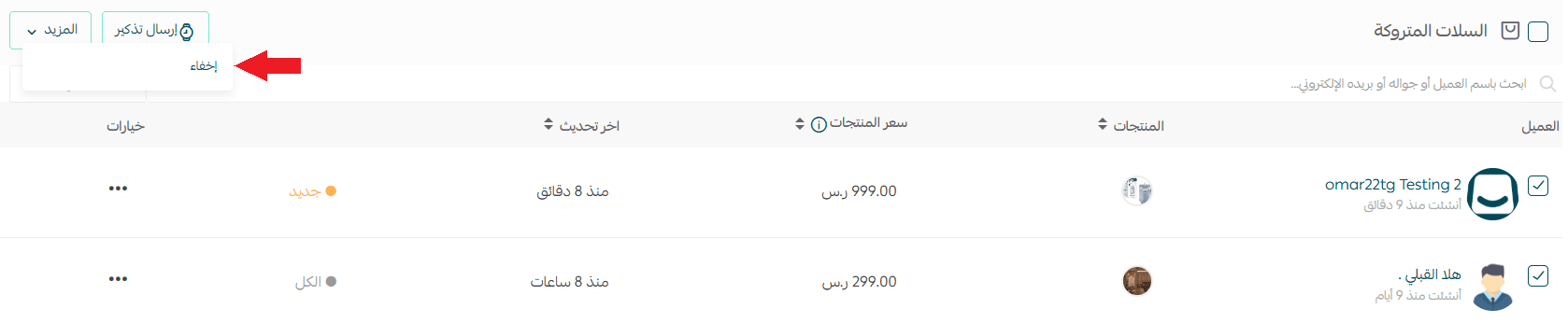
3. Hidden carts will then appear under the Hidden Carts section.

4. To unhide a cart, click (More) then select (Show).

Frequently asked questions
Can I view the details of a specific abandoned cart?
Yes. From the Abandoned Carts page, click the customer’s name to open the cart page and view full details.
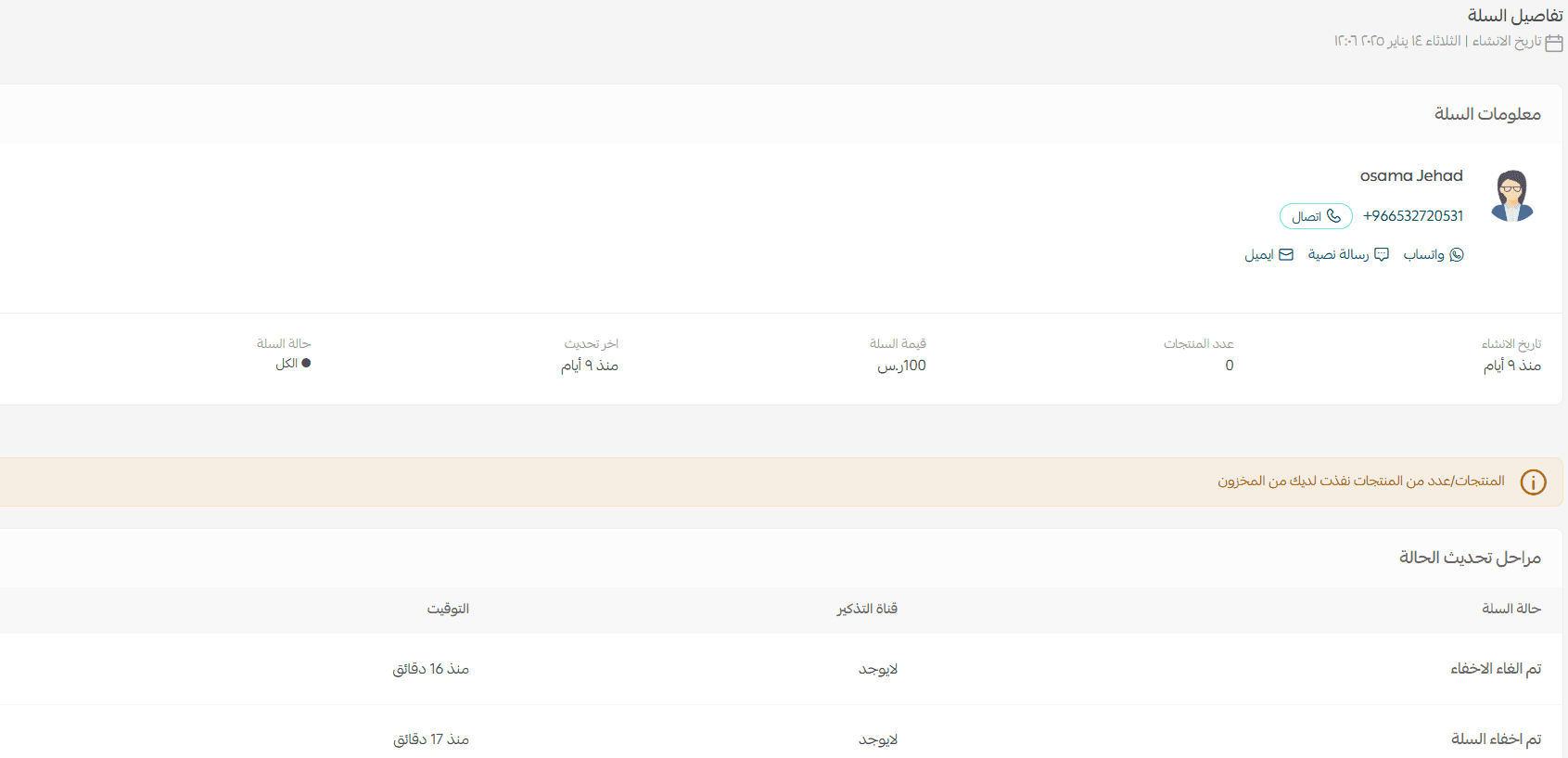
Can I view the history of cart status updates?
Yes. When you open an abandoned cart, a table appears at the bottom showing:
- Cart status stages
- Reminder channel
- Timestamp

How can I send a temporary discount to a selected group of abandoned carts?
- Select the carts you want
- Click (Send Reminder)
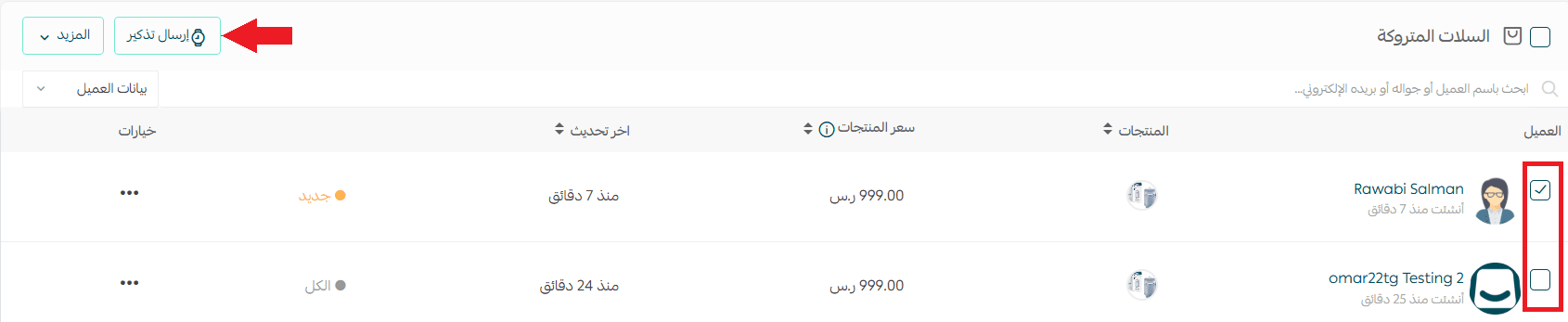
3. Enter the temporary discount details, then click (Send Discount).
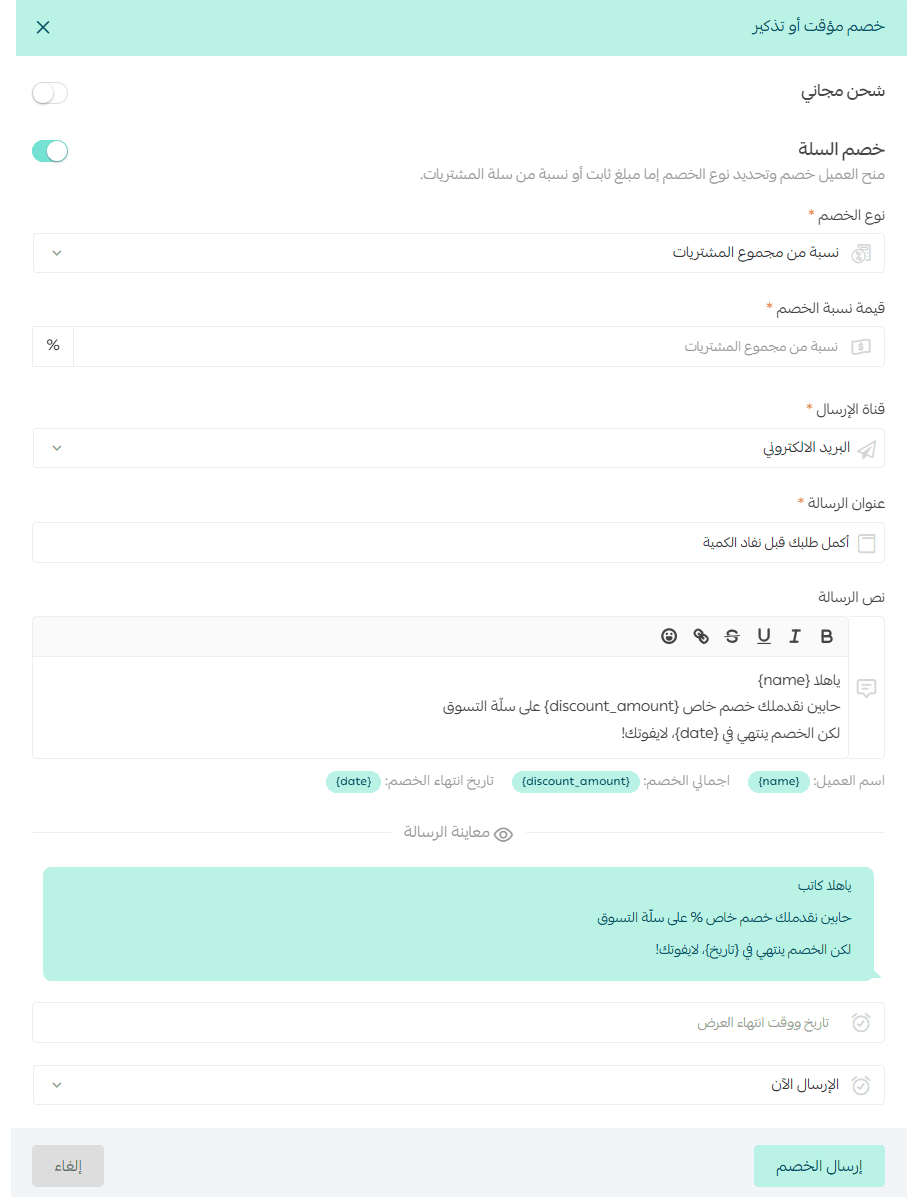
For more details, see: Activating temporary discounts for abandoned carts
How can I customize reminder settings?
From the Reminder Settings page:
- Click (+ Create New Reminder)
- Enter the details and customize reminder rules
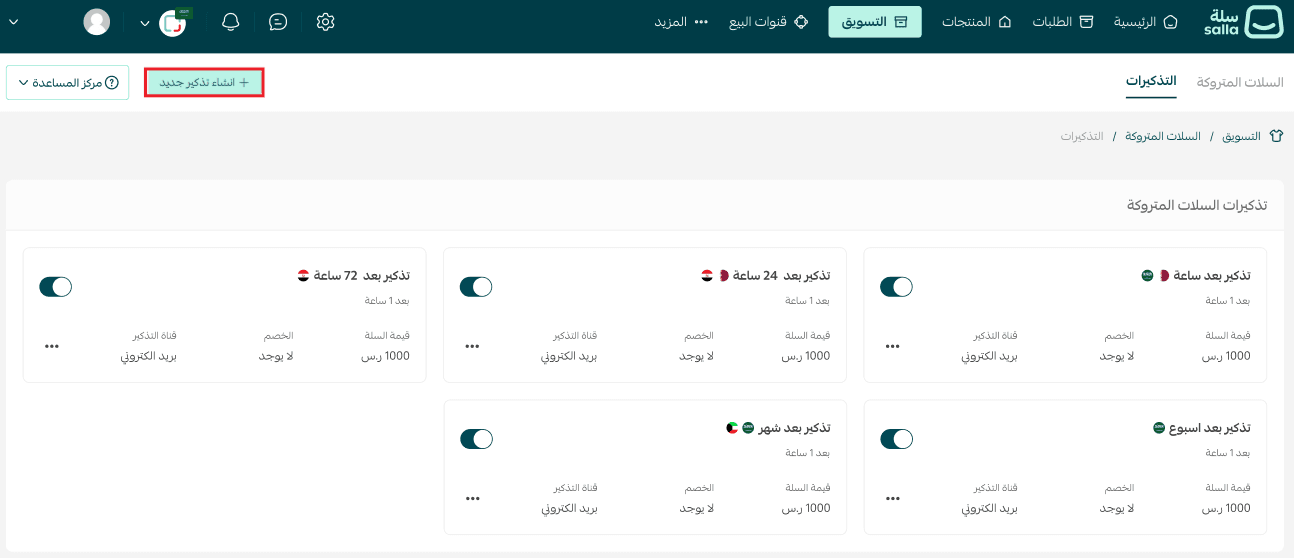
More details:
- Reminder without discount
- Reminder with a discount
Can I export abandoned carts data?
Yes. You can export abandoned cart data as follows:
- From the Abandoned Carts page, click Services
- Select Export Abandoned Carts

The export file will be sent to your store email address.
Will all carts abandoned by the customer appear?
Only the most recent abandoned cart will appear.
Example: If a customer abandoned a cart in the browser, then later abandoned another cart in the app, only the latest one will be shown.
Do abandoned carts appear in both Mahally and Buy now?
Abandoned carts appear only from Mahally (for enabled stores).
They do not appear from Buy now.
How long does it take for an abandoned cart to appear?
An abandoned cart may take up to one hour to appear in the browser.