Some stores face challenges in managing shipping companies and selecting the most suitable delivery providers, which can affect the customer experience. Fortunately, Salla’s shipping settings provide flexible solutions for customizing prices and enabling shipping companies efficiently.
In this article, we will explain how to enable and customize shipping companies and store couriers.
📌 Article overview
- Shipping page
- Enabling/disabling shipping companies
- Adding and viewing store couriers
Shipping settings page
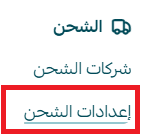
From the main menu, click All, then click Shipping & delivery.
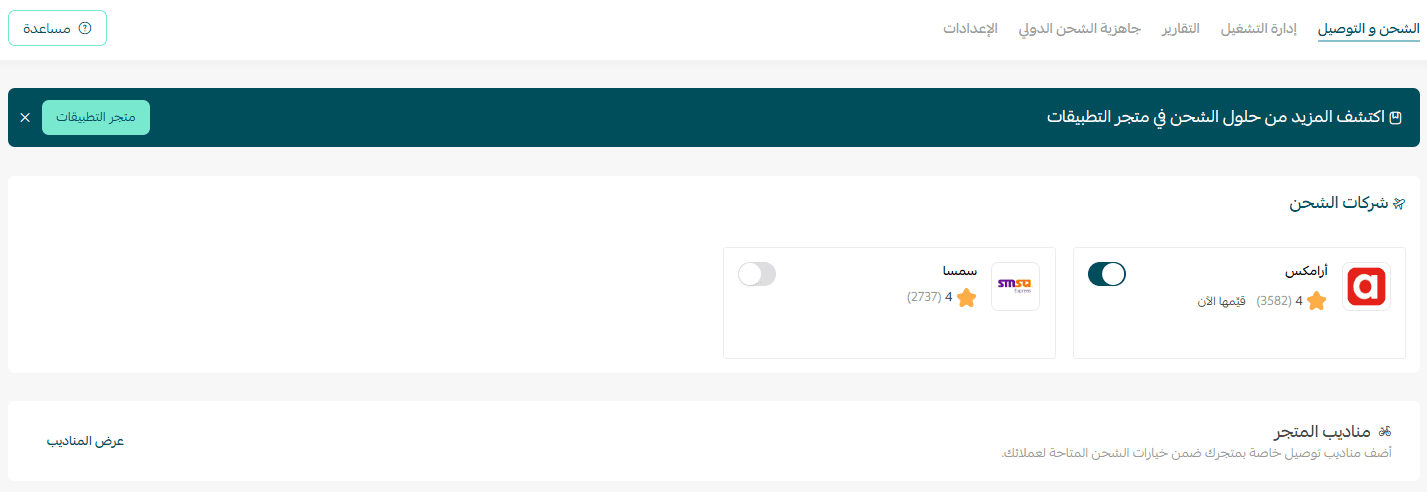
The shipping and delivery settings page will appear, showing details of shipping companies and couriers.
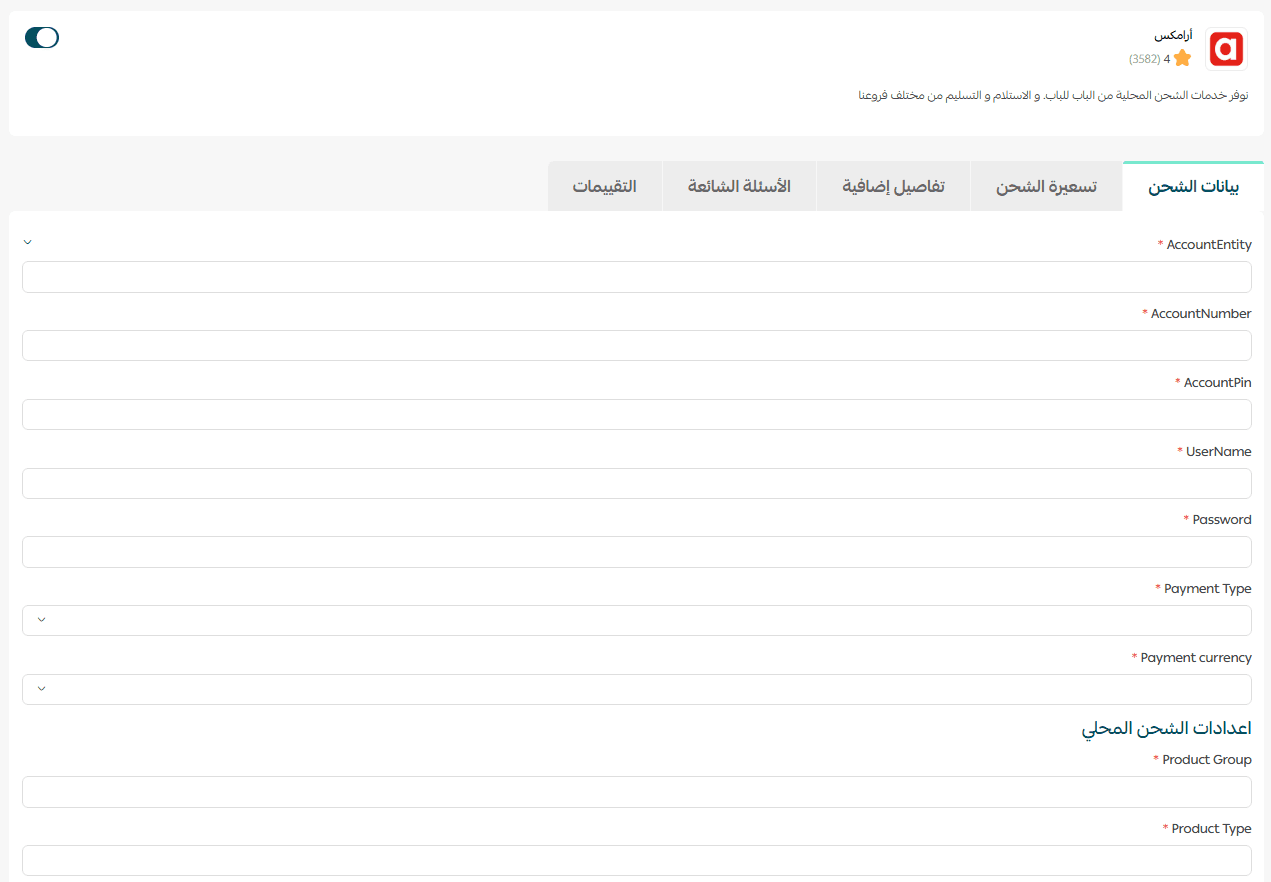
1. Customize shipping details
From the shipping company page, under the Shipping Data tab, enter the shipping company details, then configure local shipping settings, international shipping settings, and add the display information for the shipping label.
2. Set shipping pricing
From the Shipping Pricing tab, configure the shipping rates.
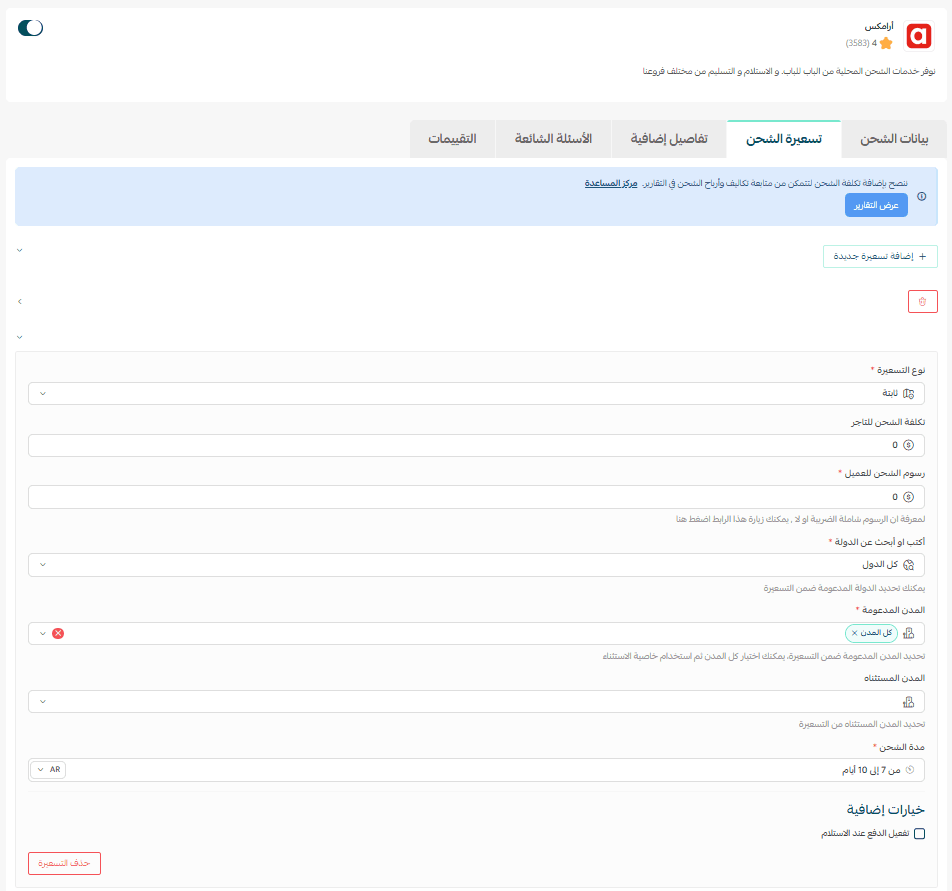
Choose the pricing type whether it is fixed, weight-based, or via API.

Fixed shipping pricing
Enter the shipping fee that will appear to the customer, noting that the shipping label cost will automatically appear for the merchant.

Weight-based shipping pricing
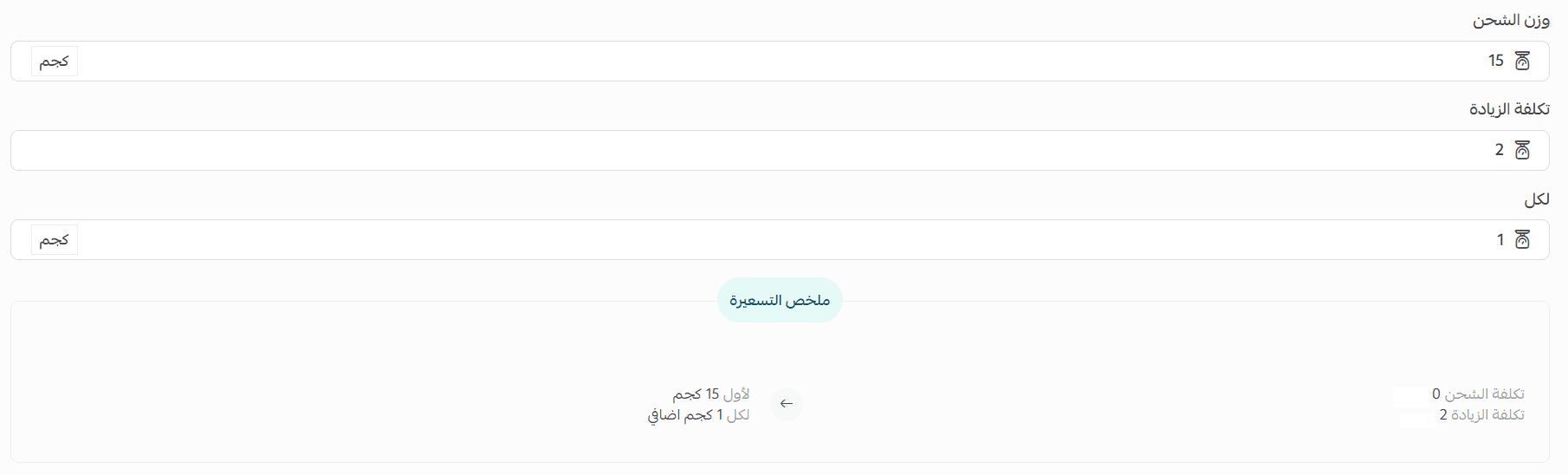
The pricing summary will appear as follows:

Enter the shipping cost for the merchant to help calculate and display your store’s profit from shipping.
You can also specify supported cities or choose All cities using the search feature, then click Save.

If you wish to exclude certain cities, you can do so using the search feature and then click Save.

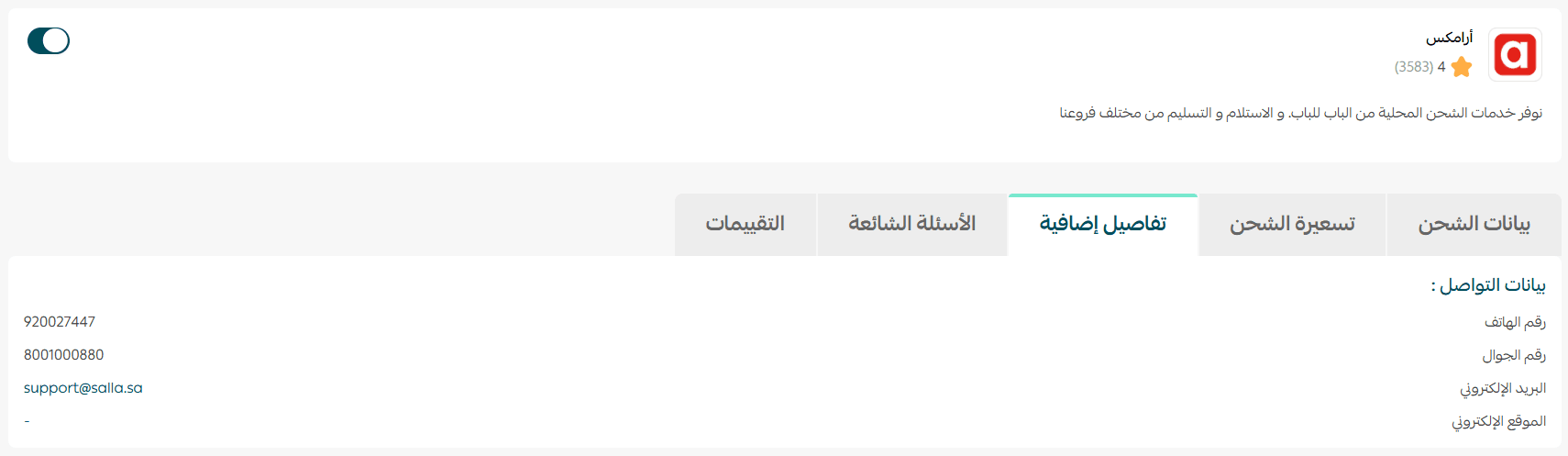
3. Contact methods and frequently asked questions about the shipping company
From the Additional Details tab.
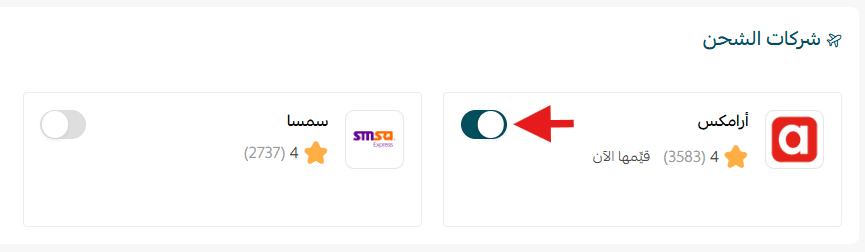
Enabling/disabling shipping companies
To activate a shipping company, go to the shipping company that suits your store and click the Enable button.
Adding and viewing store couriers
Click Store Couriers to view or add a new courier.

1. Add a courier or shipping company
From the Couriers and Private Shipping Companies page, click Add Courier or Shipping Company.

2. Enter the required information
Enter the required details, then click Save.
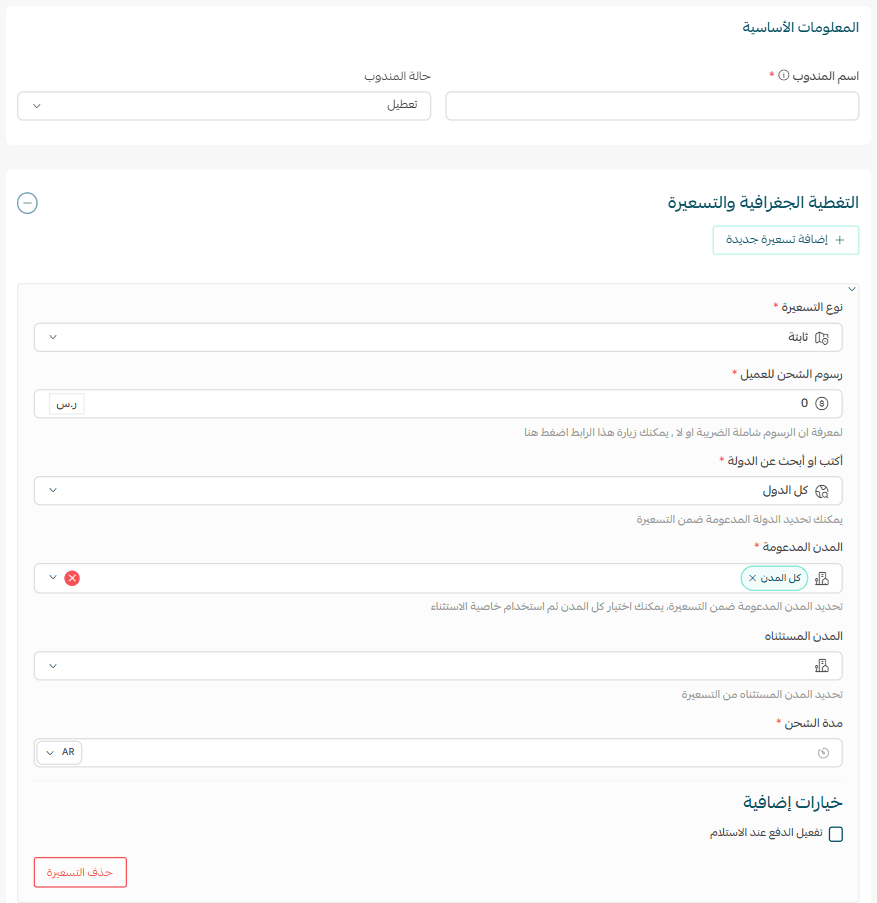
This refers to:
- Pricing type: The pricing method the store uses with the company (fixed rate, weight-based, or distance-based).
- Shipping fee for the customer: The shipping cost that will appear to the customer.
- Country: The country covered by the company.
- Supported cities: The cities covered by the company. You can select more than one city.
- Shipping duration: The time required for the product to reach the customer.
Hide a courier from shipping options
From the Couriers and Private Shipping Companies page, choose the courier status: Enable or Disable | Hide shipping company from the checkout page.

Delete a courier
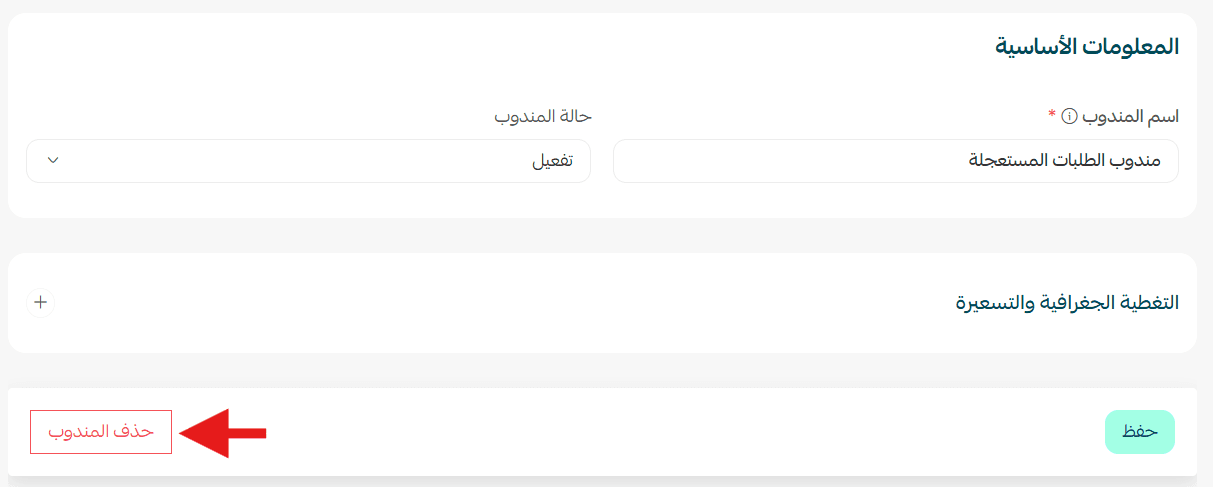
From the bottom of the courier page, click Delete Shipping Company.