How many times have you launched a marketing campaign only to see its impact disappear once the promotion ends? Many merchants face the same challenge: attracting customers is easy, but retaining them is harder. This is where cashback offers come in. They not only encourage customers to purchase but also motivate them to return repeatedly to use their stored wallet balance.
The customer wallet in your store is a smart marketing channel integrated into the Salla system. It allows you to:
- Launch flexible cashback offers tailored to your strategy.
- Return refunds directly to the customer’s wallet.
- Track balances and performance statistics with precision.
This transforms your relationship with customers from a one-time transaction into an ongoing experience, increasing loyalty and raising the average order value.
📌 Article overview
- Creating a new cashback offer
- Managing cashback offers
- Frequently Asked Questions
Create a new cashback offer
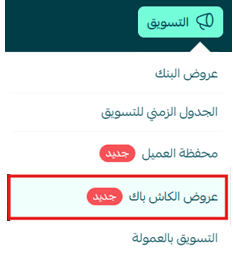
- From the top navigation bar in your dashboard, go to Marketing, then click Cashback offers.
- Click Create cashback offer.
You will then need to enter the required details to create the cashback offer.
1. Offer details
From the Offer Details tab, enter the following:
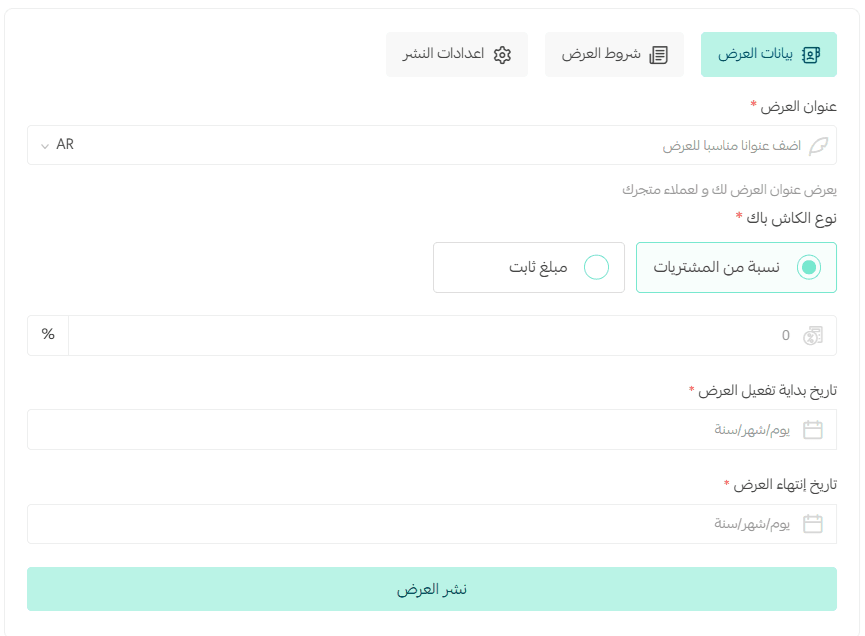
Offer name: This is the name visible to both merchants and customers.
How to choose it: Use a clear title that highlights the value or objective of the offer.
Examples:
- “10% Cashback on Orders ≥ 100 SAR”
- “Weekend Reward – 20 SAR Credit per Order”
Purpose: Helps customers quickly understand the offer and encourages them to purchase.
Cashback type
Type 1: Percentage of purchase (%)
Customers receive cashback based on a percentage of their order value.
Example: If the cashback is 10% and the customer spends SAR/AED 200, they receive SAR/AED 20 wallet credit.
Type 2: Fixed amount
Customers receive a fixed credit regardless of the order value.
Example: Receive SAR/AED 15 credit for every order above SAR/AED 100.
⚠️ Choose the cashback type based on whether your goal is to increase order value or control campaign costs.
Offer start date
The date when the offer will automatically begin.
Example: 01/09/2025 – the campaign begins at the start of September.
Offer end date
The final date customers can benefit from the offer.
Example: 15/09/2025 – the offer ends mid-month.
⚠️ Important note: Always define both the offer end date and the wallet balance expiration date to avoid confusion and ensure clear campaign management.
2. Offer conditions
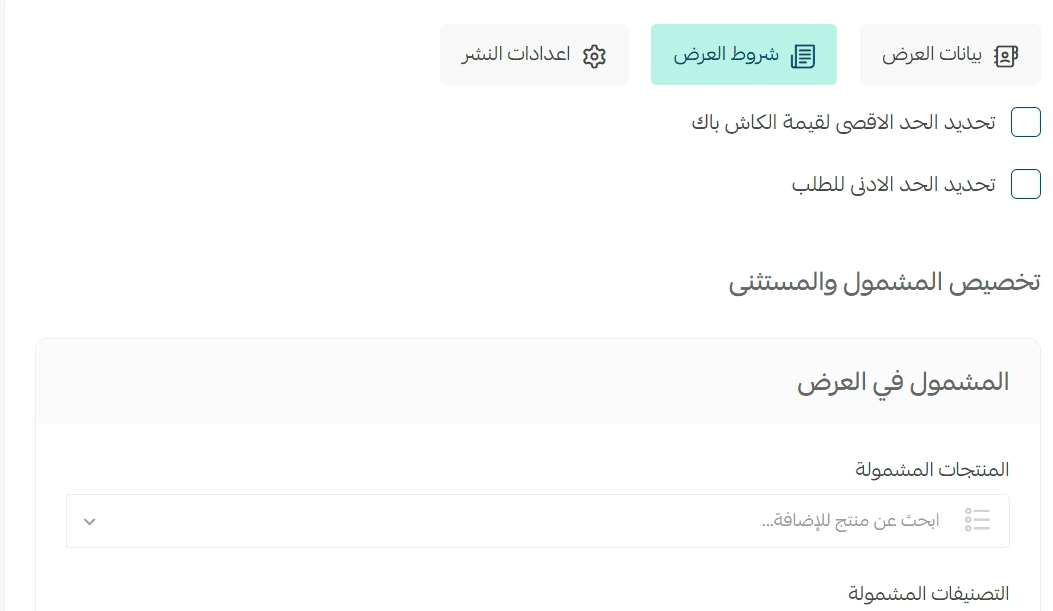
From the Offer conditions tab, you can precisely customize your cashback campaigns by specifying:
- Products included in the offer
- Categories included or excluded
This helps you direct incentives toward products you want to promote.
You can combine multiple conditions according to your business strategy.
3. Publishing settings
From the Publishing Settings tab, configure how the offer appears to customers.
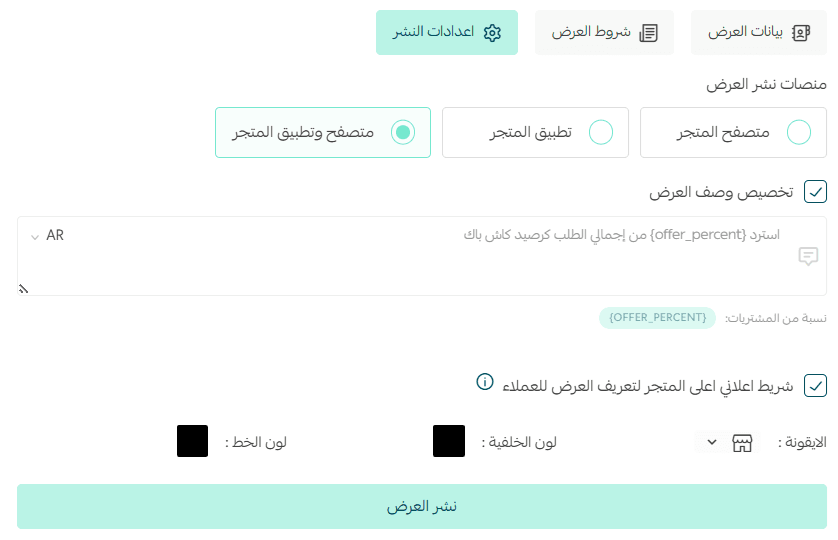
Offer visibility platforms
You can choose where the offer appears:
- Store browser only – visible to website visitors.
- Store app only – visible in the mobile app.
- Both browser and app – visible across all channels.
Tip: If your customers use both the website and the app, select both to maximize reach.
Offer description
This text explains the cashback offer to customers.
Example: “Get {offer_percent} cashback from your order total as wallet credit.”
If the cashback is 10%, the message will appear as: “Get 10% cashback from your order total as wallet credit.”
Tip: Keep the description clear and motivating.
Promotional banner at the top of the store
You can display a promotional banner at the top of your store pages to highlight the cashback offer.

Customization options include:
- Icon
- Background color matching your brand identity
- Text color for clarity

Tip: Use contrasting colors and a short message such as: “Get 10% cashback now!”
After reviewing the offer summary, click Publish Offer.
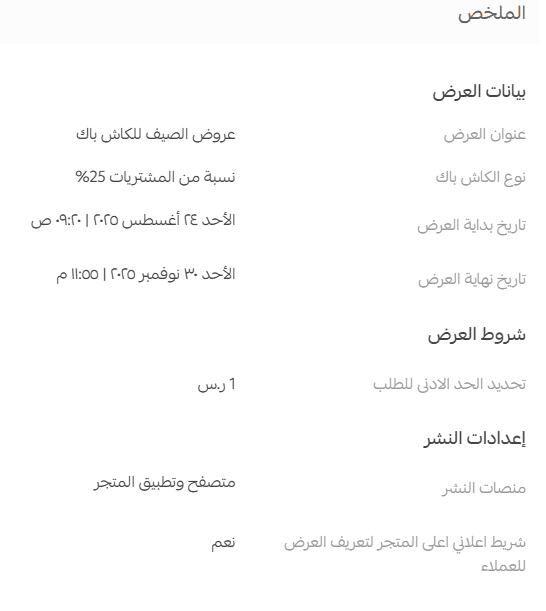
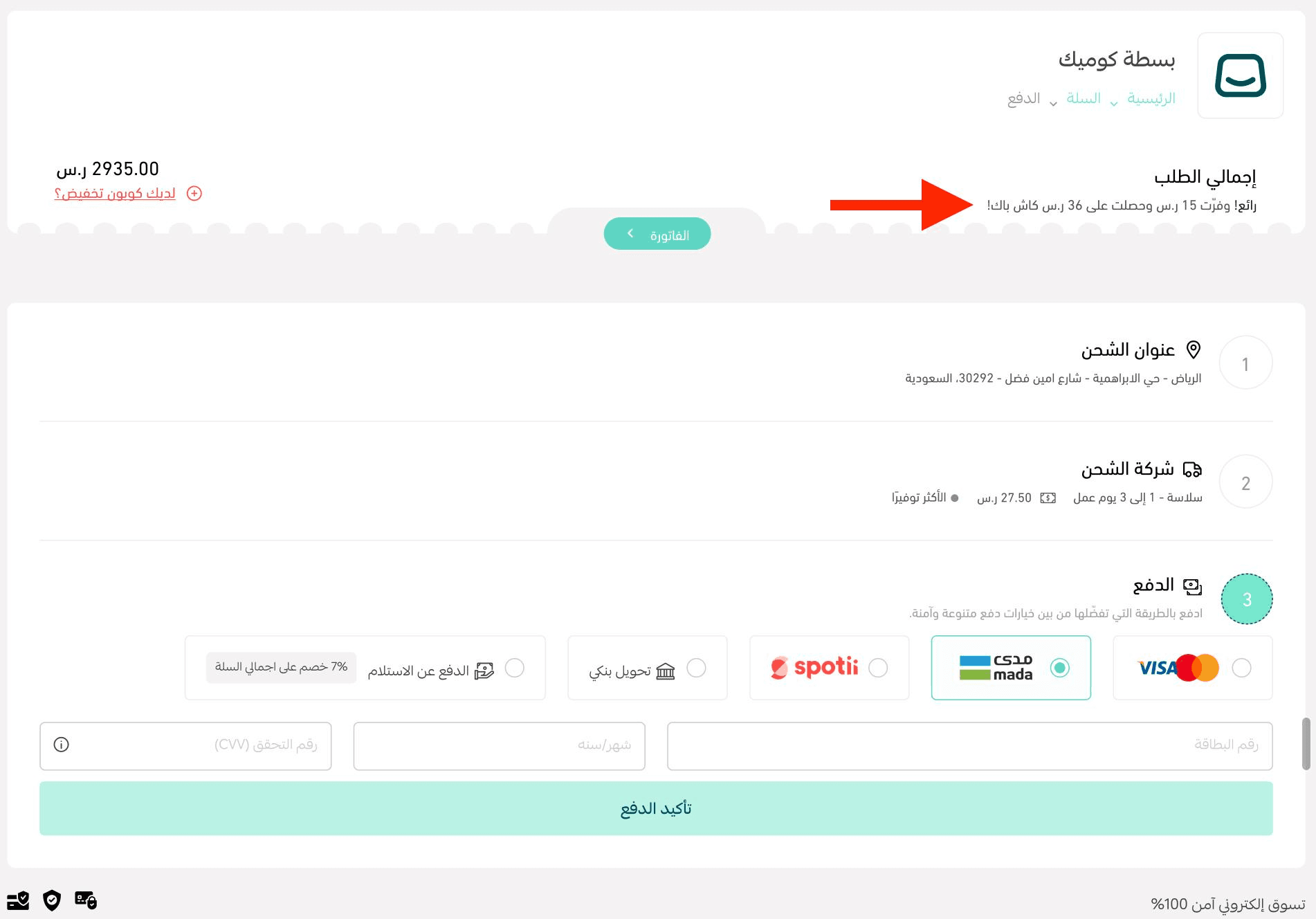
The offer will then appear successfully in your store and be visible during checkout.
Managing cashback offers
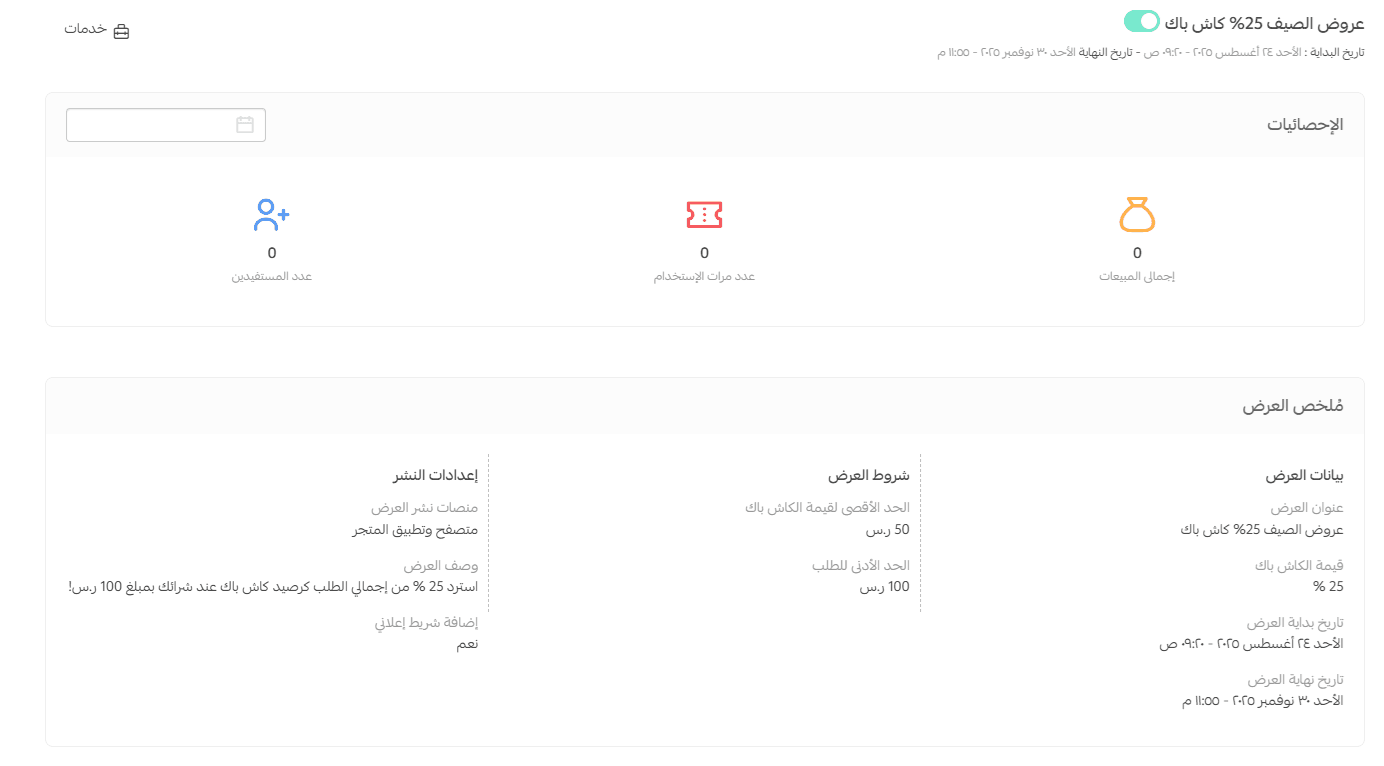
View cashback offer details
In the Cashback Offers section, you will see all created offers.
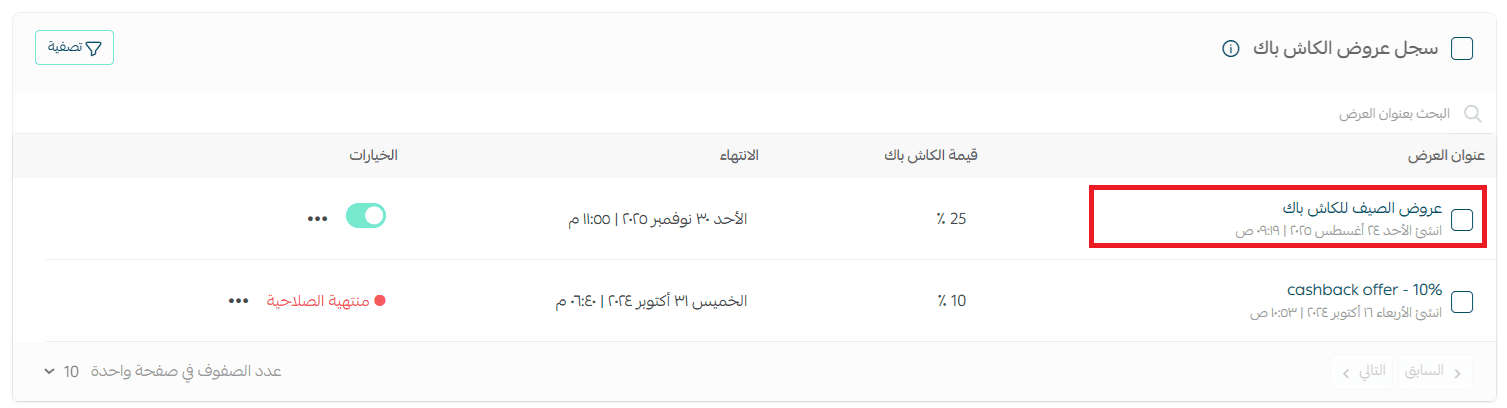
Click the offer name to view its detailed information.
View a specific customer wallet
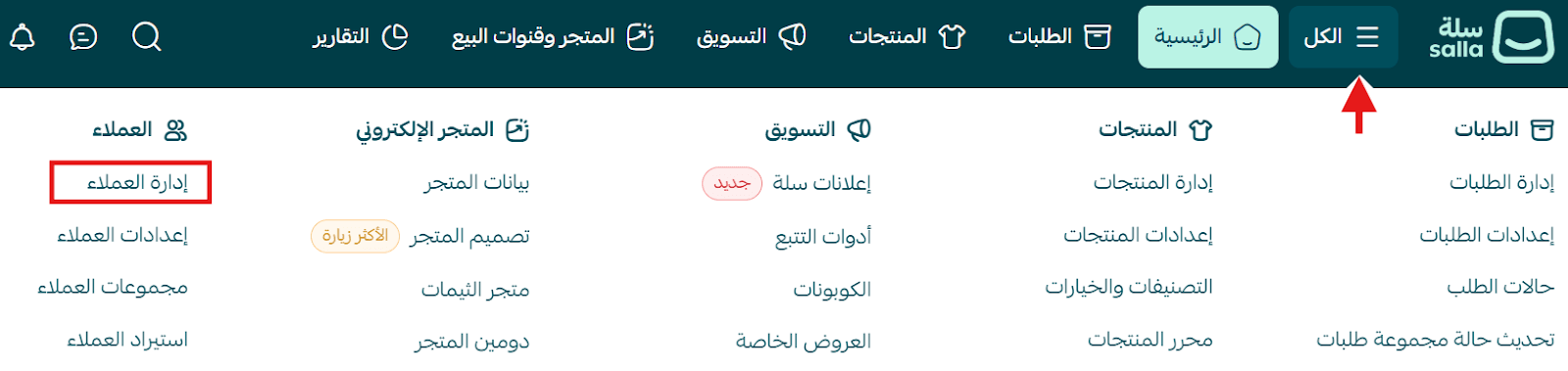
- From the main menu, click All, then go to Customers → Manage customers.
- On the customer profile, click Customer wallet.
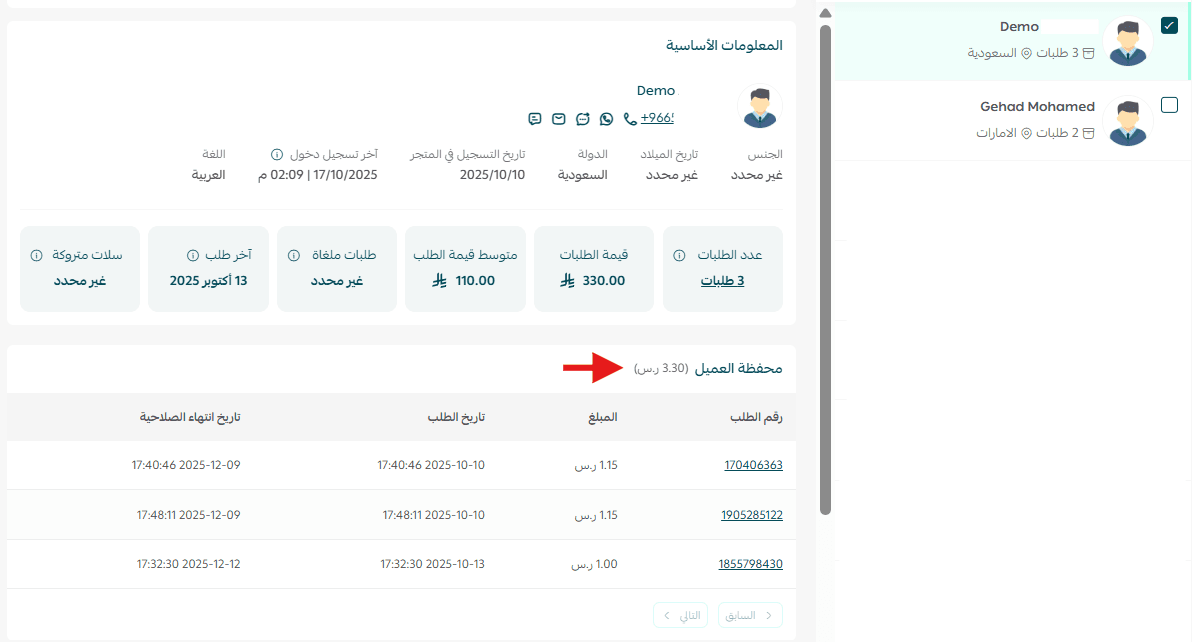
You will see all wallet transactions and cashback balance details.
Edit wallet balance
From the customer profile, click edit wallet balance.
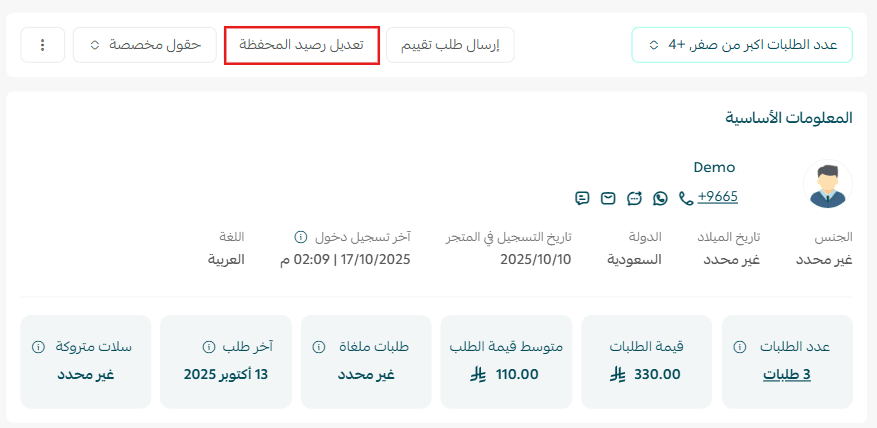
You can:
- Add or deduct balance
- Enter the adjustment amount
- Customize the notification message
- Choose notification channels (Email, SMS, or App notification)
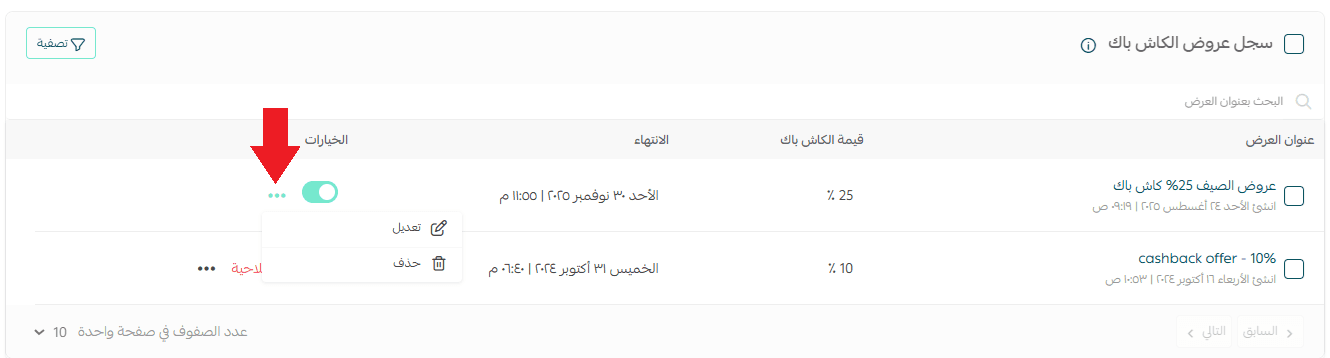
Edit an offer
From the Cashback Offers page:
- Locate the offer you want to modify.
- Click the More (…) icon.
- Select Edit and update the offer details.
Delete an offer
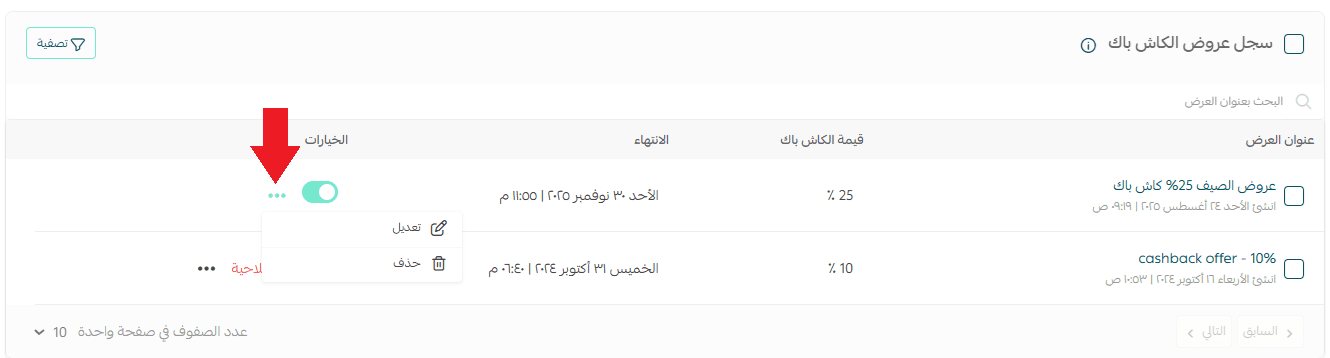
- Go to the Cashback Offers page.
- Click More (…) next to the offer.
- Select Delete, then confirm.

Filter offers
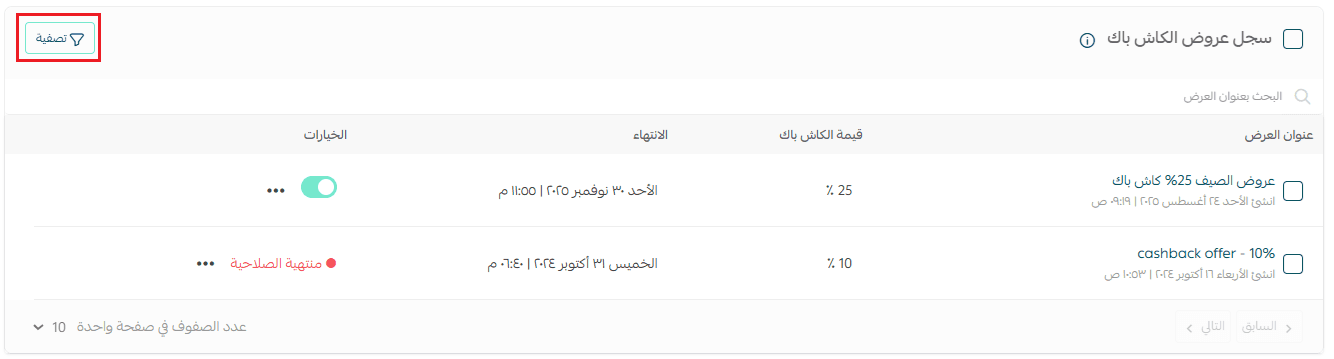
Use the Filter option on the Cashback Offers page to display campaigns based on selected conditions.
Refund orders paid with cashback
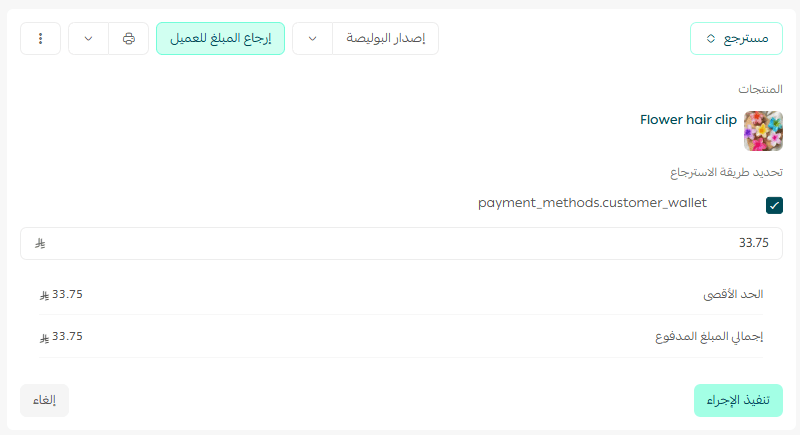
⚠️ Important note: Cashback balances are not automatically deducted when an order is refunded. The merchant must manually adjust the wallet balance from the dashboard.
Frequently asked questions
Can merchants control the cashback percentage?
Yes. You can set either a fixed or variable cashback percentage depending on the product or campaign.
What is the difference between cashback and a refund?
- Refund: transferred directly to the customer’s bank account.
- Cashback: added to the customer’s wallet for future purchases.
Why wasn’t cashback added to the customer wallet after a purchase?
Ensure the offer conditions are met, such as the minimum order value.
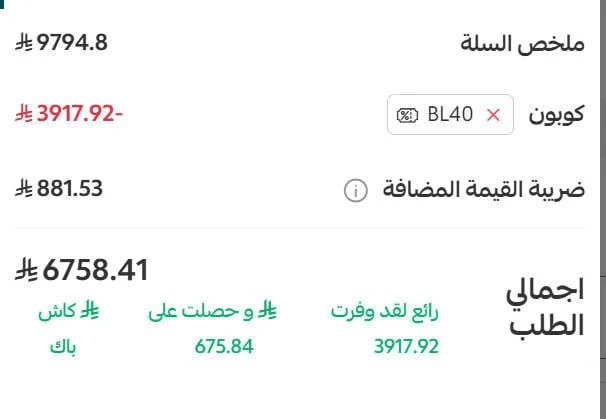
Is cashback calculated when a coupon is used?
Yes. Cashback is calculated based on the final amount paid after discounts, provided that the offer conditions are satisfied.
When is cashback added to the customer wallet?
Cashback is added automatically when the order reaches one of the order statuses defined in the offer settings.
If no custom status is selected, the system will apply the default status settings.
⚠️ If the order does not reach a valid status before the offer ends, cashback will not be credited.
What happens if a customer forgets to activate cashback at checkout?
The merchant may manually adjust the balance later or allow the credit to be used in a future order.
Is cashback automatically deducted when an order is refunded?
No. The merchant must manually deduct cashback from the customer’s wallet if necessary.
Can customers complete an order fully using cashback?
Yes, if the wallet balance equals or exceeds the order value. Cashback can also be used alongside discount coupons.
Can cashback be used with all payment methods?
Yes. Cashback can be combined with most payment methods such as:
- Cash on delivery
- Credit card
- Other supported payment methods
Can multiple cashback offers run at the same time?
No. The system allows only one active cashback campaign per time period to prevent conflicts.
What happens if the merchant closes the cashback offer before updating order status?
Customers will not receive cashback if the order status does not reach Completed before the offer closes.
How does the customer use cashback at checkout?
When placing an order, customers can choose between:
- Paying with standard payment methods
- Paying using wallet cashback balance
Are all payment methods supported for automatic cashback refunds?
Deferred payment methods and bank transfers do not support automatic refunds. In those cases, the amount will be returned to the customer wallet. Tamara is currently the only method that supports direct automatic refunds to the customer.
What happens to cashback if a merchant manually adds it and it expires?
Expired cashback balances are not returned to the merchant, as they function similarly to a promotional discount for future orders.
🎯 With smart management of cashback campaigns, every marketing dollar you spend becomes a long-term investment in customer loyalty. Start today by creating a cashback offer and watch how refunds and first purchases turn into repeat orders and long-term customer relationships.