Many actions happen inside your store every day.
A customer places an order. A product goes out of stock. A new customer signs up. A shipment gets delivered.
What if those events could automatically trigger actions in the tools you already use?
That's exactly what webhooks do.
Webhooks allow your store to send real-time updates to external systems whenever a specific event occurs. Instead of manually transferring information between platforms, your store can instantly notify another application and trigger the next step automatically.
Whether you're connecting inventory software, marketing tools, customer communication platforms, or custom systems, webhooks help keep everything in sync as your business grows.
In this guide, you'll learn how webhooks work, how to create and manage them, and how to monitor webhook activity from your store dashboard.
📌 In this article
- What are webhooks?
- Managing webhooks
- Viewing webhook event logs
Frequently asked questions
What are webhooks?
A webhook is an automated notification sent from your store to another application when a specific event occurs.
When that event happens, your store sends the relevant data to a destination URL. The receiving system can then process the information and perform the action you've configured.
Think of webhooks as a way for your store to instantly communicate with other platforms without requiring manual intervention.
Common use cases
How you use webhooks depends on the systems and workflows you want to automate. For example:
Welcome new customers automatically
When a new customer is added to your store, a webhook can send the customer's information to your WhatsApp platform, which then sends a welcome message automatically.
Keep inventory systems updated
When a product is running low on stock, a webhook can send product information to your inventory management system.
Share updates across platforms
When a new product is published in your store, a webhook can automatically create a post on X.
Sync data between systems
Use webhooks to keep products, customers, orders, or other store data synchronized with external applications.
Managing webhook notifications
To manage webhook notifications, several operations are important, including:
1- How to access the Webhook page
From the sidebar of the control panel, click (Store Settings).

From the Store Settings page, in the Advanced Settings section, click (Webhooks).

The page will display previously created notifications and alerts, including: the event name, type, and whether it is enabled or disabled.
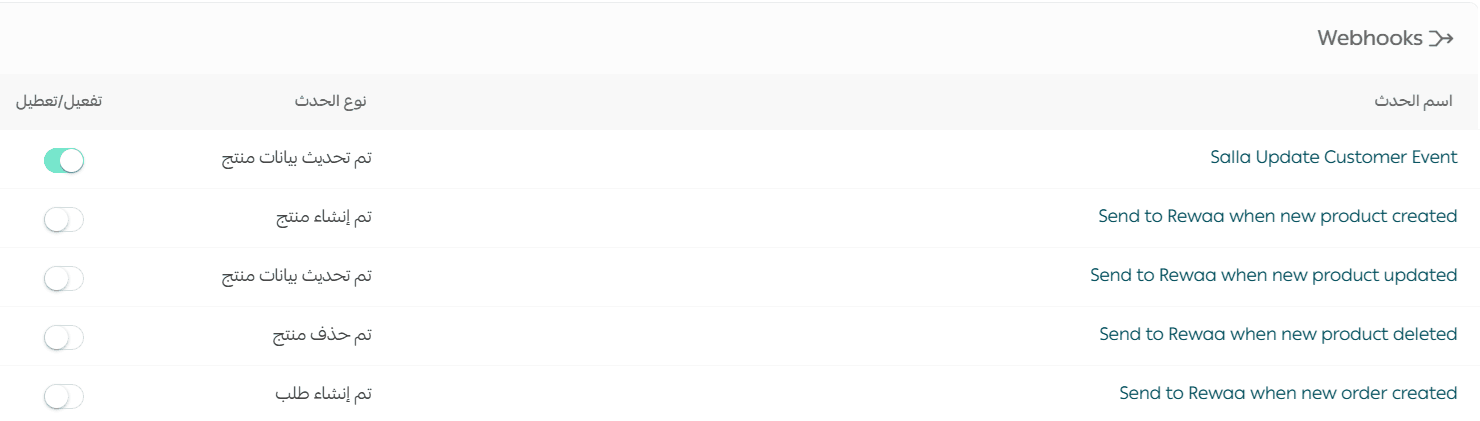
2- Create a new webhook
From the Webhooks page, click (Add New).

On the new event page, enter the required data for the new event, then click (Save).
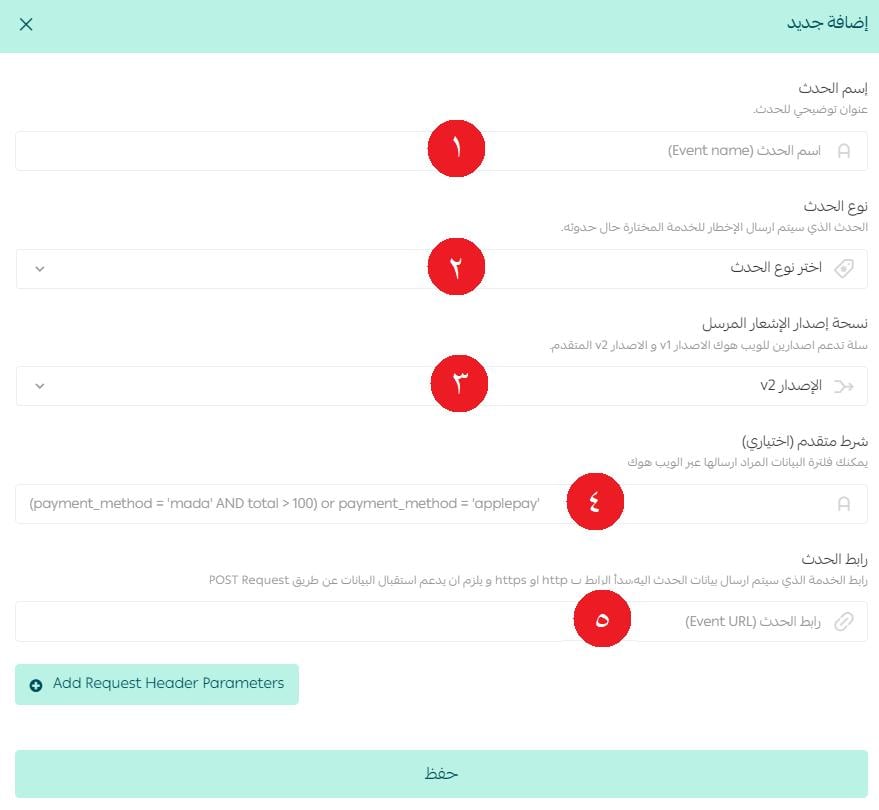
1. Event Name: Choose a name that reflects its function.
2. Select the event type from the available events list, which includes events related to: shipping, shipping companies, payments, products, coupons, customer data, categories, brands, abandoned carts, branches, and warehouses.
3. Notification Version: You can choose one of the two versions: V1 or V2.
4. You have the freedom to enter any advanced condition to filter the data to be sent via the webhook.
5. Enter the URL of the service to which the event data will be sent.
🔔 Note: Some webhook notifications may not include certain data, such as orders (orders webhooks are hidden for now), due to technical modifications based on specific needs. It is always recommended to review the event details within the control panel to verify the data sent accurately.
3- Enable/Disable a webhook
You can enable any webhook event from the Webhooks page, activate or deactivate the desired event.
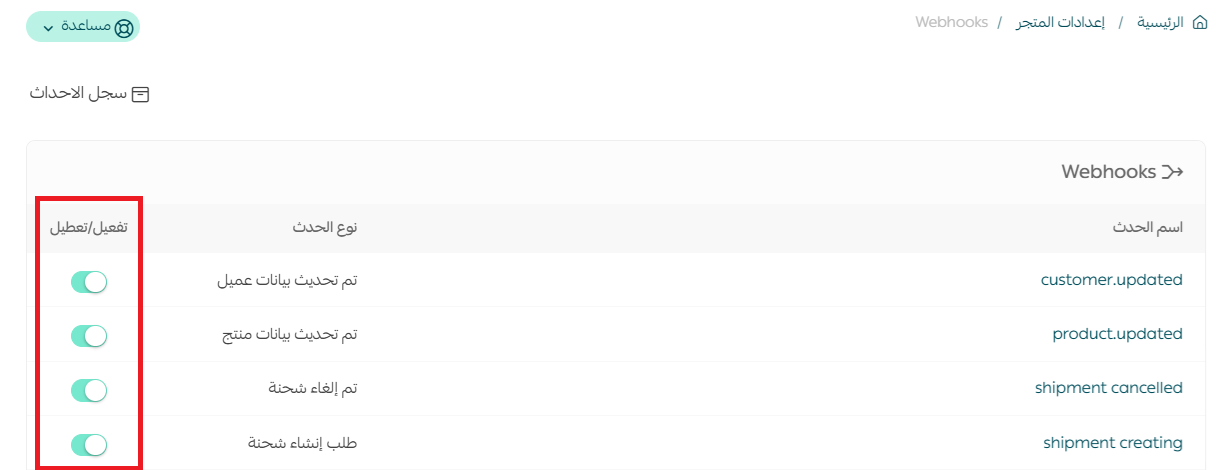
Managing webhook event logs
1- View Event Logs
From Store Settings, on the Webhook page, click (Event Logs).
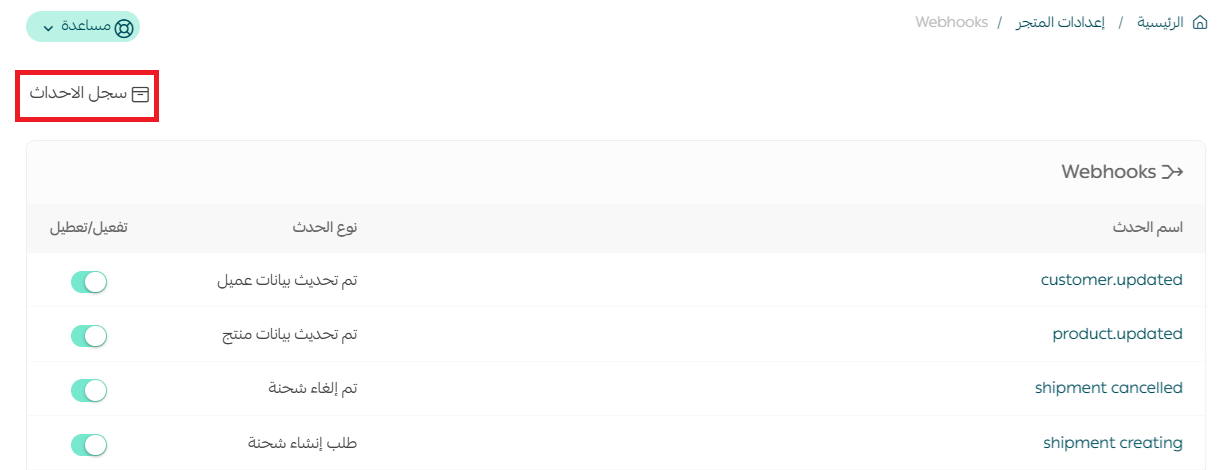
The event logs will display information about: the event type, its code, its last update, along with the event status, and a list of options to view event details.
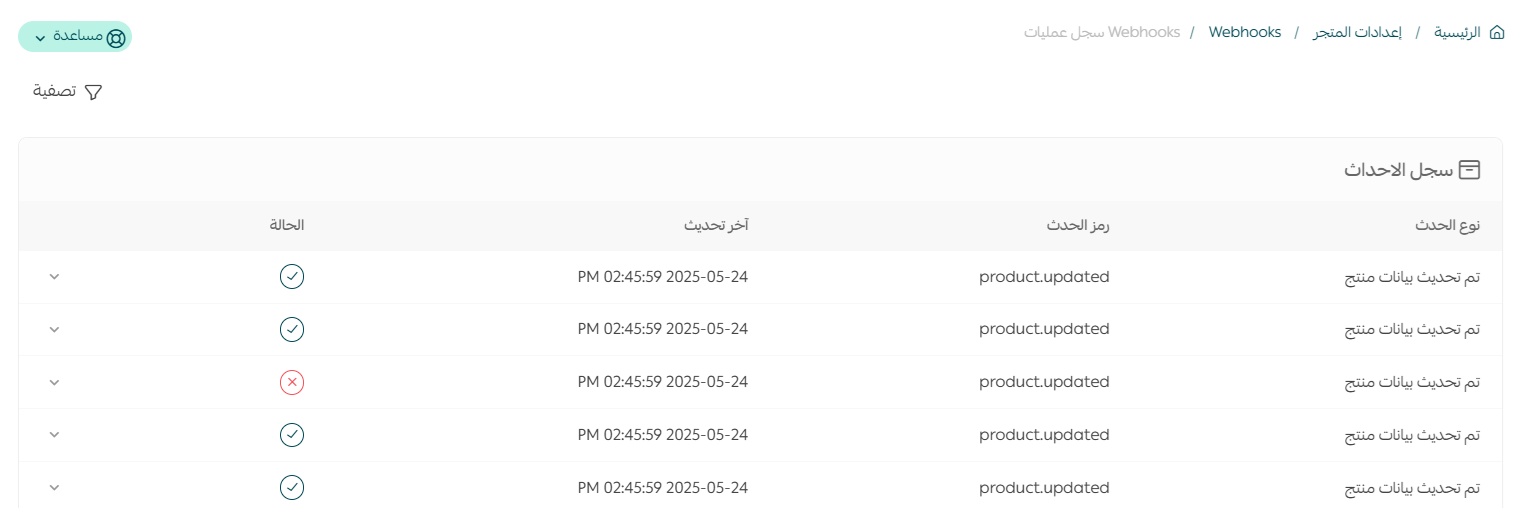
2- View event details
From the Event Logs page, click (More) to view event details.
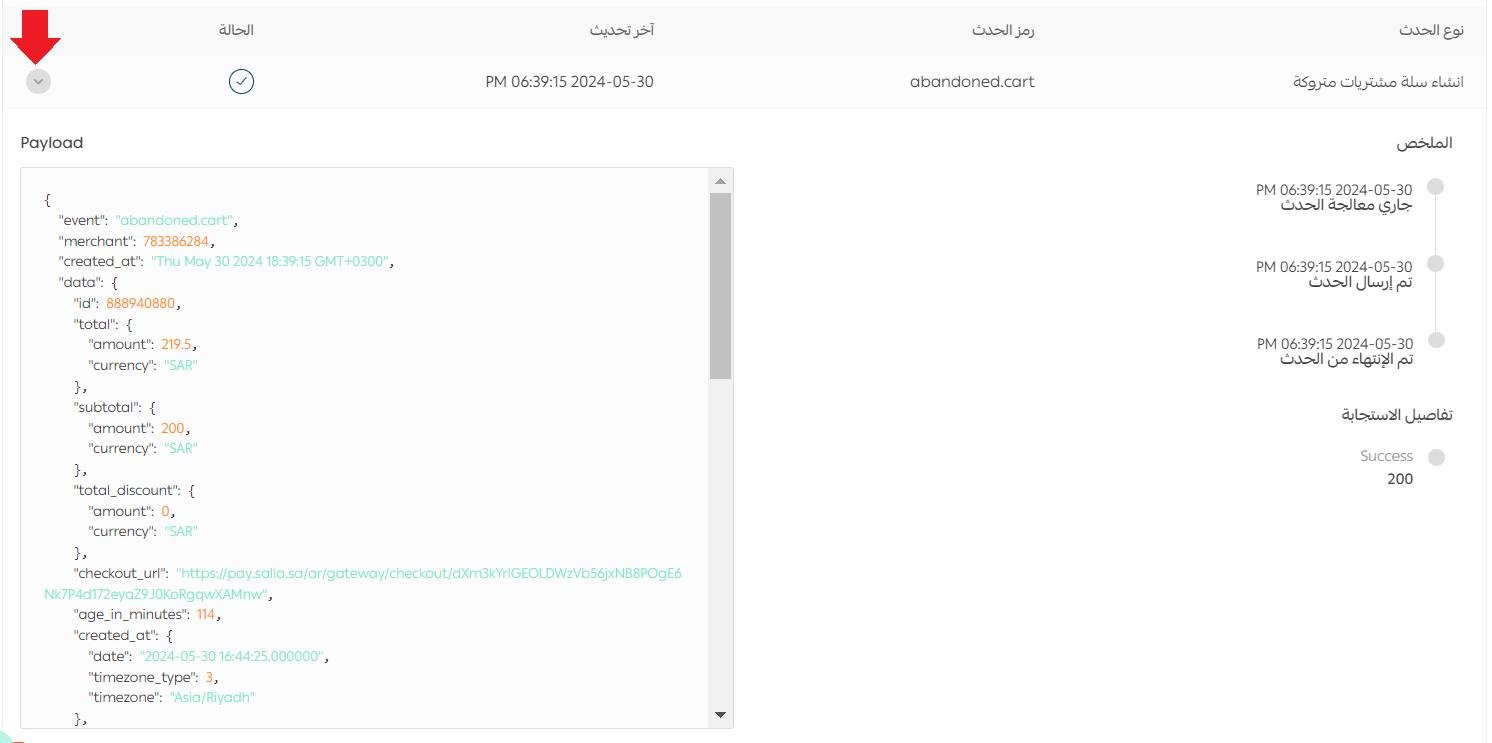
3- Filter and sort event logs
From the Event Logs page, click (Filter).
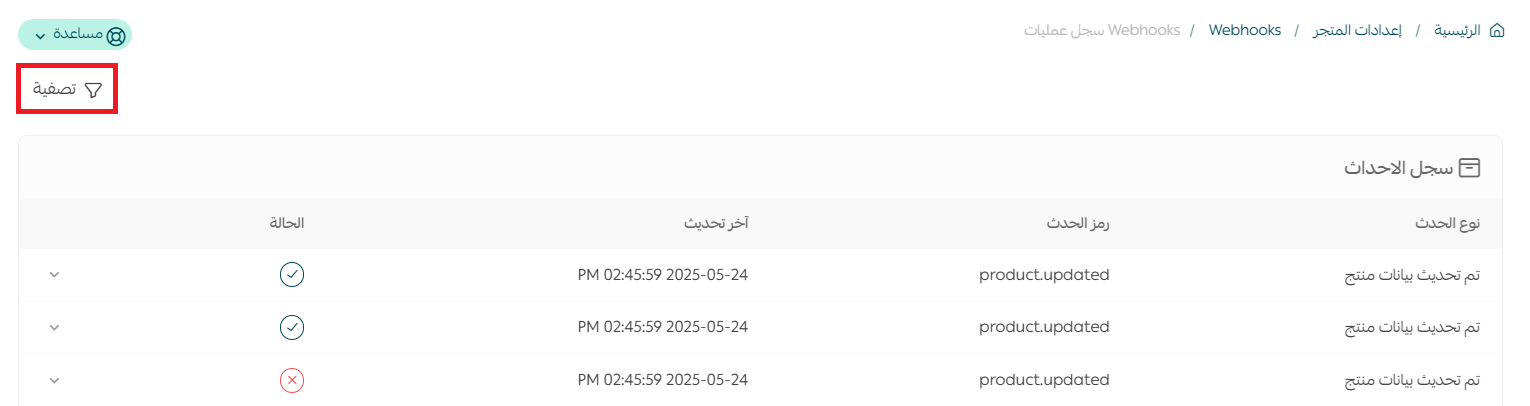
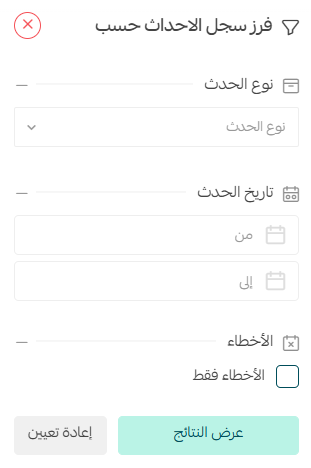
Then specify the filtering and sorting criteria: event type, event date, and whether you want to display only errors or the entire log, then click (Show Results).
Frequently asked questions
Do I need programming knowledge to create a webhook integration?
Yes, some services may require you to have a programming background to complete the integration.
How many webhooks can I add?
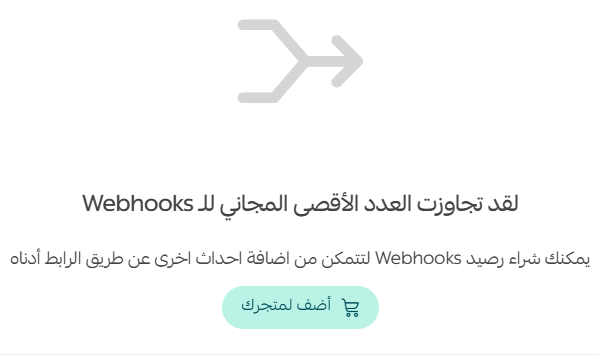
You can add up to 10 webhooks for free. You will need to purchase webhook credits to add more events by clicking (Add to Your Store) at the bottom of the Webhooks page.
Any webhook you need beyond this number will be
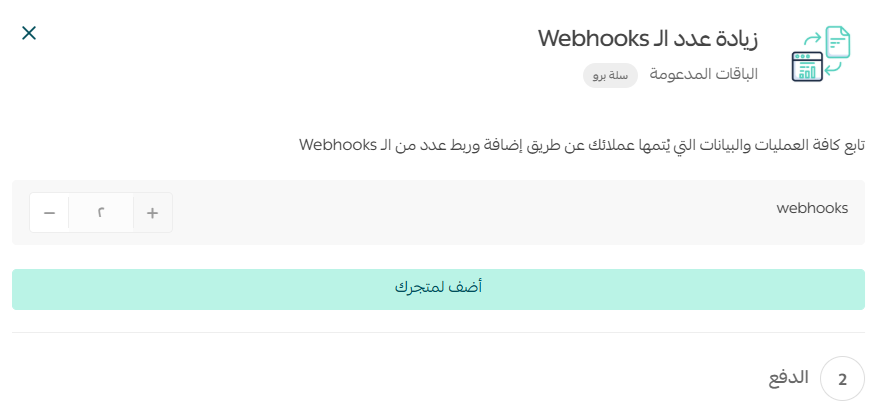
Then specify the number of webhooks you wish to add, and click (Add to Your Store).
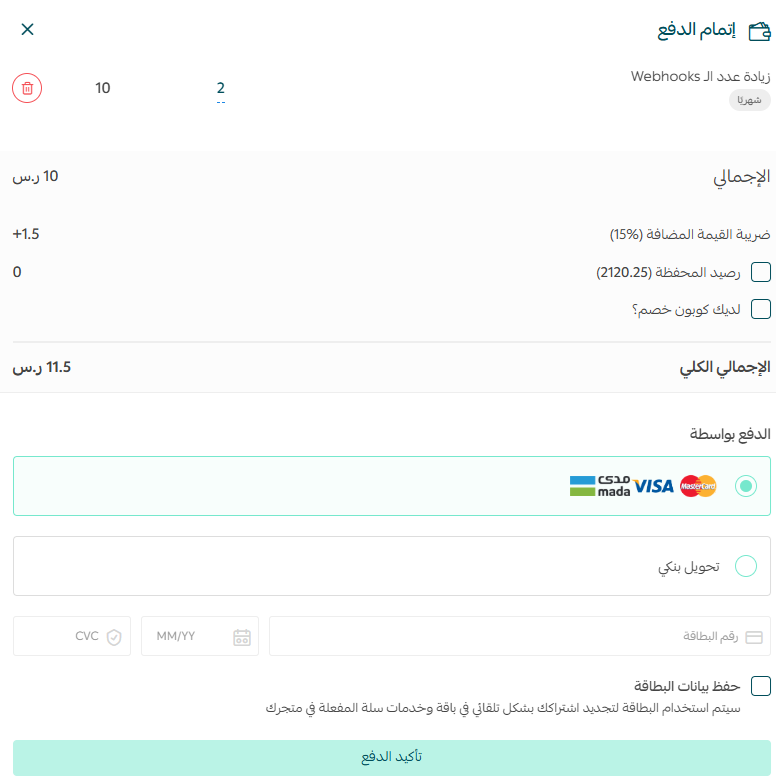
Then complete the payment process.
Can I delete webhooks I don't need?
You can disable webhooks you don't need, but you cannot delete them.
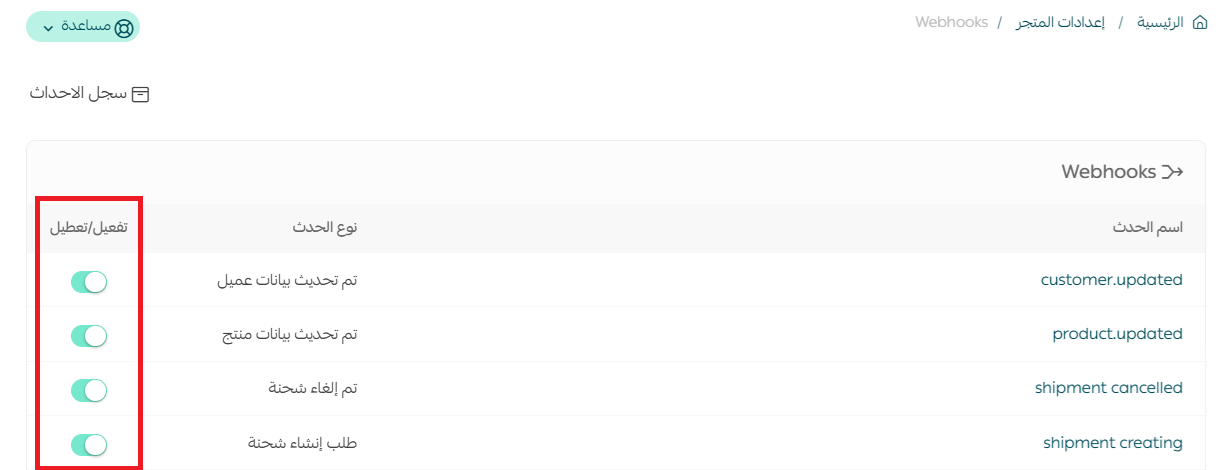
Does a disabled webhook count towards the store's webhook limit?
Yes, a disabled webhook is counted.
Example: We have 3 webhooks in this store (even if one is disabled).
Note: If your store has 9 active webhooks and 1 disabled webhook, it will be counted as having 10 webhooks, meaning you have used up all the free webhooks and need to purchase any additional webhooks you wish to add.
How can I successfully build and link a webhook event?
- Identify the Event : Start by identifying the specific event you want to trigger the webhook. This could be anything from a new user registration to a product update or a completed transaction.
- Create an Endpoint: An endpoint is a unique URL that receives webhook data when the event is triggered. This URL should be hosted on your server and programmed to handle incoming webhook requests automatically.
- Secure Your Webhook : To ensure the safety and confidentiality of webhook data, it is essential to implement security measures such as SSL/TLS encryption and authentication tokens. These measures will help protect your webhook from unauthorized access and tampering.
- Handle Retries and Failures: Webhooks may not succeed on the first attempt, so it is crucial to account for potential failures and retries.
Which plans offer this feature?
Sending notifications to other services via webhooks is available only in the Pro and Special plans.