In this article, you’ll learn how to send real-time data updates from your store to external platforms outside of Salla using Webhooks.
Webhooks allow your store to automatically notify another system whenever a specific event happens, making integrations faster, smarter, and fully automated.
📌 Article overview
- What are Webhooks?
- Managing Webhook Notifications
- Viewing the Webhook Event Log
- Frequently asked questions
What are Webhooks?
A Webhook is an automated way to send specific data from your store to another application or website immediately after a certain event occurs.
Once the event happens, Salla delivers the data to the receiving service, which can then process it and take the appropriate action.
Practical examples
How you use webhooks depends entirely on your business needs. For example:
- When a new customer is added, a webhook can send the customer data to WhatsApp so an automated welcome message is triggered.
- When a product stock level is about to run out, the webhook can notify your inventory management system.
- Automatically post an update on X (Twitter) whenever you publish a new product.
- Sync product or order information with another external platform.
Managing Webhook notifications
Webhook notifications can be managed through several key actions:
1. Accessing the Webhooks Page
- From the main control panel, click All.
Under Support Tools, select Developer Tools.
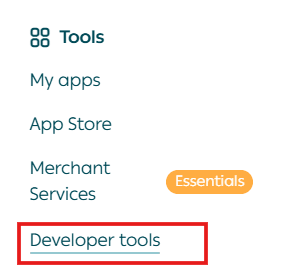
2. Open the Webhooks tab.
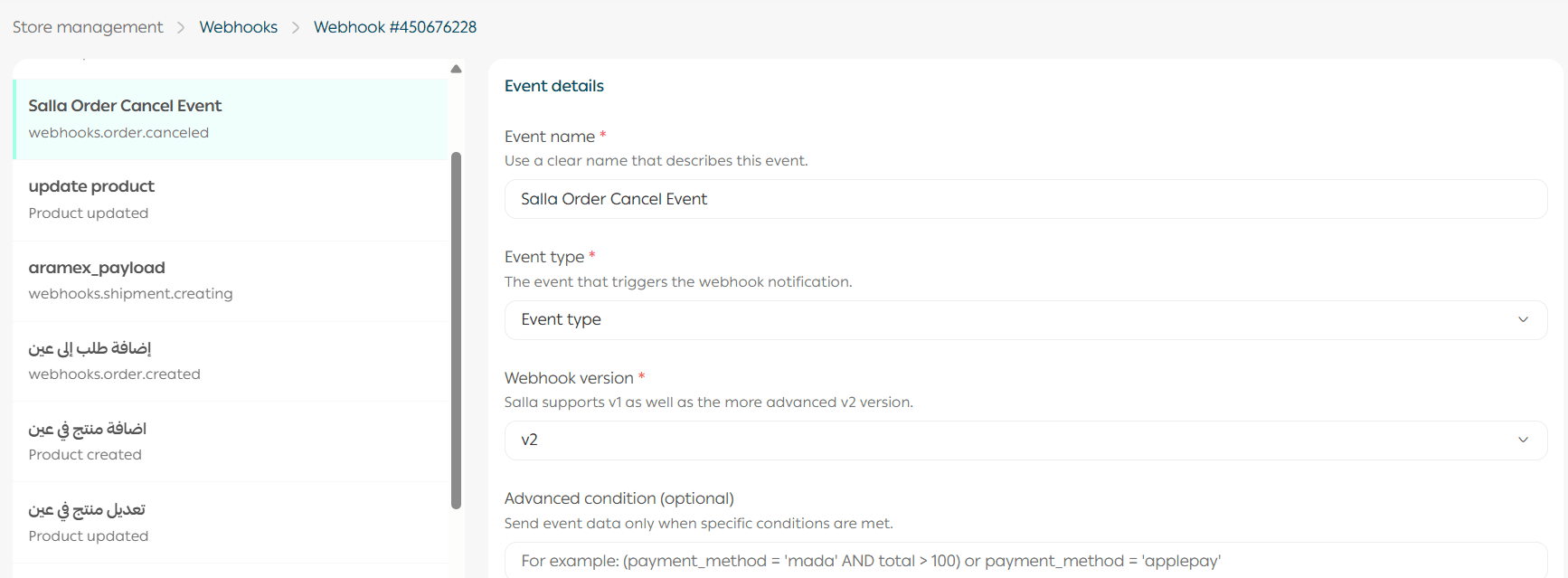
You will see a list of previously created webhook notifications, including:
- Event name
- Event type
- Whether the webhook is enabled or disabled
2. Creating a new webhook
- In the Webhooks tab, click Add New Webhook.
On the new event page, enter the required details, then click Save.
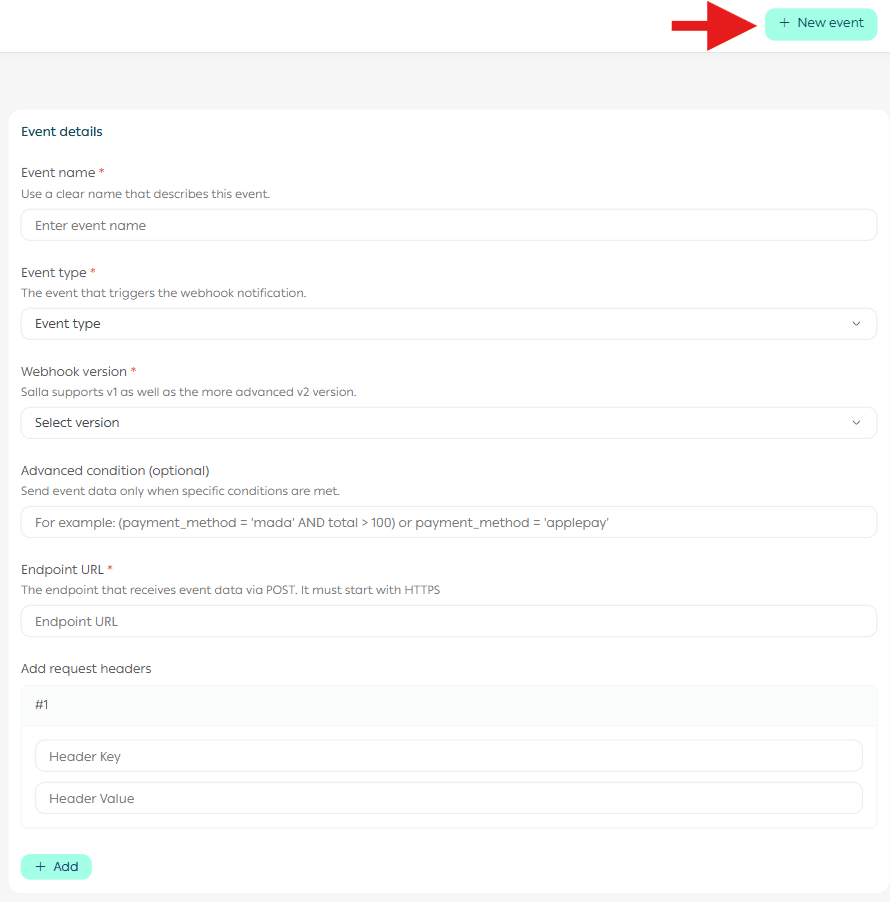
Webhook settings include:
- Event Name
Choose a clear name that reflects the webhook’s purpose.
- Event Type
Select an event from the available list, including events related to:
Shipping, Payment, Products, Coupons, Customer Data, Categories, Brands, Abandoned Carts, Branches & Warehouses, and more.
- Notification Version
Choose the payload version you want to send: V1 or V2.
- Advanced Conditions (Optional)
You may add advanced filters to control which data should be sent.
- Destination URL
Enter the external service URL where the webhook payload should be delivered.
Note: Some webhook events may not currently include certain data types, such as order webhooks, which are temporarily hidden due to technical updates. Always review the event details inside your dashboard to confirm what data is included.
3. Enabling or disabling a webhook
From the Webhooks page, you can easily toggle any webhook event on or off.
Frequently asked questions
Do webhooks require programming knowledge?
Yes. Some integrations require a technical background or developer support to complete the setup successfully.
How many webhooks can I add?
You can add up to 10 webhooks for free.
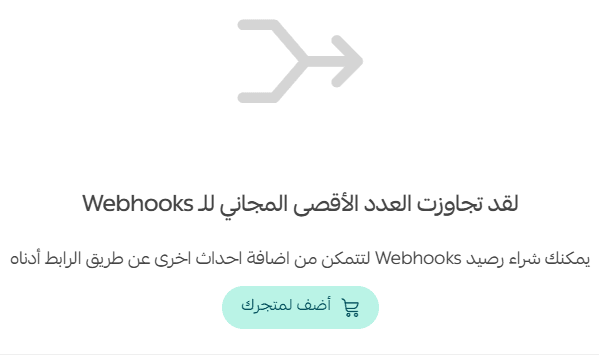
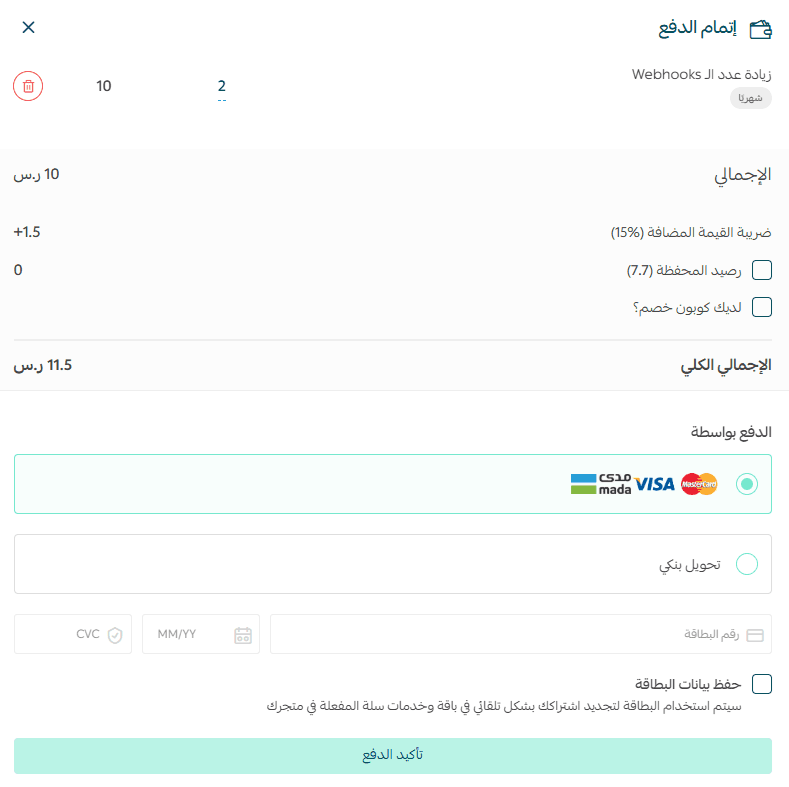
To add more, you’ll need to purchase additional webhook credits by clicking Add to My Store at the bottom of the Webhooks page.
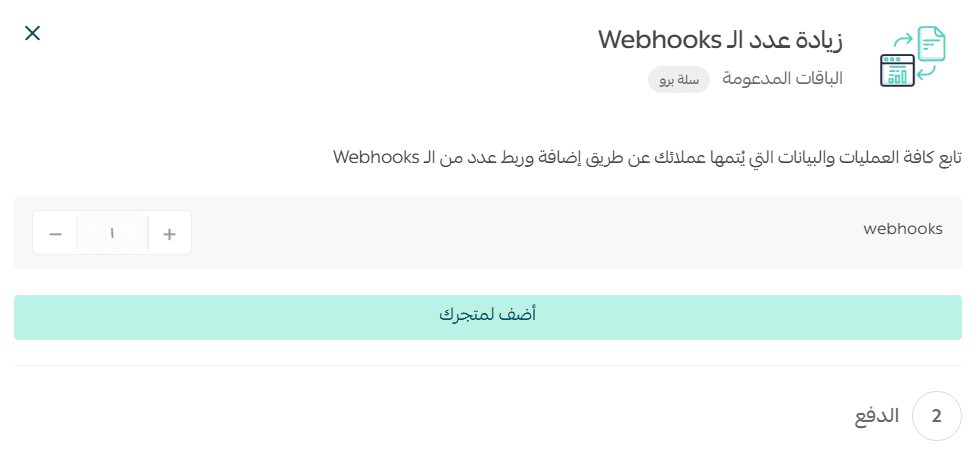
Then select the number of extra webhooks, and complete the payment process.
Can I delete a webhook?
No. Webhooks cannot be deleted, but you can disable any webhook you no longer need.
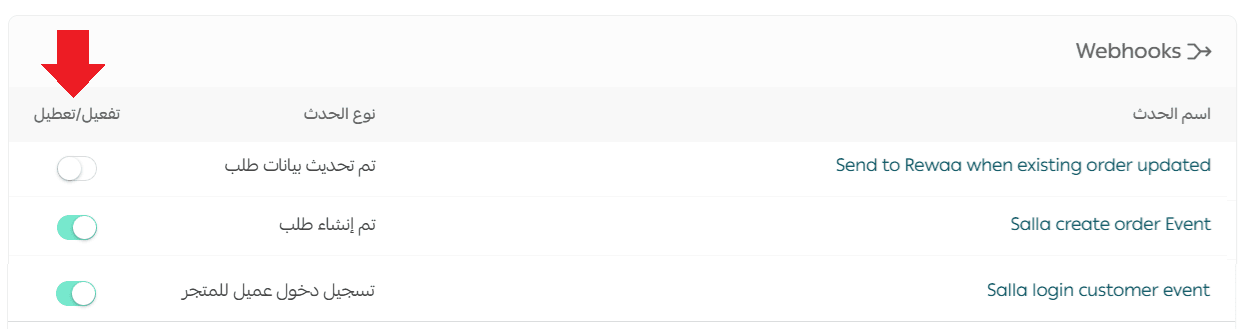
Does a disabled webhook count toward the limit?
Yes. Disabled webhooks are still included in your total count.
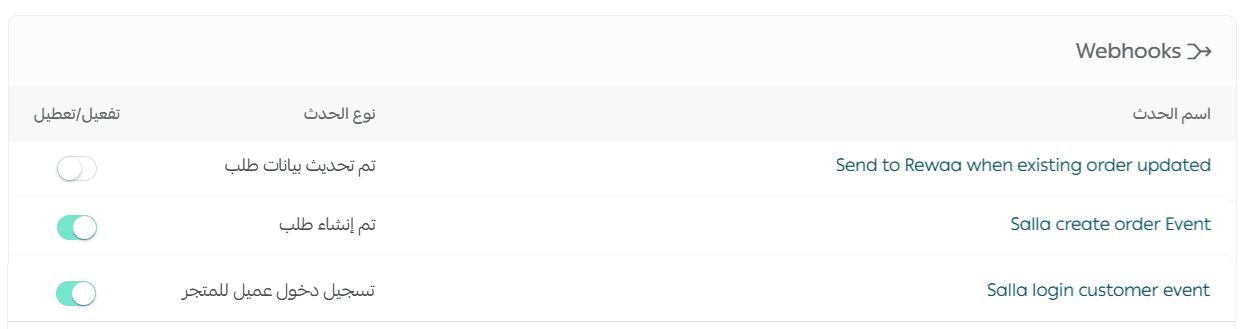
Example, if your store has:
- 9 enabled webhooks
- 1 disabled webhook
You are still using the full 10-webhook free limit, and any additional webhooks will requirea purchase.
How can I build and connect a webhook successfully?
To set up a webhook properly:
- Choose the Event
Decide which store action should trigger the webhook (e.g., customer created, product updated).
2. Create an Endpoint
This is a unique URL hosted on your server that receives webhook data.
3. Secure Your Webhook
Use SSL/TLS encryption and authentication tokens to protect your data.
4. Handle Retries and Failures
Webhook delivery may fail sometimes, so your system should support retry logic and error handling.
Which plans support Webhooks?
Webhook notifications are available in the Pro and Special plans only.