What you sell matters. How you present it decides whether the order gets placed.
Your homepage is the first thing a visitor judges, and the components you put on it — plus how they are ordered and how easy they are to move through — do a lot of the selling for you. Salla lets you build that page section by section from homepage components, then style each one to match your brand. In this guide, you'll learn how to add a new component to your homepage and customize each of the add-on components available to you.
From the main menu, open Store design, click (Customize version) on your theme, then open the (Homepage components) tab and click (Add new component). Pick a component from the list, adjust its title, text, colors, and layout, then save. Each component carries its own set of settings.
📌 Article overview
- How to add a new component to your homepage
- How to customize each add-on component
- Important notes
- Frequently asked questions
🚀 How to add a new component to your homepage
You can shape your homepage around what your store actually needs:
1. From the main menu, click (Store and sales channels), then click (Store design).
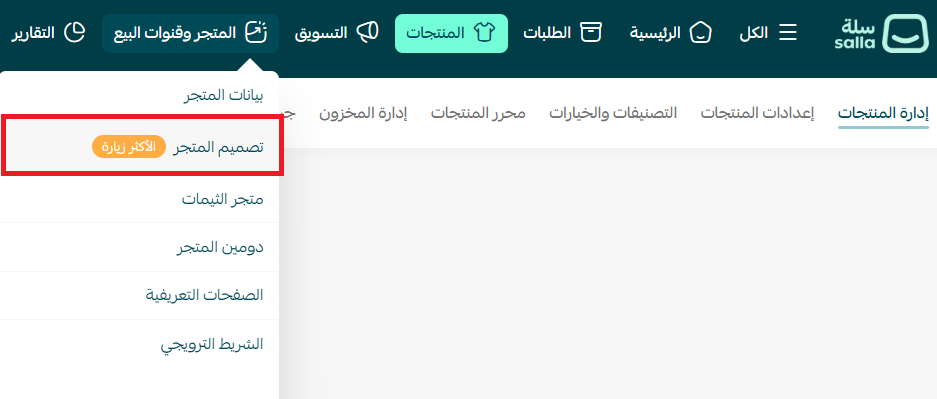
2. The Store design page lists every theme you have activated.
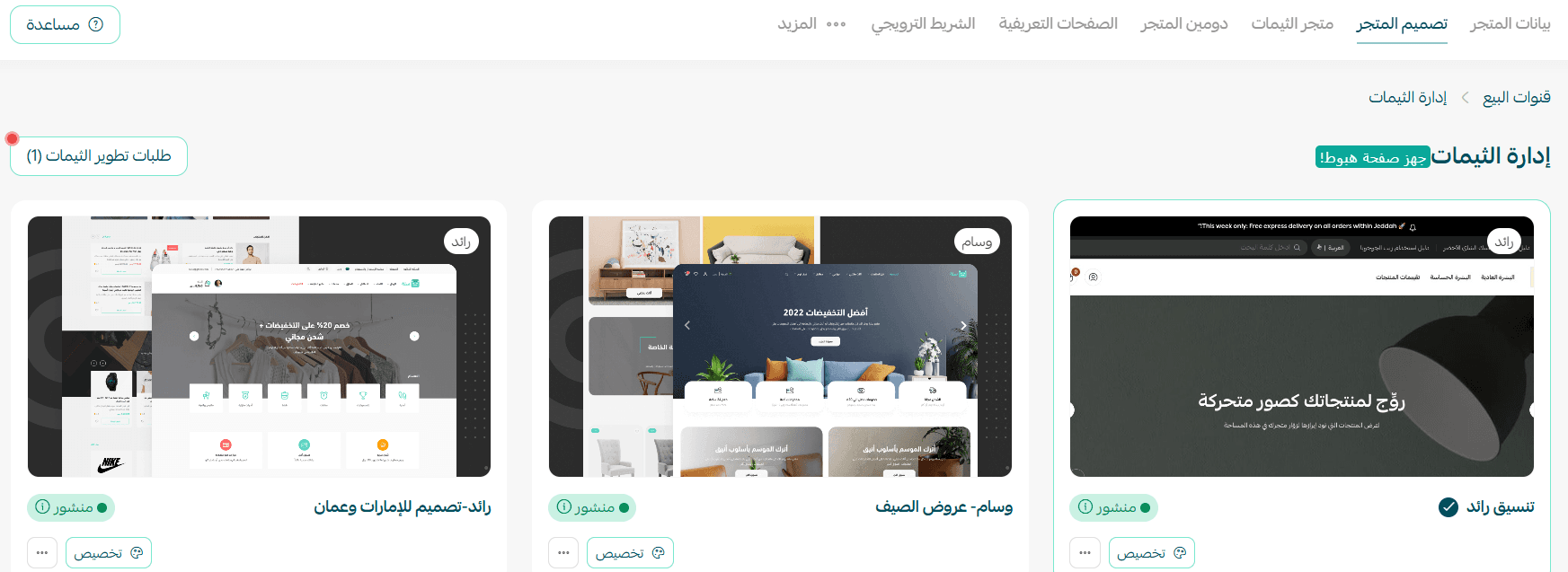
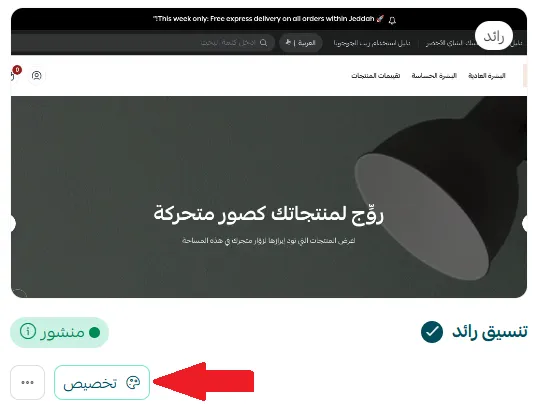
To change the look and layout of a theme version, click (Customize version) on the Store design page.
3. Open the (Homepage components) tab.
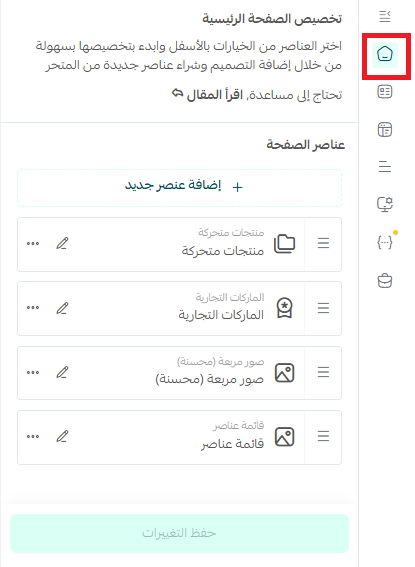
Then click (Add new component).
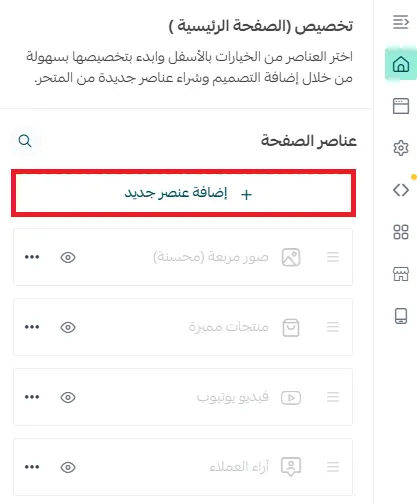
Pick a component from the list, add it to your design, and start customizing it.
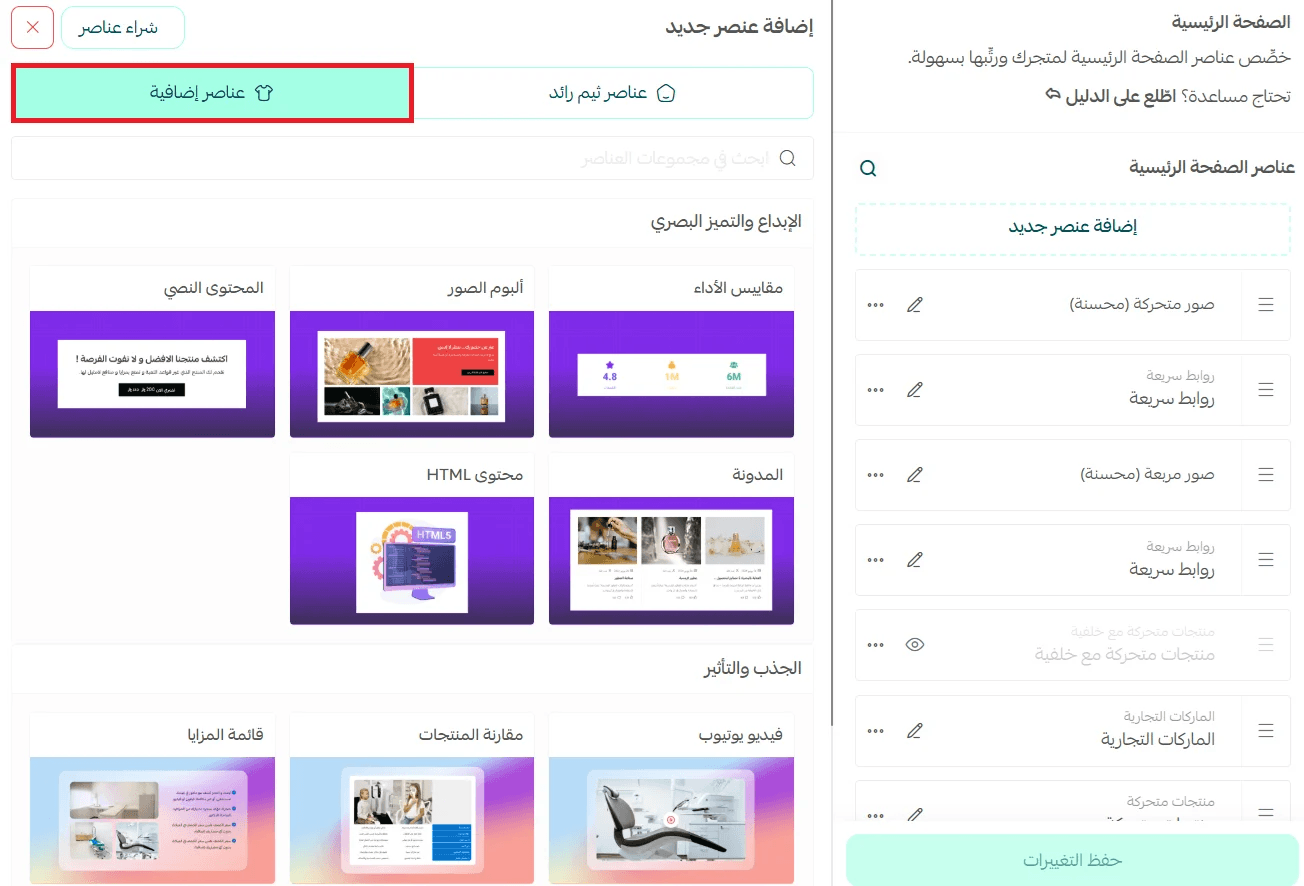
📝 Important note: The options and components shown here are an example from the Raed theme, and they differ from one theme to another.
🚀 How to customize add-on components on your homepage
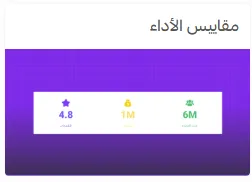
Performance metrics
This section puts standout numbers on display — ratings, customer count, sales — so visitors can see how the store is performing.
You can customize the performance metric by setting the background color and by entering a title, a value, supporting text, and an icon color for each item.
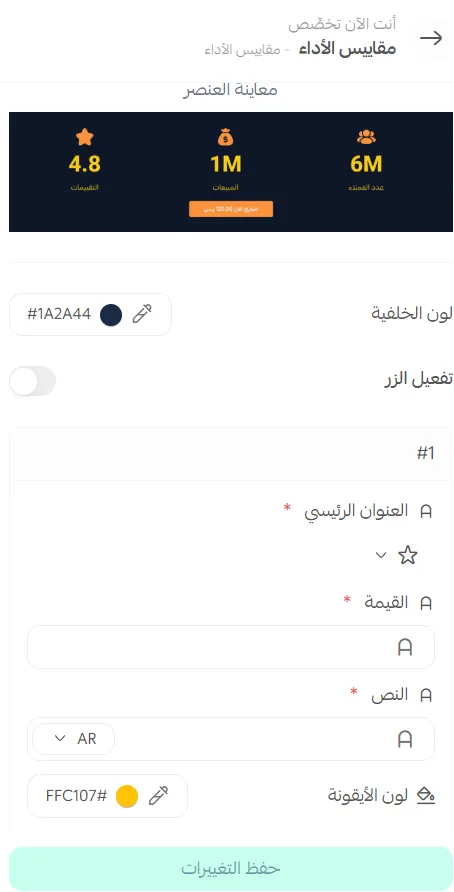
Photo album
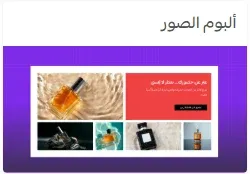
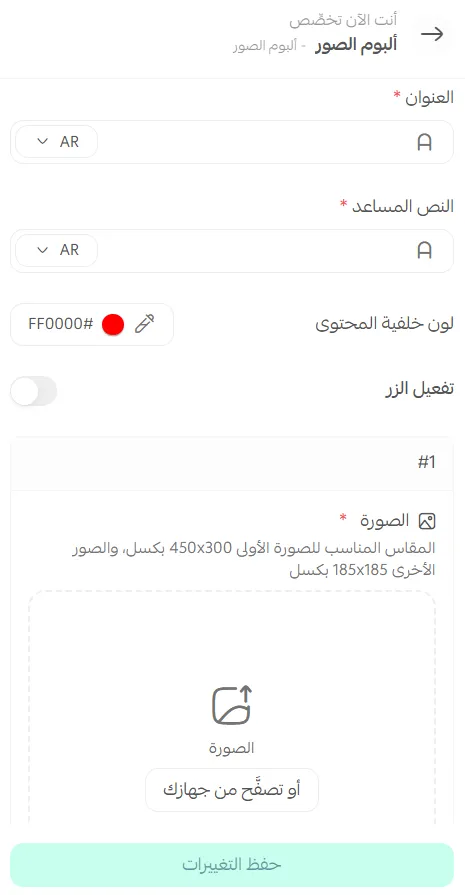
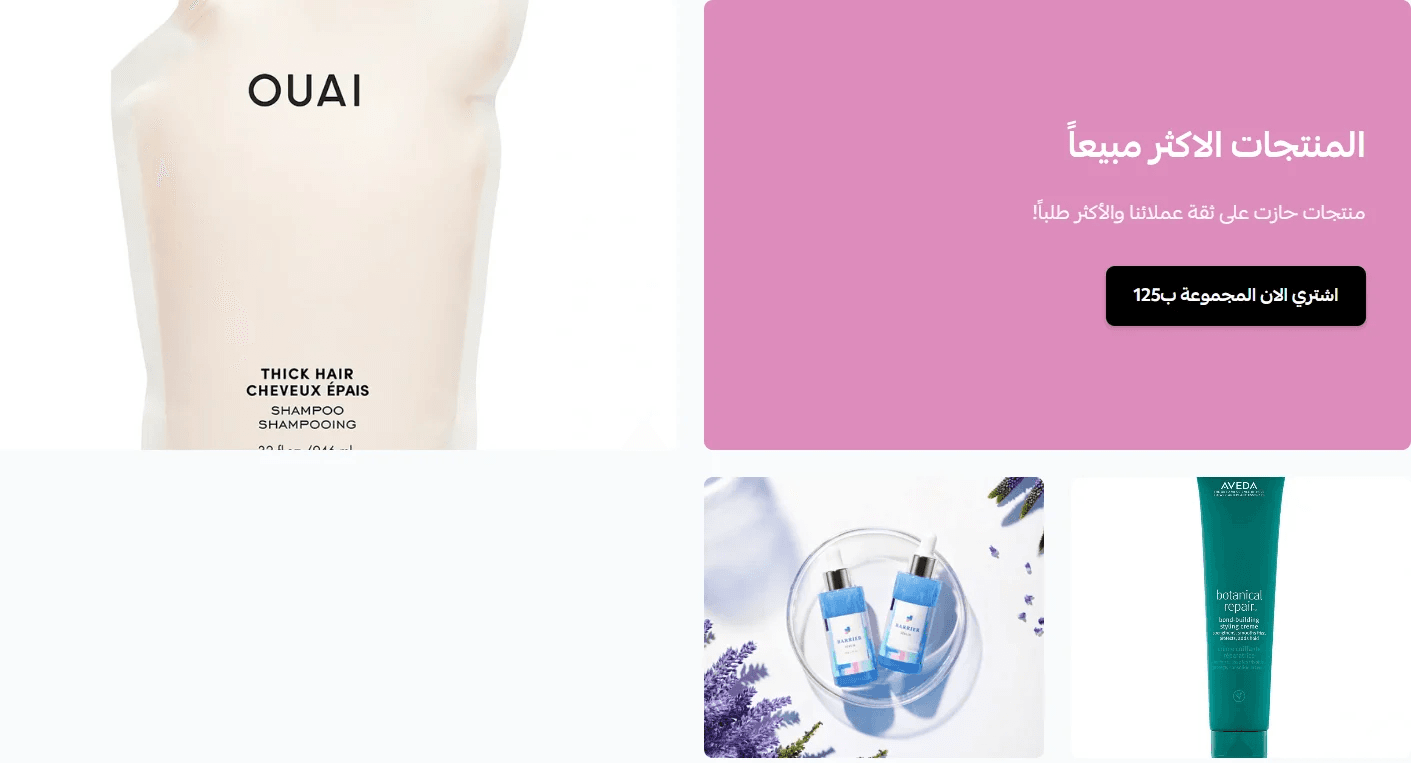
Add a photo album to show a set of images on the homepage, with a title, text, and background color you choose.
The album then appears on your storefront homepage like this:
Text content
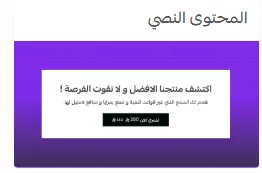
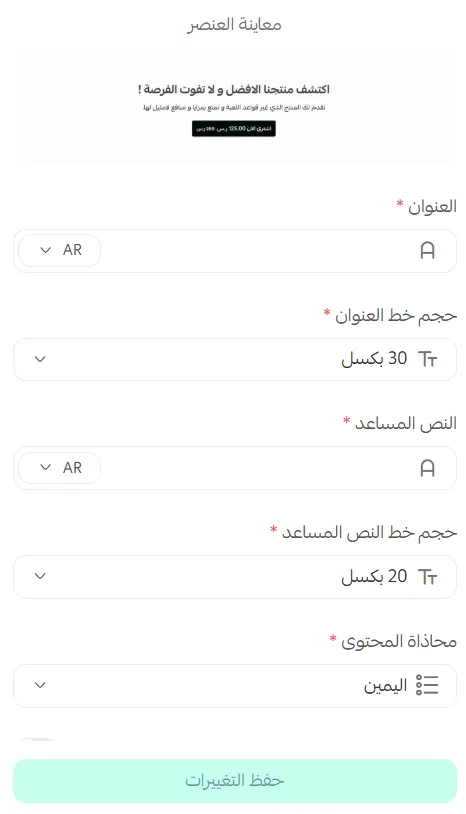
Customize the text content component by entering a title and supporting text, then setting the font size and text alignment to suit the rest of your homepage.
Blog
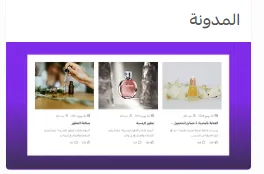
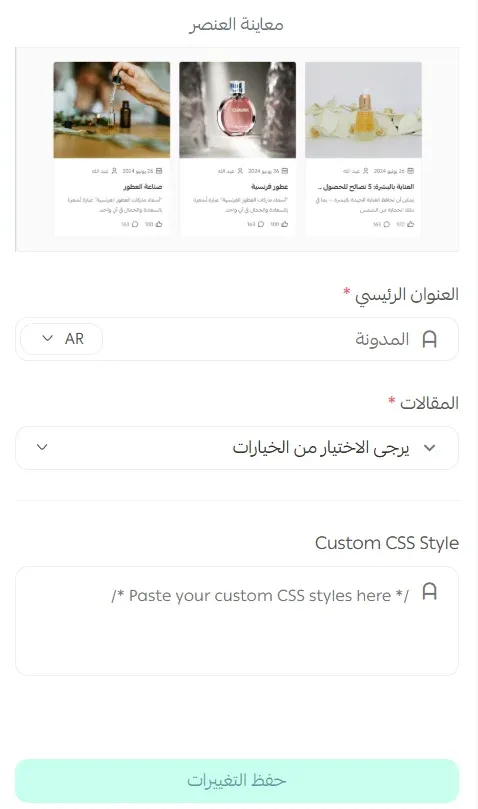
Add the blog section to show your latest articles on the homepage. It is an easy way to share useful content with your customers and keep them engaged with your store.
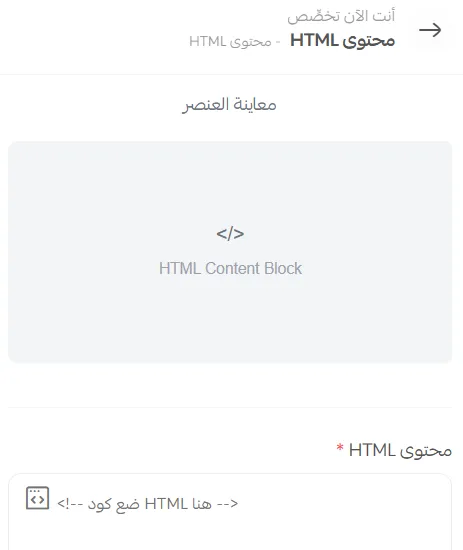
HTML content
Add custom content to your homepage by inserting your own HTML code to display elements or designs that are specific to your store.
This gives you far more freedom to shape the homepage around what your store needs.
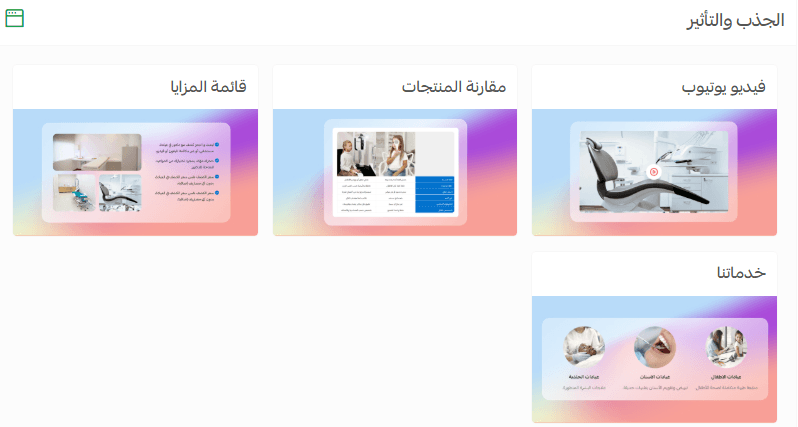
Attraction and impact
These components hold a group of sections built to present content in a way that pulls attention, such as:
1. Feature list display
2. Product comparison
3. Embedded YouTube video
4. Store services introduction
Together they highlight what makes your store worth buying from, and lay the information out clearly.
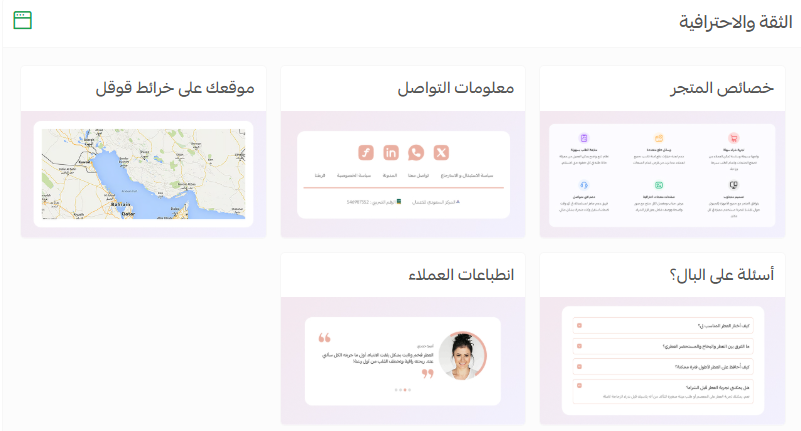
Trust and professionalism
Trust and professionalism components are the sections that make your store more credible to a first-time visitor, such as:
1. Store features
2. Contact information
3. Store location on the map
4. Customer testimonials
5. Frequently asked questions
Showing this information builds customer confidence and improves the experience inside your store.
📝 Important notes
The component list depends on the theme you are customizing, so what you see may differ from the Raed theme example used here.
Changes apply to the theme version you are editing, so customize a version before making it the live one.
The HTML content component accepts your own code, so test it in a non-live theme version before you publish.
❓ Frequently asked questions
Where do I add a new homepage component?
Open Store design, click (Customize version) on your theme, go to the (Homepage components) tab, then click (Add new component).
Why don't I see the same components as this article?
The available components come from your theme. The examples here are from the Raed theme, and each theme offers its own set.
Can I show my blog articles on the homepage?
Yes. Add the blog component and your latest articles appear on the homepage automatically.
Can I add my own code to the homepage?
Yes. The HTML content component lets you insert your own HTML to display custom elements or designs.
Which components help build customer trust?
The trust and professionalism group: store features, contact information, store location on the map, customer testimonials, and frequently asked questions.
Treat your homepage as a sequence, not a pile. Lead with the components that convince, follow with the ones that reassure, and add the decorative pieces only once the essentials are earning their place.