The favorite lists feature in Mahally offers a more personalized experience, allowing customers to save products and stores they like in organized lists, enhancing their interaction with your store and increasing the chances of their return to complete purchases.
📌 Main topics of the article:
- How to create a favorite product list
- How to create a favorite store list
- Managing lists
How to create a favorite product list
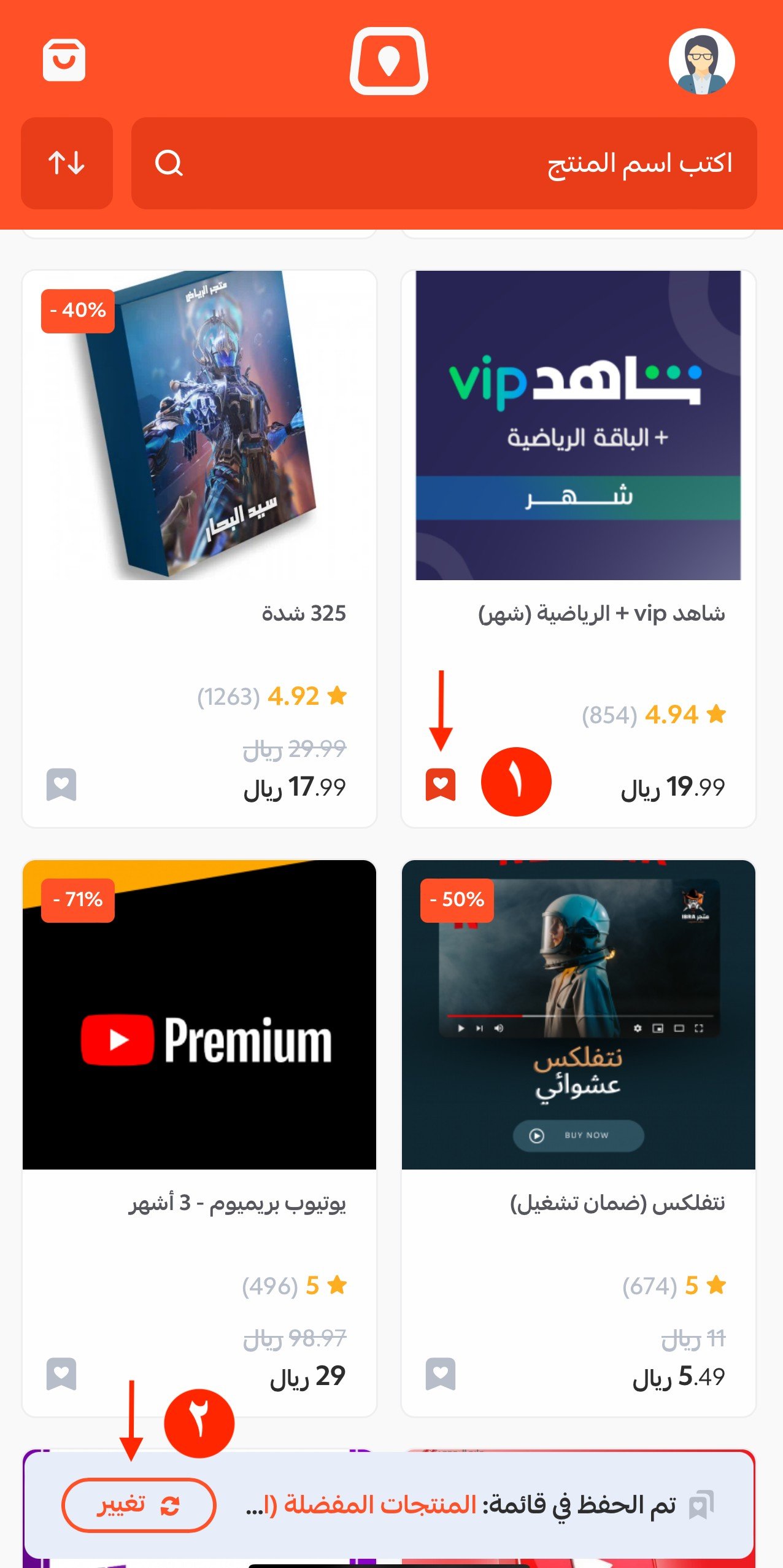
1. After the customer logs into Mahally, once a product is favored, a notification will appear to add the product to the default list. The customer can create a custom list by clicking (Change) to create a new list.
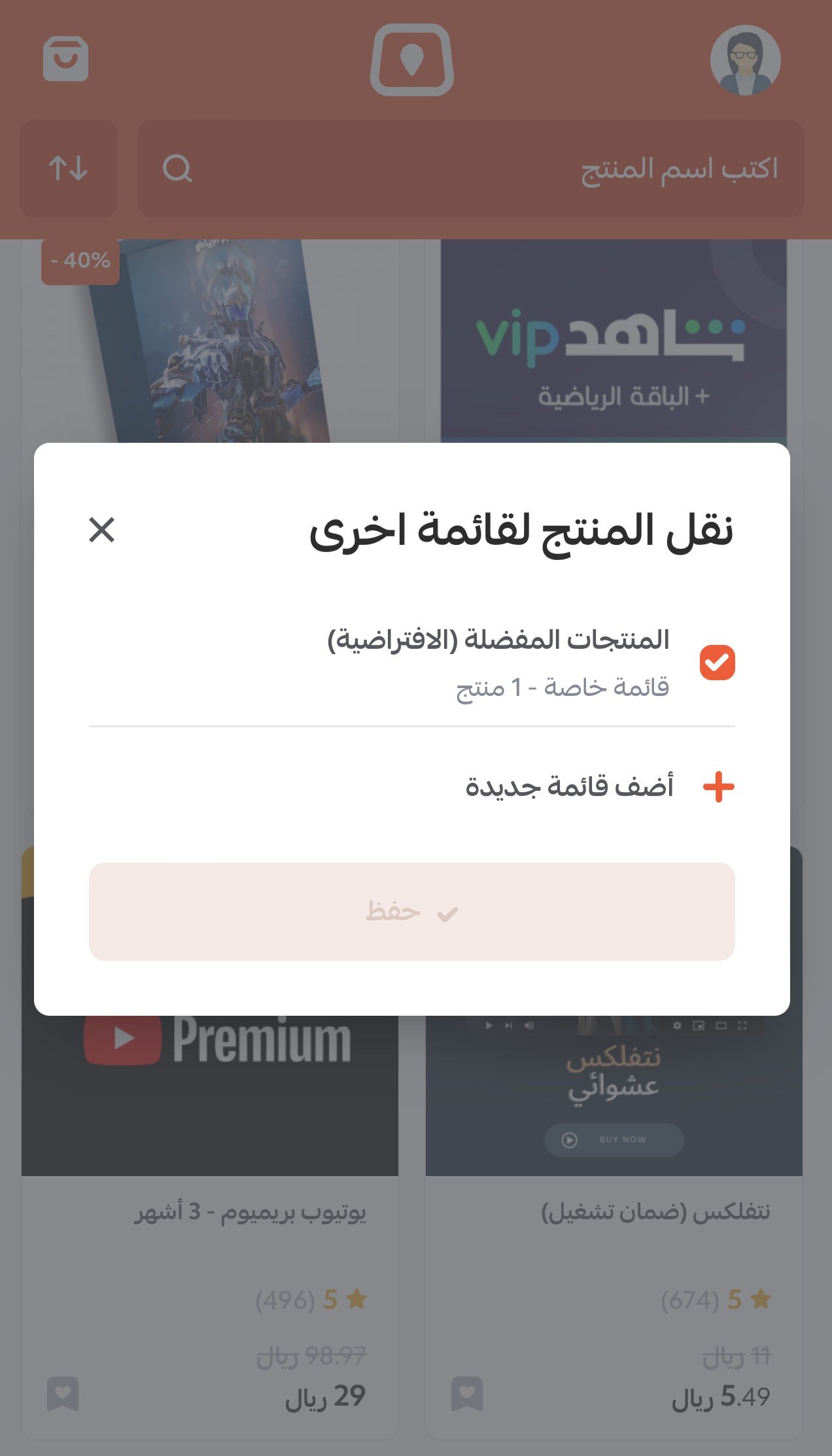
2. The product will be moved to the default list directly. The customer can create a new list by clicking (Add new list).
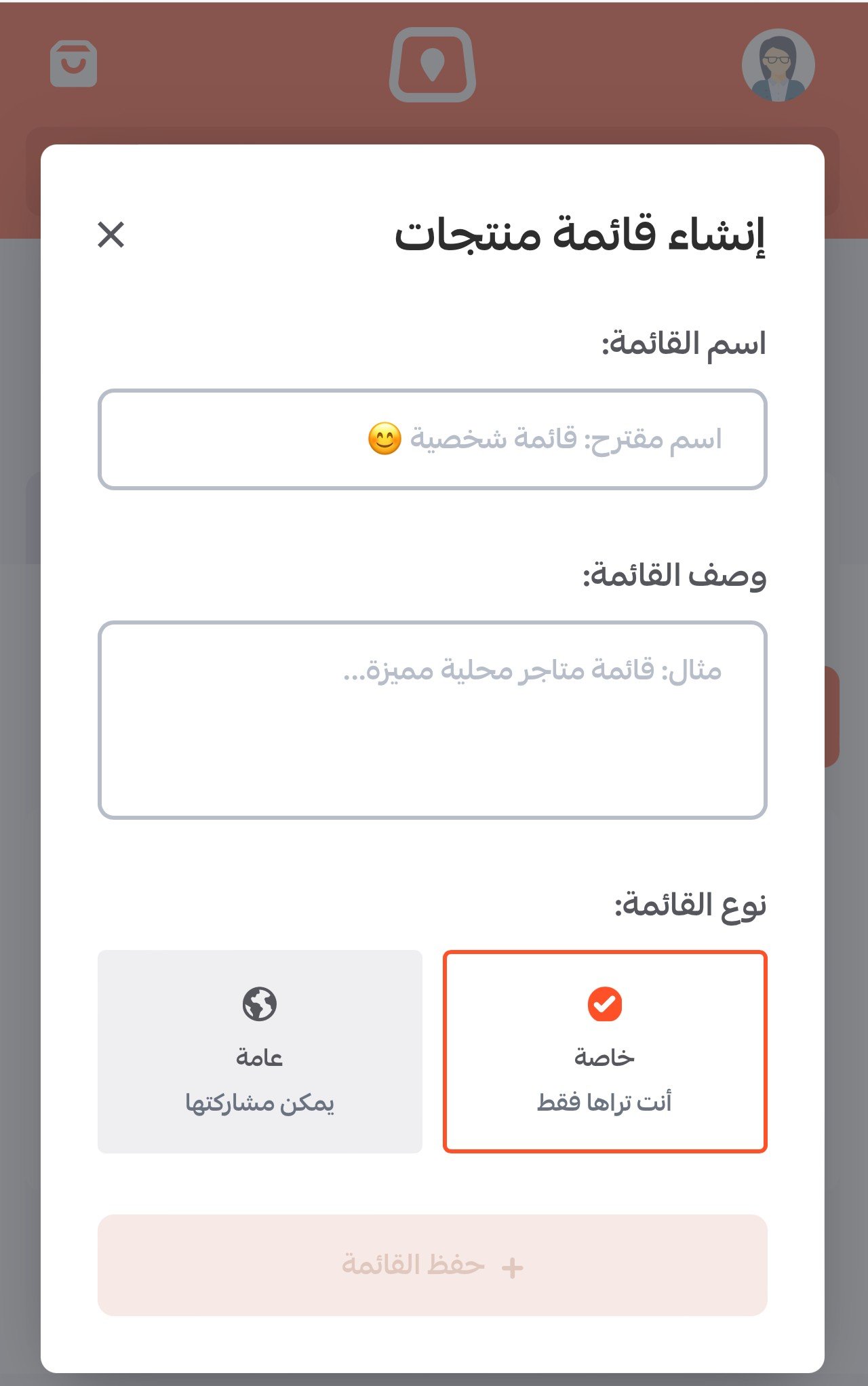
3. The customer can customize the list by adding a name and description, and choosing whether it is private or public. It will be saved after clicking (Save list).
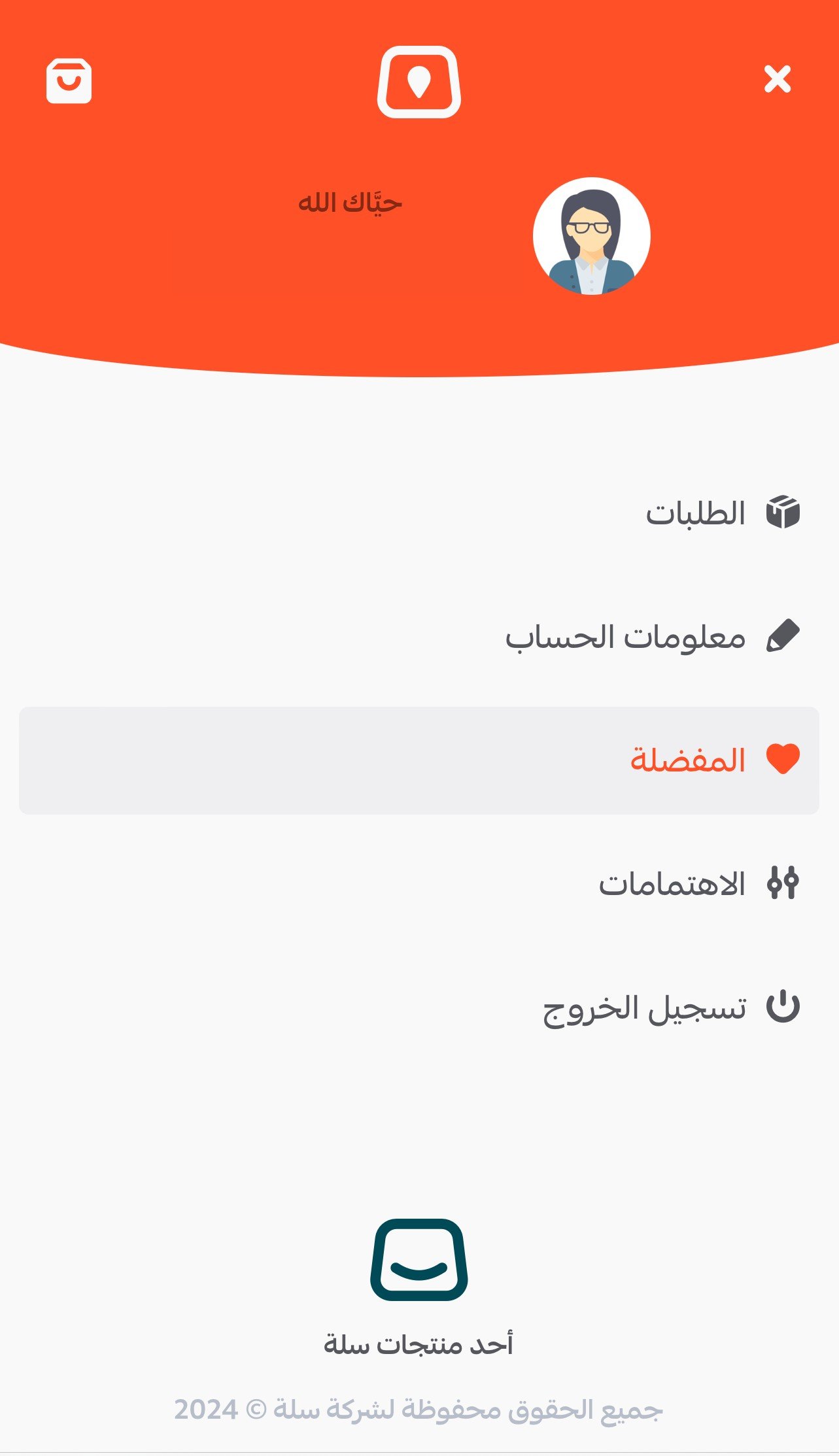
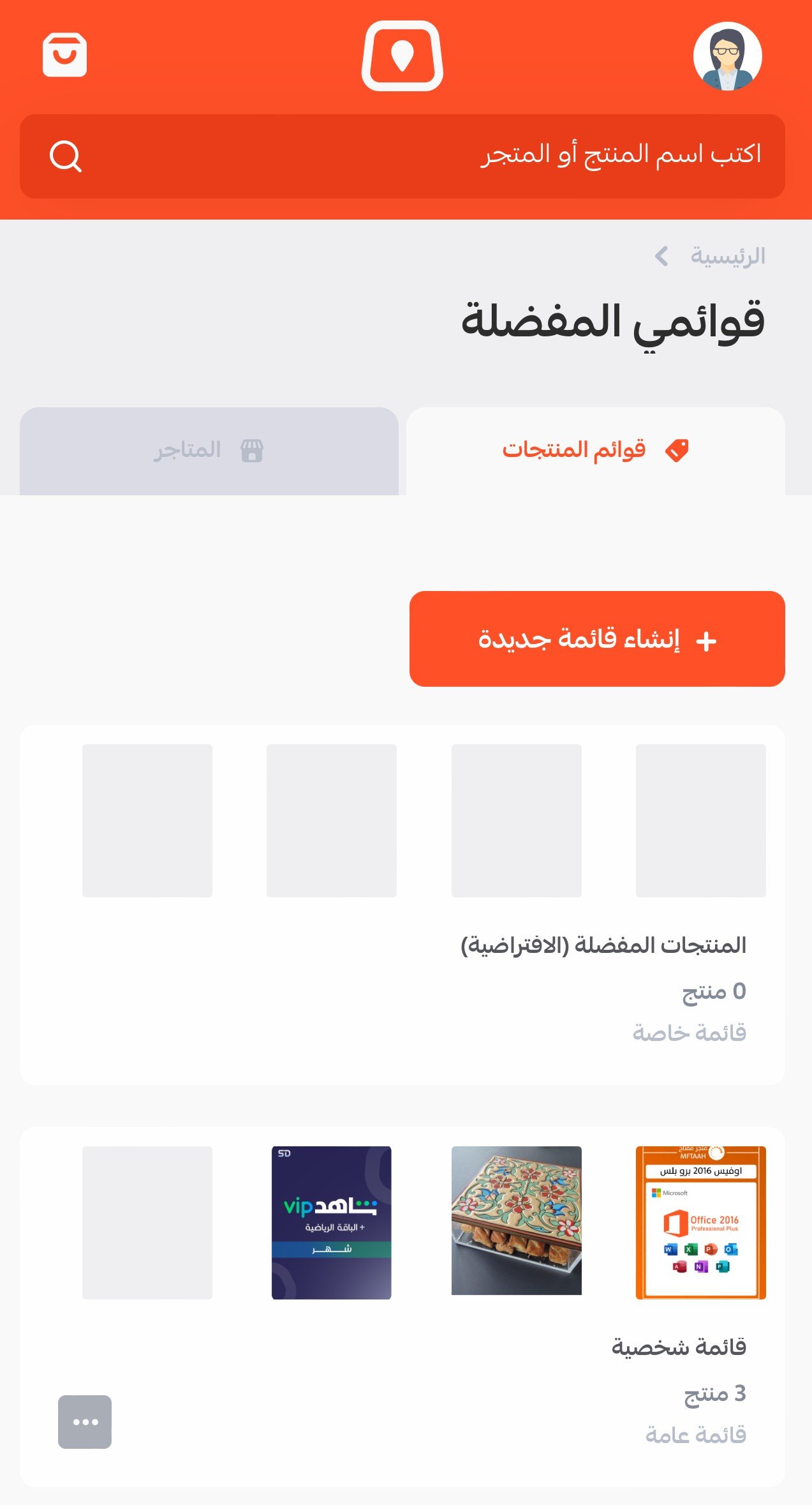
The customer can view all lists by going to the sidebar and selecting (Favorites).
All lists added to products will appear under the product lists tab.
How to create a favorite store list
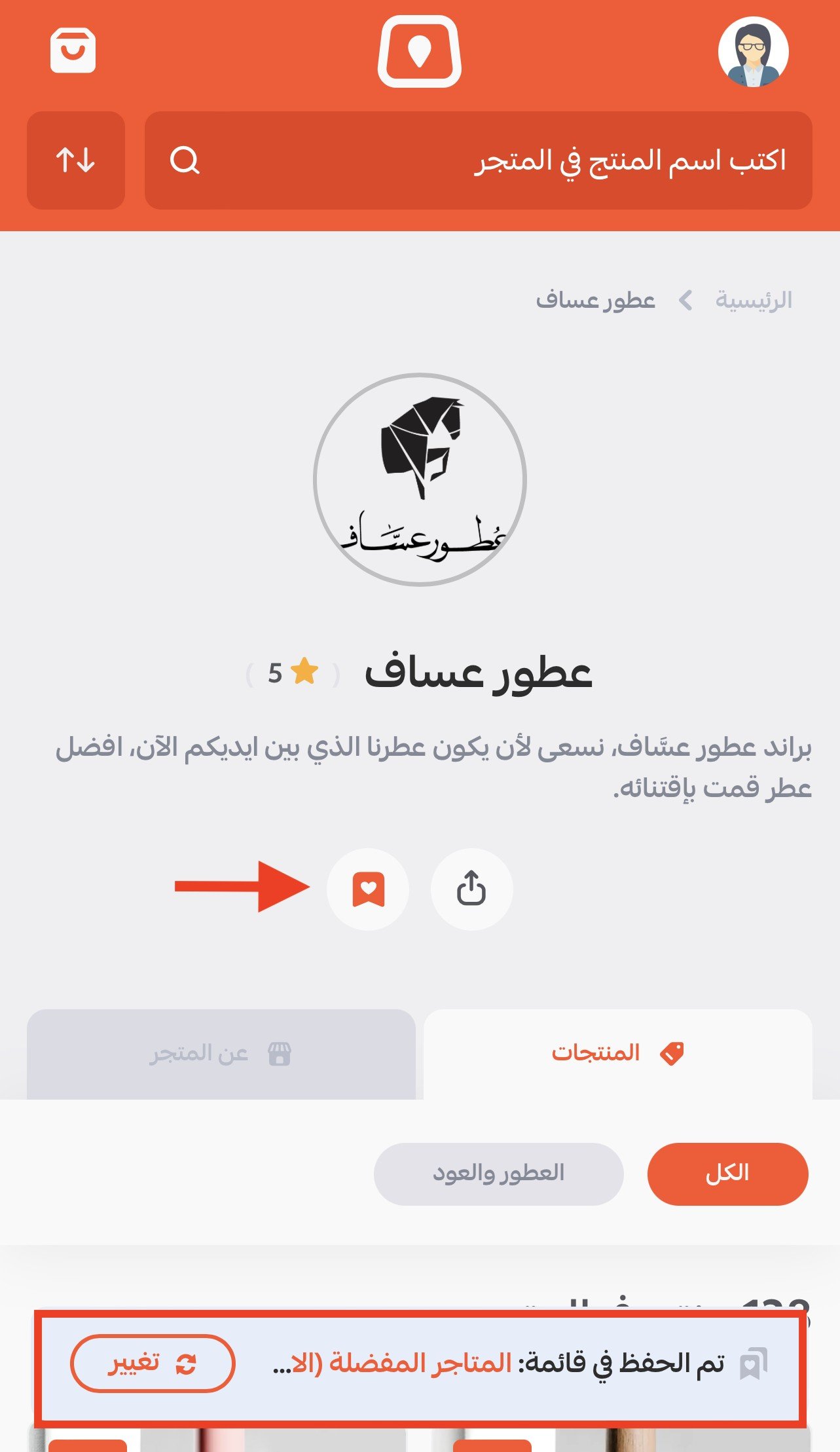
1. After the customer logs into Mahally, upon entering a specific store and favoring it, a notification will appear to add the store to the default favorite store list.
The customer can create a custom list by clicking (Change) to create a new list.
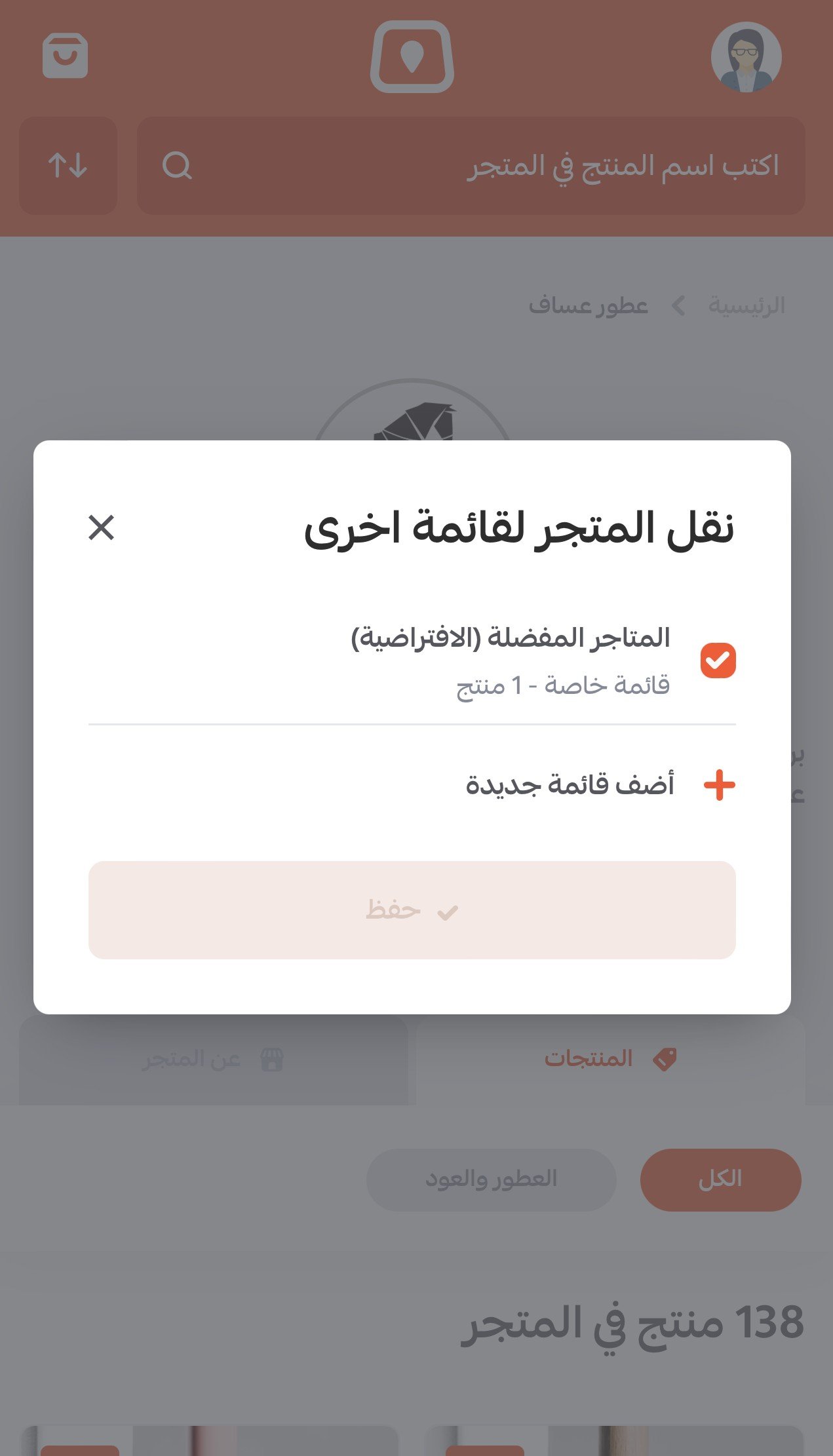
2. The customer can create a new list by clicking (Add new list).
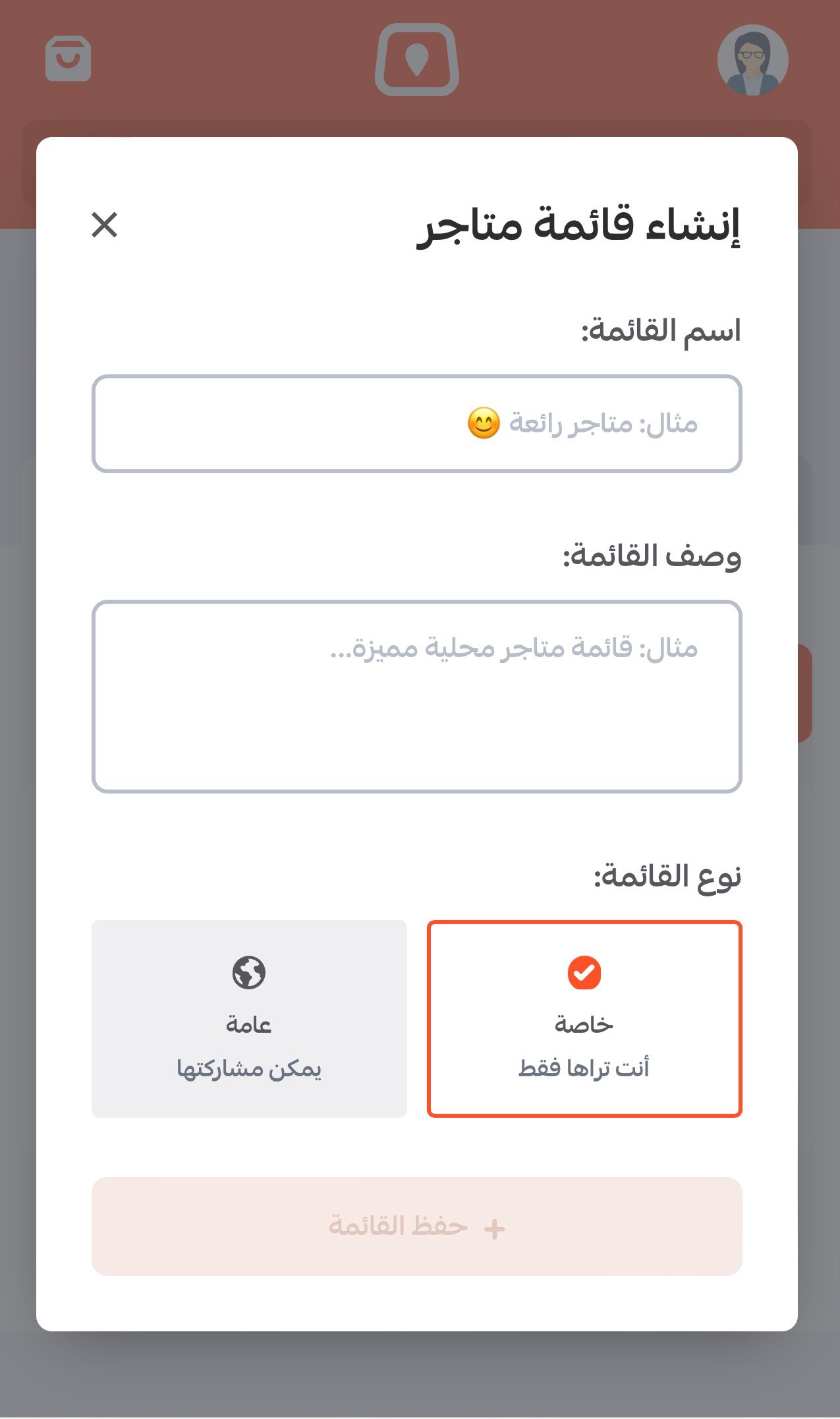
3. Following the same steps and mechanism as creating a new product list, the customer can customize the store list by adding a name and description, and choosing whether it is private or public. It will be saved after clicking (Save list).
The customer can view all store lists by going to the sidebar and selecting (Favorites).
From the stores tab, all favorite store lists will appear.

Managing lists
- Edit \ Delete list
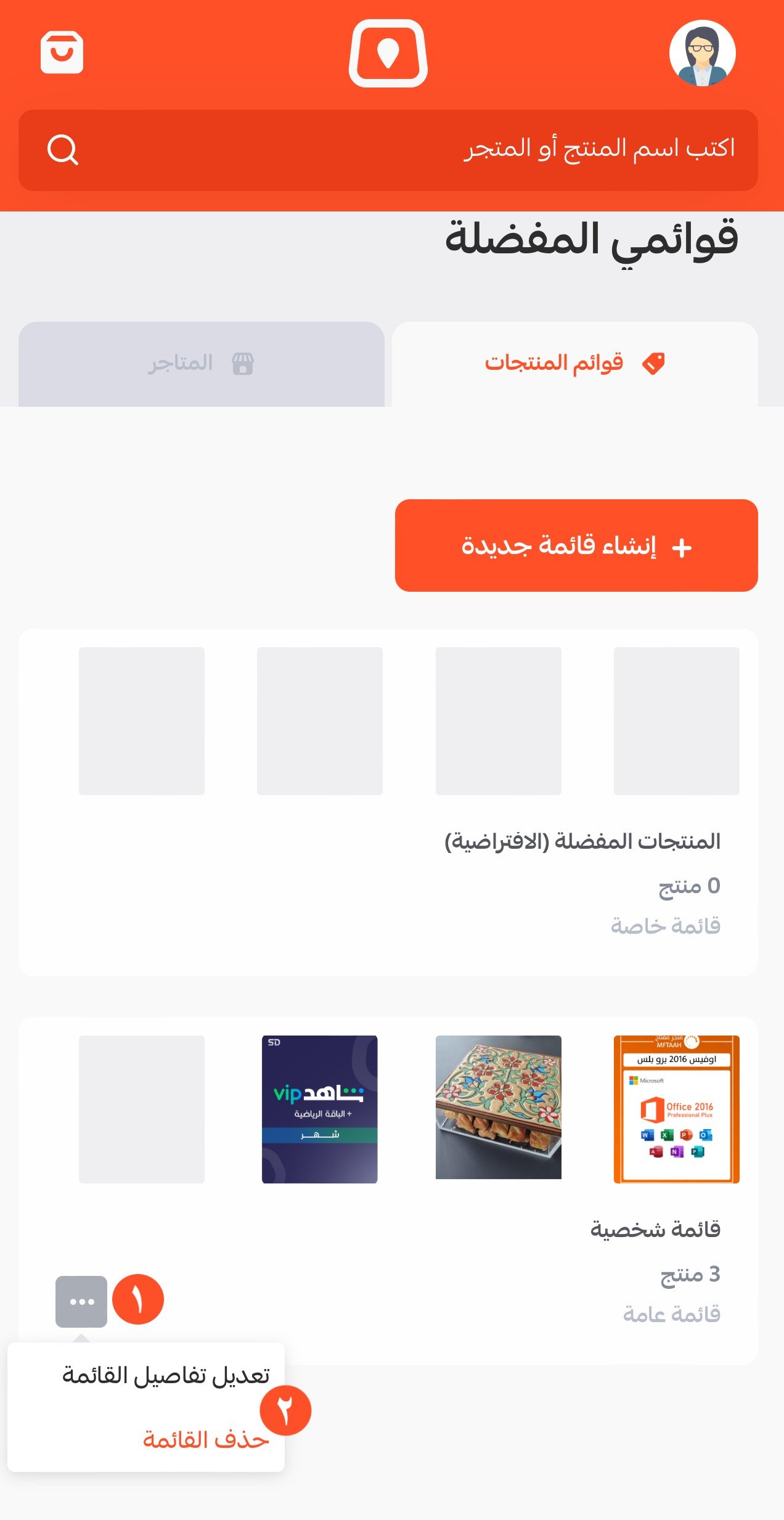
The customer can edit or delete the list by clicking the more button (...) then selecting edit or delete list.
- Share list
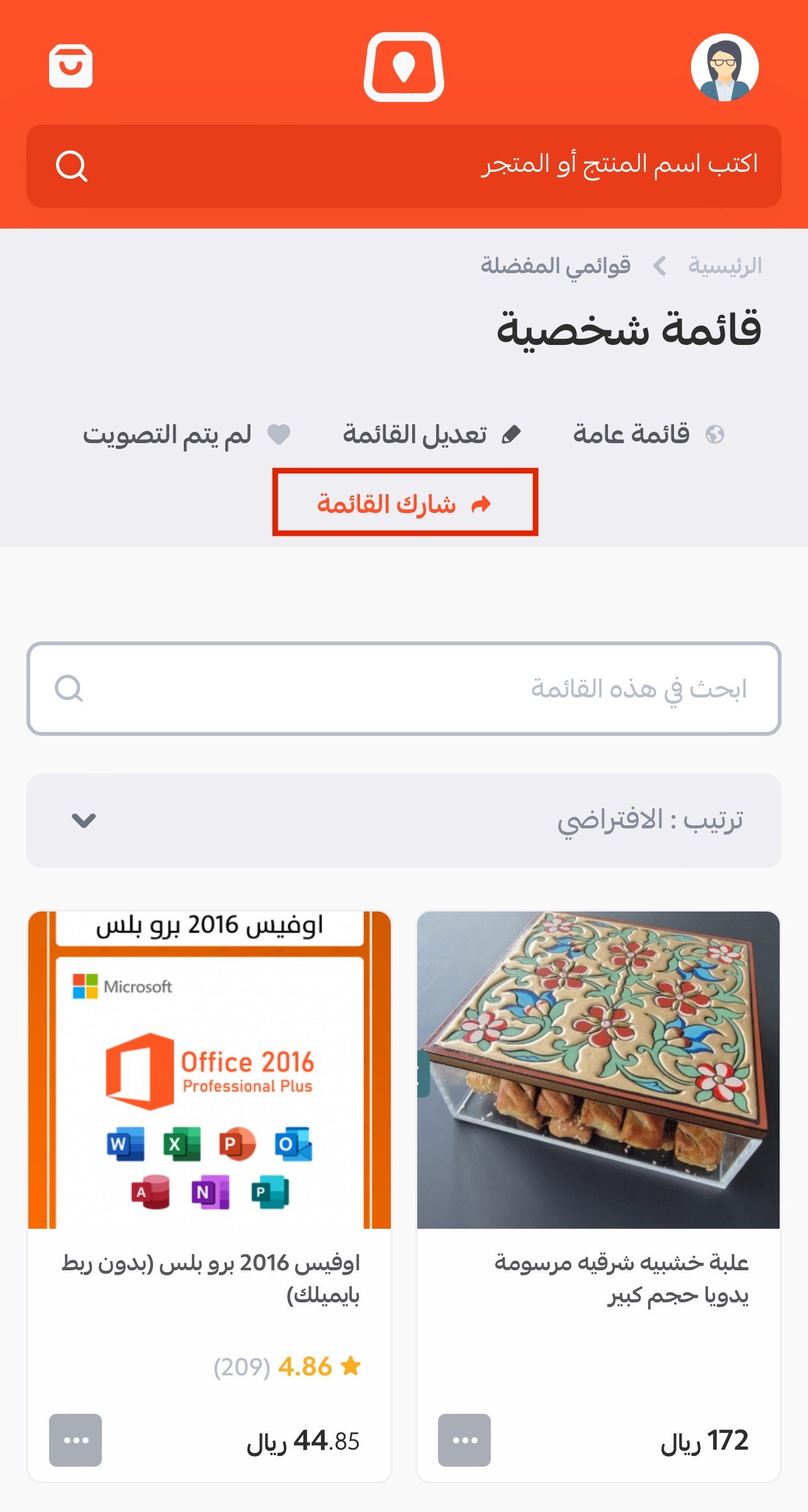
If the list type is (Public list), the customer can share the link by entering the list and clicking (Share list).
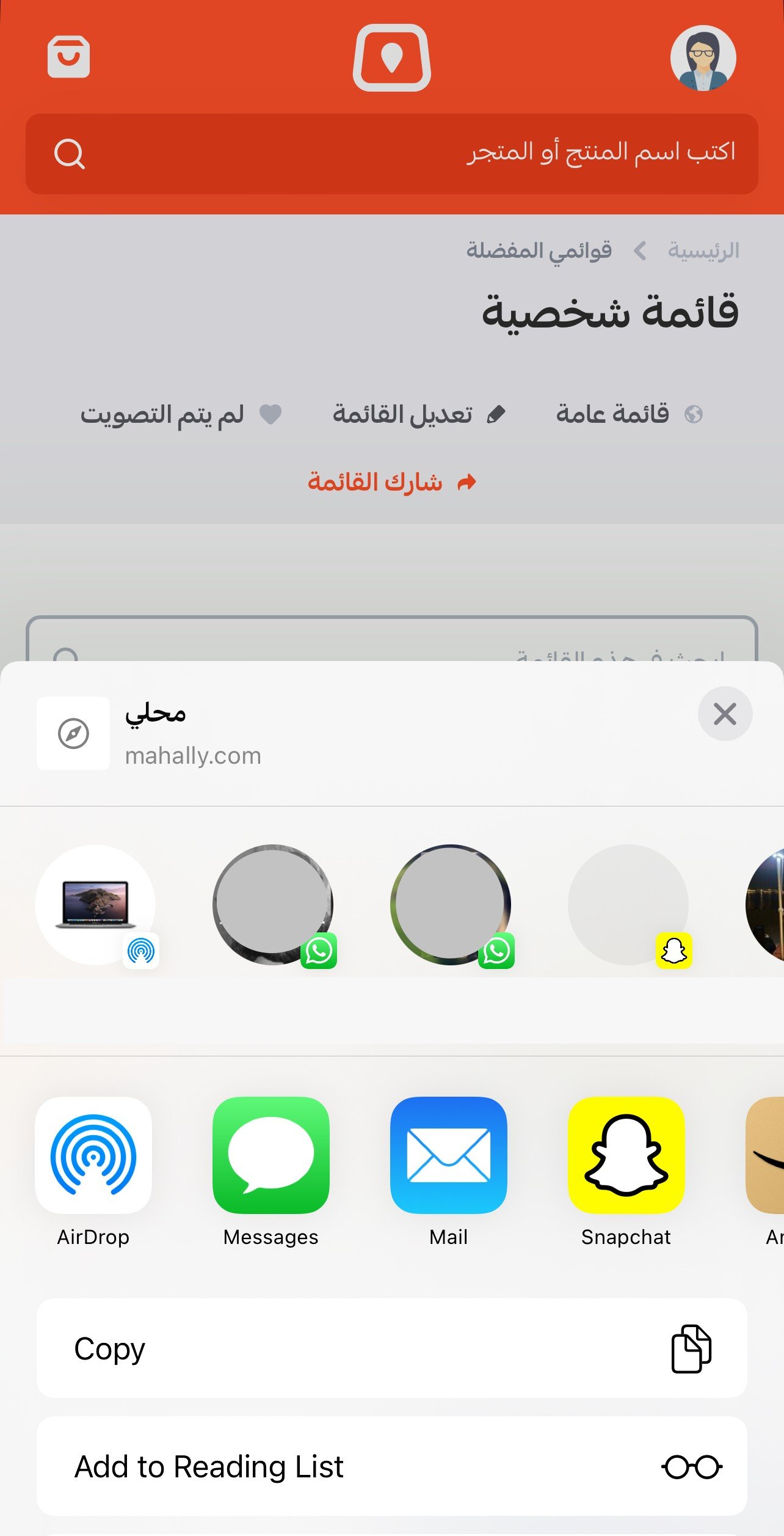
The customer will be able to share the link directly or copy the link.
The more personalized and organized the customer experience, the higher the chances of their return and interaction with your store, completing purchases🚀.