Selling into a new country means meeting its tax rules — where do you set that up?
You can now expand and sell your products to any country in the world without the usual complexity. The taxes page gathers everything you need to manage each country's tax requirements in one place, so you can start selling globally with confidence and keep every market's requirements met in a clear, simple way. In this guide, you'll learn how to create tax records for the markets you sell in, what each tax type means, how to manage a record after you create it, and which settings to check first.
To add a tax record in Salla, open All, then Tax management, and click + New record. Enter the country, tax number, legal name, address and tax certificate, choose how the tax number is displayed, add the tax type and its official rate, then select which markets the record applies to.
📌 Article overview
- How to create a new tax record
- What the taxes page shows and how to manage a record
- Important tips for merchants
- Frequently asked questions
🚀 How to create a new tax record
1. From the main menu bar, click (All), then click (Tax management).

2. From the taxes page, click (+ New record).
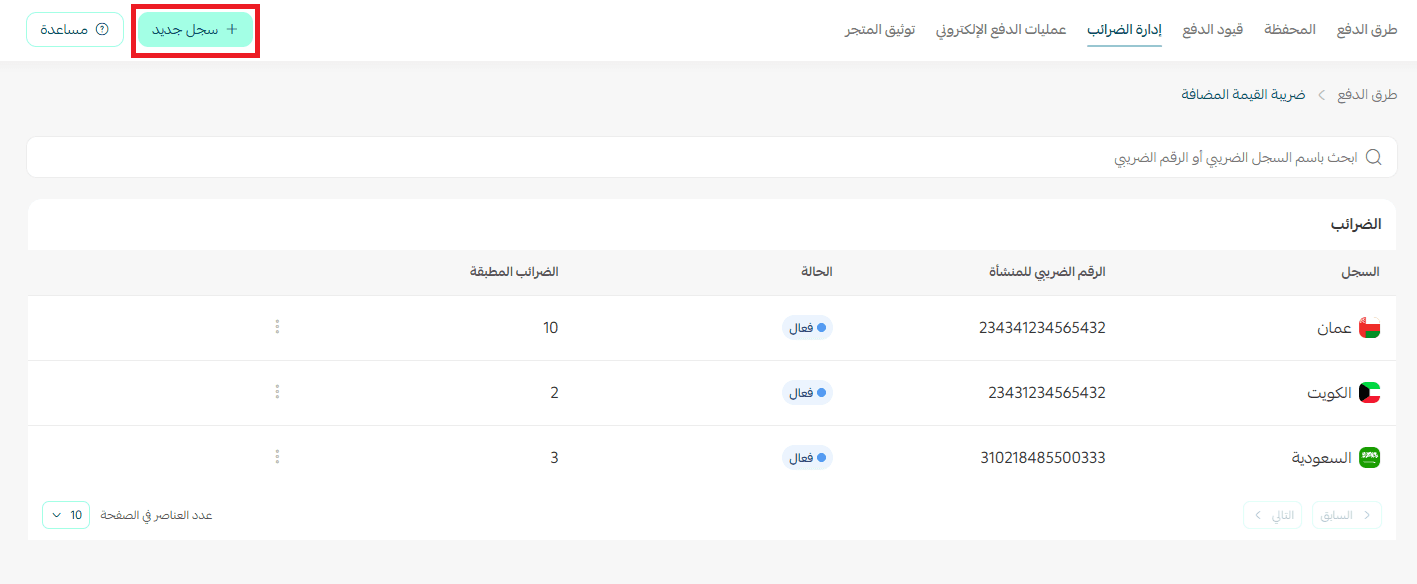
3. Add the basic information: the country, the business tax number, the legal name of the business, the business address, and an image of the tax certificate.
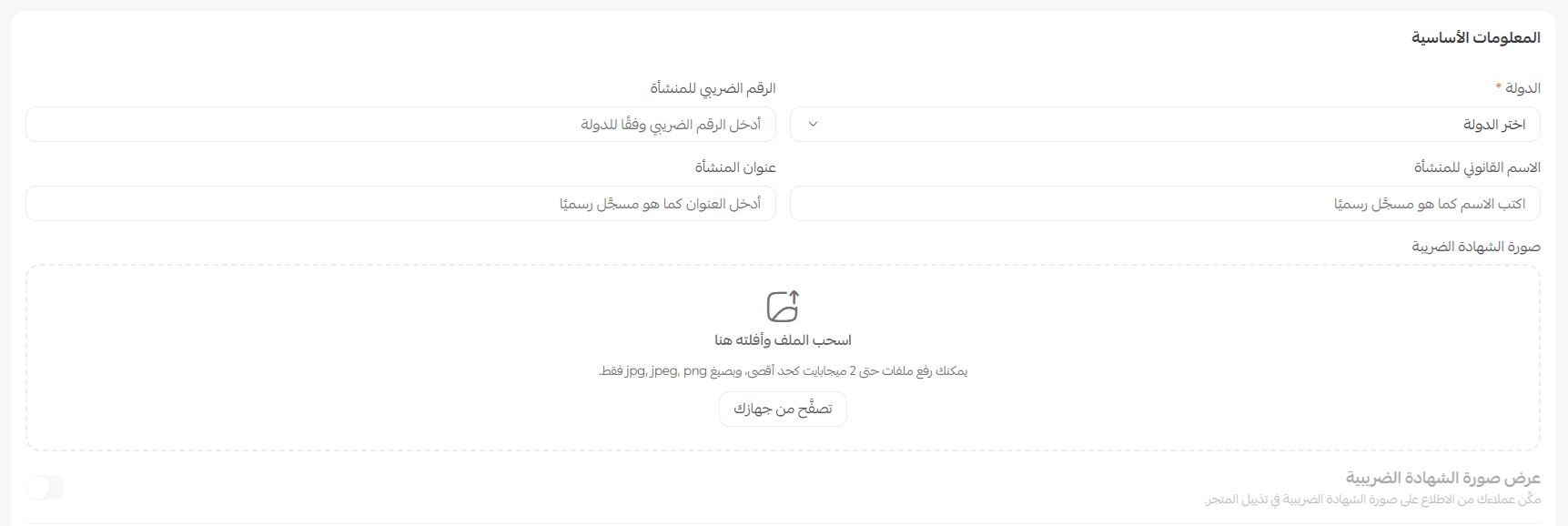
4. Choose how your tax number is shown to customers by enabling it in the store, on invoices, or both.

5. Click (+ Add new tax), choose the tax type that applies in the country you sell in, then enter the official rate that country has set.

6. Turn on the price and tax display settings you want, whether that is showing prices inclusive of tax or calculating tax within the shipping fees.

7. Tick the markets this tax record applies to.
🔔 Notes
A market is the country or region you are targeting, and this tax record is used automatically when you sell there.
You can create more than one tax record if you sell in several countries, or if you hold more than one tax number, so the correct tax is applied for each market.

For more detail, see multi-markets.
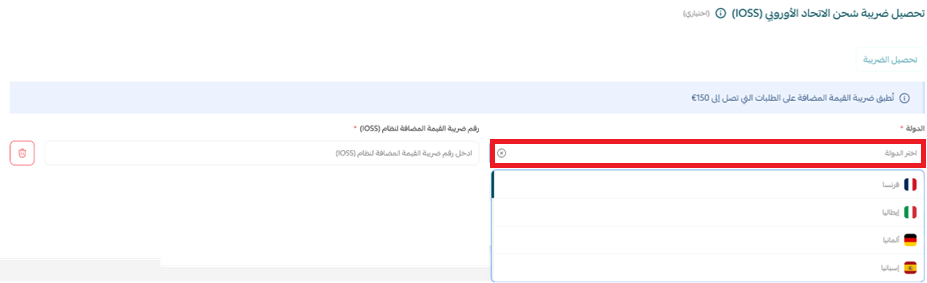
🎯 What the taxes page shows
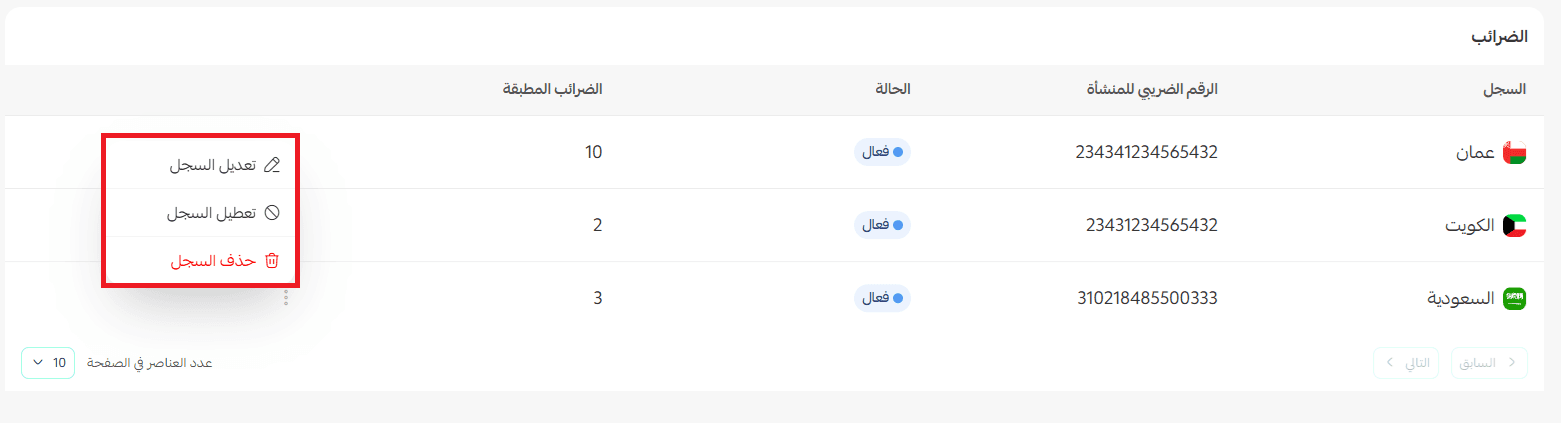
Once the tax record is created, it appears on the taxes page.
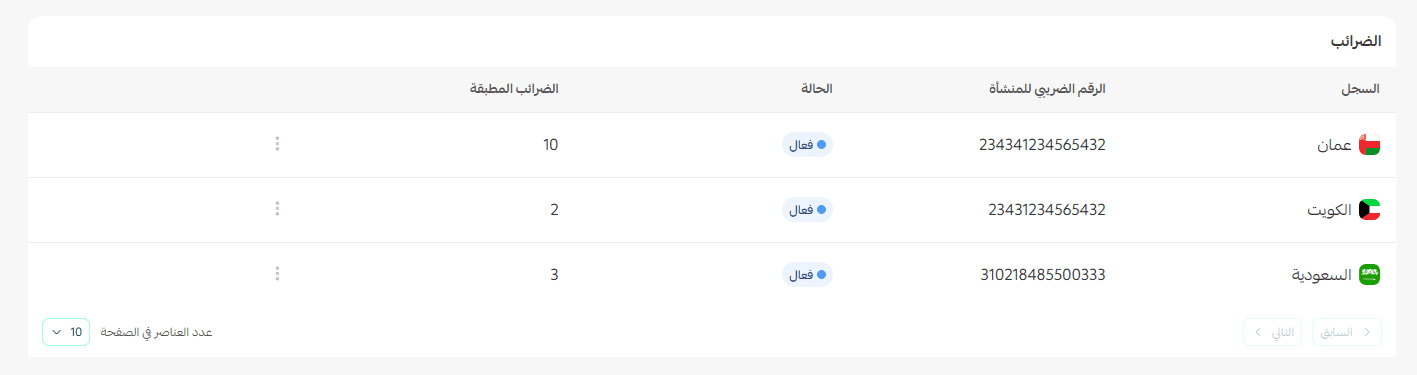
To manage a record, click the three dots and choose one of these actions:
- Edit record: to update its data or its settings.
- Disable record: to stop it applying temporarily, without deleting it.
- Enable record: to put it back into use.
💡 Important tips for merchants
1. Only enable tax records for the markets you actually sell in
It keeps your settings from getting complicated and helps taxes apply correctly.
2. Always enter your tax number exactly as it appears on the official certificate
Any difference can cause the connection with the official authority to be rejected.
3. Update tax rates whenever they change in the country you sell to
Keeping them current keeps you compliant with the regulations and prevents financial errors.
4. Use IOSS when selling to European Union countries
It makes customs clearance easier and improves the customer's experience with international shipping.
5. Review the price display settings before you enable the record
Choose what suits your store: prices inclusive of tax, or tax shown at checkout.
❓ Frequently asked questions
What tax types can I configure?
Tax type |
Short definition |
Value added tax (VAT) |
A tax charged on the value of goods and services at every stage of production or sale, and borne by the final consumer. |
Zero-rated VAT |
Products or services that fall under the value added tax system at a rate of 0%, with the related input tax still recoverable. |
Excise tax |
A tax charged on specific goods, such as tobacco, sweetened drinks or energy products, intended to reduce consumption or raise revenue. |
Sales tax |
A tax charged once, at the final sale to the consumer, and not applied at earlier stages of the supply chain. |
Goods and services tax (GST) |
A consumption tax charged on most goods and services, working much like value added tax in many countries. |
Harmonized sales tax (HST) |
A single combined tax that merges the goods and services tax with the provincial tax in some Canadian provinces. |
Provincial sales tax (PST) |
A sales tax charged by some Canadian provinces separately from the goods and services tax. |
Quebec sales tax (QST) |
A sales tax specific to the Canadian province of Quebec, applied in addition to the goods and services tax under the province's own system. |
Local or municipal tax (Local Tax) |
A tax charged by a city, municipality or local authority on certain goods, services or transactions within its jurisdiction. |
Profit margin tax |
A tax calculated on the profit margin made from selling certain goods rather than on the full sale value, used in specific tax systems for certain activities. |
Can I create more than one tax record?
Yes. You can create several tax records and link each one to the markets it belongs to.
What happens if a market is linked to more than one record?
The record assigned to that market is the one applied, so make sure your market settings do not conflict with each other. [Verify: the Arabic does not state which record takes precedence when two active records both include the same market — confirm the precedence rule with the content owner.]
Can I change the tax rate later?
Yes. You can edit the tax record's details and its tax rate at any time.
Can I disable a record without deleting it?
Yes, and you can enable it again later.
Do I have to upload a tax certificate?
If it is required in the country you operate in, or in order to use certain services, upload it while you are creating the record.
Do the tax settings affect invoices?
Yes. Depending on the settings you choose, the tax number and the taxes can appear on invoices and in the storefront.
📝 Important notes
Tax rates and registration requirements are set by each country's authorities, not by Salla. Enter the official rate that applies in the market you are selling into, and update it whenever that country changes it.
Getting a market's tax record right once means every order from that market is priced, invoiced and reported correctly from then on. It is the least glamorous part of expanding, and the part that most often decides whether expanding stays profitable.