The Multi-Market feature allows you to customize your store experience based on the target market. You can configure redirection, customize pricing, and define how the market is selected.
In this article, we’ll walk you through how to customize these settings easily and effectively.
Customizing multi-market settings
- From the main menu, click (More), then select (Multi-Markets).

2. Click on the (Settings) tab.
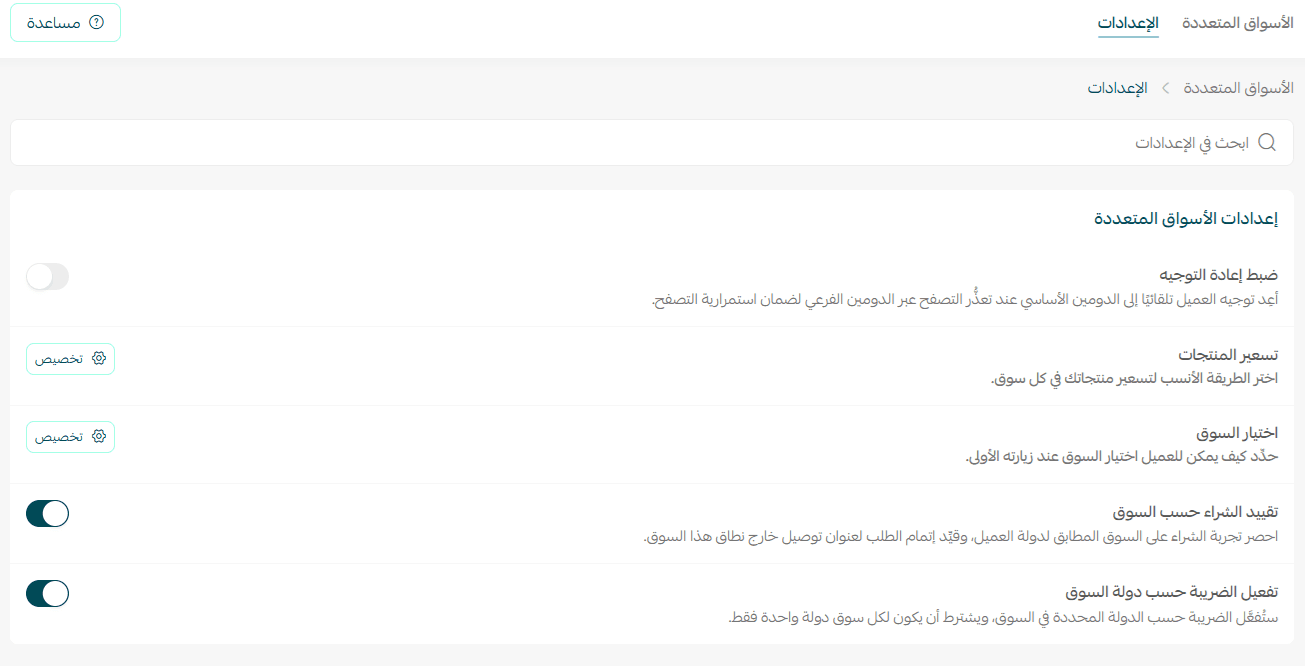
You can customize several settings, including:
Configure redirection
A store with a dedicated domain for the UAE market (e.g., ae.example.com). When a customer from the UAE visits the store, they are automatically redirected to the dedicated domain to ensure that prices, language, and content specific to the UAE market are displayed, without any additional steps from the customer.
Example:
If a domain is assigned to the market:

And the feature is enabled:
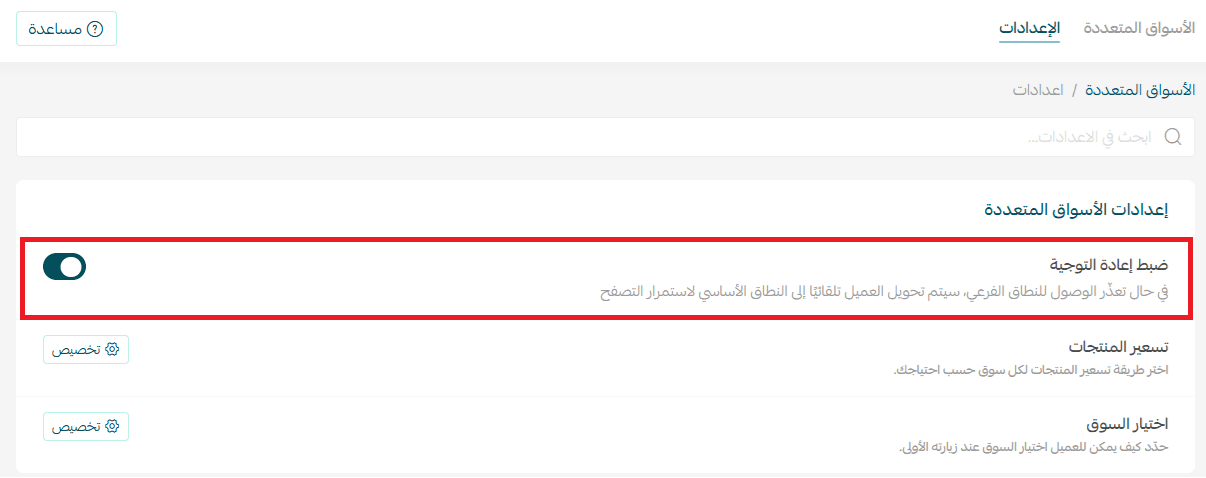
The customer will be redirected to the dedicated domain.
If there is no custom domain assigned to the market, or if the feature is disabled, the customer will be redirected to the store’s main domain.
Customize product pricing
Customizing product pricing refers to how product prices are calculated and displayed for each market.
Will the merchant manually enter different prices for each market, or rely on automatic pricing based on the base price and currency exchange rate?
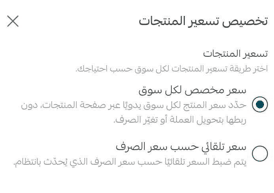
If the merchant chooses to set custom pricing, they must manually enter prices for each market.
Use cases:
- A merchant sells electronics with different prices in Saudi Arabia and the UAE due to differences in shipping costs and taxes. They enter custom prices for each market to ensure accuracy.
- A merchant sells products with a fixed USD price. They enable “pricing based on exchange rate,” so prices are automatically calculated based on each market’s currency without manual input.
Example:
At the bottom of the product details page, enter product prices for each enabled market.

Customize market selection method
Define how customers choose their market during their first visit.

Top bar:

Pop-up window:

Use cases:
- Top bar
A store targeting customers across multiple Gulf countries uses the top bar to allow easy switching between markets during browsing, without interrupting the user experience. - Pop-up window
A store prefers to define the market from the first visit to ensure accurate pricing is shown immediately, especially for stores where pricing is heavily affected by currency and shipping. - Restrict market switching
A store wants customers to shop only within the market that matches their address (e.g., pharmacies or products with shipping restrictions). Market switching is restricted to ensure compliance with shipping and pricing rules.
Restrict purchasing by market
Limit the checkout experience to the market that matches the customer’s country, and prevent order completion if the shipping address is outside that market.

Use case: A store that only delivers within Saudi Arabia for logistical reasons. When this option is enabled, customers cannot complete their order if the shipping address is outside Saudi Arabia. This helps prevent incorrect orders and reduces cancellations.

Enable tax based on market country
Taxes will be applied based on the country assigned to each market. Each market must be linked to only one country.

Use case: A store operates in both the UAE and Saudi Arabia. Since each country has different tax regulations, tax is enabled per market. UAE customers will see UAE tax, and Saudi customers will see Saudi tax, without any manual intervention from the merchant.