A shopper looked at four products, left, and came back an hour later. Do they have to find them all over again?
The Recently viewed products app turns browsing interest into a buying decision by reminding customers of the items they already looked at. It puts those products back in front of them inside your store pages, so getting back to a product takes one click instead of a new search. That lifts your conversion rate and your average cart value at the same time. In this guide, you'll learn what the app does, how to install and configure it, and how to control what customers see.
The Recently viewed products app adds a section to your store showing each shopper the products they browsed. Install it from the Salla App Store, give the section a title, choose which pages it appears on, and set how many products to show, up to 32. It then runs automatically for both visitors and signed-in customers.
📌 Article overview
- Why use the recently viewed products app
- How to install the recently viewed products app
- Frequently asked questions
✅ Why use the recently viewed products app
- Shows each customer the products they viewed recently, automatically.
- Lets customers return to a product without searching for it again.
- Increases the chance of an order being completed and lifts the conversion rate.
- Raises the average cart value.
- Supports quick buying decisions.
- Works automatically for visitors and registered customers alike.
🚀 How to install the recently viewed products app
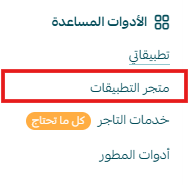
1. From the main menu, click (All), then under helper tools click (App Store).
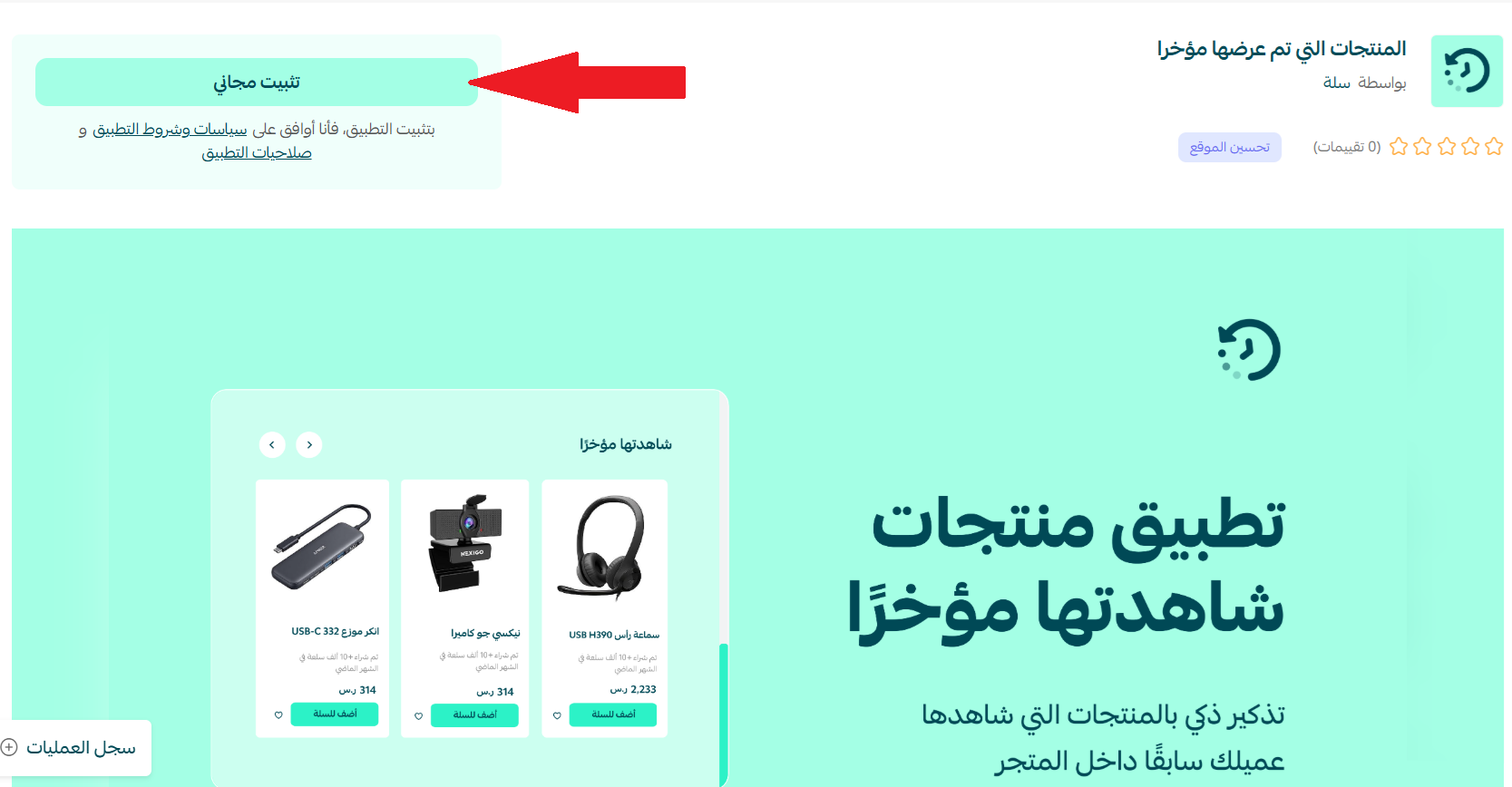
2. Search for the app using the search field.

3. On the Recently viewed products app page, click (Install).
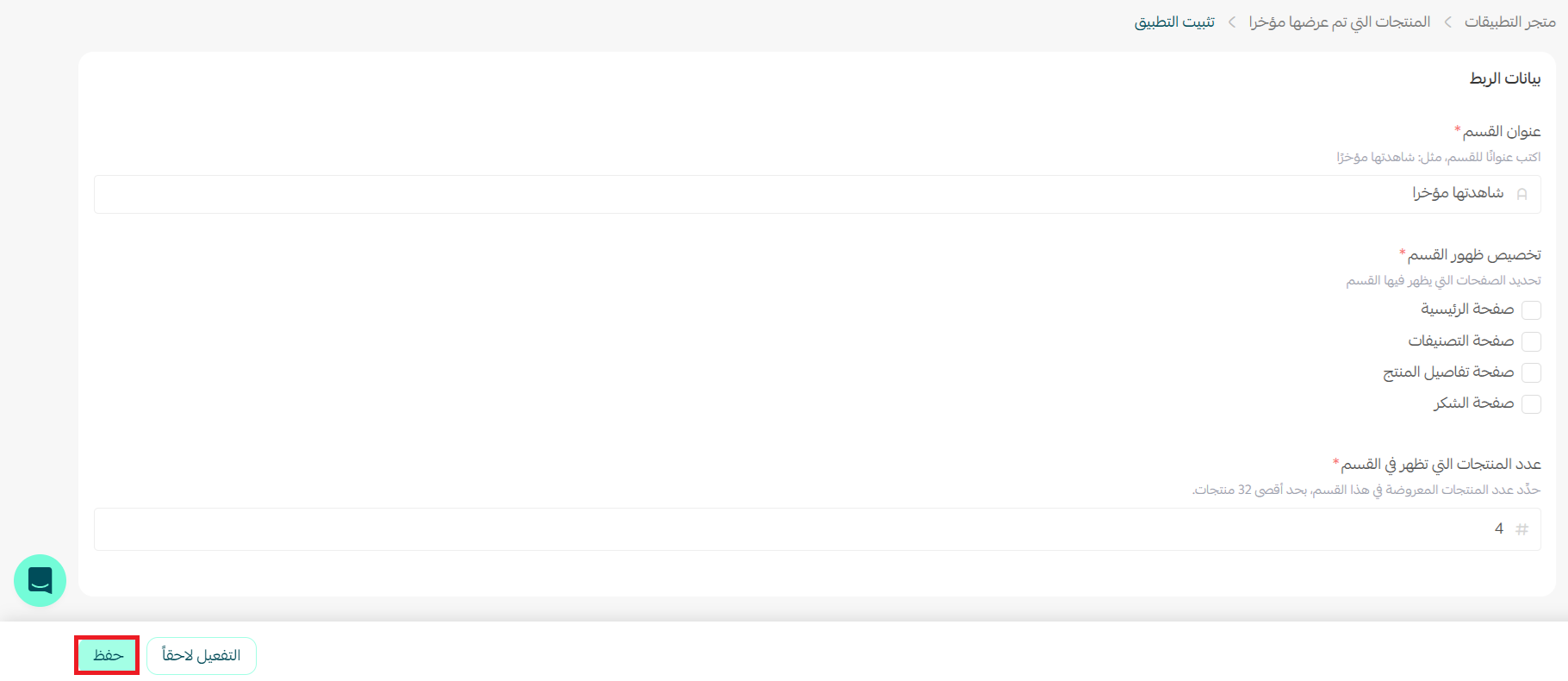
4. Set up the section: enter the section title, choose the pages you want it to appear on, set the number of products to show (up to 32), then click (Save) to activate the section.
📝 Important notes
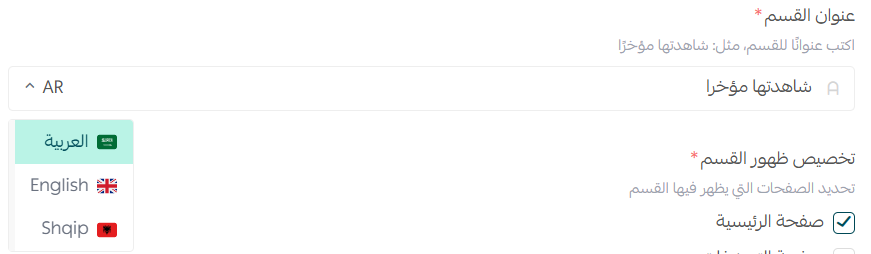
You can add the section title in more than one language. Choose the language from the side menu (AR / English / …) and enter a separate title for each one.
5. The app then appears under (My apps).
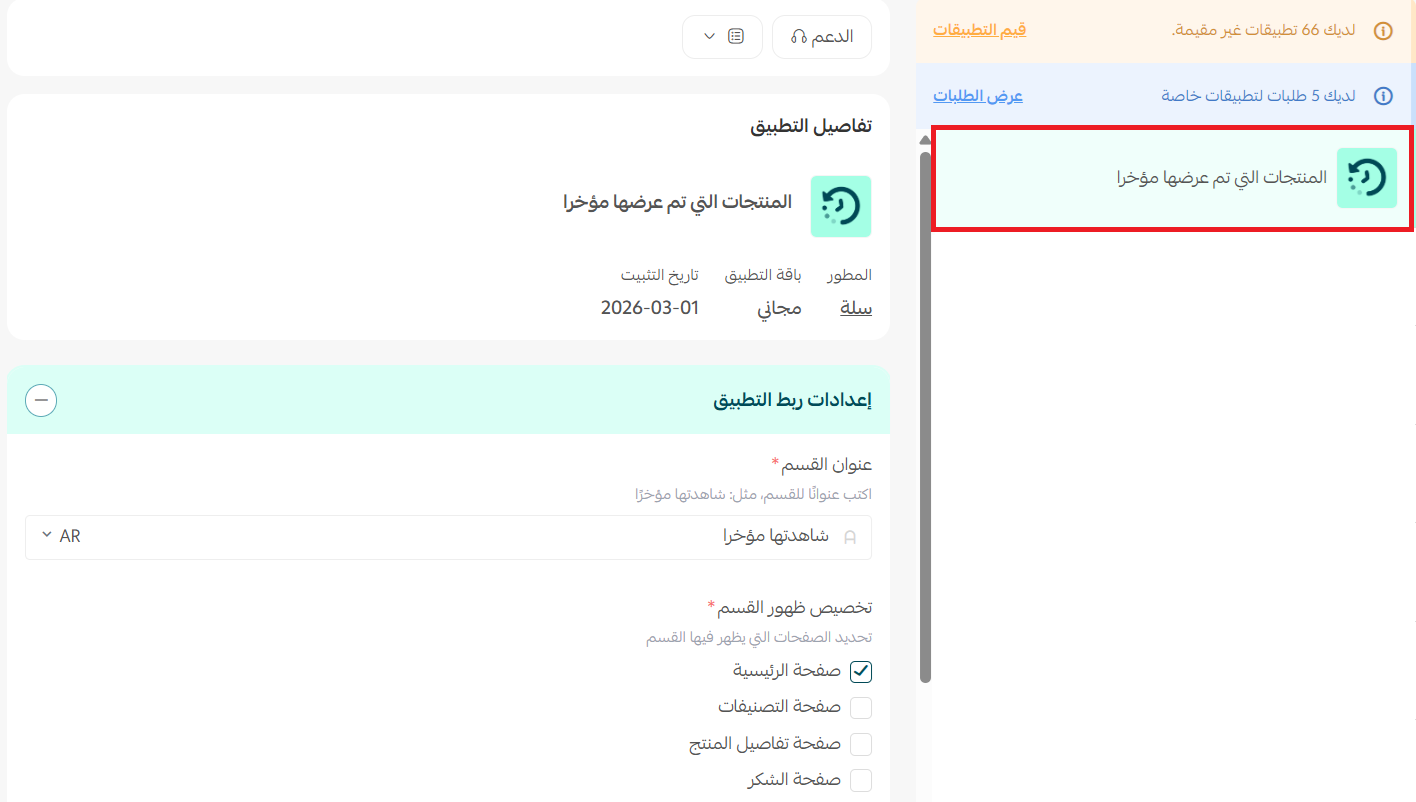
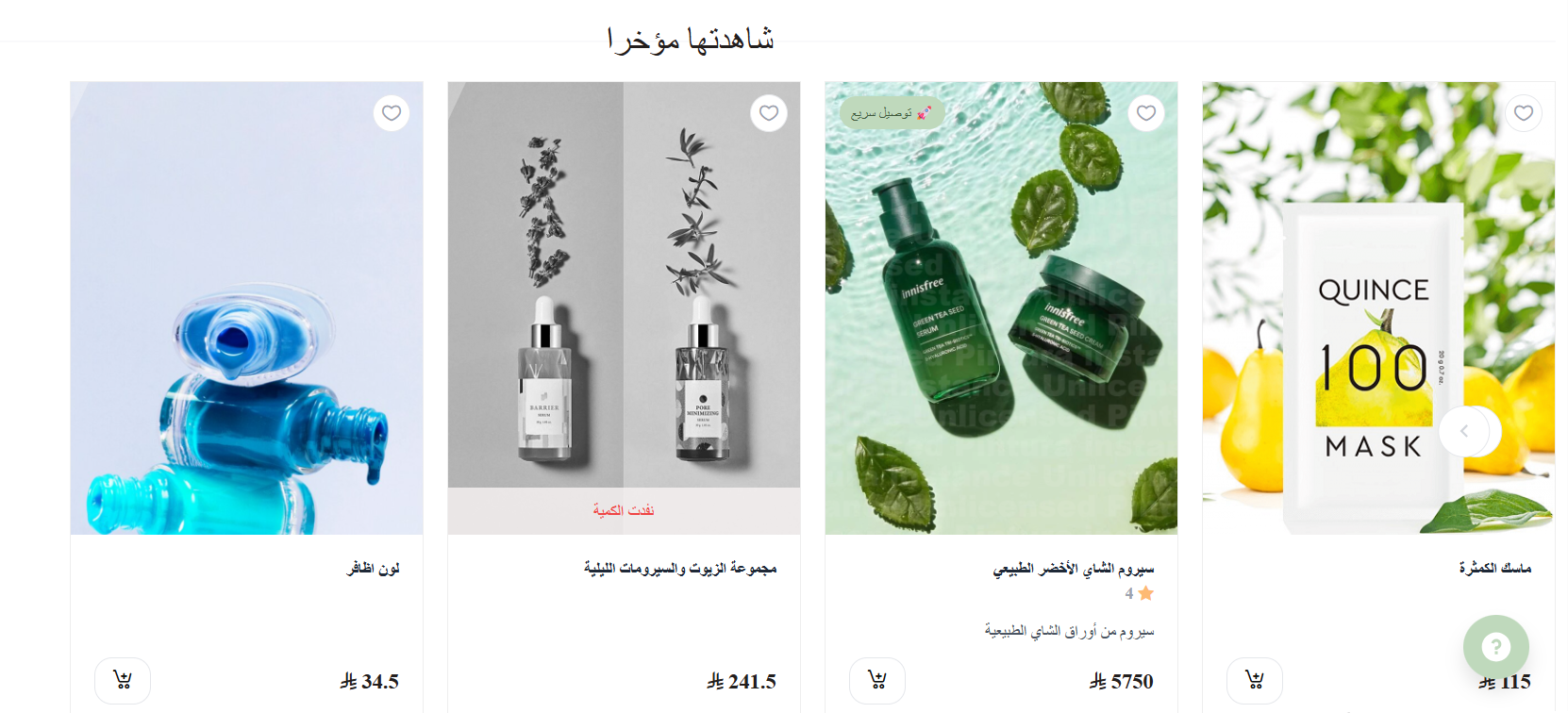
6. Products start appearing automatically in the section you chose in the app's settings.
Frequently asked questions
❓ Does the app work automatically once it's installed?
Yes. Once you install the app and save the section settings, it starts showing each customer the products they viewed on the pages you selected.
❓ Does the section appear for visitors who aren't signed in?
Yes. The app works for visitors and registered customers alike, showing each person the products they viewed from that same device.
❓ Can I control how many products are shown?
Yes. You set the number of products that appear in the section, up to a maximum of 32.
❓ Can I change the section title?
Yes. You can edit the section title at any time, and add a title in more than one language by choosing the language from the side menu.
Customers rarely buy on the first look. Putting what they already liked back in front of them is one of the cheapest ways to close that gap.