Are your sales, your stock and your accounts sitting in three systems that don't talk to each other?
Once a store grows past a handful of orders a day, the real cost is switching between tools to answer one question. The United Smart ERP app brings your store and your daily operations into a single place — sales, inventory, accounting and customers — and adds close monitoring, instant reports and smart alerts on top. In this guide, you'll learn how to install United Smart on your Salla store, sign in to your account, manage the app's settings, and remove it if you need to.
United Smart is an ERP app that manages sales, inventory, accounting and customers from one dashboard. Install it from the Salla App Store, choose a plan, confirm your payment details, then sign in to your United Smart account. The United Smart dashboard then shows your reports, alerts and business data in one place.
📌 Article overview
- What the United Smart ERP app manages
- How to connect United Smart to your Salla store
- Manage the United Smart app
- Frequently asked questions
🎯 What the United Smart ERP app manages
United Smart runs your store and your day-to-day business from one system:
- Sales, inventory, accounting and customers in a single place.
- Close monitoring of your operations as they happen.
- Instant reports, so you don't wait for a figure to be compiled.
- Smart alerts that flag what needs attention.
👣 How to connect United Smart to your Salla store
1. From the main menu, click (All), then under helper tools, click (App Store).

2. Find the app using the search field.

3. From the United Smart app page, click (Install).
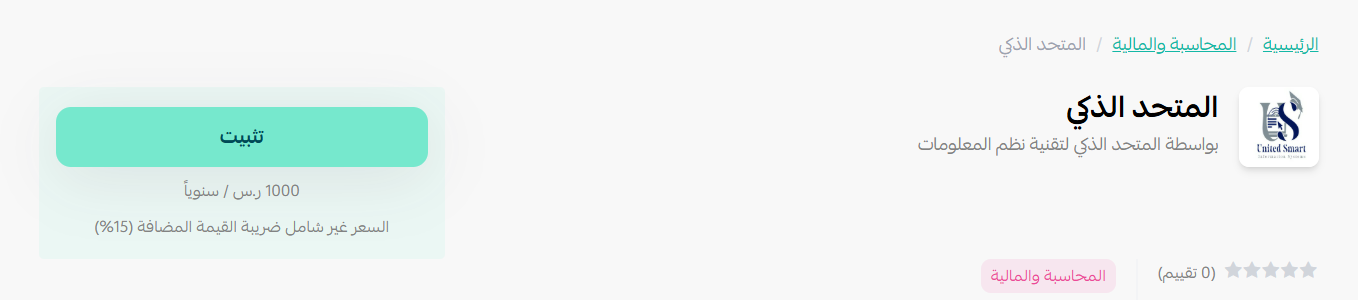
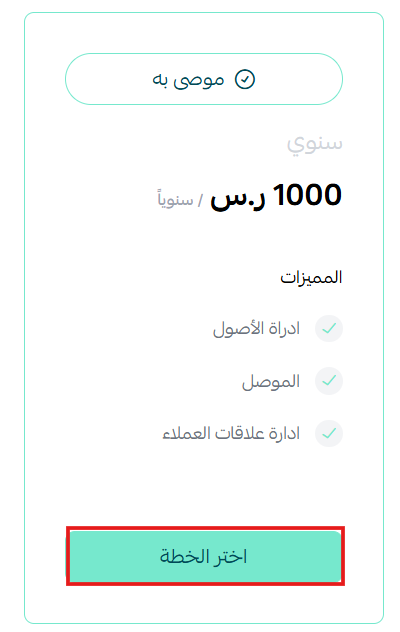
4. Choose the plan that suits you.
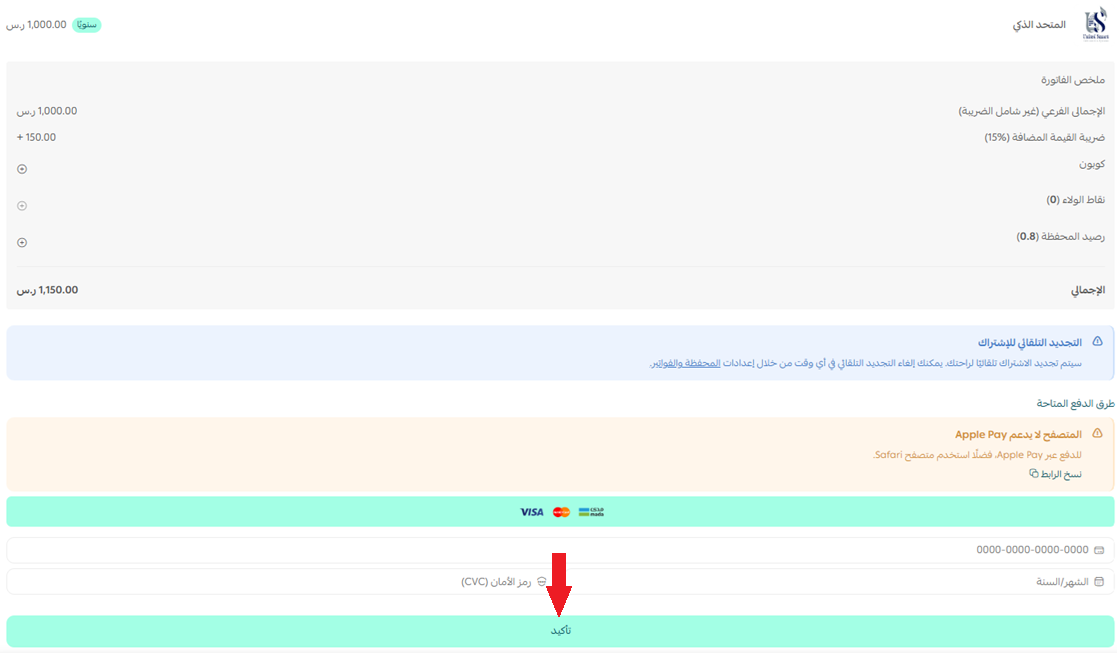
5. Fill in your payment details, then click (Confirm).
6. Enter the login details for your account on the United Smart site.
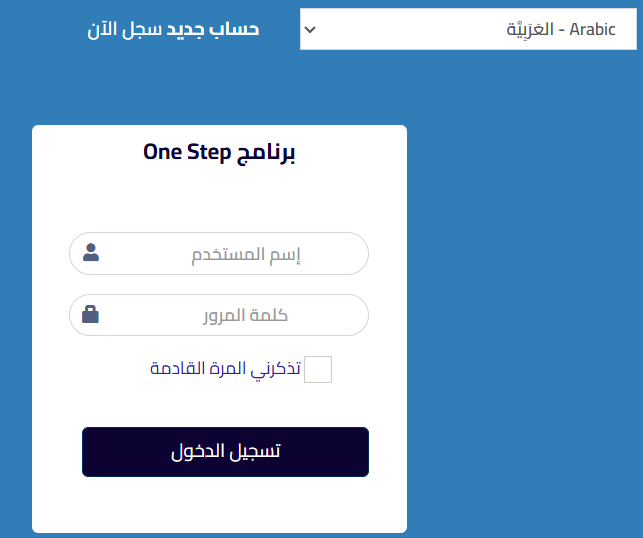
⚠️ Don't have an account yet? Create one using the sign-up button.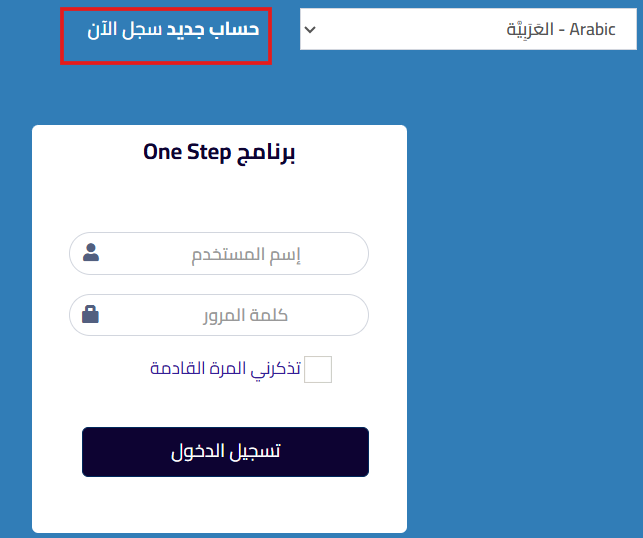
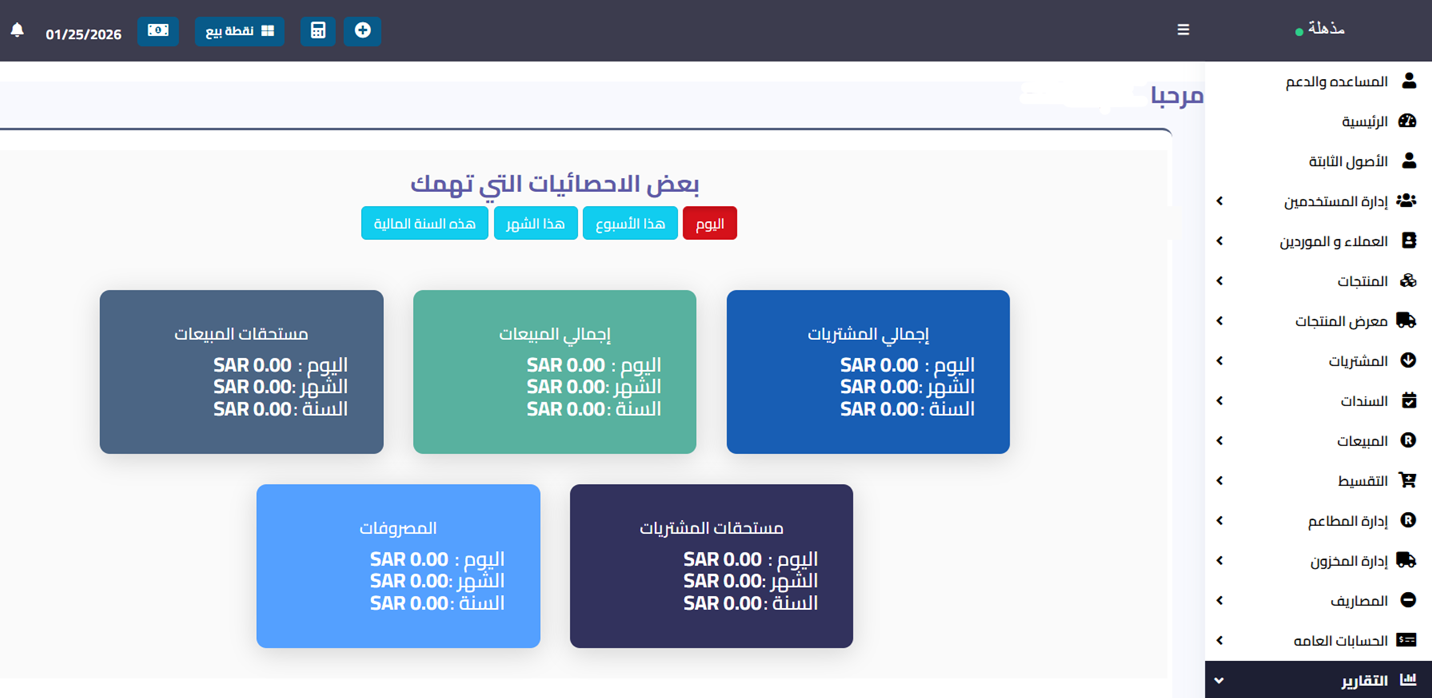
7. The main United Smart dashboard opens, where you can follow and manage all of your business in one view.
🚀 Manage the United Smart app
Customize the app
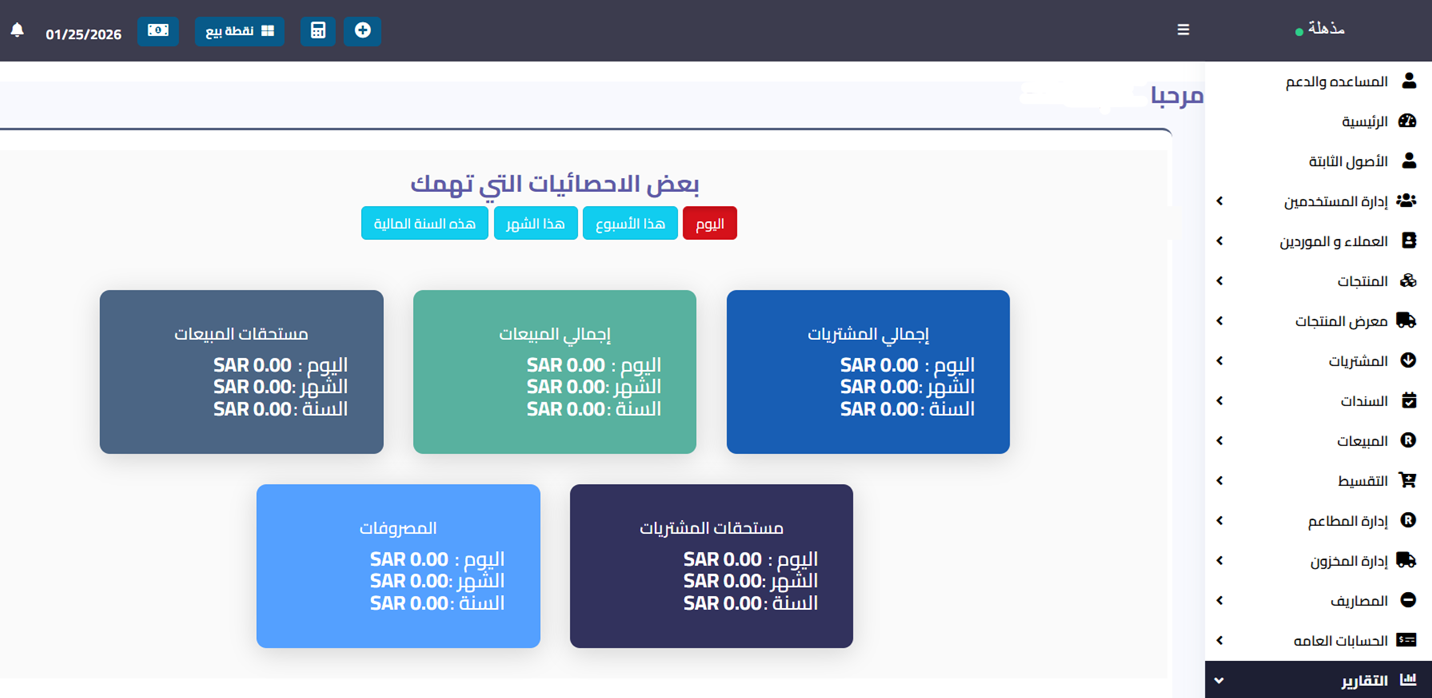
🎯 You manage your systems and control the app's settings from the main dashboard on the United Smart site.
Remove the app
1. From the app options menu, click (Cancel subscription) and choose a reason.

2. From the app options menu, click (Delete app) and choose a reason.

3. From the deleted apps page, open the app options menu and click (Delete app permanently) to remove it from your store for good.

📝 Important notes
- Your United Smart account is separate from your Salla account, and you sign in to it during installation.
- Canceling the subscription and deleting the app are two different actions. Deleting permanently is a third, done from the deleted apps page.
For more details, see the United Smart app page.
❓ Frequently asked questions
What can I run from United Smart?
Your store and your daily operations: sales, inventory, accounting and customers, with monitoring, instant reports and smart alerts across all of them.
Do I need a United Smart account?
Yes. During installation you sign in with your United Smart credentials, and you can create an account from the sign-up button if you don't have one.
Where do I change the app's settings?
On the United Smart site, not in your Salla dashboard. The main United Smart dashboard is where you manage your systems and settings.
What's the difference between canceling the subscription and deleting the app?
Canceling ends your plan; deleting removes the app from your store. To clear it completely, delete it permanently from the deleted apps page.
Running sales, stock and accounting from one system is how you stop reconciling and start deciding.