How often does the wrong item leave your warehouse in the right box?
Picking errors are expensive twice: once when you ship the wrong product, and again when it comes back as a return. The DGG app brings barcode scanning to order fulfillment on your Salla store, so every item is checked before it is packed. In this guide, you'll learn how to install the DGG app, sign in to your account, upgrade your plan, and remove the app if you no longer need it.
DGG is an order fulfillment app that runs picking and packing with barcode scanning. Install it from the Salla App Store, choose a plan, and sign in with the details emailed to you. From its dashboard you track orders, shipments, and returns, with fewer picking mistakes.
📌 Article overview
- How to install the DGG app
- How to manage the DGG app
- Frequently asked questions
👣 How to install the DGG app
1. From the main menu, click (All), then under helper tools click (App Store).

2. On the DGG app page, click (Install).
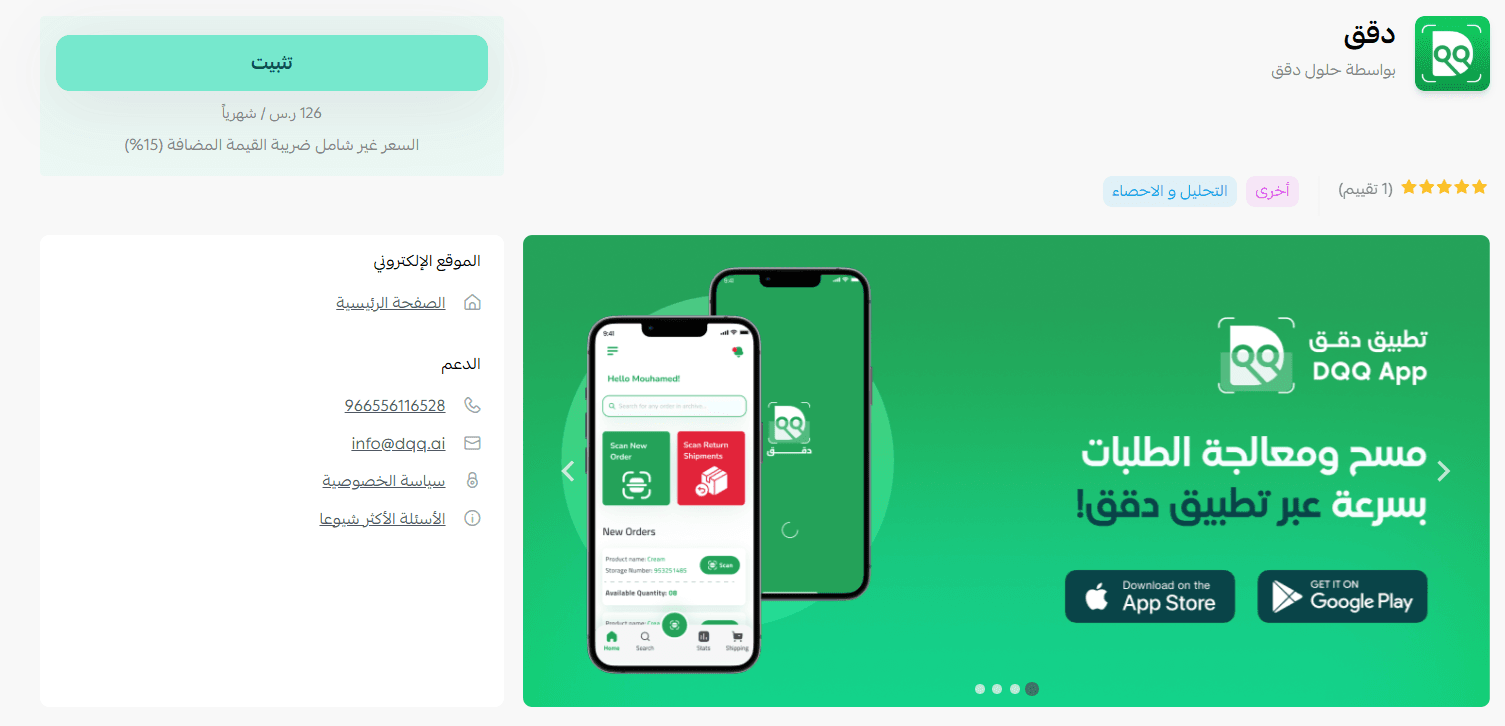
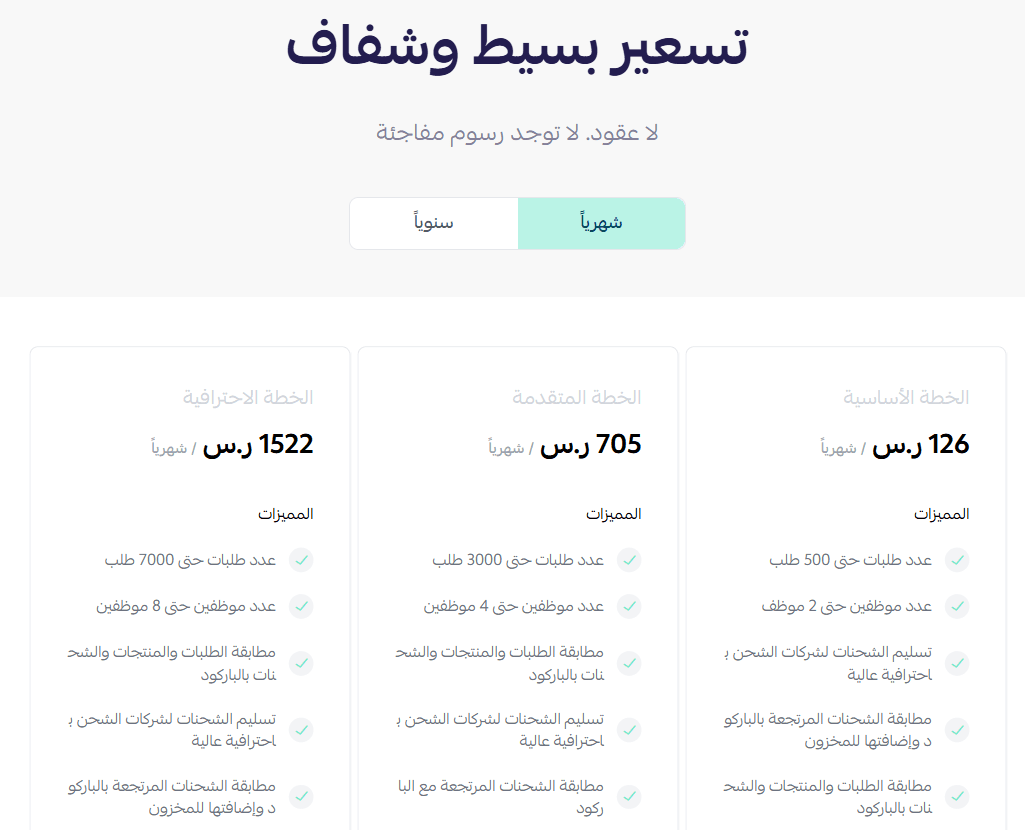
3. Choose the plan that fits your business to continue with the installation.
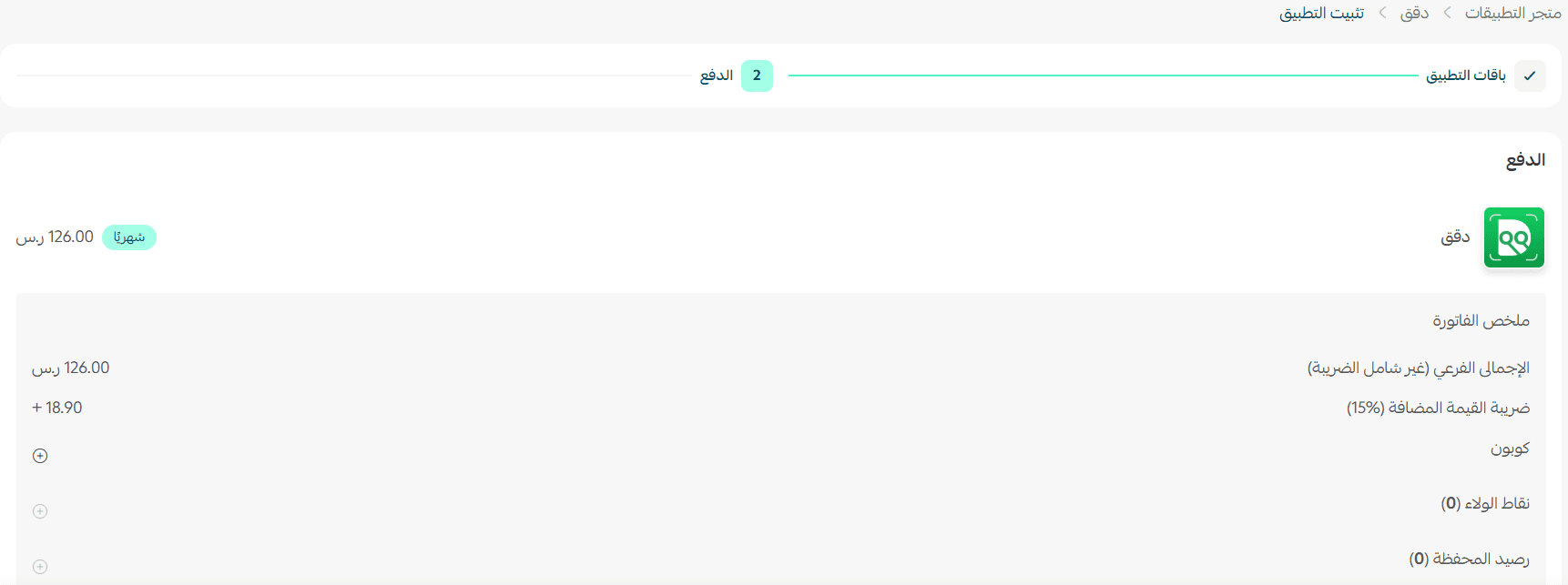
4. Complete the payment, then click (Confirm).
🎉 Congratulations — the app is installed.
🚀 How to manage the DGG app
Manage your account
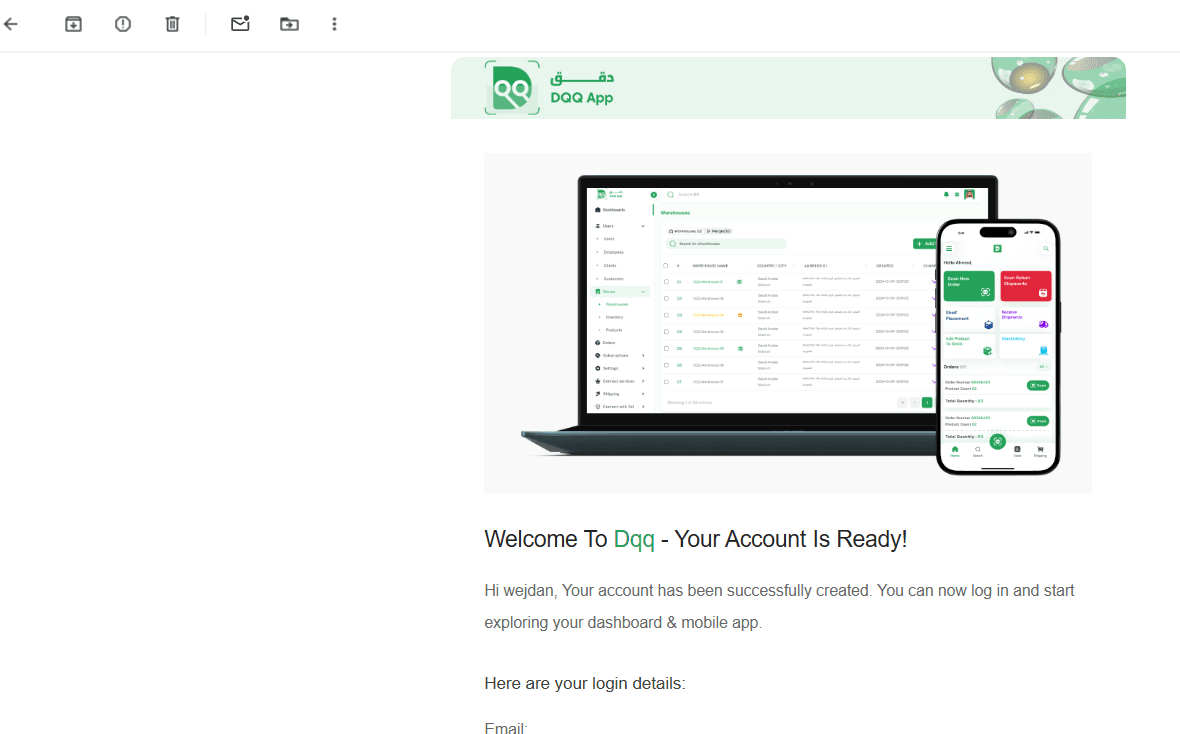
1. Check your inbox. Once the app is installed, you receive an email with the login details for your account.
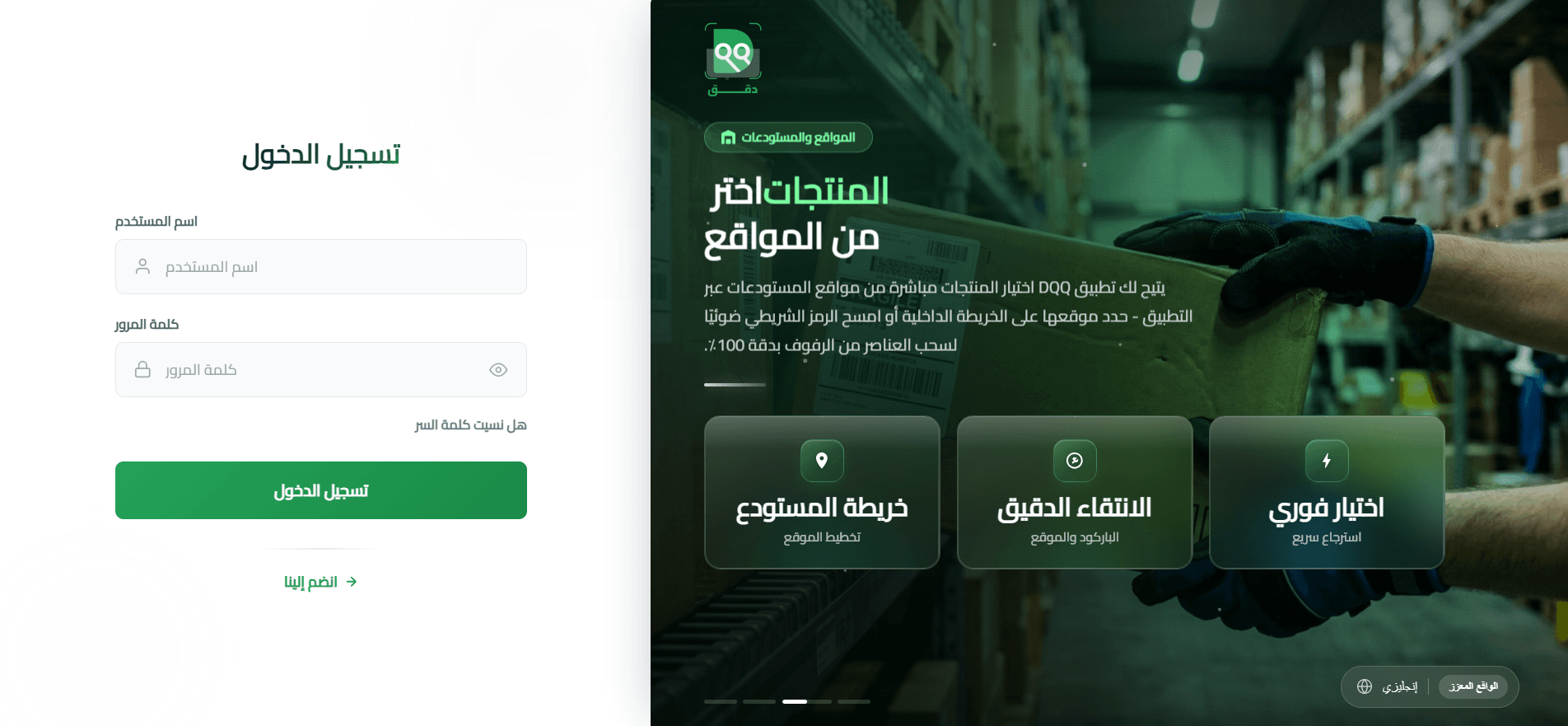
2. Enter your username and password to complete the login.
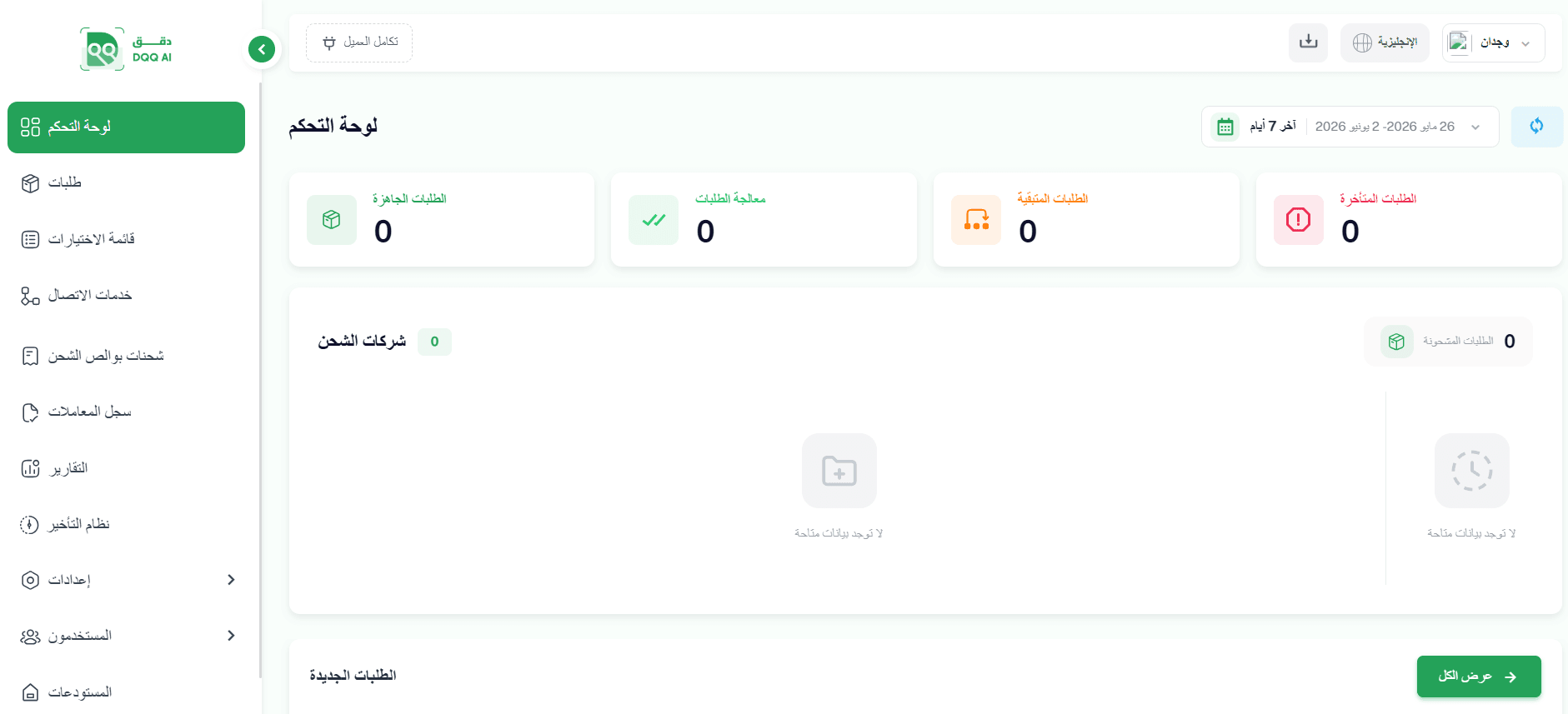
3. Once you're logged in, the DGG dashboard opens, where you follow orders, shipments, and returns.
Upgrade your plan
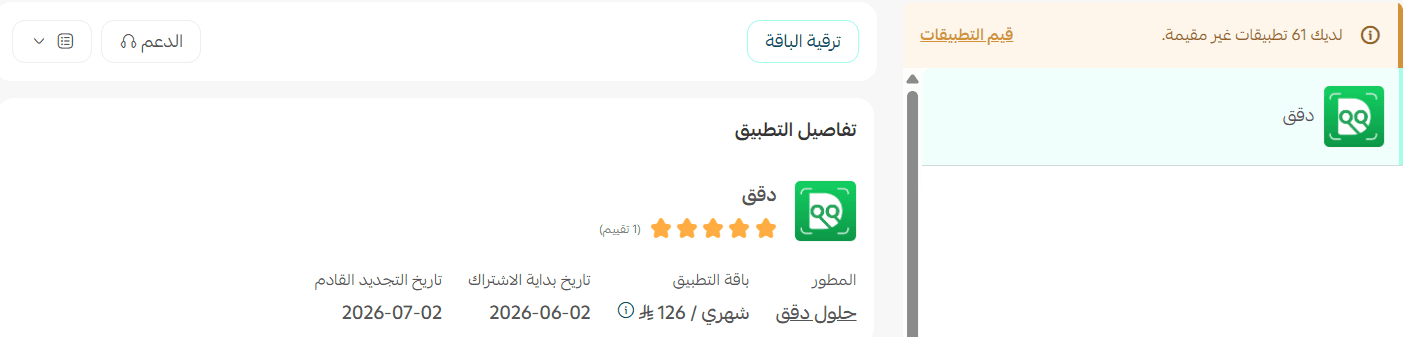
1. From the app details page in your store, click (Upgrade plan).

2. Choose the plan you want, then click (Go to payment).

3. Enter your payment details, then click (Confirm) to complete the upgrade.

Remove the app
1. From the app options menu, click (Cancel subscription), then choose a reason for cancelling.

2. From the app options menu, click (Delete app), then choose a reason for deleting.

3. Open the deleted apps page, then from the app options menu click (Delete app permanently) to remove it from your store for good.

📝 Important notes
- Installing the app is a paid step. You choose a plan and pay before the app is added.
- Your DGG login details arrive by email, not in the Salla dashboard.
- Cancelling the subscription, deleting the app, and deleting it permanently are three separate actions.
❓ Frequently asked questions
What does the DGG app do?
It manages order preparation using barcodes, so picking and packing move faster and with fewer errors.
What can I follow from the DGG dashboard?
Orders, shipments, and returns, all in one place.
How do I get my login details?
By email, sent once the app is installed. Use the username and password in that email to sign in.
Can I change my plan later?
Yes. Open the app details page in your store, click (Upgrade plan), choose a new plan, and complete the payment.
How do I remove the app completely?
Cancel the subscription, delete the app, then delete it permanently from the deleted apps page.
For more details, visit the DGG website.