Pop-ups can be the difference between a visitor who leaves and a customer who converts.
With PopupSmart, you can launch high-impact advertising campaigns using smart pop-ups to capture leads, grow your email list, and increase ecommerce sales — all without code and in just a few minutes.
This guide walks you through how to connect PopupSmart to your store step by step and start running effective campaigns immediately.
What Is PopupSmart?
PopupSmart is a professional, ready-to-use marketing toolkit that allows you to create and manage pop-up advertising campaigns with ease.
It helps e-commerce merchants:
- Engage visitors in real time
- Build email lists
- Promote offers and products
- Increase conversions
All within 5 minutes, without technical setup or development work.
Requirements for integration
Before starting, make sure you have: A custom domain connected to your store
For more details, refer to the guide on purchasing and registering a domain.
PopupSmart integration steps
The integration process is completed in two stages:
- Create a new PopupSmart account
- Install and activate the PopupSmart app in your store
Stage one: Create a PopupSmart account
- From the PopupSmart sign-up page, enter your email address, complete the required registration details, then click Next.
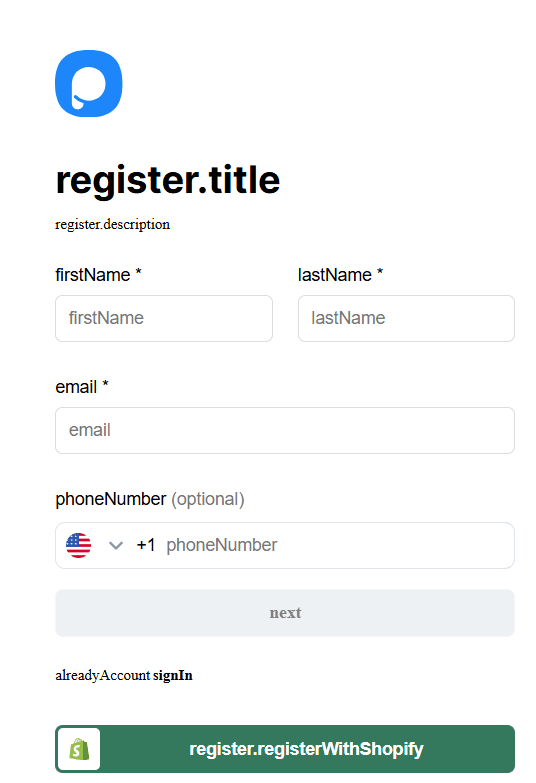
2. Set your PopupSmart account password, enter your store URL, accept the privacy policy and terms of use, then click Register.
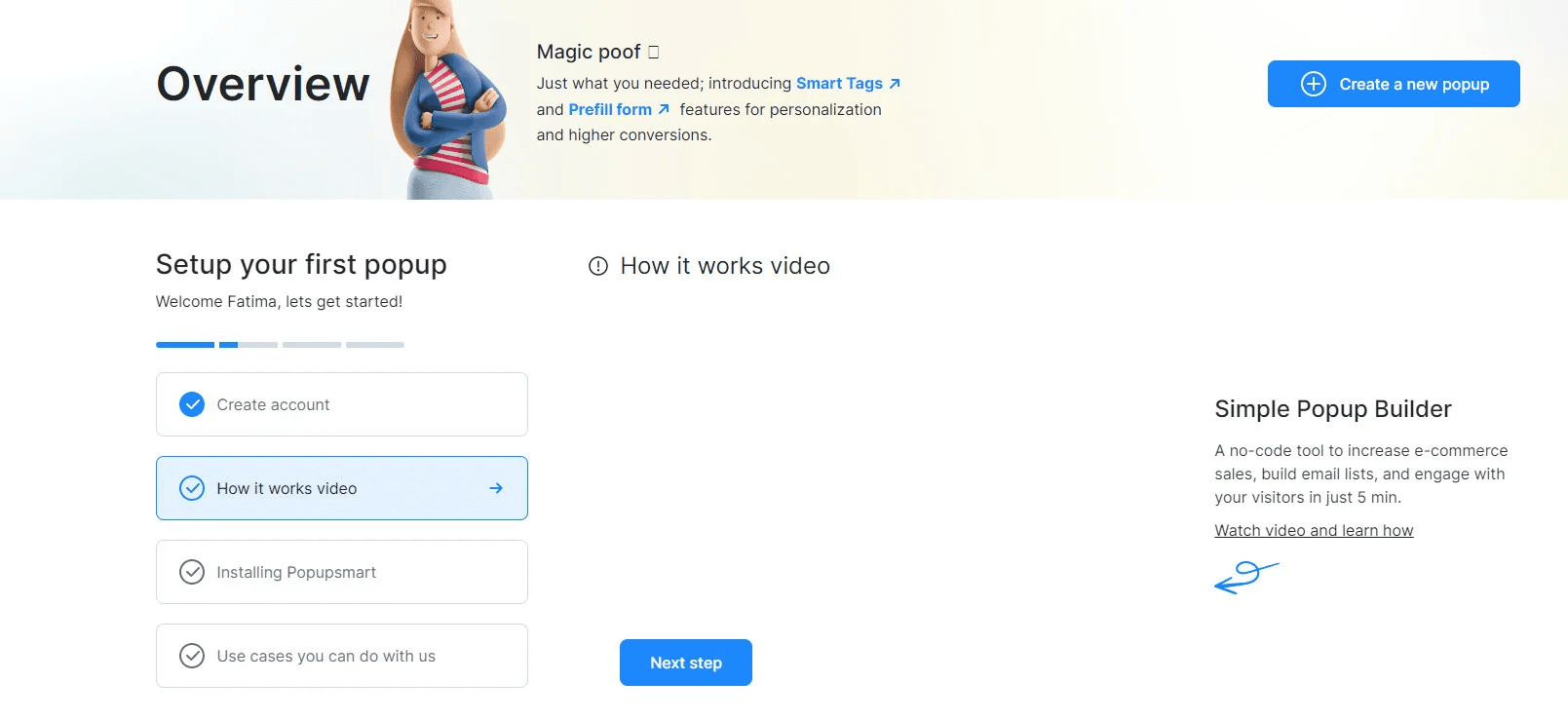
3. Complete the initial account setup. From the How it works video tab, click Next step to continue.
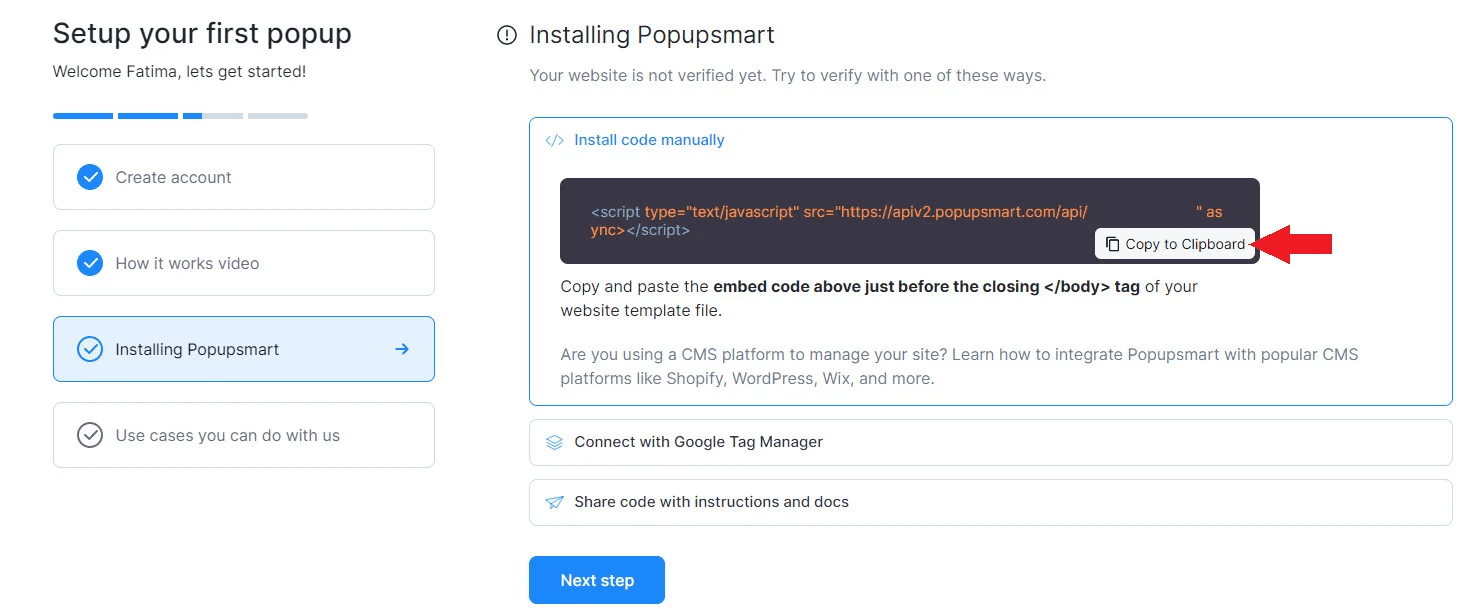
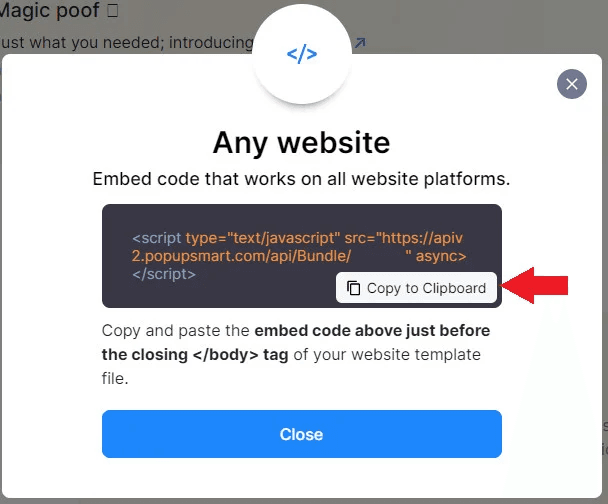
4. In the Installing PopupSmart tab, click Copy to Clipboard, then click Next step to finish the account setup.
If you already have a PopupSmart account:
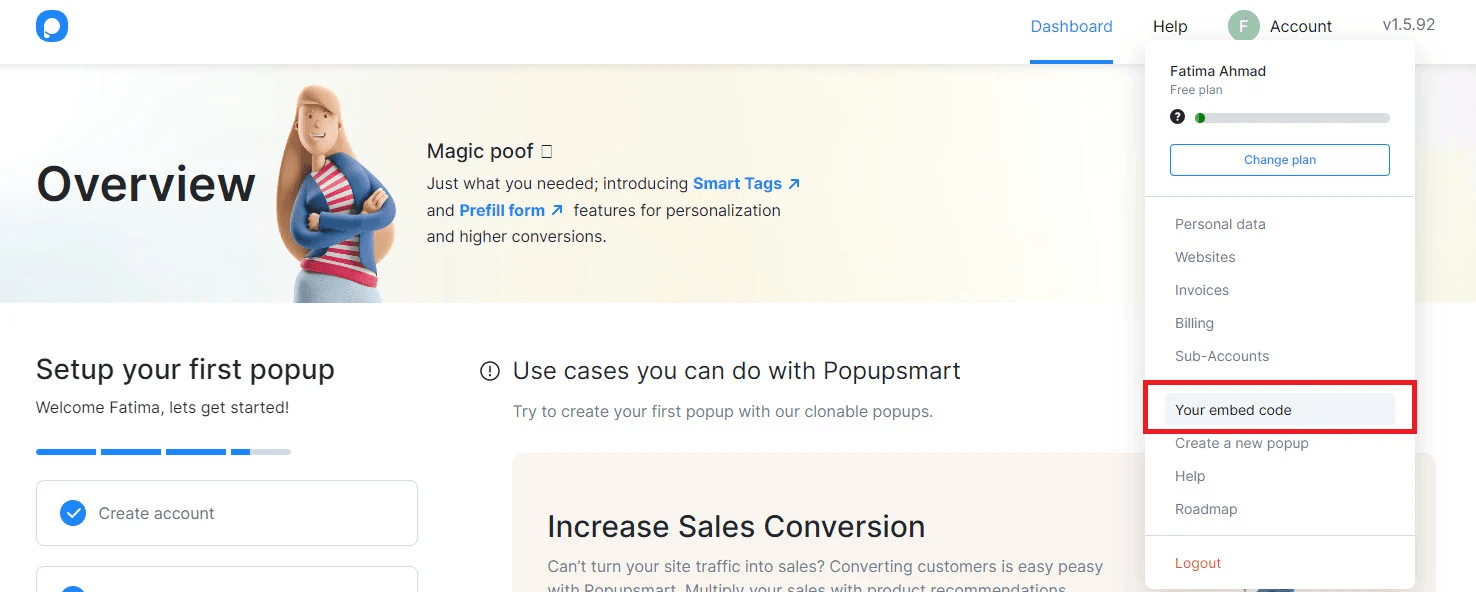
- Open your PopupSmart dashboard
- Click Your embed code
- Copy the tracking code
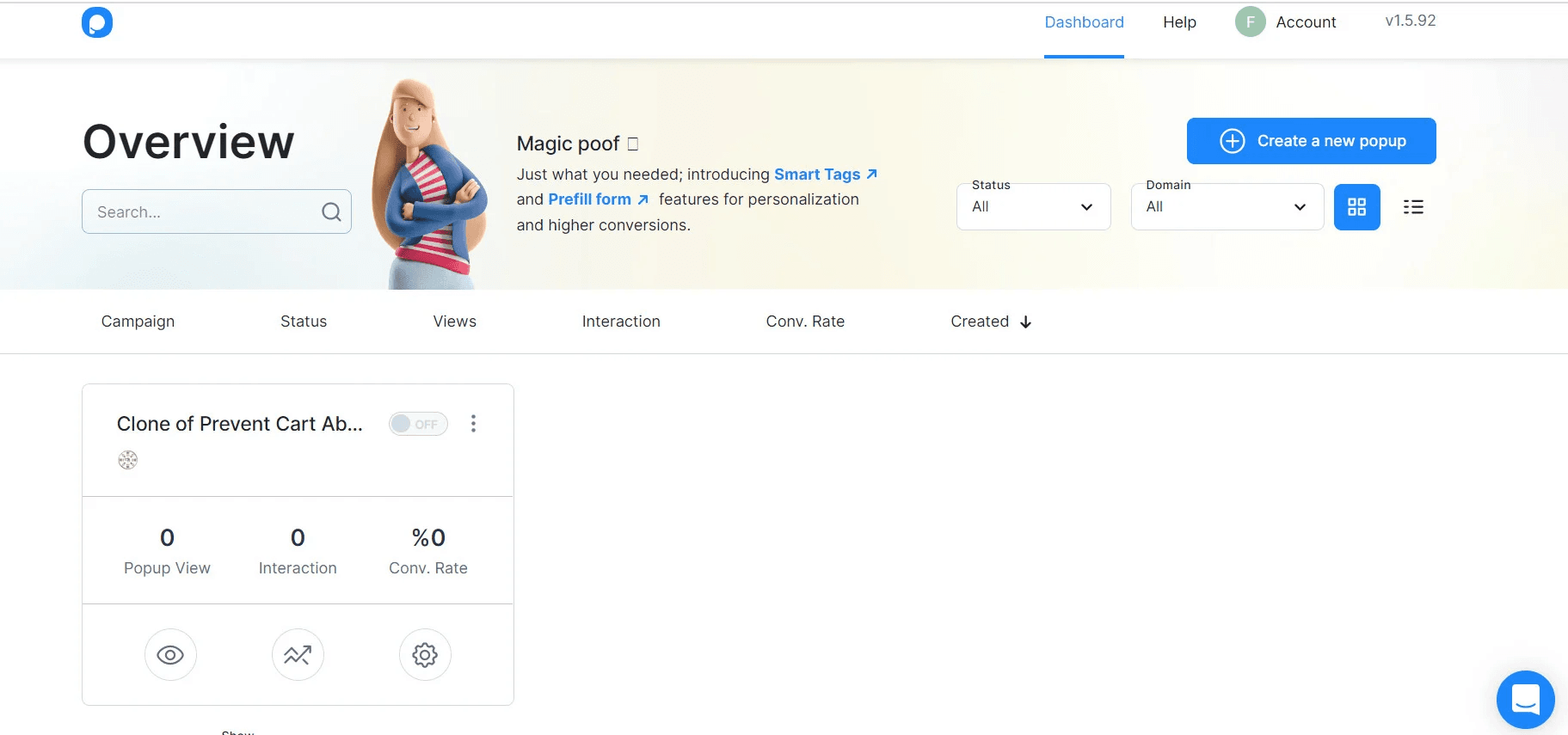
- After completing this step, the PopupSmart dashboard will appear.
Stage two: Install and activate PopupSmart in your store
- From the main menu, click All, then under Utilities, select App Store.
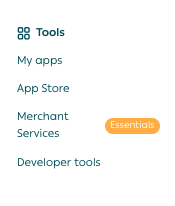
2. Use the search field to find PopupSmart.

3. Open the PopupSmart app page and click Install.
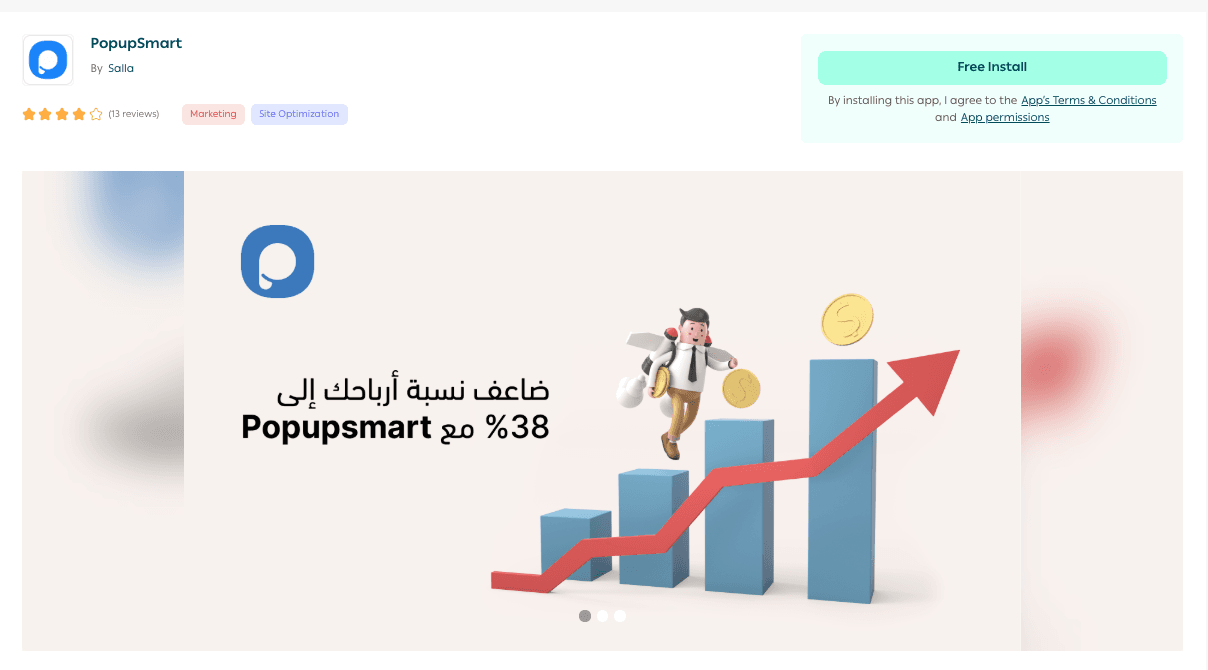
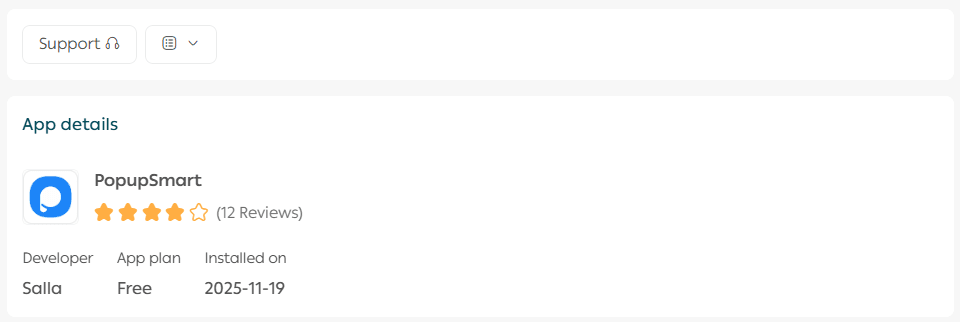
Once installation is complete, the PopupSmart app will appear in your list of installed apps.
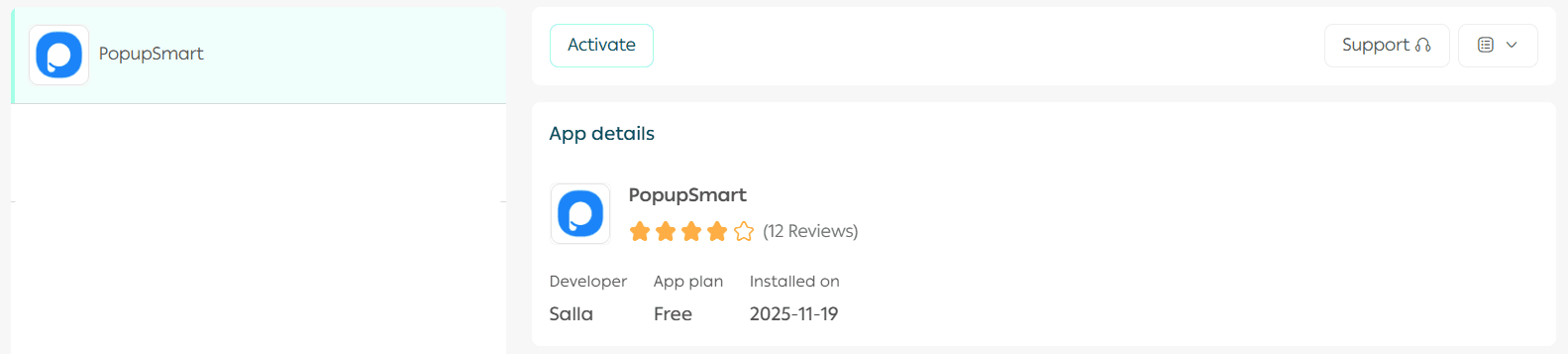
4. From the Installed Apps page, locate PopupSmart, click App Options, then select Activate App.
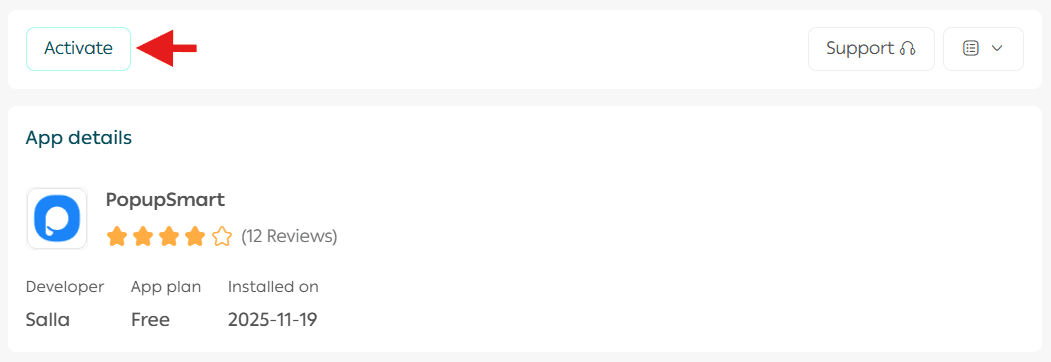
5. Paste the tracking code you copied earlier into the Code Extraction field, click Extract, then click Activate Integration.
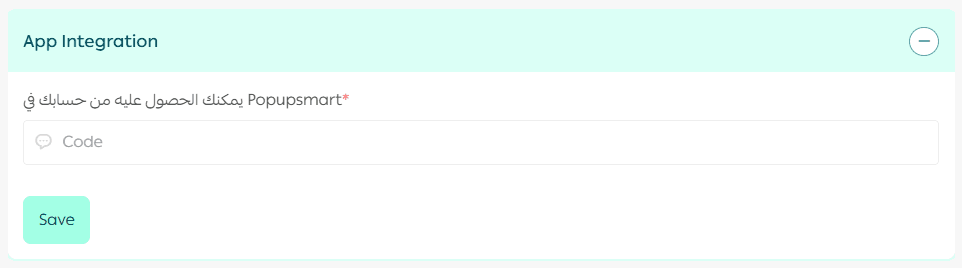
🎉 Congratulations! PopupSmart is now successfully activated and ready to use in your store.
Frequently asked questions
What are the main features of PopupSmart?
PopupSmart offers powerful tools, including:
- Visitor behavior analysis with over 18 targeting options
- Free and prepaid subscription plans
- An intuitive dashboard for pop-up management and performance reports
- 24/7 customer support
- Multiple solutions to grow your email list and promote products to increase sales
How do I fix the “Integration not completed” error?
You may encounter this message during setup.
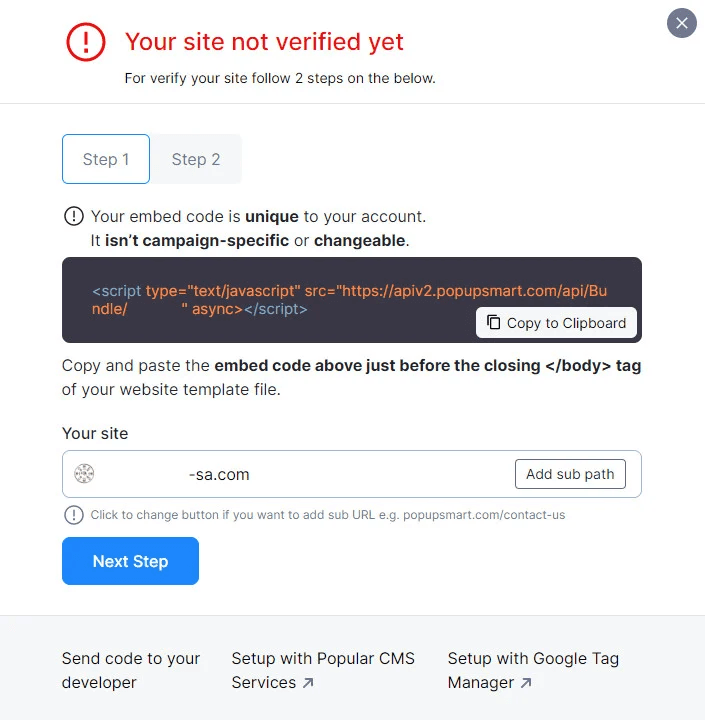
- Click Verify now

2. Click Copy to Clipboard, then Next step to copy the tracking code
3. Go back to PopupSmart app settings in your store
4. Paste the tracking code and click Activate Integration
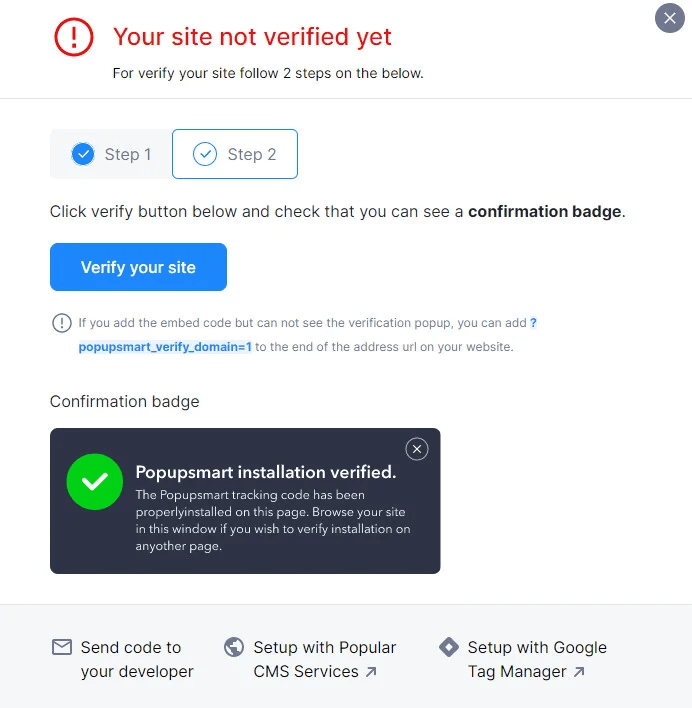
5. Wait a few minutes, then return to the verification page and click Verify your site
How can I customize pop-ups in my store using PopupSmart?
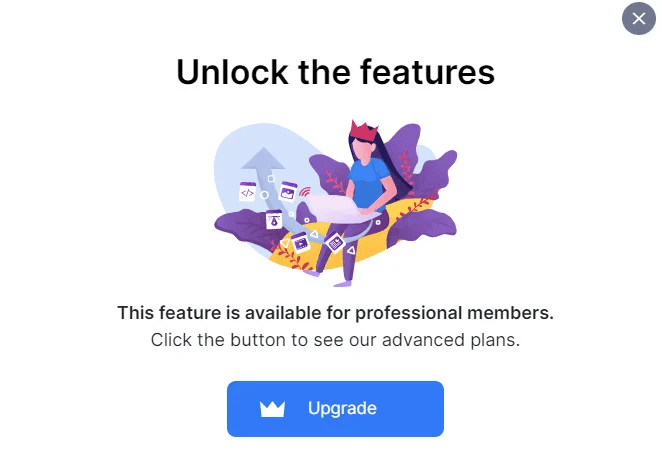
To customize pop-ups, you must upgrade your PopupSmart account.
Steps:
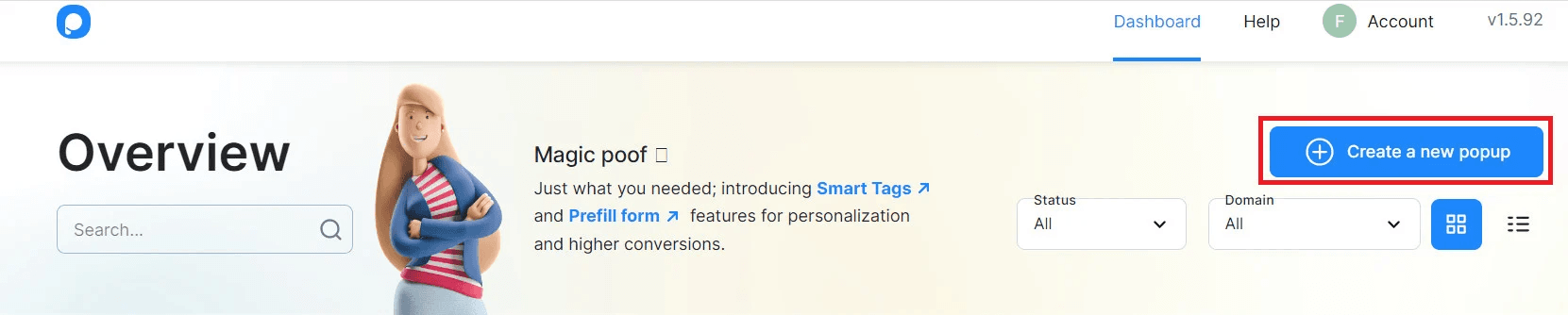
- From your PopupSmart dashboard, click Create a new popup
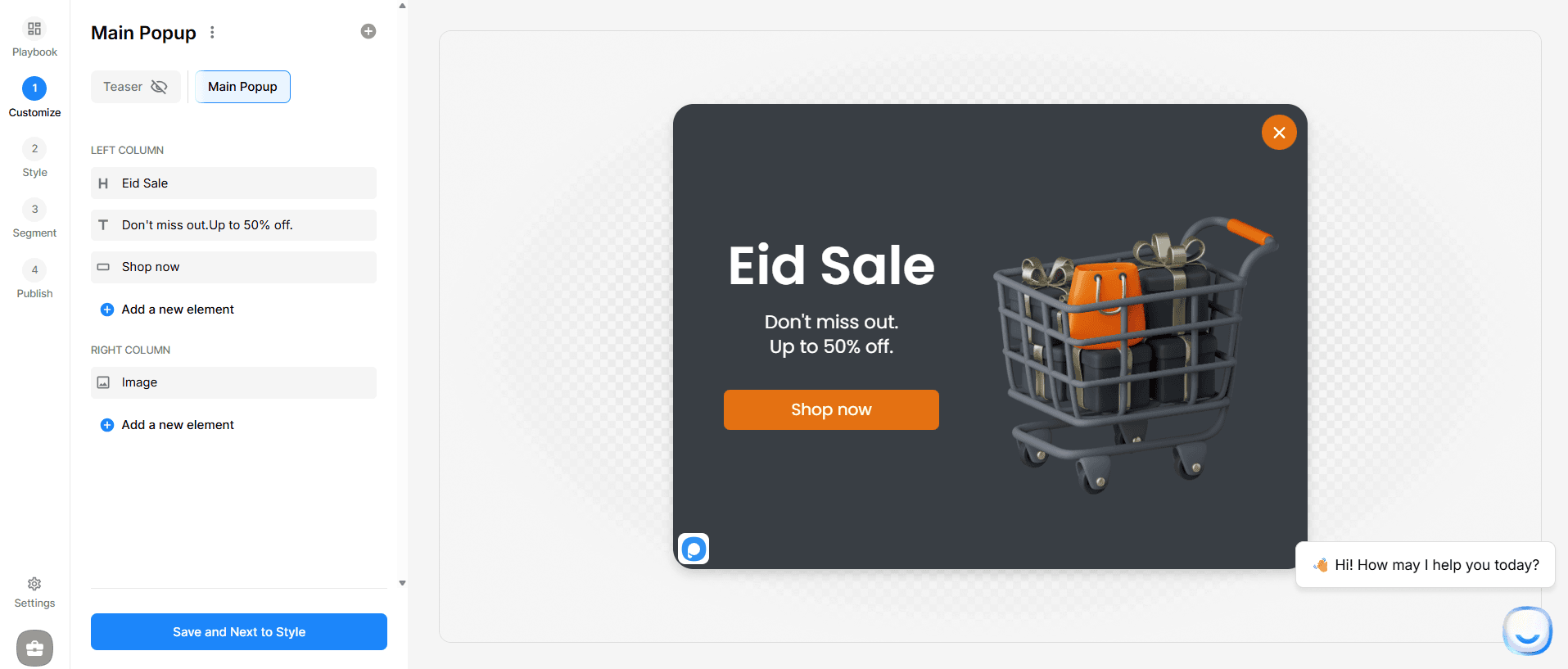
2. Choose the pop-up layout, customize its design, then click Save & Publish
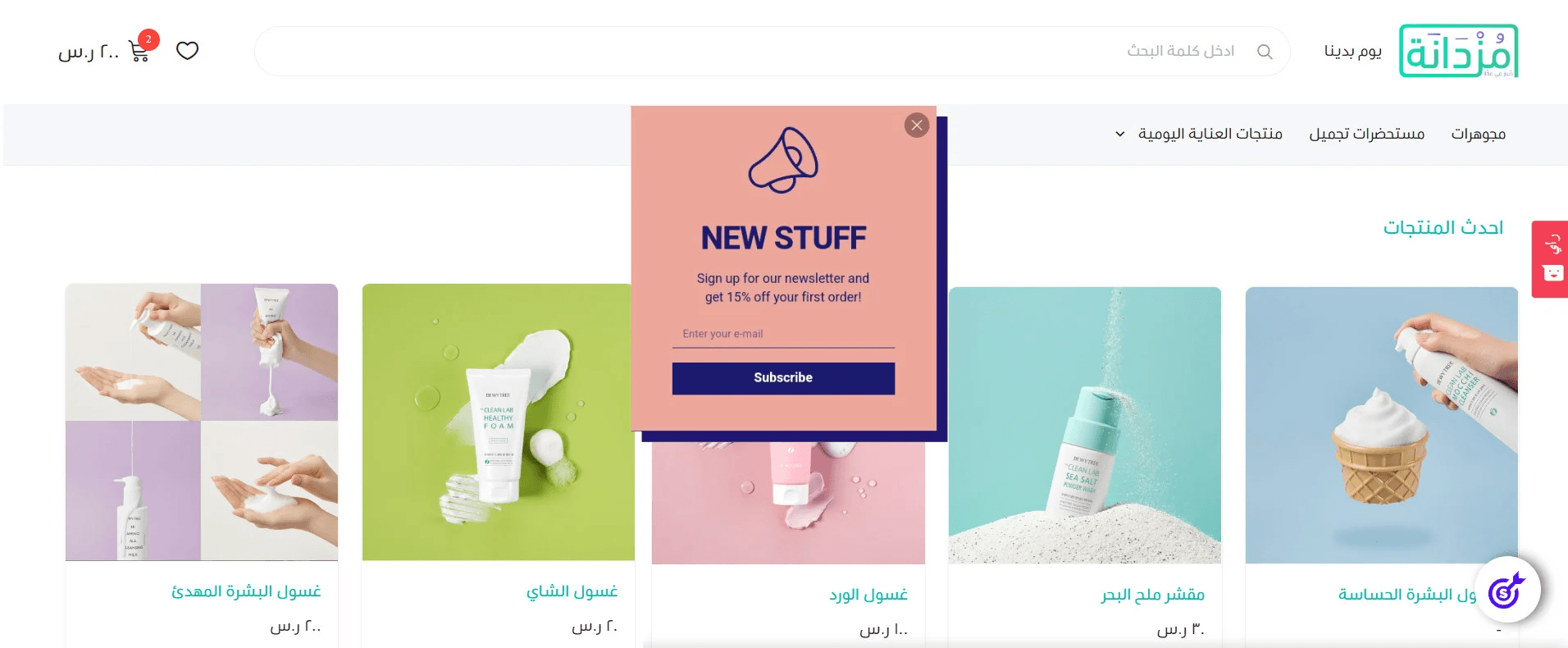
Your pop-up will then appear on your store.
How can I remove PopupSmart from my store?
- From the main menu, click More, then select Installed Apps
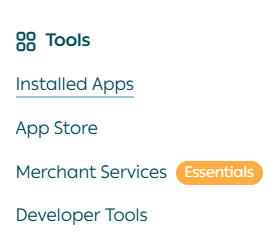
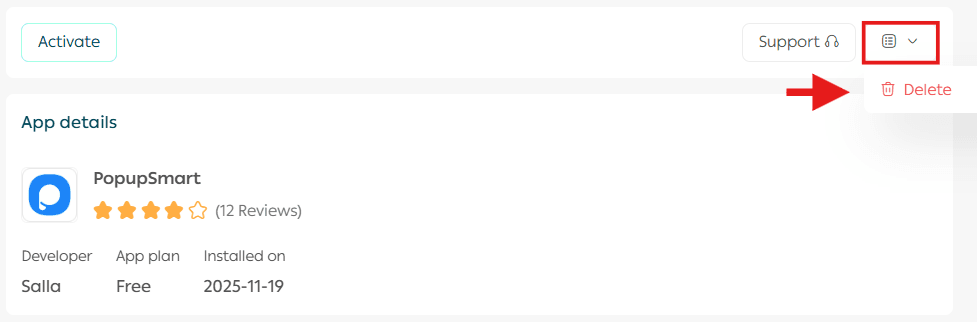
2. Locate PopupSmart, click App Options, then select Delete App