Selling on Facebook and Instagram starts with one thing: keeping your product catalog up to date.
By connecting your Salla store to Facebook and Instagram Catalog, your products can be automatically synced with Meta, making it easier to use them in ads, product catalogs, and future commerce experiences across Facebook and Instagram.
Instead of manually updating products, prices, and availability, your catalog stays connected to your store through a product feed that updates automatically.
In this guide, you'll learn how to generate your catalog feed from Salla and connect it to Meta Business Manager.
📌 In this article
- What is Facebook and Instagram Catalog?
- Generate your catalog feed from Salla
- Connect your catalog in Meta Business Manager
- Frequently asked questions
What is Facebook and Instagram Catalog?
Facebook and Instagram Catalog is Meta's product management system.
It stores information about your products, including names, descriptions, images, pricing, and availability, and makes that information available across Meta's advertising and commerce tools.
Once connected, your catalog can be used to:
- Run product-based advertising campaigns
- Keep product information updated automatically
- Organize products into collections
- Improve product discovery across Meta platforms
- Power dynamic advertising experiences
For more details, see Setting up Facebook Business Manager
Connect your store to Facebook and Instagram Catalog
The setup process consists of two stages:
Stage 1: Generate your catalog feed from Salla
Stage 2: Connect the feed in Meta Business Manager
Stage 1: Generate your catalog feed
1. From the Salla Ads page, click the tab (Tracking Tools).
Tracking tools help you collect more accurate audience data and improve campaign performance using both the Conversion API and Meta Pixel.
2. From the sidebar menu, click Catalog. Select your preferred language and currency, then click Copy link.
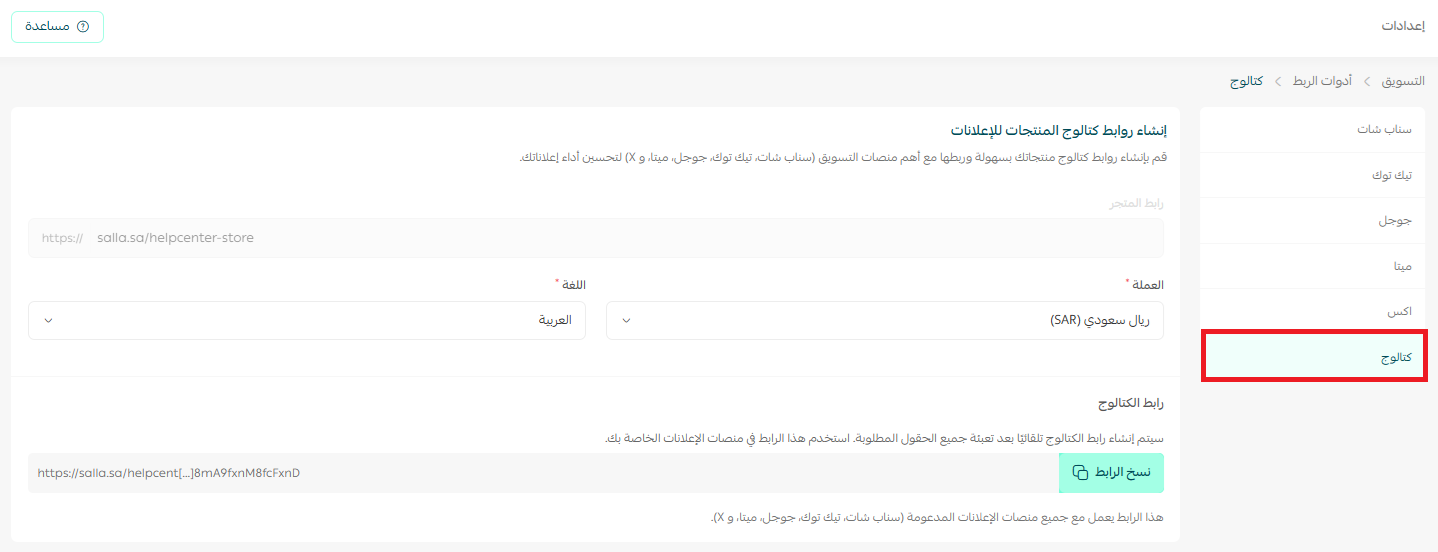
Note: This feed URL can be used with product catalogs across multiple platforms, not just Meta.
Stage 2: Connect the feed in Meta Business Manager
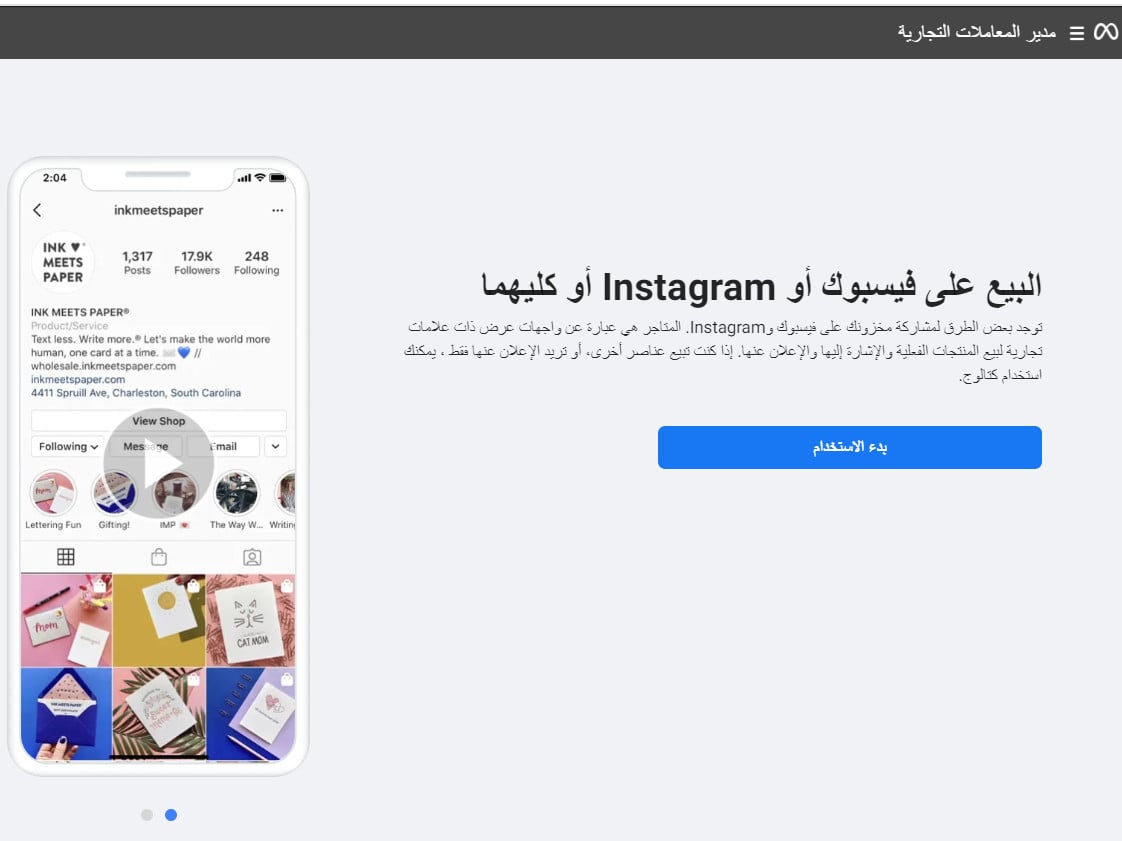
1. From Meta Commerce Manager, click Get started.
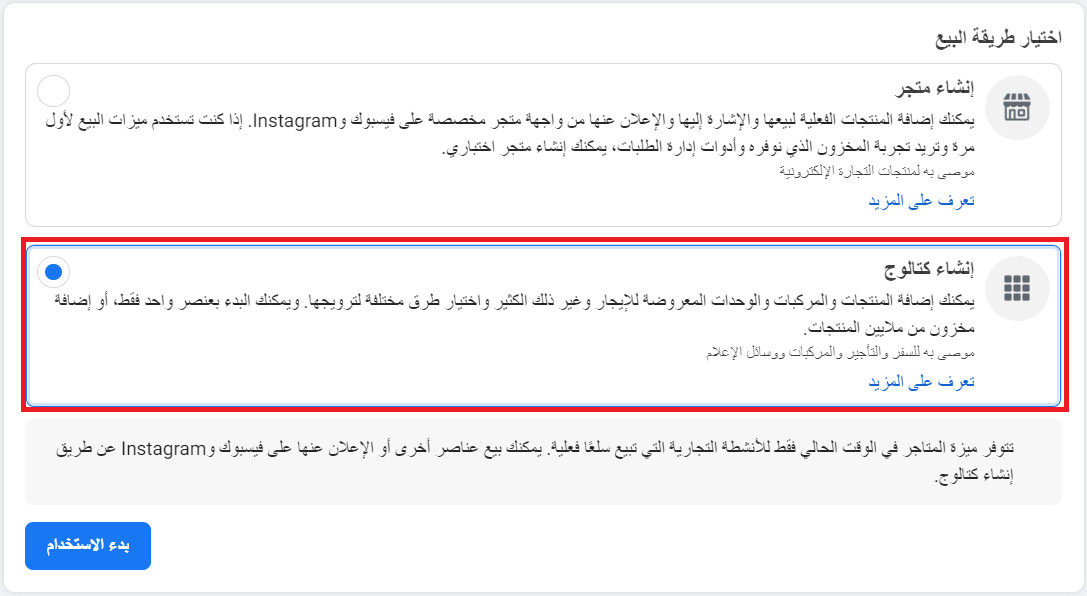
2. Select (Create Catalog), then click (Get Started).
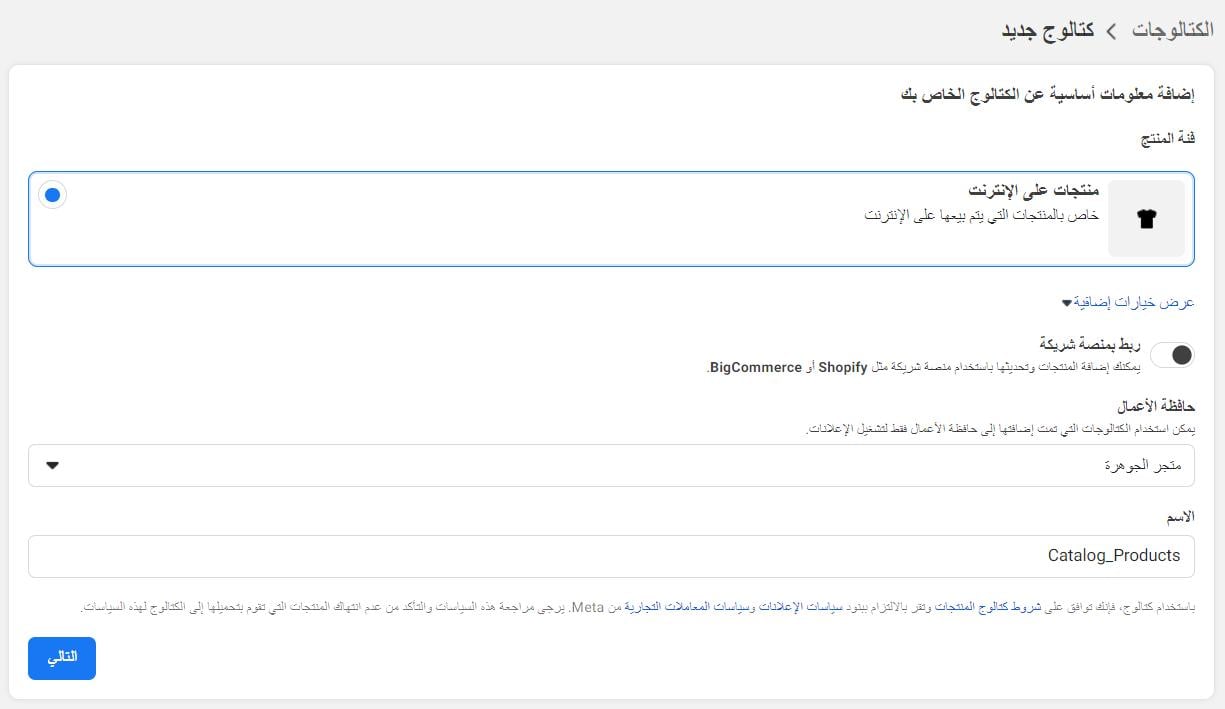
3. Choose the product category as (Products on the Internet), and click (Next).
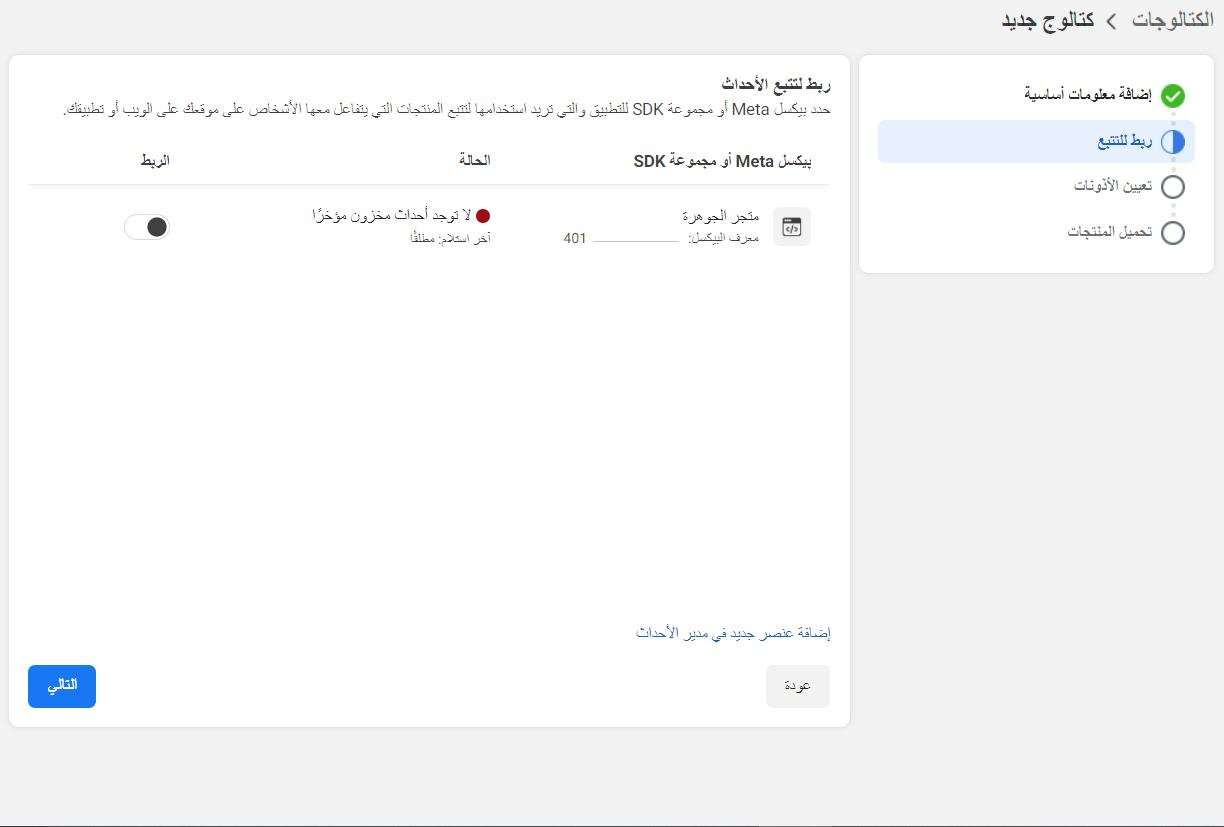
4. Ensure the event tracking link is correct, then click (Next).
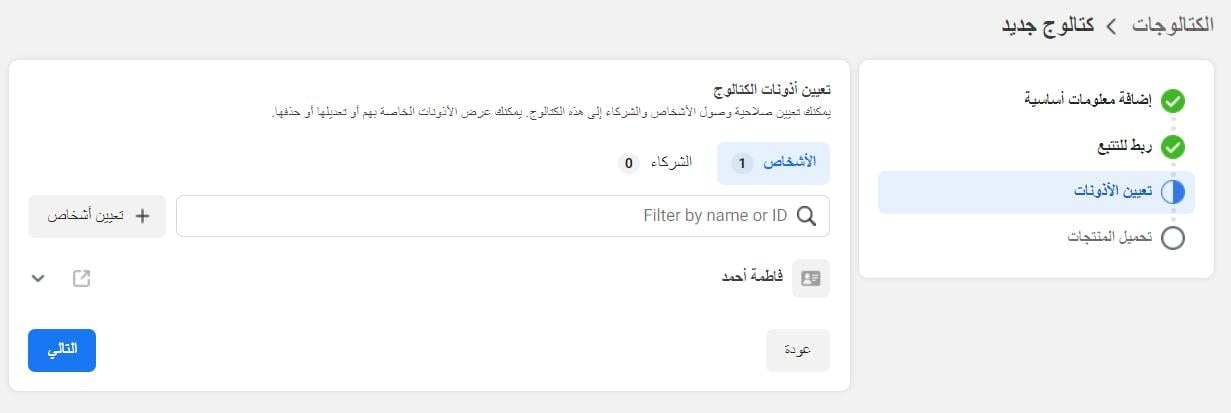
5. Review catalog permissions, then click (Next).
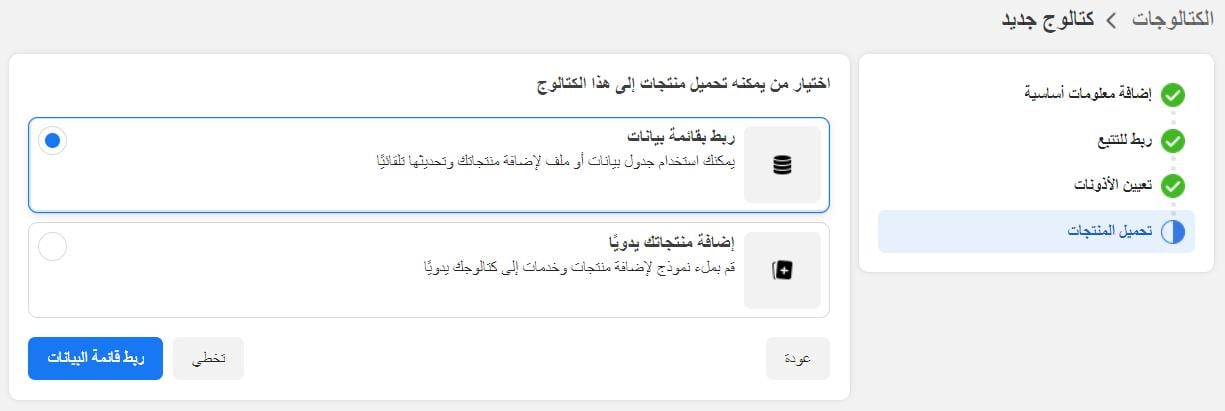
6. Choose to upload products via (Connect to Data Feed), then click (Connect Data Feed).
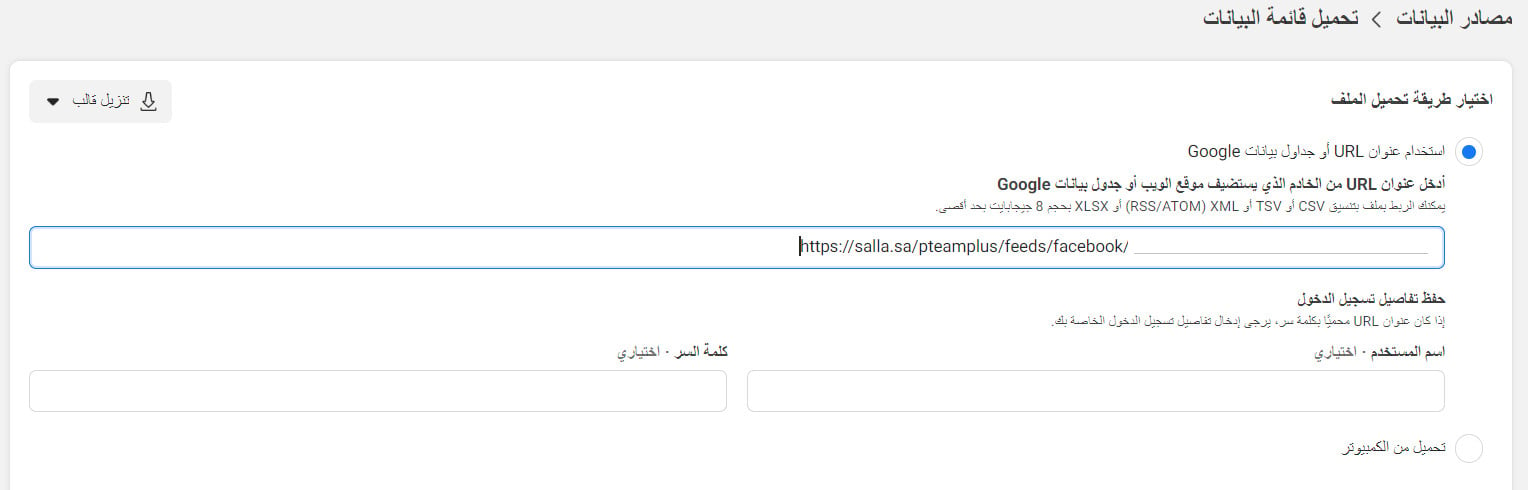
7. In the (Enter URL) field, paste the link you copied in Step Five of Phase One.
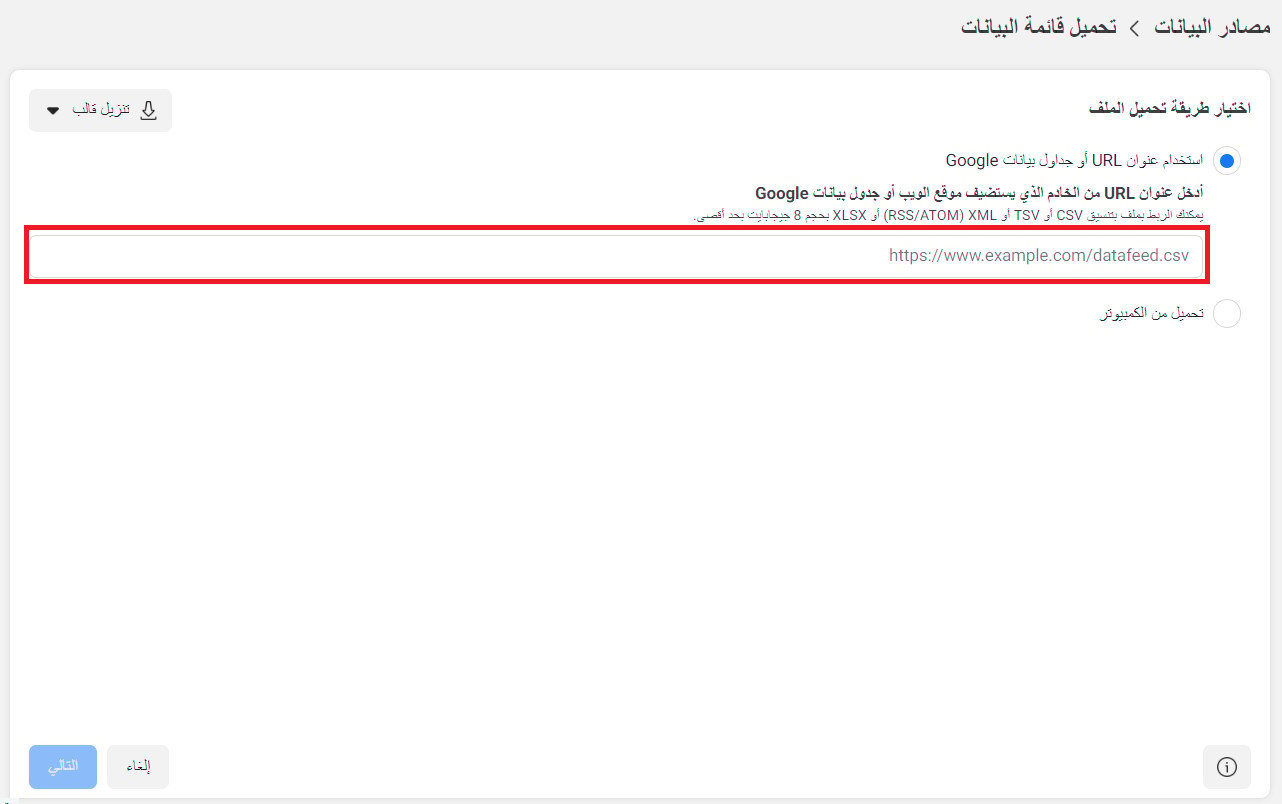
Do not enter any username or password, just click (Next).
8. Customize the upload usage settings, then click (Upload).
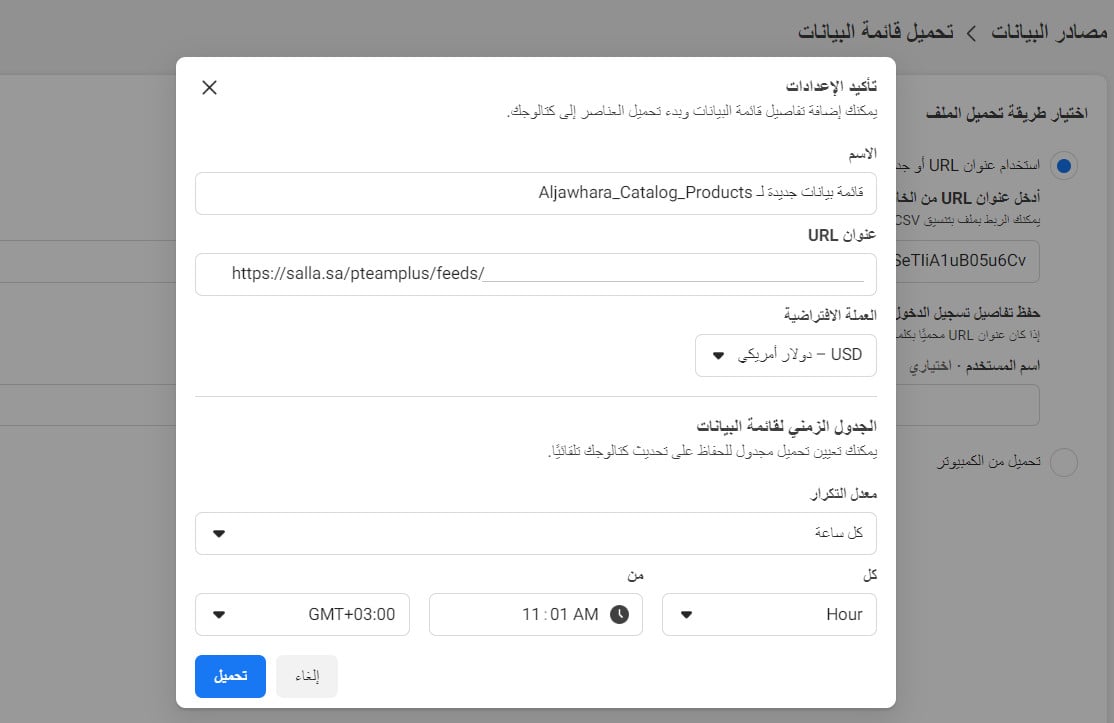
How often do you want your data feed to update?
The choice is yours depending on how quickly your products sell out and the volume of purchase orders in your store. The more significant the change in your inventory quantities, the faster the catalog data should be updated.
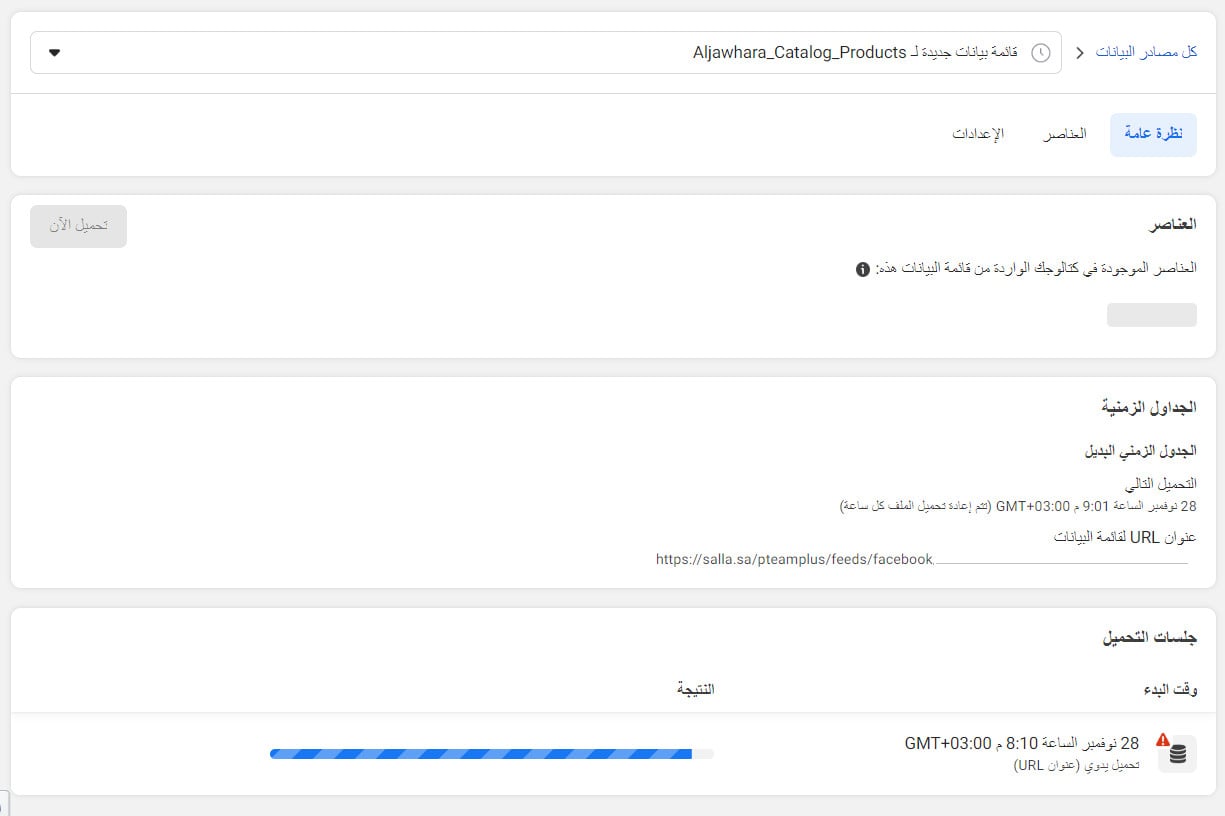
Be patient while waiting for the result of uploading your store's products to the catalog.
After uploading the products for the first time, the summary will appear as follows:
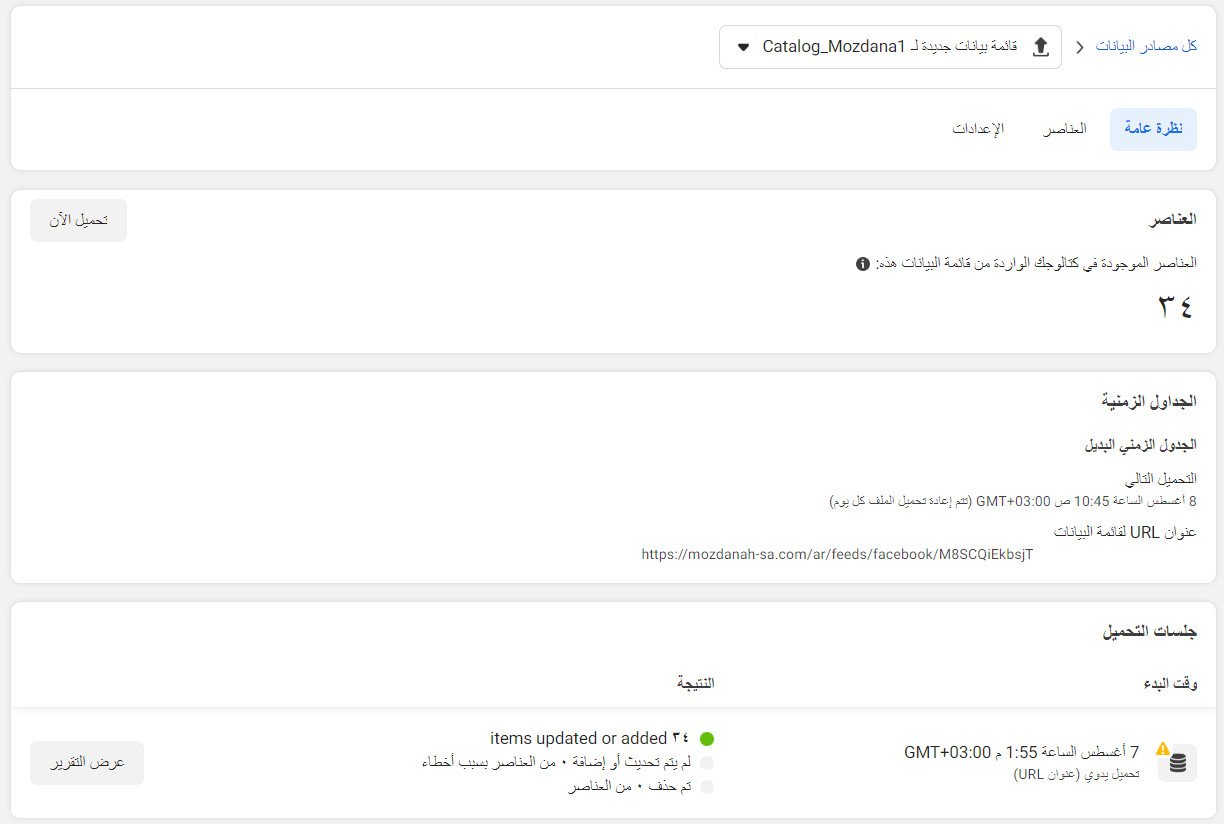
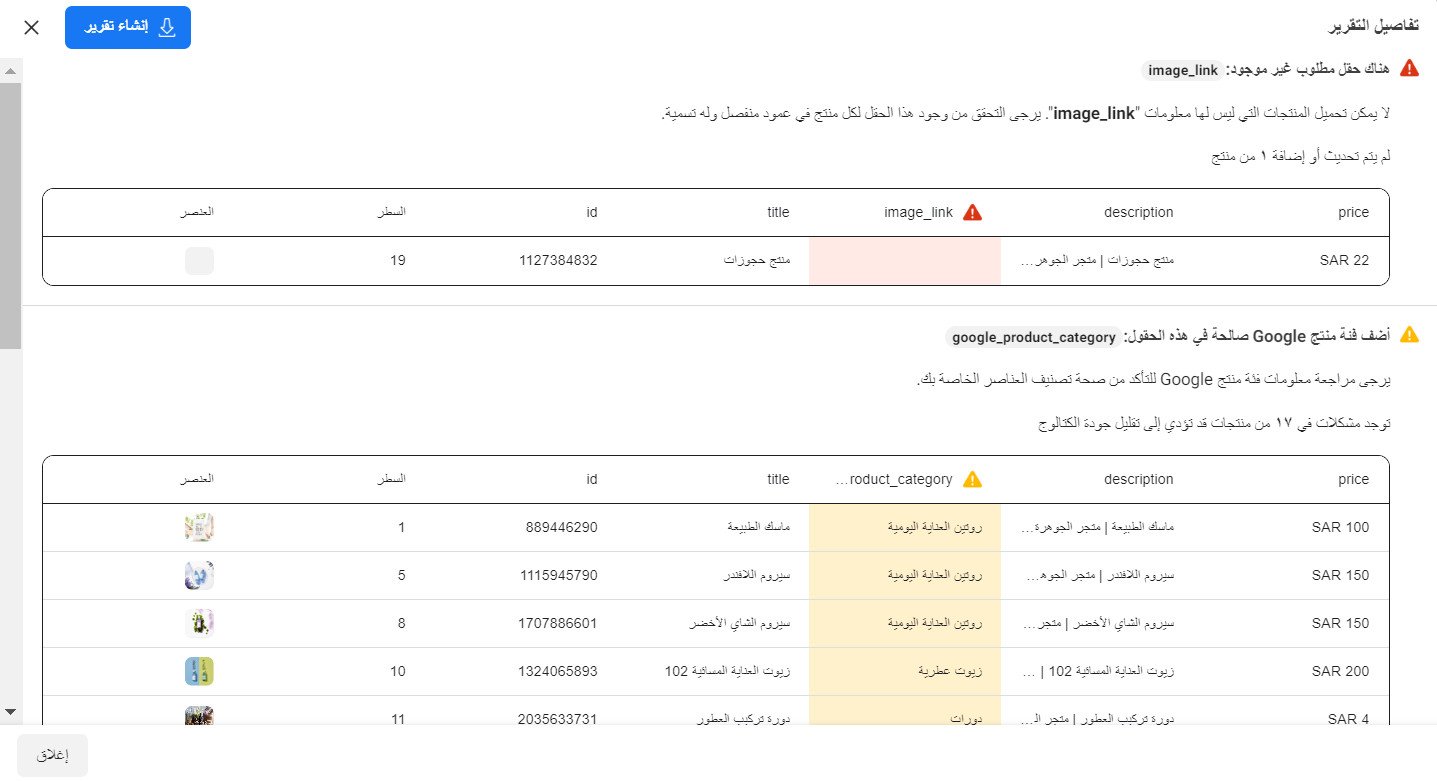
You can view the updated products from the previous window by clicking (View Report).
Frequently Asked Questions
What are the main services offered by Facebook - Instagram Catalog?
1. Update posts to keep your customers informed about the products they are interested in.
2. Increase the likelihood of your customers commenting on your products, which increases the chances of your store's products appearing.
3. A variety of tools available for better catalog management.
4. The feature of completing purchases for customers, allowing them to buy your products directly from your store.
5. Explore ways to advertise items in your catalog with the ad tool.
6. Manage the connections of your catalog with event data sources, such as Facebook Pixel or SDK groups for the app.
7. The tool provides data sources to supply your catalog with information about your items. You may have multiple data sources, and you can add items, view, update, and manage your data sources settings.
How can I view products after updating?
1. From the sidebar of the catalog manager control panel, click (Collections) to display all products.
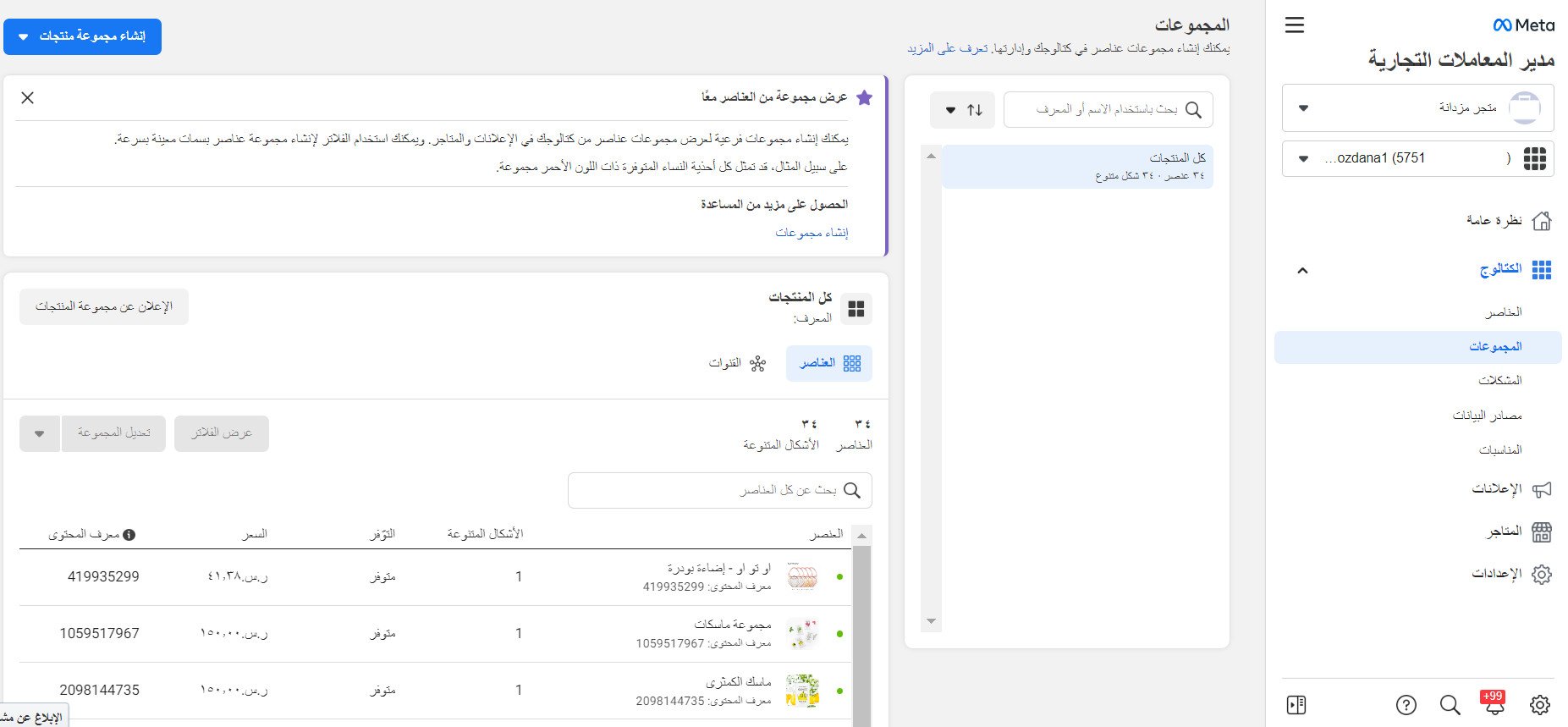
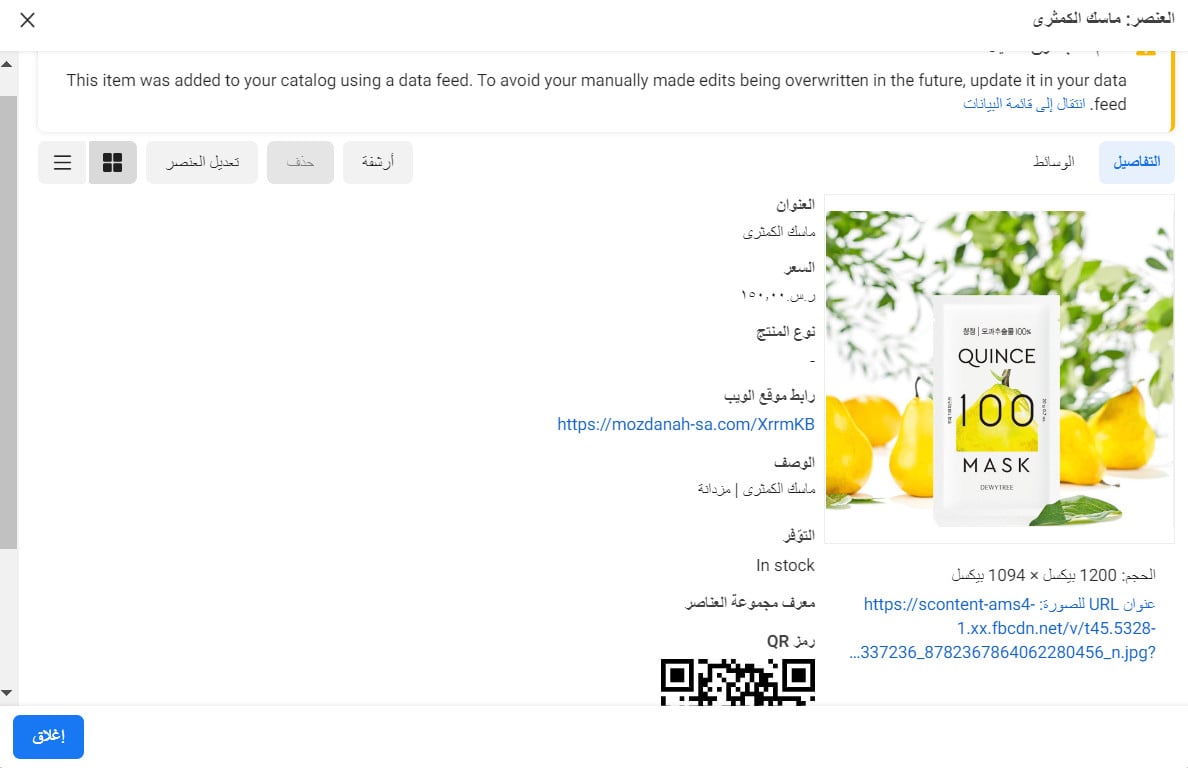
2. Click on any product to display its card, as shown:
?Can I add catalog products to my store on Facebook and Instagram
Currently not available
We recommend checking out more details about Best Practices for Setting Up a Professional Catalog on Facebook
Additional Support Services
If you need help with Connecting Your Salla Store with Facebook - Instagram Catalog or benefiting from other services such as connecting with Snapchat catalog feed, connecting with or Instagram catalog, in addition to connecting with Facebook catalog feed, head to the Merchant Services section, which includes quality services from external service providers to professionally complete your business activities.