Are your store orders and your accounting system telling you two different stories?
When orders live in your store and invoices live somewhere else, someone has to bridge the gap by hand every day — and that is where numbers drift. Dgtera Connector links your Salla store directly to DGTERA ERP, so orders sync on their own, invoices are created for you, and your financial reports stay accurate. In this guide, you'll learn how to install the Dgtera Connector app, activate it for your store, sync your orders, and remove the app.
Dgtera Connector links your Salla store directly to DGTERA ERP. It syncs your Salla orders automatically, creates invoices, and feeds your financial and accounting reports, so there is less manual re-entry and fewer errors in your store's books. Install it from the App Store, then activate it with your store URL.
🚧 Before you start
- If you're new to DGTERA, contact the Dgtera team to open an account first.
📌 Article overview
- How to install the Dgtera Connector app
- How to manage the Dgtera Connector app
- Frequently asked questions
👣 How to install the Dgtera Connector app
1. From the main menu, click (All), then under helper tools click (App Store).

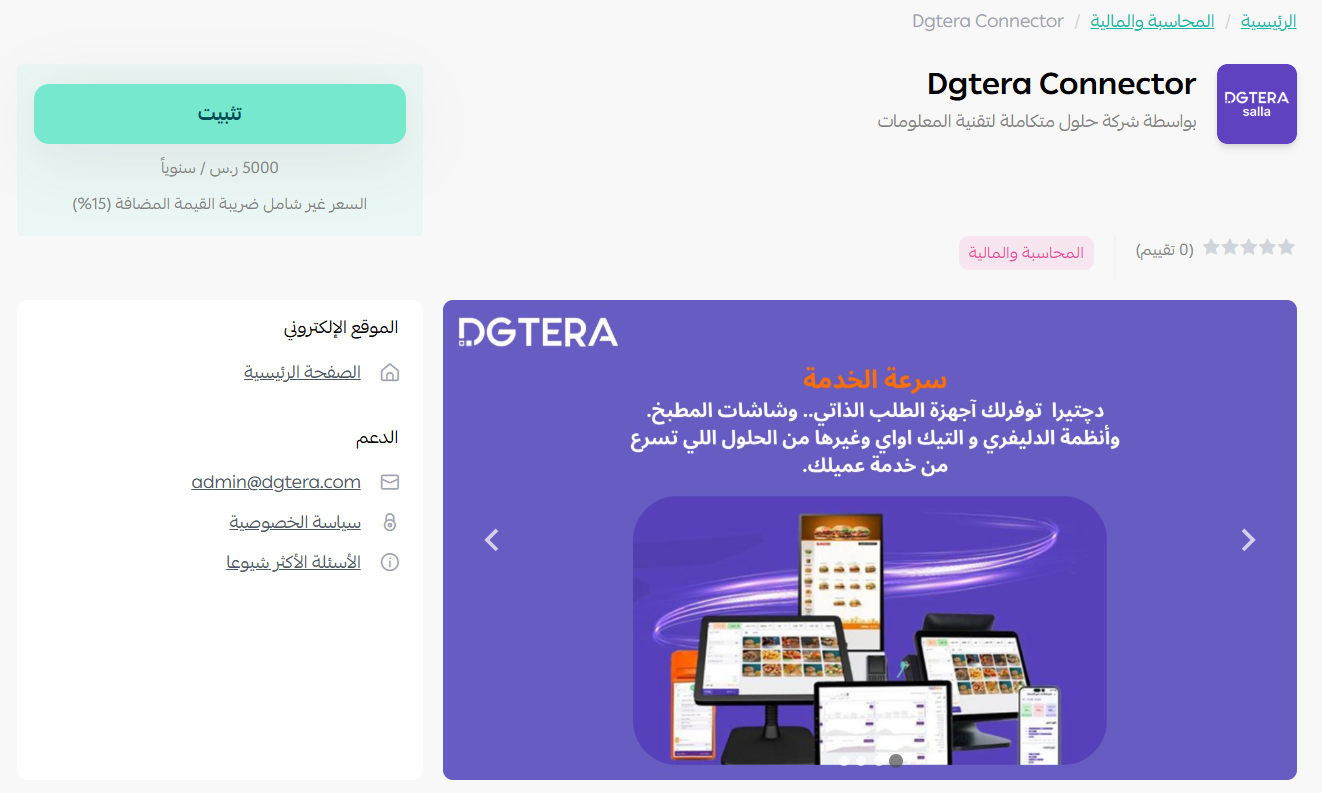
2. On the Dgtera Connector app page, click (Install).
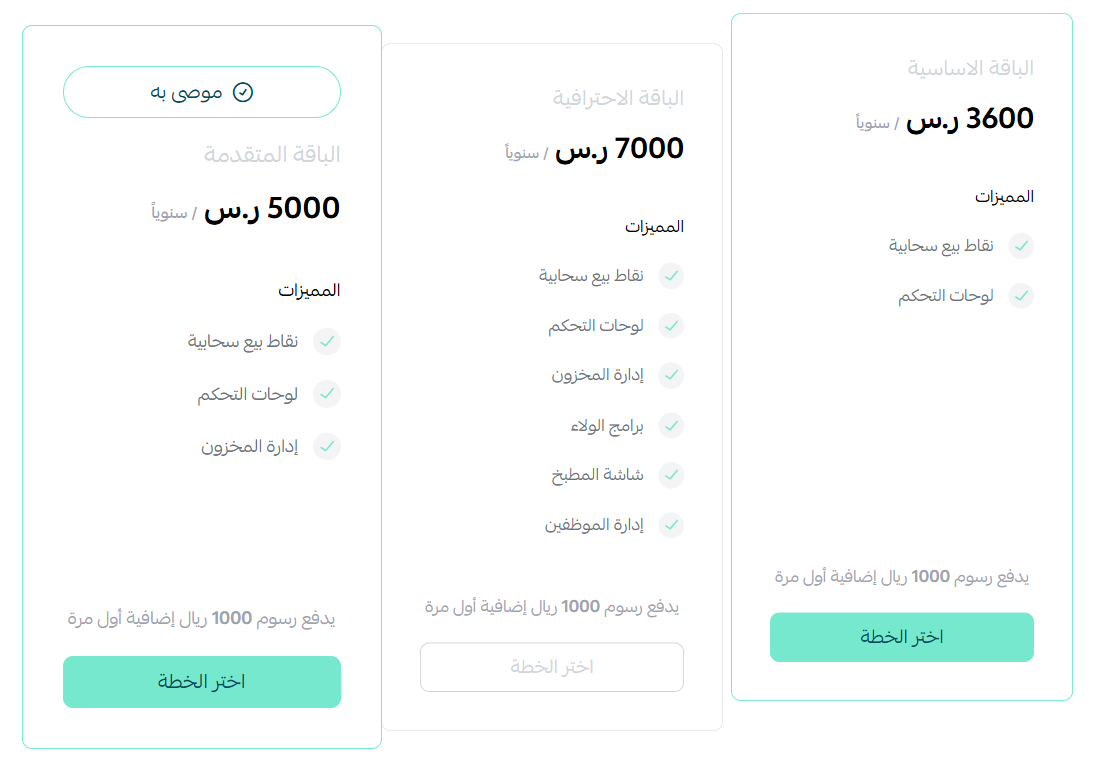
3. Choose the plan that suits you.
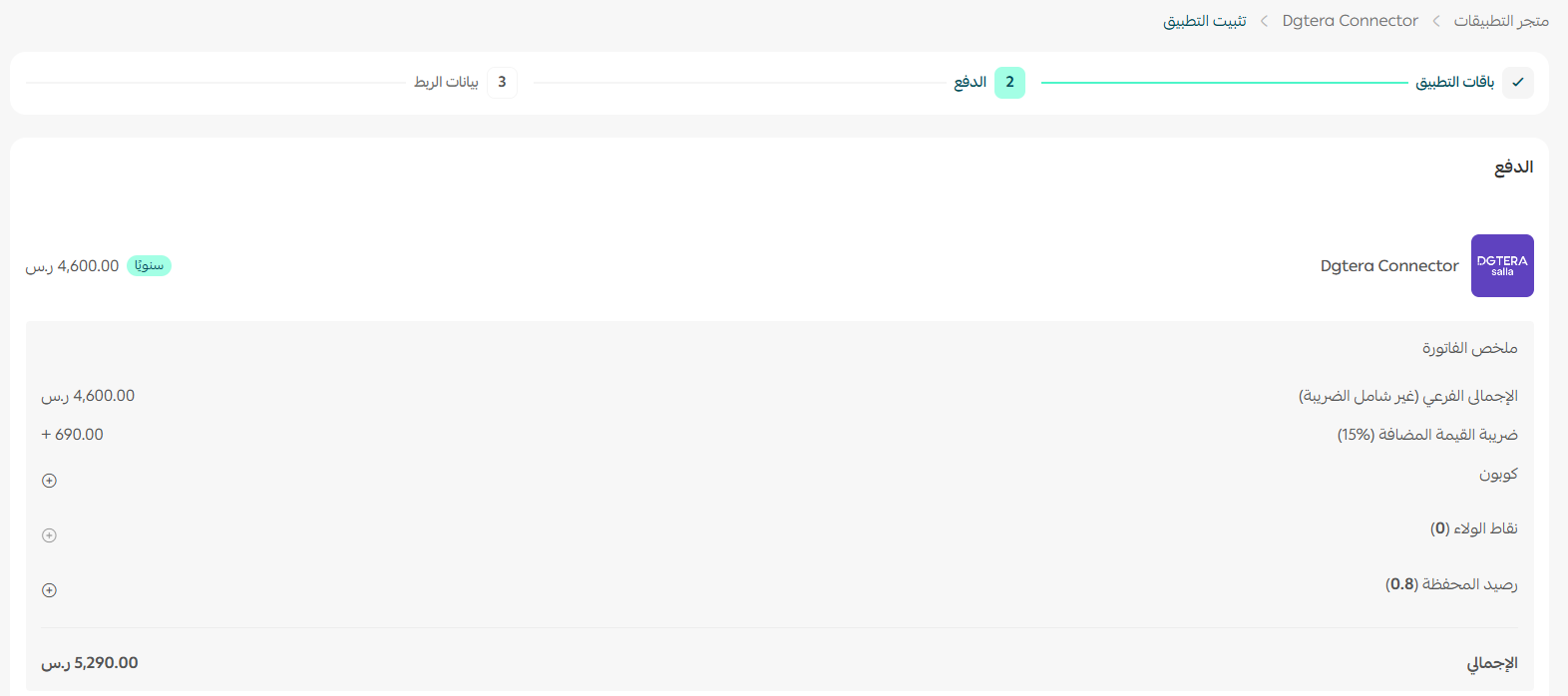
4. Enter your payment details, then click (Confirm).
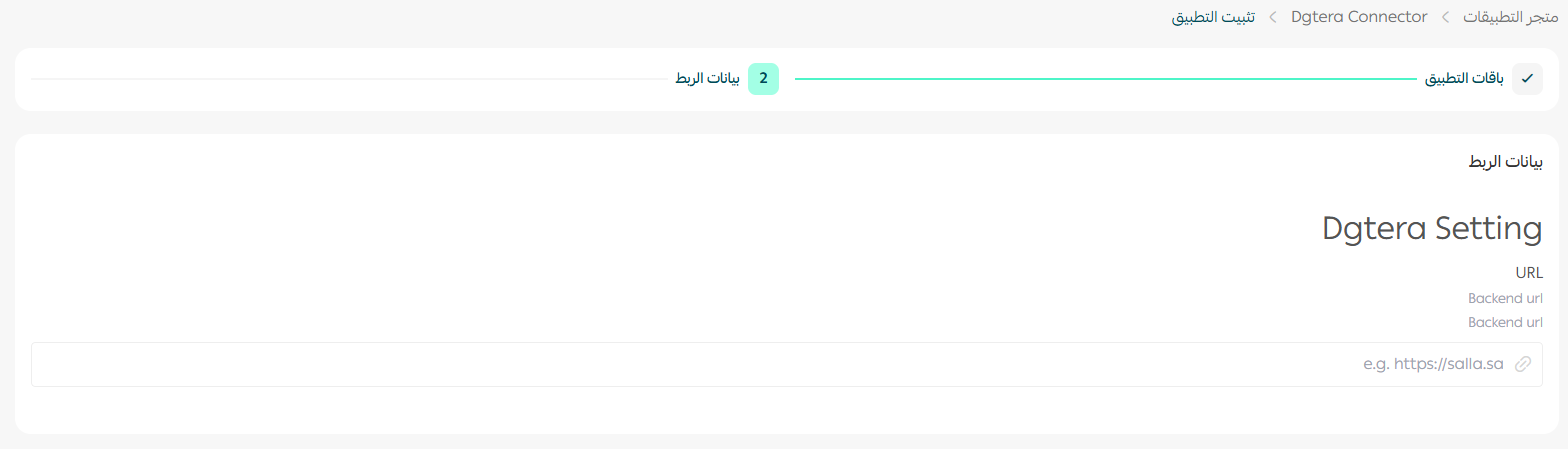
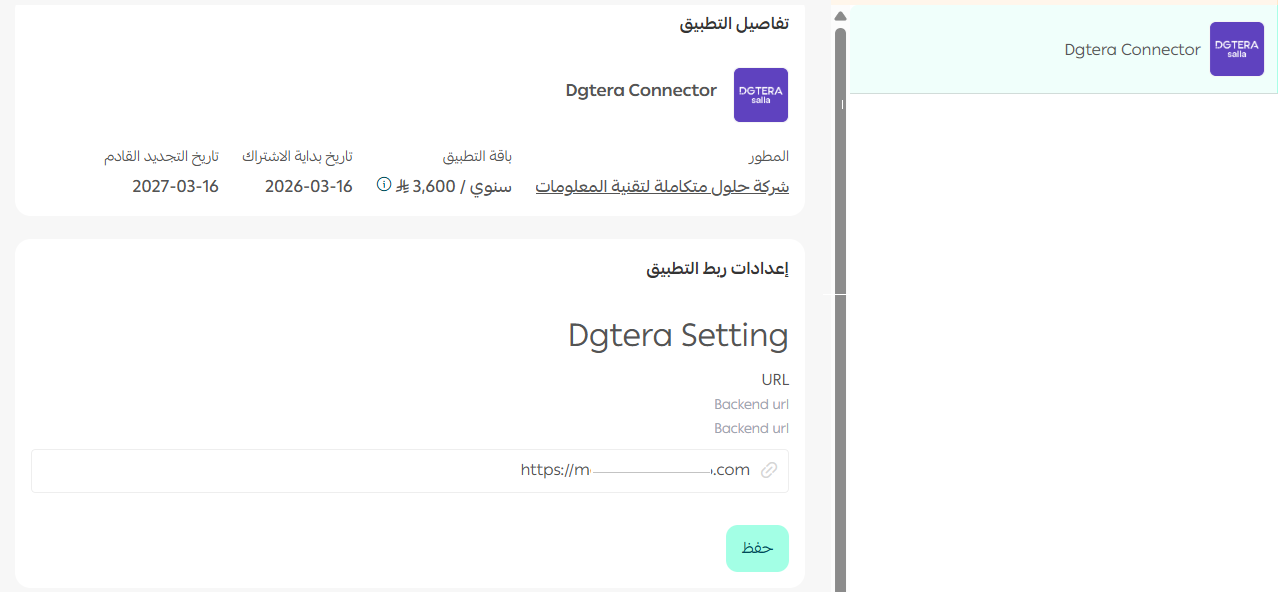
5. Enter your store URL, then click (Activate).
Congratulations — the app is now active.
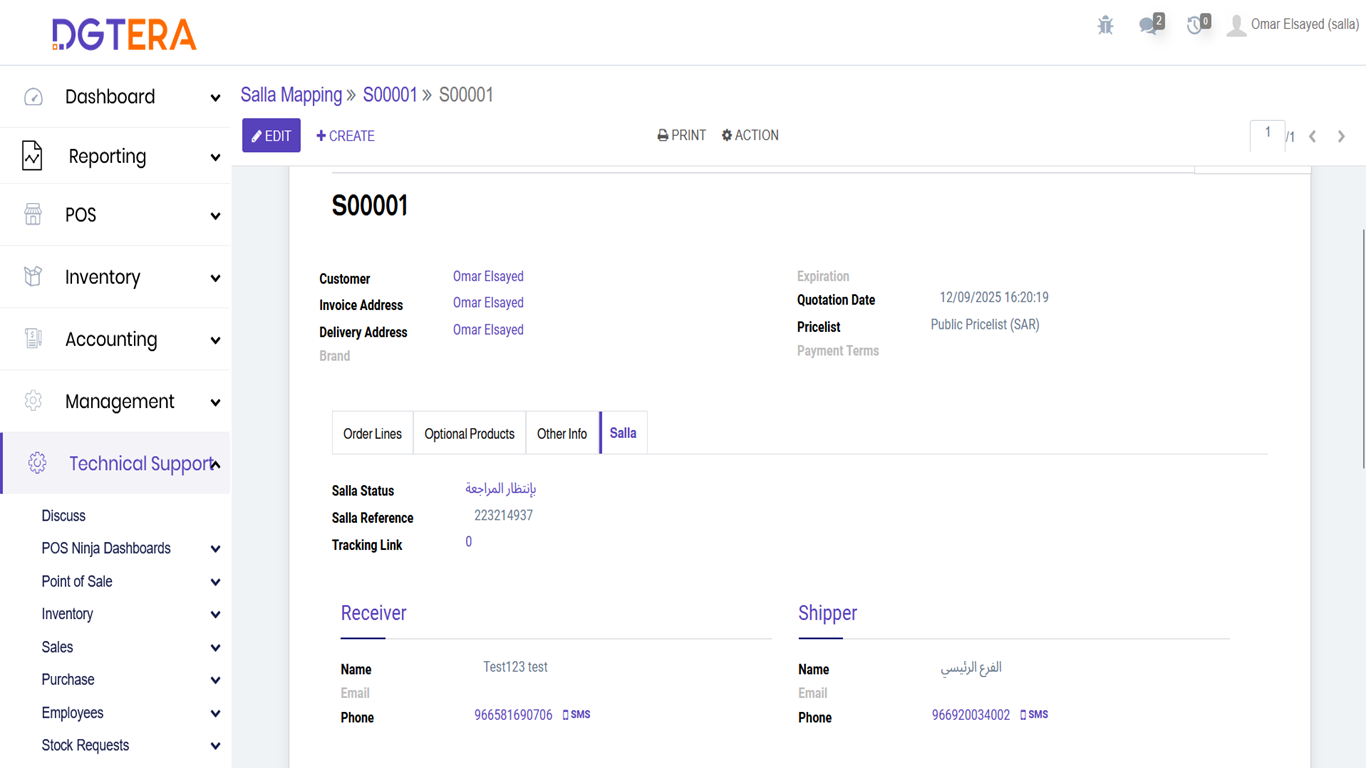
You can now view and sync your orders from your DGTERA account dashboard.
🚀 How to manage the Dgtera Connector app
Remove the app
1. From the app options menu, click (Cancel subscription), then choose a reason for cancelling.

2. From the app options menu, click (Delete app), then choose a reason for deleting.

3. Open the deleted apps page, then from the app options menu click (Delete app permanently) to remove it from your store for good.

❓ Frequently asked questions
What does Dgtera Connector sync?
Your Salla orders. They move into DGTERA ERP automatically, where invoices are created and your financial and accounting reports are updated.
I don't have a DGTERA account yet. What should I do?
Contact the Dgtera team to open an account before you connect your store.
What do I need in order to activate the app?
Your store URL. Enter it after payment and click (Activate).
Where do I see the synced orders?
In the dashboard of your DGTERA account, where you can also trigger a sync.
How do I remove the app completely?
Cancel the subscription, delete the app, then delete it permanently from the deleted apps page.
For more details, visit the Dgtera Connector app page.