Speed and accuracy in order management are the foundation of running a professional store and delivering a smooth buying experience.
By the end of this guide, you will be able to clearly understand the Orders Management page, review orders efficiently, and perform all available actions with confidence and ease.
📌 Article overview
- Sections of the Orders page
- Viewing orders
- Order search options
- Filtering orders
- Actions on multiple orders
- Select multiple orders
- Change order status
- Add tags to multiple orders
- Issue and print shipping labels for selected orders
- Print invoices for selected orders
- Mark orders as read
- Assign selected orders
- Export orders
- Delete orders
- Cancel an order before fulfillment begins
Sections of the Orders Page
1. Open Orders
From the main menu, click Orders.

2. Open Orders Management
From the tab click All orders.
3. Overview of the Orders Management page
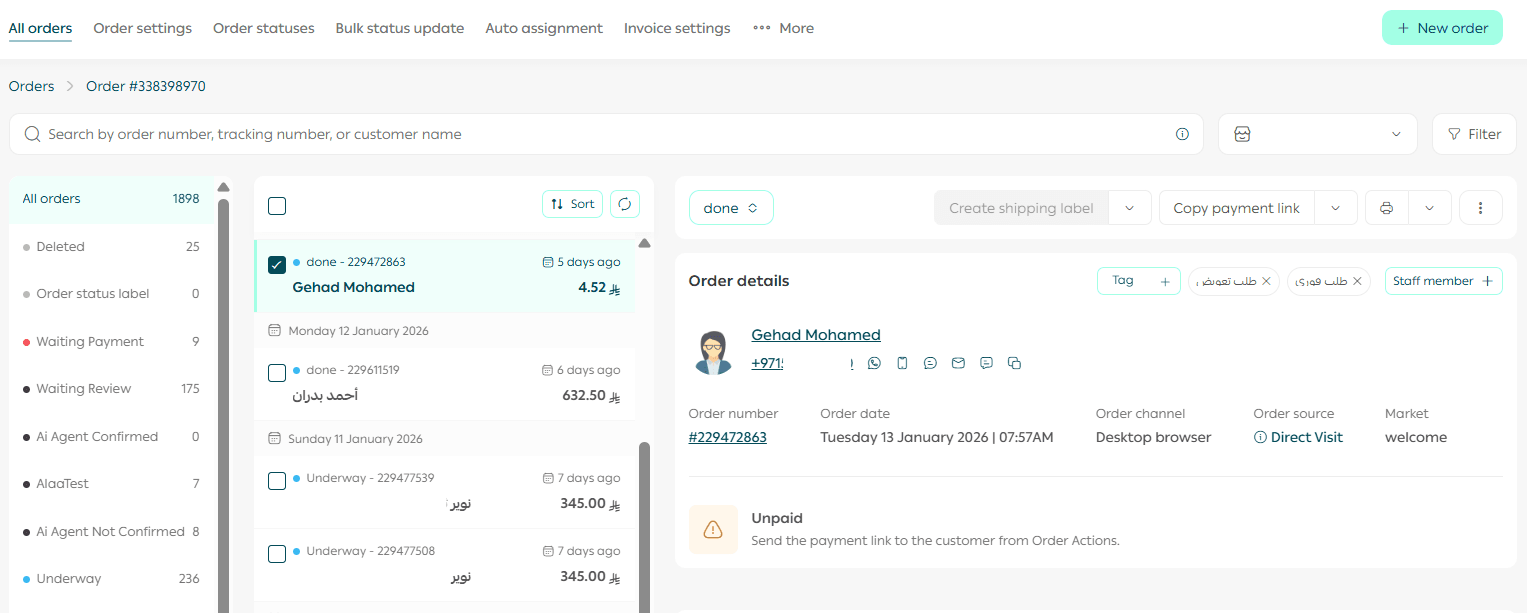
The Orders Management page includes several key sections:
Search and filter bar
Allows you to search for specific orders or multiple orders using filters.
Order status list
Displays all order statuses, with the option to customize statuses.
Orders list
Shows orders for the selected status, with sorting options.
Order actions
Displays the available actions for the selected order.
Order details
Shows full order details, including order history and changes.
You can also add internal comments visible only to store staff.
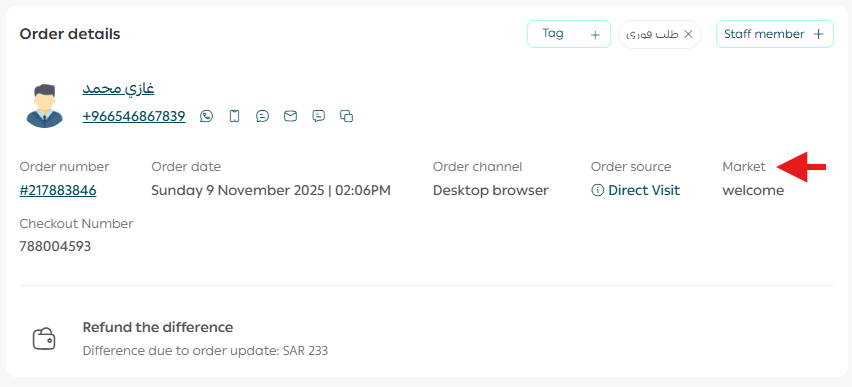
🔔 If the multi marketplace feature is enabled, the order details page will display the marketplace source of the order.
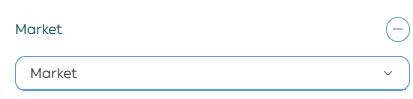
From the Orders Management page, you can also filter orders by marketplace.
Viewing Orders
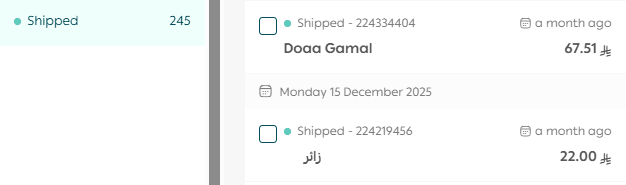
From the Orders Management page, select an order status to view all orders under that status.
Example: Click Pending Review to view orders waiting for review.
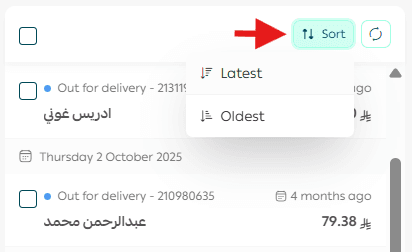
Sort orders
To sort displayed orders by newest or oldest, click Sort from the orders list.
Searching for Orders

Use the search field to find orders using:
- Order number
- Customer name
- Shipment number
- Recipient name
- Phone number
- Email address
You can also search for orders within a specific branch or across all branches.
Search multiple orders at once
Enter multiple order numbers separated by commas.

You can search for up to 15 orders at one time.
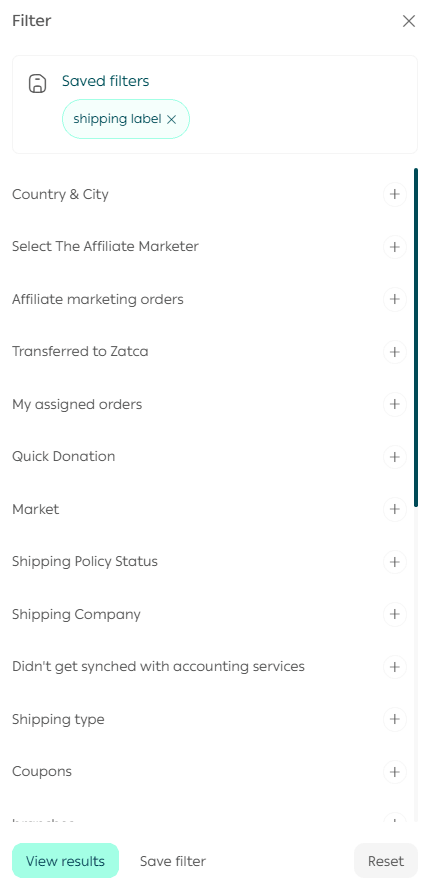
Filtering Orders
To use order filtering, click Filter.

Select the desired filter criteria, then click Show Results.
Save filter templates
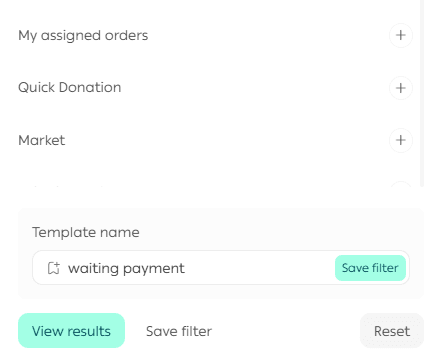
You can save frequently used filters as templates.
After selecting filter criteria, click Save as Filter Template.
Next time, simply click the saved filter from the filter bar to apply it.
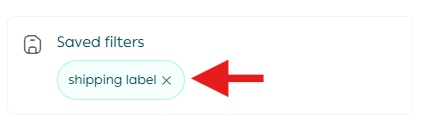
Clear filters
To remove the active filter, click Clear Filter.

Actions on Multiple Orders
Select multiple orders
Select all or specific orders from the orders list to apply actions to them together.
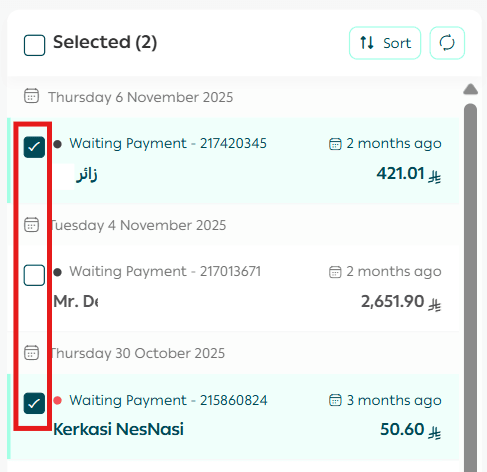
📝 Important note
From the available actions menu, you can apply one or more actions, then click Execute Actions.
Change order status
Select the new status for the chosen orders, add optional notes for the customer, and enable SMS notification if desired.
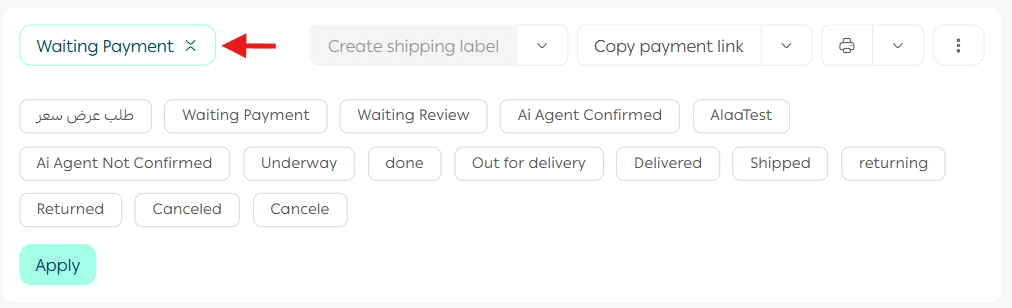
✅ SMS notifications are sent when the sender name is Salla and apply to all plans.
This does not apply to stores using external SMS providers.
When are SMS notifications sent?
- When a shipping label is issued, including the tracking link
- When the merchant cancels an order
- When an order is refunded or returned
For more details, refer to the order status customization guide.
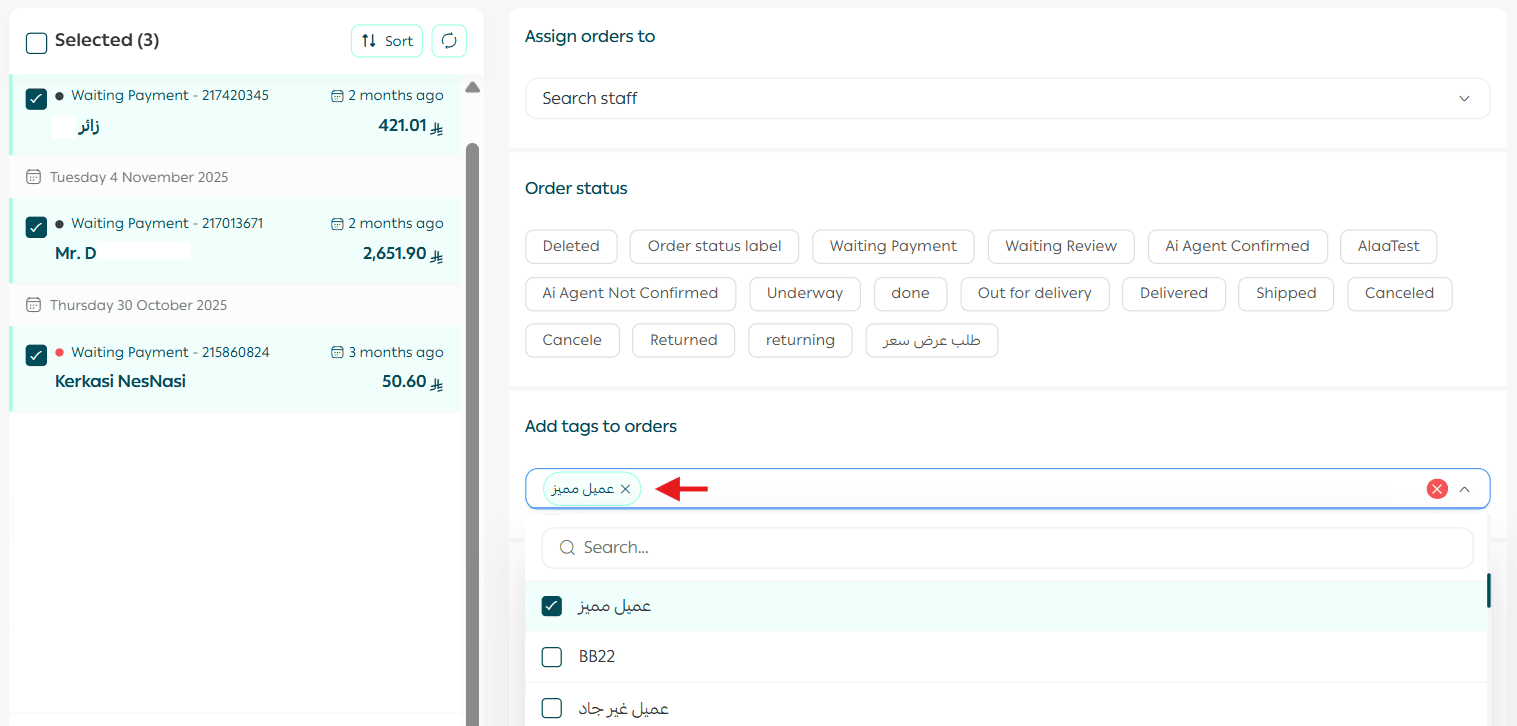
Add tags to multiple orders
Select the orders, choose Add Tag to Orders, select the tags, then apply the action.
Issue and print shipping labels
Select the action to issue, print, or cancel shipping labels for the selected orders.
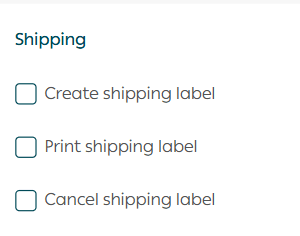
For more details, refer to the order fulfillment and sales process guide.
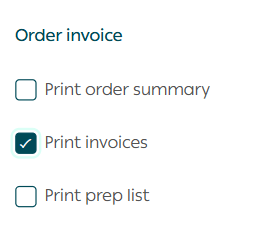
Print invoices
Select the invoice printing action for the chosen orders.
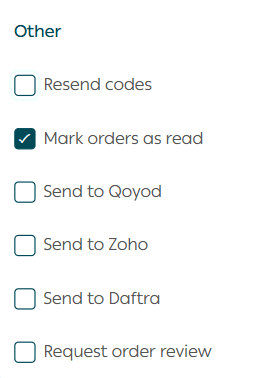
Mark orders as read or unread
You can mark orders as unread to revisit them later.
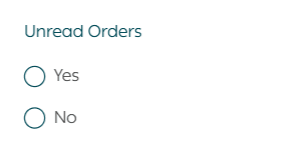
Unread orders can also be viewed using order filters.
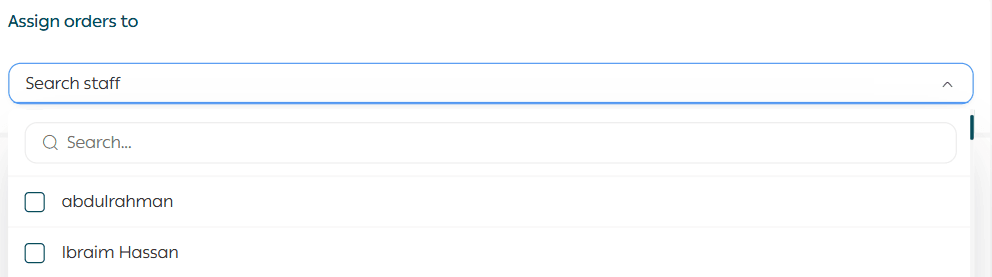
Assign orders
Search for employee names and assign selected orders to team members.
Export orders
You have several export options:
Option one: Basic order export
The export file will be sent to the store email address.

Option two: Export using a template
Select a predefined export template, then click Execute Action.
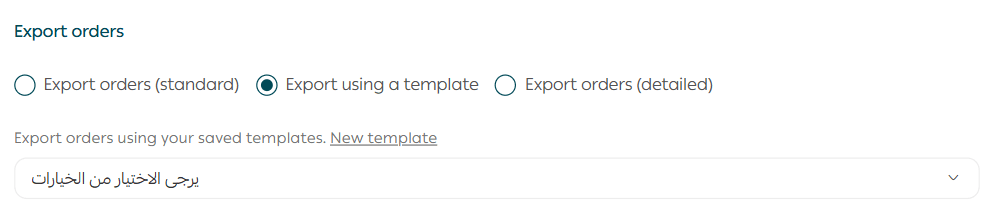
The export file will be sent to the store email address.
You can also create a new export template by clicking New Template.
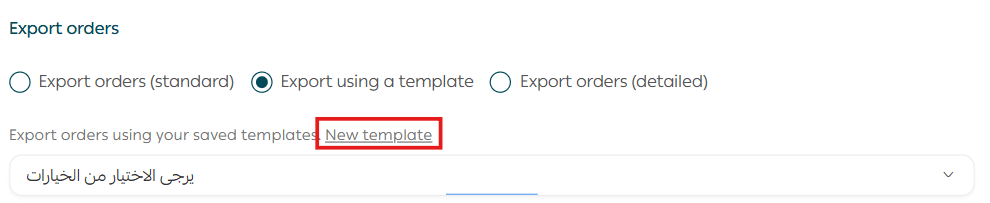
For more details, refer to the order export templates guide.
Option three: Detailed order export
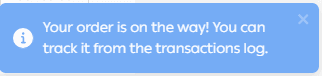
You can track the export file from the operations log.

Delete orders
From the bottom of the actions section, click Delete Orders.

For more details, refer to the guide on viewing and restoring deleted orders.
Allow Customers to Cancel Orders Before Fulfillment
Enable customer cancellation
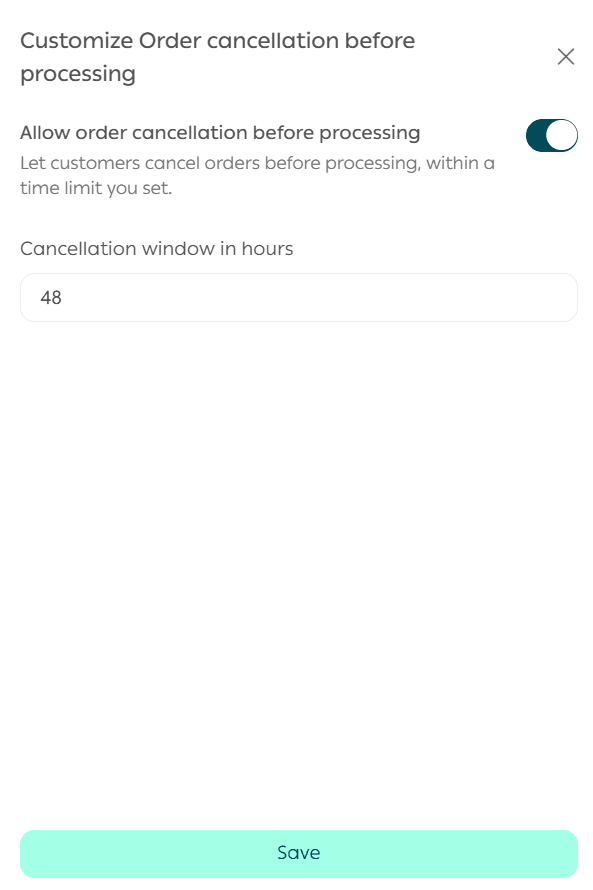
From Store Settings, open Order Settings, then click Customize.

Enable the option that allows customers to cancel orders before fulfillment begins.
Set the maximum time allowed for cancellation, then click Save.
Customer steps to cancel an order
Click the account icon at the top of the store, then select Orders List.
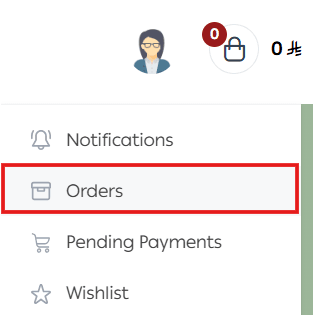
From the bottom of the order details page, click Cancel Order to cancel before fulfillment starts.

Final Takeaway
The Orders Management Page gives you full control over every stage of the order lifecycle.
With clear structure, powerful bulk actions, and flexible filtering, you can manage orders faster, reduce errors, and deliver a better experience for both your team and your customers.