Organizing and segmenting customers is one of the most powerful tools for improving marketing performance and operational efficiency. By grouping customers based on specific criteria, you can deliver personalized offers, tailor payment and shipping options, and create exclusive coupons for each segment.
Customer Groups allow you to automatically or manually assign customers, ensuring precise targeting and maximum impact across your store operations.
In this article, you’ll learn how to create and delete customer groups, along with practical use cases that demonstrate how customer segmentation can elevate your customer relationship management.
📌 Article overview
- Benefits of customer segmentation
- Creating a new customer group
- Filtering customers using conditions
- Deleting a customer group
- Practical use cases for customer groups
Benefits of segmenting customers into groups
Customer segmentation isn’t just organization; it’s a smart growth strategy.
By grouping customers based on behavior, value, or engagement, you gain deeper insights and unlock the ability to deliver more relevant experiences. This helps you:
- Increase loyalty among high-value customers
- Improve the shopping experience based on customer behavior
- Target high-potential new customers more effectively
- Anticipate challenges early and respond with confidence
Creating a new customer group
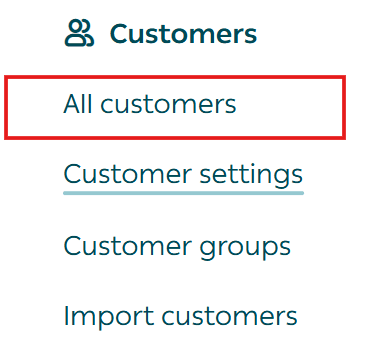
- From the main menu, click All, then under Customers select All customer.
2. Go to the Customer groups tab and click + New Group.

Enter group details
- Group name
Enter a short, descriptive name for the group and choose an appropriate icon.
2. Automatic customer assignment condition
Any customer who meets the defined condition will be added automatically.
If no condition is set, customers must be added manually.
Click Save to create the group.
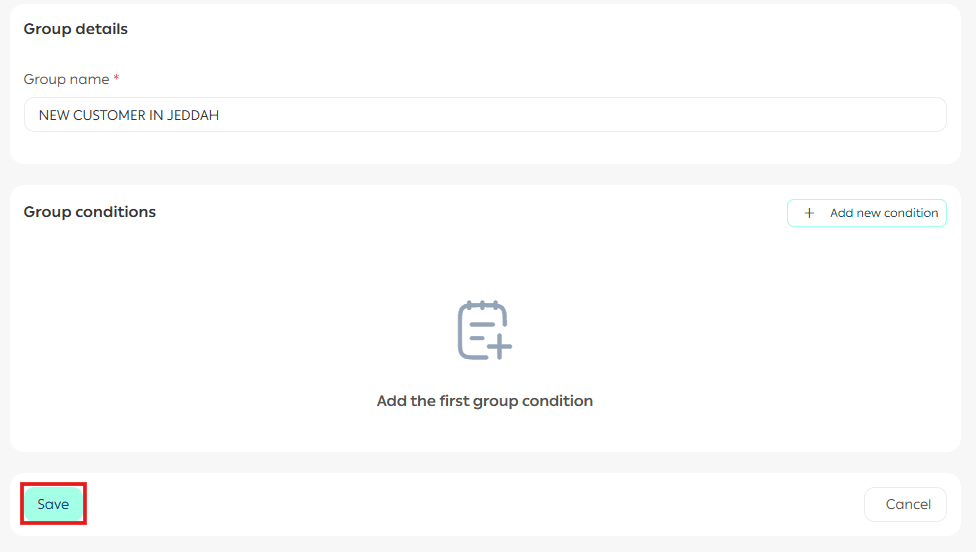
Automatic customer assignment conditions
Automatic assignment conditions are divided into three key sections:
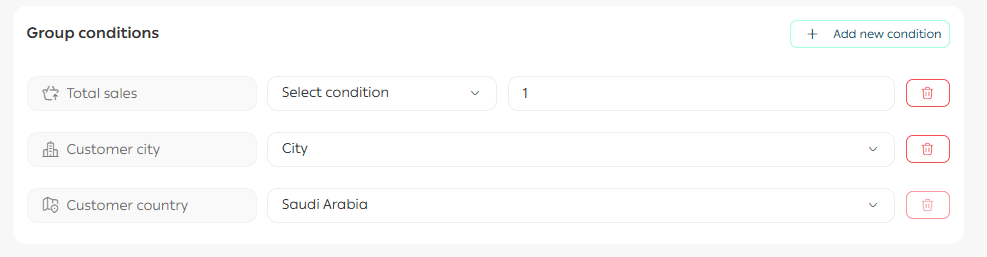
Section 1: Condition type
Choose how customers will be automatically added to the group. Available options include:
- Total purchases
Segment customers based on their total spending to identify and reward top spenders.
- Number of orders
Classify customers by purchase frequency, helping distinguish loyal customers from new ones.
- Product eeviews
Identify customers who have reviewed products to target highly engaged users.
- No orders
Target customers who registered but never completed a purchase — ideal for first-order campaigns.
- No email address
Identify customers without an email to improve communication coverage.
- Canceled orders
Segment customers with canceled orders to analyze patterns and improve their experience.
- Gender
Filter customers by gender to tailor campaigns and product recommendations.
- Date of birth
Use birthdays to trigger personalized offers or celebratory messages.
- Account creation date
Segment customers based on how long they’ve been registered to target new or long-term users.
- Last login
Identify active versus inactive customers to re-engage those who stopped interacting.
- Purchase during period
Segment customers who made purchases within a specific timeframe.
- Customer country
Filter customers by country to analyze geographic distribution.
- Customer city
After selecting a country, filter customers by city for more granular insights.
⚠️ To filter by city, you must first add a country condition.
- Order source
Segment customers based on the sales channel used (store, app, direct order).
⚠️ Order source cannot be combined with other conditions.
Once created, the group will appear as follows.
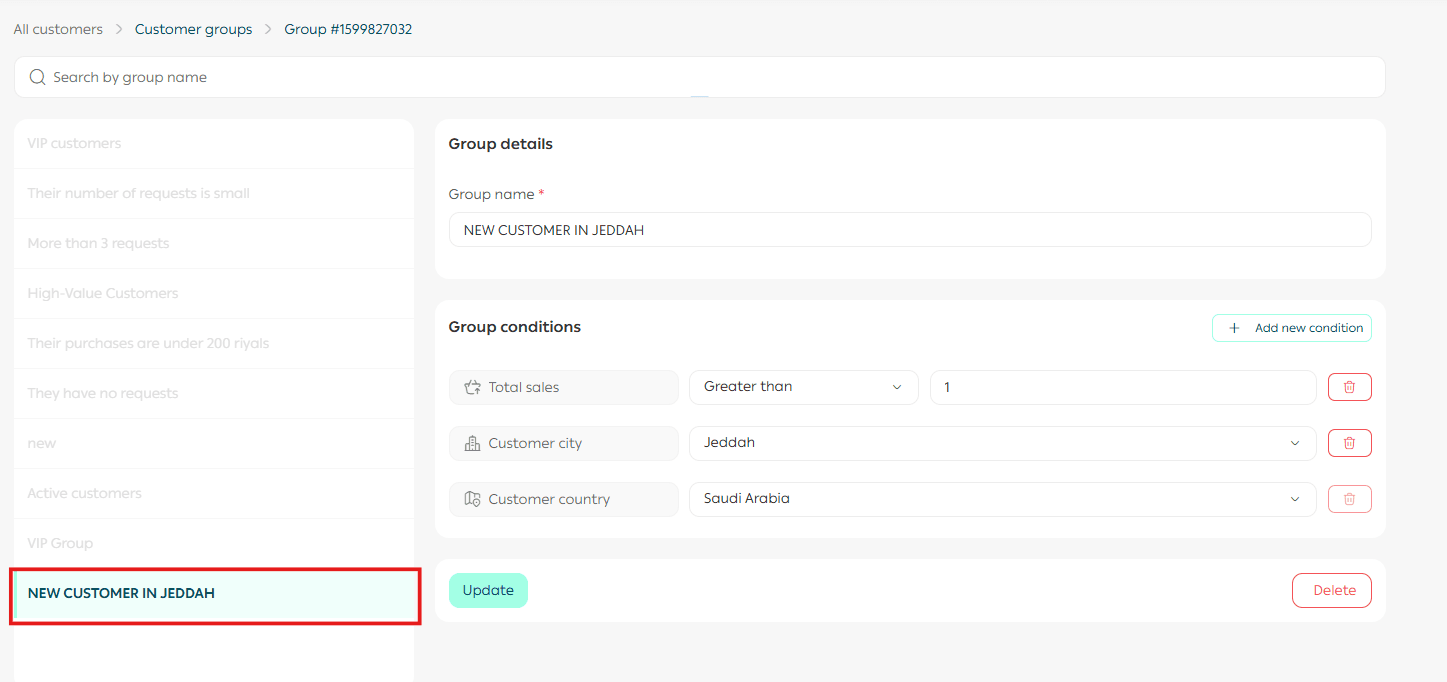
Example: Customers with more than 5 completed orders.
Select Condition type → Number of orders.

Section 2: Condition operator
Choose how the condition is evaluated:
- Greater than
- Less than
- Within range
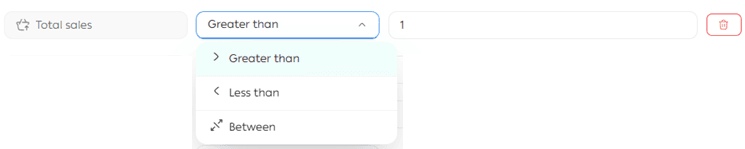
Section 3: Condition value
Enter the numeric value that completes the condition.
For range conditions, enter both the minimum and maximum values.

Example: If the condition is Orders > 5, any customer with more than 5 orders will be automatically added to the group.

📝 Important note: You can add multiple conditions to a single customer group for advanced segmentation.
Deleting a customer group
From the Group Management tab, open the group details and click Delete Group.
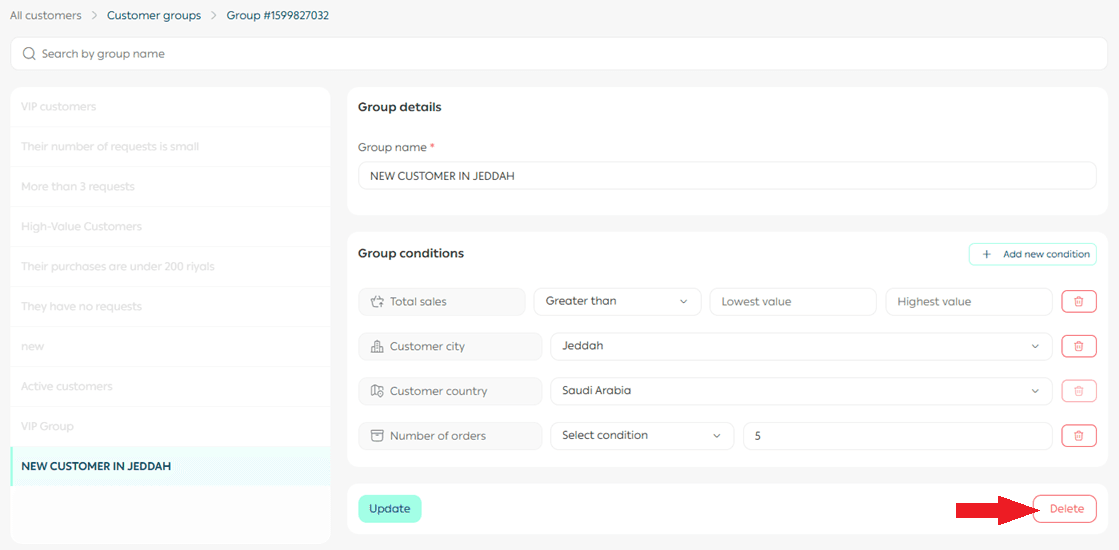
📝 Note: Deleting a group does not delete customer records. It only removes the grouping.
Practical use cases for customer groups
1️⃣ Limiting cash on delivery for uncommitted customers
Reduce operational issues caused by non-serious customers.
- Create a group for uncommitted customers, for example:
- More than 4 canceled orders
- Total purchases less than SAR/AED 50
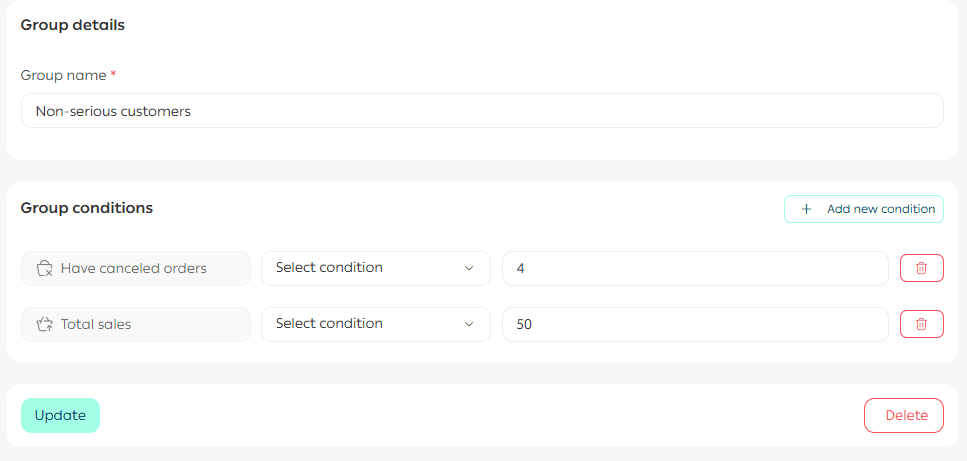
2. From the Payment Restrictions page, disable Cash on Delivery and bank transfer for this group.
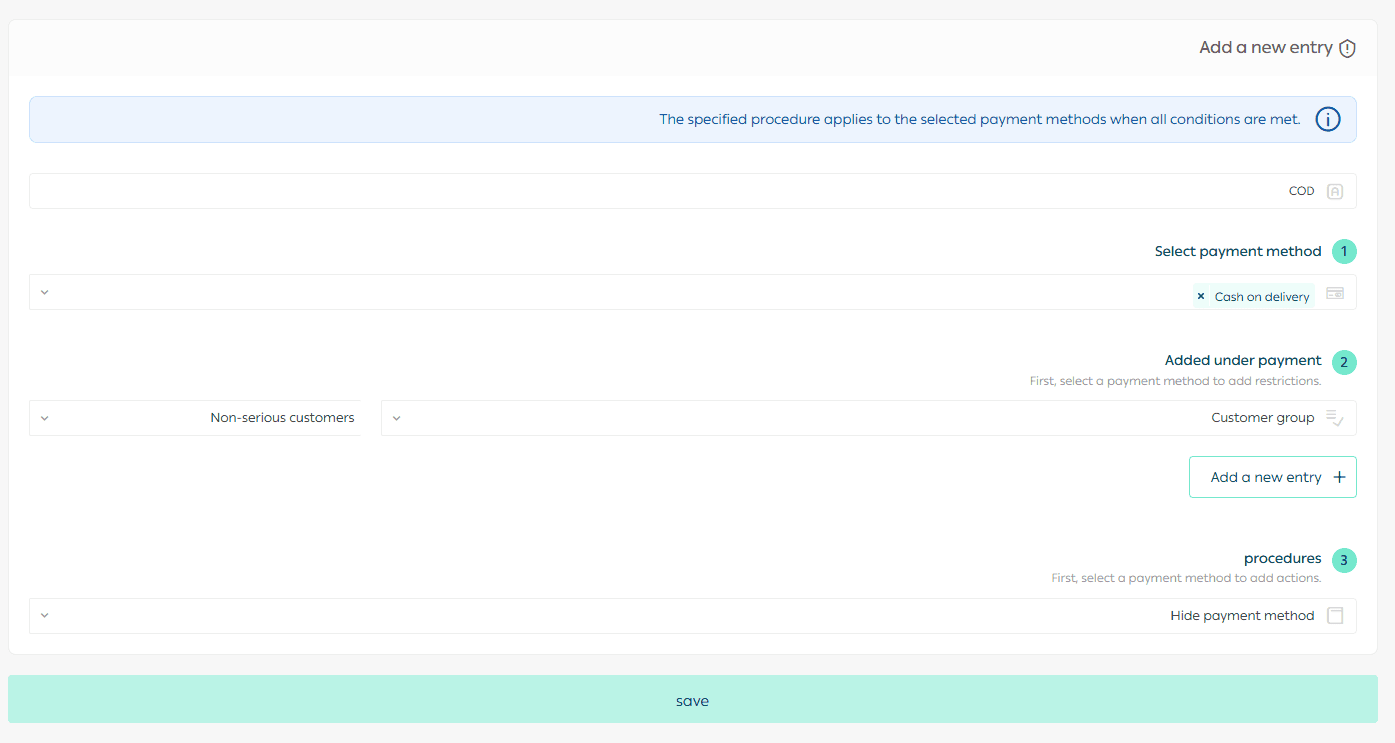
Learn how to protect your store from fraud and stabilize sales by using payment restrictions.
2️⃣ Creating exclusive discount coupons for specific groups
Boost conversions and repeat purchases with targeted discounts.
- Create a customer group based on order count or purchase value.
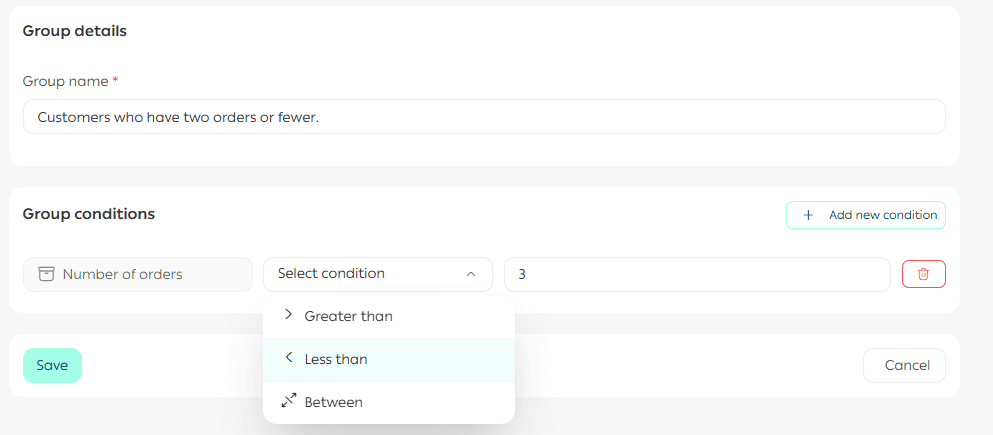
2. When creating a discount coupon, select the eligible groups under Coupon applies to.
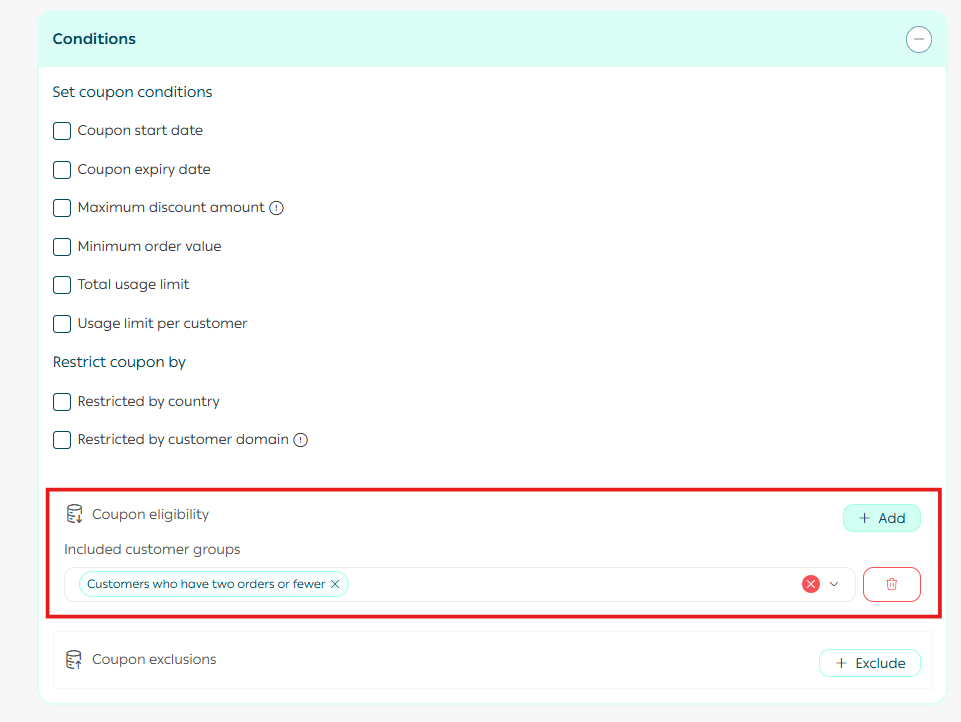
📘 Learn how to create and manage individual and group-based coupons professionally.
3️⃣ Offering free shipping to selected customer groups
Create a customer group, for example:
- VIP customers with purchases above SAR/AED 1,500
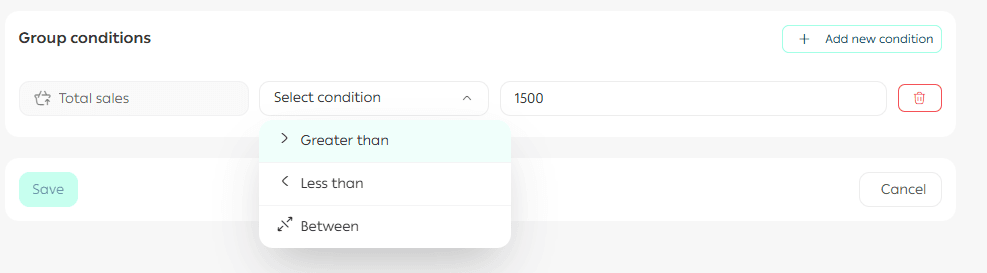
- Customers with more than 10 completed orders
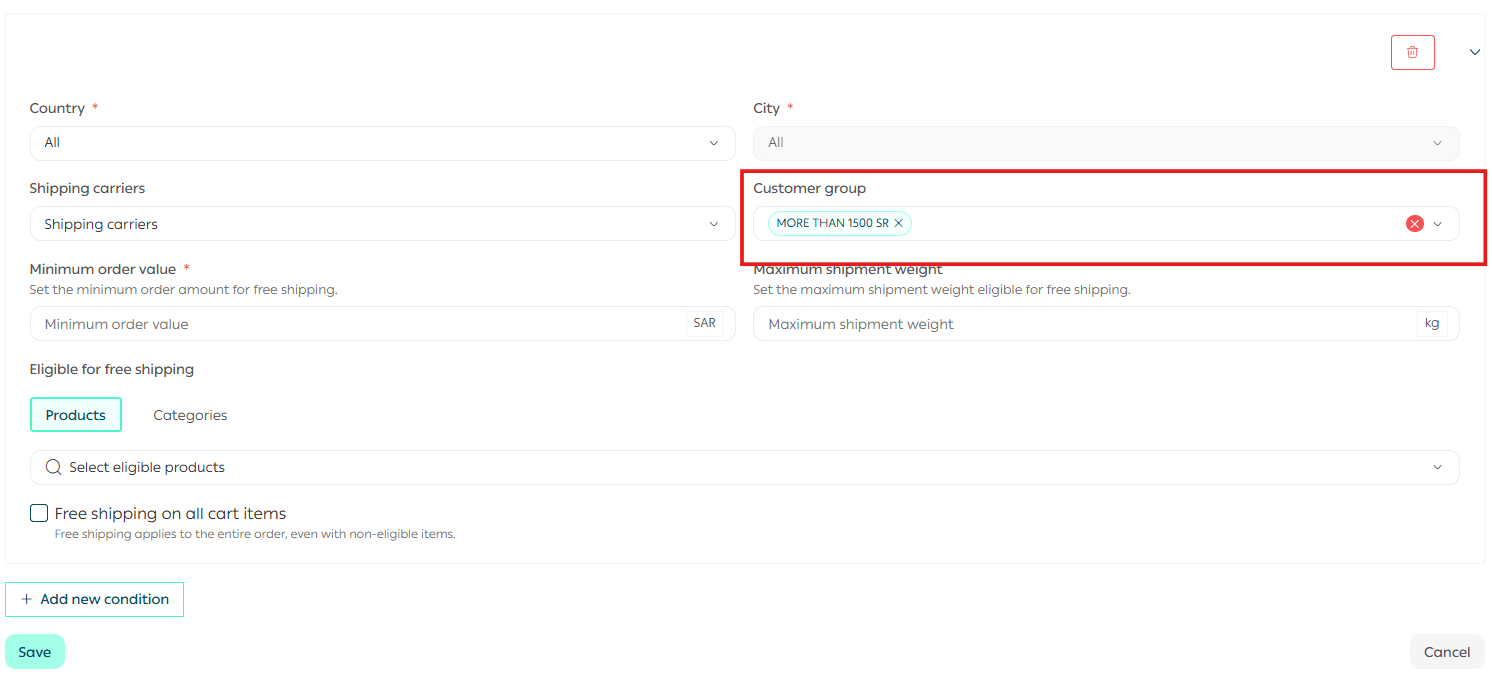
From the Free Shipping Settings page, select the customer groups eligible for free shipping.
📘 Discover how to turn free shipping into a powerful sales growth tool.
Frequently asked questions
When are customer groups updated?
Customer group lists are updated and new customers are added within 24 hours.
For example, if you create a customer group for customers who have placed 5 or more orders, once a customer completes their fifth order, they will be added to the group within 24 hours after meeting the criteria.
Conditions for updating the group
To include an order in the group criteria, the following conditions must be met:
- More than 24 hours must have passed since the order was created.
- The order status must be one of the following:
- Fulfilled
- Out for Delivery
- Delivered
- Shipped
Once these conditions are met, the order will be counted toward the group’s criteria and the customer list will be updated automatically.