Make the most of product settings to increase your sales opportunities and control how your products are displayed with precision and professionalism. Proper configuration ensures a smooth shopping experience that meets customer expectations and boosts conversions.
In this article, you will learn everything about the Product Settings page and how to customize every option related to product display and behavior.
📌 Article overview
- Accessing and customizing product settings
- Displaying purchase count for products
- Showing “You may also like” products on product pages
- Protecting PDF files for digital products
- Notify Me When Available settings
- Brand settings
- Filter and sorting settings
- Branch and warehouse priority order
- Displaying product images in full quality
Accessing and customizing product settings
From the main menu, click Products.

From the top menu, select Product Settings.

This is where you start customizing product settings to match your store’s needs.
Displaying purchase count for products
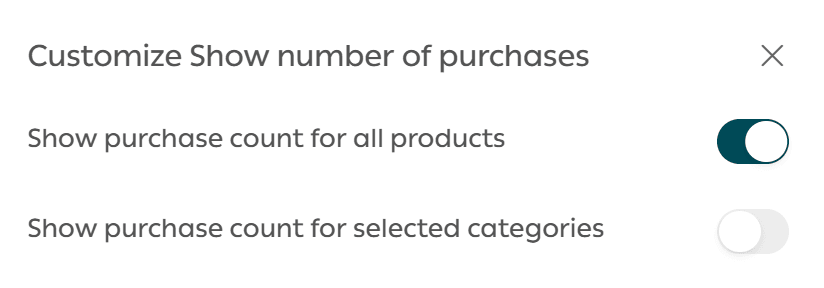
You can control how the purchase count appears on product pages by clicking Customize.

You will see two display options:
- Show purchase count for all products
- Show purchase count for specific categories only
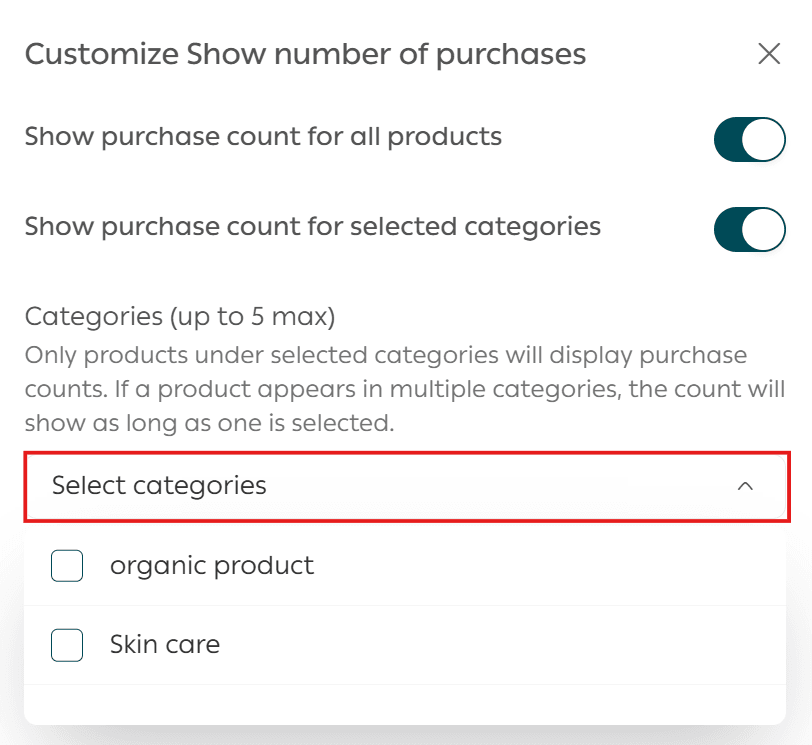
When you enable Show purchase count for specific categories, you can select up to five categories.
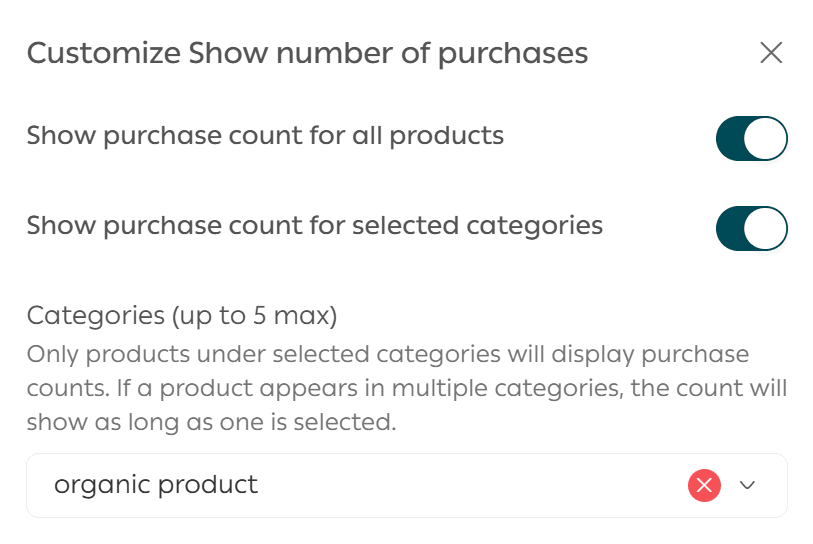
Example
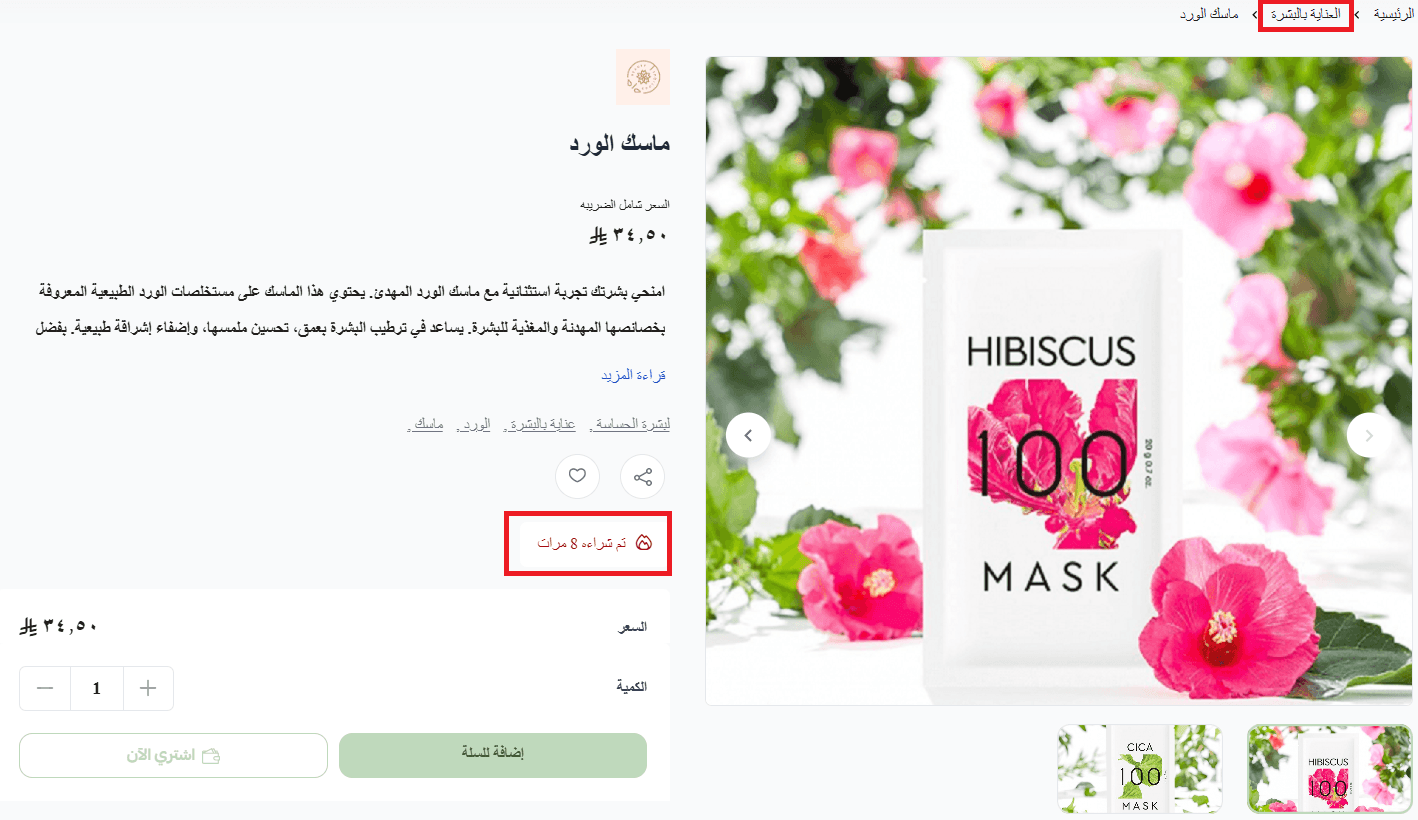
If you select a category such as Skincare, the purchase count will appear only on products within that category and not on others.
This helps highlight popular products without cluttering your entire store.
Showing “You may also like” products on the product page
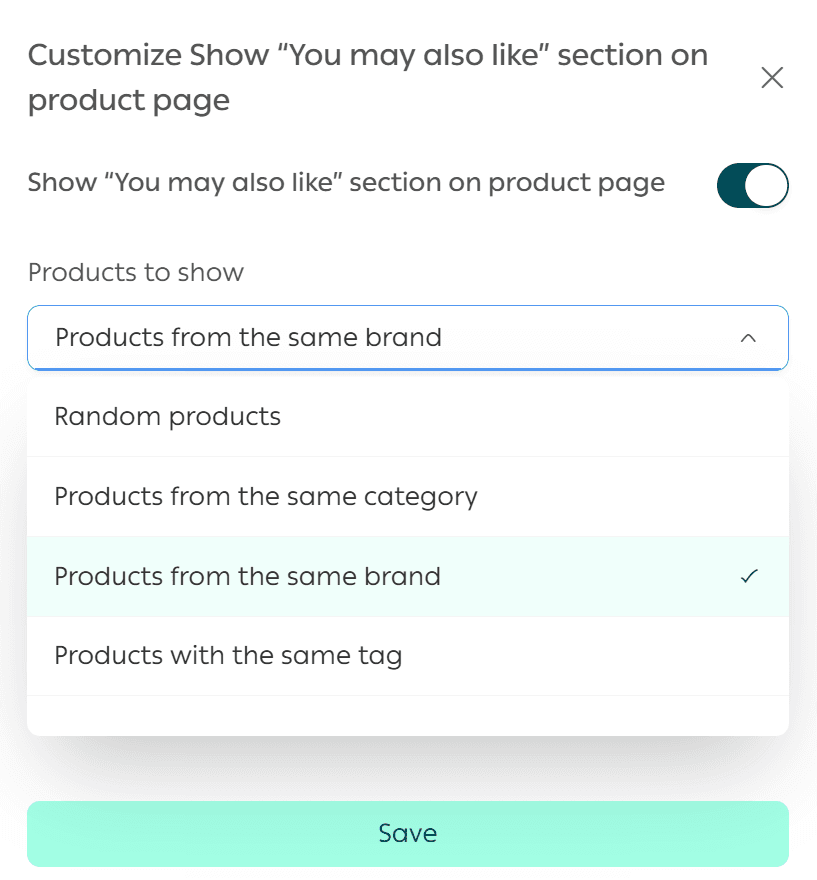
You can control the You May Also Like section by clicking Customize.

You will see multiple display methods and can choose the option that best fits your store strategy.
Example
If you select Show products from the same brand, related products from the same brand will automatically appear at the bottom of the product page.
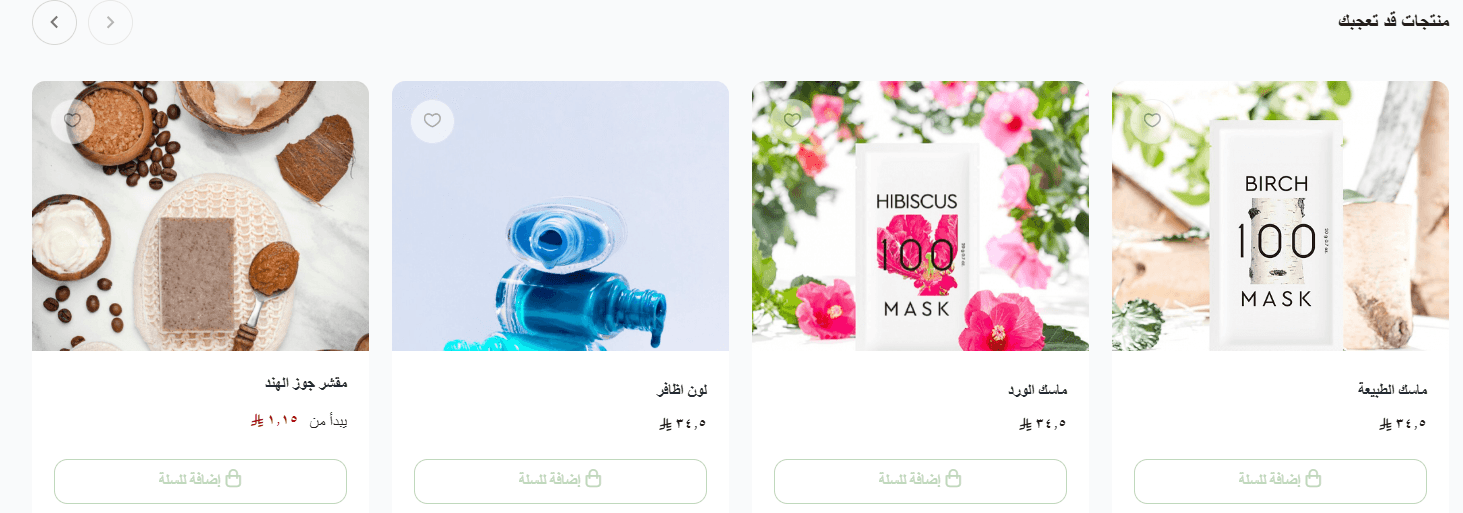
This encourages cross selling and increases average order value.
Protecting PDF files for digital products
This feature protects your digital PDF files from copying, sharing, or resale.

Files are displayed through a private, auto refreshing link assigned to each customer. Text copying and sharing are disabled.
Example
If a customer purchases a skincare guide, they receive a unique link to view the file. The link cannot be reused or shared. If someone tries to open it from another account, they are redirected to a warning page. This ensures full copyright protection.
Billing and shipping settings
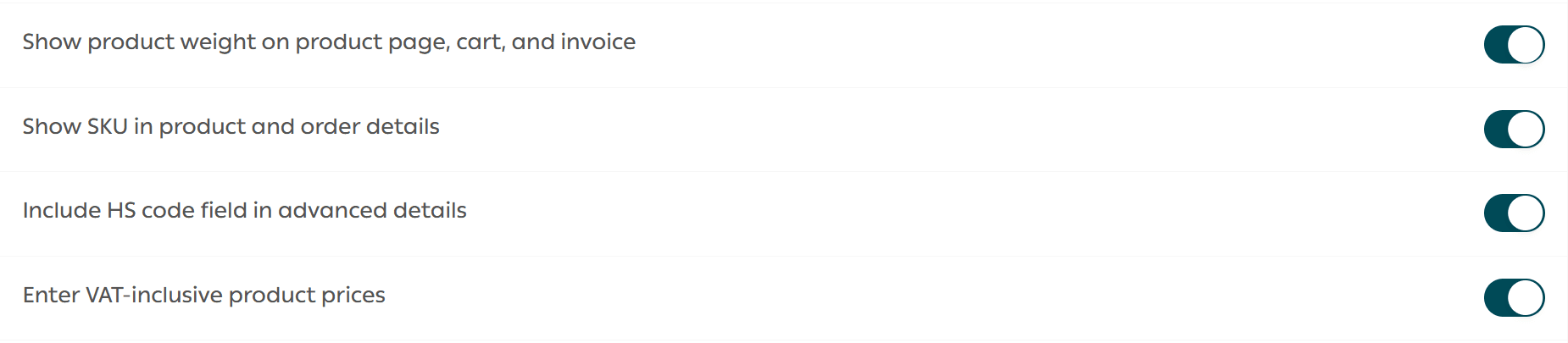
Show product weight
Displays product weight on the product page, cart, and invoice.
Show SKU
Displays the product SKU on product details and order information to help with tracking.
Show HS Code field
Enables the HS Code field in product data to simplify customs clearance and international shipping.
Enter product prices inclusive of tax
This setting allows you to enter product prices that already include VAT. The tax is calculated within the entered price, and customers see a clean final price with no additional breakdown.
Important notes for tax inclusive pricing
- Available only on Pro and Special plans
- Imported product prices will be treated as tax inclusive after activation
- Ensure all product prices include VAT to avoid pricing errors
Notify Me When Available settings
You can manage the Back in stock feature by clicking Customize.

The feature includes two options:
- Notify when the product becomes available
- Notify when a product option becomes available
You can also customize the notification message sent to customers.
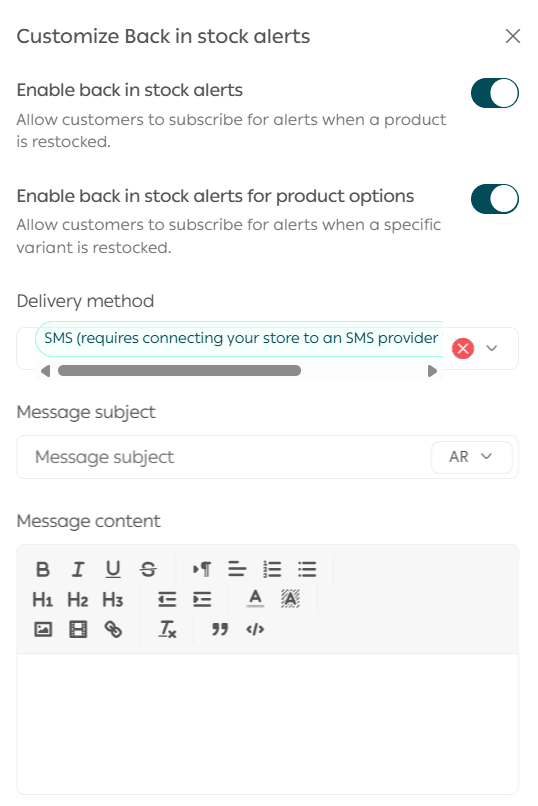
This feature helps bring customers back instantly, test new products, manage inventory intelligently, and create effective marketing campaigns.
Brand settings
You can control how brands are displayed in your store by clicking Customize.

Available options allow you to choose the most suitable display style.
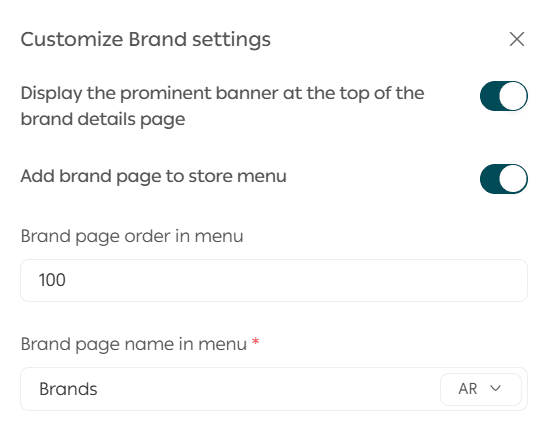
Example
When enabling Show featured banner at the top of brand pages, brand banners will appear prominently in your store, improving brand visibility and trust.

Filter and sorting settings
You can manage filters and sorting options by clicking Customize.

Available settings include:
- Show brands as a filter
- Show categories as a filter
- Show filters on category pages
- Show filters on search results pages
- Show price as a filter
- Show rating as a filter
- Show product options as filters such as color or size
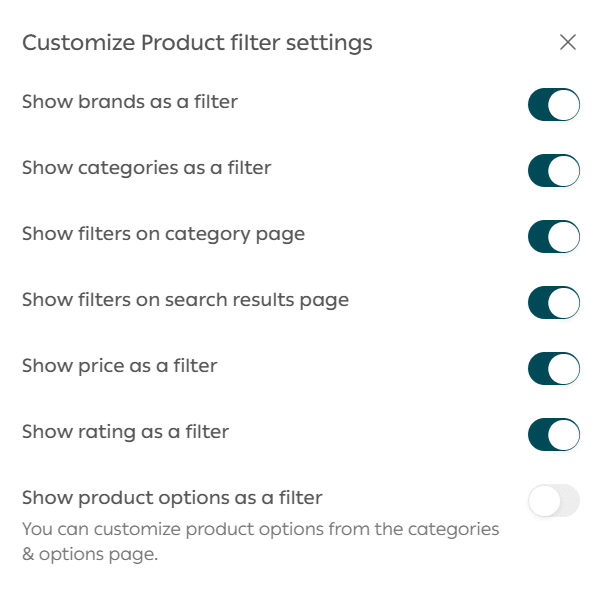
These settings help customers find products faster and improve the shopping experience.
Branch and warehouse priority order
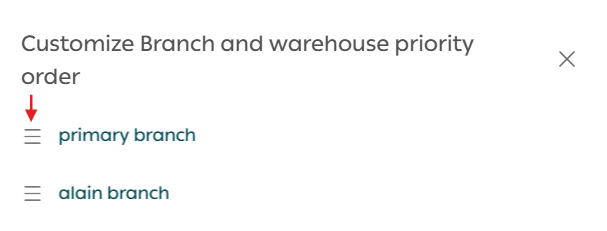
You can define the priority order for branches and warehouses when fulfilling orders by clicking Customize.
Reorder branches and warehouses based on availability and operational preference.

Drag and drop a branch or warehouse using the handle icon, then click Save to apply the order.
Displaying product images in full quality
You can control how product images are displayed, either in their original full quality or processed and compressed automatically for faster loading.
Why enable full quality images
- Ideal for high detail products such as jewelry, embroidered dresses, or premium fabrics
- Flexible setting that can be enabled or disabled at any time
Behavior
- When enabled, images appear in full quality on product pages and category pages, including the main product image
- When disabled, images are compressed to improve store performance and loading speed
Note
This feature is available for all merchants.

Optimizing your product settings gives you full control over how customers experience your store. With the right configuration, you improve usability, boost trust, and increase sales without additional effort.