Merchant Services open the door to achieving your business goals on Salla professionally and efficiently. Through this feature, merchants can request services from trusted third-party providers, ranging from store setup, marketing campaigns, and design, to system integrations, financial, and legal services, and much more.
Below are the most frequently asked questions to help you use Merchant Services with confidence and clarity.
Can I view all services offered by a specific partner?
Yes. From any service category page or individual service page, click on the service provider’s name.
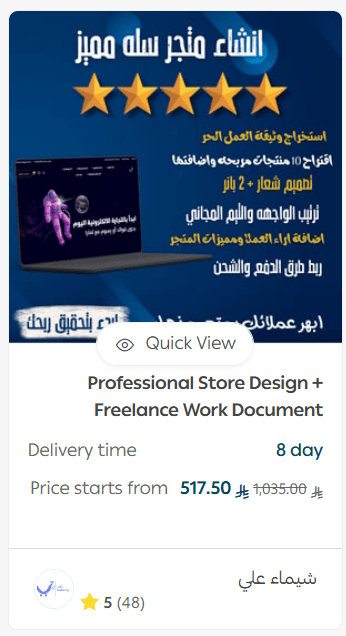
This will open the provider’s profile, which includes:
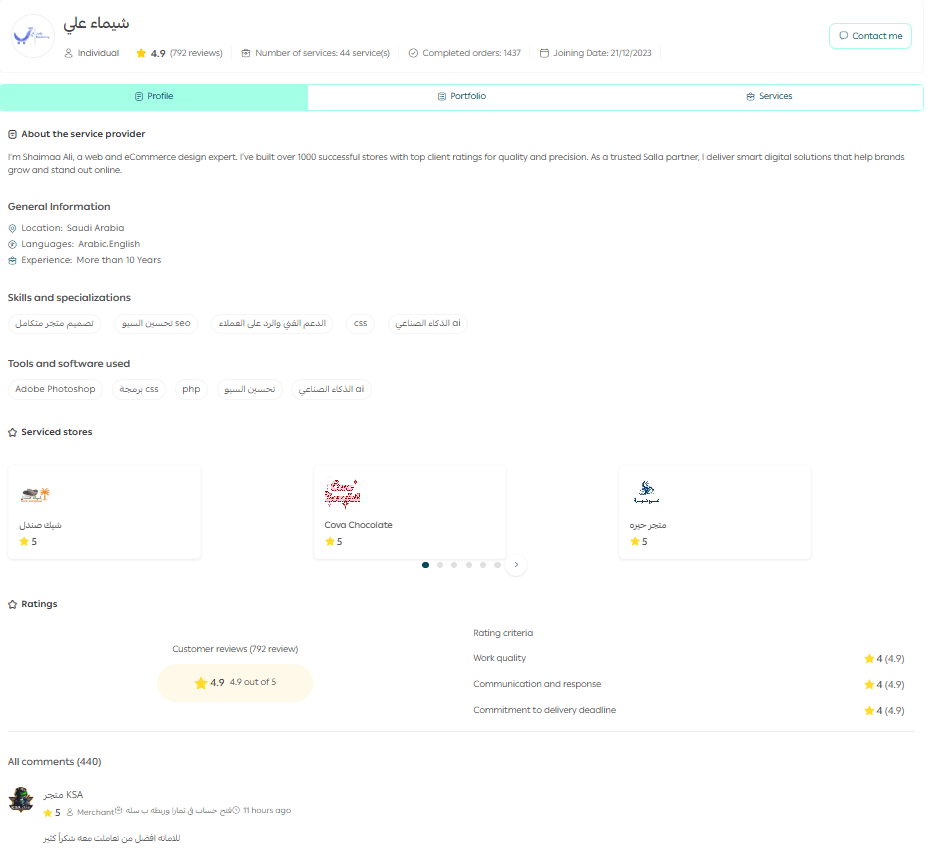
Profile Tab
An overview of the service provider, including their skills, areas of expertise, service ratings, and feedback from merchants they’ve worked with.
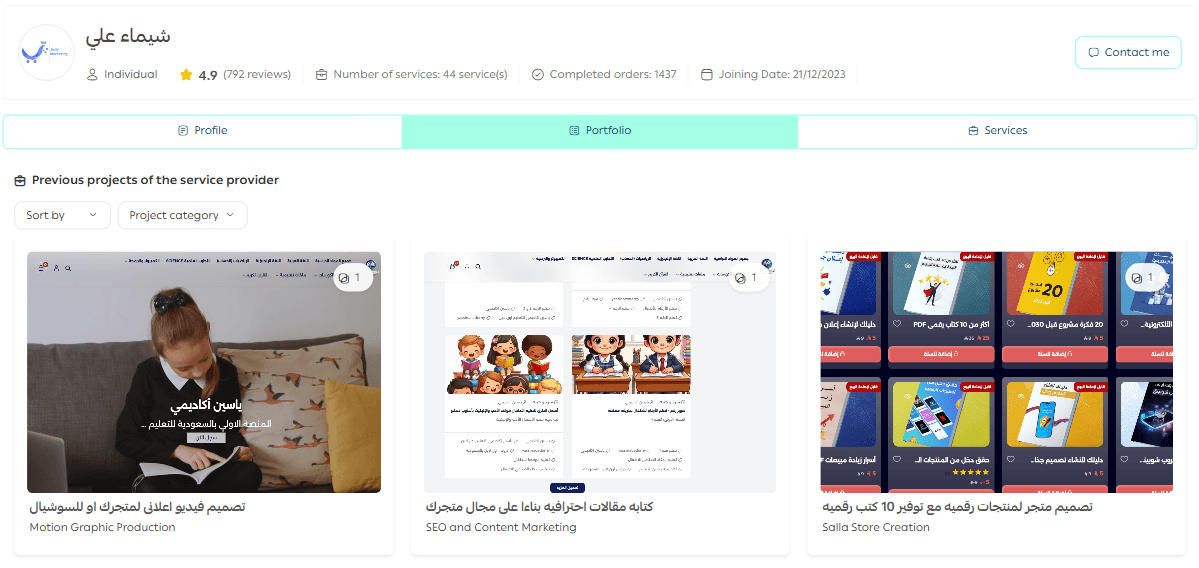
Portfolio Tab
A showcase of previous projects completed by the provider. Clicking on any project reveals detailed information about the work delivered.
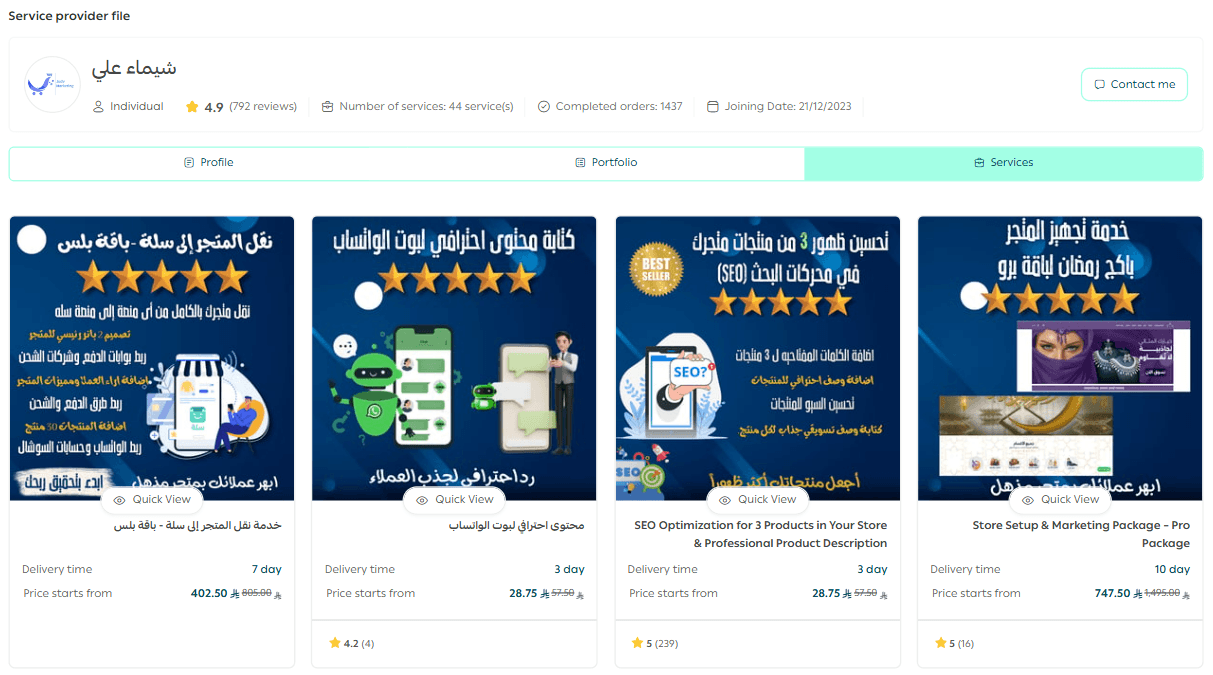
Services Tab
A complete list of all services offered by the provider, along with their join date, number of completed services, and ratings for each service.
Can I edit or add service requirements after placing an order?
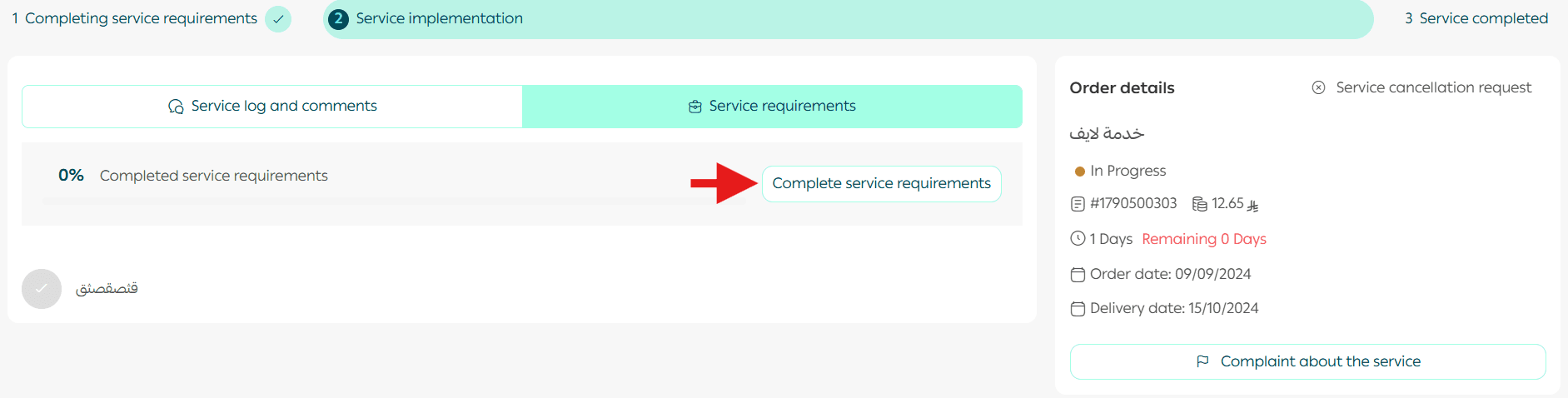
Yes. You can easily update requirements from the order details page.
- Go to the Service Requirements tab
- Click Complete Service Requirements
- Re-upload or modify the required information
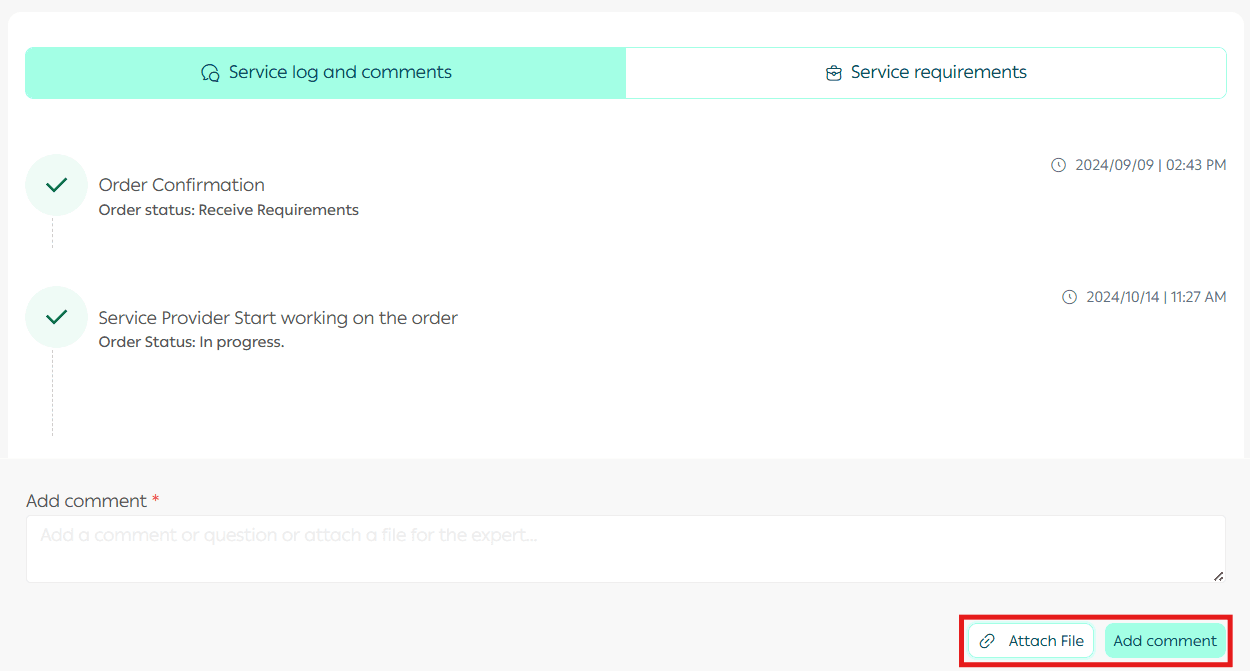
You can also communicate directly with the service provider through the comments section.
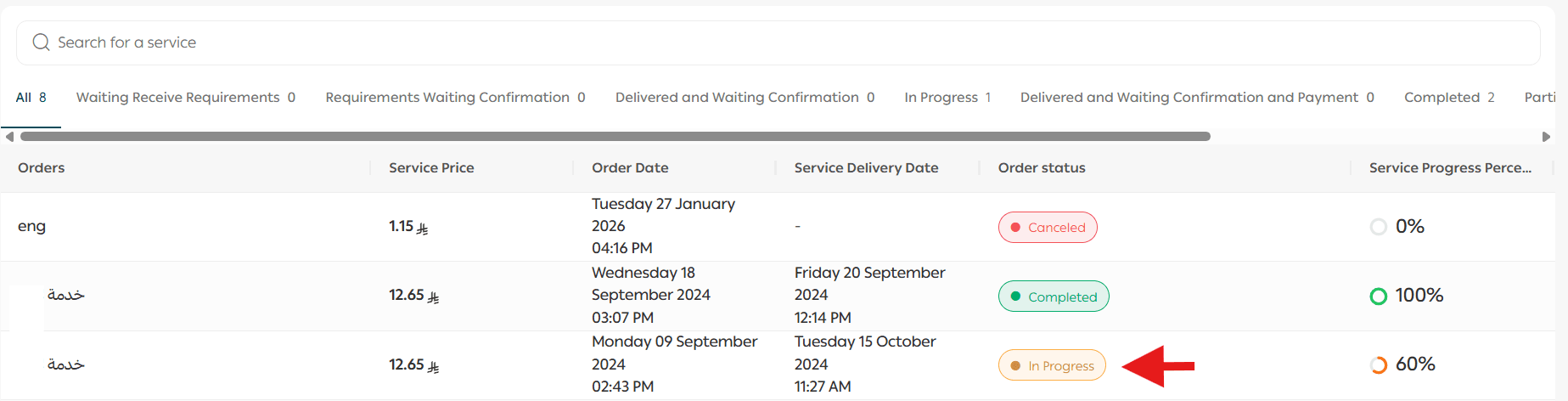
How can I track the status of a service?
To follow up on your service request:
- Go to the Orders Center
- Open the order you want to review
- The current status and full details will be displayed clearly
Can I revoke store access from a service provider?
Yes. From the service order page, you’ll see a banner indicating store access permissions.

Click Revoke Access to remove the provider’s access at any time
How do I cancel a service request?
Service cancellation depends on the current order status.
If the order status is
“Waiting for Requirements” or “Requirements Under Review”
- Open the order details page
Click Cancel Order
- Select a cancellation reason and add optional details
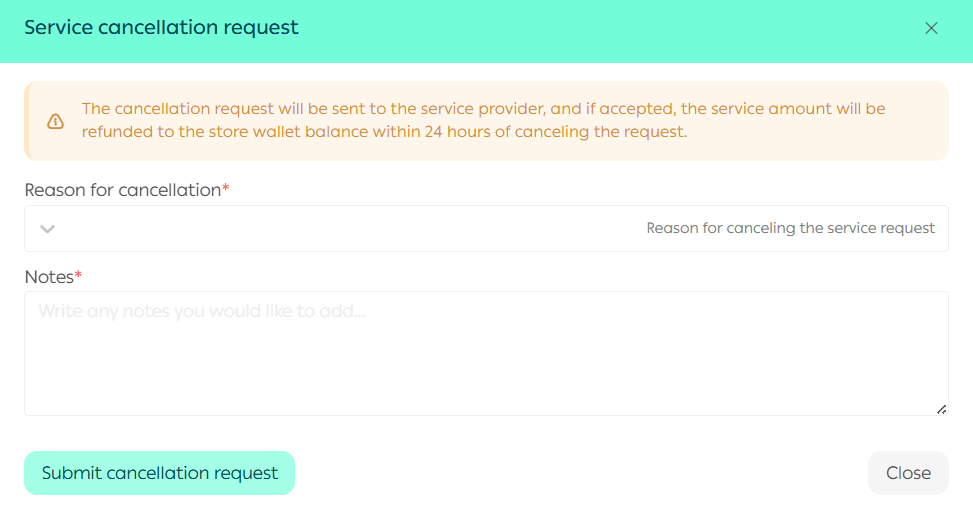
4. Confirm cancellation
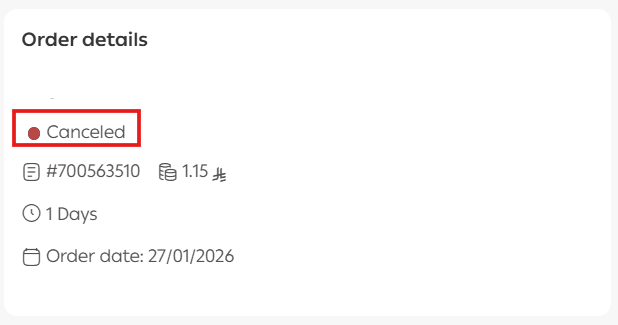
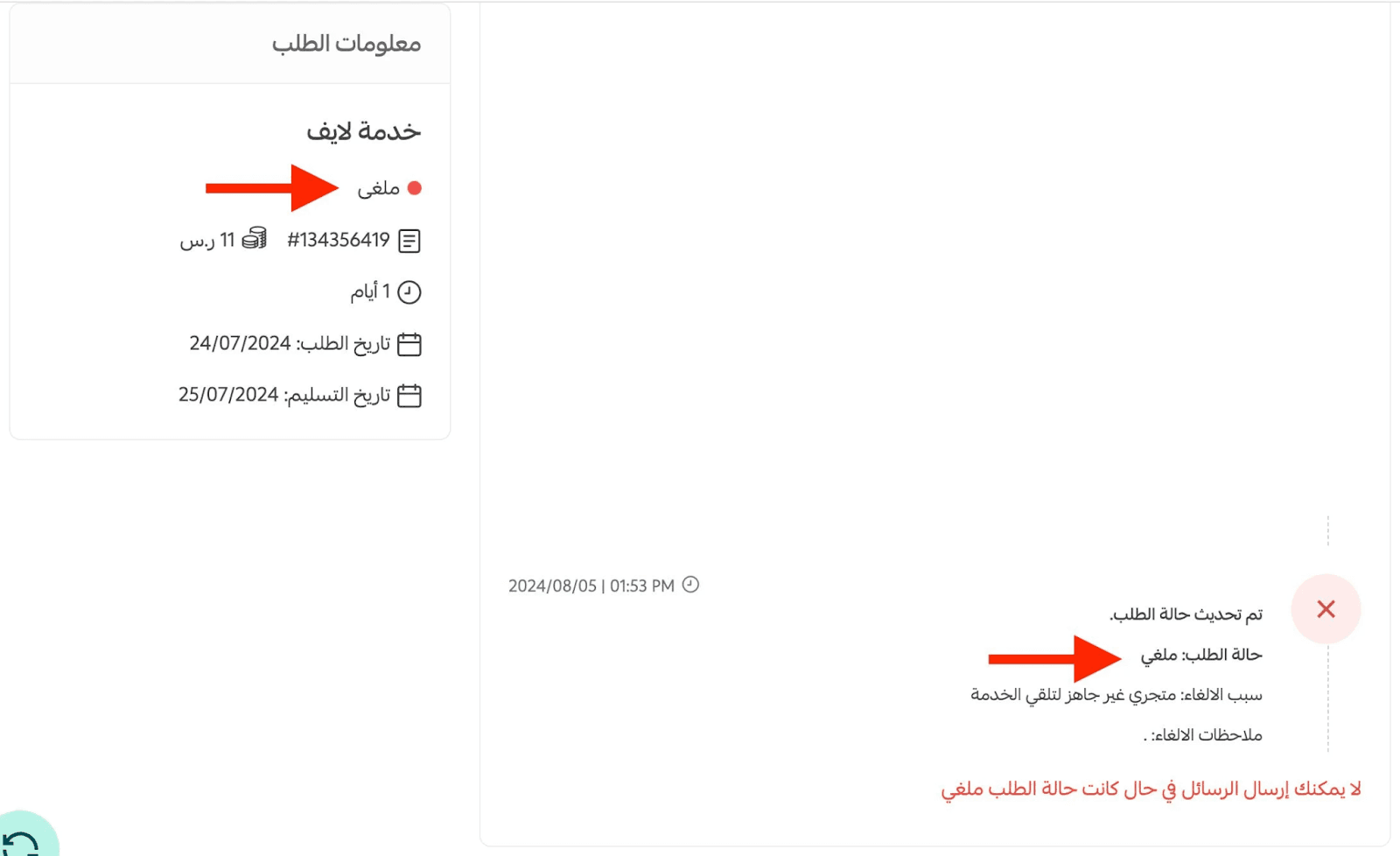
The order status will change to Canceled, and the amount will be refunded to your merchant wallet within 24 hours.
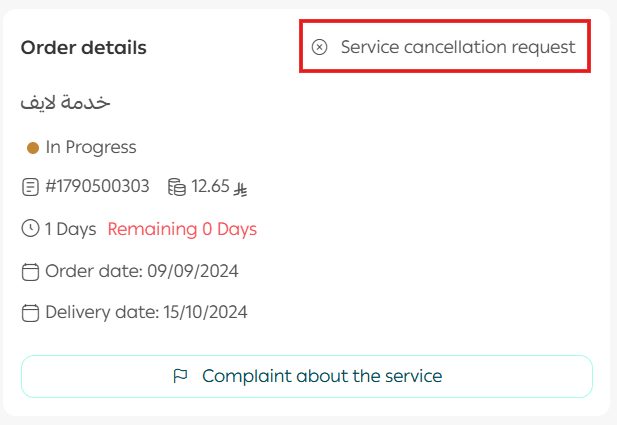
If the order status is
“In Progress” or “Delivered – Pending Confirmation”
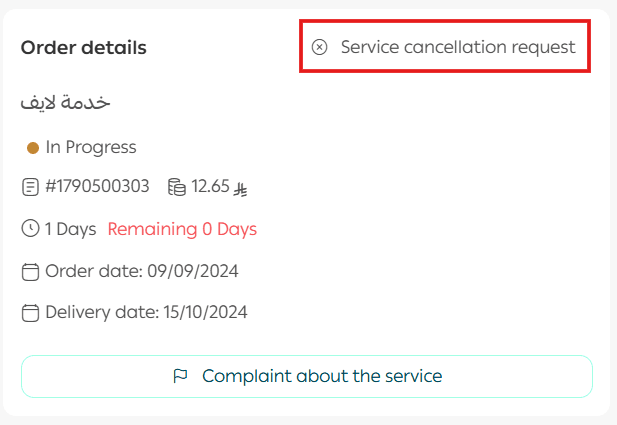
- Open the order details page
Click Request Service Cancellation
- Select the reason and submit the cancellation request
📝 Important note: At this stage, you may withdraw the cancellation request before the service provider accepts it.

- If the provider rejects the request, you can submit another cancellation request
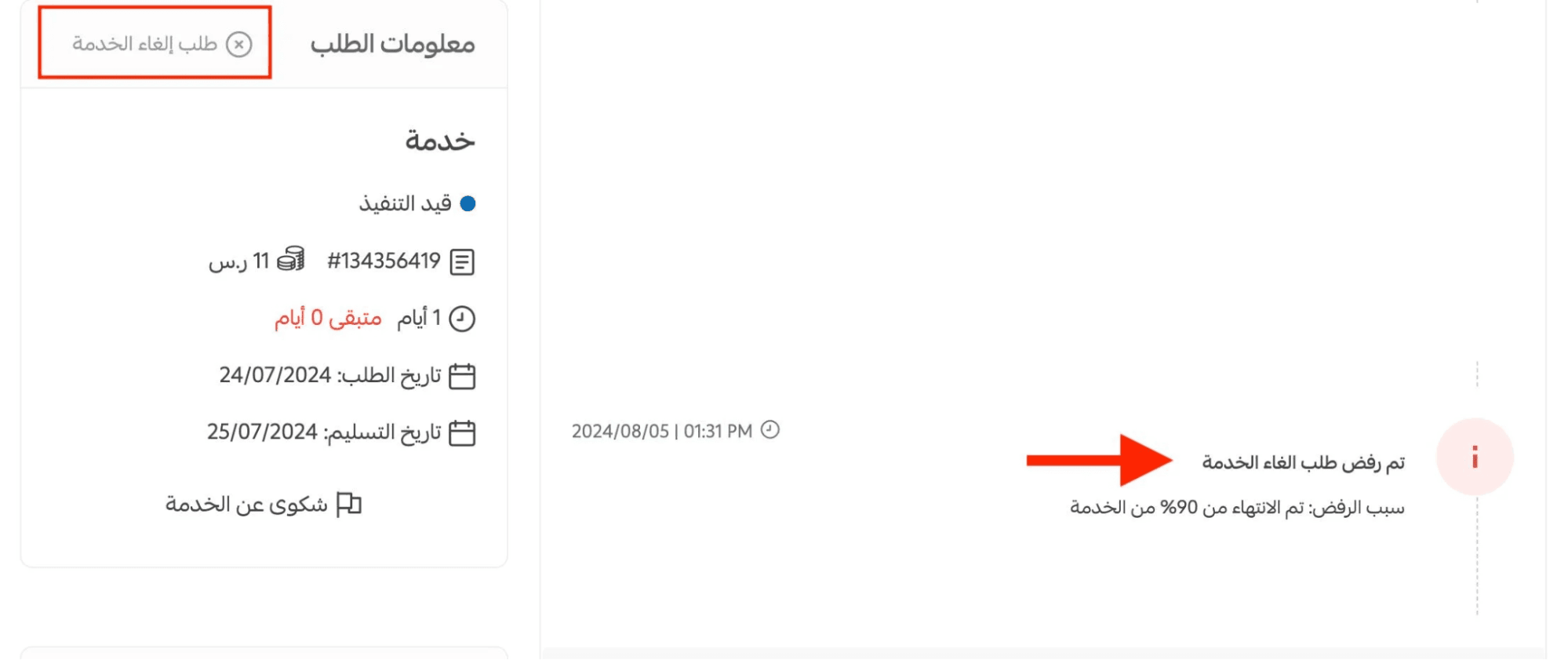
- If the provider accepts, the order status will change to Canceled, and the refund will be issued to your wallet within 24 hours
How will I receive my refund?
Once a service request is canceled, the refunded amount will be credited directly to your merchant wallet.
What happens to orders that remain inactive for more than 7 days?
Any order that remains unchanged for 7 consecutive days—without approval or rejection from the merchant—will be automatically completed.
If the service provider has an objection, they can contact the Partners Support Team for review.
Can I communicate with the service provider?
Yes. Once the service is requested, you can communicate with the provider through:
- The Service Activity Log
- The Comments section, where you can also send and receive files
Can I set a quantity for the main service?
No. Quantity selection applies only to add-on services during checkout.
If you need the main service more than once, you can place multiple service requests.
Can I set quantities for add-on services?
Yes. Add-on service quantities can be specified directly from the checkout page after clicking Request Service.
What are service requirements?
Service requirements are the data or files requested by the service provider in order to begin work.
These vary by service and may include items such as:
- Store logo files
- Commercial registration documents
- Design references
- Technical access details
All requirements must be submitted after placing the service request.
I have completed services—how can I access them?
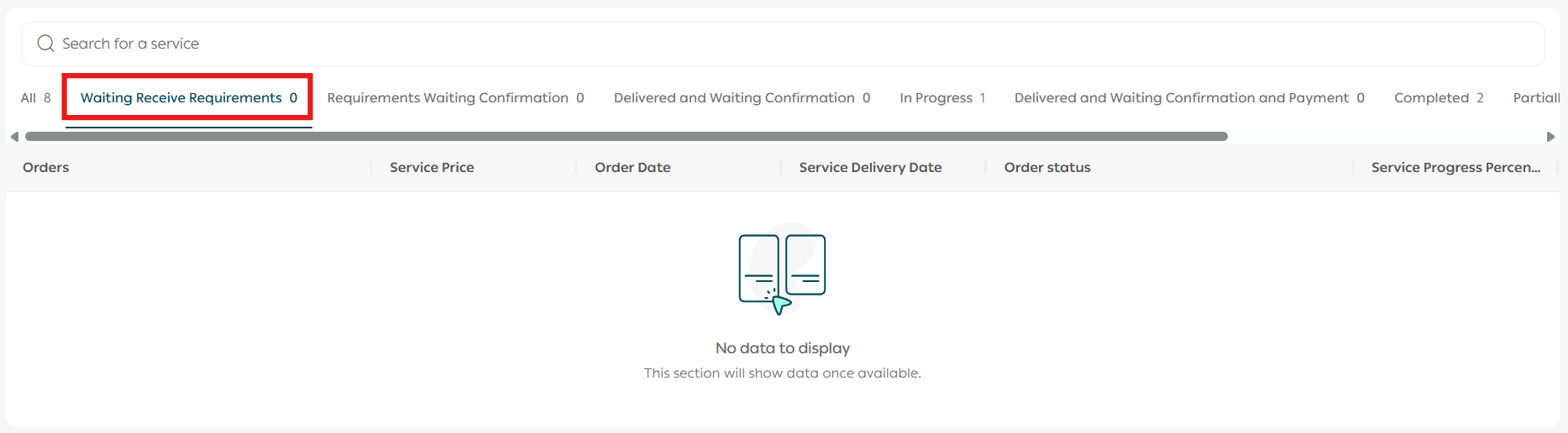
From the Orders Center, you can filter your orders by status to view completed services or any previous requests.
What is the maximum file size I can upload?
The maximum upload size is 20 MB per file, whether uploading service requirements or delivery files.
I have large files that exceed the upload limit—what should I do?
You can upload large files to an external storage service (such as cloud storage) and share the download link with the service provider through the comments section within the order.
Learn More
For additional guidance, see:
- Browsing & Viewing Merchant Services
- Requesting & Managing Services