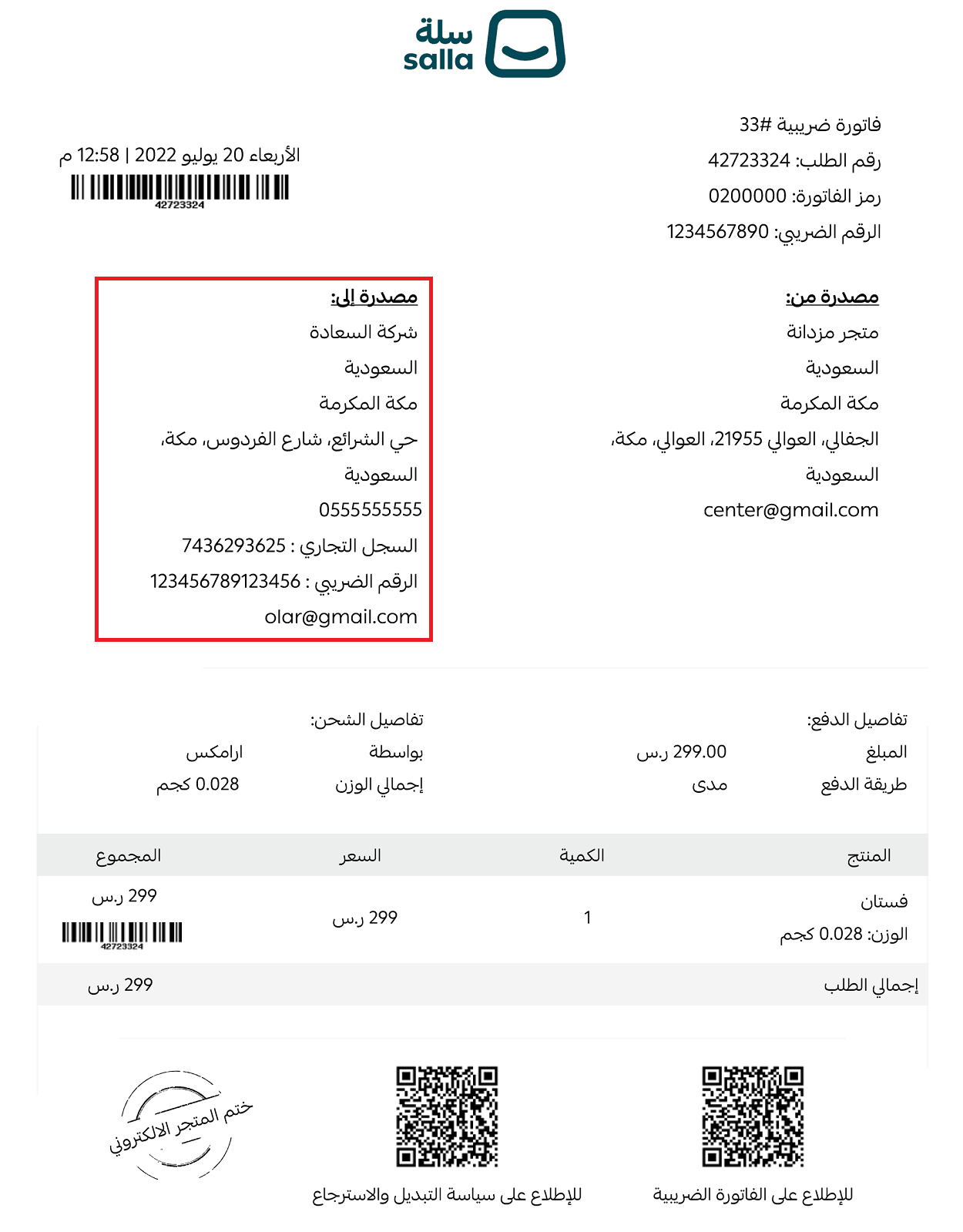
Every shopping journey leads to one decisive moment: the moment the customer confirms their order.
This final step is where intent turns into action, and confidence becomes a completed purchase. That’s why the checkout page is designed to be a smooth, secure gateway that removes friction and reassures the customer at every step. With just a few clicks, the customer selects their address, chooses a shipping method, and completes payment safely and easily.
In this article, we’ll explore the checkout page in detail and how it creates a seamless purchasing experience.
📌 Article overview
- What is the checkout page?
- Checkout page components
- Frequently asked questions
What is the checkout page?
The checkout page is the final step in the purchase process. It displays the order invoice details along with shipping and payment options that the customer must complete to successfully place their order.
Checkout page components
The checkout page consists of four main sections:
Order summary
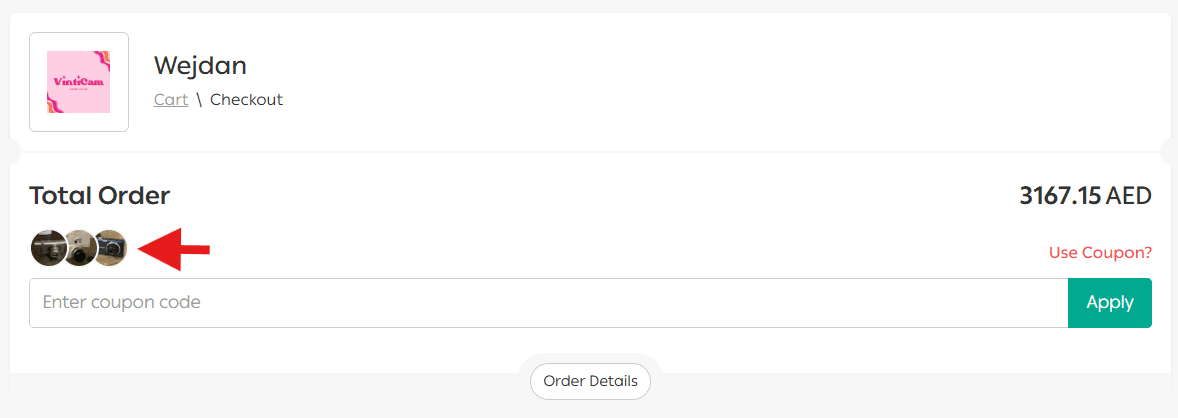
Customers can review the products included in their order by tapping on the items list.
This section displays the full invoice details, including:
- Product name
- Quantity
- Price
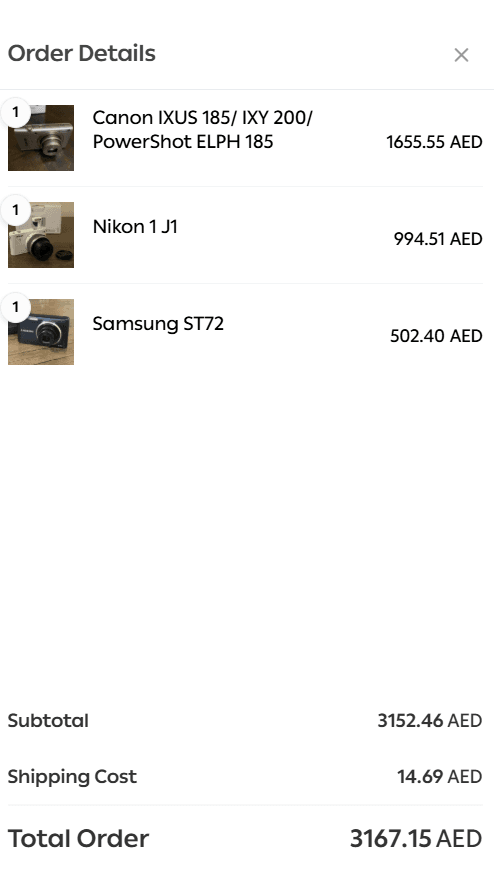
All information is presented clearly and accurately to help the customer confirm their order with confidence.
Shipping address
In this section, the customer selects the delivery address using one of the available options:
- Manual address entry
- National Address (where available)
- In-store pickup
To simplify address selection, customers can also pinpoint their location directly on the map.
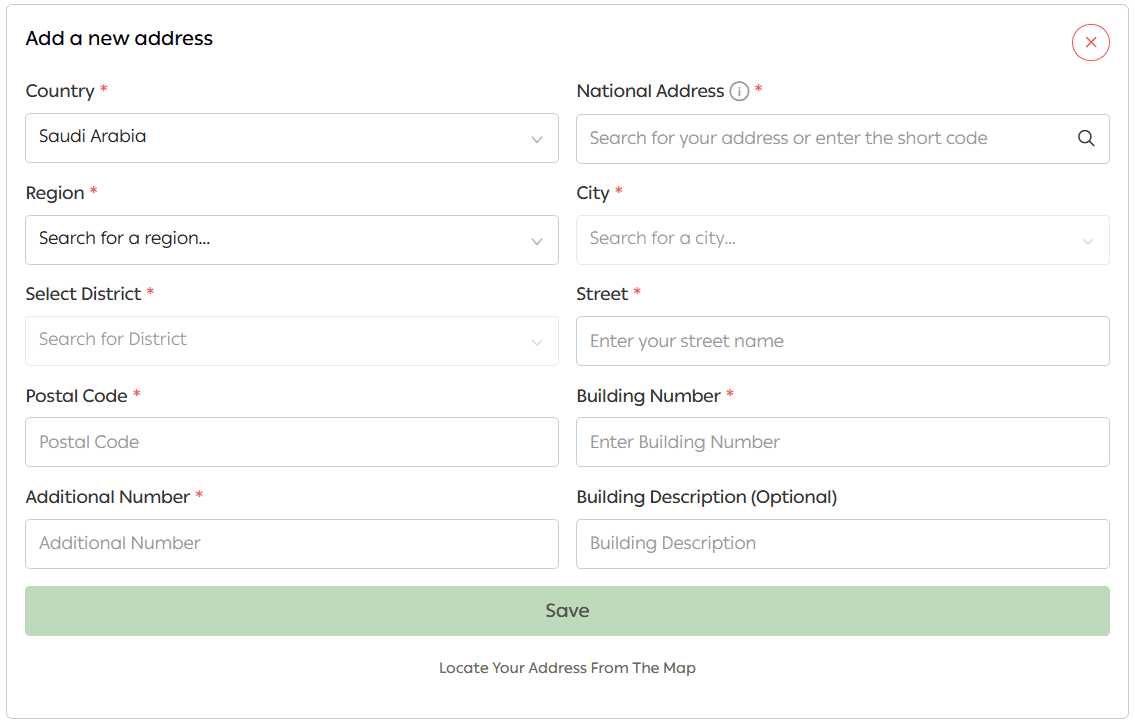
Manual address entry
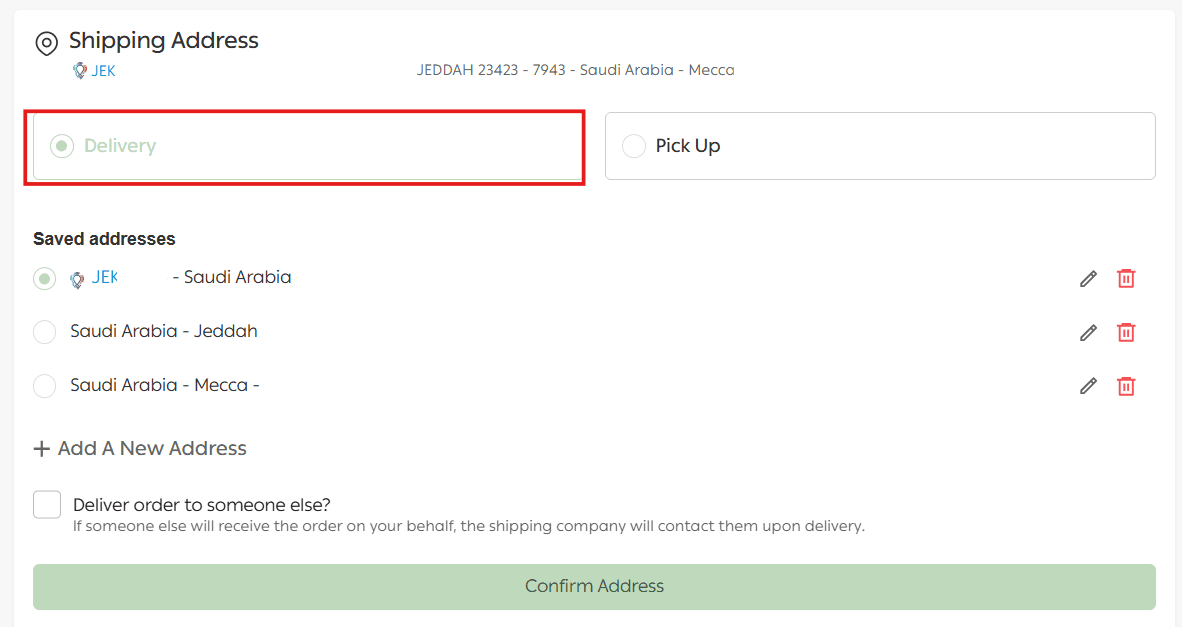
When adding a new address, the customer selects the country, city, district, and street, then clicks Save.
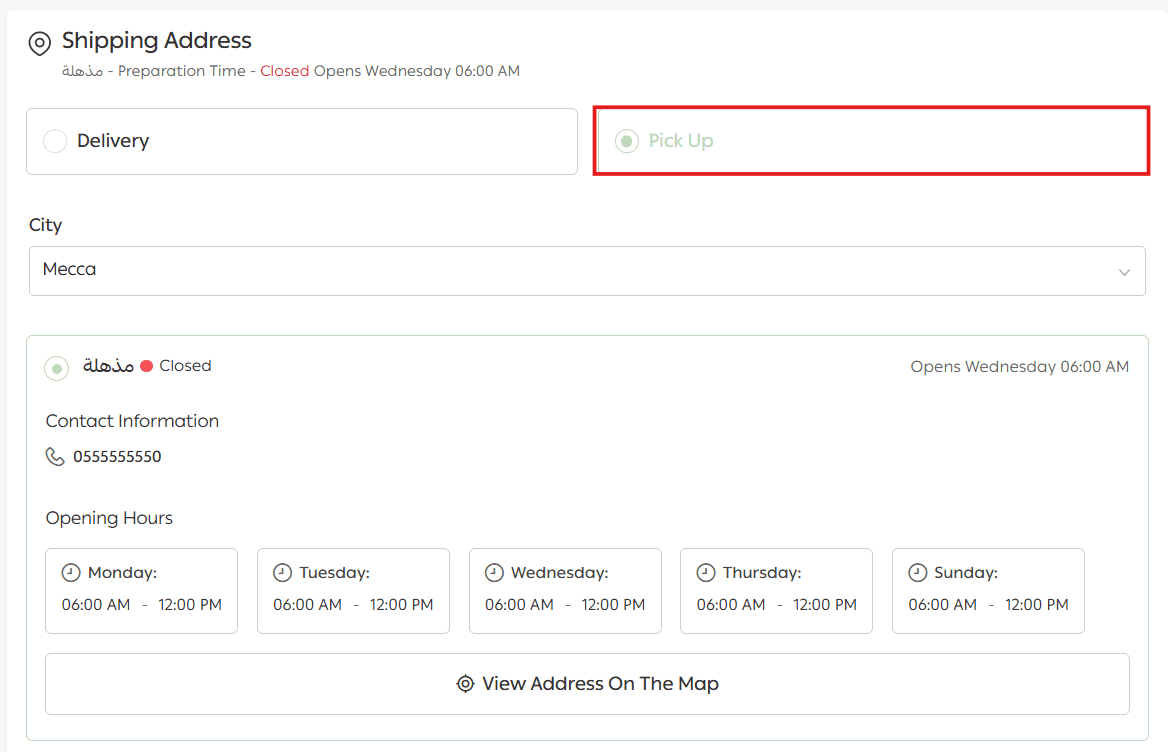
Branch pickup
Customers may choose to collect their order directly from a branch if this option is enabled.
🔹 For international shipping, identity verification requirements may apply during checkout.
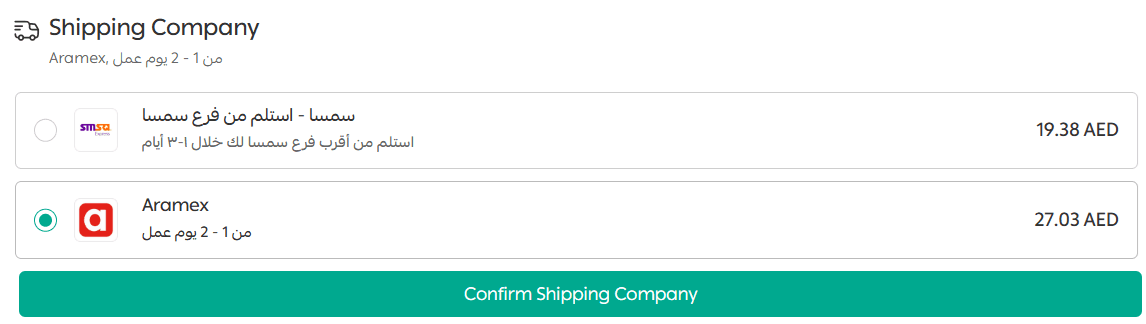
Shipping method selection
The customer selects the shipping company that best suits their needs.
Optional notes can be added if required.
Payment method
At this step, the customer confirms the order by completing the payment using the payment methods enabled in your store.
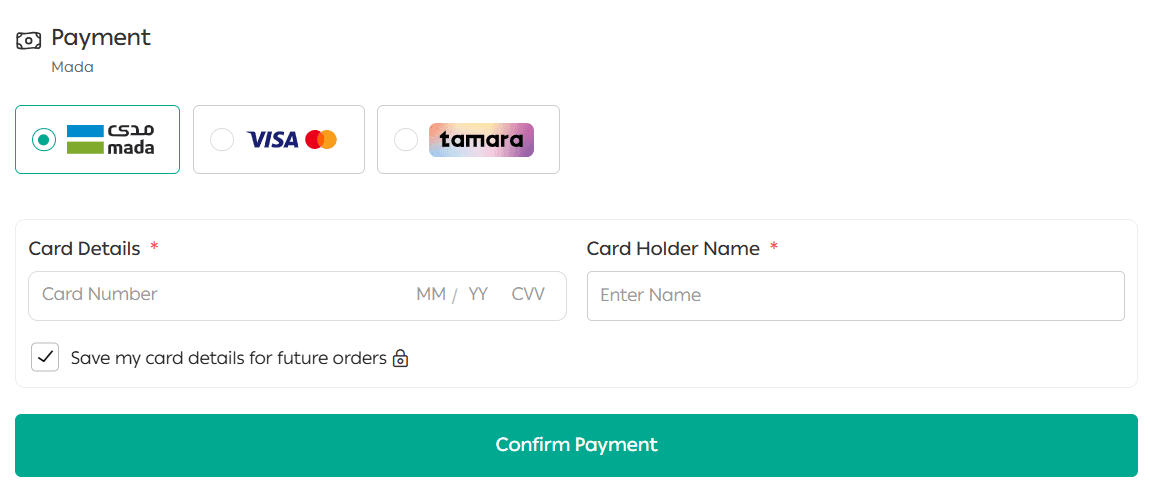
Payment options may include:
- Mada
- Credit/debit cards
- Tabby
- Tamara
- Cash on delivery
- And any other available payment methods configured in the store
🔹 To learn more about enabling payment methods, refer to the store payment settings guide.
Frequently asked questions
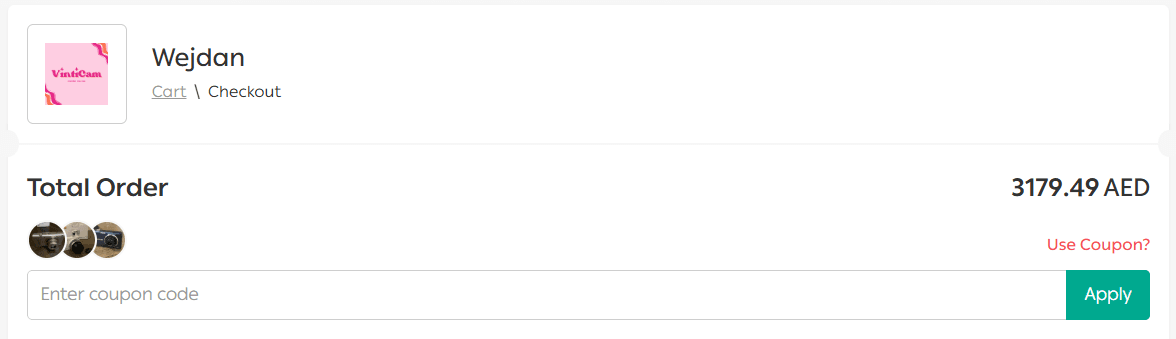
How can a customer apply a discount coupon?
Below the order total, the customer enters the coupon code and clicks Apply.
🔹 For more details, see the guide on creating discount coupons.
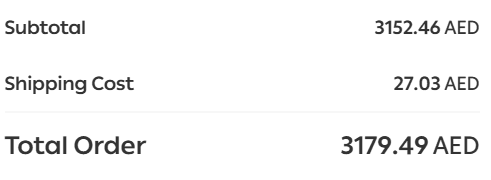
Can the customer view order details before payment?
Yes. By clicking Invoice Details, the customer can review the full order summary before completing payment.
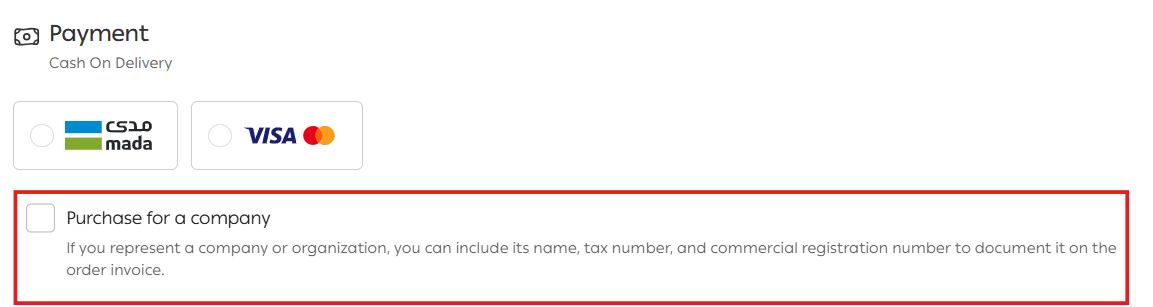
Can customers purchase as a company during checkout?
Yes. This option allows purchases to comply with tax regulations and ensures the customer receives an invoice with the correct company details.
This process includes two steps:
Step 1: Merchant setup
From the main menu:
- Go to All
- Open Settings & Tools
- Select Payment Methods
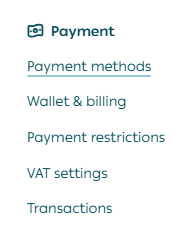
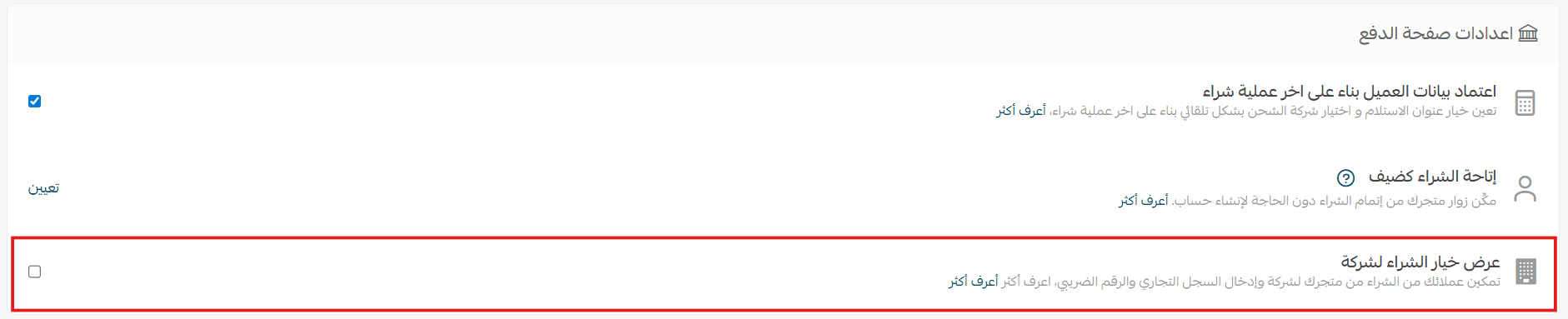
4. At the bottom of the payment methods page, enable Show company purchase option.
Step 2: Customer Action
On the checkout page, the customer enables Purchase as a company, then enters:
- Company name
- Commercial registration number
- Tax number
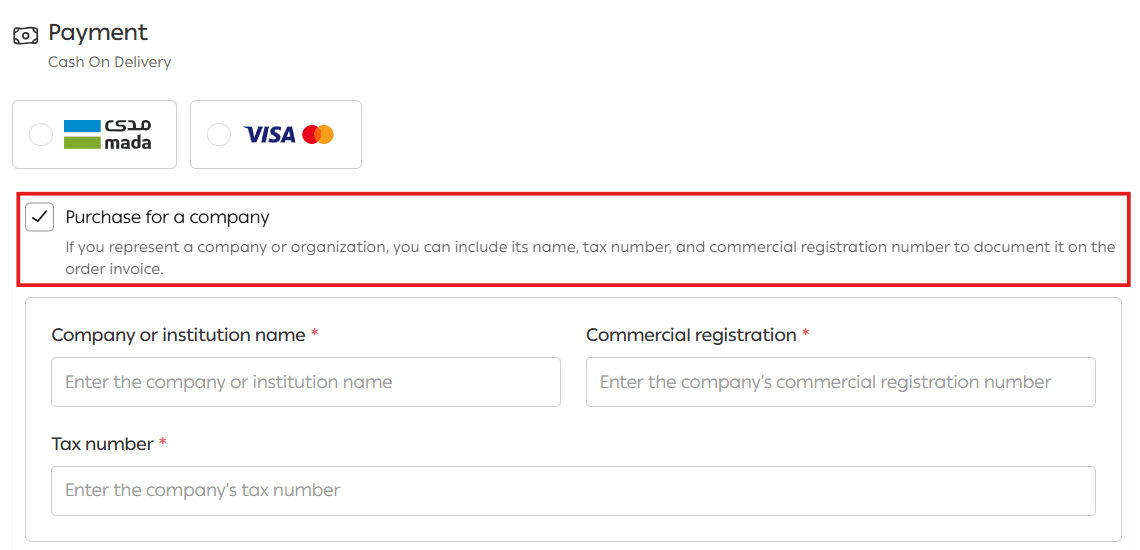
After confirming payment, the invoice will be issued with the company details included.