Ready to take card payments at your counter, but not sure how to order the device?
A GEIDEA device request is submitted from your Salla dashboard through Salla Point, then completed inside your GEIDEA account. Most delays and rejections come down to two things: the wrong device type, or account documents that have expired. In this guide, you'll learn how to submit the request correctly, how to link it back to Salla, and how to fix the errors that block it.
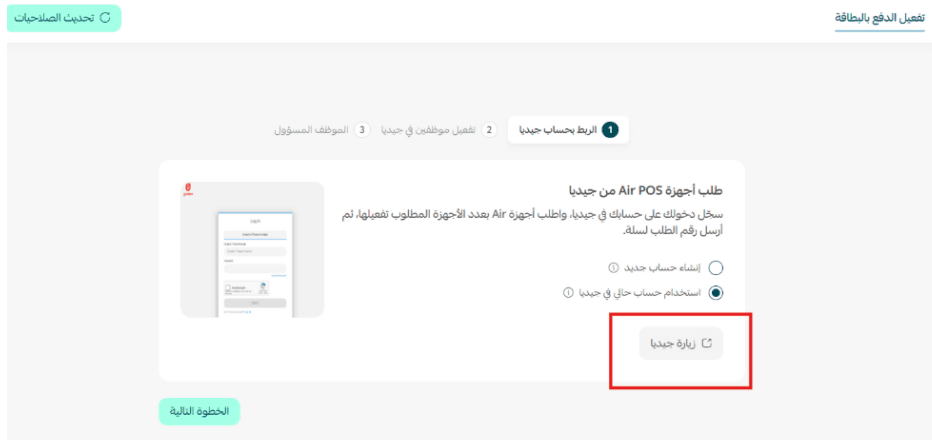
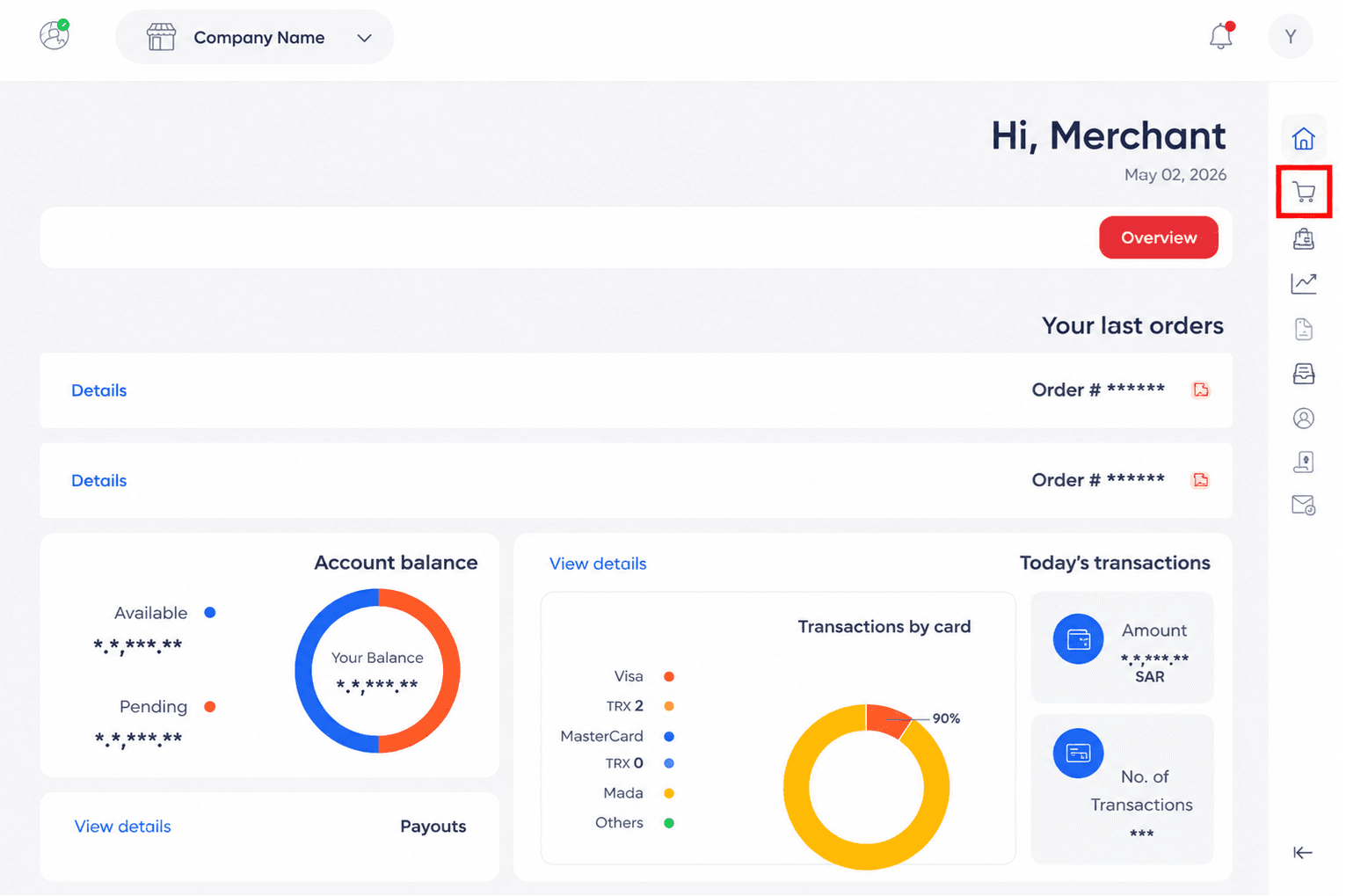
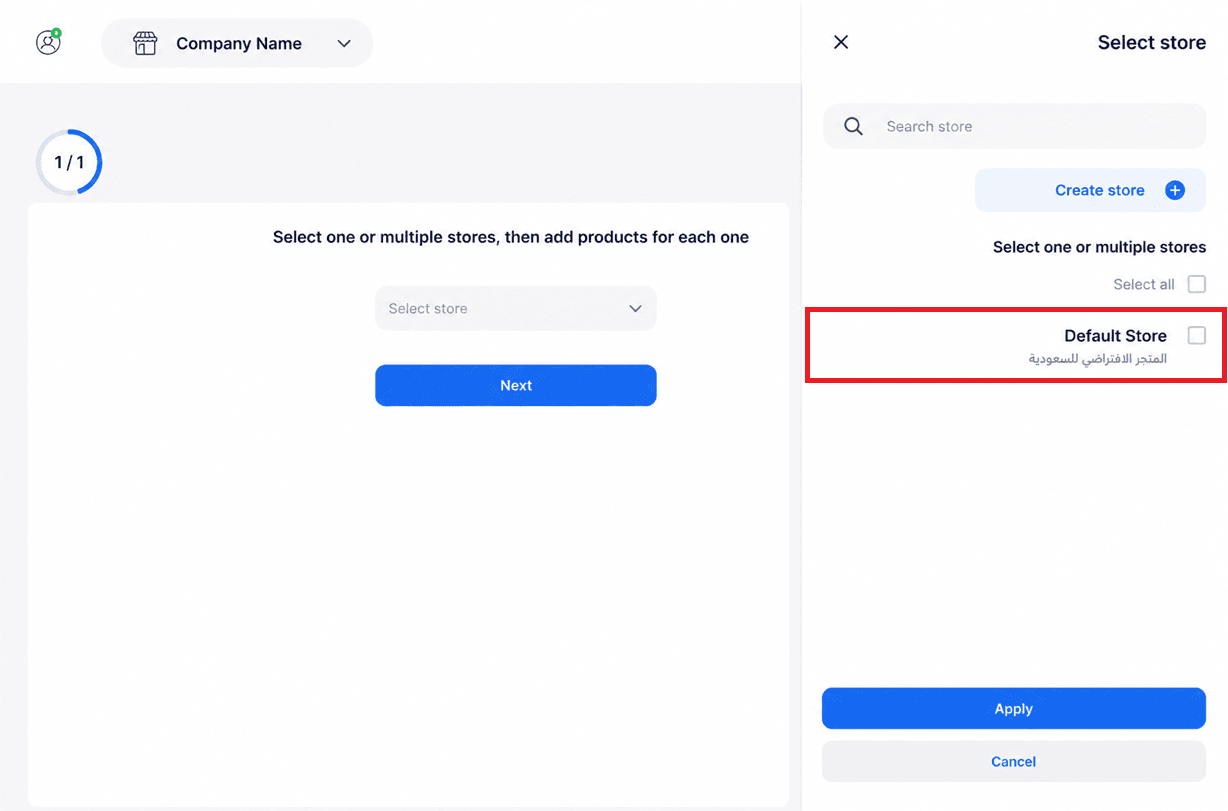
To request a GEIDEA device, open Salla Point in your Salla dashboard, choose (Activate card payment), and click (Visit GEIDEA). In your GEIDEA account, open the cart, select your store, click (Assign products), choose the AIR device, and submit the order. Then copy the order number back into Salla to finish activation.
📌 Article overview
- How to submit a GEIDEA device request
- Choosing the right device type and linking it to Salla
- Common problems and how to fix them
- Frequently asked questions
🚀 How to submit a GEIDEA device request
Step 1: open GEIDEA from Salla
1. From the main dashboard, go to (Salla Point) and choose (Activate card payment).

2. Click (Visit GEIDEA).
Step 2: place the order inside your GEIDEA account
1. Click the cart icon in your account.
2. Select the store you want the device for.
3. Click (Assign products) to choose the device.
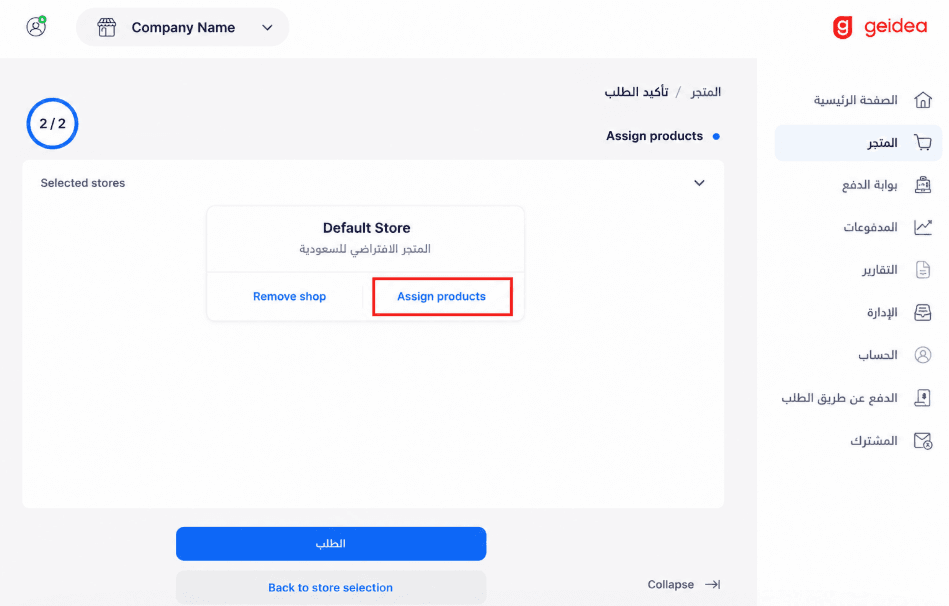
4. Choose the correct device type: AIR.
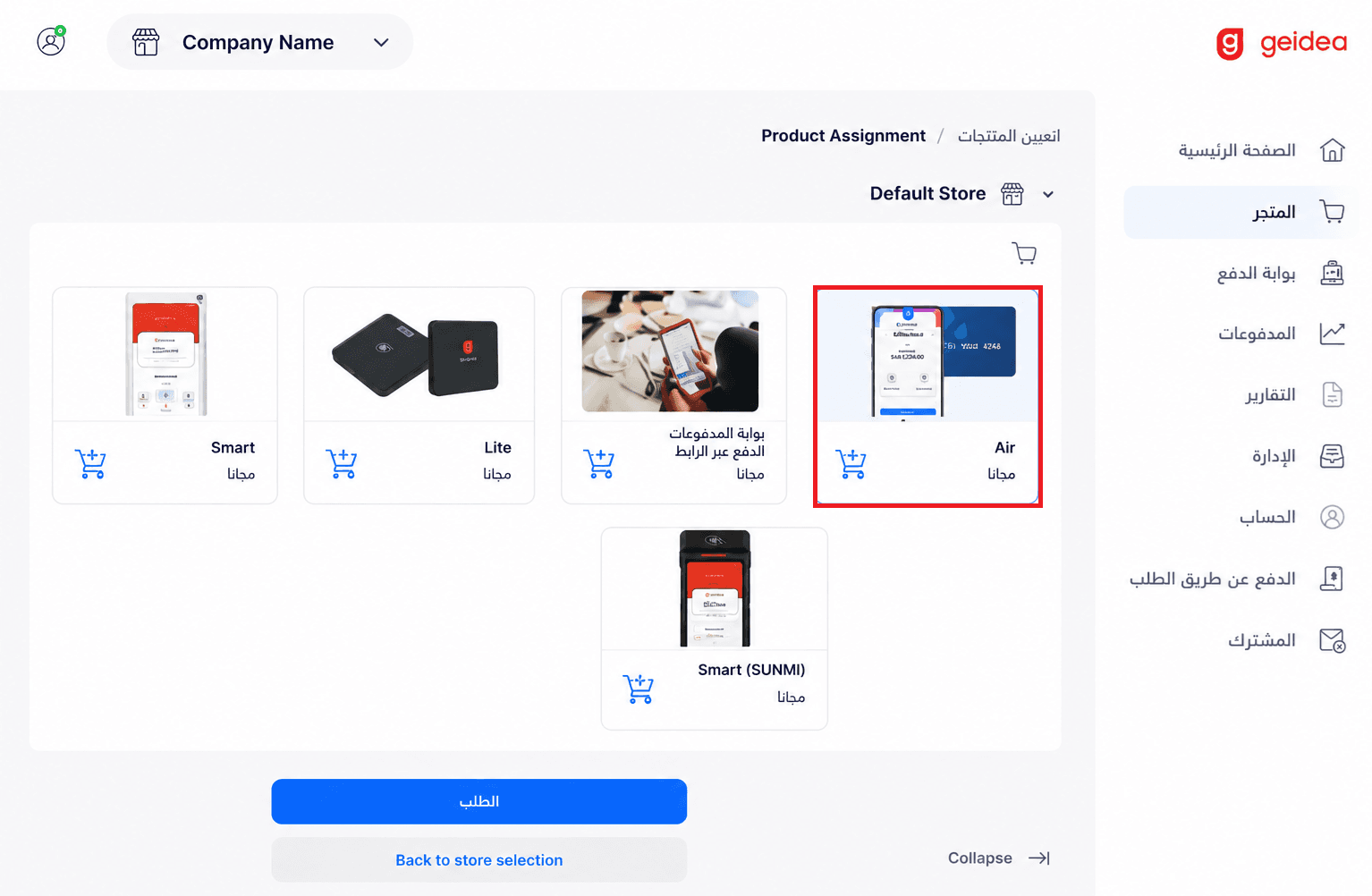
📝 Very important: you must select the (AIR) device. Any other device type will stop the request from being approved and linked to Salla correctly.
5. Once you have confirmed the device, click (Order) to submit the request.
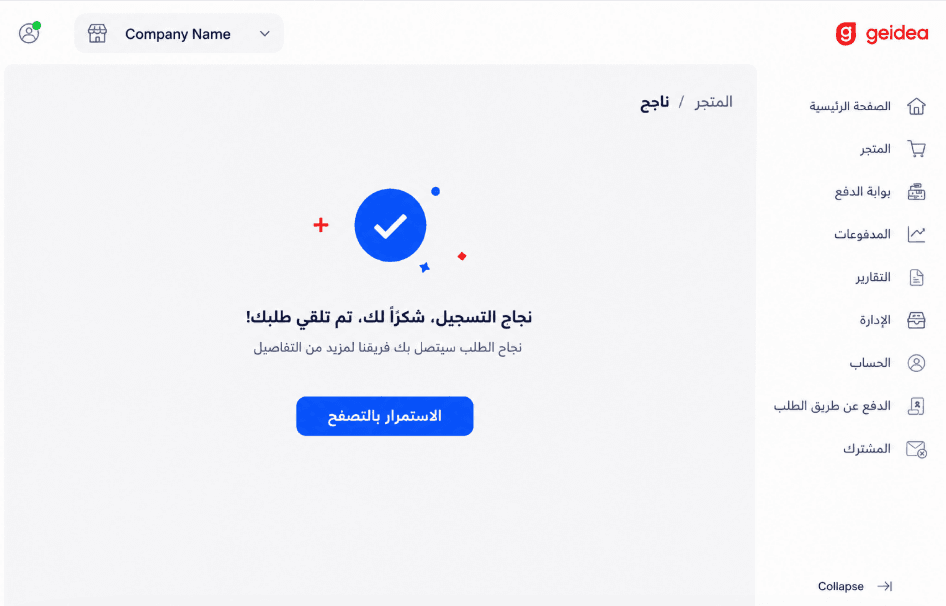
6. When the success message appears, your request has been received.
Step 3: copy the order number and link it to Salla
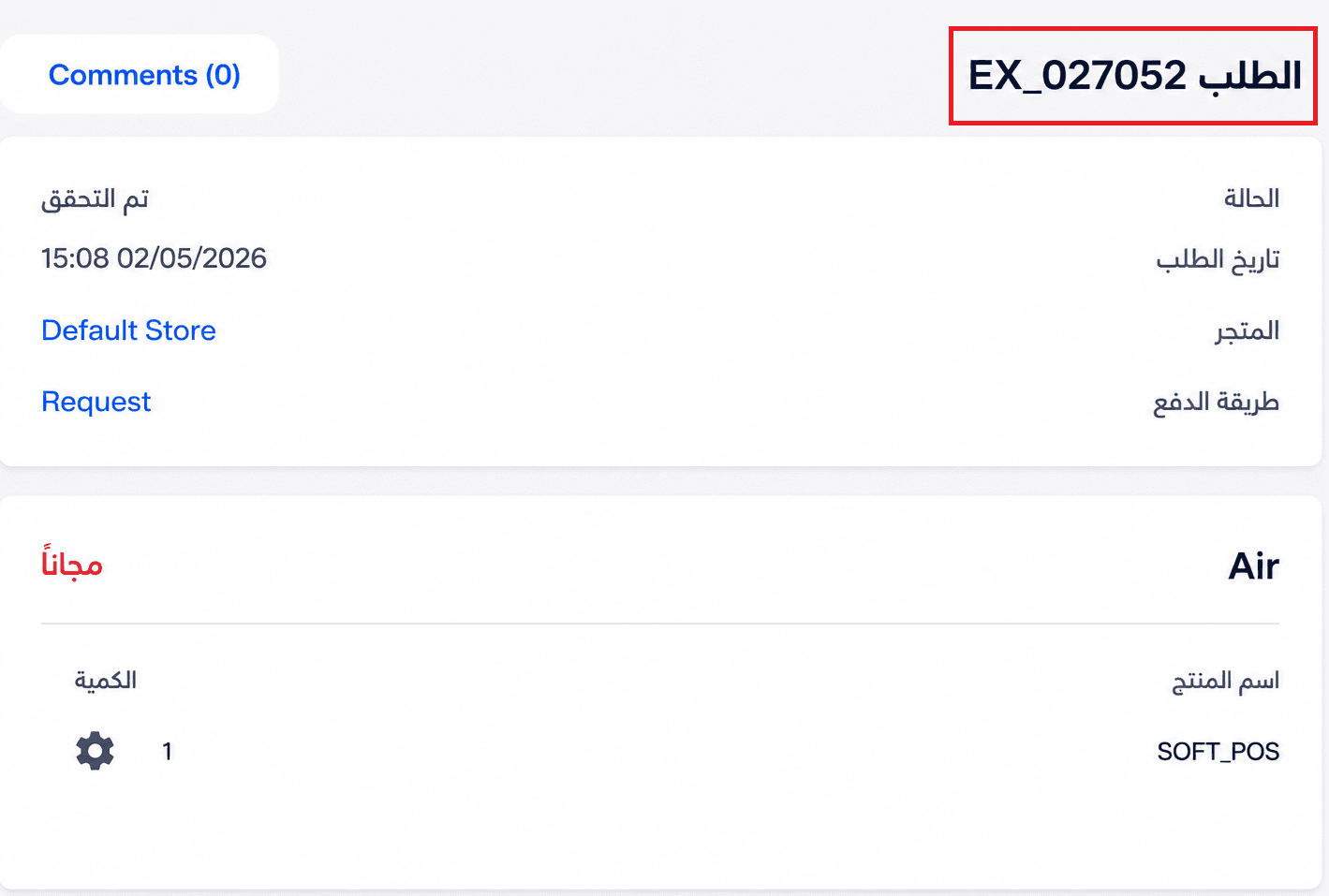
1. Open the order details and copy the order number shown in GEIDEA.
2. Go back to Salla and enter the order number to complete the linking and activation.
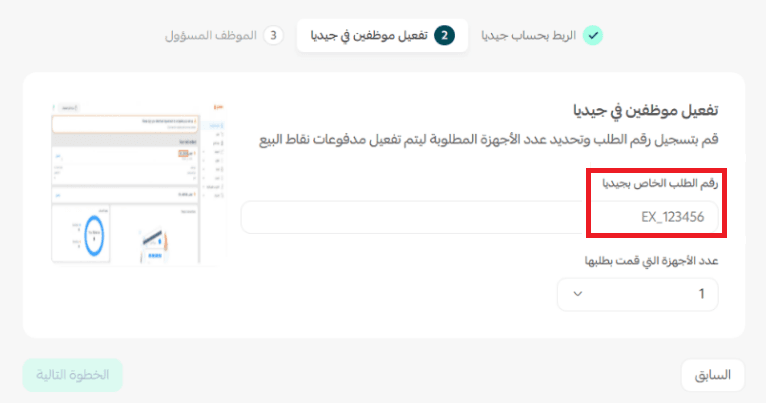
🎥 Watch it done: see the full walkthrough in submitting a request through GEIDEA.
⚠️ Common problems and how to fix them
❌ The request won't go through
GEIDEA may show an alert in your account that blocks the order, such as:
- Your national ID has expired
- Your freelance document has expired
- Your commercial registration has expired
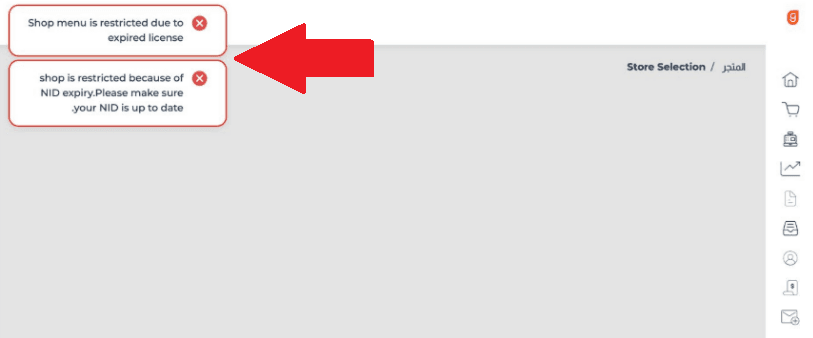
The fix: update your account details inside GEIDEA before you try again.
1. Go to the home page of your GEIDEA account.
2. Click the notification shown at the top of the page.
3. Update the documents it asks for: national ID, freelance document, or commercial registration.
📝 Once the updated details are approved, you can submit the request again as normal.
❓ Frequently asked questions
❓ What do I need to use the card payment service?
An Android phone or tablet that supports NFC.
❓ What does it cost?
The cost sits in the paperwork rather than the service itself: a freelance document is around SAR 1,033 per year, while a commercial registration is free.
❓ Is Salla Point free?
Yes, Salla Point is free on all plans.
📝 Note: the card payment service requires a Pro or Plus subscription.
❓ Can I refund a transaction through GEIDEA?
Not at the moment. GEIDEA does not currently support refunds.
❓ What is the MDR commission rate?
0.55% on mada cards, and 1.95% on Visa and Mastercard.
❓ How long does activation take?
Between 3 and 5 business days.
❓ Why do some requests get rejected?
Usually one of two reasons: the wrong device type was selected, or the account details in GEIDEA are out of date.
Get the device type and the documents right the first time and the whole request is a short job. Choose AIR, keep your national ID, freelance document, and commercial registration current in GEIDEA, and link the order number back to Salla as soon as you have it.