You may have faced difficulties controlling promotional settings, organizing offer priorities, or determining cashback eligibility, making it harder to manage your store efficiently from one place.
Now, you can manage all marketing settings from the new dashboard easily and in a unified way, with immediate reflection on your store interface. This update is designed to make marketing management smoother and more professional.
📌Article overview
- What can you manage now?
- Benefits of professionally customizing marketing settings
- Managing marketing settings
- Smart ways to use marketing settings to maximize results
- Frequently asked questions
What can you manage now?
You can control all marketing elements that directly affect the customer experience, such as:
- Coupon settings: Allow customers to enter discount codes and view available discounts in the cart and store menu.
- Promotional offer settings: Control how offers are displayed, automatically add free products, or show offers in pop-ups.
- Offer priority: Define the order in which discounts are applied when multiple promotions are active, ensuring fairness and transparency in the customer experience.
- Cashback eligibility: Choose the stage at which customers receive cashback, according to your fulfillment policy.
This means you can now manage all marketing configurations from one place, with precise and immediate control while maintaining consistency across dashboards.
Benefits of professionally customizing marketing settings
- Encourage customers to purchase immediately using pop-ups and direct promotional offers
- Increase customer satisfaction by granting cashback at the right time
- Organize promotions by priority so discounts are applied fairly and effectively
All these capabilities are now available in the new dashboard, without complex steps.
Managing marketing settings
From the dashboard, click Marketing settings.
You can control the following configurations:
1. Coupon settings
Coupon settings include:
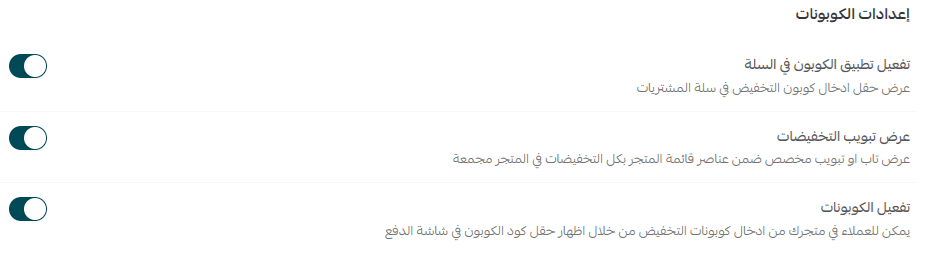
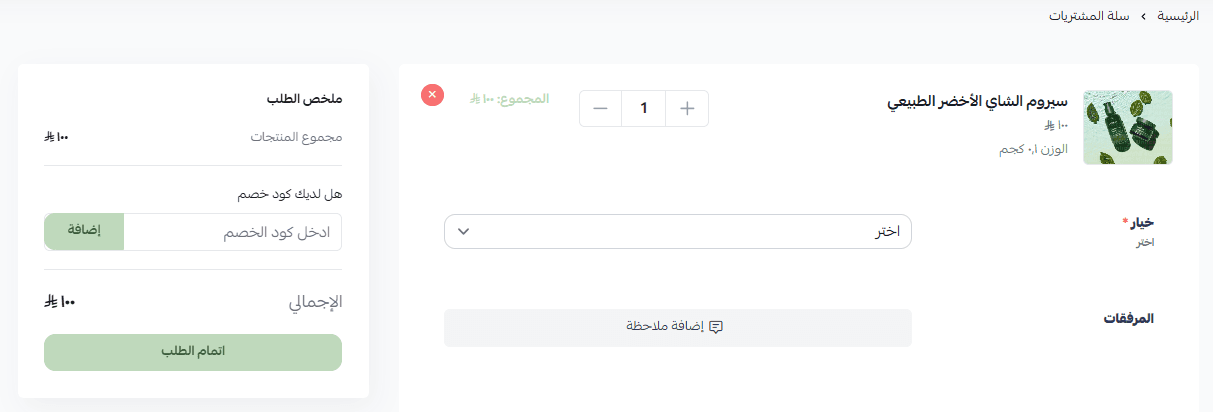
Enable coupon usage in the cart
Allows customers to apply discount coupons directly when products are added to the cart, increasing the likelihood of completing the purchase.
Example: When a customer adds notebooks and pens to the cart, they can enter the coupon SAVE10 to instantly receive a 10% discount.
Show the discounts tab
Allows customers to access all discounts directly from the store’s main menu, enhancing the shopping experience and increasing offer usage.
Example: A “Discounts” tab appears in the store menu. Clicking it displays all discounted products in one place.

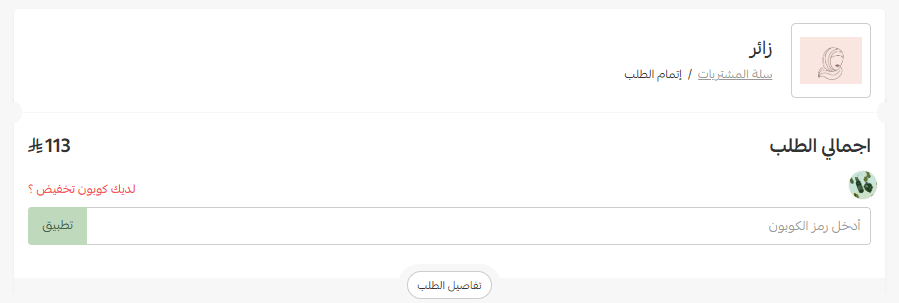
Enable coupons for customers
Once a coupon is entered, the discount is automatically applied to the final order amount.
Example: A product priced at 100 SAR becomes 90 SAR after applying a 10% coupon, and the discount appears instantly during checkout.
2. Promotion settings
In this section, you can control how promotions appear and behave inside the store.
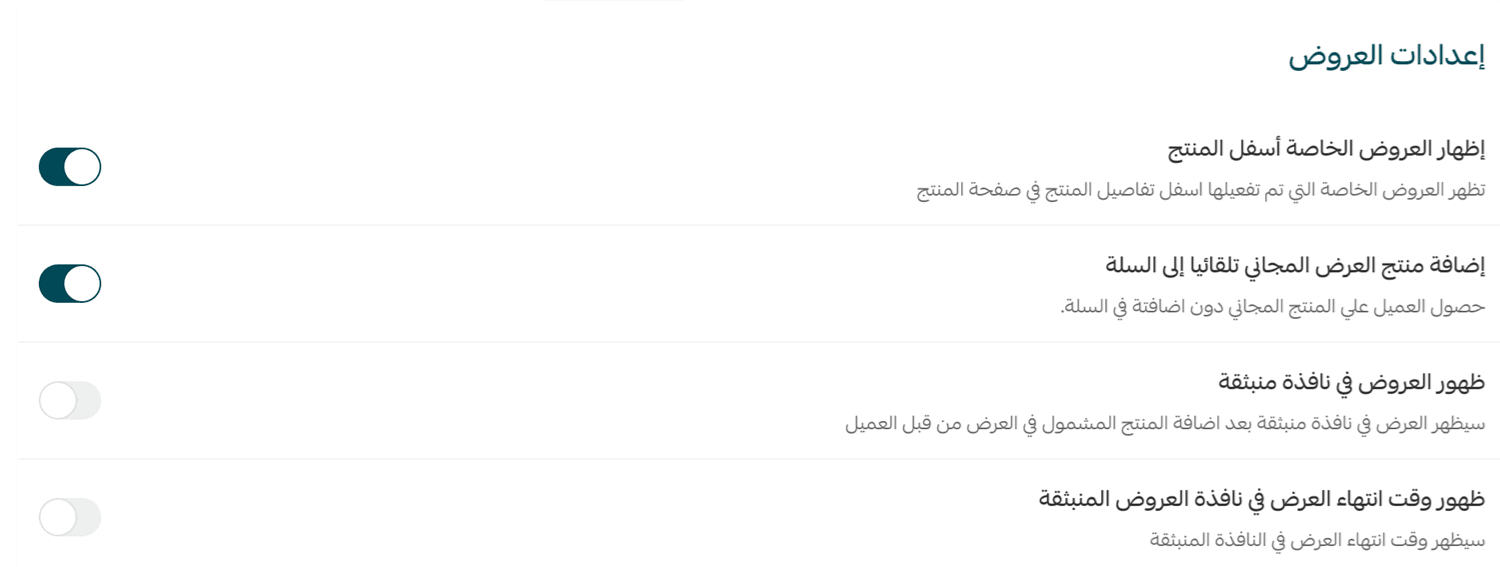
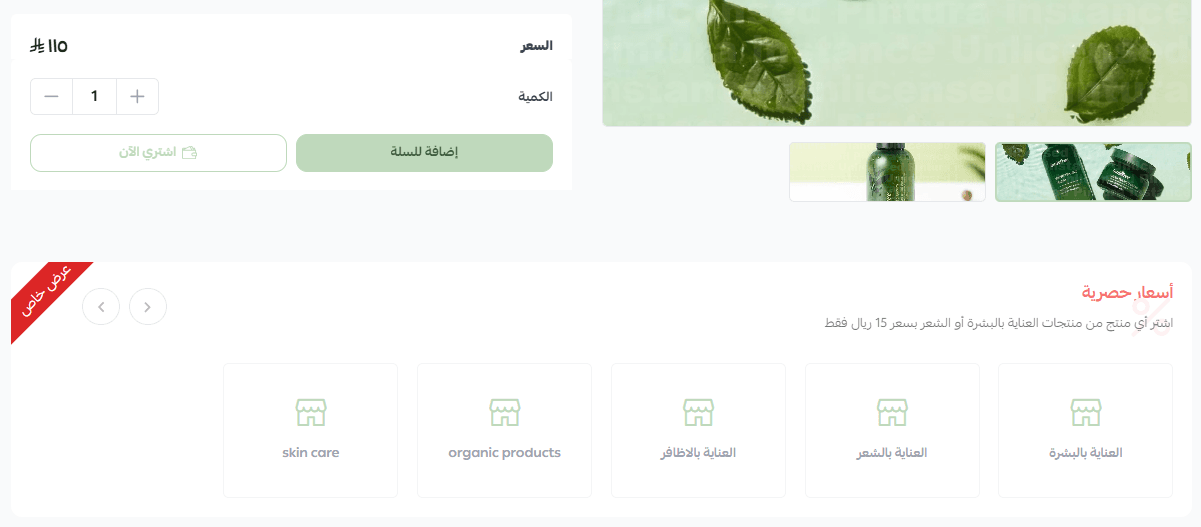
Display special offers below the product
Shows promotional offers directly under the product page.
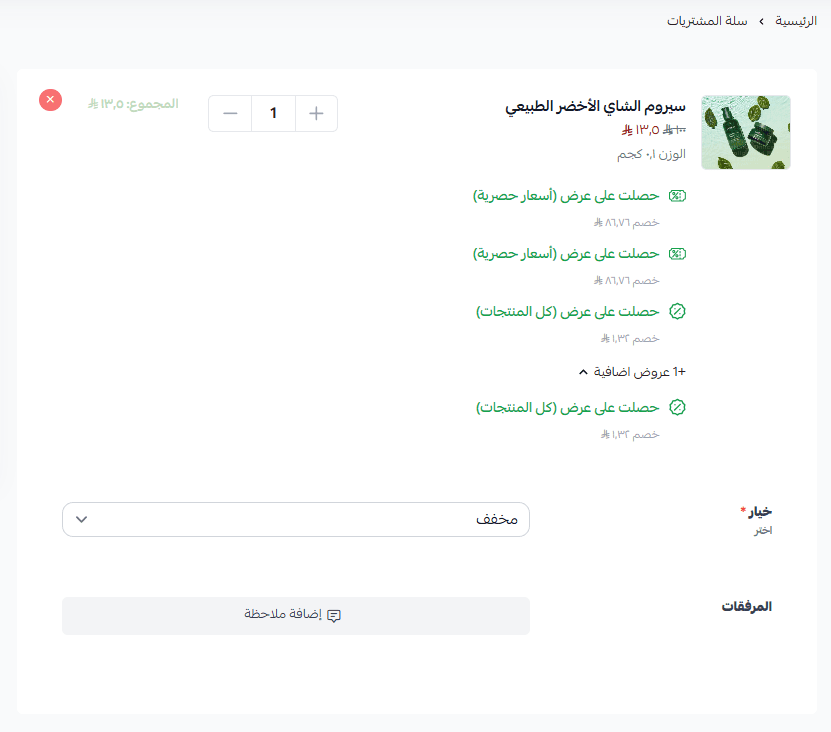
Offers will also appear in the shopping cart page.
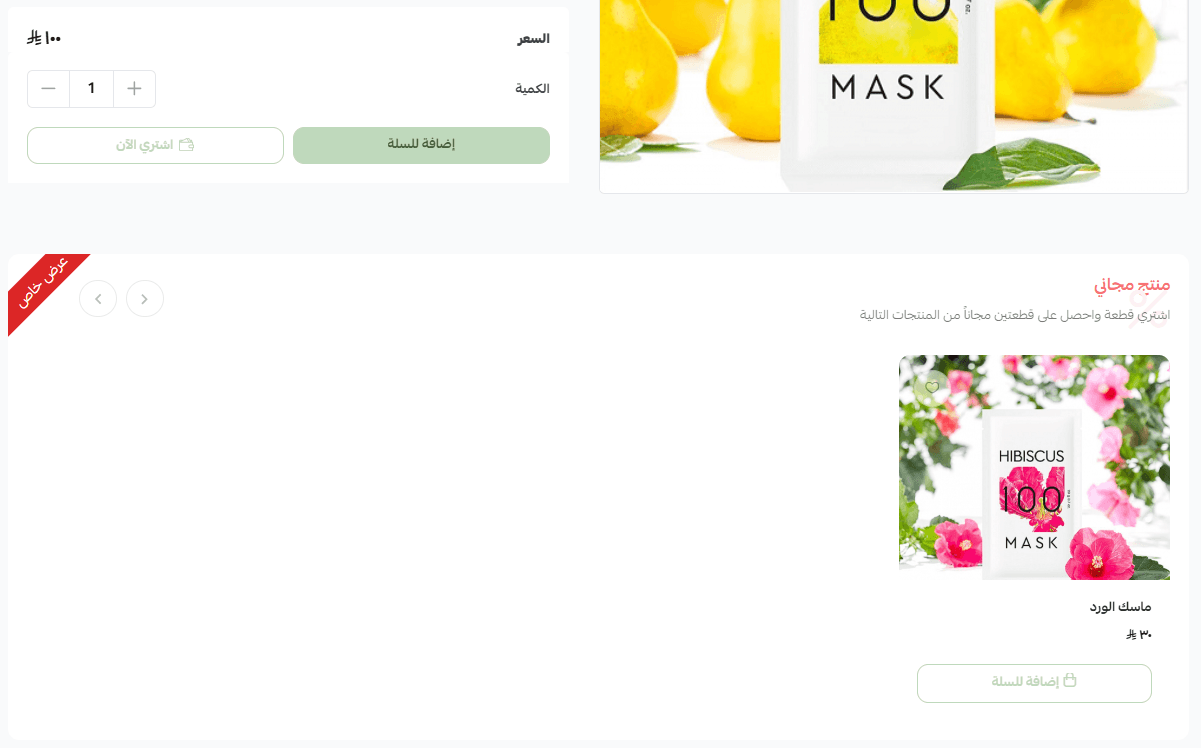
Automatically add free promotional products to the cart
When this option is enabled, the free product is automatically added once the promotion conditions are met.
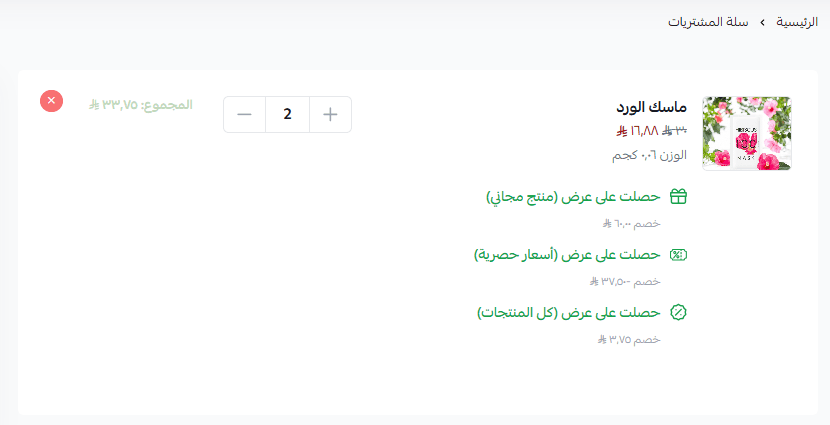
The free item will appear in the cart below the main product.
Show offers in a pop-up window
Allows active offers to appear to customers while browsing the store.
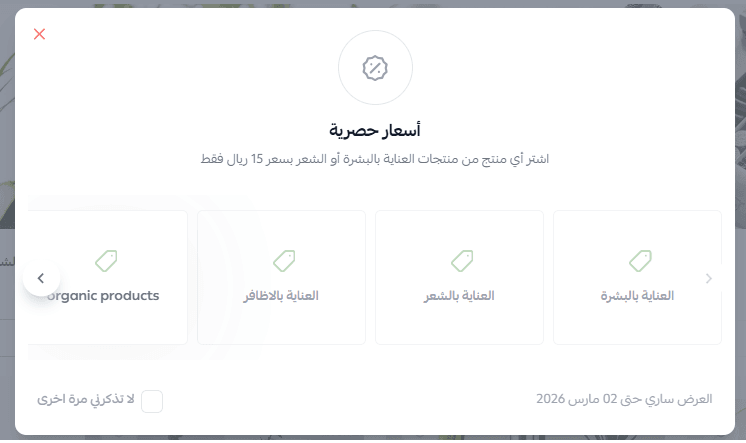
🔔 The offer expiration time is also displayed in the pop-up, encouraging faster purchase decisions.
3. Managing discount priority
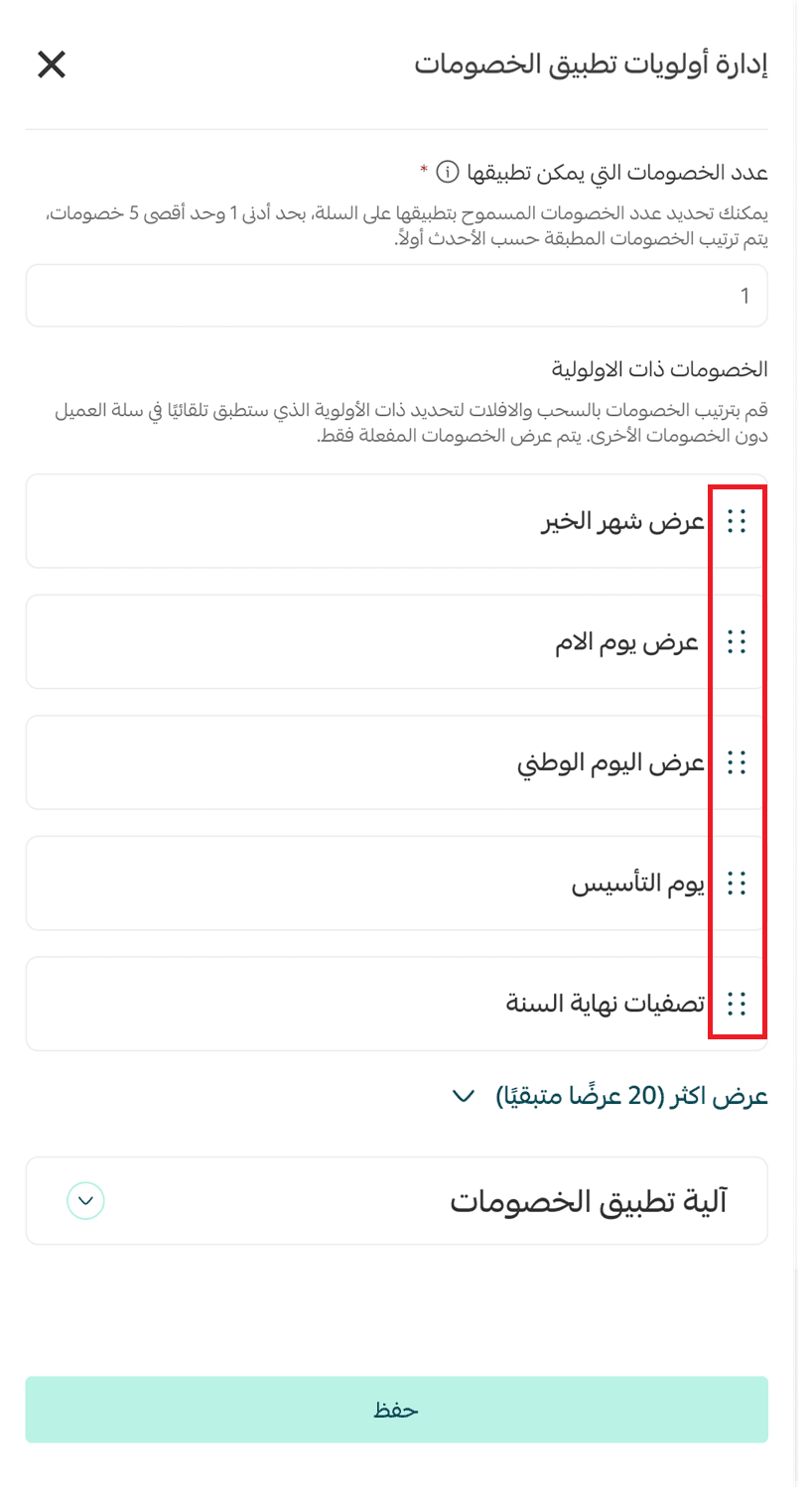
When multiple promotions are active, this section lets you control the order in which discounts are applied.

Choose the priority of offers to determine the application sequence.
Additional notes
- A maximum of five discounts can be applied.
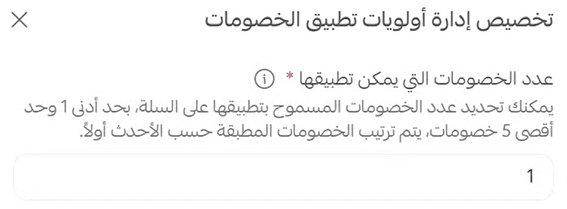
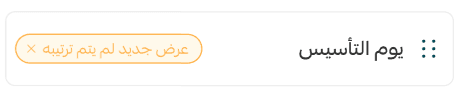
- Unsorted offers are automatically tagged and placed at the bottom of the list.
- If many offers exist, a Show More option will appear.

- The system explains how discounts are applied based on their priority.
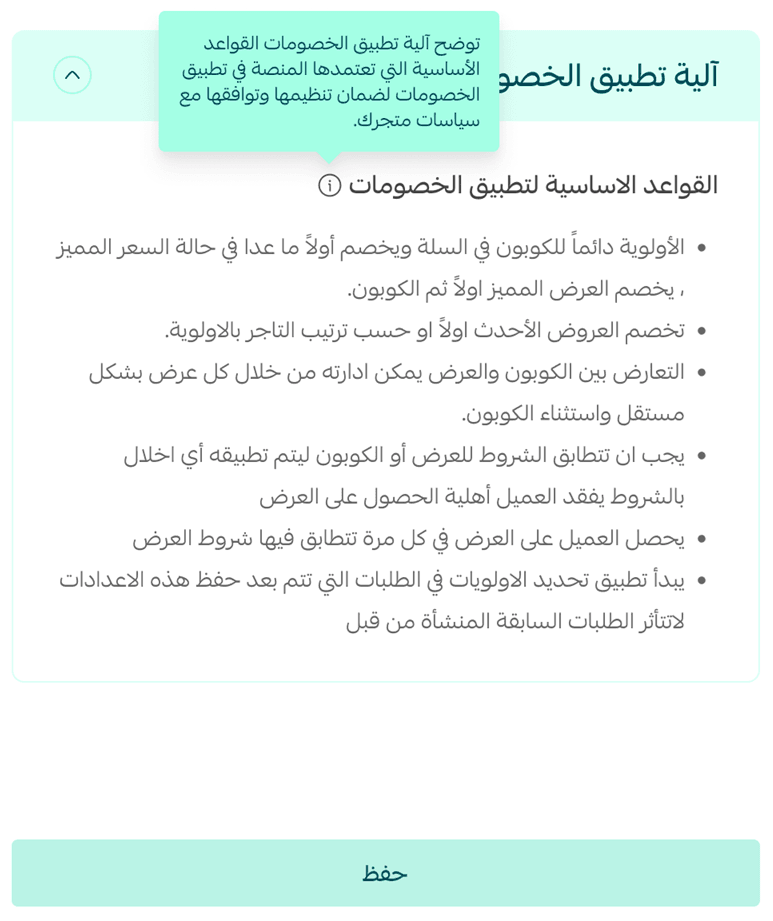
- A warning appears if there are offers without defined priority.
4. Cashback eligibility
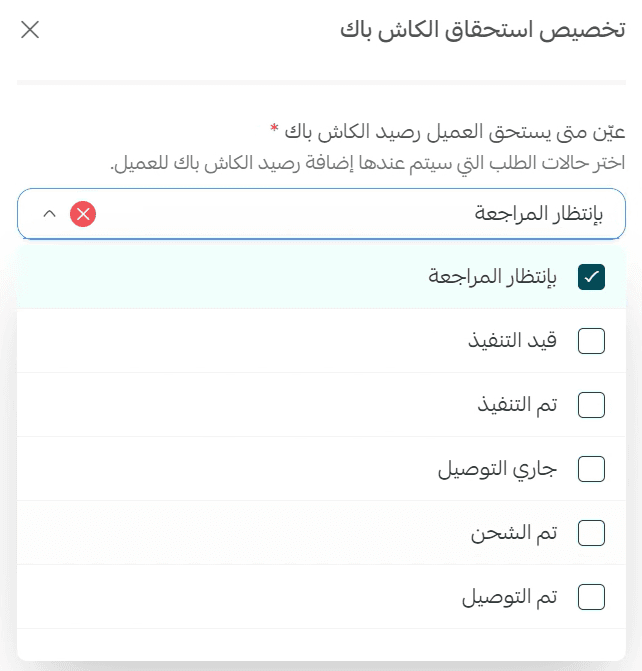
This section lets you determine the order status at which cashback is granted.

You can choose one or more order statuses.
How it works
- Select one or multiple statuses.
- Cashback is granted once the order reaches any of the selected statuses.
🔔 If you do not modify this setting, the default status remains “Completed.”
Smart ways to use marketing settings to maximize results
Marketing settings are not just on/off switches; they are strategic tools to drive customer engagement and increase sales.
Here are several smart strategies:
1. Prioritize promotions strategically
When multiple offers run simultaneously, customers may experience unexpected or confusing discounts.
Strategy: Place promotions with higher margins or limited-time offers first, and avoid conflicting discounts.
Example: You have:
- 20% discount on high-demand products
- 10% discount on new products
Set the 20% offer as the top priority to ensure the higher discount applies first.
2. Use pop-ups for limited-time offers
Pop-ups work best with:
- Short-term promotions
- Seasonal campaigns
Limited-time offers
Strategy: Display short-term promotions in pop-up windows with countdown timers.
Example: “50% off skincare products for 24 hours.” The countdown timer increases urgency and encourages faster purchases.
3. Automatically add free products
If customers must manually add free items, they may ignore the promotion.
Automatic addition:
- Simplifies checkout
- Reduces cart steps
- Increases offer utilization
Example: “Buy a cleaning product and get a free brush.” The brush is automatically added to the cart when the main product is added.
4. Choose cashback timing carefully
Granting cashback early can increase excitement but may raise operational risks.
Strategy:
- Use earlier order statuses for short promotional campaigns
- Use Completed status for high-value products or long-term campaigns
Example:
- Promotional campaigns: cashback granted when Shipped
- High-value items: cashback granted when Completed
5. Regularly review unprioritized offers
Offers without priority often indicate:
- Old campaigns still active
- Overlapping promotions
Strategy: Review these offers regularly and reorder or disable them.
Example: After reorganizing three overlapping promotions for the same product, the conversion rate increased by 15% because customers were less confused.
6. Reduce promotional complexity
More promotions do not always produce better results.
Fewer offers with clear priority provide:
- Better clarity
- Faster purchasing decisions
- Higher conversion rates
Example: Instead of displaying 7 offers on a product page, show only:
- Discount
- Free product
- Cashback
Result: simpler shopping experience and higher conversions.
Frequently asked questions
Will this update affect previous settings in the old dashboard?
No. All previous settings remain saved and can be modified directly from the new dashboard.
What happens if I don’t modify cashback settings?
The default status remains Completed, and cashback will be granted once the order is completed.
Can multiple promotions appear on the same product?
Yes. You can display multiple promotions and control their application using promotion priority.
Do changes appear immediately to customers?
Yes. Once settings are saved, they are instantly reflected on the store interface in real time.
💡 Regularly review your marketing settings and prioritize promotions carefully to provide a smooth and consistent shopping experience, while improving conversion rates. Marketing settings are not just switches; they are strategic tools. Every option you enable or disable directly influences customer experience, purchasing behavior, and your store’s profitability.