Does your team operate with clear permissions? Have you ever faced confusion due to overlapping responsibilities in your store? Or needed to give an employee limited access without exposing your entire dashboard?
Managing a store isn’t just about products and orders, it’s also about managing people. That’s where the Staff & Roles section helps you organize your team in a structured, secure, and professional way.
📌 Article overview
- Who are store staff members?
- What is a role?
- Store roles and permissions
- FAQ
Who are store staff members?
Staff members are users who help manage your store and support customers, such as:
- Order manager
- Product manager
- Customer support
- Accountant
- Operations manager
What is a role?
A role defines:
- The employee’s responsibilities
- Their permissions on the store dashboard
- The actions they can perform
- Any restrictions applied to them
In simple terms: A role determines what the employee can see and what they can do.
Note: An employee cannot access the dashboard without an assigned role. If no role is assigned, their account will be deleted after 15 days.
Always assign a role immediately after adding a new employee.
Staff page
- From the main menu, click All
- Select Staff Management
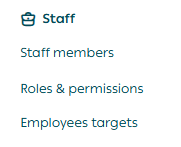
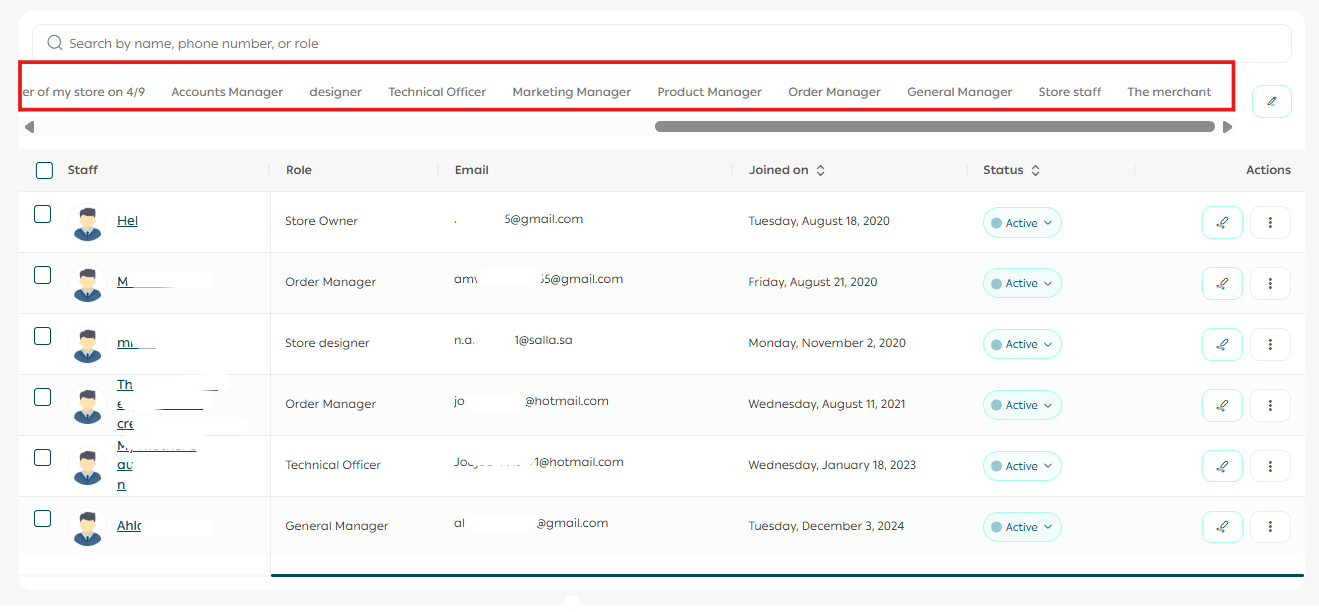
This page includes:
- A list of roles in your store
- Employees assigned to each role
- Employee details and available actions
Store roles & permissions
From the Staff page, go to the Roles tab.

This section includes:
- A list of all roles
- Role details:
- Role information
- Permissions
- Role restrictions (available on Special plan)
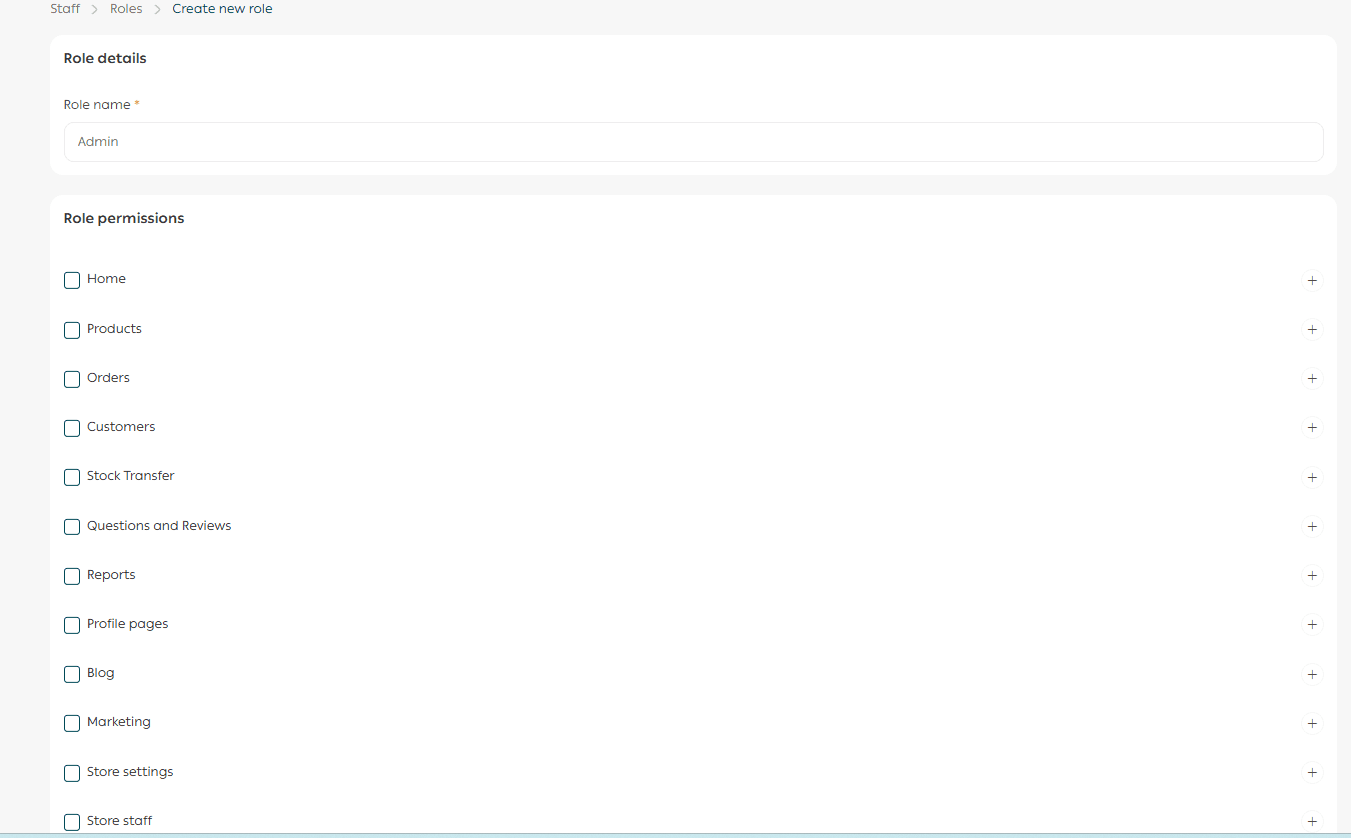
Create a new role
- Click + Add New Role

2. Enter:
- Role name
- Permissions
- Optional restrictions
3. Click Save
Note:
Permissions related to:
- Mahally
- Salla Point
- Souq Eljomla
are currently available only for stores in Saudi Arabia.
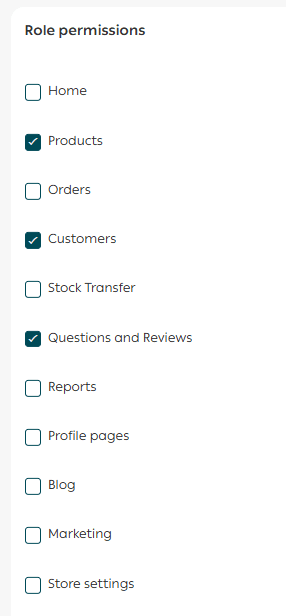
Assign permissions
You can:
- Select specific permissions
- Or grant full access to an entire section by selecting the checkbox next to it
Role restrictions
Restrictions add an extra layer of control on top of permissions.
A restriction allows you to limit how a permission is used.
To add a restriction:
- Click Add Restriction

- Choose the main action
(e.g., edit orders, view orders, create orders, view products)
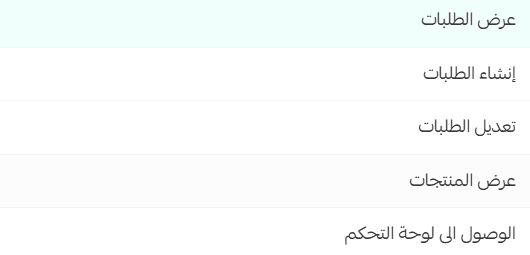
2. Choose the sub-action
(e.g., edit order status, modify order details, update order items)
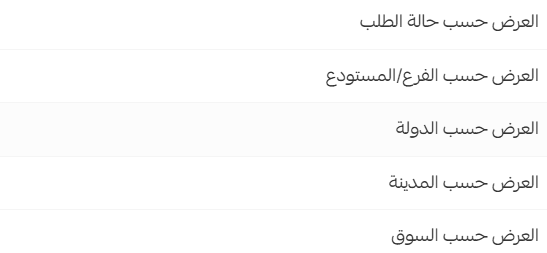
3. Set the value or condition

💡Example
You want an employee (Order Manager) to only manage return requests:
- Create a role for handling return orders
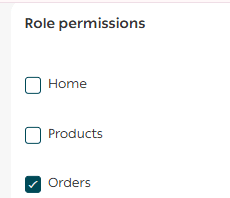
2. Add restriction:
- Main action: Edit Orders
- Sub-action: Change order status
- Value: Return in Progress

The employee will only be able to edit orders in that specific status.
Multi-market support
If multi-market is enabled, you can:
- Restrict roles based on specific markets

- Limit employees to operate within a defined market only

Frequently asked questions
❓Can an employee log in without a role?
No. They won’t be able to log in, and their account will be deleted after 15 days if no role is assigned.
❓Can I edit a role after creating it?
Yes. You can modify:
- Role name
- Permissions
- Restrictions
Changes apply immediately to all assigned employees.
❓Can an employee have multiple roles?
Currently, each employee can only have one role. If needed, you can adjust the role or create a more comprehensive one.
❓What’s the difference between permissions and restrictions?
- Permissions: What the employee can access or do
- Restrictions: Conditions that limit how those permissions are used
Example:
- Permission: Edit orders
- Restriction: Only edit orders with a specific status
❓Does deleting a role delete employees?
No. Employees are not deleted, but they must be reassigned a role to access the dashboard.
❓Can I create unlimited roles?
You can create multiple roles based on your store needs. It’s recommended to align roles with actual responsibilities for clarity.
❓Can I restrict roles by market?
Yes. If multi-market is enabled, roles can be limited to specific markets.
❓Are role restrictions available on all plans?
No. Role restrictions are available on the Special plan only.
Tip
Go to your Staff page:
- Review existing roles
- Create clear, structured roles
- Apply precise restrictions
Every minute you spend organizing permissions today will save you hours of corrections later.