Salla now allows you to take advantage of smart suggestion elements powered by "Mushammir" technology, which analyzes customer behavior and order history to display suitable products at the right moment, whether on the homepage or the product page. This helps you reduce sales loss due to stockouts and increase conversion rates through suggestions that truly matter to your customer.
In this article, we'll guide you through the steps to add and activate smart suggestion elements via the theme editor in simple and effective ways to boost your sales!
📌 Main topics of the article:
- About "Mushammir"
- What are smart suggestion elements
- Steps to add smart suggestion elements
About Mushammir
Mushammir by Salla: is an AI-based tool that allows you to create design elements for your store's interface through conversation.
For more details about Mushammir by Salla for store design | Mushammir
What are smart suggestion elements?
These are elements powered by "Mushammir" technology that uses artificial intelligence to analyze customer behavior and order history, then displays suggested products that match their interests, enhancing the shopping experience and increasing the chances of completing purchases.
Steps to add smart suggestion elements:
You can access the smart suggestion elements powered by "Mushammir" through:
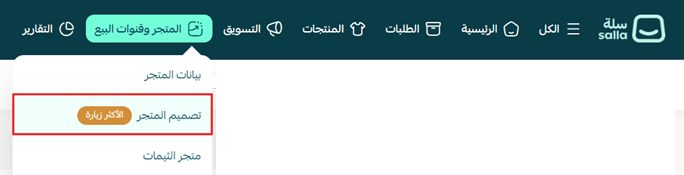
1. From the (Store and Sales Channels) tab in the main menu, click (Store Design).
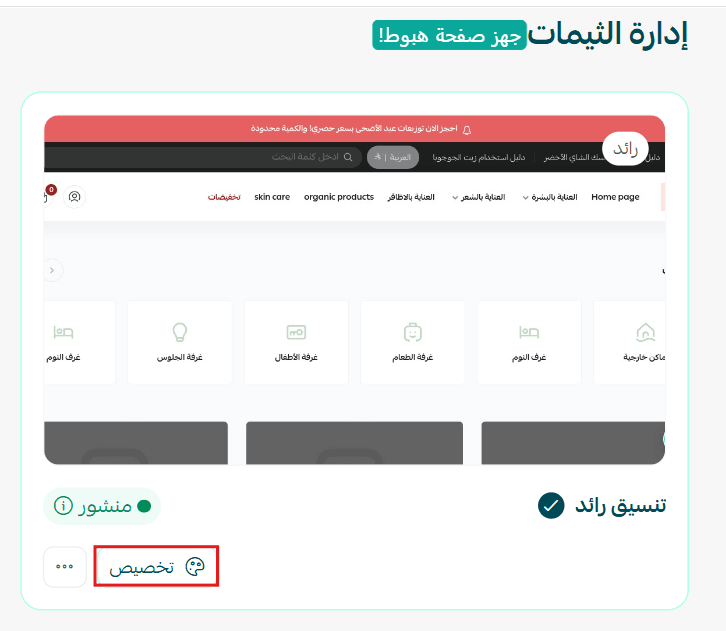
2. Click (Customize) to customize the theme.
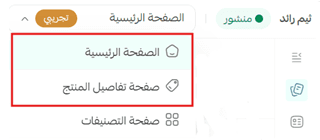
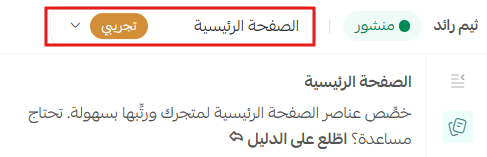
3. Choose the page you want to edit: (Homepage) or (Product Details Page).
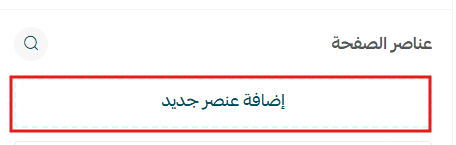
4. Click (Add New Element) and then choose from the suggested elements powered by "Mushammir".
First: Homepage customization elements
- Element (Products You Might Like):
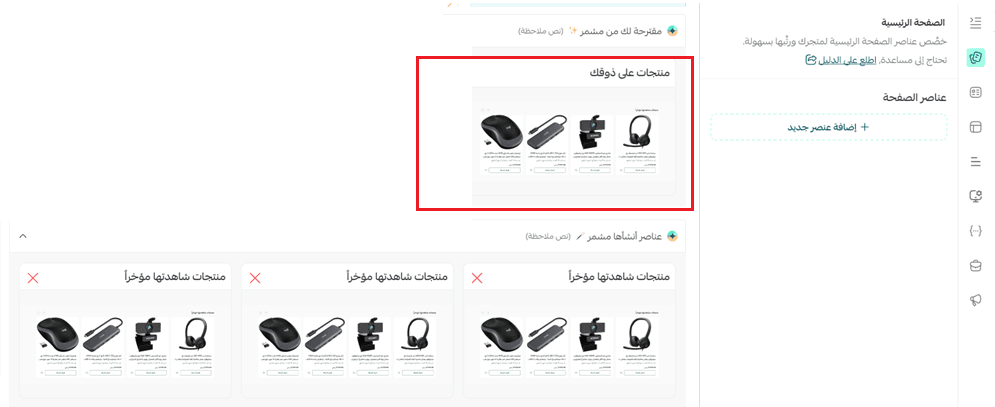
This smart element suggests similar products from your store to the customer based on their previous orders and preferences.
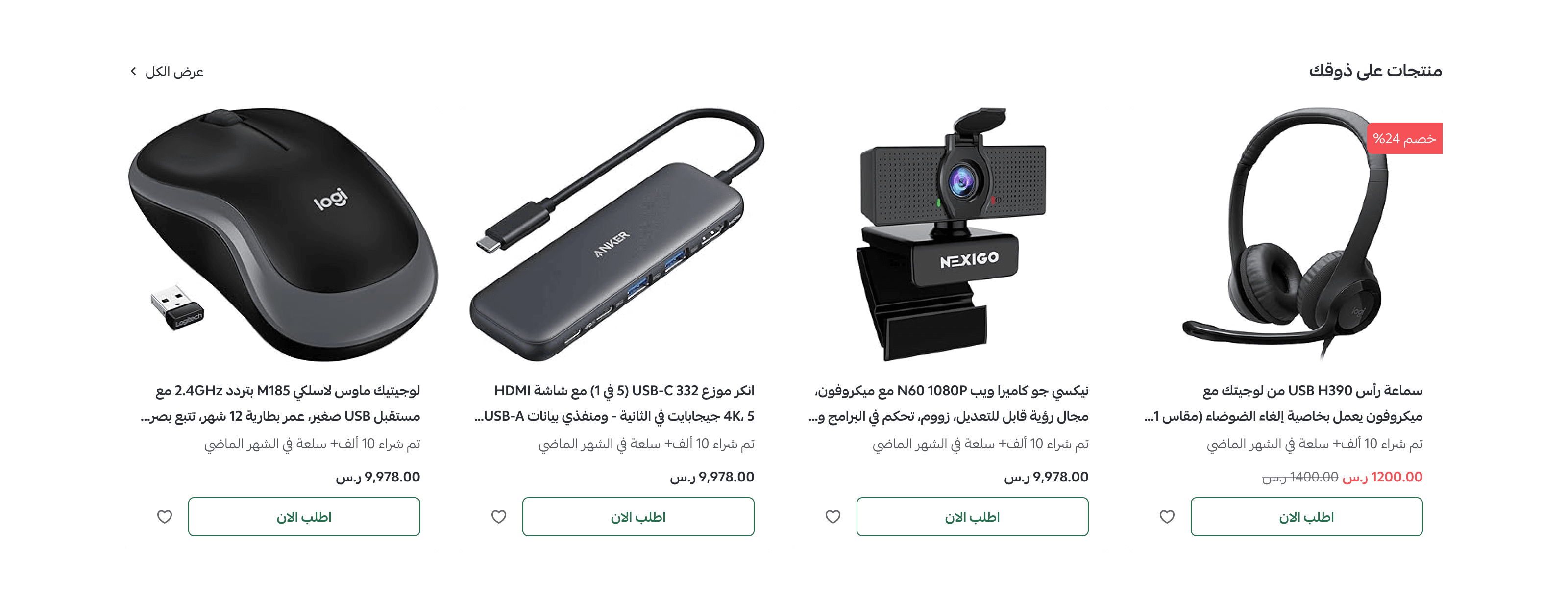
🔔 The "Products You Might Like" section appears automatically on the customer's homepage, provided there are recent orders from your store.
Second: Product page customization elements
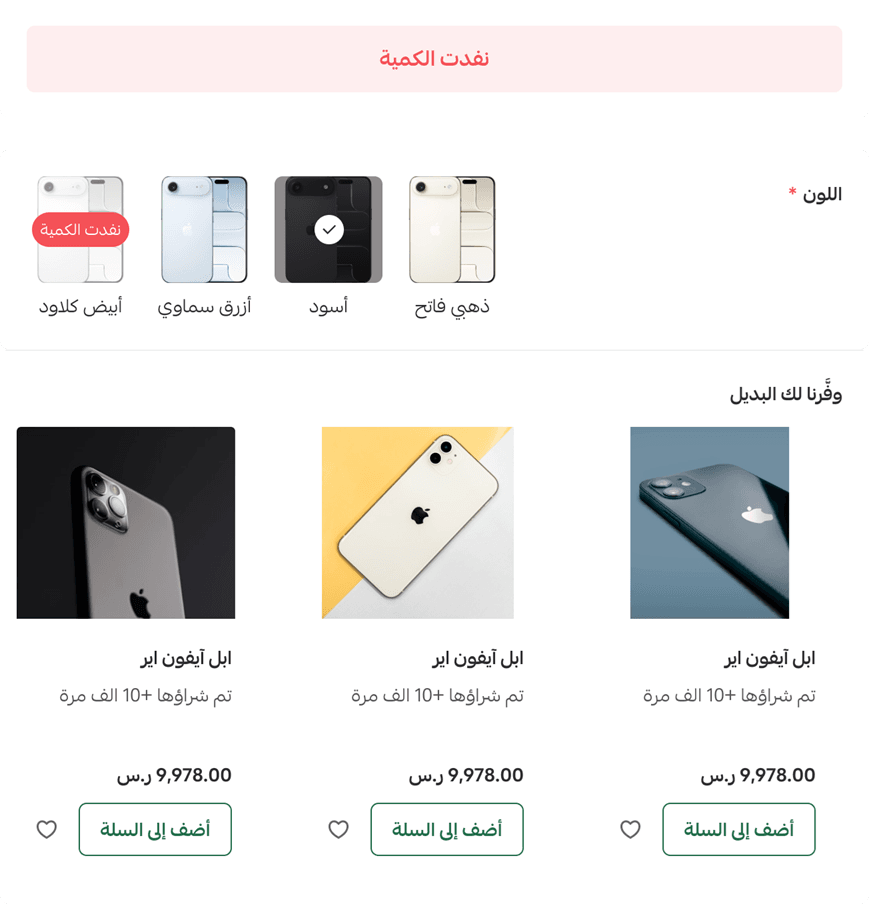
- Element (Alternatives for Out-of-Stock Products):
1. From the (Product Information) element in the product details customization page.
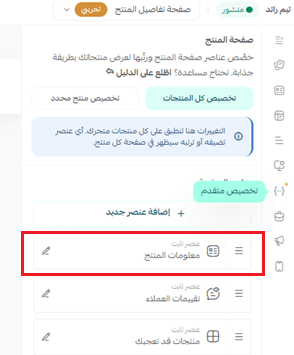
2. Activate the (Alternatives for Out-of-Stock Products) option within smart recommendations, then click (Save Changes).
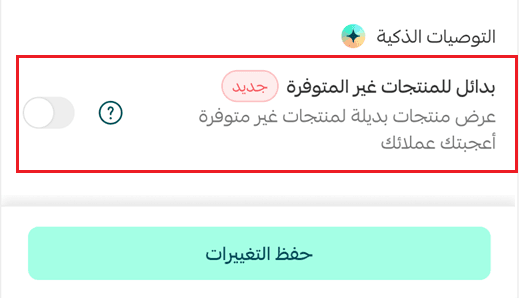
When this option is activated, suitable alternatives automatically appear to the customer if the current product is out of stock.
- Element (Customers Also Buy):
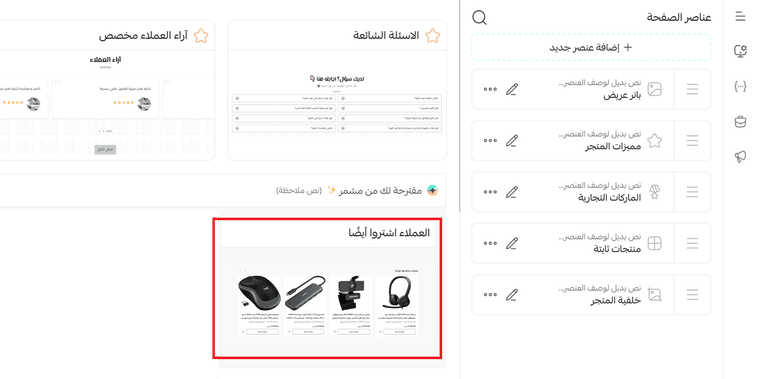
Suggests other related products that customers tend to buy when browsing or purchasing the current product.
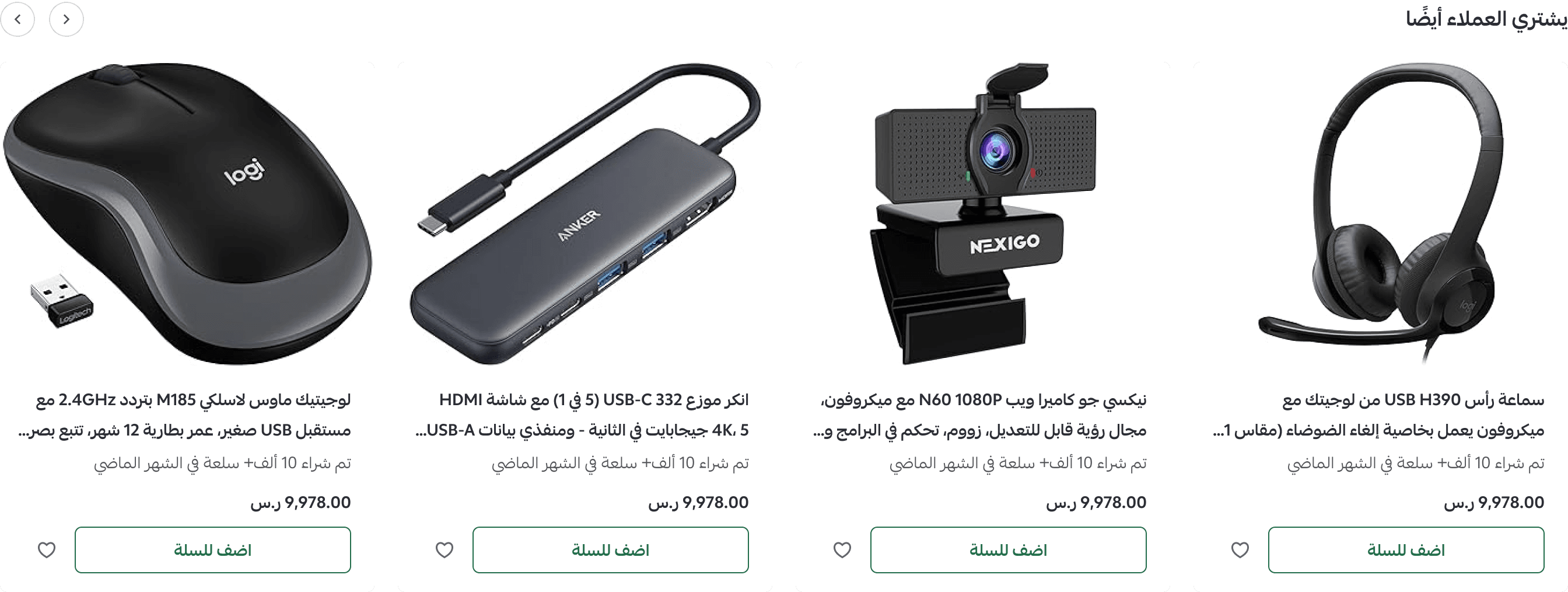
🚨The "Alternatives for Out-of-Stock Products" and "Customers Also Buy" elements appear to both visitors and customers on the product page, provided there are suitable suggestions for this product.
🔥 Start Now
Activate the smart suggestion elements by "Mushammir" via the theme editor, and offer your customers a more personalized shopping experience by displaying the right products at the right time. A simple step that can help increase sales opportunities and enhance the shopping experience in your store.