The store data section in the Salla dashboard allows you to fully manage your store’s basic information, customize its appearance, and strengthen communication channels with your customers. These settings directly impact your store’s credibility and the overall shopping experience.
Through this section, you can update your store identity, set its location, add customer support channels, connect social media accounts, and display the official business verification certificate, all from one place with clear steps.
This guide explains all available settings within the Store Data section and how to manage them.
📌 Article overview
- Store data
- Store location
- Adding customer service channels
- Adding the Business Platform certificate
- Social media accounts
- Store application
Steps to access store data
- From the main menu, click Store & Channels.
- Then select Store Data.
1. Store Data
Store data represents the foundation that introduces customers to your business identity.
- From the settings page, click Main Store Data.
- From the Store Design page, under the Store Identity & Data tab, click Logo.
- Enter your store information, then click Save.
The required store details include:
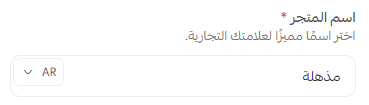
Store name
The name that will represent your business to customers.
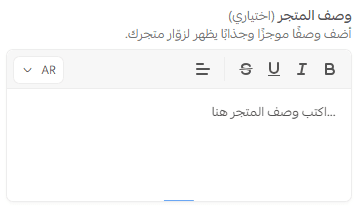
Store description
Write a brief description of your store (maximum 200 characters).
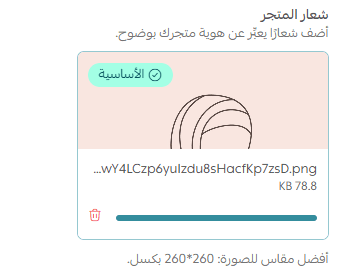
Store logo
Upload the main logo that represents your brand.
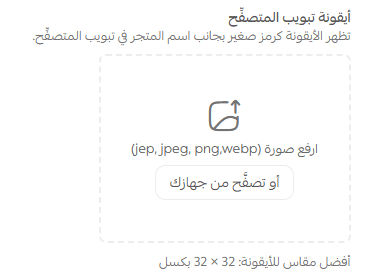
Store icon
The icon displayed in browser tabs and bookmarks.
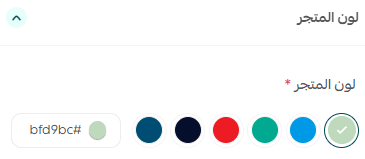
Store color
Select the main color theme for your store.
Store font
You can either:
- Choose from the default fonts available in the list, or
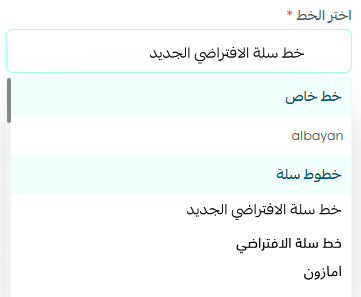
- Upload a custom font for your store.
Adding a custom font allows you to create a distinctive design and a unique visual identity without complex technical steps.
After saving, your store data page will appear with the updated information
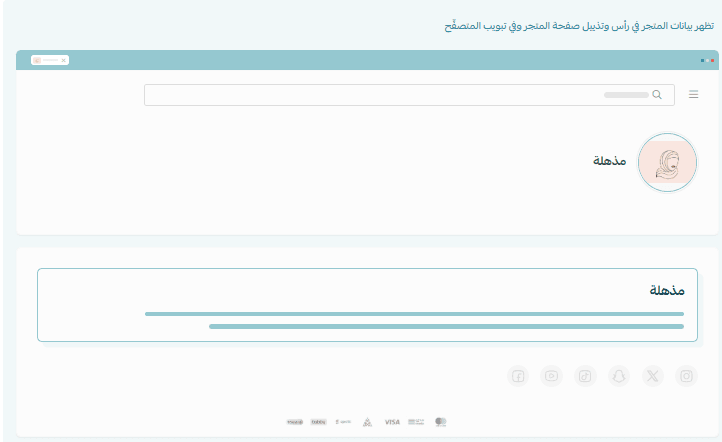
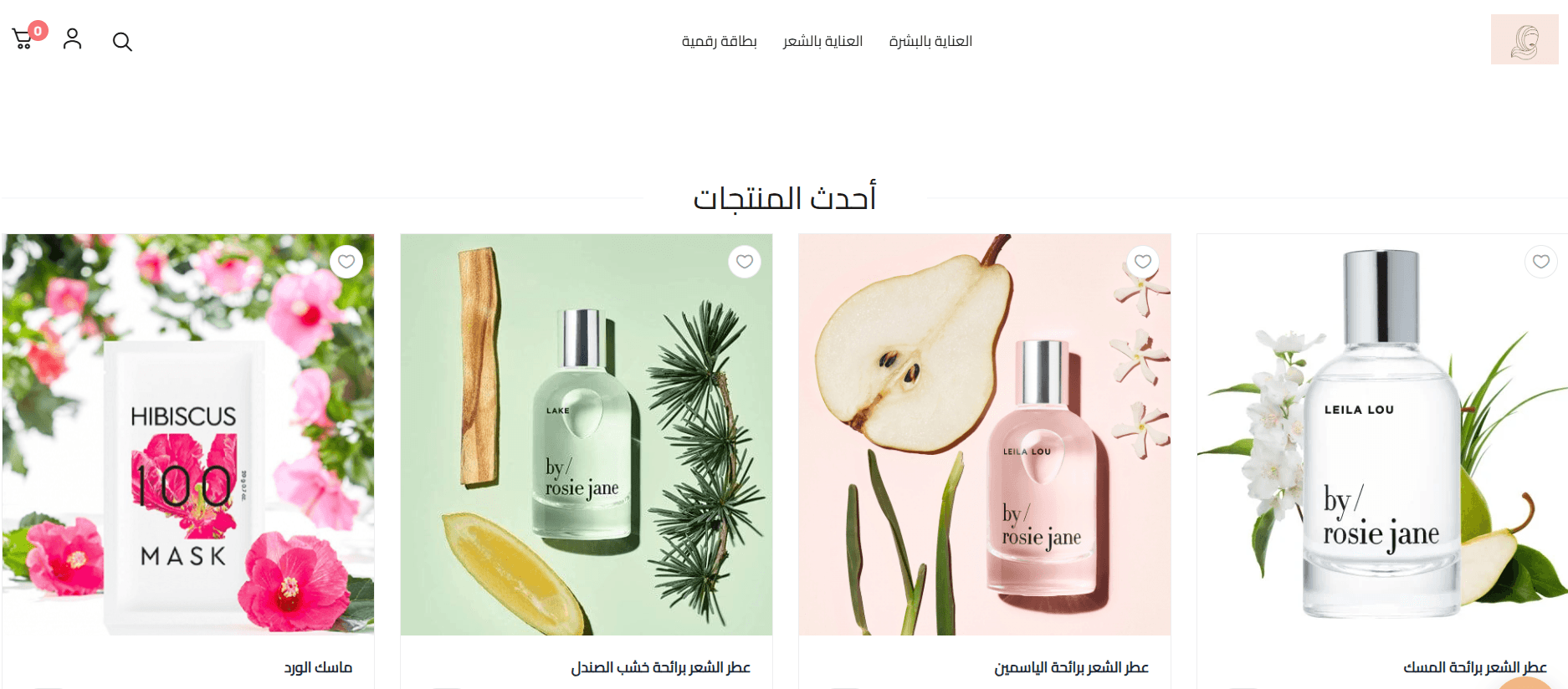
And customers will see these changes when visiting your store.
2. Store Location
Setting your store location helps organize shipping operations, delivery management, and order preparation sources.
- From the settings page, click Store Location.
- Add your store branches and warehouses.
Managing branches and warehouses ensures faster shipping, better order organization, and an improved customer experience.
3. Add Customer Service Channels
Customer service channels help customers easily communicate with you and increase trust in your store.
- From Store Design, open the Header & Footer tab.
- In Footer Settings, click Customer Service Channels.
Note: You must add at least one communication method.
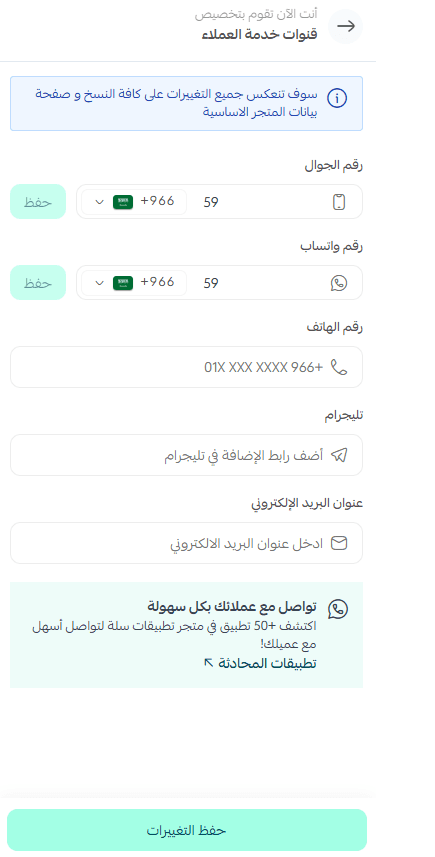
These channels will appear at the bottom of your store page.

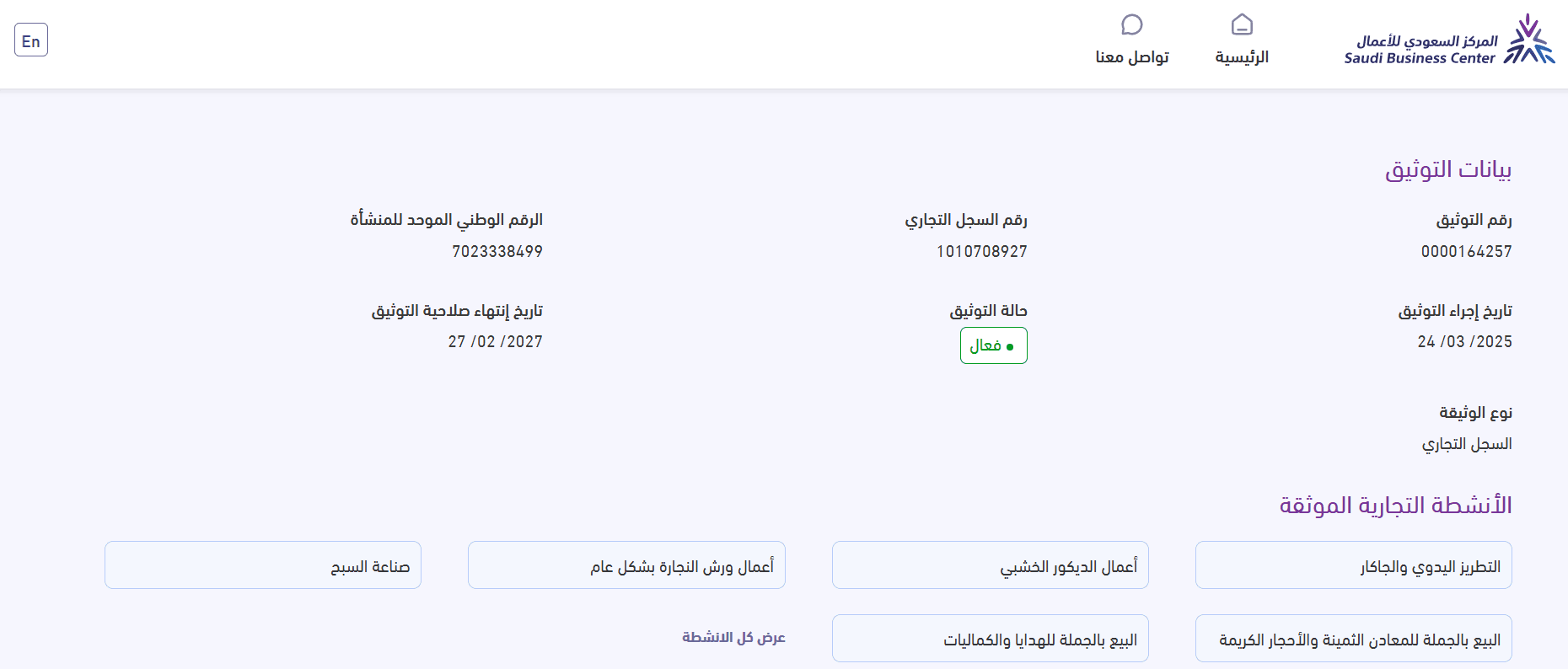
4. Add the Business Platform Certificate
Adding the Business Platform Certificate increases your store’s credibility and confirms compliance with the Ministry of Commerce requirements.
- From Store Design, go to Header & Footer.
- In Footer Settings, click Business Platform Certificate.
- Enter the verification number, then click Save.
The verification badge will appear at the bottom of your store page.

When customers click the badge, they will be redirected to the Saudi Business Center website, where they can view the certificate details.
5. Social Media Accounts
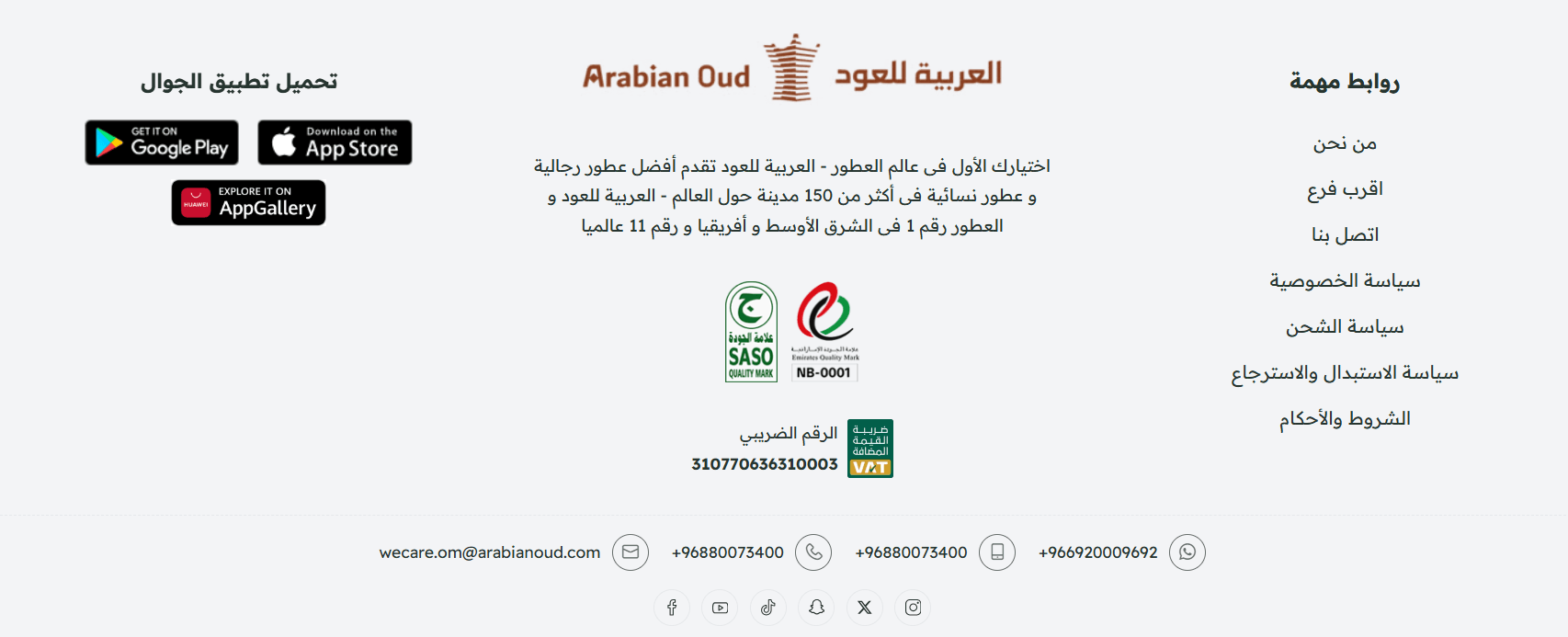
This section allows you to connect your store with your official social media accounts to increase engagement and build trust.
- From Store Design, open Header & Footer.
- In Footer Settings, click Social Media Accounts.
- Add your store’s social media profiles.
Important: Snapchat accounts must be added using this format: https://www.snapchat.com/add/username

The social media icons will appear at the bottom of your store page.
6. Store Application
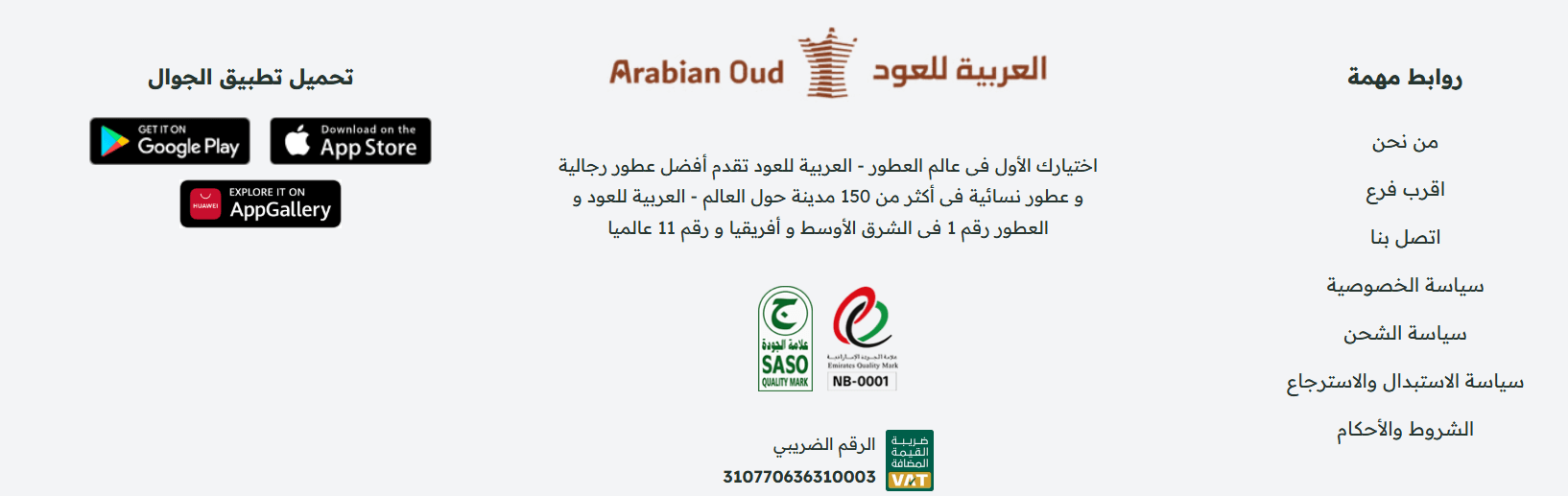
If your store has a mobile application, you can add it so customers can access it directly.
- From Store Design, go to Header & Footer.
- In Footer Settings, click Store Application.
- Enter the Android and/or iOS app link, then click Save.
The application links will appear at the bottom of your store page.
✅ Final tip
Keeping your store information updated and activating all available communication channels improves your store’s professionalism, increases customer trust, and enhances the shopping experience from the very first visit.