Are your products struggling to appear on search engines because they lack unique product identifiers such as GTIN or MPN? This issue can significantly limit your reach and reduce your chances of attracting the right customers.
The good news is that adding these identifiers is simple and highly effective. In this guide, you will learn how to add MPN and GTIN to your product data to strengthen SEO, improve product discoverability, and increase sales opportunities.
📌Aricle overview
- What are MPN and GTIN
- How to add MPN and GTIN to product data
- Frequently asked questions
What Are MPN and GTIN?
GTIN: Global Trade Item Number
GTIN is a globally recognized and unique identifier assigned to a product. It helps search engines and advertising platforms accurately identify your product, which improves both paid and organic visibility. GTIN also makes it easier for customers to find your products when searching online.
Using GTIN correctly increases the chances of your product appearing in relevant search results, shopping ads, and product listings.
MPN: Manufacturer Part Number
MPN is a unique identifier assigned by the manufacturer to distinguish a specific product from other products made by the same brand. Many shoppers search directly using the MPN, especially for electronics, spare parts, and branded items.
Adding MPN ensures your product appears in precise searches and reaches customers who are actively looking for that exact item.
How to add MPN and GTIN to product data
- Open the product card you want to edit.
- Go to Advanced Information, then from the Quantities and Inventory section, click Stock.
- Enter the following details:
- Product weight
- Weight unit
- Maximum quantity per customer
- SKU
- MPN
- GTIN
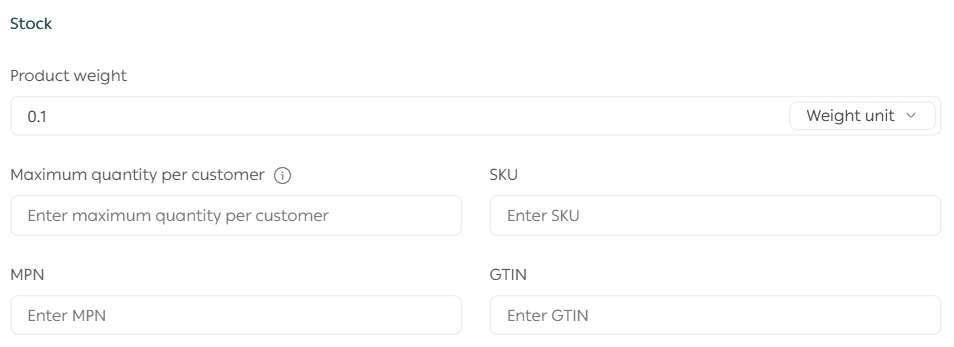
Once saved, these identifiers will be embedded into the product page code for search engines to read.
Frequently asked questions
Can I add MPN and GTIN to all products?
MPN and GTIN fields are available for all products except:
- Bookings
- Made to order products
- Food products
Do MPN and GTIN appear visibly on the product page?
No. MPN and GTIN are added to the product page code and are intended for search engines, not for direct display to customers.
When should I use a GTIN?
GTIN is required for products that have been assigned a GTIN by the manufacturer.
There are several formats that qualify as GTIN, including:
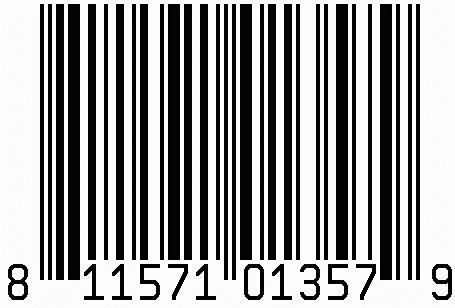
UPC (GTIN-12)
Common in North America and consists of 12 digits. UPC-E codes with 8 digits must be converted to 12 digits.
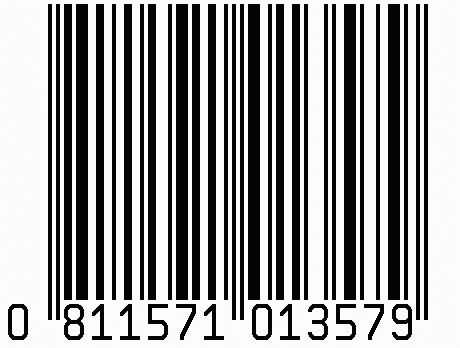
- EAN, JAN, or ISBN
Found on products sold in Europe, Japan, and on books worldwide. These codes contain 13 digits and appear below the barcode.
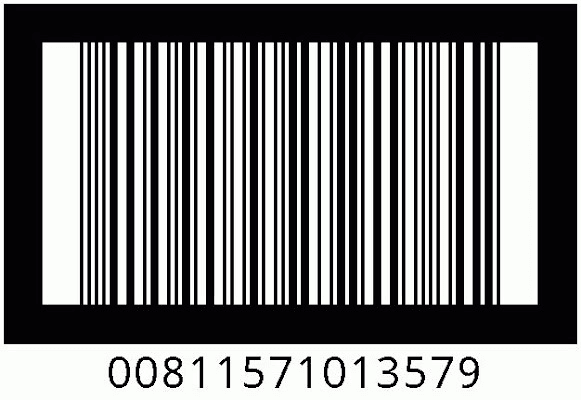
- ITF-14
Used for packaged products such as shipping boxes. It consists of 14 digits displayed below the barcode.
How can I identify the GTIN type of my product?
You can scan the product barcode using a barcode scanner app from Google Play. The app will identify the GTIN number and its type automatically.
When should I use an MPN?
MPN is required for products that do not have a GTIN assigned by the manufacturer.
If the product is custom made, handmade, or does not have a clear manufacturer part number, such as custom artwork or made to order items, adding MPN is optional.
Is it mandatory to add GTIN or MPN?
No. These fields are optional.
However, adding at least one of them significantly improves your product visibility on search engines and enhances advertising performance.
Should I add both GTIN and MPN?
You may add both. If you add a valid GTIN, adding MPN is not required.
Do I need to add a unique GTIN for each product option?
Yes. Each product option must have its own unique GTIN.
For example: If your product is a face serum with different sizes and formulas, each variation requires a separate GTIN, such as:
- Face Serum Large Lavender
- Face Serum Large Rose
- Face Serum Medium Green Tea
Each variation should be assigned its own GTIN or MPN accordingly.
What are the minimum requirements to ensure high quality product data?
To ensure your product data is accepted and performs well, follow these guidelines:
First, make sure the GTIN meets the following conditions:
- Validate the GTIN using a GTIN check digit calculator
- Ensure the GTIN does not belong to restricted ranges such as prefixes 02, 04, or 2
- Avoid coupon code ranges with GS1 prefixes 05 or 98 to 99
Second, use a valid and unique GTIN for every product and variation.
Third, if you add an MPN, you may be required to specify the brand.
If your product does not have a brand, avoid using vague values such as “Generic”, “N/A”, or “No Brand”.
How can I find out why my product was rejected?
If a product is rejected, you will receive details in the Diagnostics page of your Google Merchant Center account, where the reason for rejection will be clearly explained.
Why adding MPN and GTIN matters for SEO
Adding accurate product identifiers helps search engines:
- Understand your product data more precisely
- Match your products with relevant searches
- Improve visibility in shopping results and ads
- Reach customers who are actively searching for specific products
By investing a few minutes in adding MPN and GTIN, you significantly improve your chances of appearing in front of the right customers at the right time.