Special offers help you encourage larger purchases, reward customers, and run targeted promotions automatically based on conditions you define.
Whether you're offering a discount, creating a bundle, or rewarding customers for purchasing specific products, you can create offers that apply automatically when customers meet the required criteria.
Steps to create a special offer
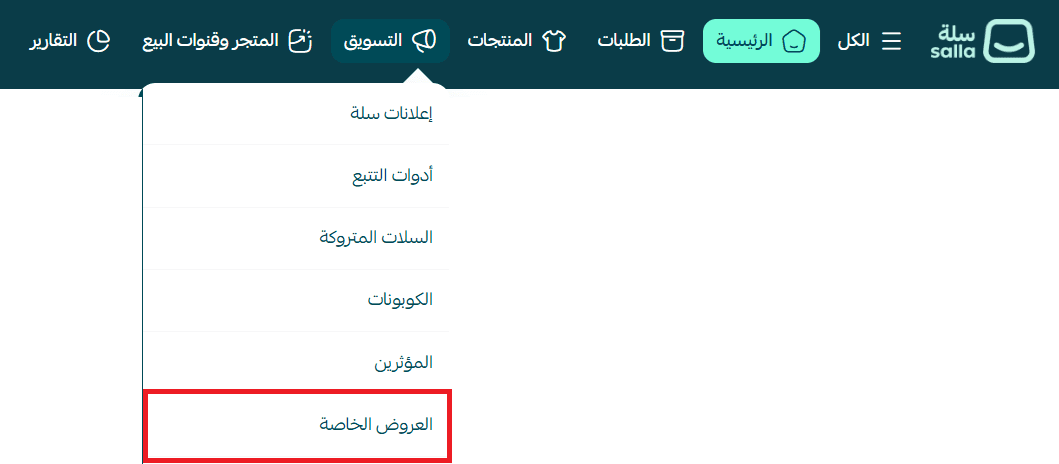
1. From the main menu, click Marketing, then select Special offers.
2. Click Create new offer.
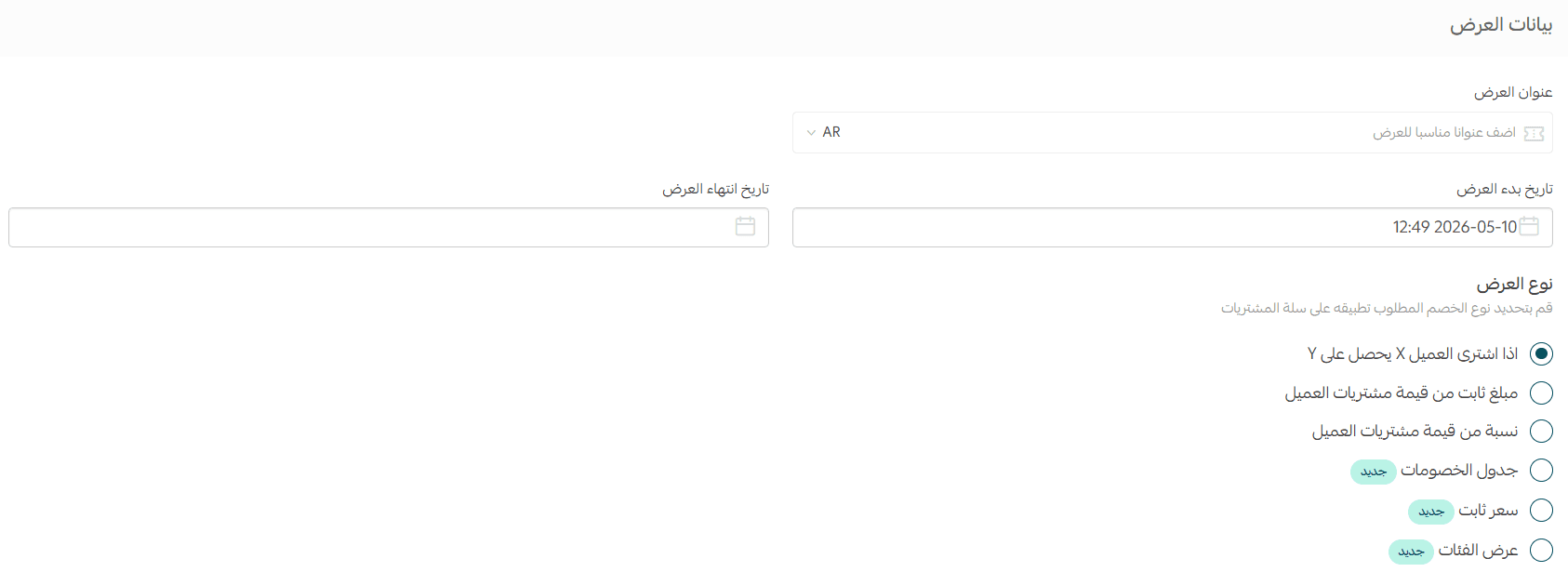
3. Enter the offer details, including the offer name and end date.
Then select the type of offer you want to apply to customer purchases.
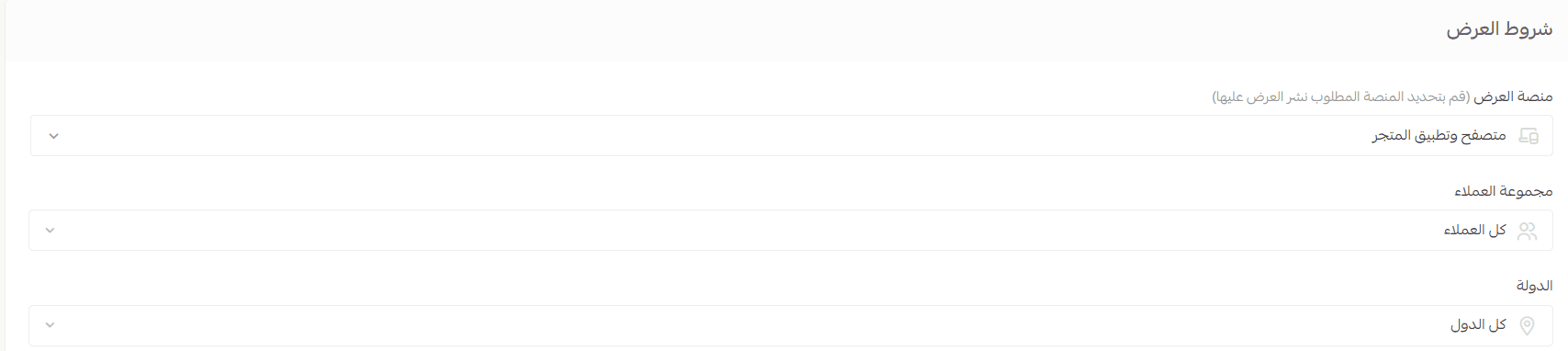
4. Choose where the offer will be published, select the customer group, and define the country conditions where the offer will be available.
Offer Type 1: Buy X, Get Y
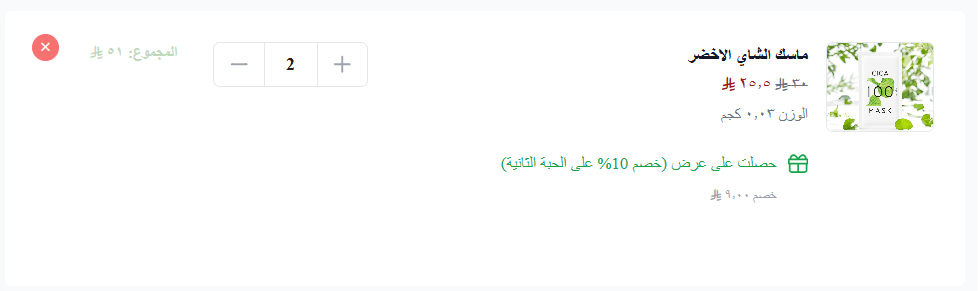
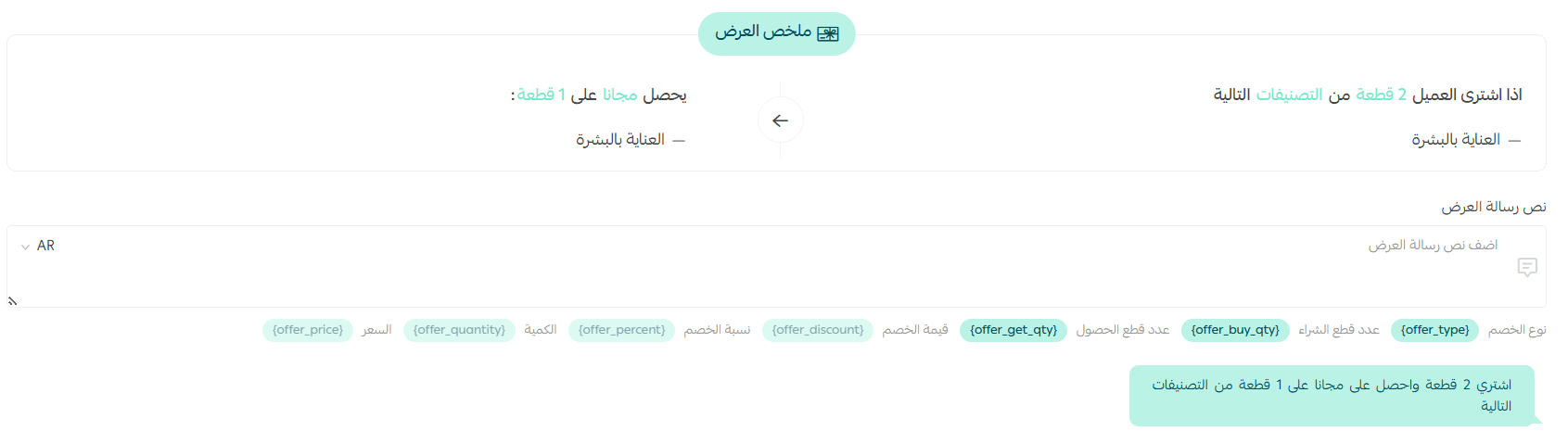
1. Define what the customer must purchase to qualify for the offer.

2. Define what the customer will receive after meeting the offer conditions.

3. Select the discount that will apply to the products or categories included in the offer reward.
Note: If offer and coupon stacking is enabled, the offer will still apply when a discount coupon is used. Customers may benefit from both the offer and the coupon at the same time.

You can preview the offer and customize the offer message before saving it.
Offer Type 2: Fixed Amount Discount
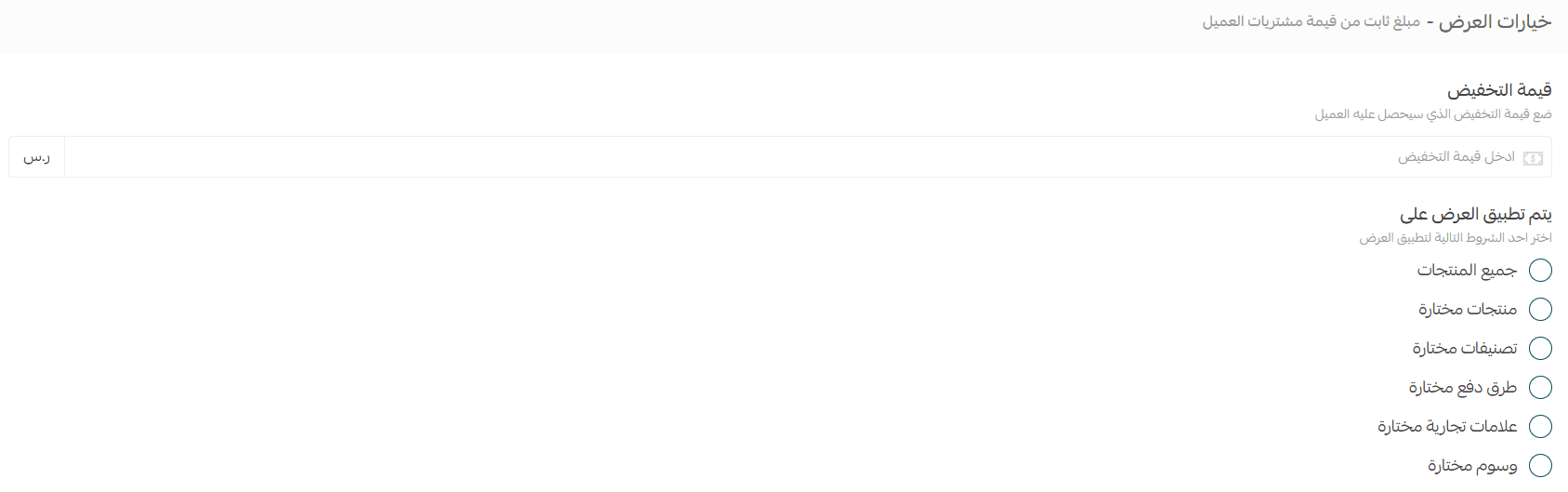
1. Enter the discount amount, then choose the condition that will trigger the offer.
Available options include:
-All products in the cart
- Selected products
-Selected categories
-Selected payment methods (such as bank transfer, cash on delivery, Tamara, and others)
For example:
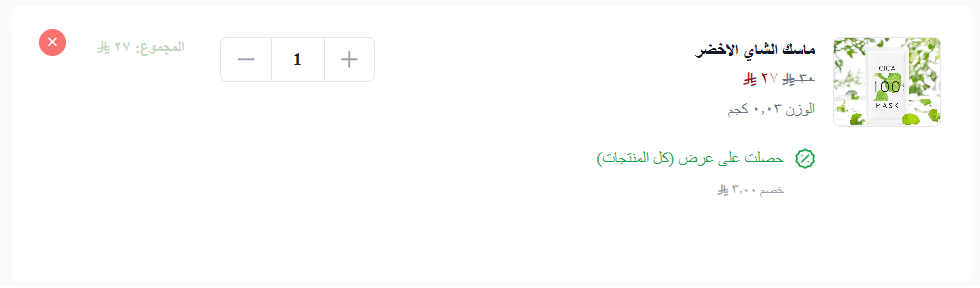
- When applying the offer to all products, the discount amount is deducted once the cart reaches the minimum purchase value.
- When applying the offer to selected products or categories, the discount applies only to those qualifying items.
2. Set the minimum purchase amount required to qualify for the offer.
Note: If offer and coupon stacking is enabled, the offer will still apply when a discount coupon is used. Customers may benefit from both the offer and the coupon at the same time.

You can preview the offer and customize the offer message before saving it.

Offer Type 3: Percentage Discount
1. Enter the discount percentage and the maximum discount amount the customer can receive.
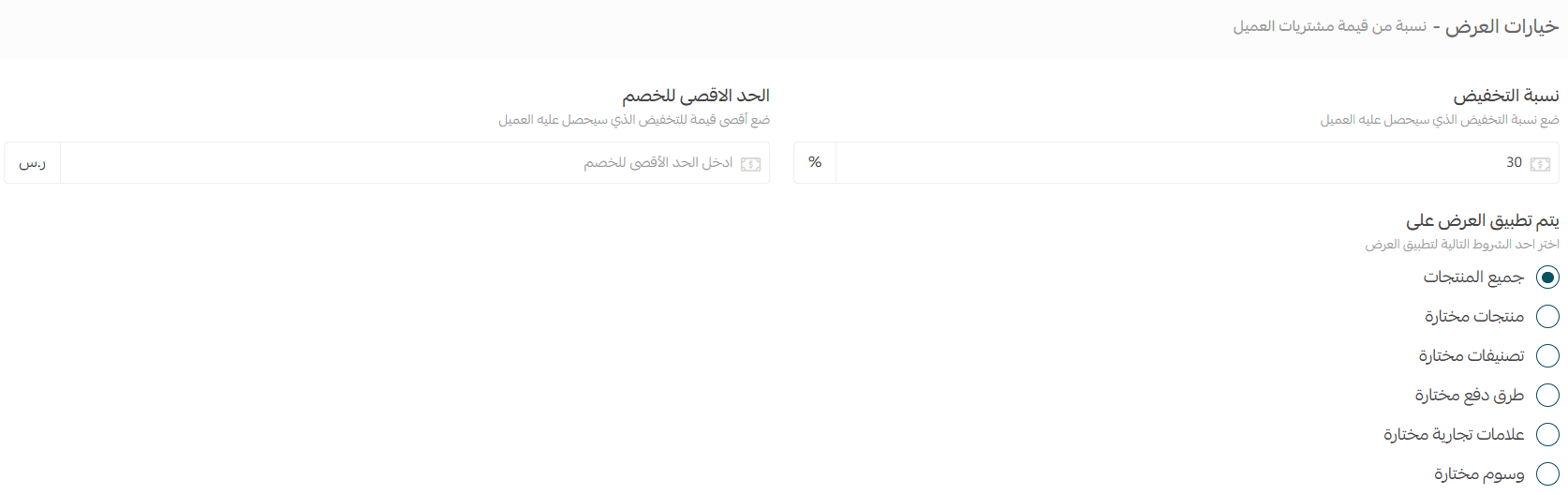
2. Set the minimum purchase amount required to qualify for the offer.
Note: If offer and coupon stacking is enabled, the offer will still apply when a discount coupon is used. Customers may benefit from both the offer and the coupon at the same time.

You can preview the offer and customize the offer message before saving it.

Offer Type 4: Fixed Price
1. Specify the quantity the customer must purchase to qualify for the offer.
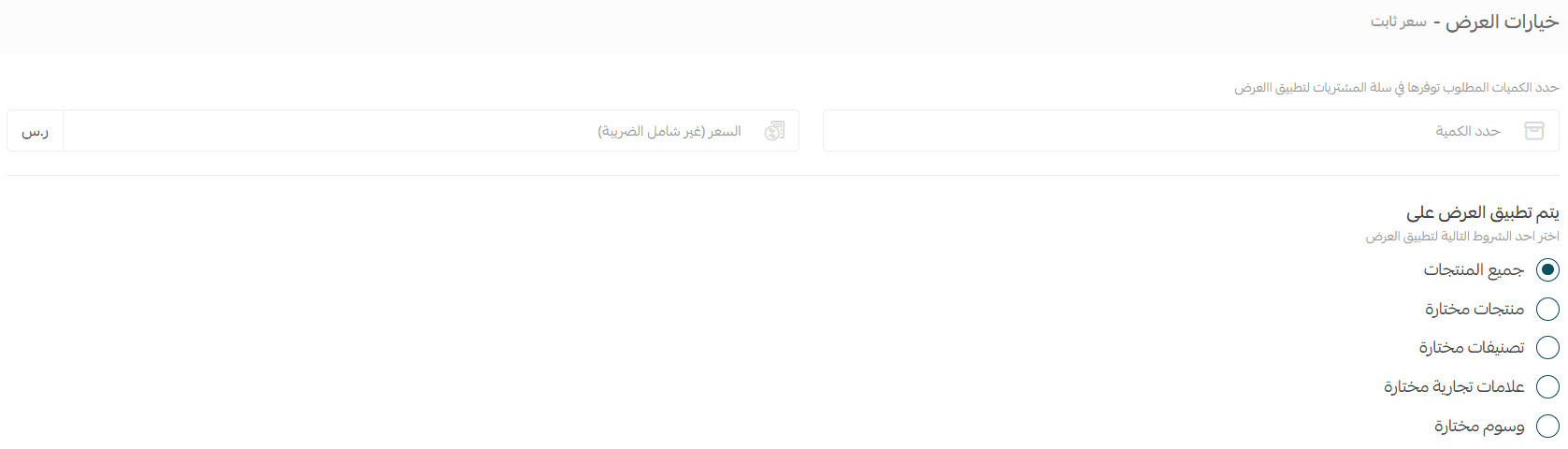
You can preview the offer and customize the offer message before saving it.

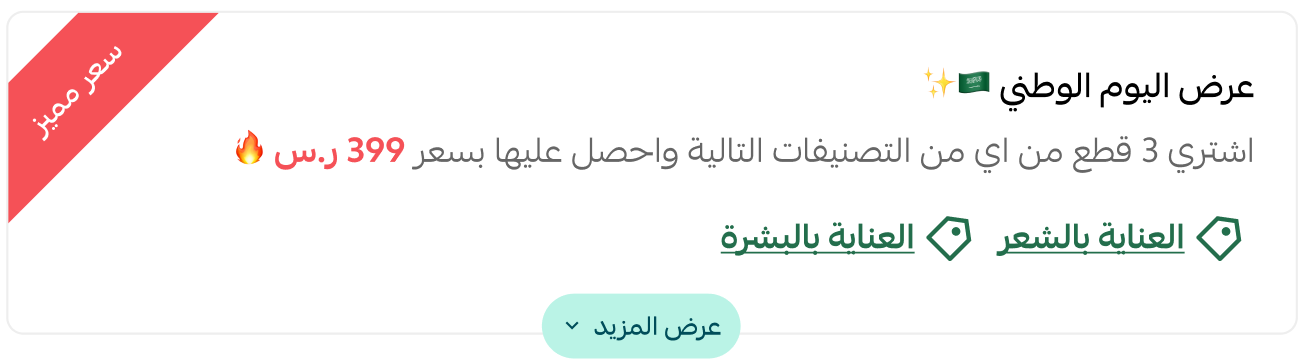
Example: When a customer purchases three eligible products, they receive a special fixed price, making all products available for SAR/AED 399 regardless of their original prices.
For more details, see Frequently asked questions about special offers
To promote your offers, you can also collaborate with influencers to create content around seasonal campaigns and special promotions, helping you attract new customers and drive more sales.
For more details, see creating an influencer marketing campaign.