Are your customer conversations on WhatsApp scattered across personal phones and half-answered chats?
WhatsApp is where most shoppers ask about sizes, stock and delivery, but one number shared between several staff members quickly becomes unmanageable. The Jetly app turns that number into a shared team inbox for your store, with conversation labels, automated replies, marketing campaigns and API connections to your internal systems. In this guide, you'll learn how to install Jetly from the Salla App Store, link it to your WhatsApp account, and remove it if you no longer need it.
Jetly is a WhatsApp conversation management app for Salla stores. Install it from the Salla App Store, choose a plan and complete payment, then check your email for your Jetly login details. Sign in to the Jetly dashboard, click (Setup whatsapp), enter your connection details, and save to start replying from one shared inbox.
📌 Article overview
- What Jetly does for your store
- How to install the Jetly app
- How to connect Jetly to WhatsApp
- How to delete the Jetly app
- Frequently asked questions
🎯 What Jetly does for your store
Jetly is built for stores and companies that handle a high volume of WhatsApp messages. It organizes how your team talks to customers and how work is shared between agents.
- Assign conversations to team members so nothing is answered twice or missed.
- Label and categorize chats so you can find them later.
- Send automated replies to common questions.
- Run marketing campaigns over WhatsApp.
- Connect Jetly to your internal systems through its APIs.
🚀 How to install the Jetly app
1. From the main menu, click (All), then under helper tools, click (App Store).

2. Search for the app using the search field.

3. On the Jetly app page, click (Install).
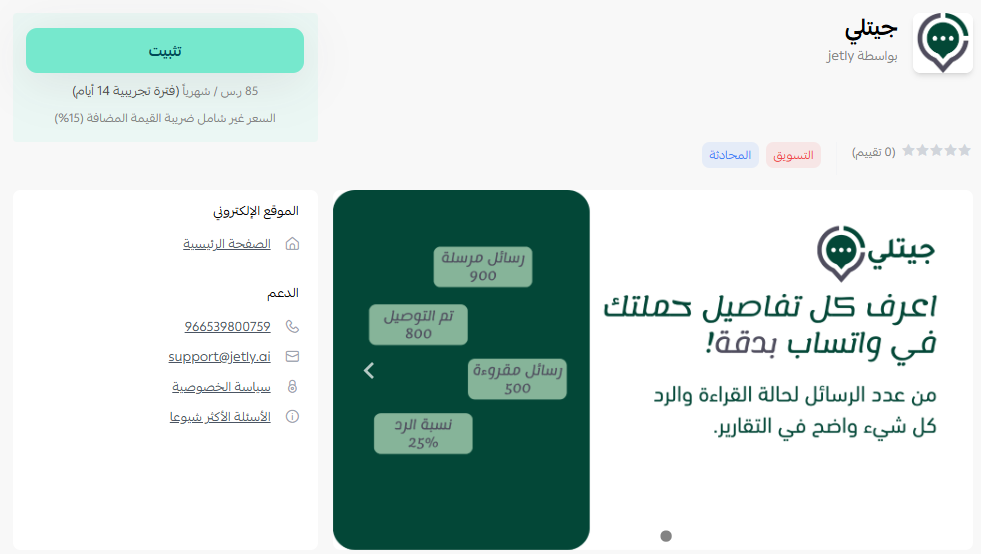
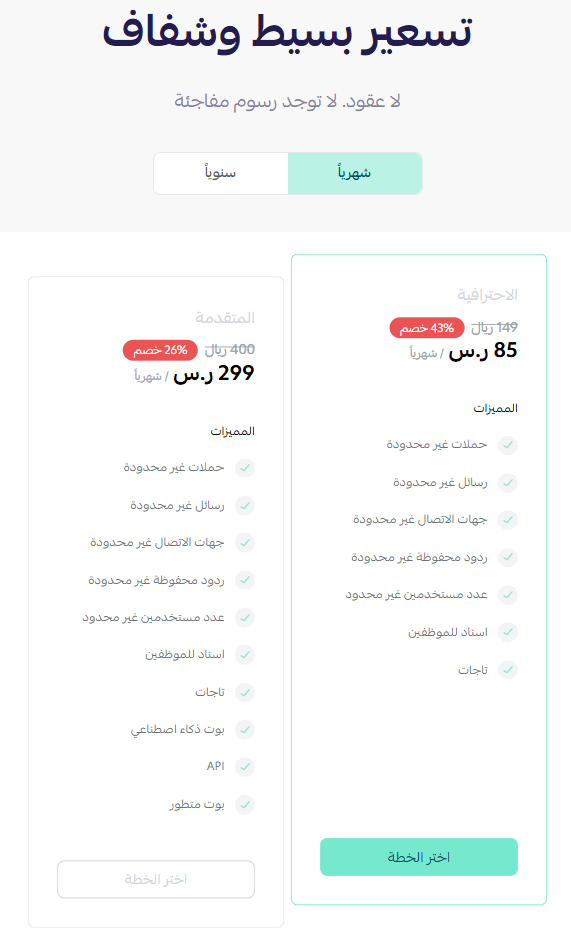
4. Choose the plan that suits your business to continue with the installation.
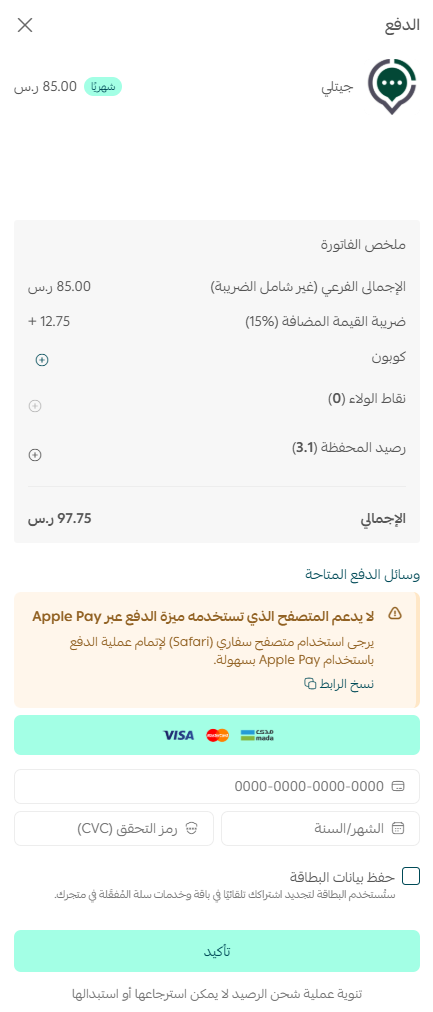
5. Complete the payment to unlock the app's features.
Jetly is now installed on your store.
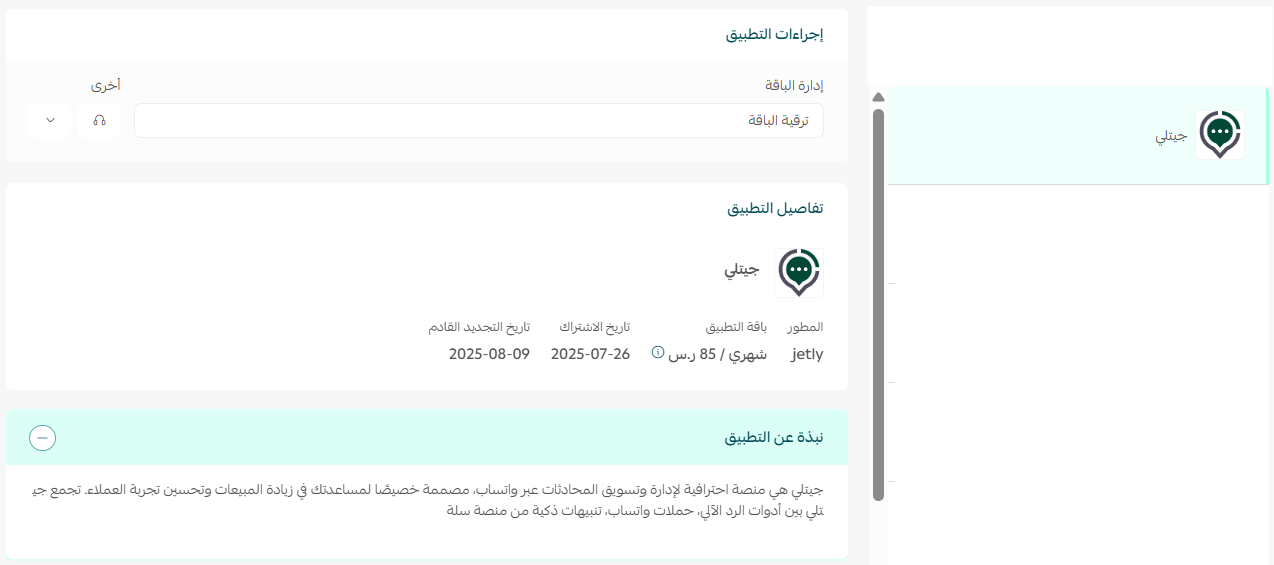
Once the installation finishes, Jetly sends your login details to the email address registered on your store.
👣 Manage the Jetly app
Connect Jetly to WhatsApp
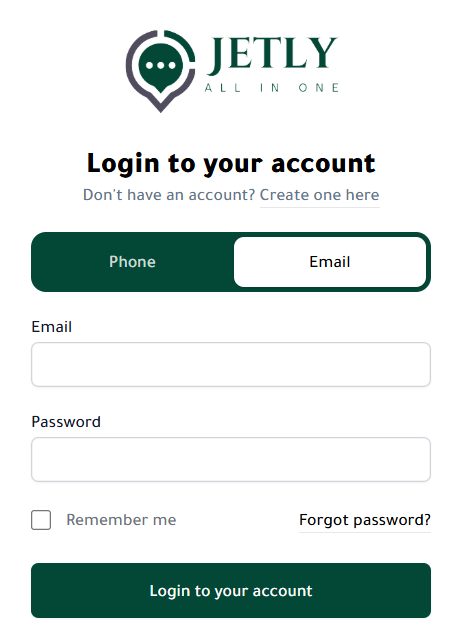
1. Sign in to the Jetly platform using the login details you received by email.
2. You land on the Jetly dashboard, where the WhatsApp connection is set up.
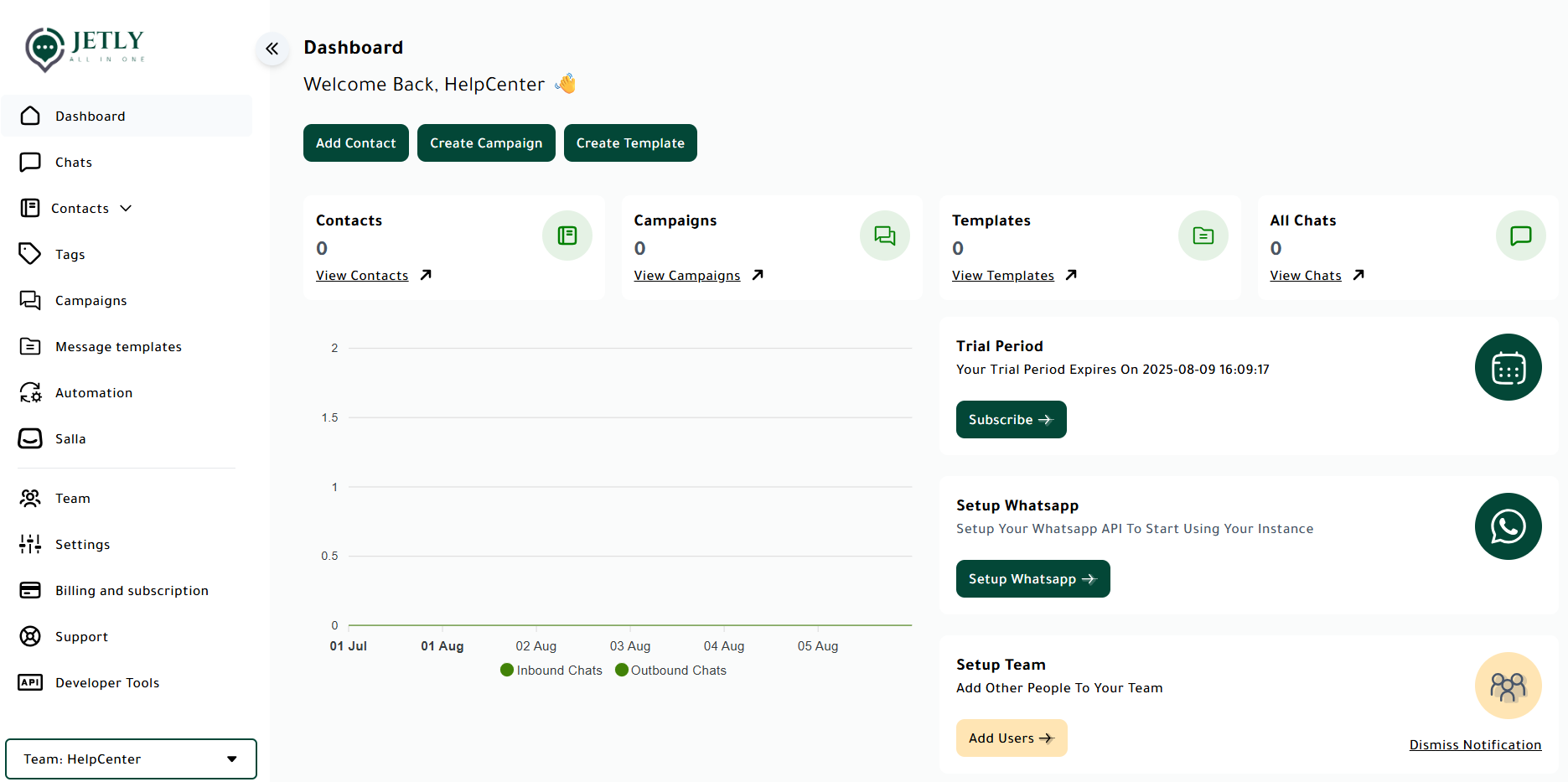
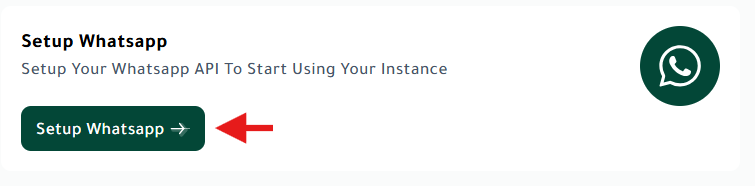
3. On the main dashboard, click (Setup whatsapp) to start linking your WhatsApp account.
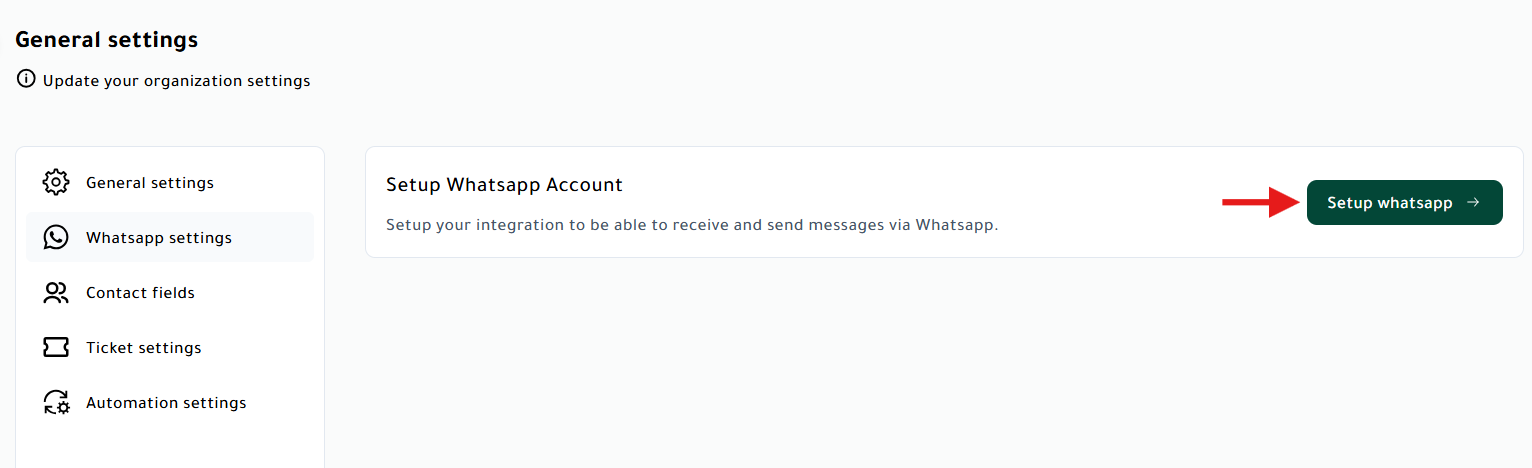
4. In the WhatsApp settings, click (Setup whatsapp).
5. Enter your WhatsApp connection details, then click (Save).
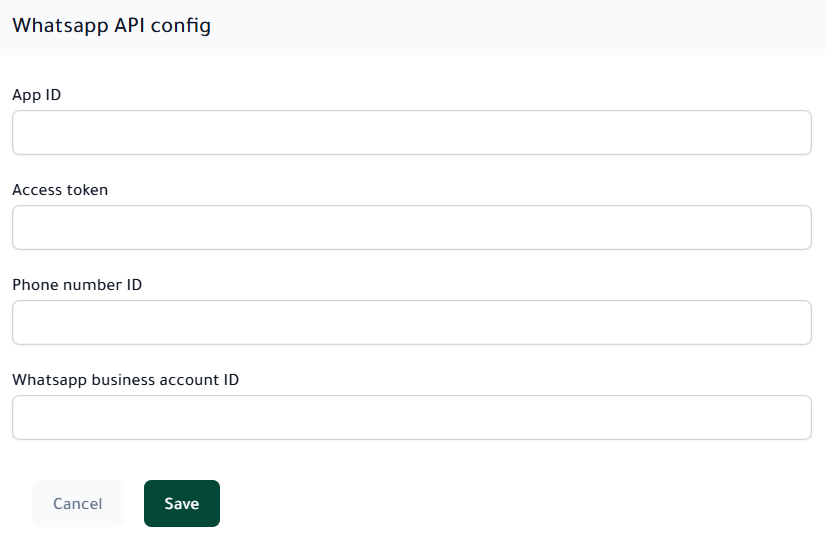
Your WhatsApp account is now linked to Jetly, and you can start using every feature from the Jetly dashboard.
Delete the Jetly app
Open the Jetly app from your installed apps, click ( ), then click (Delete app).
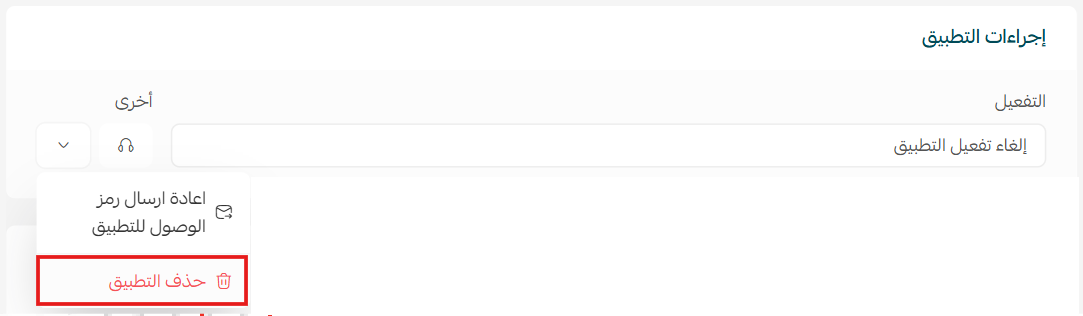
📝 Important notes
Jetly is a paid app. You choose a plan and pay before the installation completes.
The WhatsApp connection itself happens in the Jetly dashboard, not in your Salla dashboard.
Your Jetly login details arrive by email, so check the inbox of the address registered on your store.
❓ Frequently asked questions
Do I need a separate Jetly account?
Yes. Installing the app creates your Jetly account, and the login details are sent to you by email. You use them to sign in at app.jetly.ai and connect WhatsApp.
Is the Jetly app free?
No. During installation you choose a plan that suits your business and complete the payment before the app is activated on your store.
Where do I manage conversations after connecting?
All chats, labels, automated replies and campaigns are managed from the Jetly dashboard. Your Salla dashboard is only used to install and remove the app.
How do I remove Jetly from my store?
Open the Jetly app from your installed apps, click the options icon, then click (Delete app).
For more details, see the Jetly help pages.