Managing each product professionally is essential to improving its visibility in search engines and increasing sales opportunities.
In this guide, you will learn how to optimize your product page, manage inventory, configure marketing and SEO settings, and control all product-specific actions from one place. These steps help you present your products more clearly, reach the right audience, and grow your store with confidence.
📌Article overview
- Selecting a specific product
- Advanced information
- Quantities
- Editing product options
- Custom fields
- Notifications
- Additional product actions
- Frequently asked questions
Selecting a Specific Product
- From the main menu, click Products.

- Open the All Products tab.

You will see a list of all products in your store.
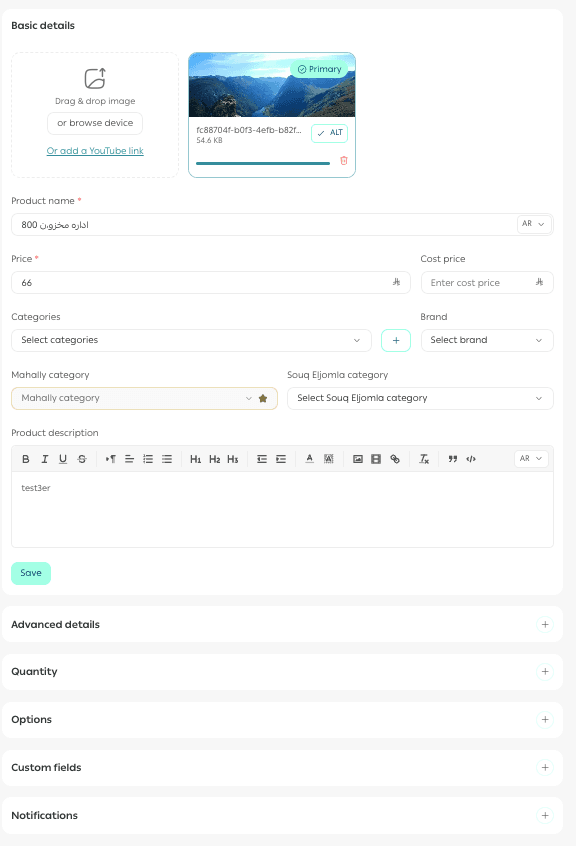
Click on any product to open its details page. From the product action bar, you can control all settings related to that product.
Advanced Information
The Advanced details section allows you to fine-tune how your product is displayed, priced, and indexed.

Discounts
You can add or edit a discounted price for the product.
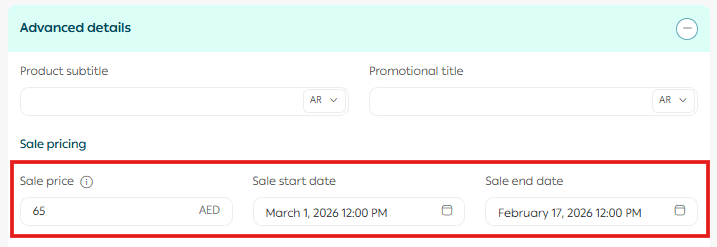
Note: The discounted price must always be lower than the original product price.
Product Titles and Display Settings
You can:
- Edit the subtitle and promotional title
- Choose which sales channels the product appears in
- Select the branches where the product is available
- Define product requirements such as file uploads during checkout
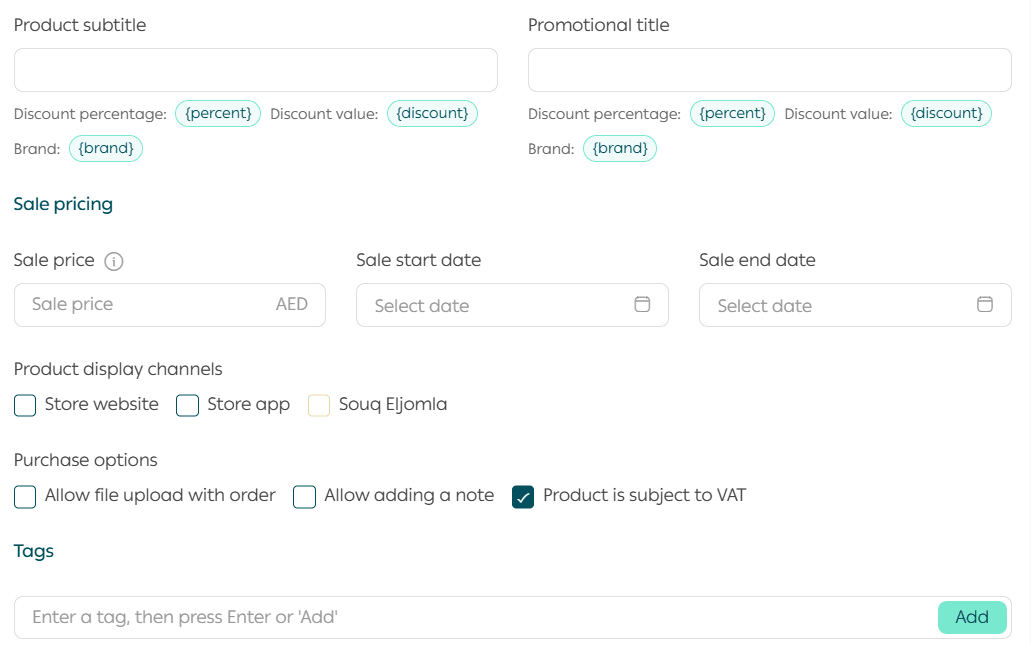
Important notice: Souq Eljomla display channels are currently available only for stores operating in Saudi Arabia.
SEO Enhancements
These settings help control how your product appears in search engine results.
You can optimize:
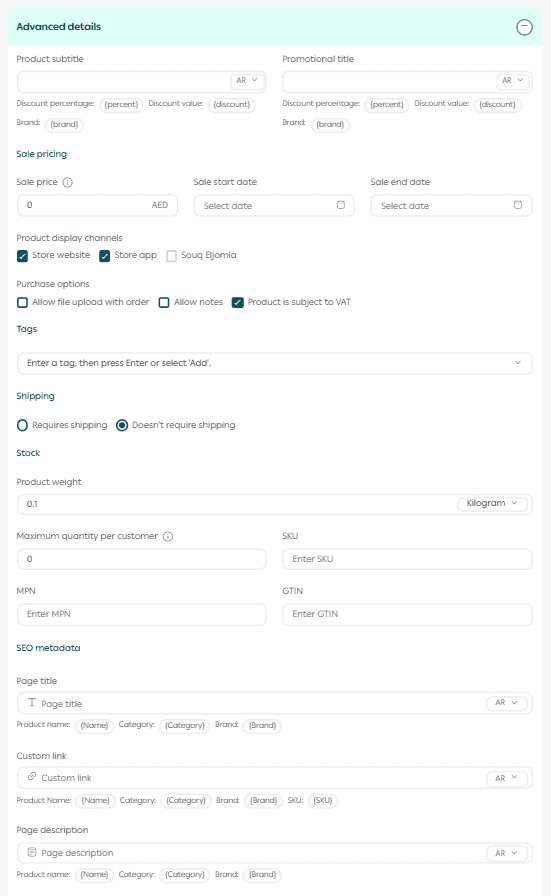
- Page title
- Meta description
- Product URL
Proper SEO configuration increases product visibility and improves click-through rates from search engines.
For practical SEO examples, refer to the FAQ section below.
Product Weight and Storage Information
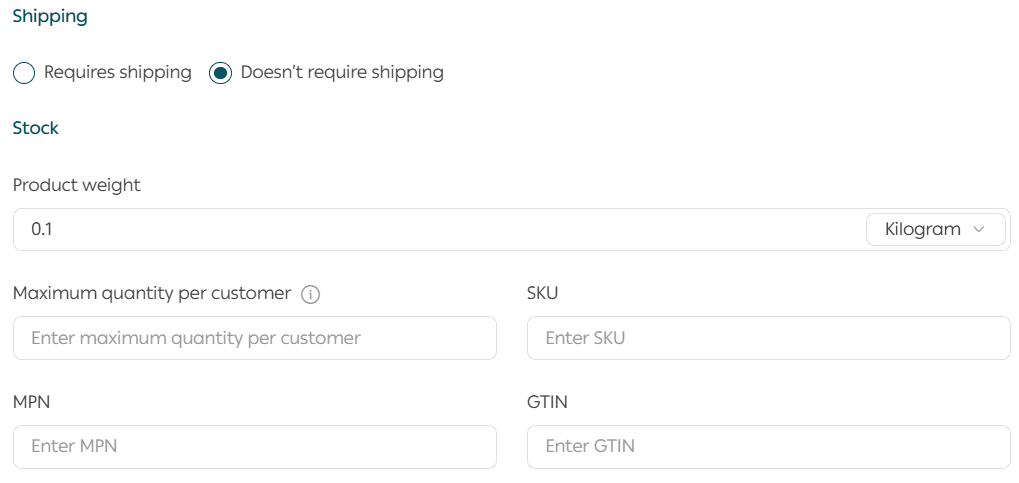
Enter:
- Product weight and weight unit
- Maximum quantity per customer
- Product identifiers such as SKU, MPN, and GTIN
Adding accurate identifiers improves inventory tracking and search engine indexing.
For more details, refer to the guide on adding MPN and GTIN to improve search visibility.
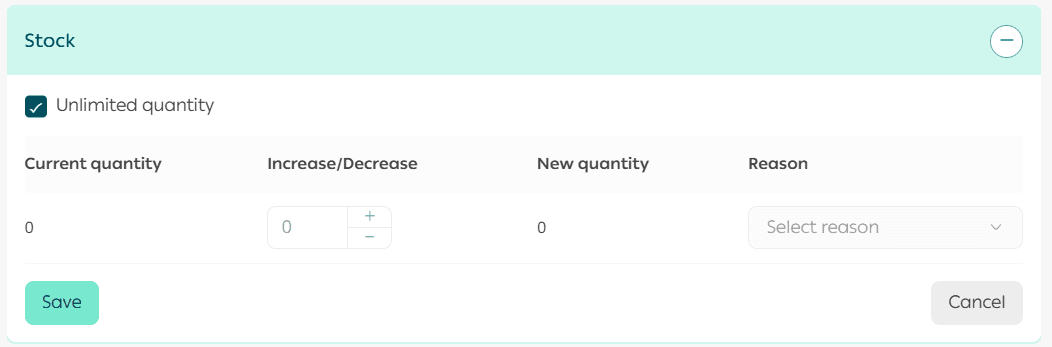
Quantities
You can increase or decrease the available product quantity at any time.
This allows you to keep stock levels accurate and avoid overselling.
Editing Product Options
Adding custom options such as text, color, or images gives customers more flexibility and creates a better buying experience.
You can add product options using two methods.
Method One: Select an Existing Option
Choose an option you have already created, such as size.
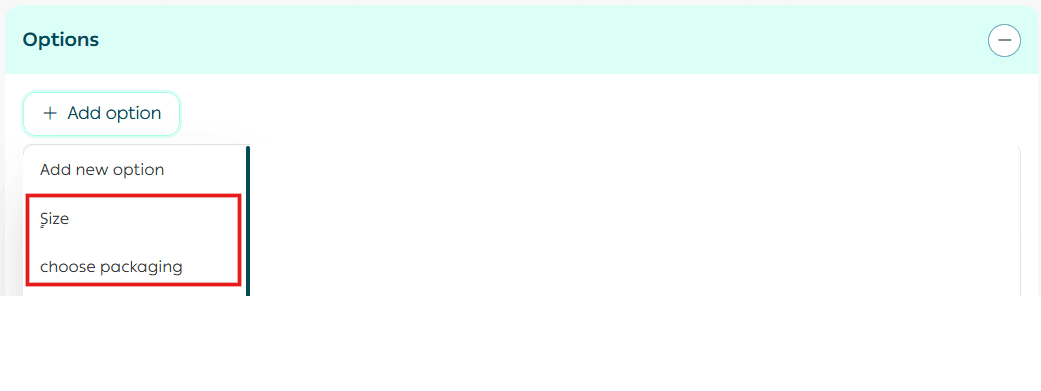
You can edit the option before clicking Confirm, or add another option directly without returning to the options list.
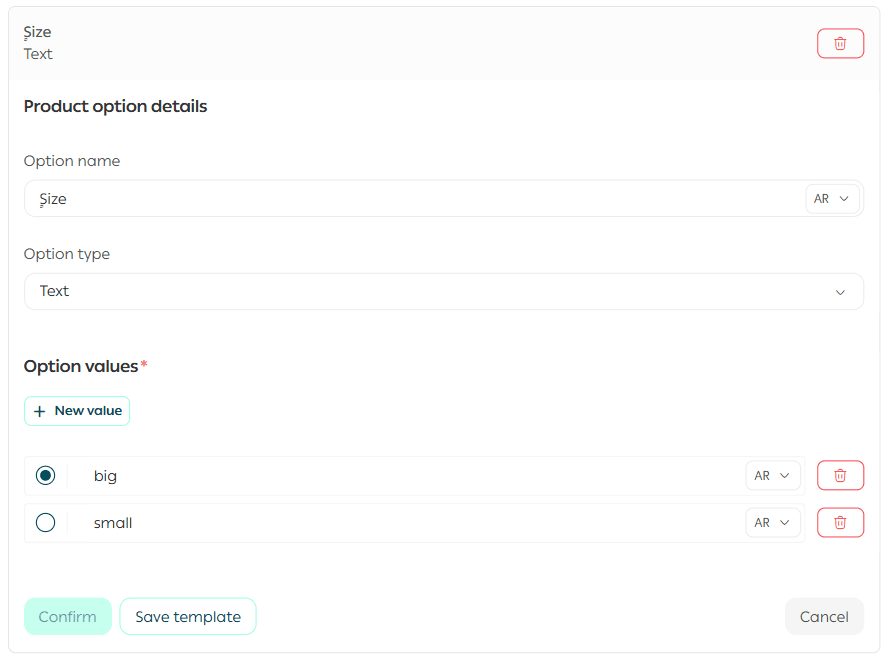
Method Two: Create a New Option from the Product Page
You can create a completely new option directly from the product actions menu.
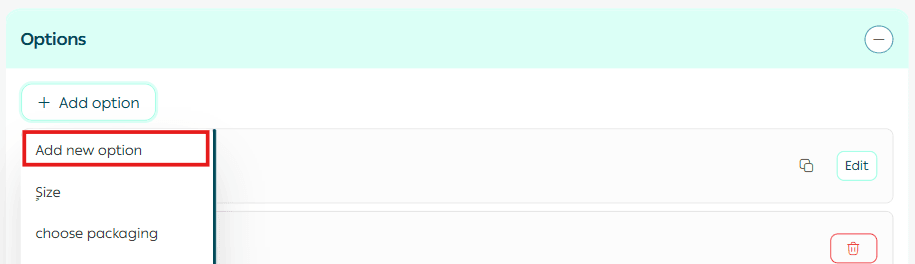
For full instructions, refer to the Product Options Management guide.
Custom Fields
Custom fields allow you to add extra structured information to a product and control whether it appears on the product page.
Example
If you sell bundled products, you may want to display packaging type, dimensions, or wrapping details separately from the main description to highlight key specifications.
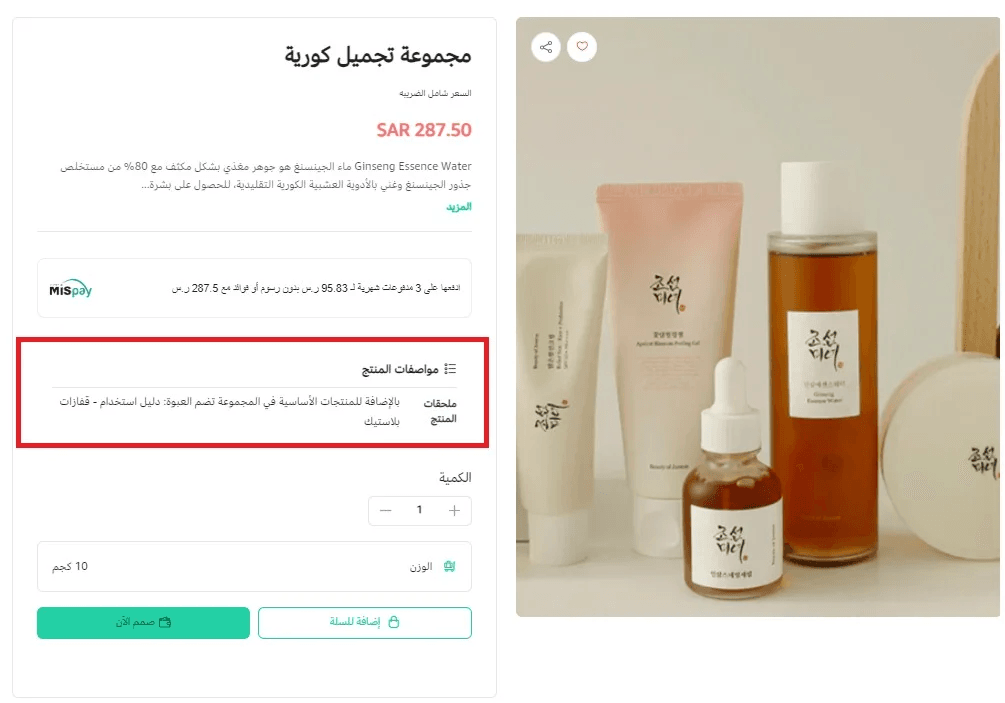
Steps:
- Select one of the custom fields you have already created.
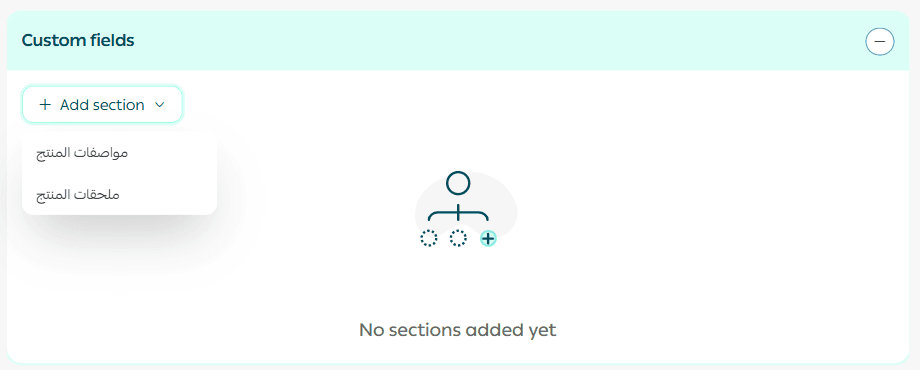
2. Review its relevance to the product.
3. Click Confirm.
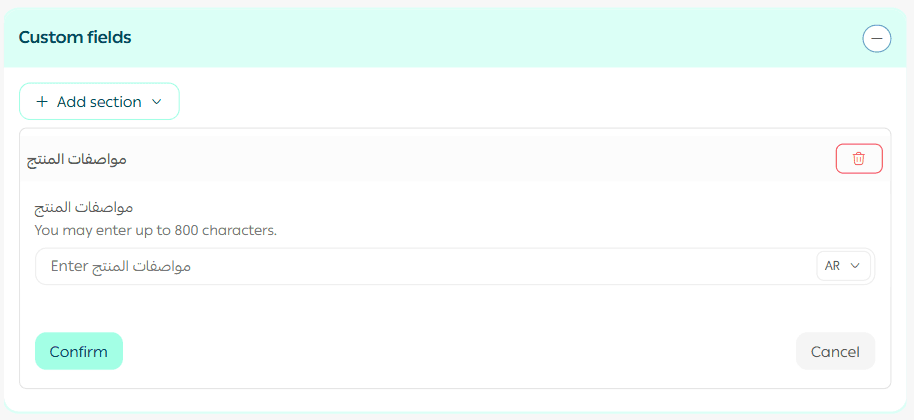
For more details, see the Custom Fields Management guide.
Notifications
You can customize alerts for both merchants and customers, including:
- Alerts when product quantity reaches a specific threshold
- Minimum stock required before notifying customers
- Percentage of customers subscribed to “Notify me when available” who should receive alerts
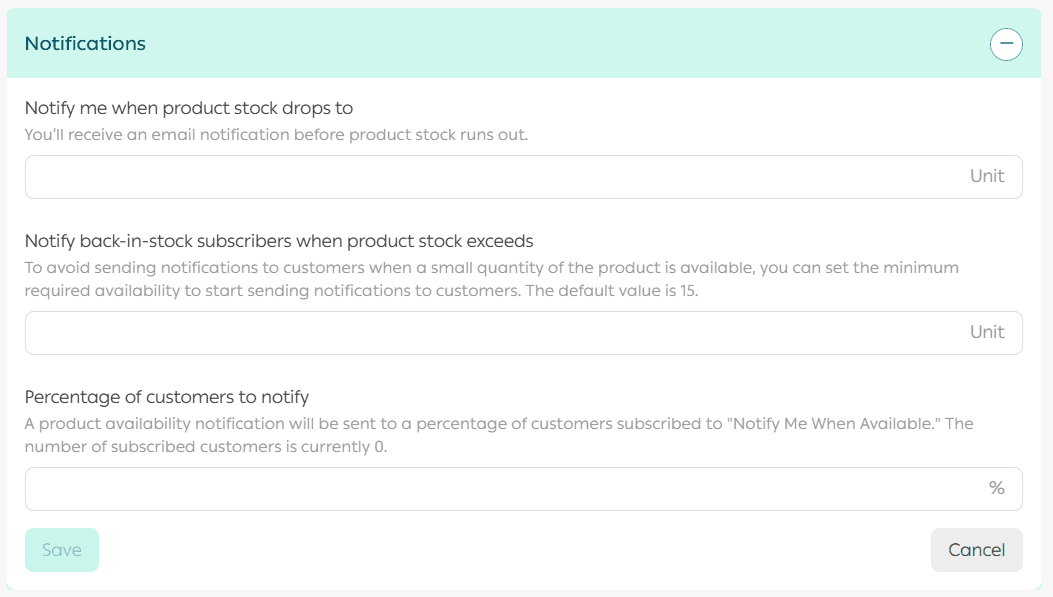
These settings help you control notifications and avoid sending alerts for very small quantities.
Additional Product Actions
From the product action bar, you can also perform the following actions.
Copy Product Link
Click Copy Link to share the product URL with customers through any channel.

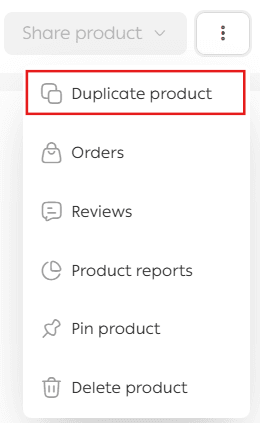
Duplicate Product
Duplicate a product with all its details and options to quickly create similar products, then edit the copy as needed.
View Product Orders
From More, click Orders to view all orders that include this product.
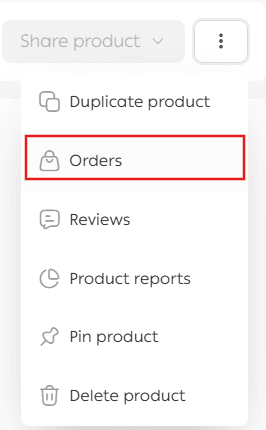
You can filter or search within these orders.
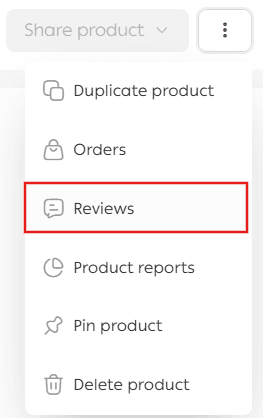
View Reviews
From More, click Reviews to see all customer ratings and comments for the product.
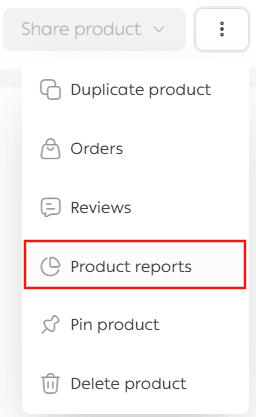
Product Reports
From More, click Product Reports to access performance and sales analytics for the product.
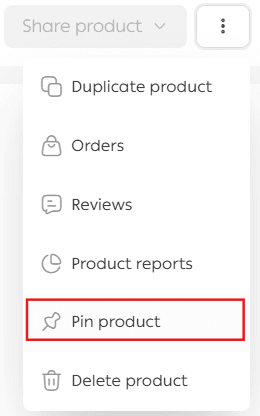
Pin Product
Pin the product to highlight it in your store and give it higher visibility.
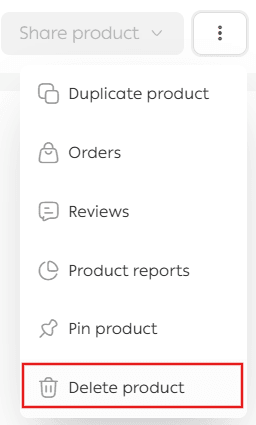
Delete Product
Delete the product only if you are certain you no longer need it.
For recovery options, refer to the guide on restoring deleted products.
Frequently Asked Questions
How can I use product SEO to improve visibility and reach?
1. Optimize the Page Title
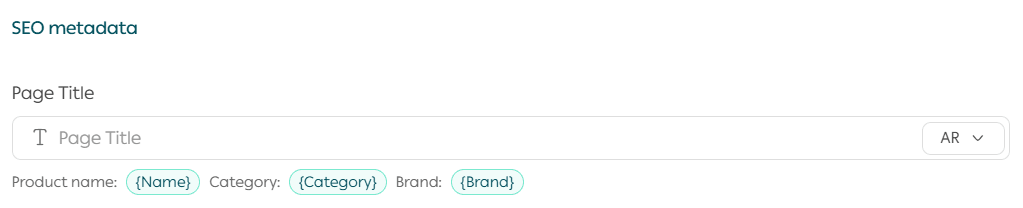
Use strong keywords customers actively search for.
Example: “Green Tea Serum for Skin Hydration | Daily Skincare Essential”
Keep the title clear, concise, and descriptive.
2. Customize the Product URL

Use a short, readable URL that includes keywords.
Good example: yourstore.com/green-tea-serum
Poor example: yourstore.com/product?id=182537942
Clean URLs are easier to read and rank better in search results.
3. Write a Persuasive Meta Description

Create a compelling description that encourages clicks.
Example: “Achieve fresh, glowing skin with antioxidant-rich green tea serum. Suitable for all skin types. Order now.”
Use keywords naturally without excessive repetition.
4. Use Dynamic Tags
Dynamic tags such as {Name}, {Brand}, and {Category} automatically insert product data.
This saves time, keeps SEO consistent, and improves search performance across your entire catalog.
Key takeaway
By fully controlling product-level actions and SEO settings, you increase your chances of ranking higher in search results, attracting more qualified visitors, and converting them into customers.